> ## Documentation Index
> Fetch the complete documentation index at: https://help.stiddle.com/llms.txt
> Use this file to discover all available pages before exploring further.
# Stiddle Salesforce Connector
> Learn how to use Stiddle's Salesforce connector.
Connecting Salesforce to Stiddle enables attribution at the company, opportunity, and individual level. This is extremely valuable for understanding how many opportunities are open, closed-won, or closed-lost across each marketing channel.
Beyond channel attribution, Stiddle helps you understand which sales reps are responsible for closing deals and which marketing channels are generating leads—ensuring both teams receive credit where it’s due.
Stiddle also provides deep insights into sales performance, as all Salesforce data is synced both retroactively and in real time. Once connected, teams can build powerful reports, dashboards, and even activate audiences directly within Stiddle using Salesforce data.
## Connecting Salesforce to Stiddle
Navigate to "Connectors" and select "Sales Channels". Find "Salesforce" and select "Connect to Stiddle".
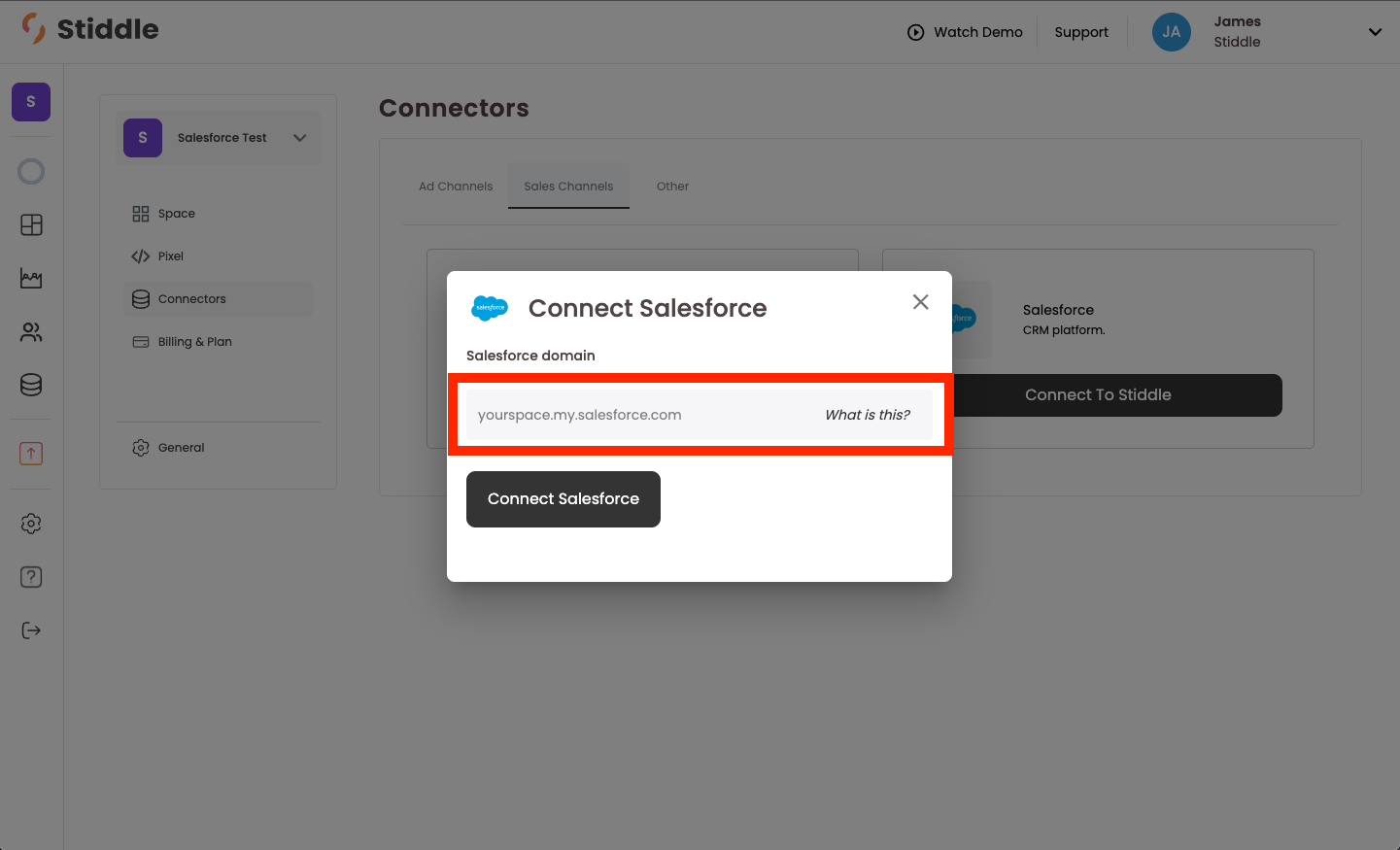
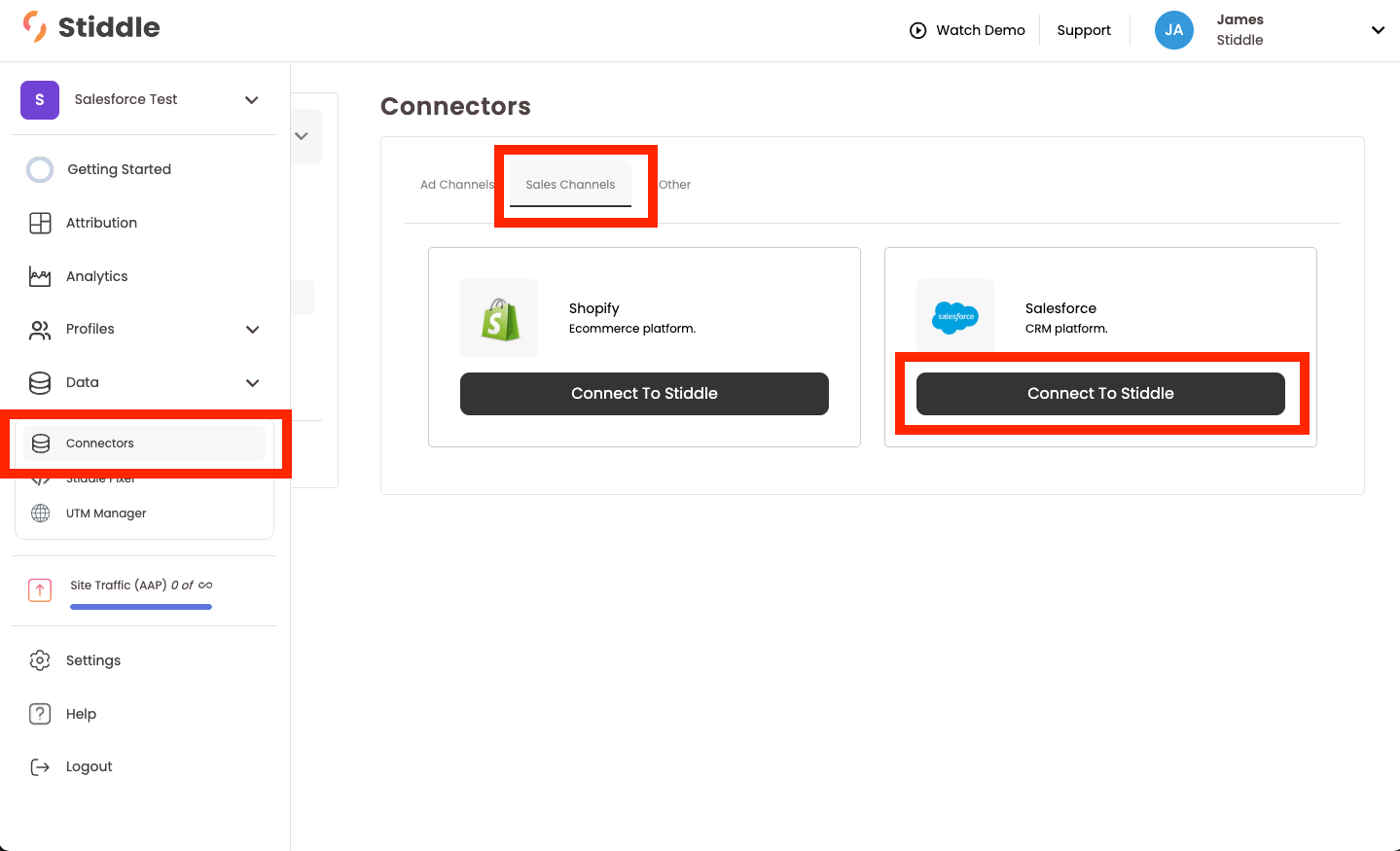 You'll then be prompted to enter your Salesforce instance domain. To find this, follow the next step below.
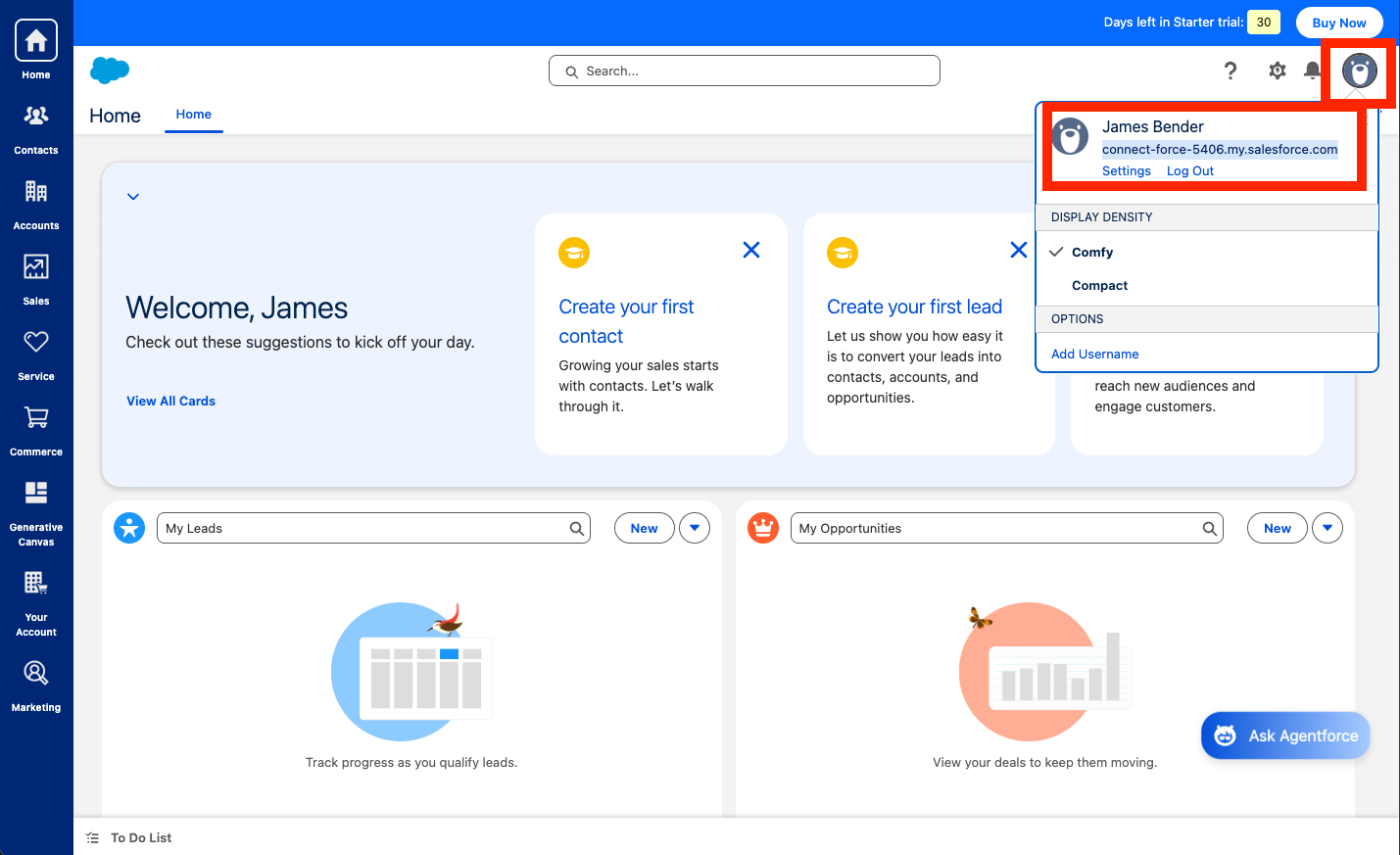
 Login to your Salesforce account, select your profile icon in the top right corner. Then copy the URL that's below your account name.
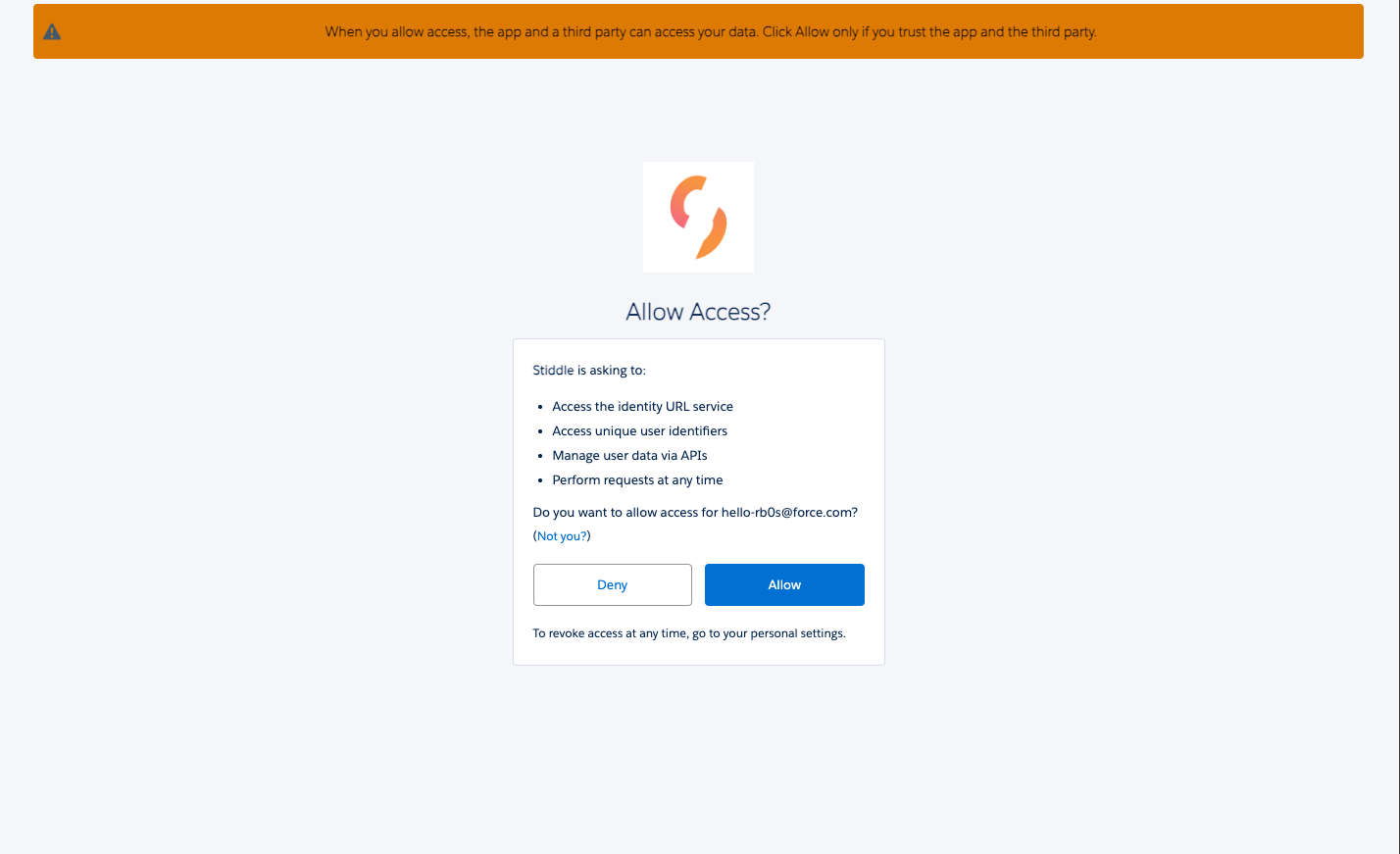
 Once you copy the URL, paste it back into Stiddle. Then you'll be prompted to verfiy connection in Salesforce.
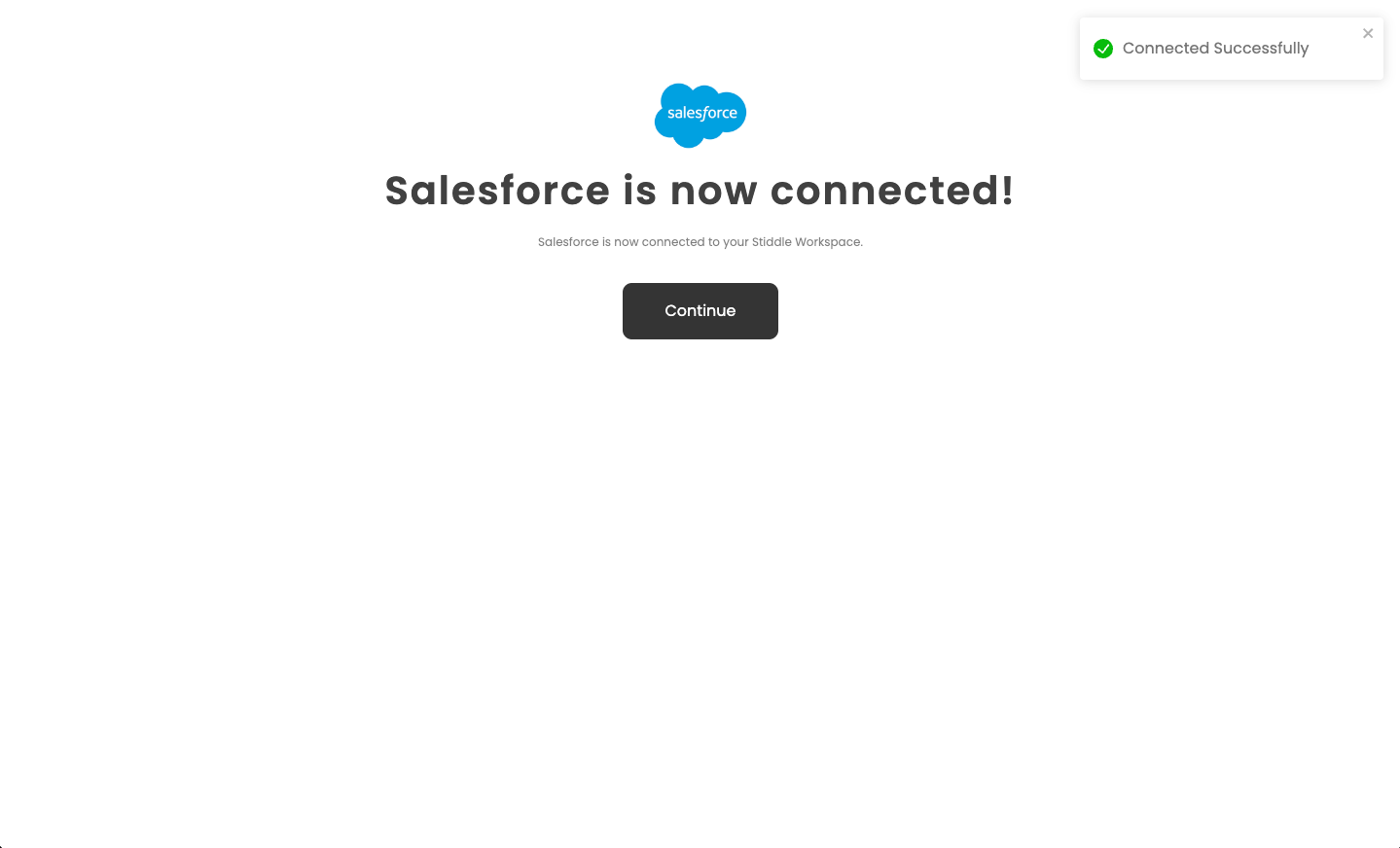
 You'll see that you're now connected to Salesforce in Stiddle.
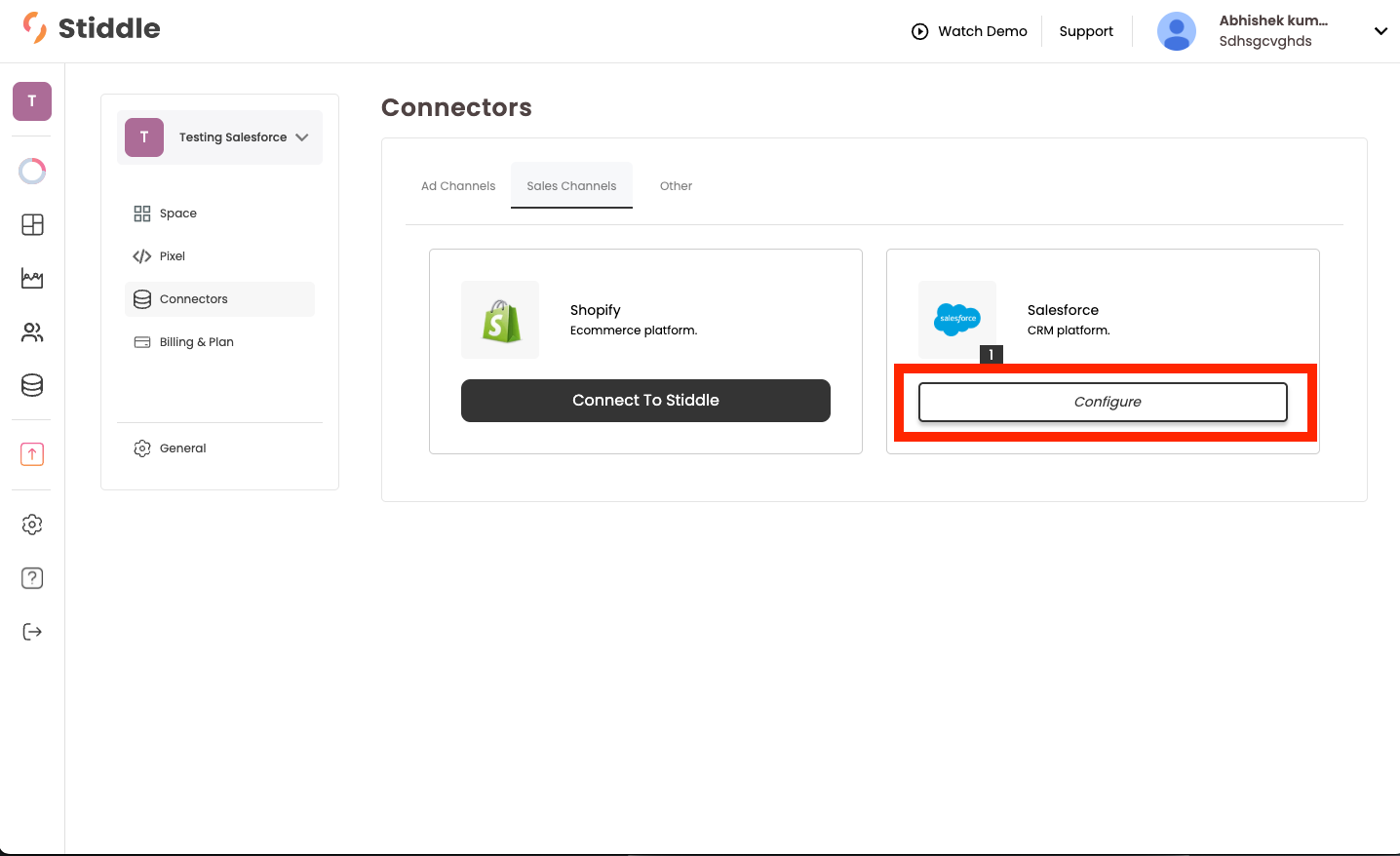
 Next, select "Configure" under the "Salesforce" connector in Stiddle.
 In the connector settings for Salesforce you'll see several options to configure the integrations.
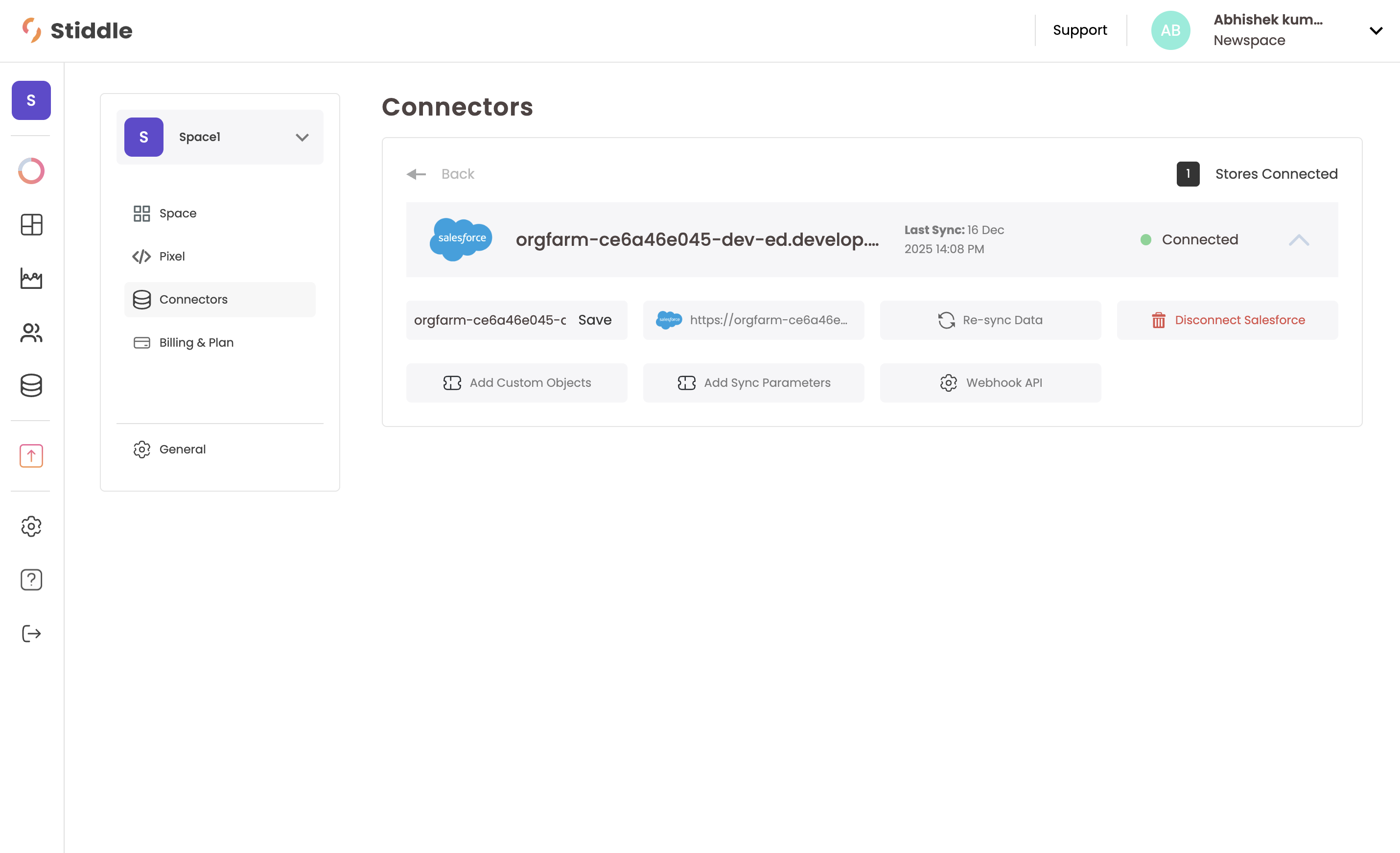 For example, you’ll notice you have the ability to do the following:
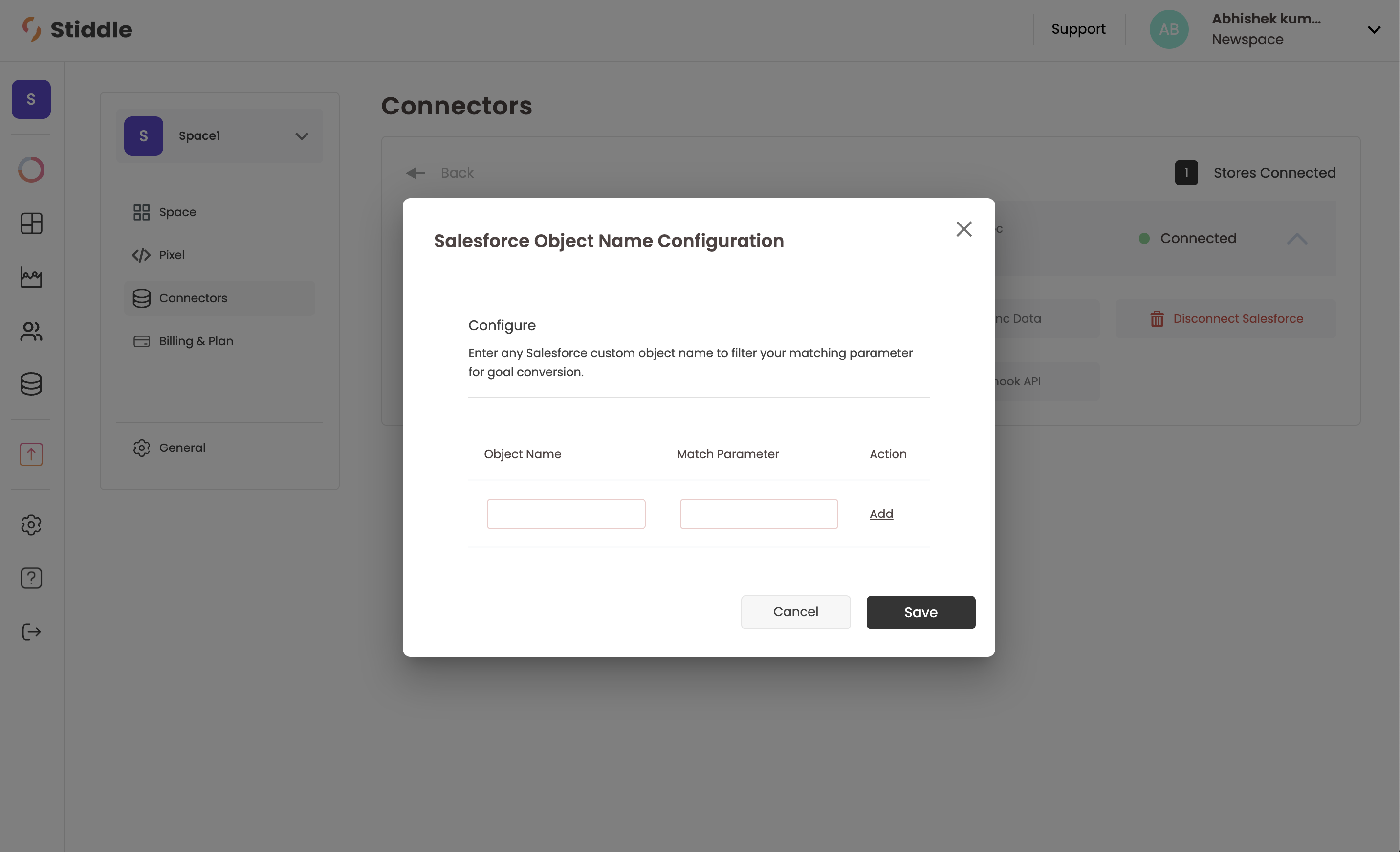
**Add Custom Objects**\
Adding custom object parameters allows you to create custom conversion goals in Stiddle based on Salesforce objects that match a specific parameter value. For more information, please contact Stiddle Support.
For example, you’ll notice you have the ability to do the following:
**Add Custom Objects**\
Adding custom object parameters allows you to create custom conversion goals in Stiddle based on Salesforce objects that match a specific parameter value. For more information, please contact Stiddle Support.
 **Add Sync Parameters**\
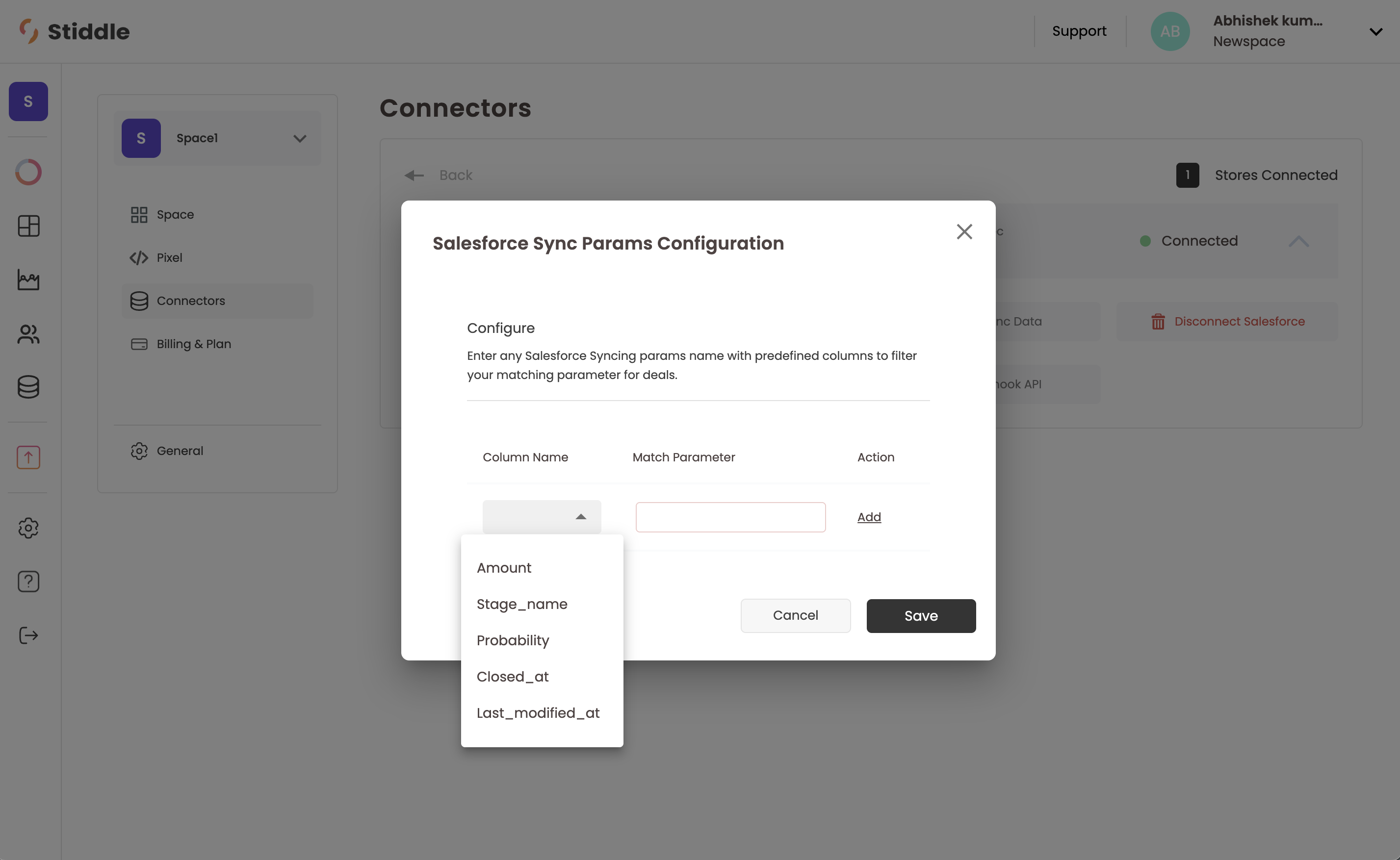
Sync parameters allow you to customize how Stiddle columns map to Salesforce parameters. For example, if you use a custom Salesforce object for the **Amount** field, you can map that object so the correct value is reflected in Stiddle.
**Add Sync Parameters**\
Sync parameters allow you to customize how Stiddle columns map to Salesforce parameters. For example, if you use a custom Salesforce object for the **Amount** field, you can map that object so the correct value is reflected in Stiddle.
 **Webhook API**\
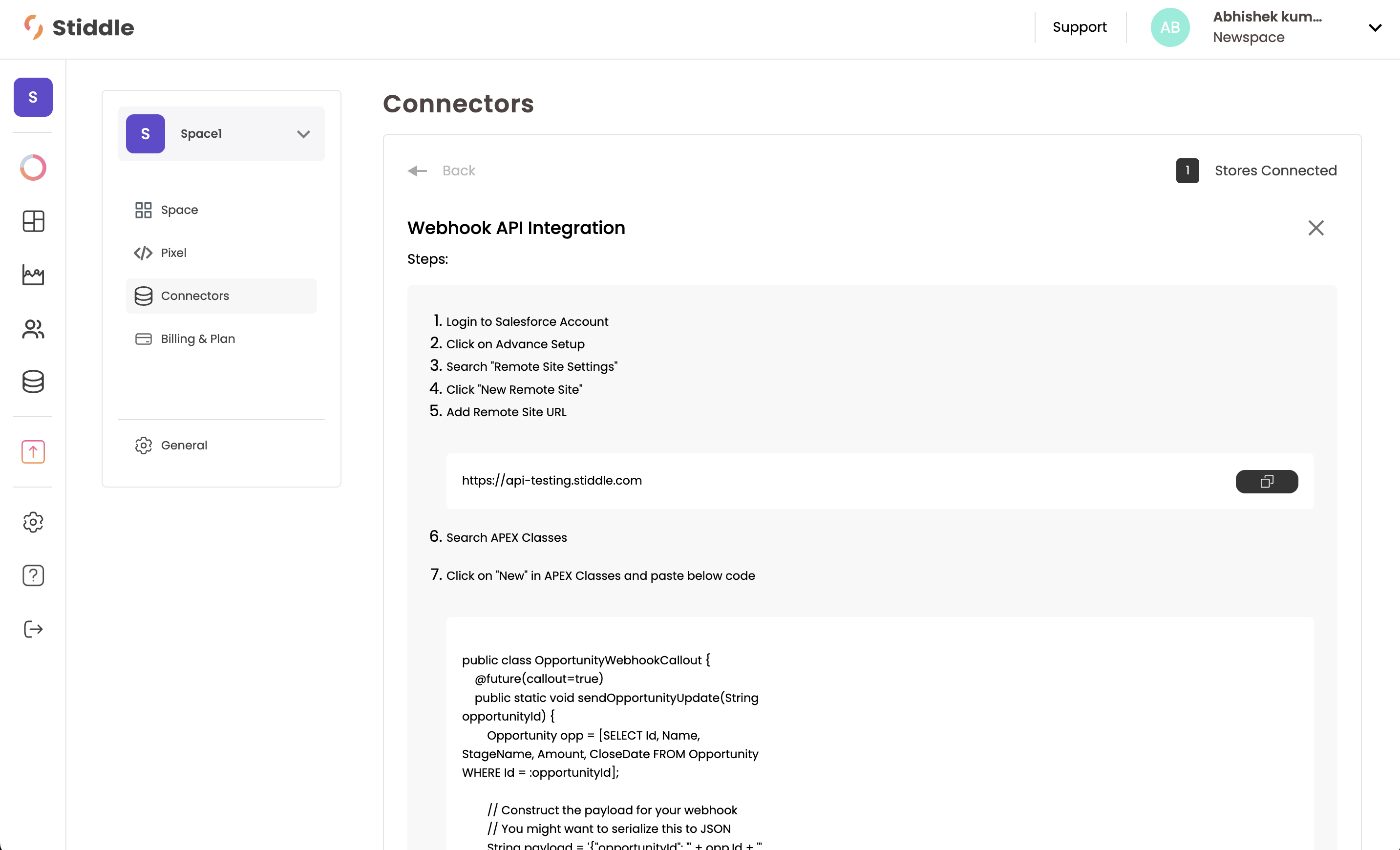
This is optional but recommended for real-time data syncing. By default, Stiddle syncs Salesforce data every 24 hours to keep insights up to date. Enabling the webhook allows data updates to sync instantly.
**Webhook API**\
This is optional but recommended for real-time data syncing. By default, Stiddle syncs Salesforce data every 24 hours to keep insights up to date. Enabling the webhook allows data updates to sync instantly.
 **Re-Sync Data**\
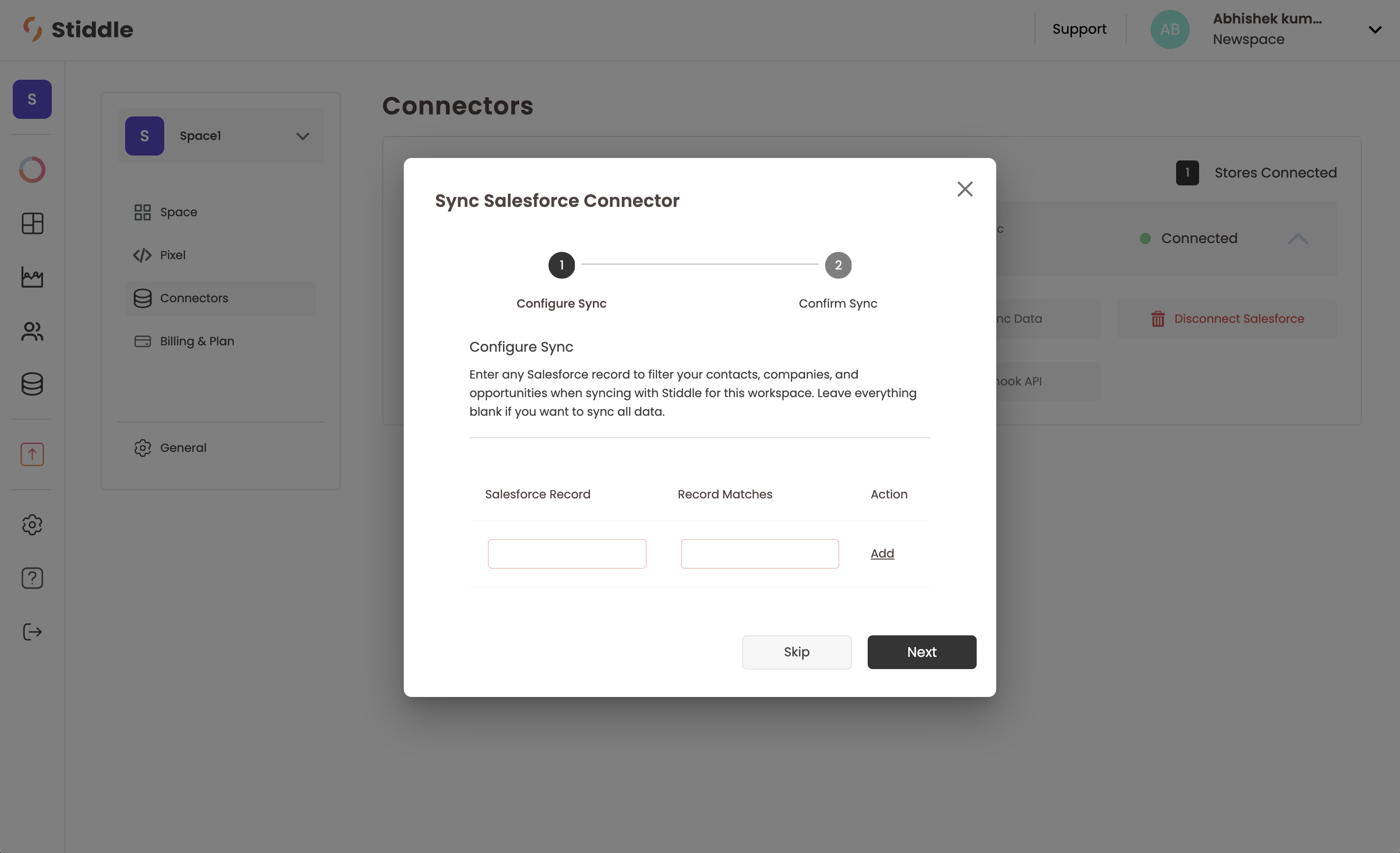
Stiddle automatically re-syncs Salesforce data every 24 hours. However, you can manually trigger a full re-sync using the **Re-sync** button. This will perform a hard re-sync of all historical data, including Opportunities, Profiles, and Companies.
\
We recommend running this sync when connecting Salesforce to Stiddle for the first time. Using it frequently may cause temporary data delays, as the entire dataset is reprocessed.
\
Additionally, Stiddle allows you to limit syncing to Salesforce records that match specific criteria if defined before syncing. This is especially useful if you use a single Salesforce instance for multiple stores or companies and segment them using custom records.
**Re-Sync Data**\
Stiddle automatically re-syncs Salesforce data every 24 hours. However, you can manually trigger a full re-sync using the **Re-sync** button. This will perform a hard re-sync of all historical data, including Opportunities, Profiles, and Companies.
\
We recommend running this sync when connecting Salesforce to Stiddle for the first time. Using it frequently may cause temporary data delays, as the entire dataset is reprocessed.
\
Additionally, Stiddle allows you to limit syncing to Salesforce records that match specific criteria if defined before syncing. This is especially useful if you use a single Salesforce instance for multiple stores or companies and segment them using custom records.
 **Disconnect Salesforce**\
Completely disconnect Salesforce from Stiddle.
**Nickname Instance**\
Assign a shorter, internal name to the Salesforce instance for easier identification within Stiddle.
## Creating CRM Stage Conversion Goals (for Attribution)
After Salesforce is connected to Stiddle and data has begun syncing, you'll need to define a few new conversion goals within Stiddle for you to use for attribution and analytics reports.
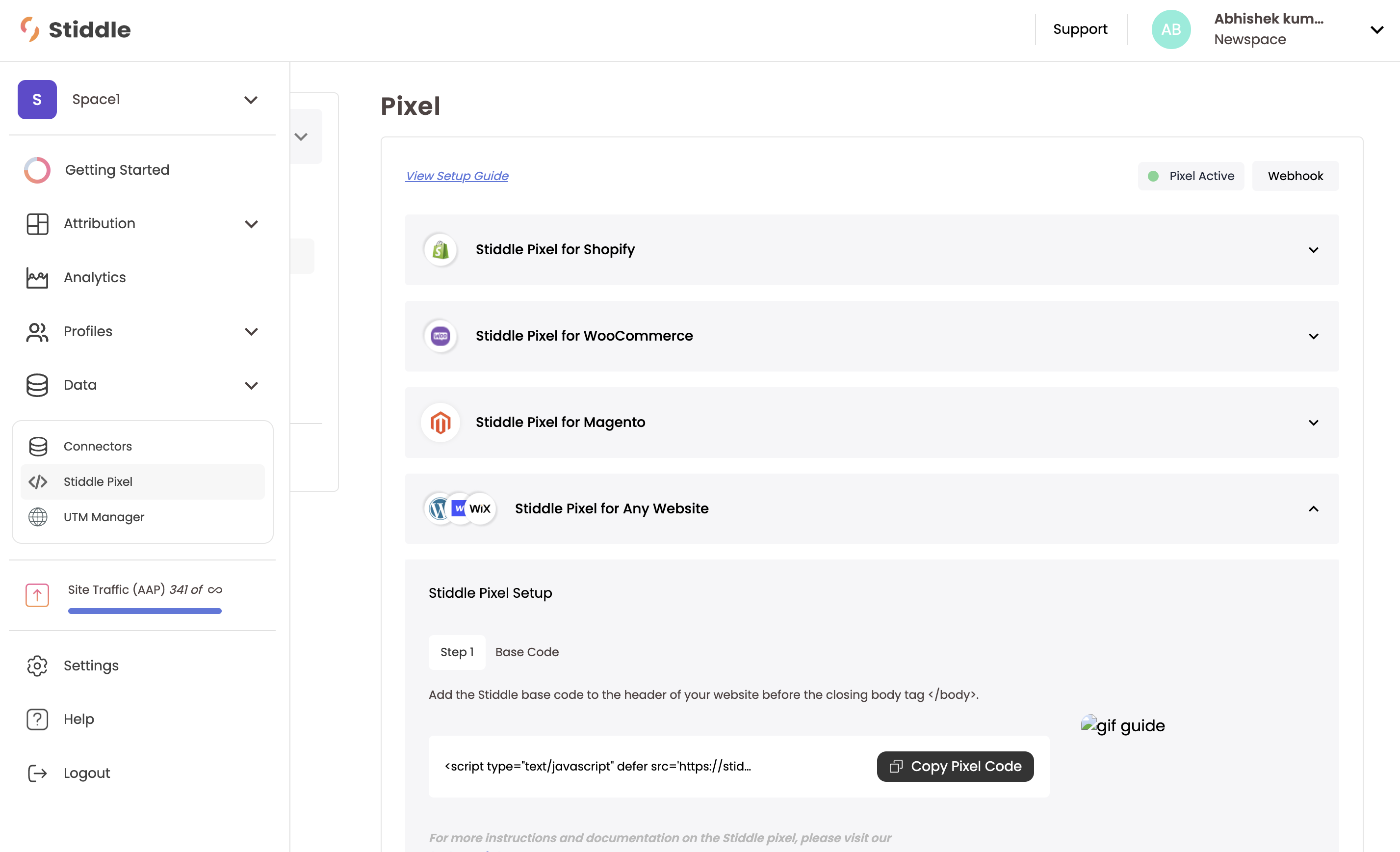
To do so, navigate to the left menu, hover over "Data", and select "Stiddle Pixel". Then select "Stiddle Pixel for Any Website".
**Disconnect Salesforce**\
Completely disconnect Salesforce from Stiddle.
**Nickname Instance**\
Assign a shorter, internal name to the Salesforce instance for easier identification within Stiddle.
## Creating CRM Stage Conversion Goals (for Attribution)
After Salesforce is connected to Stiddle and data has begun syncing, you'll need to define a few new conversion goals within Stiddle for you to use for attribution and analytics reports.
To do so, navigate to the left menu, hover over "Data", and select "Stiddle Pixel". Then select "Stiddle Pixel for Any Website".
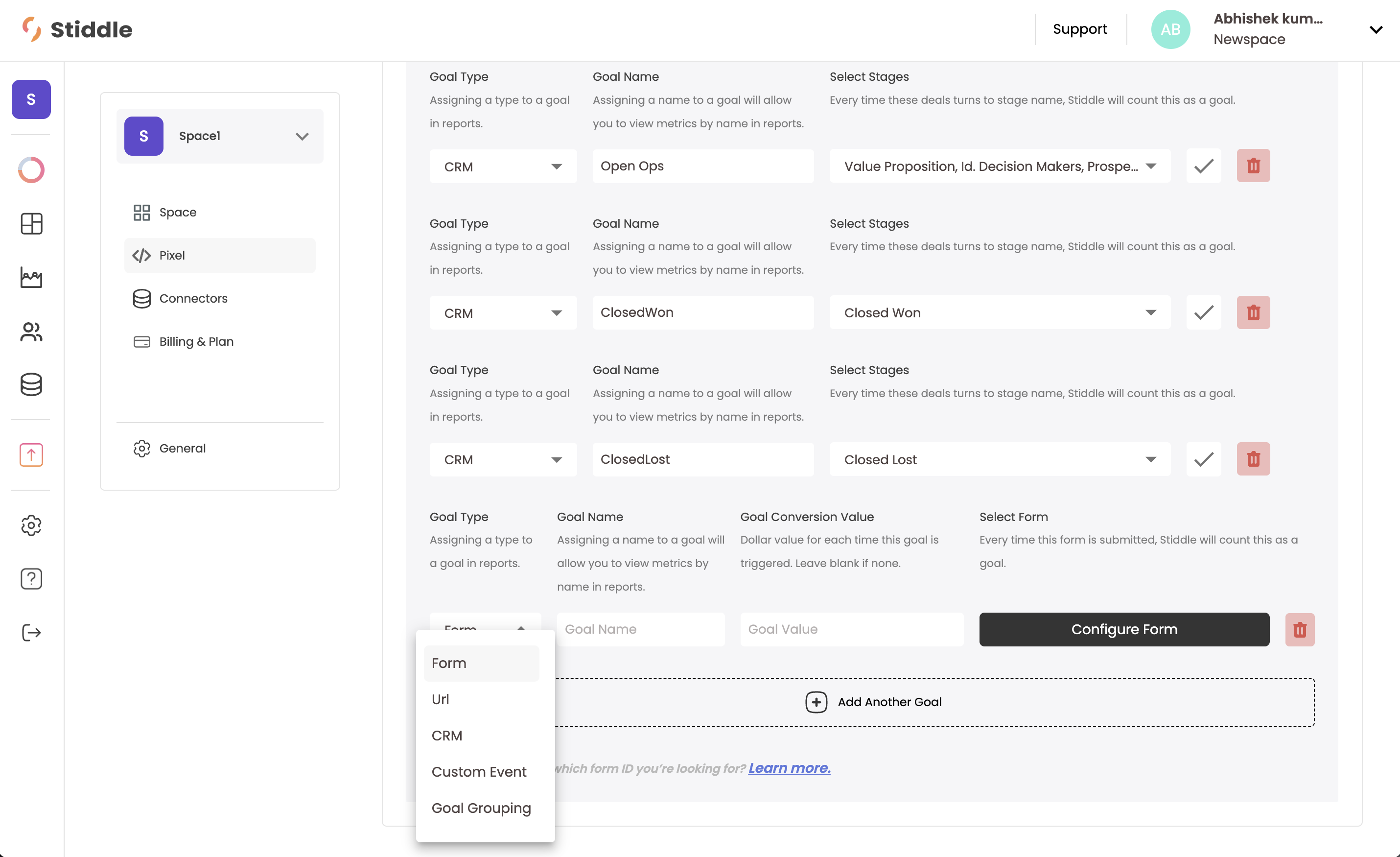
 Scroll down, you'll see a button to "Add another goal". Click this button. Then select the "Goal Type" to equal "CRM".
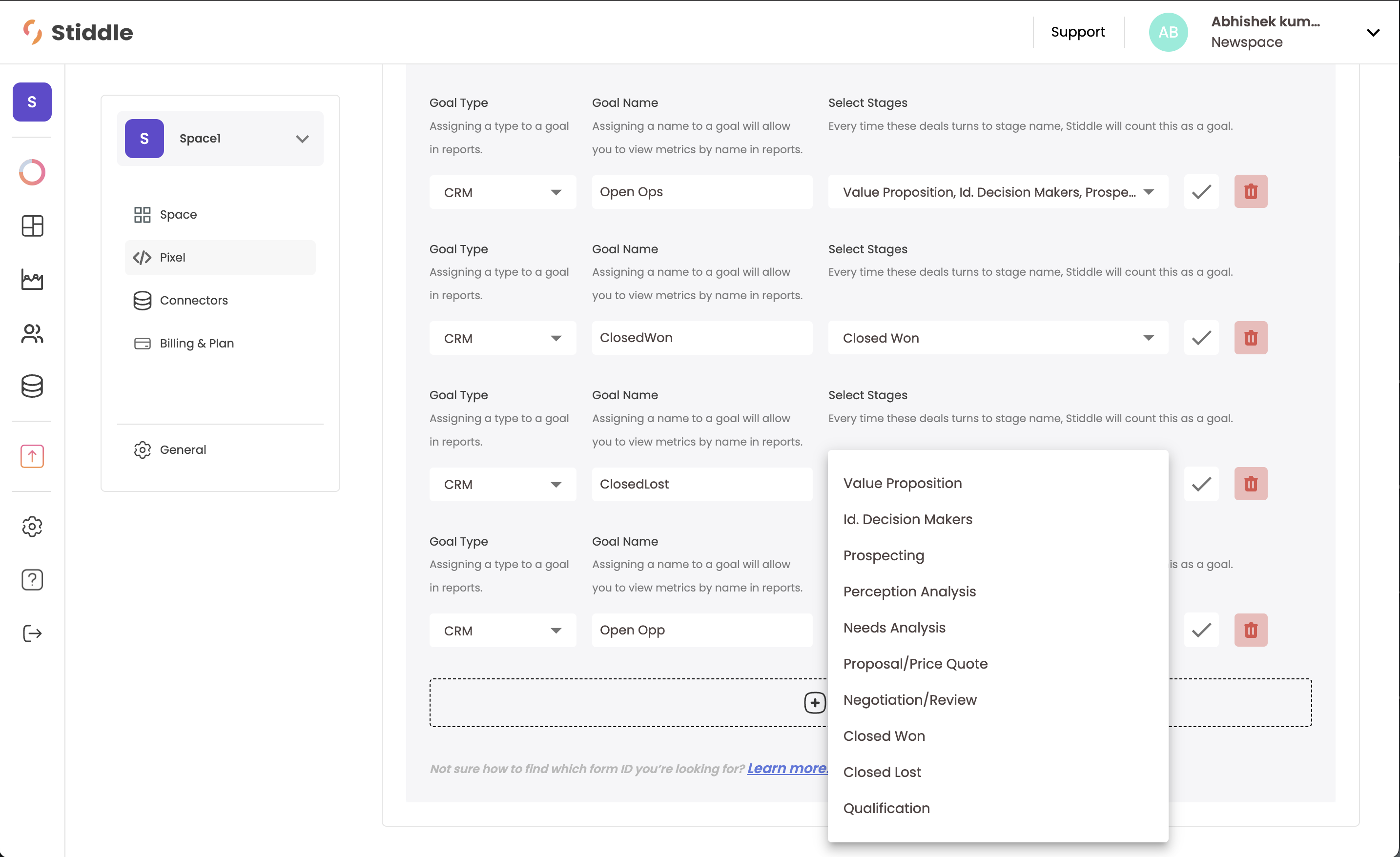
 You can then give the Goal a name, then select the Oppurtunity stages that you want to include. For example, we'll create an "Open Opp" goal and select all the stages before "Closed Won" or "Closed Lost". This helps us track the journey of an oppurtunity that's open but not yet won or lost. We can also do the same to create a "Closed Won" and "Closed Lost" oppurtunity.
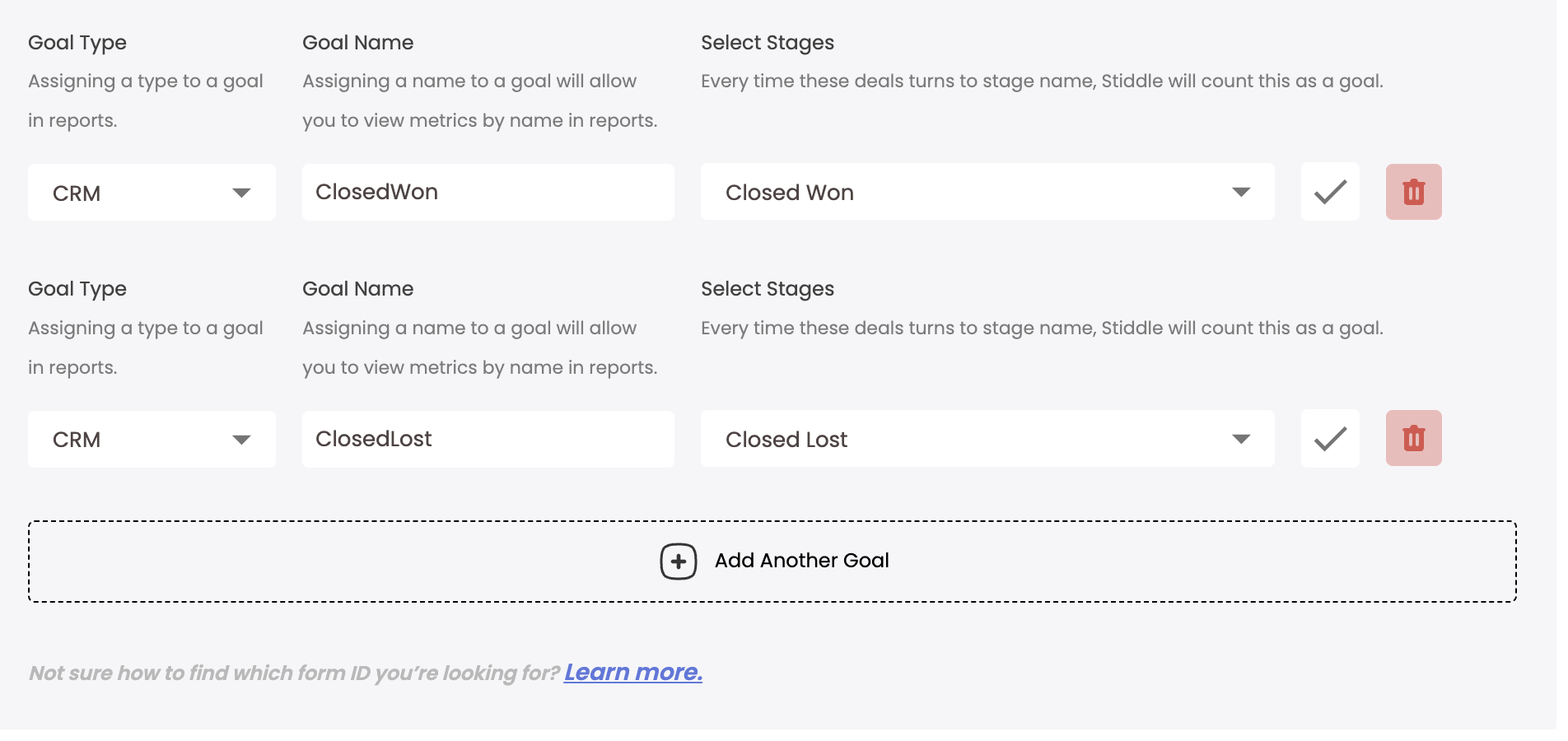 Every goal you create will track the revenue attached to the oppurtunity in Salesforce and count the total for each stage. This data is used in attribution and reporting.
Every goal in Stiddle, including CRM goals, have four metrics created by default:
* Total Goals
* Cost Per Goal
* Goal Conversion Value (revenue)
* Goal ROAS
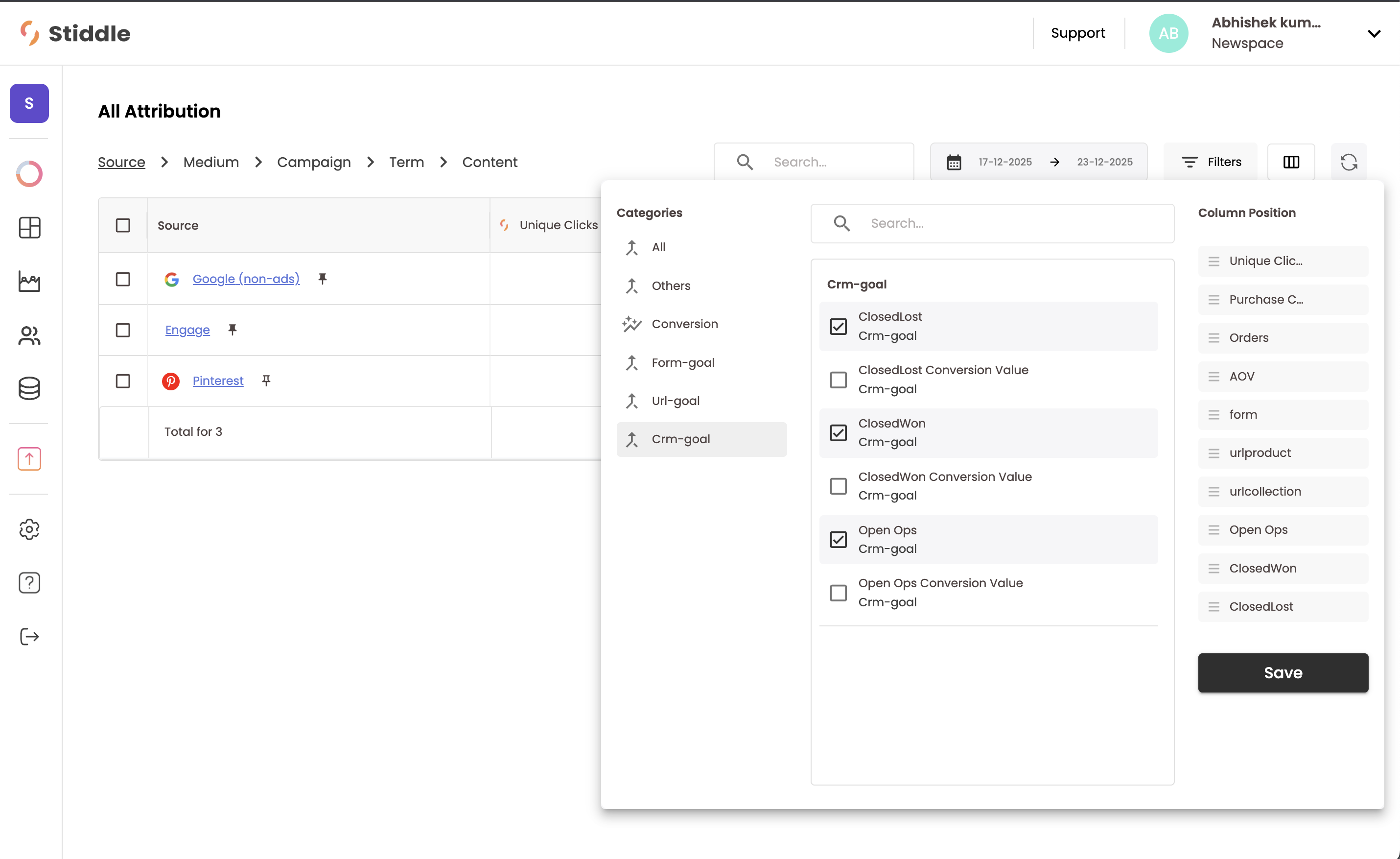
You can see these goal metrics within the Attribution Table, dashboards, and reports. See an example below:
Every goal you create will track the revenue attached to the oppurtunity in Salesforce and count the total for each stage. This data is used in attribution and reporting.
Every goal in Stiddle, including CRM goals, have four metrics created by default:
* Total Goals
* Cost Per Goal
* Goal Conversion Value (revenue)
* Goal ROAS
You can see these goal metrics within the Attribution Table, dashboards, and reports. See an example below:
 ## Salesforce Stiddle Features
Now that Salesforce is connected to Stiddle, you'll notice a few new features become available in your Stiddle account. Let's review a few below.
## Salesforce Stiddle Features
Now that Salesforce is connected to Stiddle, you'll notice a few new features become available in your Stiddle account. Let's review a few below.
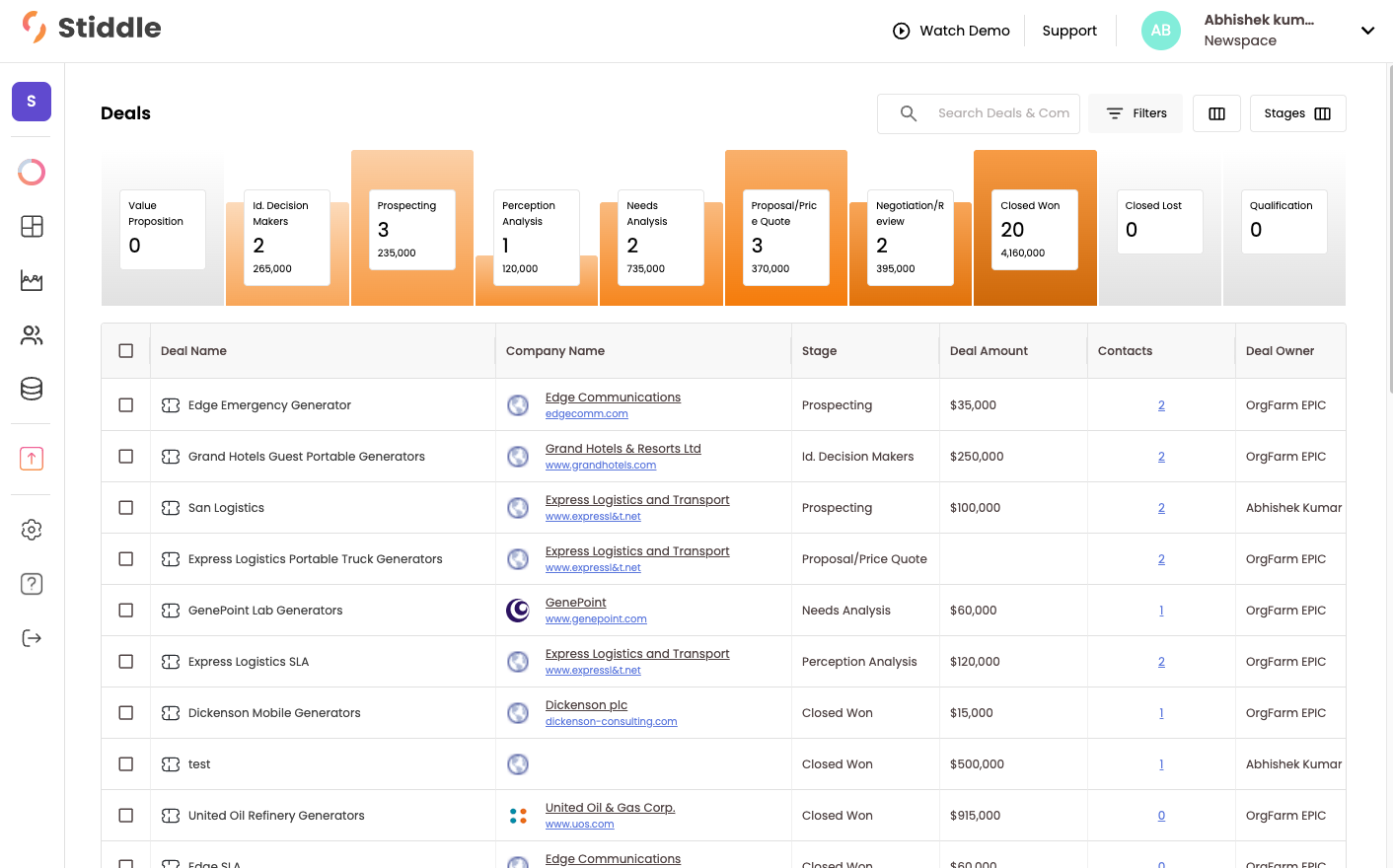
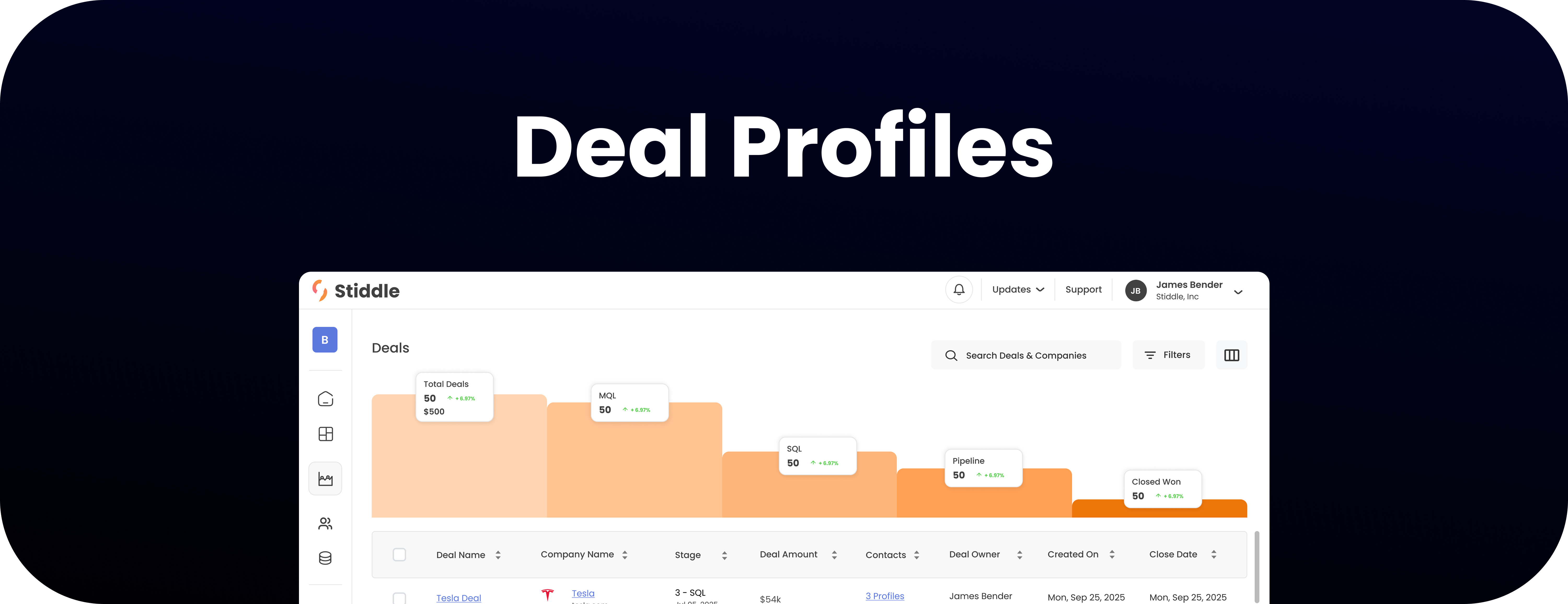 Deal profiles allow you to sync your CRM data from platforms like Salesforce and HubSpot to Stiddle. Stiddle will sync all of your historical customers, contacts, opportunities, and companies. You can think of opportunities and deals as the same thing.
With deal profiles, Stiddle gives you the ability to attribute not only at the person or company level, but also at the deal level. This is very valuable for understanding the impact that a marketing team and individual channels have on generating leads that ultimately convert into sales through your CRM.
Deal profiles allow you to sync your CRM data from platforms like Salesforce and HubSpot to Stiddle. Stiddle will sync all of your historical customers, contacts, opportunities, and companies. You can think of opportunities and deals as the same thing.
With deal profiles, Stiddle gives you the ability to attribute not only at the person or company level, but also at the deal level. This is very valuable for understanding the impact that a marketing team and individual channels have on generating leads that ultimately convert into sales through your CRM.
 There are several ways to view deal data in Stiddle. Let’s take a look at the attribution table to understand conversions.
In real time, Stiddle syncs the conversion value and stage of each opportunity from your CRM and uses this data in attribution to calculate metrics such as profitability, revenue, conversion value, and cost per closed won deal. You also get very useful metrics like **Open Opportunities**, which shows how many deals are actively open in a stage other than *Closed Won* that originated from a specific channel. For example: Meta = 100 Open Opportunities, Google = 50 Open Opportunities.
There are several ways to view deal data in Stiddle. Let’s take a look at the attribution table to understand conversions.
In real time, Stiddle syncs the conversion value and stage of each opportunity from your CRM and uses this data in attribution to calculate metrics such as profitability, revenue, conversion value, and cost per closed won deal. You also get very useful metrics like **Open Opportunities**, which shows how many deals are actively open in a stage other than *Closed Won* that originated from a specific channel. For example: Meta = 100 Open Opportunities, Google = 50 Open Opportunities.
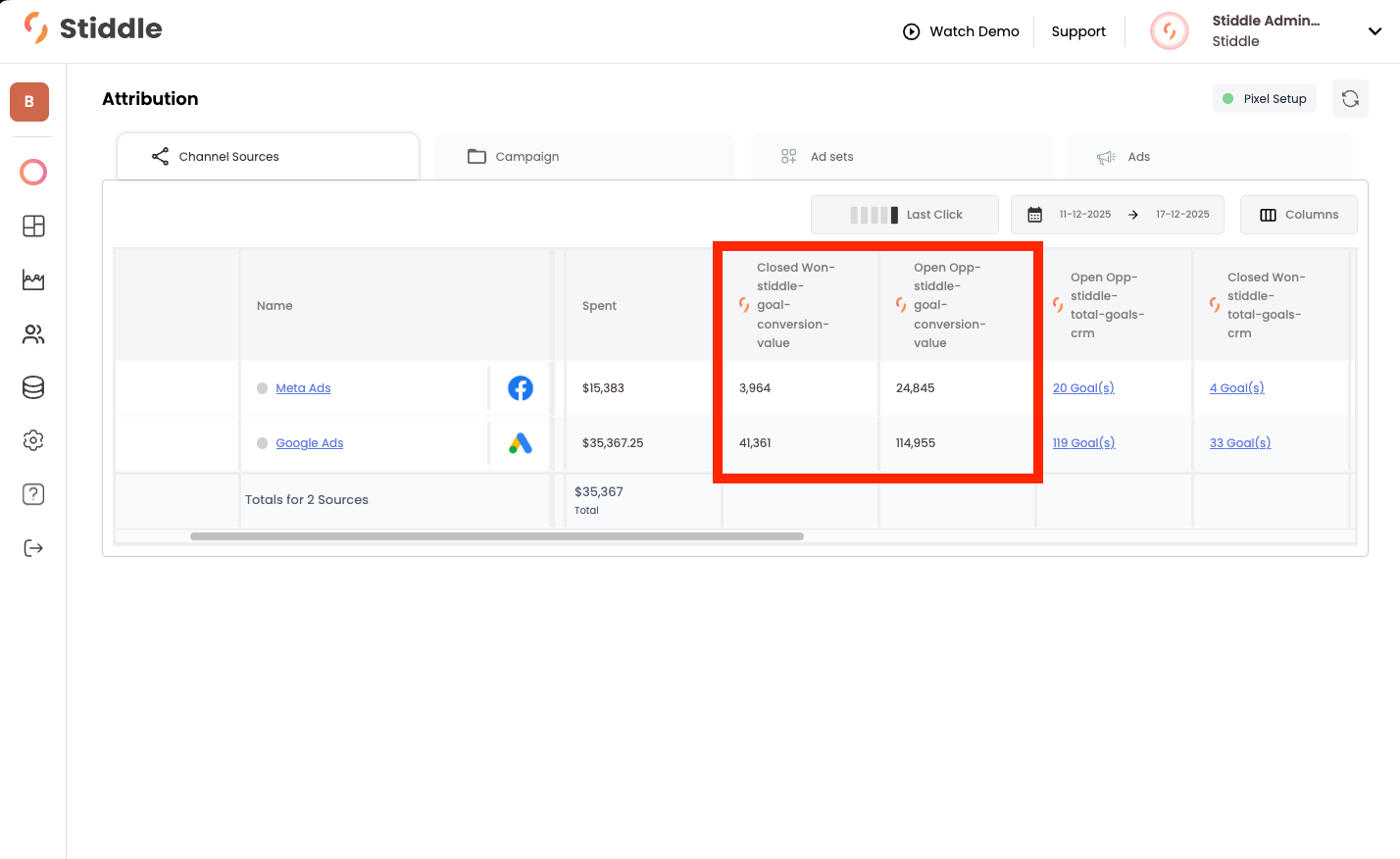
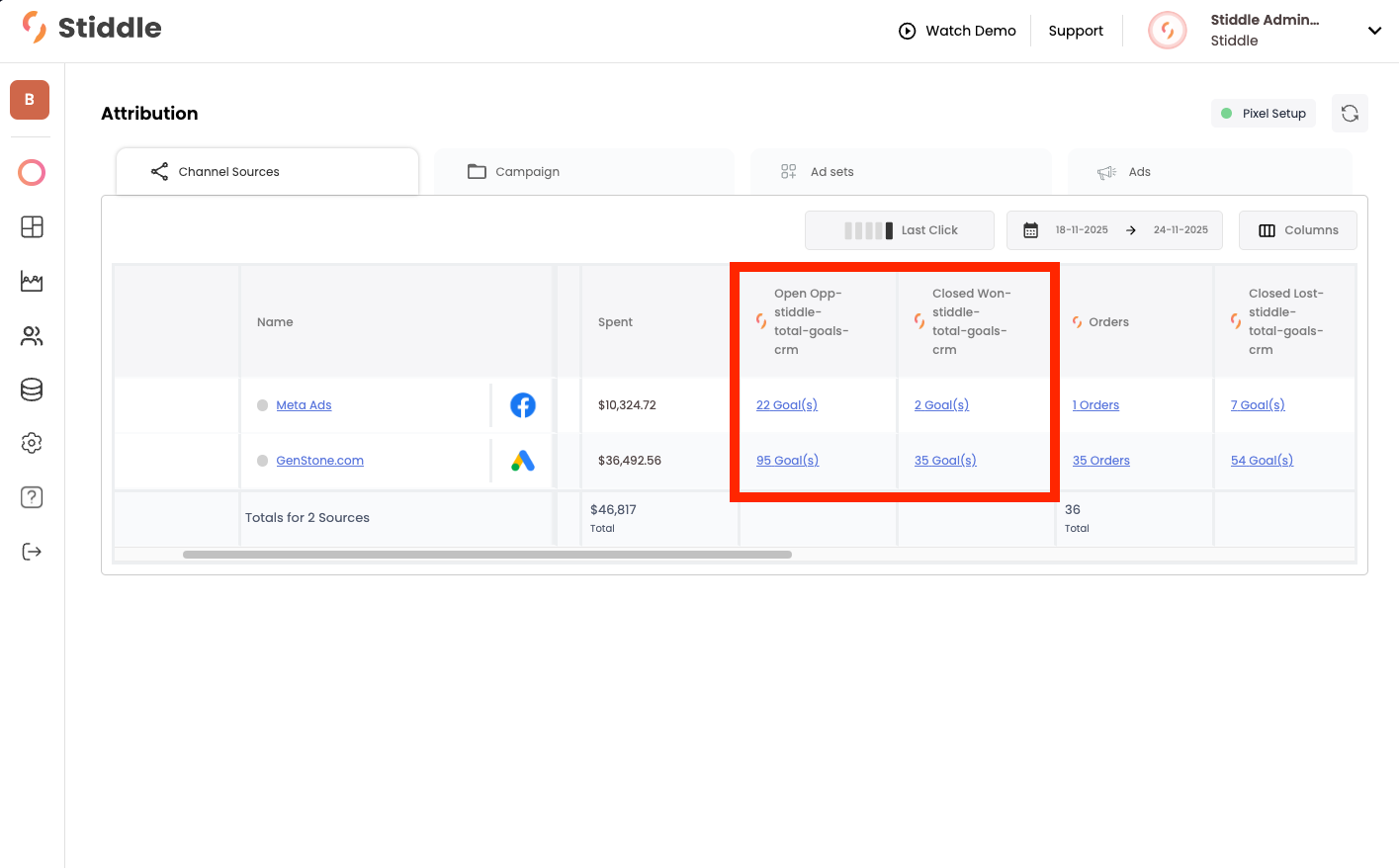 You can also track closed opportunities, such as **Closed Won** and **Closed Lost**. This allows Stiddle to show the revenue generated from a specific deal stage, broken down by channel or campaign.
In this example, you’ll see that Stiddle captured just under **\$42,000** in Closed Won opportunities that Google is responsible for generating, and just under **\$4,000** from Meta. Most importantly, you can also see the **Open Opportunities** column, which shows that both channels are promising in generating future conversions. In total, there is just under **\$150,000** in open pipeline generated by Google and Meta.
You can also track closed opportunities, such as **Closed Won** and **Closed Lost**. This allows Stiddle to show the revenue generated from a specific deal stage, broken down by channel or campaign.
In this example, you’ll see that Stiddle captured just under **\$42,000** in Closed Won opportunities that Google is responsible for generating, and just under **\$4,000** from Meta. Most importantly, you can also see the **Open Opportunities** column, which shows that both channels are promising in generating future conversions. In total, there is just under **\$150,000** in open pipeline generated by Google and Meta.
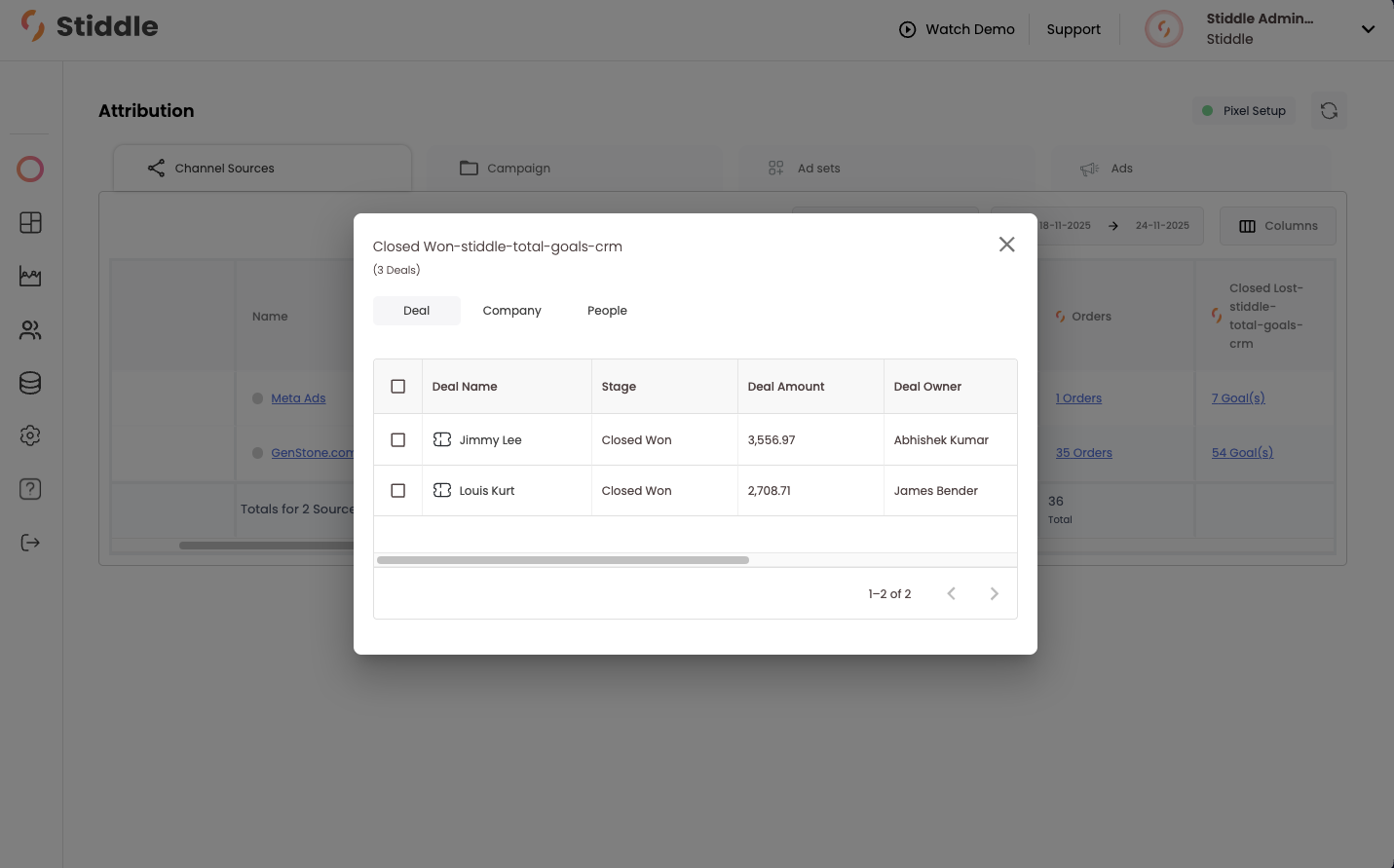
 At any time, you can easily select the number of conversions in the table to see which deals, companies, and people have been attributed to that channel. You can also understand which rep was responsible for closing the deal and which channel generated the lead. In the example below, Meta was responsible for generating the lead, and Abhishek was the sales rep who closed the deal. For a deeper dive into the customer’s journey, you can select their profile.
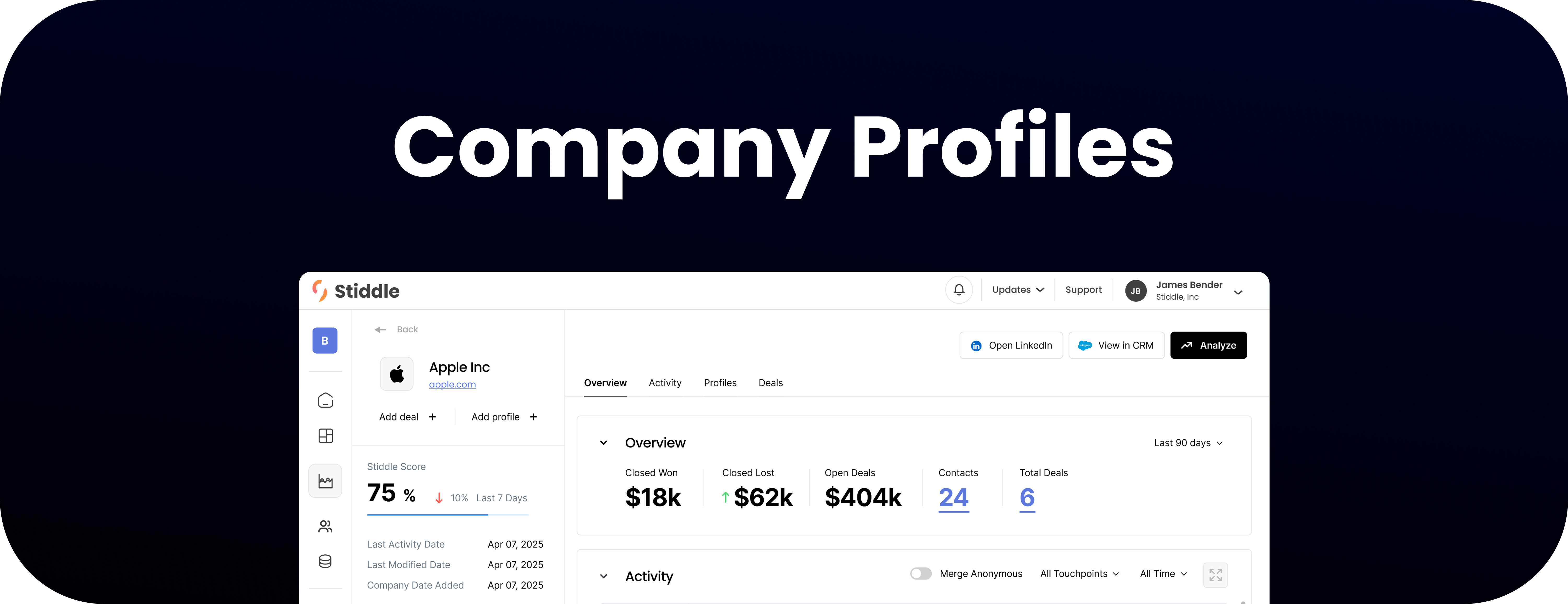 Company profiles allow Stiddle to group people and deals related to a company. This data is often synced from a CRM, such as Salesforce or HubSpot. Once synced, Stiddle retroactively merges people profiles with any company or opportunity data from the CRM.
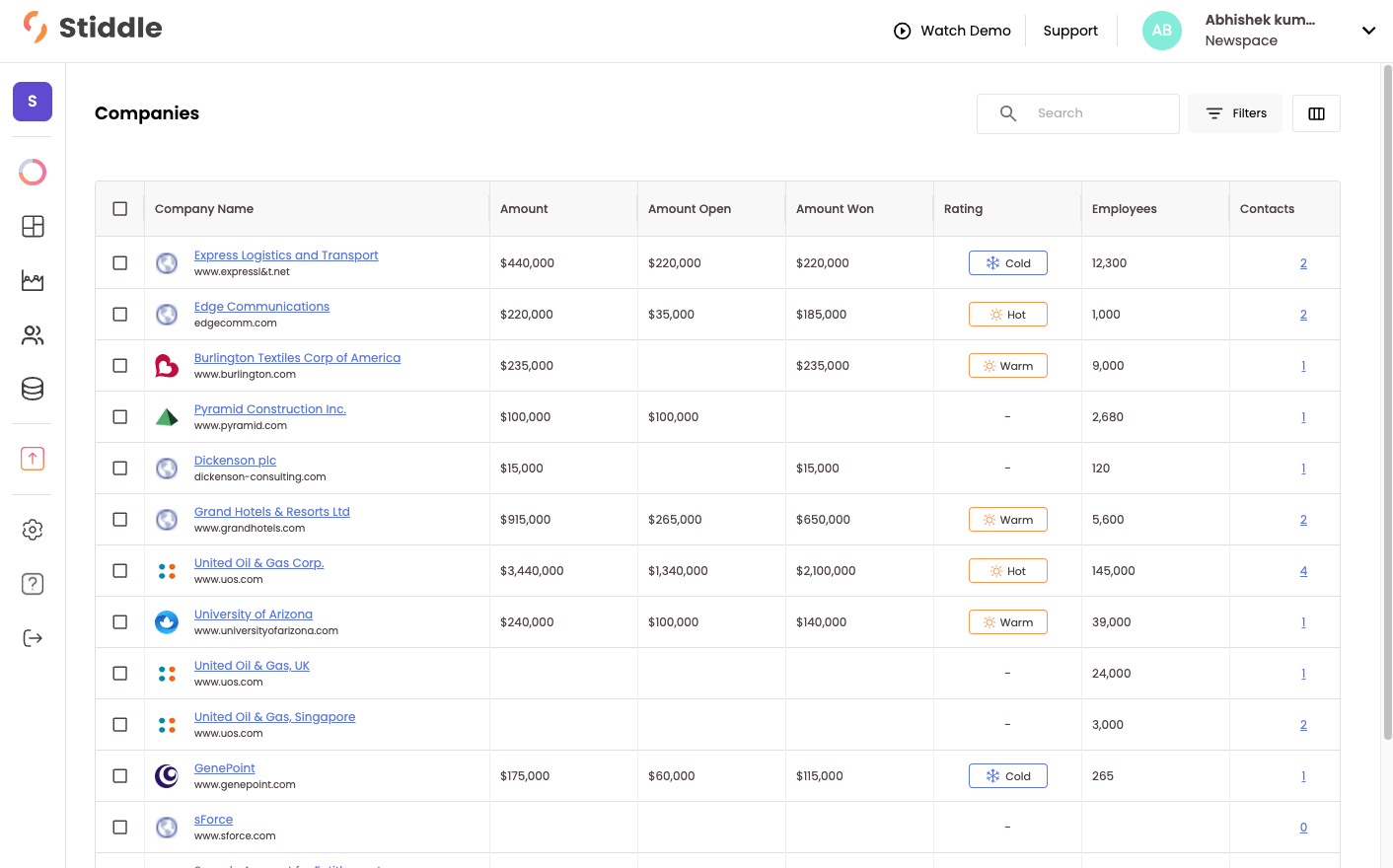
Let’s take a look at the Companies page. Below, you’ll see all companies listed in a table, along with metrics that Stiddle has calculated from deals.
Company profiles allow Stiddle to group people and deals related to a company. This data is often synced from a CRM, such as Salesforce or HubSpot. Once synced, Stiddle retroactively merges people profiles with any company or opportunity data from the CRM.
Let’s take a look at the Companies page. Below, you’ll see all companies listed in a table, along with metrics that Stiddle has calculated from deals.
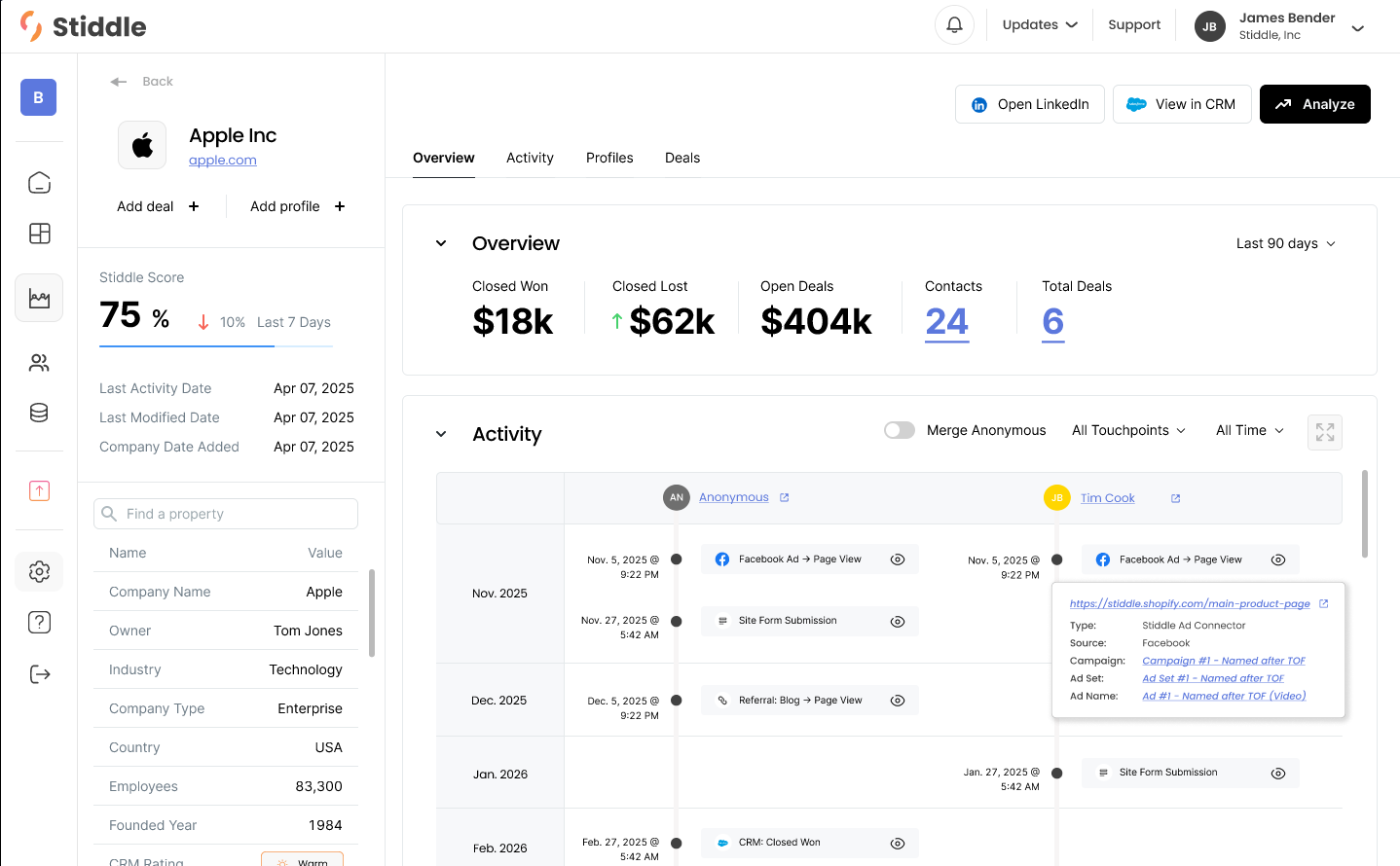
 Stiddle can use company profiles for attribution, allowing you to understand which channels are responsible for generating company leads. People Profiles are grouped within the company profile, meaning you can see all people associated with a company and their entire journey in one view.
For example, below you’ll see an overview of the company data on the left, attributed KPIs in the middle, and just below that, a timeline of activity for each person related to this company who has shown interest or has interacted with the company.
Stiddle can use company profiles for attribution, allowing you to understand which channels are responsible for generating company leads. People Profiles are grouped within the company profile, meaning you can see all people associated with a company and their entire journey in one view.
For example, below you’ll see an overview of the company data on the left, attributed KPIs in the middle, and just below that, a timeline of activity for each person related to this company who has shown interest or has interacted with the company.
 There are many ways to access company data within Stiddle—through attribution tables, profiles, and analytics. You can also view company attribution at the channel level. Let’s take a look at the attribution table to understand which channels are generating the most deals, broken down by company.
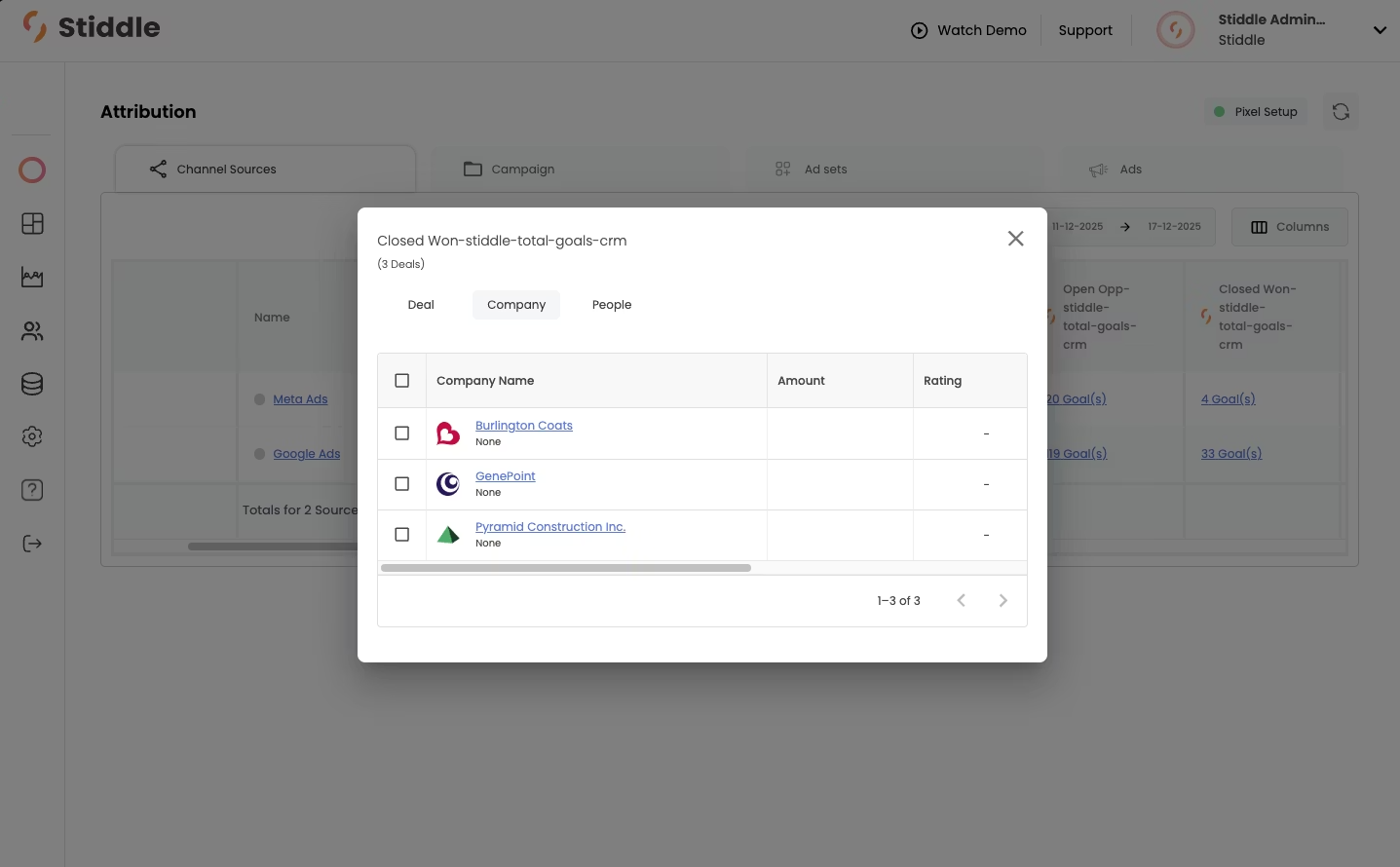
Below, we can see that there are three companies marked as “Closed Won” that have been attributed to Meta Ads. For a deeper breakdown of each company, you can select one to view its details.
There are many ways to access company data within Stiddle—through attribution tables, profiles, and analytics. You can also view company attribution at the channel level. Let’s take a look at the attribution table to understand which channels are generating the most deals, broken down by company.
Below, we can see that there are three companies marked as “Closed Won” that have been attributed to Meta Ads. For a deeper breakdown of each company, you can select one to view its details.