> ## Documentation Index
> Fetch the complete documentation index at: https://help.stiddle.com/llms.txt
> Use this file to discover all available pages before exploring further.

# Salesforce integration guide

> Connect Salesforce, map CRM data, configure events and goals, and sync customer intelligence back to Salesforce.

Stiddle connects Salesforce customer and pipeline data with website activity, marketing touchpoints, identity resolution, and attribution. This guide explains how to connect Salesforce, map accounts, contacts and opportunities, configure CRM events, and return customer intelligence to Salesforce for sales and marketing workflows.

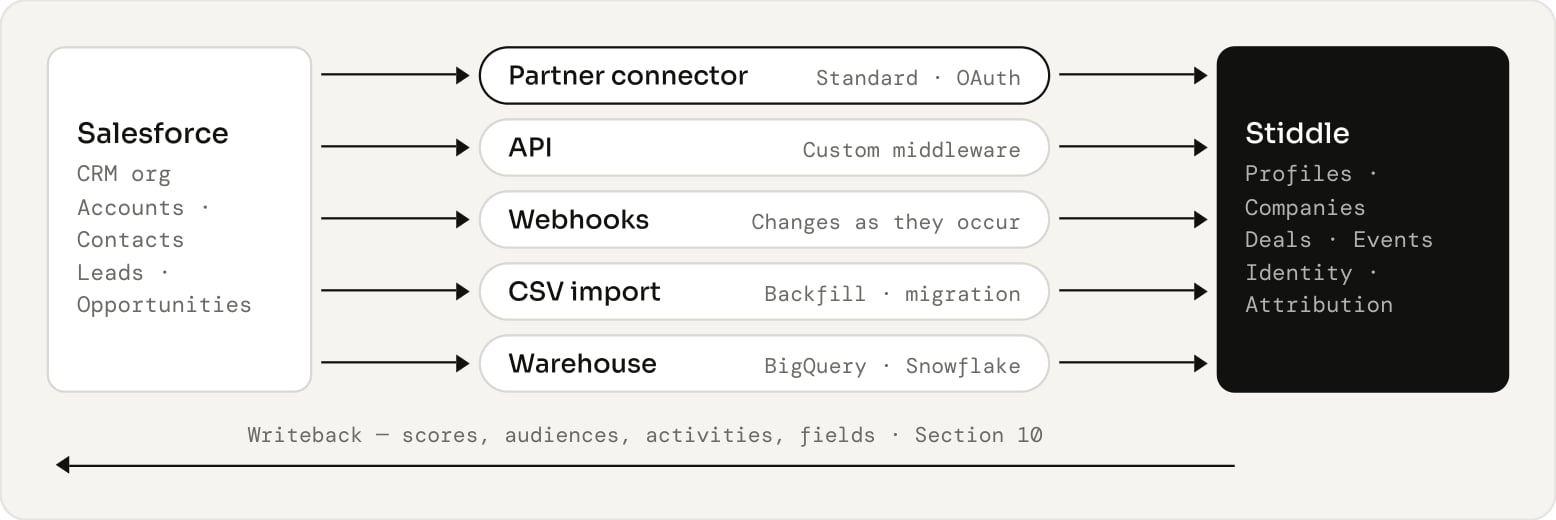
Use the partner authentication connector for a standard deployment. API, webhook, CSV and warehouse routes provide alternatives for custom architectures, historical imports or existing data pipelines. Select one authoritative ingestion route for each dataset and define any supplementary routes before loading data.

## Before you begin

Most deployments follow the standard path below. Alternative ingestion routes replace the connection step when Salesforce data already flows through middleware, a warehouse or file exports.

1. Plan scope and owners.
2. Connect Salesforce.
3. Map fields and properties.
4. Define events and goals.
5. Sync intelligence back.
6. Validate end to end.

## In this guide

* [Connection methods and deployment planning](#connection-methods-and-deployment-planning)
* [Requirements and Salesforce permissions](#requirements-and-salesforce-permissions)
* [Partner authentication connector](#partner-authentication-connector)
* [API integration](#api-integration)
* [Webhook integration](#webhook-integration)
* [CSV data import](#csv-data-import)
* [Warehouse connection](#warehouse-connection)
* [Data schema and field mapping](#data-schema-and-field-mapping)
* [CRM events and conversion goals](#crm-events-and-conversion-goals)
* [Syncing intelligence back to Salesforce](#syncing-intelligence-back-to-salesforce)
* [Validation and troubleshooting](#validation-and-troubleshooting)

## Connection methods and deployment planning

Choose the connection method based on where Salesforce data is available, who maintains the integration, and how quickly updates need to appear. Authentication authorizes a connection; it does not determine whether a particular dataset is read, written or collected in full.

<Frame caption="Ingestion routes into Stiddle and the optional return path to Salesforce. Choose one authoritative route per dataset.">
  <img src="https://mintcdn.com/stiddle/qNqrH2LxEQuQw_UA/images/salesforce/figure-01-ingestion-routes-into-stiddle-and-the-optional-return-path-to-salesfor.png?fit=max&auto=format&n=qNqrH2LxEQuQw_UA&q=85&s=665be711cfd9c19859a02cb5097e1af7" alt="Ingestion routes into Stiddle and the optional return path to Salesforce. Choose one authoritative route per dataset." width="1556" height="520" data-path="images/salesforce/figure-01-ingestion-routes-into-stiddle-and-the-optional-return-path-to-salesfor.png" />
</Frame>

| Method | Appropriate Use | Requirements | Important Limitation |
| - | - | - | - |
| Partner authentication | Standard Salesforce to Stiddle connection | Salesforce org domain, authorized user, approved OAuth access | Confirm objects, refresh cadence and backfill scope |
| API | Custom middleware or controlled extraction and delivery | Salesforce API access, approved Stiddle API contract, engineering owner | Customer or middleware owns pagination, retries and transformations |
| Webhooks | Send selected CRM changes as they occur | Salesforce automation, approved receiver URL and credential | Does not supply historical records by itself |
| CSV import | Historical backfill, migration or periodic manual load | Exported files, stable IDs, mapped columns | Snapshot imports cannot reconstruct missing stage history |
| Warehouse | Use Salesforce data already replicated into BigQuery or Snowflake | Warehouse identity, curated tables, stable IDs and freshness metadata | Freshness depends on the upstream Salesforce replication |

### Define the deployment scope

Record the Salesforce organization ID, environment, Stiddle workspace, objects, record filters, historical period and business owner. If multiple brands share a Salesforce org, define workspace routing through explicit fields such as `RecordTypeId` or a brand identifier. Do not rely on company domain alone to separate brands or Salesforce orgs.

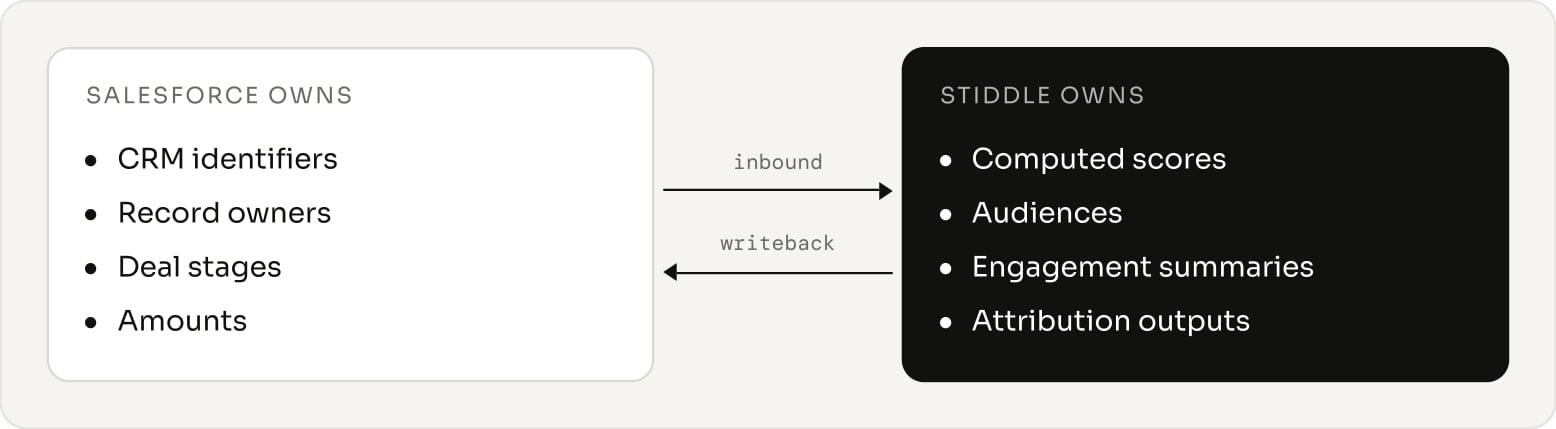
Specify which system owns each property. Salesforce will normally own CRM identifiers, record owners, deal stages and amounts. Stiddle will normally own its computed scores, audiences, engagement summaries and attribution outputs. Select the writeback fields separately from inbound fields.

<Frame caption="Typical property ownership. Inbound and writeback fields are selected separately.">
  <img src="https://mintcdn.com/stiddle/qNqrH2LxEQuQw_UA/images/salesforce/figure-02-typical-property-ownership-inbound-and-writeback-fields-are-selected-s.png?fit=max&auto=format&n=qNqrH2LxEQuQw_UA&q=85&s=e05407a79e3a4107d1d50c632b48d76d" alt="Typical property ownership. Inbound and writeback fields are selected separately." width="1556" height="429" data-path="images/salesforce/figure-02-typical-property-ownership-inbound-and-writeback-fields-are-selected-s.png" />
</Frame>

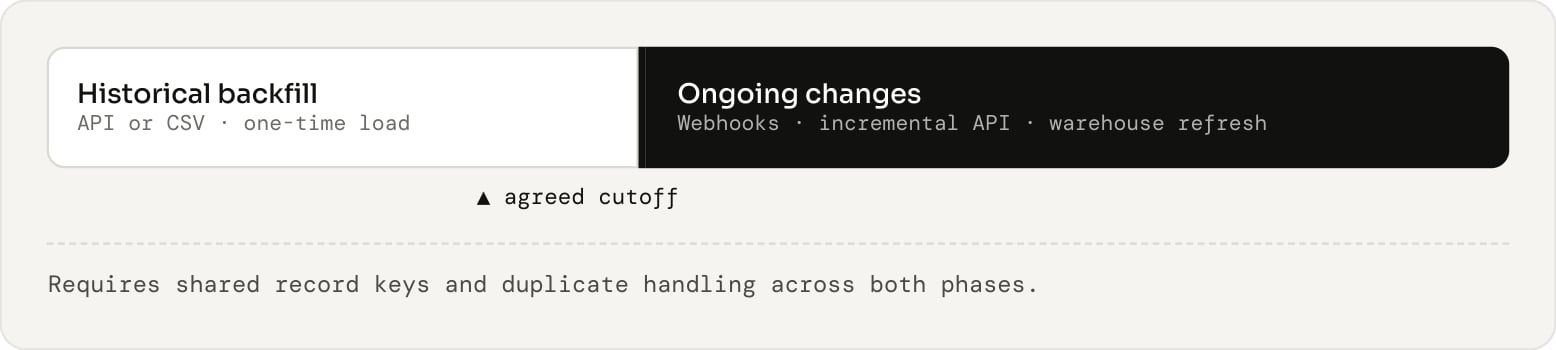
For a combined deployment, use a historical API or CSV load followed by webhooks for changes, or use the warehouse as the primary source. A combined setup needs shared record keys, duplicate handling and an agreed cutoff between the backfill and ongoing changes.

<Frame caption="Combined deployment: a backfill hands over to ongoing change delivery at an agreed cutoff.">
  <img src="https://mintcdn.com/stiddle/qNqrH2LxEQuQw_UA/images/salesforce/figure-03-combined-deployment-a-backfill-hands-over-to-ongoing-change-delivery-a.png?fit=max&auto=format&n=qNqrH2LxEQuQw_UA&q=85&s=cffb79d075e2d0285d93d510a4620187" alt="Combined deployment: a backfill hands over to ongoing change delivery at an agreed cutoff." width="1556" height="350" data-path="images/salesforce/figure-03-combined-deployment-a-backfill-hands-over-to-ongoing-change-delivery-a.png" />
</Frame>

## Requirements and Salesforce permissions

A Salesforce administrator prepares access and any new fields. A Stiddle workspace administrator configures the connection and events. A `RevOps` owner defines qualification stages, revenue semantics and record routing. API, webhook and warehouse routes also need an engineering or data owner.

### Required information

* Salesforce My Domain hostname and organization ID, with production or sandbox clearly identified.
* Authorized Salesforce user with access to the records and fields in scope.
* Stiddle workspace and administrator access to Connectors, Events Manager, Properties and the selected import route.
* Object API names, field API names, custom objects, record types and relationships.
* Stage definitions, MQL and SQL rules, attribution goals, currency and reporting timezone.
* Outbound fields, target objects and Salesforce automation affected by updates.

### Permission matrix

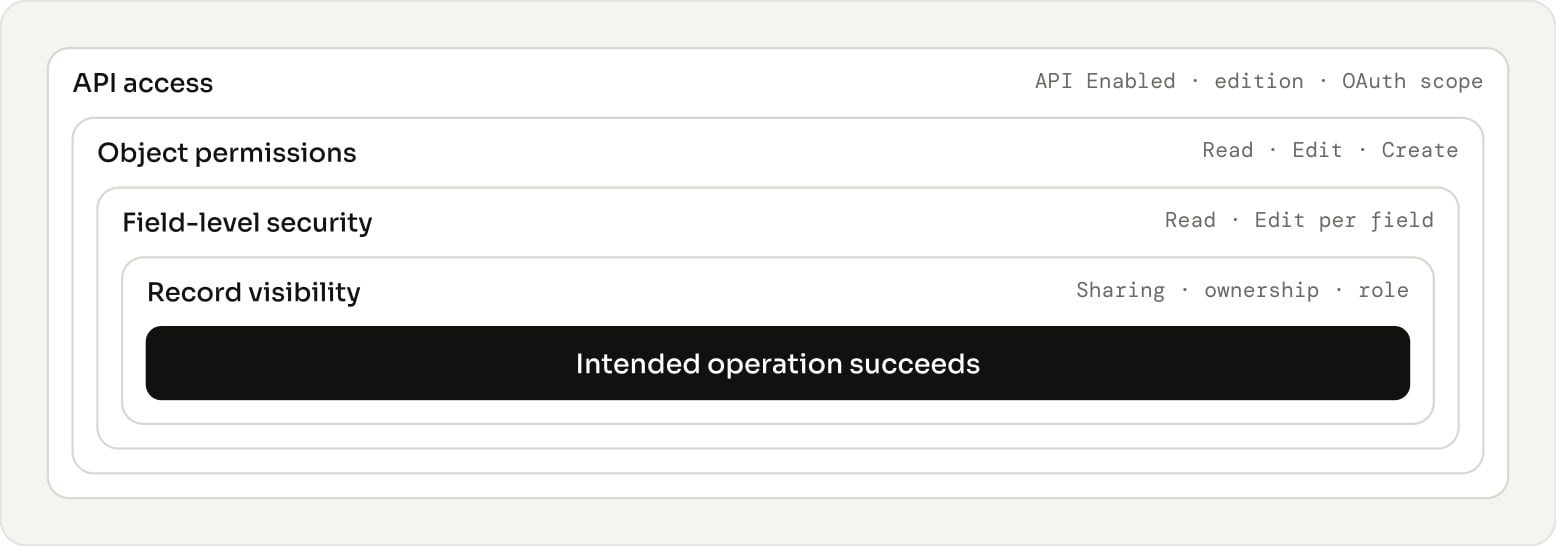
Use a dedicated integration identity where compatible with the chosen authorization flow. Grant access through a permission set scoped to the integration. Salesforce API access depends on the edition or license and the user's API Enabled permission. Object access, field access and record visibility must all permit the intended operation.

<Frame caption="Every layer must permit the operation. An OAuth scope does not bypass object, field or record permissions.">
  <img src="https://mintcdn.com/stiddle/qNqrH2LxEQuQw_UA/images/salesforce/figure-04-every-layer-must-permit-the-operation-an-oauth-scope-does-not-bypass-o.png?fit=max&auto=format&n=qNqrH2LxEQuQw_UA&q=85&s=23175faeb9aecc72bb482c873fdb7030" alt="Every layer must permit the operation. An OAuth scope does not bypass object, field or record permissions." width="1556" height="546" data-path="images/salesforce/figure-04-every-layer-must-permit-the-operation-an-oauth-scope-does-not-bypass-o.png" />
</Frame>

| Operation | Salesforce Access To Prepare | Scope |
| - | - | - |
| Read CRM data | API Enabled, object Read, field Read, record visibility | Account, Contact, Opportunity and selected related objects |
| Resolve leads and conversions | Read Lead and mapped conversion fields | Only when Lead data is in scope |
| Resolve owners and contact roles | Read User and `OpportunityContactRole` as needed | Selected identity and relationship fields |
| Update scores or properties | Object Read and Edit; field Read and Edit; access to target records | Only selected target objects and fields |
| Create timeline activities | Task Create and required field access; access to linked records | Task writeback if selected |
| Update audiences through campaigns | Campaign and `CampaignMember` access for the chosen operations | Only if campaign membership is selected |
| Create CRM records | Object Create and required writable fields | Separate option requiring explicit configuration |
| Deploy webhook automation | Administrator or deployment permissions for the chosen Flow or Apex design | Setup role, distinct from runtime connector access |
| Read warehouse data | No direct Salesforce runtime permission for Stiddle if reading a replica | Upstream replication has its own Salesforce permissions |

The Salesforce administrator can create destination fields manually and grant the integration user Edit access. Broad metadata administration, Author Apex, Customize Application, or Modify All Data are not baseline requirements for a simple read and field-update connection. The exact deployment procedure may require additional setup permissions; document these separately.

### OAuth authorization

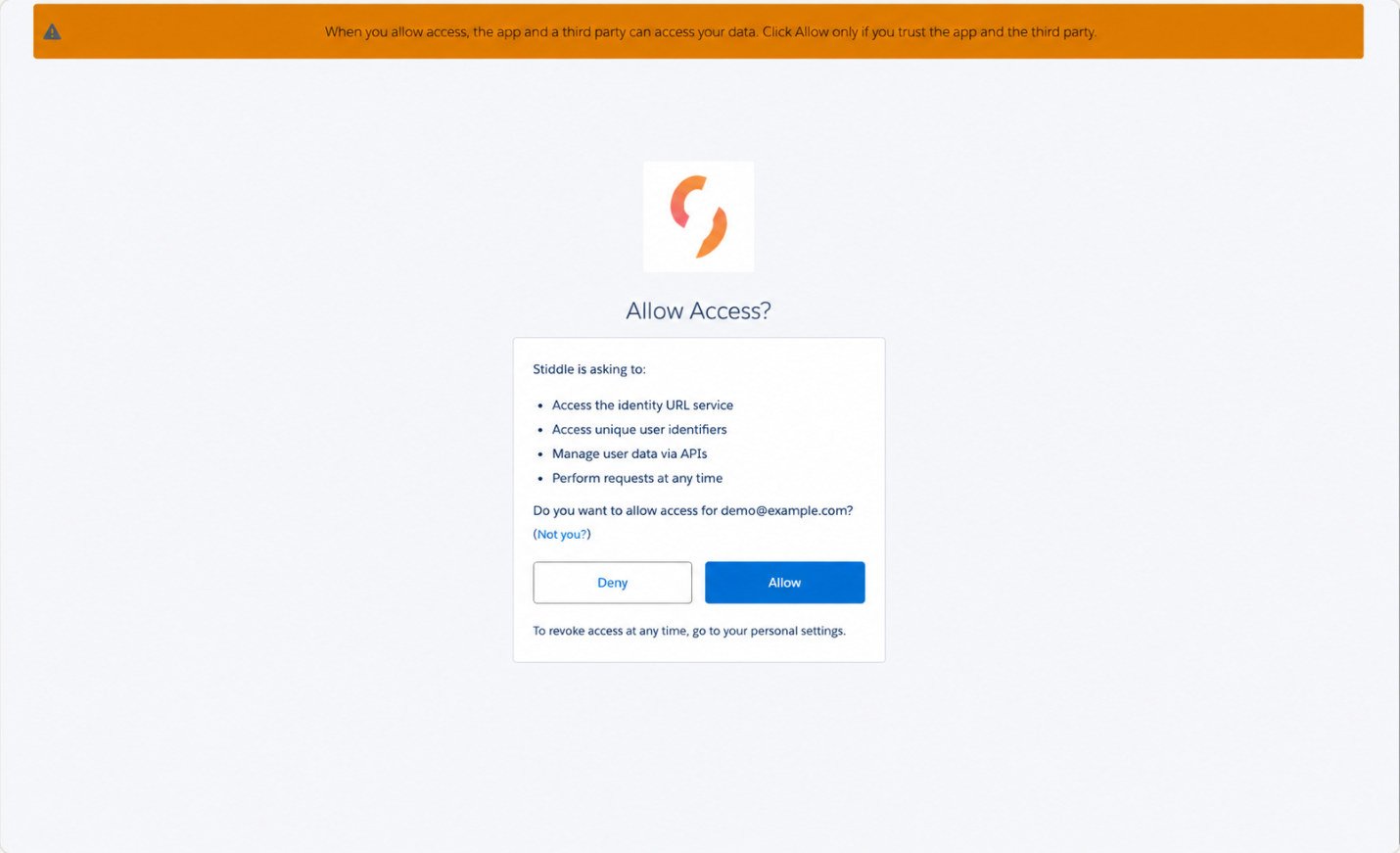
The Stiddle authorization request covers identity access, unique user identifiers, API data access and permission to perform requests while the user is offline. These correspond to identity and API access plus refresh capability. Review the scopes shown in the authorization request before approval. An OAuth API scope does not bypass the user's object, field or record permissions.

Salesforce supports OAuth authorization through external client apps and connected apps. For a customer-managed API application, follow Salesforce's current external client app setup guidance and org policy rather than assuming a new connected app can always be created. The existing Stiddle partner flow should be verified independently.

## Partner authentication connector

This is the standard connection flow. Labels may vary slightly between workspace versions.

### Connect Salesforce

<Frame caption="Partner connector setup at a glance.">
  <img src="https://mintcdn.com/stiddle/qNqrH2LxEQuQw_UA/images/salesforce/figure-05-partner-connector-setup-at-a-glance.png?fit=max&auto=format&n=qNqrH2LxEQuQw_UA&q=85&s=757b44db530894bed454f06da753b9a5" alt="Partner connector setup at a glance." width="1556" height="242" data-path="images/salesforce/figure-05-partner-connector-setup-at-a-glance.png" />
</Frame>

1. Open the correct Stiddle workspace and go to `Data` → `Connectors`.
2. Select Sales Channels, find Salesforce, and choose Connect To Stiddle.
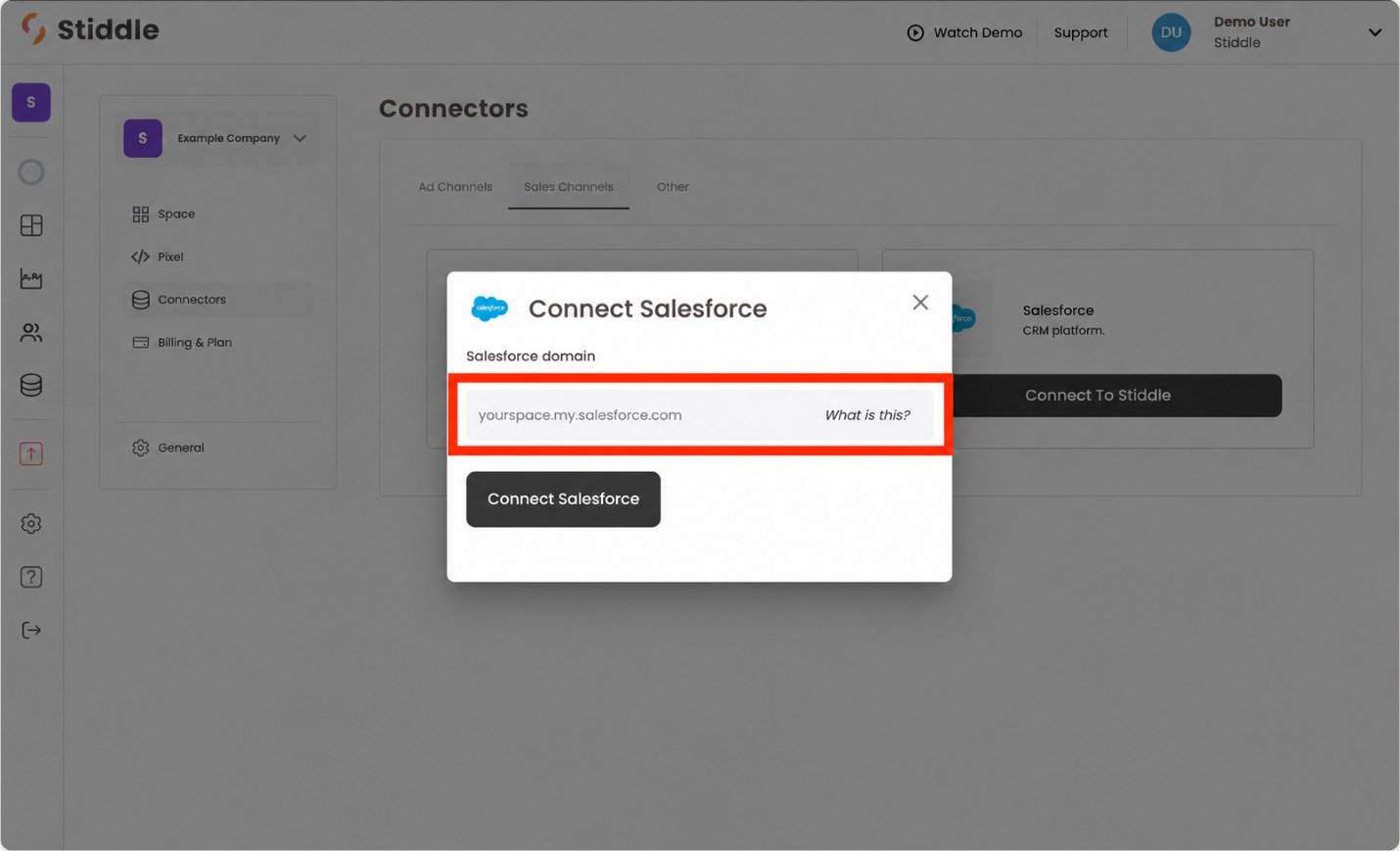
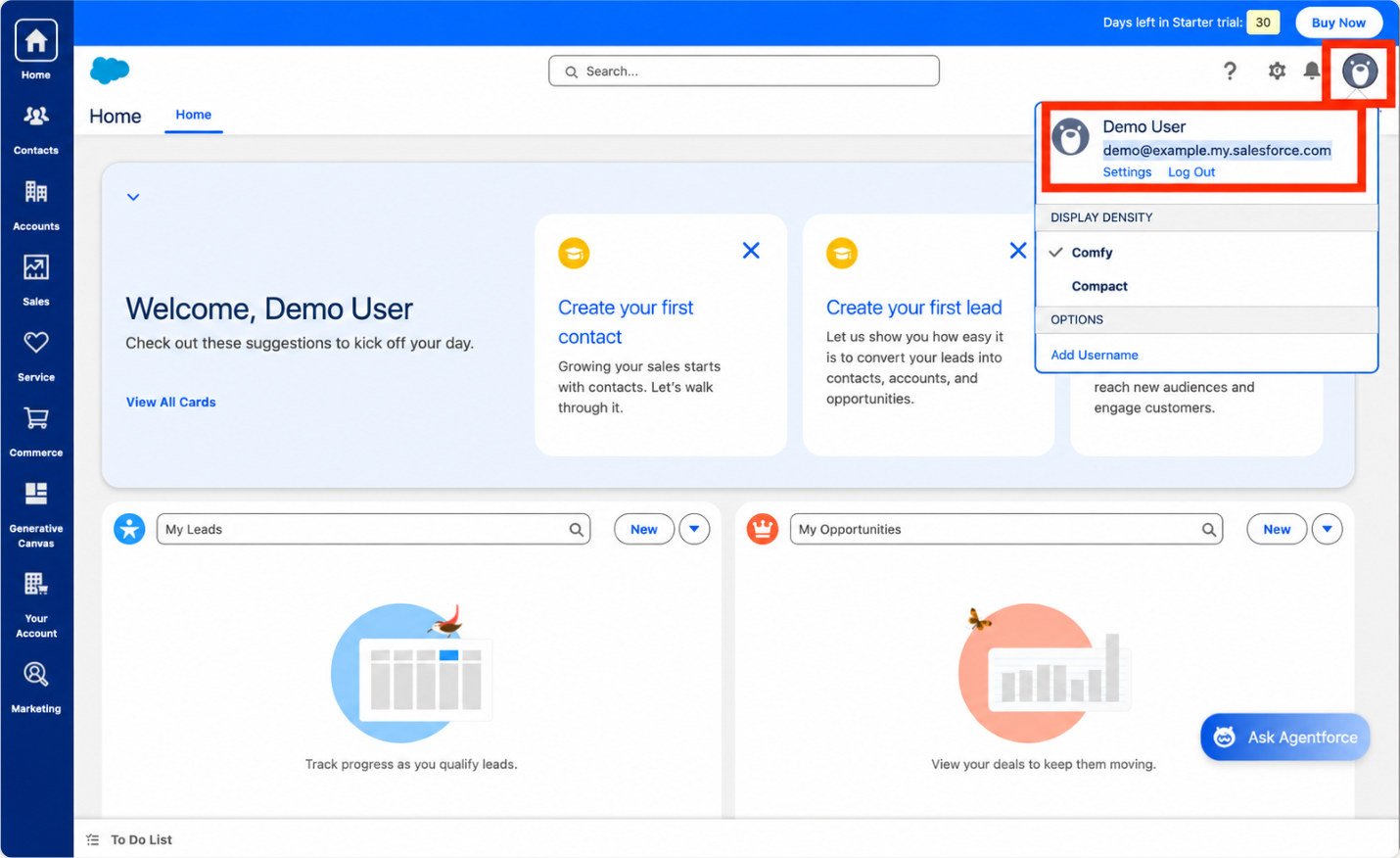
3. In Connect Salesforce, enter the Salesforce domain hostname, for example `yourcompany.my.salesforce.com`. Use the org's My Domain value, not a Lightning page URL. The Salesforce user menu can help identify the domain.
4. Select Connect Salesforce and authenticate with the Salesforce user approved for the integration.
5. Review the app name and access request, then choose Allow.
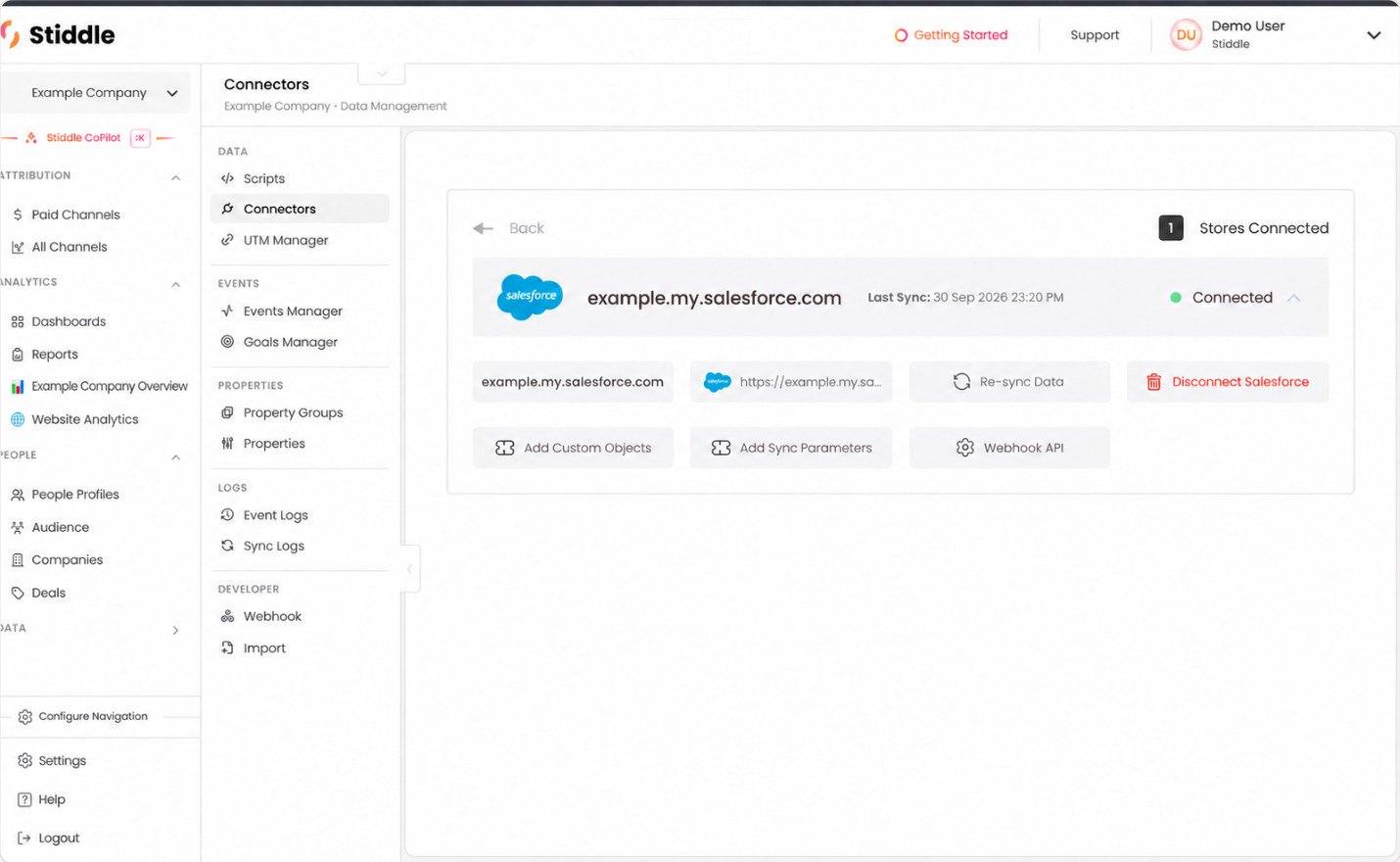
6. Return to Stiddle and open Configure. Check that the correct org is connected and review the Last Sync value.
7. Configure record filters and custom mappings before approving a full historical load when the workflow permits it. If connection begins syncing immediately, establish routing and permissions first.
8. Validate records in People Profiles, Companies and Deals, plus Event Logs and Sync Logs.

<Frame caption="Enter the Salesforce domain to start authorization">
  <img src="https://mintcdn.com/stiddle/qNqrH2LxEQuQw_UA/images/salesforce/figure-06-enter-the-salesforce-domain-to-start-authorization.jpg?fit=max&auto=format&n=qNqrH2LxEQuQw_UA&q=85&s=a2502f43a2b270e40935b90523ad688d" alt="Enter the Salesforce domain to start authorization" width="1430" height="869" data-path="images/salesforce/figure-06-enter-the-salesforce-domain-to-start-authorization.jpg" />
</Frame>

<Frame caption="Locate the Salesforce domain in the Salesforce user menu">
  <img src="https://mintcdn.com/stiddle/qNqrH2LxEQuQw_UA/images/salesforce/figure-07-locate-the-salesforce-domain-in-the-salesforce-user-menu.jpg?fit=max&auto=format&n=qNqrH2LxEQuQw_UA&q=85&s=69c4486962984580cb6777eb2a3408ad" alt="Locate the Salesforce domain in the Salesforce user menu" width="1430" height="876" data-path="images/salesforce/figure-07-locate-the-salesforce-domain-in-the-salesforce-user-menu.jpg" />
</Frame>

<Frame caption="Review the Salesforce authorization request and select Allow">
  <img src="https://mintcdn.com/stiddle/qNqrH2LxEQuQw_UA/images/salesforce/figure-08-review-the-salesforce-authorization-request-and-select-allow.jpg?fit=max&auto=format&n=qNqrH2LxEQuQw_UA&q=85&s=db37d97c0276c960862e8c5d8979245a" alt="Review the Salesforce authorization request and select Allow" width="1430" height="871" data-path="images/salesforce/figure-08-review-the-salesforce-authorization-request-and-select-allow.jpg" />
</Frame>

### Configure the connection

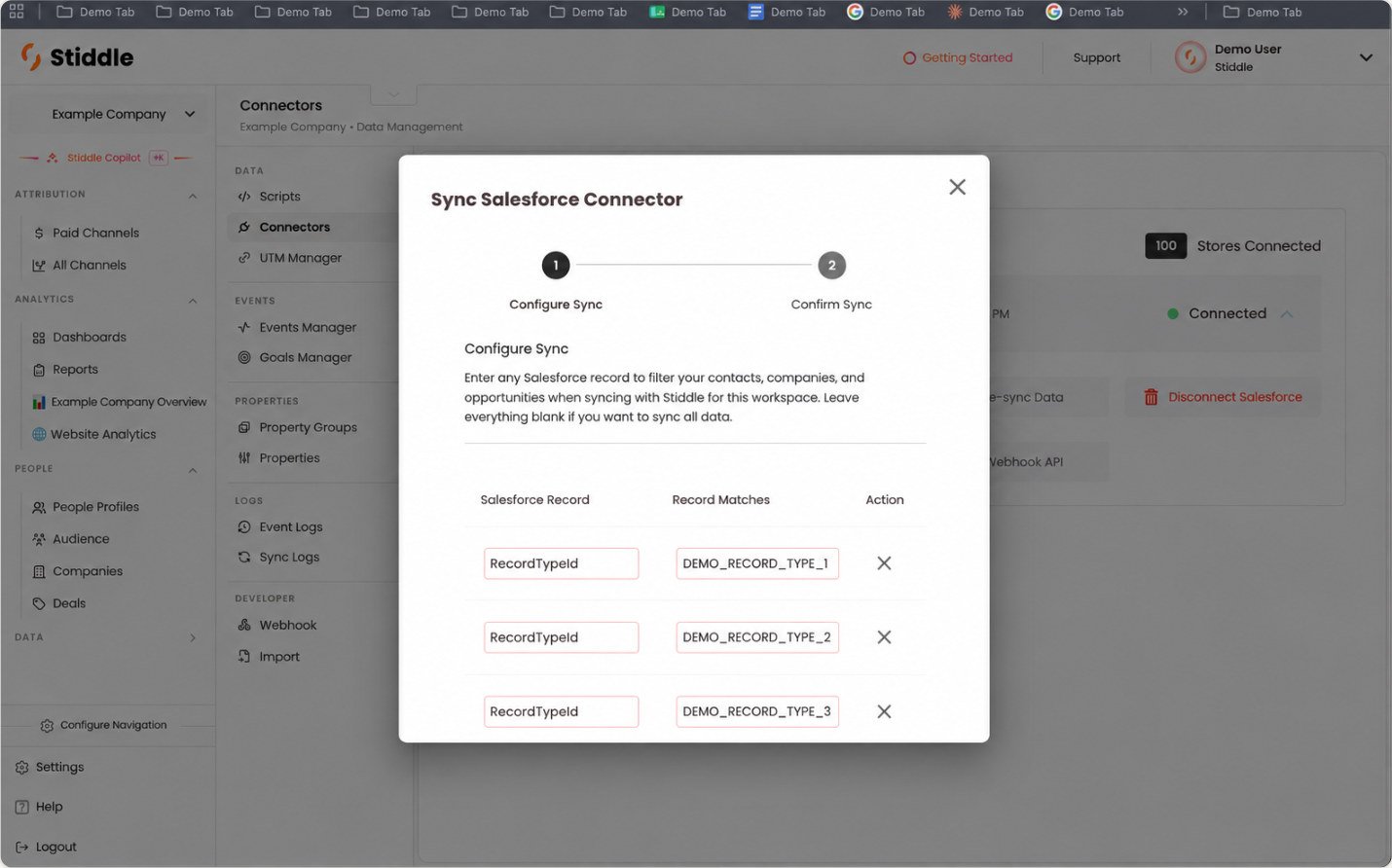
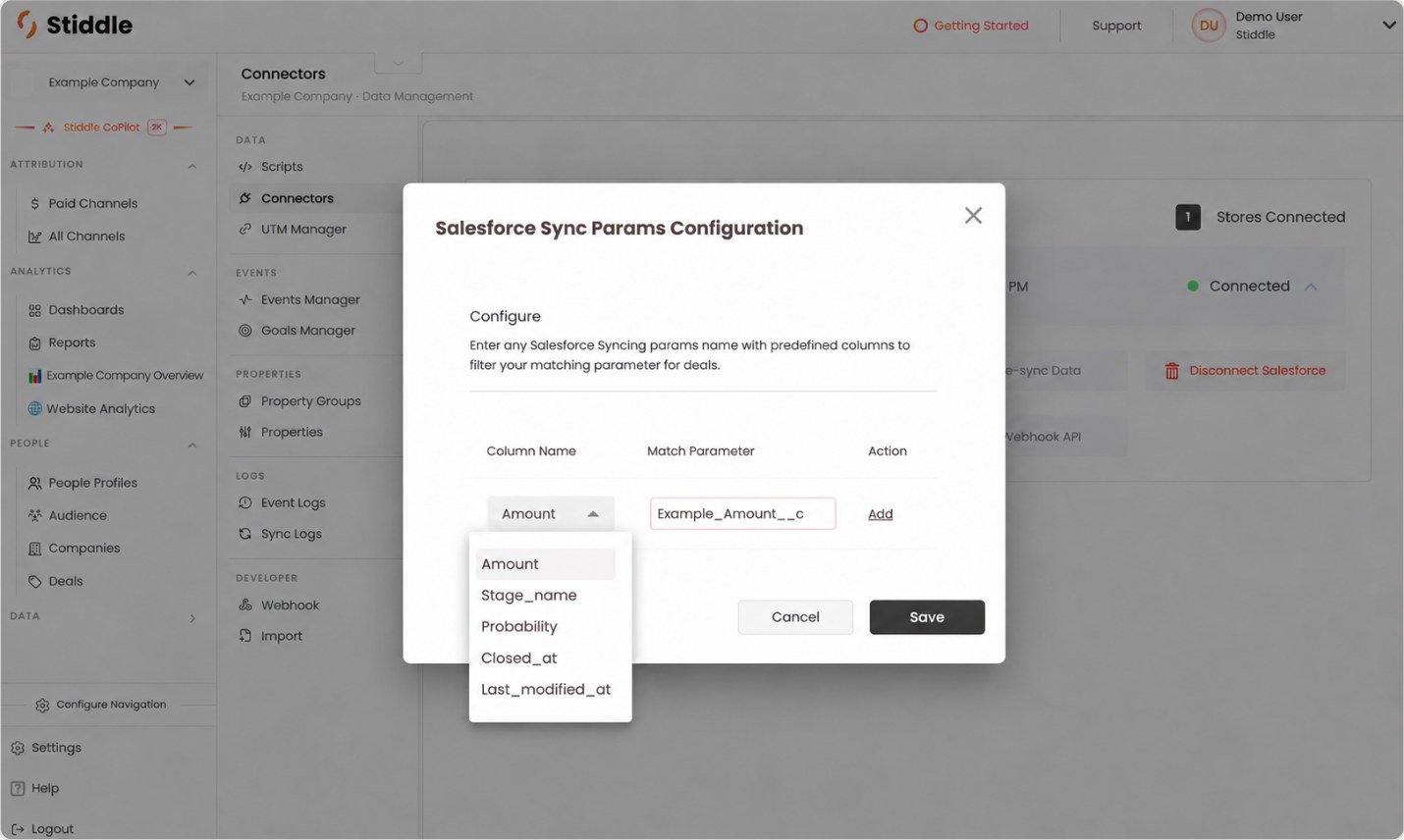
The connector view includes Add Custom Objects, Add Sync Parameters, Webhook API, Re-sync Data and Disconnect Salesforce. The sync dialog has Configure Sync and Confirm Sync steps.

In Configure Sync, use Salesforce Record and Record Matches to scope the records for the workspace. The screenshots show `RecordTypeId` filters and explain that leaving the configuration blank syncs all data. Before doing so, check whether the integration identity can see records outside the intended brand or business unit.

<Frame caption="Review the connected Salesforce organization and configuration controls">
  <img src="https://mintcdn.com/stiddle/qNqrH2LxEQuQw_UA/images/salesforce/figure-09-review-the-connected-salesforce-organization-and-configuration-control.jpg?fit=max&auto=format&n=qNqrH2LxEQuQw_UA&q=85&s=67847a69b8c401540cedbddd7e311d59" alt="Review the connected Salesforce organization and configuration controls" width="1430" height="880" data-path="images/salesforce/figure-09-review-the-connected-salesforce-organization-and-configuration-control.jpg" />
</Frame>

<Frame caption="Scope the Salesforce sync using record type filters">
  <img src="https://mintcdn.com/stiddle/qNqrH2LxEQuQw_UA/images/salesforce/figure-10-scope-the-salesforce-sync-using-record-type-filters.jpg?fit=max&auto=format&n=qNqrH2LxEQuQw_UA&q=85&s=433e9a68ffc32f49b8756638b8ca010b" alt="Scope the Salesforce sync using record type filters" width="1430" height="892" data-path="images/salesforce/figure-10-scope-the-salesforce-sync-using-record-type-filters.jpg" />
</Frame>

### Map custom fields and objects

In Add Sync Parameters, select the Stiddle target column, enter the Salesforce field API name as the match parameter, select Add, then Save. The screenshot exposes Amount, `Stage_name`, Probability, `Closed_at` and `Last_modified_at`. For example, Amount may be mapped to an approved custom quote amount field when it is the business's pipeline value.

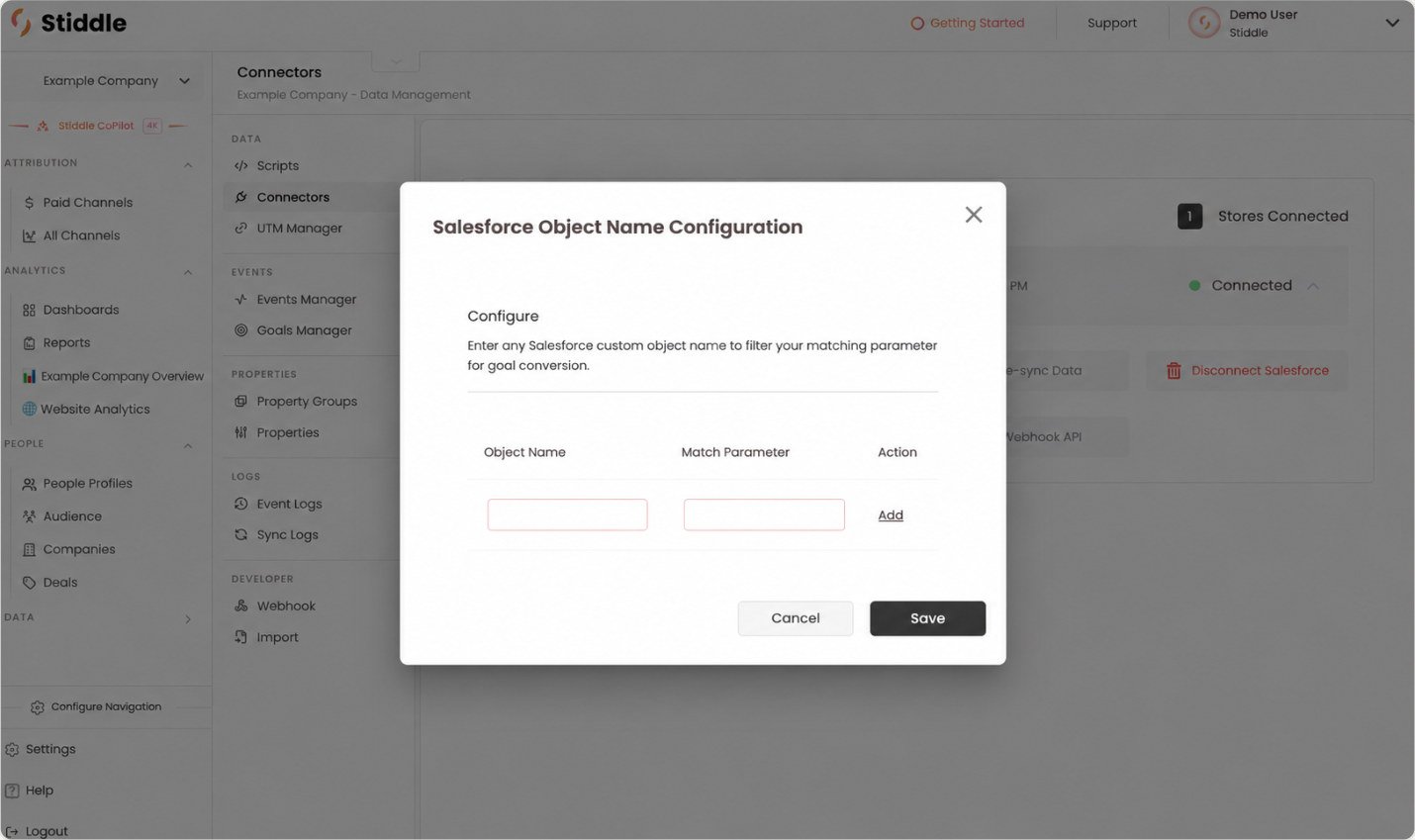
In Add Custom Objects, supply the custom object's API name and the required match parameter. Verify the object's identifier, relationship to the account or contact, and intended event or conversion behavior. This dialog does not by itself establish support for every custom object relationship.

<Frame caption="Map a Salesforce custom amount field to the Stiddle deal value">
  <img src="https://mintcdn.com/stiddle/qNqrH2LxEQuQw_UA/images/salesforce/figure-11-map-a-salesforce-custom-amount-field-to-the-stiddle-deal-value.jpg?fit=max&auto=format&n=qNqrH2LxEQuQw_UA&q=85&s=113d4a999feb11c9c055f720a3a92f0b" alt="Map a Salesforce custom amount field to the Stiddle deal value" width="1430" height="856" data-path="images/salesforce/figure-11-map-a-salesforce-custom-amount-field-to-the-stiddle-deal-value.jpg" />
</Frame>

<Frame caption="Configure a custom Salesforce object and its match parameter">
  <img src="https://mintcdn.com/stiddle/qNqrH2LxEQuQw_UA/images/salesforce/figure-12-configure-a-custom-salesforce-object-and-its-match-parameter.jpg?fit=max&auto=format&n=qNqrH2LxEQuQw_UA&q=85&s=618a3ceca8bf5498fe32c22e188af0e7" alt="Configure a custom Salesforce object and its match parameter" width="1430" height="849" data-path="images/salesforce/figure-12-configure-a-custom-salesforce-object-and-its-match-parameter.jpg" />
</Frame>

## API integration

Use an API route when middleware controls Salesforce extraction, transformation and delivery into Stiddle. This is a custom implementation path; the Stiddle ingestion URL, request format and authentication scheme must come from the approved Stiddle API documentation for the workspace.

### Requirements

The extraction identity needs Salesforce API and read access. The delivery process needs an approved Stiddle API credential, tenant routing, entity mappings and an engineering owner. Store credentials in a secret manager and send requests over HTTPS. Keep production and test credentials separate.

### Extraction and delivery procedure

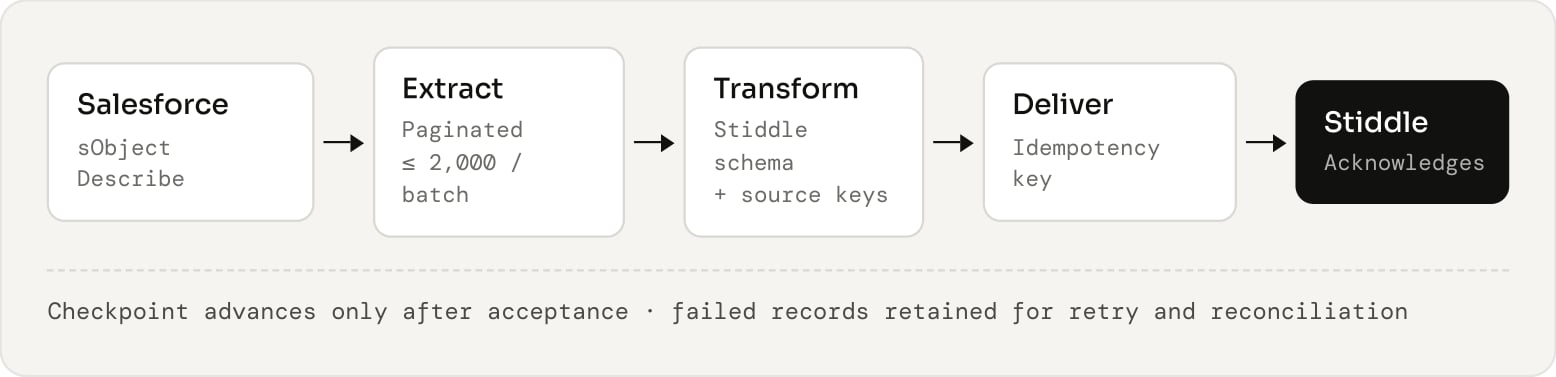
<Frame caption="Customer-owned API pipeline. Pagination, retries and transformations sit with the middleware owner.">
  <img src="https://mintcdn.com/stiddle/qNqrH2LxEQuQw_UA/images/salesforce/figure-13-customer-owned-api-pipeline-pagination-retries-and-transformations-sit.png?fit=max&auto=format&n=qNqrH2LxEQuQw_UA&q=85&s=8e519e50b9758dcb2cd332de3aaabe8a" alt="Customer-owned API pipeline. Pagination, retries and transformations sit with the middleware owner." width="1556" height="377" data-path="images/salesforce/figure-13-customer-owned-api-pipeline-pagination-retries-and-transformations-sit.png" />
</Frame>

1. Authorize the Salesforce API client using the org-approved OAuth flow. Confirm the integration user and allowed objects.
2. Inspect each object using the Salesforce sObject Describe resource. Capture field names, types, relationships and operation capabilities.
3. Extract accounts, contacts or leads, opportunities and relationship records. Request only mapped fields.
4. Follow the pagination locator until the query is complete. A synchronous Salesforce query can return up to 2,000 records in a batch, sometimes fewer.
5. Transform each record into the approved Stiddle schema. Preserve Salesforce org ID, object API name, record ID and modification timestamp.
6. Send an initial backfill, then incremental updates using a reliable modification watermark with an overlap window and deduplication.
7. Advance the delivery checkpoint only after the receiving system confirms acceptance under its documented contract. Retain failed records for retry and reconciliation.
8. Handle deleted records, merges and lead conversion through explicitly supported operations rather than treating missing records as deleted.

### Example delivery envelope

This example describes the information to preserve with each delivered record. Salesforce IDs below are examples.

```json theme={null}
{
  "source": "salesforce",
  "source_org_id": "<salesforce_org_id>",
  "object_type": "Opportunity",
  "record_id": "<opportunity_id>",
  "operation": "update",
  "occurred_at": "2026-10-01T21:00:00Z",
  "idempotency_key": "<org>:<object>:<id>:<version>",
  "properties": {
    "AccountId": "<account_id>",
    "StageName": "Qualification",
    "Amount": 50000,
    "CurrencyIsoCode": "USD"
  }
}
```

Example payload. Salesforce IDs are examples.

## Webhook integration

Use webhooks to send selected Salesforce changes to Stiddle between scheduled syncs. The connector includes an Apex-based webhook setup for Opportunity updates. A webhook provides change notifications; historical records and prior transitions require a separate backfill.
<Frame caption="Webhook change delivery from Salesforce automation to Stiddle.">
  <img src="https://mintcdn.com/stiddle/qNqrH2LxEQuQw_UA/images/salesforce/figure-14-webhook-change-delivery-from-salesforce-automation-to-stiddle.png?fit=max&auto=format&n=qNqrH2LxEQuQw_UA&q=85&s=e897a80a5d094f7e3b40091faa82ee1b" alt="Webhook change delivery from Salesforce automation to Stiddle." width="1556" height="379" data-path="images/salesforce/figure-14-webhook-change-delivery-from-salesforce-automation-to-stiddle.png" />
</Frame>

### Setup using the Stiddle connector instructions

1. Open `Data` → `Connectors` → `Salesforce` → `Configure` → `Webhook API`.
2. Obtain the receiver URL, authentication details and current setup instructions for this workspace. Do not copy credentials from screenshots or another workspace.
3. In Salesforce Setup, configure outbound access for the approved receiver. The Stiddle instructions use Remote Site Settings with `https://api.stiddle.com` as the host. Prefer an approved Named Credential design for managed authentication when supported by the implementation.
4. Deploy the reviewed Apex class and trigger, or the approved Flow and middleware equivalent, in a test environment first.
5. Configure the objects and meaningful field changes that should generate deliveries. The screenshot's sample watches Opportunity `StageName` and Amount after update.
6. Send test changes and validate the received payload, linked records and events in Stiddle.
7. Deploy the tested automation, monitor failed deliveries and reconcile against Salesforce periodically.

<Frame caption="Review the connector webhook instructions and outbound access setup">
  <img src="https://mintcdn.com/stiddle/qNqrH2LxEQuQw_UA/images/salesforce/figure-15-review-the-connector-webhook-instructions-and-outbound-access-setup.jpg?fit=max&auto=format&n=qNqrH2LxEQuQw_UA&q=85&s=7d90826b50be219c5f56c413d5c42139" alt="Review the connector webhook instructions and outbound access setup" width="1430" height="869" data-path="images/salesforce/figure-15-review-the-connector-webhook-instructions-and-outbound-access-setup.jpg" />
</Frame>

<Frame caption="Review the Apex class example with dummy credentials">
  <img src="https://mintcdn.com/stiddle/qNqrH2LxEQuQw_UA/images/salesforce/figure-16-review-the-apex-class-example-with-dummy-credentials.jpg?fit=max&auto=format&n=qNqrH2LxEQuQw_UA&q=85&s=415402f16bf42e7f5659d5342ef6962f" alt="Review the Apex class example with dummy credentials" width="1430" height="867" data-path="images/salesforce/figure-16-review-the-apex-class-example-with-dummy-credentials.jpg" />
</Frame>

<Frame caption="Review the opportunity update trigger example">
  <img src="https://mintcdn.com/stiddle/qNqrH2LxEQuQw_UA/images/salesforce/figure-17-review-the-opportunity-update-trigger-example.jpg?fit=max&auto=format&n=qNqrH2LxEQuQw_UA&q=85&s=baa0d69654993b991d1fc689fc674ac6" alt="Review the opportunity update trigger example" width="1430" height="851" data-path="images/salesforce/figure-17-review-the-opportunity-update-trigger-example.jpg" />
</Frame>

### Payload and delivery design

Preserve source org, object, record ID, operation, source modification time, relevant relationships and changed business fields. If stage transition attribution is needed, include the previous and new stage plus the transition timestamp when available. Use a stable event identifier so retries do not count as new conversions.

The screenshot's Apex sample is instructional, not a complete production delivery system. It handles an update example and does not establish full coverage of creates, deletes, merges, retries or historical loads. A production implementation should handle bulk changes, Salesforce callout limits, asynchronous delivery, serialization, error logging and retry behavior. Avoid one unbounded callout per record and avoid building JSON through string concatenation.

For invalid credentials or invalid payloads, alert the owner and correct the cause. Retry transient failures with backoff and preserve the event identifier. Store failed deliveries in a queue and define a reconciliation job.

### Configure and map a webhook endpoint in Stiddle

The additional screenshots show a separate `Data` → `Webhook` page with endpoint configuration, test import and property mapping controls. These controls supplement the Salesforce connector's Apex setup; they should not be assumed to have the same contract or direction.

1. Open the correct workspace and select `Data` → `Webhook`, then Add endpoint.
2. Under Events to subscribe, select the event options available for this endpoint. The visible selections include `contact.created`, `contact.updated`, `contact.upserted`, `deal.created`, `deal.updated` and `deal.closed_won`. Order options are also visible but are outside the CRM setup scope.
3. Enter the required Label, using a name that identifies the source, workspace and purpose.
4. Review Webhook URL and use Copy to clipboard. Obtain the workspace's current value rather than reusing a screenshot URL.
5. Under Secrets, copy the current credential through the approved secret-management process. The displayed header key is `x-stiddle-api-key`. The modal instructs callers to supply this header and refers to an HMAC-SHA256 payload signature.
6. Use Test import to test the approved payload, then select Next to open Property mapping.
7. Send a test payload from the source, then select Refresh. The mapping dialog states that incoming properties appear after the source fires a webhook.
8. Map each Incoming Key and Incoming Value to an existing Stiddle property. Use search and Add mapping row as needed. The property selector includes CRM, identity and marketing properties; map only fields relevant to the event.
9. Select Save webhook. Review the endpoint's Enabled status, subscribed event labels, success rate and Last delivery in Active Endpoints. Use Edit to correct its configuration; confirm deletion effects before removing an endpoint.

<Frame caption="Configure a webhook endpoint with dummy URL and credentials">
  <img src="https://mintcdn.com/stiddle/qNqrH2LxEQuQw_UA/images/salesforce/figure-18-configure-a-webhook-endpoint-with-dummy-url-and-credentials.jpg?fit=max&auto=format&n=qNqrH2LxEQuQw_UA&q=85&s=1f4faaf8bf41f0d253eeb3bb2f5c350f" alt="Configure a webhook endpoint with dummy URL and credentials" width="1430" height="876" data-path="images/salesforce/figure-18-configure-a-webhook-endpoint-with-dummy-url-and-credentials.jpg" />
</Frame>

<Frame caption="Map incoming webhook keys to Stiddle properties">
  <img src="https://mintcdn.com/stiddle/qNqrH2LxEQuQw_UA/images/salesforce/figure-19-map-incoming-webhook-keys-to-stiddle-properties.jpg?fit=max&auto=format&n=qNqrH2LxEQuQw_UA&q=85&s=1ae4233e3a30366815d9603f6752157e" alt="Map incoming webhook keys to Stiddle properties" width="1430" height="862" data-path="images/salesforce/figure-19-map-incoming-webhook-keys-to-stiddle-properties.jpg" />
</Frame>

<Frame caption="Review an enabled webhook endpoint with a dummy URL">
  <img src="https://mintcdn.com/stiddle/qNqrH2LxEQuQw_UA/images/salesforce/figure-20-review-an-enabled-webhook-endpoint-with-a-dummy-url.jpg?fit=max&auto=format&n=qNqrH2LxEQuQw_UA&q=85&s=d9b9e7705dc00b8a3768a54cf5d7ea6f" alt="Review an enabled webhook endpoint with a dummy URL" width="1430" height="880" data-path="images/salesforce/figure-20-review-an-enabled-webhook-endpoint-with-a-dummy-url.jpg" />
</Frame>

### CRM event types shown in the webhook catalog

The page's Available Event Types catalog lists the CRM identifiers below. Availability in the catalog is distinct from subscription support in the endpoint modal, whose visible options are narrower. Verify that each required event can be selected and delivered in the deployed flow.

| Event Identifier | Meaning Displayed In Stiddle | CRM Use |
| - | - | - |
| `contact.created` | New contact added | Contact creation |
| `contact.updated` | Contact data modified | Contact property update |
| `contact.upserted` | Contact created or updated | Upsert notification |
| `contact.deleted` | Contact removed | Removal notification |
| `deal.created` | New deal opened | Opportunity creation |
| `deal.updated` | Deal stage or value changed | Opportunity update |
| `deal.closed_won` | Deal marked closed won | Won outcome |
| `deal.closed_lost` | Deal marked closed lost | Lost outcome |
| `company.created` | New company added | Account creation |
| `company.updated` | Company data modified | Account update |
| `event.tracked` | Custom event fired | Custom touchpoint |

These identifiers are shown by the webhook feature. Do not assume they are the event IDs required by Events Manager, API payload discriminators or Salesforce object API names. Agree their relationship to the CRM event definitions used for attribution. A delivery notification is not automatically another business conversion.

<Frame caption="Review the available webhook event types">
  <img src="https://mintcdn.com/stiddle/qNqrH2LxEQuQw_UA/images/salesforce/figure-21-review-the-available-webhook-event-types.jpg?fit=max&auto=format&n=qNqrH2LxEQuQw_UA&q=85&s=fd4ba8072afe22d0342eb87940e90b7c" alt="Review the available webhook event types" width="1430" height="869" data-path="images/salesforce/figure-21-review-the-available-webhook-event-types.jpg" />
</Frame>

### Optional change stream architecture

Salesforce Change Data Capture with middleware is a separate alternative to Apex webhooks. CDC does not behave like a generic HTTP webhook. Salesforce retains change events for 72 hours, and subscribers need replay and gap-recovery logic. Its record access model differs from normal API reads and can ignore sharing settings, so review subscription permissions separately.

## CSV data import

Use CSV for historical backfills, migrations, offline CRM records or controlled manual loads. `Data` → `Import` contains Import Configuration and Import Logs tabs, an Import guide link, active sync status and View history. The current screenshots show an import workflow that selects the type of records or events the CSV should create.

### Supported types shown in the UI

The Event type dropdown exposes Contacts, Orders, Companies, Deals and Events. For Salesforce data, use Contacts for people records, Companies for account records, Deals for opportunities and Events for touchpoints where the supported schema fits. Load Salesforce leads as Contacts and handle opportunity contact roles through the connector or API.

<Frame caption="Open Import Configuration and upload a CSV file">
  <img src="https://mintcdn.com/stiddle/qNqrH2LxEQuQw_UA/images/salesforce/figure-22-open-import-configuration-and-upload-a-csv-file.jpg?fit=max&auto=format&n=qNqrH2LxEQuQw_UA&q=85&s=a67140d4a4329ba4fcb3c41e50df9d7c" alt="Open Import Configuration and upload a CSV file" width="1430" height="853" data-path="images/salesforce/figure-22-open-import-configuration-and-upload-a-csv-file.jpg" />
</Frame>

### Prepare the files

Use the Download CSV template link for the selected import type. The upload panel specifies a maximum file size of 50 MB and requires UTF-8 encoding. Include a header row and preserve Salesforce IDs as text; use 18-character IDs when available. Keep source org and relationship keys in the mapped data rather than replacing CRM identifiers with names or email addresses.

The layouts below are recommended mapping examples. Export separate files when entity types differ. An opportunity snapshot cannot reconstruct earlier stage transitions that are absent from the source.

| Recommended File | UI Import Type | Suggested Source Columns |
| - | - | - |
| `accounts.csv` | Companies | `source_org_id`, Id, Name, Website, `OwnerId`, `CreatedDate` |
| `contacts.csv` | Contacts | `source_org_id`, Id, `AccountId`, Email, `FirstName`, `LastName` |
| `opportunities.csv` | Deals | `source_org_id`, Id, `AccountId`, Name, `StageName`, Amount, `CloseDate` |
| `crm_events.csv` | Events | `source_org_id`, `event_id`, `event_name`, `occurred_at`, `entity_id` |

### Import procedure

<Frame caption="CSV import sequence in Data → Import.">
  <img src="https://mintcdn.com/stiddle/qNqrH2LxEQuQw_UA/images/salesforce/figure-23-csv-import-sequence-in-data-import.png?fit=max&auto=format&n=qNqrH2LxEQuQw_UA&q=85&s=0db45e641eb4af7d6138ec01c971c870" alt="CSV import sequence in Data → Import." width="1556" height="269" data-path="images/salesforce/figure-23-csv-import-sequence-in-data-import.png" />
</Frame>

1. Open `Data` → `Import` → `Import Configuration` in the correct workspace.
2. In Import details, enter Import name and select the Event type.
3. In Upload CSV file, drag in the file or use Choose file. Begin with a small test file that follows the selected template.
4. In Map columns to properties, review the CSV Column, Stiddle Property and Include selections. Use Auto-map columns as a starting point, then check every mapping. The UI states that unmapped columns are skipped.
5. Use property search or Load all properties to find destination properties. Use Clear all only when intentionally rebuilding the mapping. Ensure CRM identifiers, relationships, timestamps and monetary values are included where the import supports them.
6. Under Import options, select how existing records are handled. Review the options below before loading production data.
7. Configure Identify imports by. Email is the default matching key; choose a stable alternative key for Companies, Deals, Events and Salesforce records without email.
8. In Select import date, choose the CSV column that represents the record's created or import date. The UI says this is optional and defaults to import time when unselected. Validate whether this field also controls event occurrence time before using it for historical attribution.
9. Select Preview import, review the results through the available preview, then Start import. Both controls are visible but disabled before a file is configured in the screenshots.
10. Review Import Logs and View history, then inspect the resulting profiles, companies, deals or events. Correct mapping or validation errors before importing the remaining data.

<Frame caption="Map CSV columns and select import matching and duplicate behavior">
  <img src="https://mintcdn.com/stiddle/qNqrH2LxEQuQw_UA/images/salesforce/figure-24-map-csv-columns-and-select-import-matching-and-duplicate-behavior.jpg?fit=max&auto=format&n=qNqrH2LxEQuQw_UA&q=85&s=ac350a79645335fa512077ef8c7ca35d" alt="Map CSV columns and select import matching and duplicate behavior" width="1430" height="865" data-path="images/salesforce/figure-24-map-csv-columns-and-select-import-matching-and-duplicate-behavior.jpg" />
</Frame>

### Existing record behavior shown in the UI

| Option | UI Description | Implementation Consideration |
| - | - | - |
| Update existing import | Merge new data into existing profiles; fill empty fields and overwrite mapped fields | Map only properties that should be replaced |
| Skip duplicates | Leave existing imports unchanged and create only new records | Appropriate when preserving existing values |
| Create duplicate | Always create a new record even when a match exists | Can inflate records and downstream reporting |

The update option applies matching and overwrite behavior to the target record. “Fill empty fields” describes the target record; it does not define whether an incoming blank cell clears a populated value. Test null handling separately.

A CRM source ID remains valuable even if the importer uses email to find a people record. Validate duplicate emails, lead-to-contact conversion and repeated event imports. Use a supported API or connector relationship flow for relationship data.

<Frame caption="Review import identity matching and dates before previewing the import">
  <img src="https://mintcdn.com/stiddle/qNqrH2LxEQuQw_UA/images/salesforce/figure-25-review-import-identity-matching-and-dates-before-previewing-the-import.jpg?fit=max&auto=format&n=qNqrH2LxEQuQw_UA&q=85&s=b9901dfef25939a75a5fd0c4853add0b" alt="Review import identity matching and dates before previewing the import" width="1430" height="873" data-path="images/salesforce/figure-25-review-import-identity-matching-and-dates-before-previewing-the-import.jpg" />
</Frame>

## Warehouse connection

Use this route when Salesforce data already exists in an approved BigQuery or Snowflake environment. Stiddle's composable architecture can be scoped around a customer's warehouse, with read and write paths defined for each deployment.

<Frame caption="Warehouse route: inbound replication and the separate return path.">
  <img src="https://mintcdn.com/stiddle/qNqrH2LxEQuQw_UA/images/salesforce/figure-26-warehouse-route-inbound-replication-and-the-separate-return-path.png?fit=max&auto=format&n=qNqrH2LxEQuQw_UA&q=85&s=07dbff2abbe32934357fbff46129f537" alt="Warehouse route: inbound replication and the separate return path." width="1556" height="654" data-path="images/salesforce/figure-26-warehouse-route-inbound-replication-and-the-separate-return-path.png" />
</Frame>

### Requirements and access

Provide the project or account, database, dataset or schema, tables or views, compute configuration and an authorized service identity. The warehouse must contain the source Salesforce IDs, object relationships and timestamps. Confirm how Salesforce data arrives there and who owns replication failures.

For BigQuery, a typical read design grants access to read the selected dataset or views and permission to run query jobs in the designated project. For Snowflake, a typical read role needs USAGE on the database, schema and compute warehouse plus SELECT on the selected tables or views. Grant write permissions only to an explicitly approved output destination.

### Configure the dataset

1. Agree the Stiddle warehouse connection mechanism, authentication and network requirements with your Stiddle contact.
2. Create curated views for accounts, contacts, leads, opportunities and contact roles. Include campaign or activity data only when required.
3. Map source columns to the entity schema in Section 8. Keep `source_org_id` and workspace routing fields in every dataset.
4. Define update timestamps, soft-delete markers, replication timestamps and any retained stage-history table.
5. Validate uniqueness, foreign keys, row counts and timezone conventions before enabling ingestion or queries.
6. Run a test sync or query through the approved Stiddle setup and inspect the results.
7. Agree the refresh schedule and report both upstream replication time and Stiddle processing time.

A warehouse snapshot may contain only the latest CRM values. To reconstruct stage transitions or past field values, retain change history or snapshots upstream and map them as events through a supported route. Exclude Stiddle's own outbound tables from inbound CRM events to prevent feedback loops.

### Returning data from the warehouse

Writing a score or audience table to the warehouse does not update Salesforce by itself. Use the Stiddle Salesforce destination, a customer-managed reverse ETL tool or middleware to match Salesforce IDs and write the selected fields. Define which service owns retries and Salesforce API usage.

## Data schema and field mapping

Stiddle organizes properties into groups for different connections and record types. For Salesforce, common groups cover events, contacts and profiles, opportunities and deals, and accounts and companies. Each property has a display name, a stable property key and a data type. Each group has a name, an ID and a group type.

Multiple properties can belong to the same group, and the same property can be assigned to multiple groups. Custom groups and custom properties can be created in Stiddle to reflect your source data and business requirements. Group membership organizes properties for use with the relevant records and events; define the source object and record relationship in the mapping as well.

### Common Salesforce property groups

| Group Name | Property Group ID | Group Type | Common Use |
| - | - | - | - |
| Contact Group | `contact_group` | contact | General contact and profile properties |
| CRM Contact | `crm_contact` | `crm_contact` | Salesforce contact properties |
| CRM Event | `crm_event` | `crm_event` | CRM events with contact, account and opportunity context |
| CRM Account | `crm_account` | `crm_account` | Account and company properties |
| CRM Opportunity | `crm_opportunity` | `crm_opportunity` | Opportunity and deal properties |

<Frame caption="Review property groups and the properties assigned to a group">
  <img src="https://mintcdn.com/stiddle/qNqrH2LxEQuQw_UA/images/salesforce/figure-27-review-property-groups-and-the-properties-assigned-to-a-group.jpg?fit=max&auto=format&n=qNqrH2LxEQuQw_UA&q=85&s=fd6ab1786cae2a83df8f76d179985446" alt="Review property groups and the properties assigned to a group" width="1430" height="862" data-path="images/salesforce/figure-27-review-property-groups-and-the-properties-assigned-to-a-group.jpg" />
</Frame>

### Mapping across Salesforce products

Existing fields, objects and properties from Salesforce, Salesforce Pardot, Salesforce Marketing Cloud and other Salesforce products can be mapped to these groups or to custom groups. Select the appropriate connector, API, webhook, CSV or warehouse route to make the source data available, then map each source field to the intended Stiddle property. Authorize access for the source product and data in scope; the Salesforce CRM connection does not by itself establish access to every other Salesforce product.

For a custom object, define its record key and relationships, then map its fields to an appropriate existing or custom group. Preserve the source product, object and field identity when different systems use the same field name.

The inventories below list common Stiddle properties and their exact keys and types. They describe available properties, rather than a requirement to collect every field. Values depend on the connected data, access permissions and selected mappings. The same keys recur across groups because properties can be shared.

Record context matters. Display labels such as CRM Account ID (Id) and CRM Account Name (Name) also appear in contact and opportunity groups. Map these keys according to the actual source object: `Contact.Id` identifies a contact, `Opportunity.Id` identifies an opportunity, and `Account.Id` identifies an account. Use `AccountId` for an account relationship where available, or create and map a property for that relationship. Do not infer an account relationship solely from the display label.

### Contact Group properties

`Group ID` `contact_group` `Group type` `contact`

General profile properties can be used alongside CRM Contact properties. Salesforce fields such as `FirstName`, `LastName`, Email and Phone can be mapped to the corresponding profile properties when appropriate. Browser, device and session properties describe other profile context and should retain their actual source.

| Property Name | Property Key | Stiddle Type |
| - | - | - |
| Last Name | `last_name` | `STRING` |
| First Name | `first_name` | `STRING` |
| Contact Number | `contact_number` | `STRING` |
| Email | `email` | `STRING` |
| Postcode | `_postcode` | `STRING` |
| Timezone | `timezone` | `STRING` |
| Country | `_country` | `STRING` |
| Browser | `browser` | `STRING` |
| State | `_state` | `STRING` |
| Fingerprint | `fingerprint` | `STRING` |
| Os | `os` | `STRING` |
| Profile Pic | `profile_pic` | `STRING` |
| Address | `address` | `STRING` |
| Cookies | `cookies` | `STRING` |
| Country Code | `country_code` | `STRING` |
| City | `_city` | `STRING` |
| Browser IP | `browser_ip` | `STRING` |
| Status | `status` | `STRING` |
| Session | `session` | `NUMBER` |
| User ID | `uId` | `STRING` |
| Referrer | `referrer` | `STRING` |
| Device | `device` | `STRING` |

### CRM Contact properties

`Group ID` `crm_contact` `Group type` `crm_contact`

Use this group for Salesforce contact data and profile enrichment.

| Property Name | Property Key | Stiddle Type |
| - | - | - |
| CRM Created Date | `CreatedDate` | `DATETIME` |
| CRM Last Modified Date | `LastModifiedDate` | `DATETIME` |
| CRM Owner | `Owner` | `STRING` |
| CRM Account | `Account` | `STRING` |
| CRM Phone | `Phone` | `STRING` |
| CRM Account Name | `Name` | `STRING` |
| CRM Owner ID | `OwnerId` | `STRING` |
| CRM Description | `Description` | `STRING` |
| CRM Account ID | `Id` | `STRING` |
| CRM Mailing Country | `MailingCountry` | `STRING` |
| CRM First Name | `FirstName` | `STRING` |
| CRM Mailing City | `MailingCity` | `STRING` |
| CRM Email | `Email` | `STRING` |
| CRM Mobile Phone | `MobilePhone` | `STRING` |
| CRM Mailing Street | `MailingStreet` | `STRING` |
| CRM Last Name | `LastName` | `STRING` |
| CRM Mailing State | `MailingState` | `STRING` |
| CRM Mailing Postal Code | `MailingPostalCode` | `STRING` |

Email can help associate known CRM people with identified Stiddle profiles. Preserve Salesforce record keys even when several CRM records resolve to one person. Resolve duplicate contacts, shared email addresses and lead conversion through explicit rules. Contact ingestion does not establish every prior anonymous visitor's identity. Add custom properties for lead conversion IDs, consent preferences, job title or other fields when needed.

### CRM Account properties

`Group ID` `crm_account` `Group type` `crm_account`

Use this group for account and company attributes, ownership and business context.

| Property Name | Property Key | Stiddle Type |
| - | - | - |
| CRM Created Date | `CreatedDate` | `DATETIME` |
| CRM Last Modified Date | `LastModifiedDate` | `DATETIME` |
| CRM Annual Revenue | `AnnualRevenue` | `NUMBER` |
| CRM Number Of Employees | `NumberOfEmployees` | `NUMBER` |
| CRM Owner | `Owner` | `STRING` |
| CRM Industry | `Industry` | `STRING` |
| CRM Billing Street | `BillingStreet` | `STRING` |
| CRM Shipping State | `ShippingState` | `STRING` |
| CRM Billing State | `BillingState` | `STRING` |
| CRM Billing Country | `BillingCountry` | `STRING` |
| CRM Billing City | `BillingCity` | `STRING` |
| CRM Shipping Country | `ShippingCountry` | `STRING` |
| CRM Shipping Postal Code | `ShippingPostalCode` | `STRING` |
| CRM Rating | `Rating` | `STRING` |
| CRM Shipping City | `ShippingCity` | `STRING` |
| CRM Shipping Street | `ShippingStreet` | `STRING` |
| CRM Website | `Website` | `STRING` |
| CRM Billing Postal Code | `BillingPostalCode` | `STRING` |
| CRM Phone | `Phone` | `STRING` |
| CRM Account Name | `Name` | `STRING` |
| CRM Owner ID | `OwnerId` | `STRING` |
| CRM Description | `Description` | `STRING` |
| CRM Account ID | `Id` | `STRING` |
| CRM Account Type | `Type` | `STRING` |

Normalize domains for matching under an agreed policy. A domain can belong to several Salesforce accounts, brands or subsidiaries. Match by Salesforce ID first and do not automatically merge accounts on domain alone. Add custom properties for parent-account relationships, record types or other account fields when needed. Decide how parent and child account scoring should roll up.

### CRM Opportunity properties

`Group ID` `crm_opportunity` `Group type` `crm_opportunity`

Use this group for opportunities and deals, including stage, value, forecast and related contact or account context.

| Property Name | Property Key | Stiddle Type |
| - | - | - |
| CRM Is Closed | `IsClosed` | `BOOLEAN` |
| CRM Has Opportunity Line Item | `HasOpportunityLineItem` | `BOOLEAN` |
| CRM Is Private | `IsPrivate` | `BOOLEAN` |
| CRM Is Won | `IsWon` | `BOOLEAN` |
| CRM Created Date | `CreatedDate` | `DATETIME` |
| CRM Last Modified Date | `LastModifiedDate` | `DATETIME` |
| CRM Close Date | `CloseDate` | `DATETIME` |
| CRM Probability | `Probability` | `NUMBER` |
| CRM Amount | `Amount` | `NUMBER` |
| CRM Owner | `Owner` | `STRING` |
| CRM Account | `Account` | `STRING` |
| CRM Opportunity | `Opportunity` | `STRING` |
| CRM Phone | `Phone` | `STRING` |
| CRM Account Name | `Name` | `STRING` |
| CRM Owner ID | `OwnerId` | `STRING` |
| CRM Description | `Description` | `STRING` |
| CRM Account ID | `Id` | `STRING` |
| CRM Account Type | `Type` | `STRING` |
| CRM Mailing Country | `MailingCountry` | `STRING` |
| CRM First Name | `FirstName` | `STRING` |
| CRM Mailing City | `MailingCity` | `STRING` |
| CRM Email | `Email` | `STRING` |
| CRM Mobile Phone | `MobilePhone` | `STRING` |
| CRM Mailing Street | `MailingStreet` | `STRING` |
| CRM Last Name | `LastName` | `STRING` |
| CRM Mailing State | `MailingState` | `STRING` |
| CRM Mailing Postal Code | `MailingPostalCode` | `STRING` |
| CRM Account ID Reference | `AccountId` | `STRING` |
| CRM Forecast Category Name | `ForecastCategoryName` | `STRING` |
| CRM Stage Name | `StageName` | `STRING` |
| CRM Next Step | `NextStep` | `STRING` |
| CRM Forecast Category | `ForecastCategory` | `STRING` |
| CRM Campaign ID | `CampaignId` | `STRING` |
| CRM Lead Source | `LeadSource` | `STRING` |

Stiddle's `CloseDate` property is typed DATETIME. Salesforce `CloseDate` is a date field and can represent a planned close date on an open deal; preserve its date meaning during conversion. An actual closed-won transition timestamp requires an appropriate history source or event. The connector UI's `Closed_at` target should be mapped according to its intended meaning. Add a currency property when required for interpreting Amount.

Use `OpportunityContactRole`, or an approved custom relationship table, to associate several contacts with one opportunity. Retain `OpportunityId`, `ContactId`, Role and `IsPrimary`. Joining every contact at an account to every deal can overstate involvement and attribution.

<Frame caption="Associate contacts with deals through contact roles, not by joining every account contact to every opportunity.">
  <img src="https://mintcdn.com/stiddle/qNqrH2LxEQuQw_UA/images/salesforce/figure-28-associate-contacts-with-deals-through-contact-roles-not-by-joining-eve.png?fit=max&auto=format&n=qNqrH2LxEQuQw_UA&q=85&s=3bc29c3b9fc026e30b8cc735ab91674d" alt="Associate contacts with deals through contact roles, not by joining every account contact to every opportunity." width="1556" height="474" data-path="images/salesforce/figure-28-associate-contacts-with-deals-through-contact-roles-not-by-joining-eve.png" />
</Frame>

### CRM Event properties

`Group ID` `crm_event` `Group type` `crm_event`

Use this group to carry CRM event context from accounts, contacts and opportunities. Select the fields relevant to each event and preserve the event identifier, occurrence time and associated record.

**49 properties: the combined CRM Account and CRM Opportunity sets.**

The CRM Event group holds every property listed in the two tables above, with the same keys and types, so a single event can carry account, contact and deal context. The full inventory is listed below.

| Property name | Property key | Stiddle type |
| - | - | - |
| CRM Created Date | `CreatedDate` | `DATETIME` |
| CRM Last Modified Date | `LastModifiedDate` | `DATETIME` |
| CRM Annual Revenue | `AnnualRevenue` | `NUMBER` |
| CRM Number Of Employees | `NumberOfEmployees` | `NUMBER` |
| CRM Owner | `Owner` | `STRING` |
| CRM Industry | `Industry` | `STRING` |
| CRM Billing Street | `BillingStreet` | `STRING` |
| CRM Shipping State | `ShippingState` | `STRING` |
| CRM Billing State | `BillingState` | `STRING` |
| CRM Billing Country | `BillingCountry` | `STRING` |
| CRM Billing City | `BillingCity` | `STRING` |
| CRM Shipping Country | `ShippingCountry` | `STRING` |
| CRM Shipping Postal Code | `ShippingPostalCode` | `STRING` |
| CRM Rating | `Rating` | `STRING` |
| CRM Shipping City | `ShippingCity` | `STRING` |
| CRM Shipping Street | `ShippingStreet` | `STRING` |
| CRM Website | `Website` | `STRING` |
| CRM Billing Postal Code | `BillingPostalCode` | `STRING` |
| CRM Phone | `Phone` | `STRING` |
| CRM Account Name | `Name` | `STRING` |
| CRM Owner ID | `OwnerId` | `STRING` |
| CRM Description | `Description` | `STRING` |
| CRM Account ID | `Id` | `STRING` |
| CRM Account Type | `Type` | `STRING` |
| CRM Is Closed | `IsClosed` | `BOOLEAN` |
| CRM Has Opportunity Line Item | `HasOpportunityLineItem` | `BOOLEAN` |
| CRM Is Private | `IsPrivate` | `BOOLEAN` |
| CRM Is Won | `IsWon` | `BOOLEAN` |
| CRM Close Date | `CloseDate` | `DATETIME` |
| CRM Probability | `Probability` | `NUMBER` |
| CRM Amount | `Amount` | `NUMBER` |
| CRM Account | `Account` | `STRING` |
| CRM Opportunity | `Opportunity` | `STRING` |
| CRM Mailing Country | `MailingCountry` | `STRING` |
| CRM First Name | `FirstName` | `STRING` |
| CRM Mailing City | `MailingCity` | `STRING` |
| CRM Email | `Email` | `STRING` |
| CRM Mobile Phone | `MobilePhone` | `STRING` |
| CRM Mailing Street | `MailingStreet` | `STRING` |
| CRM Last Name | `LastName` | `STRING` |
| CRM Mailing State | `MailingState` | `STRING` |
| CRM Mailing Postal Code | `MailingPostalCode` | `STRING` |
| CRM Account ID Reference | `AccountId` | `STRING` |
| CRM Forecast Category Name | `ForecastCategoryName` | `STRING` |
| CRM Stage Name | `StageName` | `STRING` |
| CRM Next Step | `NextStep` | `STRING` |
| CRM Forecast Category | `ForecastCategory` | `STRING` |
| CRM Campaign ID | `CampaignId` | `STRING` |
| CRM Lead Source | `LeadSource` | `STRING` |

A CRM Event property such as `StageName` describes the event's context. Define the event trigger separately in Events Manager. A group assignment alone does not create an event, establish a historical occurrence time or count a goal.

### Recommended integration metadata

| Suggested Custom Metadata Key | Source Or Rule | Purpose |
| - | - | - |
| `source_org_id` | Salesforce organization ID | Separates records across orgs |
| `source_object` | Object API name | Distinguishes Contact, Lead and other entities |
| `source_record_id` | Id | Stable source key for this design |
| `source_created_at` | `CreatedDate` | Source creation time |
| `source_modified_at` | `LastModifiedDate` or approved watermark | Detect updates and reject stale writes |
| `ingested_at` | Receiving timestamp | Measures delivery delay |
| `is_deleted` | Supported deletion marker | Explicit deletion handling |
| `workspace_routing_key` | Approved brand or record-type rule | Routes records to the correct workspace |

Use the compound key `source_org_id` + `source_object` + `source_record_id`. Keep CRM record properties separate from event history. A field update changes a record's state; an event records an occurrence at a specific time.

<Frame caption="Compound key that keeps records distinct across orgs and objects.">
  <img src="https://mintcdn.com/stiddle/qNqrH2LxEQuQw_UA/images/salesforce/figure-29-compound-key-that-keeps-records-distinct-across-orgs-and-objects.png?fit=max&auto=format&n=qNqrH2LxEQuQw_UA&q=85&s=a2ae62ead39c69ce23f7864fc829ab2a" alt="Compound key that keeps records distinct across orgs and objects." width="1556" height="208" data-path="images/salesforce/figure-29-compound-key-that-keeps-records-distinct-across-orgs-and-objects.png" />
</Frame>

### Example source field mappings

| Source Field | Stiddle Group And Property Key | Mapping Purpose |
| - | - | - |
| `Salesforce Contact.Email` | `CRM Contact: Email; Contact Group:` `email where needed` | `CRM email and general` `profile email` |
| `Salesforce Account.Website` | `CRM Account: Website` | `Company website` |
| `Salesforce` `Opportunity.StageName` | `CRM Opportunity: StageName; CRM` `Event: StageName when relevant` | `Current stage and stage-` `event context` |
| `Salesforce` `Opportunity.Amount` | `CRM Opportunity: Amount; CRM Event:` `Amount when relevant` | `Deal value and conversion-` `event value` |
| `Salesforce custom field or` `Pardot field` | `Appropriate existing property or a` `custom property in selected groups` | `Qualification, campaign or` `business attributes` |
| `Salesforce Marketing` `Cloud field` | `Appropriate existing property or a custom` `property in selected groups` | `Contact, campaign or` `engagement context` |

These examples are mapping choices, not a requirement to duplicate values. A shared property can belong to multiple groups; define whether a source value populates one shared property or separate destination properties for distinct meanings.

### Mapping rules

Use source API names and exact Stiddle property keys rather than relying on display labels. Preserve numeric values, booleans and dates as typed properties. Carry currency alongside monetary values and agree any reporting conversion. Define null and blank behavior. Treat formula fields as computed current values where accessible and verify refresh behavior.

Review mapped properties in Properties and Property Groups, then inspect sample event Properties, Metadata and Raw views. Use property key and value search, Hide Stiddle Properties and Hide null values to inspect the relevant data. A hidden or null value in a filtered view does not necessarily mean that the property is unavailable. Capture the final source product, object, field, destination key, type and group membership as a deployment record.

### Create custom groups and properties

Create custom property groups in Stiddle when a connection, record type or business use case needs its own grouping. Give each group a clear name and stable ID, and select the applicable group type. A custom group can contain multiple properties, and a property can belong to that group alongside other groups.

Create a destination property before assigning an incoming source field, webhook key or CSV column when an appropriate property does not already exist.

1. Open `Data` → `Properties` and select New Property.
2. Enter Property Name and Property ID, keeping the display label and stable key distinct.
3. Select Property Type to match the source value. Common types in the Salesforce groups are STRING, NUMBER, BOOLEAN and DATETIME.
4. Select one or more applicable Property Groups, including custom groups where needed. The same property can be assigned to multiple groups.
5. Add a Description explaining the source product, object, field and business meaning.
6. Under Advanced Options, enable PII property for personally identifying values when appropriate. This hides the property from views where it should not be exposed; it does not define deletion, consent or export policies.
7. Select Save, return to the source mapping and assign the incoming field to the property. Refresh or reload the property list if needed.
8. Validate a source record or event and confirm the property appears with the expected value and type in the intended groups.

Changing a property's display label should not change the integration's stable key. Test type changes and duplicate IDs in a non-production workspace before editing existing properties.

<Frame caption="Create a property and assign it to one or more groups">
  <img src="https://mintcdn.com/stiddle/qNqrH2LxEQuQw_UA/images/salesforce/figure-30-create-a-property-and-assign-it-to-one-or-more-groups.jpg?fit=max&auto=format&n=qNqrH2LxEQuQw_UA&q=85&s=5fb4908aa1e5a3306e9762af02912998" alt="Create a property and assign it to one or more groups" width="1430" height="869" data-path="images/salesforce/figure-30-create-a-property-and-assign-it-to-one-or-more-groups.jpg" />
</Frame>

<Frame caption="Review the PII property setting under Advanced Options">
  <img src="https://mintcdn.com/stiddle/qNqrH2LxEQuQw_UA/images/salesforce/figure-31-review-the-pii-property-setting-under-advanced-options.jpg?fit=max&auto=format&n=qNqrH2LxEQuQw_UA&q=85&s=aa8a657b3d365321dc65b455e3056e64" alt="Review the PII property setting under Advanced Options" width="1430" height="878" data-path="images/salesforce/figure-31-review-the-pii-property-setting-under-advanced-options.jpg" />
</Frame>

### Additional datasets to evaluate

Tasks and Salesforce Events can provide sales activity; Campaign and `CampaignMember` can provide campaign participation; User can resolve owners; opportunity history can provide stage changes; line items can provide product detail. Map relevant fields to existing or custom properties and groups through the selected data route. Define object relationships and event semantics for the intended use case.

## CRM events and conversion goals

Stiddle uses events to record activity and goals to track the business outcomes that matter for attribution. An event is defined by a source, such as an integration, webhook, API or data import, and the action or condition that should generate it. CRM properties provide the record context; CRM events capture actions such as contact creation, company creation or an opportunity entering a selected stage.

### From source events to attributed outcomes

<Frame caption="How a CRM event becomes an attributed outcome.">
  <img src="https://mintcdn.com/stiddle/qNqrH2LxEQuQw_UA/images/salesforce/figure-32-how-a-crm-event-becomes-an-attributed-outcome.png?fit=max&auto=format&n=qNqrH2LxEQuQw_UA&q=85&s=59b399990c284dae40a221f20d260a83" alt="How a CRM event becomes an attributed outcome." width="1556" height="289" data-path="images/salesforce/figure-32-how-a-crm-event-becomes-an-attributed-outcome.png" />
</Frame>

1. Define the source event. Select the source and trigger, then map its properties and identifiers. The source could be Salesforce or another connected system, a webhook, an API or an import.
2. Associate the event with an individual. Stiddle's identity graph uses the available identifiers and relationships to map the event to the relevant individual and their profile, connecting the activity to their customer journey.
3. Associate account and opportunity context. Where relevant, Stiddle links the activity to the company account and opportunity using the available CRM relationships. This connects individual activity with account engagement and deal progression.
4. Define a goal for the outcome. Select the event that should count as a conversion or other business outcome. An event contributes to that goal when it matches the goal's configuration and counting rules.
5. Associate a value and calculate attribution. A goal can carry a value from an event property, such as opportunity revenue, a fixed value or no monetary value. Stiddle uses the associated journey, goal outcomes, value and connected marketing spend to calculate attribution and outcome-based performance metrics.

Events can exist without being goals. Goals identify which events represent outcomes you want to measure, such as a qualified lead, an opened opportunity, a specific pipeline stage or an acquired customer. Creating a goal does not change the Salesforce record; it defines how Stiddle tracks and reports the outcome.

### Salesforce opportunity stage example

Connect Salesforce and create an event triggered when an opportunity enters a selected stage. Stiddle associates the opportunity event with the relevant individual and company account through its identity graph and CRM relationships. If that event is selected in a goal, Stiddle counts the matching occurrence as a goal conversion under the configured rules.

For example, an Open Opportunity event can feed an Opportunity Opened goal, while a Closed Won event can feed a Customer Acquired goal. A goal for an intermediate stage can measure the cost of progressing an opportunity to that stage. Use the opportunity Amount or another mapped value property when the outcome should carry a pipeline or revenue value. Pipeline value on an open deal should retain its pipeline meaning; it is not realized revenue.

<Frame caption="Goal outcomes along the pipeline. Each goal links to one event; values can come from Opportunity Amount.">
  <img src="https://mintcdn.com/stiddle/qNqrH2LxEQuQw_UA/images/salesforce/figure-33-goal-outcomes-along-the-pipeline-each-goal-links-to-one-event-values-c.png?fit=max&auto=format&n=qNqrH2LxEQuQw_UA&q=85&s=be165074e22cb2577242cf28f82838da" alt="Goal outcomes along the pipeline. Each goal links to one event; values can come from Opportunity Amount." width="1556" height="449" data-path="images/salesforce/figure-33-goal-outcomes-along-the-pipeline-each-goal-links-to-one-event-values-c.png" />
</Frame>

| Goal Outcome | Example Event | What It Helps Measure |
| - | - | - |
| Qualified lead | Contact reaches the defined qualification status | Cost to generate a qualified lead and channel contribution |
| Opened opportunity | Opportunity enters the selected open stage | Cost per opened opportunity and attributed pipeline value |
| Specific opportunity stage | Opportunity enters the selected stage | Cost to reach that stage and marketing's contribution to progression |
| Acquired customer | Opportunity reaches Closed Won | Acquisition cost and attributed revenue for the defined customer outcome |

Goals support many attribution use cases by tying outcomes to customer journeys, revenue or other business value, and marketing spend. Reports can show which campaigns and channels contribute to those outcomes, the cost per goal, goal value and goal ROAS where applicable. For a customer-acquisition metric, align the goal's counting rules with your definition of an acquired customer; multiple won opportunities at one account do not necessarily represent multiple new customers.

Validate the individual, account and opportunity associations in the resulting event before relying on attribution. Records with missing identifiers or relationships need mapping review. Apply a consistent reporting period, currency, attribution model and goal-counting definition when comparing acquisition or stage costs. Creating an event definition does not by itself reconstruct a complete historical event stream.

<Frame caption="Inspect CRM event properties in Events Manager">
  <img src="https://mintcdn.com/stiddle/qNqrH2LxEQuQw_UA/images/salesforce/figure-34-inspect-crm-event-properties-in-events-manager.jpg?fit=max&auto=format&n=qNqrH2LxEQuQw_UA&q=85&s=fa17a9a201bed215e38c307d7b674c24" alt="Inspect CRM event properties in Events Manager" width="1430" height="860" data-path="images/salesforce/figure-34-inspect-crm-event-properties-in-events-manager.jpg" />
</Frame>

### Create a CRM event

1. Open `Data` → `Events Manager` and select Create Event.
2. Enter an Event Name and the required Event ID. Use a stable naming convention.
3. Add tags and a description so the GTM team knows what the event means.
4. Select CRM Event as the Event Type and Salesforce as the Source.
5. Select the relevant Property Group, such as CRM Event, then choose the supported trigger in Select Event.
6. Save and test with a source record change. Inspect the resulting entity association, properties and timestamp in Event Logs.

The screenshots describe CRM Event as a trigger based on a CRM company, deal or contact. Only use trigger options actually exposed by the current workspace. Custom MQL or SQL status changes may require a mapped field, custom object or API event rather than being a built-in trigger.

<Frame caption="Create a CRM event using Salesforce as its source">
  <img src="https://mintcdn.com/stiddle/qNqrH2LxEQuQw_UA/images/salesforce/figure-35-create-a-crm-event-using-salesforce-as-its-source.jpg?fit=max&auto=format&n=qNqrH2LxEQuQw_UA&q=85&s=cdff20bfddc6e9e3a2fc419a65cc39bb" alt="Create a CRM event using Salesforce as its source" width="1430" height="860" data-path="images/salesforce/figure-35-create-a-crm-event-using-salesforce-as-its-source.jpg" />
</Frame>

### Create an opportunity stage event

1. In Create Event, select CRM Opportunity as the event type.
2. Set Source to Salesforce and Property Group to CRM Opportunity.
3. In Select Opportunity Stage, choose the applicable stage or stages.
4. Name the event for its business meaning, such as Open Opportunity or Closed Won, then save.
5. Move a test opportunity into and out of the selected stages and inspect the events and counts.

<Frame caption="Configure a Salesforce opportunity stage event">
  <img src="https://mintcdn.com/stiddle/qNqrH2LxEQuQw_UA/images/salesforce/figure-36-configure-a-salesforce-opportunity-stage-event.jpg?fit=max&auto=format&n=qNqrH2LxEQuQw_UA&q=85&s=59512a42ca1b59d7f2c5809bb9ac56f1" alt="Configure a Salesforce opportunity stage event" width="1430" height="872" data-path="images/salesforce/figure-36-configure-a-salesforce-opportunity-stage-event.jpg" />
</Frame>

<Frame caption="Review the Deals stage summary">
  <img src="https://mintcdn.com/stiddle/qNqrH2LxEQuQw_UA/images/salesforce/figure-37-review-the-deals-stage-summary.jpg?fit=max&auto=format&n=qNqrH2LxEQuQw_UA&q=85&s=33f9fb200b823957e133b3a4b9716e0d" alt="Review the Deals stage summary" width="953" height="574" data-path="images/salesforce/figure-37-review-the-deals-stage-summary.jpg" />
</Frame>

### Suggested event plan

| Event | Business Rule | Validation Question |
| - | - | - |
| CRM Company Created | New Account in scope | Does backfill produce a historical creation event? |
| CRM Contact Created | New Contact in scope | Is a converted Lead deduplicated correctly? |
| MQL | Agreed qualification field enters MQL | Is this trigger supported or custom? |
| SQL | Agreed sales acceptance field enters SQL | Which object and timestamp define acceptance? |
| Open Opportunity | Enters selected open stages | Is the metric stage entries or unique deals? |
| Closed Won | Transition to won outcome | Does reopening and winning again count twice? |
| Closed Lost | Transition to lost outcome | How are backfilled closed records counted? |

### Configure goals in the current Goals Manager

The additional screenshots show goals linked to events rather than selected directly by a CRM goal-type dropdown. Use this current flow; the older stage-selection UI is historical context.

1. Open `Data` → `Goals Manager`. Choose Create Goal, or open an existing goal to edit it.
2. Enter Goal Name and select the matching event under Events. The example selects the Closed Won event for a Closed Won goal.
3. Configure Goal Conversion Value. The UI allows a value property, custom for a fixed dollar value, or no value. The example selects Opportunity Amount. Confirm that the property uses the approved amount field, correct currency and intended revenue definition.
4. Review View through Configuration if view-through attribution is relevant.
5. Under Advanced, review Track previous counted events as goals. The UI describes including matching events counted before the goal was created. Choose this intentionally for historical reporting and validate the resulting date range and counts.
6. Select Save. Review the goal in Goals Manager and test its attributed metrics in the intended report.

The UI identifies Goal Count, Cost Per Goal, Goal Value and Goal ROAS as available goal metrics, with attributed insights under Stiddle Attributed channel metrics. The Goals Manager table also shows Goal ID, First Seen, Last Seen, Goal Value, Total Goals and a unique-profile column. These columns provide checks on coverage and counts; they do not establish unique-opportunity deduplication semantics.

Decide whether a conversion means the first stage entry, every entry or one unique opportunity in a reporting period. Test this behavior rather than assuming the connector enforces the chosen rule. An unrelated field update should not become another stage conversion. Exclude writeback changes from CRM conversion rules unless they intentionally represent a new business event.

<Frame caption="Link a Closed Won event to a goal and select Opportunity Amount as its value">
  <img src="https://mintcdn.com/stiddle/qNqrH2LxEQuQw_UA/images/salesforce/figure-38-link-a-closed-won-event-to-a-goal-and-select-opportunity-amount-as-its.jpg?fit=max&auto=format&n=qNqrH2LxEQuQw_UA&q=85&s=2e9735945695bce29030f3dc57d63860" alt="Link a Closed Won event to a goal and select Opportunity Amount as its value" width="1430" height="853" data-path="images/salesforce/figure-38-link-a-closed-won-event-to-a-goal-and-select-opportunity-amount-as-its.jpg" />
</Frame>

<Frame caption="Review goal values and counts using dummy data">
  <img src="https://mintcdn.com/stiddle/qNqrH2LxEQuQw_UA/images/salesforce/figure-39-review-goal-values-and-counts-using-dummy-data.jpg?fit=max&auto=format&n=qNqrH2LxEQuQw_UA&q=85&s=c3dfde0477e1f07b776855a651932c53" alt="Review goal values and counts using dummy data" width="953" height="574" data-path="images/salesforce/figure-39-review-goal-values-and-counts-using-dummy-data.jpg" />
</Frame>

## Syncing intelligence back to Salesforce

Salesforce writeback can expose Stiddle customer intelligence through record fields, activities, audience membership and scoring. The following destination patterns cover the common writeback designs. Where a native operation is unavailable, use approved API or middleware delivery.

<Frame caption="Writeback patterns for Salesforce destinations.">
  <img src="https://mintcdn.com/stiddle/qNqrH2LxEQuQw_UA/images/salesforce/figure-40-writeback-patterns-for-salesforce-destinations.png?fit=max&auto=format&n=qNqrH2LxEQuQw_UA&q=85&s=f66d20e92adfa4e13c2dfb57ed60803d" alt="Writeback patterns for Salesforce destinations." width="1556" height="491" data-path="images/salesforce/figure-40-writeback-patterns-for-salesforce-destinations.png" />
</Frame>

### Configure a destination

Select the target org and object, choose the source property or event, and match the existing Salesforce record by its Salesforce ID. Map only approved writable fields. Confirm update-only versus create behavior, sync cadence and retry ownership. Test in the approved environment, review Salesforce automation that may fire, then enable the destination.

Prefer update-only for an initial deployment. Record creation needs additional required-field mapping, duplicate rules, record type selection and owner assignment. When using external IDs for an upsert, remember that an unmatched key can create a new Salesforce record; it is not necessarily an update-only operation.

### Record properties and object fields

Create destination fields in Salesforce first or map to existing approved fields. The names below are suggestions, not reserved names required by Stiddle. Confirm field size, type and access with the Salesforce administrator.

| Salesforce API Name | Object | Type | Value |
| - | - | - | - |
| `Stiddle_Smart_Score__c` | Account | `Number` | Account Smart Score |
| `Stiddle_Score_Reason__c` | Account | `Long Text` `Area` | Explanation if available |
| `Stiddle_Score_Updated_At__c` | Account | `DateTime` | Source score timestamp |
| `Stiddle_Last_Engaged_At__c` | Account or Contact | `DateTime` | Latest qualifying engagement |
| `Stiddle_Engagement_Summary__c` | Account or Contact | `Long Text` `Area` | Scoped journey summary if available |
| `Stiddle_Profile_ID__c` | Contact or Lead | `Text` | Stiddle identity crosswalk |
| `Stiddle_Company_ID__c` | Account | `Text` | Stiddle company crosswalk |
| `Stiddle_Last_Synced_At__c` | Selected target object | `DateTime` | Successful delivery timestamp |
| `Stiddle_Attribution_Model__c` | Opportunity | `Text` | Selected model name |
| `Stiddle_Attributed_Channel__c` | Opportunity | `Text` | Defined attribution output if supported |

A property change updates the current field value; it does not add a Salesforce timeline entry. Decide whether Stiddle always owns the field or only fills it when empty. Do not overwrite Salesforce owner, stage, amount or qualification fields without an explicit rule. Formula and other non-writable fields cannot be standard write targets.

### Event history in Salesforce timelines

For selected meaningful touchpoints, a Salesforce Task is the recommended activity writeback design. A completed activity can provide sales reps with a touchpoint summary on associated records, subject to Salesforce activity configuration and visibility. Salesforce `WhoId` links a person and `WhatId` links a related business record; test account and opportunity visibility in the customer's org.

| Task Field | Mapping | Important Detail |
| - | - | - |
| `Subject` | Stiddle event name or concise touchpoint title | Keep within the target field length |
| `Status` | Approved completed status value | Use the org's allowed values |
| `ActivityDate` | Date derived from the touchpoint | Date only; not precise event time |
| `Description` | Event time, source, page or campaign, summary | Limit sensitive data and text length |
| `WhoId` | Matched Contact or Lead ID where supported | Validate Lead linking restrictions |
| `WhatId` | Matched Account or Opportunity ID where valid | Validate legal `WhoId` and `WhatId` combinations |
| `OwnerId` | Approved user or routing rule | Ensure owner assignment is permitted |
| `Stiddle_Event_ID__c` | Stable event identifier in an approved custom field | Used for deduplication |
| `Stiddle_Occurred_At__c` | Original touchpoint datetime | Optional custom activity field |

Do not treat a web touchpoint as a Salesforce calendar Event unless it actually represents a scheduled activity. A custom touchpoint object can provide structured history, but does not automatically appear in the standard Activity Timeline. Validate the selected activity design with a real Salesforce record.

Sync meaningful milestones or an agreed summary cadence to control volume. Define retention, deduplication and handling of backfilled events. Do not promise exact chronological placement in a timeline based only on `ActivityDate`. Preserve the original datetime separately when required.

### Audiences and membership

Build the audience in Stiddle using approved profile, company, CRM and engagement criteria. Choose the correct entity level before selecting the Salesforce destination. A company audience should update Account records; a people audience should resolve Contact or Lead IDs.

A simple design maps membership to a dedicated checkbox such as `Stiddle_In_Target_Audience__c`, with an optional evaluation timestamp. Set it to true on entry and false on exit; an audience entry workflow alone can leave stale members in Salesforce.

<Frame caption="Membership needs both actions; entry alone leaves stale members in Salesforce.">
  <img src="https://mintcdn.com/stiddle/qNqrH2LxEQuQw_UA/images/salesforce/figure-41-membership-needs-both-actions-entry-alone-leaves-stale-members-in-sale.png?fit=max&auto=format&n=qNqrH2LxEQuQw_UA&q=85&s=6b998fc13d03cf174280297b29fdceb3" alt="Membership needs both actions; entry alone leaves stale members in Salesforce." width="1556" height="287" data-path="images/salesforce/figure-41-membership-needs-both-actions-entry-alone-leaves-stale-members-in-sale.png" />
</Frame>

For several audiences, use separate mapped fields or an approved membership object. If campaigns are used, map people to `CampaignMember` under an existing Campaign. An Account audience is not directly equivalent to standard lead or contact campaign membership; resolve eligible people separately under an agreed rule.

Salesforce teams can use these fields or memberships in list views, reports and approved automation. Define whether an audience label triggers owner notifications, outreach or campaign changes. Preserve existing communication preferences and campaign statuses unless the workflow explicitly owns them.

### Account scoring

Define the score's purpose with sales and marketing: prioritization, qualification or engagement monitoring. Agree the underlying signals, entity level, score scale, update cadence and any exclusion rules, and match the scale to the deployed Smart Score configuration.

Map the score and its source update timestamp to Account fields. Map reasoning or trend only when the product supplies those outputs. A missing score should remain distinguishable from zero; zero may be a valid score. Reject older score versions so a delayed job does not replace fresher intelligence.

Test high, low, missing and stale-score accounts. Verify that account hierarchy and multi-brand rules produce the intended result. If a Salesforce Flow acts on a threshold, use the actual configured scale and an agreed freshness condition rather than an invented threshold.

### Sync safeguards

Use source Salesforce IDs for deterministic matching. Preserve event or version keys for retry deduplication. Handle Salesforce validation rules, required fields, picklists and field lengths before sending values. Monitor API consumption and avoid a polling or write loop caused by Stiddle's own updates being re-ingested as new customer activity.

Keep inbound CRM properties and outbound Stiddle properties under separate ownership. Log target org, record, operation, source version, status and error without logging credentials. Define a procedure to pause destinations, correct mappings and reconcile failed records.

## Validation and troubleshooting

Run a small end-to-end test before a full load. Validate actual Salesforce and Stiddle records together rather than relying only on a Connected status.

Agree operating expectations for sync delay, API usage, queue depth and failed records. Treat source replication time, ingestion time, event processing time and outbound delivery time as separate measures. A re-sync or disconnect operation should be used only with understood effects on history, event counts and retention.

### Inspect Salesforce sync logs

Open `Data` → `Sync Logs` in the correct Stiddle workspace. Use the Salesforce source rows to review synchronization for contacts, accounts and deals. These correspond to people profiles, companies and opportunities in Stiddle.

The log provides a summary view, expandable Batch sync details, and inserted or updated record details. Use pagination, vertical scrolling and horizontal scrolling to inspect additional rows and columns.

| Log Field Or Control | What To Review | Validation Guidance |
| - | - | - |
| Entity Name | contacts, accounts or deals | Select the entity relevant to the source object |
| Source | Salesforce | Confirm the integration being inspected |
| Time | Displayed sync time | Check the batch time as well as the summary time; confirm timezone before comparing with Salesforce |
| Trigger | Displayed trigger value | Treat this as a log value; check the code before classifying a run |
| Rows Synced | Reported row count | Review alongside Inserted and Updated; this is not a count of new records or conversions |
| Inserted | Reported insert count | Open the linked count where available to inspect inserted records |
| Updated | Reported update count in batch details | Open the linked count where available to inspect updated records |
| Row expansion | Batch sync details | Review individual batches rather than relying only on the summary |

Rows Synced, Inserted and Updated describe different aspects of a sync. A batch can report synced rows with zero inserts and zero updates. Do not interpret that combination as a failed import solely from the counts. Verify the expected records and mapped properties, then investigate missing data.

<Frame caption="Rows Synced, Inserted and Updated measure different things.">
  <img src="https://mintcdn.com/stiddle/qNqrH2LxEQuQw_UA/images/salesforce/figure-42-rows-synced-inserted-and-updated-measure-different-things.png?fit=max&auto=format&n=qNqrH2LxEQuQw_UA&q=85&s=52f08a619e7ee5a86f3793d16ba14bdd" alt="Rows Synced, Inserted and Updated measure different things." width="1556" height="363" data-path="images/salesforce/figure-42-rows-synced-inserted-and-updated-measure-different-things.png" />
</Frame>

<Frame caption="Expand a Salesforce sync log to inspect batch details with dummy counts">
  <img src="https://mintcdn.com/stiddle/qNqrH2LxEQuQw_UA/images/salesforce/figure-43-expand-a-salesforce-sync-log-to-inspect-batch-details-with-dummy-count.jpg?fit=max&auto=format&n=qNqrH2LxEQuQw_UA&q=85&s=f8482c6509aa6ef742278c502820322b" alt="Expand a Salesforce sync log to inspect batch details with dummy counts" width="1430" height="871" data-path="images/salesforce/figure-43-expand-a-salesforce-sync-log-to-inspect-batch-details-with-dummy-count.jpg" />
</Frame>

<Frame caption="Review account sync batch details">
  <img src="https://mintcdn.com/stiddle/qNqrH2LxEQuQw_UA/images/salesforce/figure-44-review-account-sync-batch-details.jpg?fit=max&auto=format&n=qNqrH2LxEQuQw_UA&q=85&s=896ae862d8400d42d1b9ec9b2bfcd552" alt="Review account sync batch details" width="1430" height="858" data-path="images/salesforce/figure-44-review-account-sync-batch-details.jpg" />
</Frame>

<Frame caption="Review contact sync batch details">
  <img src="https://mintcdn.com/stiddle/qNqrH2LxEQuQw_UA/images/salesforce/figure-45-review-contact-sync-batch-details.jpg?fit=max&auto=format&n=qNqrH2LxEQuQw_UA&q=85&s=bb34c51ecccf4c2e83b4d1094f8b00ee" alt="Review contact sync batch details" width="953" height="566" data-path="images/salesforce/figure-45-review-contact-sync-batch-details.jpg" />
</Frame>

### Review batches and changed properties

1. Expand the Salesforce log row for the required entity to open Batch sync details.
2. Review the entity, source, time, rows synced, inserted count and updated count for each batch.
3. Select the linked Inserted or Updated count where available to open the record list. For deal updates, the detail view is labeled Updated Rows – deals.
4. Locate the intended record. The deal list includes Name, platform id, platform account reference, description, stage name and amount. Scroll to inspect any additional fields.
5. Expand the record and review Properties. Compare the Previous and Current values for each property; changed current values can be highlighted.
6. Confirm the expanded detail belongs to the intended Salesforce record using its full source ID. Use the account reference to validate the relationship, and compare the record with the corresponding deal, company or profile in Stiddle.
7. Check Event Logs separately if the update should create a CRM event. Verify the configured goal separately if that event should count as a conversion.

The updated-property view can include internal record keys such as amount, `is_closed`, `is_won`, `last_modified_at` and `platform_id`. These are distinct from the CRM property group keys such as Amount, `IsClosed`, `IsWon` and `LastModifiedDate`. Record the mapping between source fields, group properties and internal record fields when validating a deployment; do not replace a group's property key with a log key simply because their meanings are similar.

An updated record can have unchanged business values and a changed modification timestamp. That update does not by itself establish a new stage transition, revenue change or conversion. Evaluate the actual changed properties against the CRM event trigger and goal-counting rules.

### Example updated deal with dummy data

The following is a synthetic example for Example Opportunity. The record ID, dates and values are dummy data. It illustrates a timestamp-only change while the displayed business values remain the same.

| Log Property | Previous | Current |
| - | - | - |
| `amount` | `25000.00` | `25000.00` |
| `is_closed` | `1` | `1` |
| `is_won` | `1` | `1` |
| `last_modified_at` | `2026-01-14` | `2026-01-15` |
| `platform_id` | `DEMO_DEAL_ID` | `DEMO_DEAL_ID` |

The 1 values illustrate the log's numeric presentation of true flags; the CRM group properties remain BOOLEAN. Date-only display values are not evidence of the exact source timestamp. In this example, the amount and outcome flags are unchanged, so the displayed update alone does not demonstrate a new Closed Won transition.

Use synthetic names, company names, emails, phone numbers, addresses, record IDs and IP addresses in documentation examples. Replace customer-specific values in both the previous and current columns, including linked record labels and workspace names. Preserve the field keys and types so the example remains useful without exposing customer data.

<Frame caption="Inspect previous and current deal properties using dummy record data">
  <img src="https://mintcdn.com/stiddle/qNqrH2LxEQuQw_UA/images/salesforce/figure-46-inspect-previous-and-current-deal-properties-using-dummy-record-data.jpg?fit=max&auto=format&n=qNqrH2LxEQuQw_UA&q=85&s=cec602b91eb797e9f42e4e83c7ab1c7b" alt="Inspect previous and current deal properties using dummy record data" width="1430" height="849" data-path="images/salesforce/figure-46-inspect-previous-and-current-deal-properties-using-dummy-record-data.jpg" />
</Frame>

### Acceptance tests

* One Account, two Contacts and one Opportunity preserve their Salesforce IDs and relationships in Stiddle.
* Lead conversion follows the approved identity crosswalk without duplicating a person or losing deal associations.
* A custom amount and stage mapping populate the intended deal fields with correct types and currency.
* Brand or record-type filters include the intended data and exclude another workspace's records.
* A stage change generates the expected event once; an unrelated update and a retry do not inflate conversion counts.
* CSV or API replay follows the agreed update and deduplication behavior.
* A score or audience change reaches the correct Salesforce field and records its source timestamp.
* Audience exit clears membership under the configured rule.
* A timeline write creates the intended activity, appears to the intended sales user and is not duplicated on retry.
* A simulated permission or delivery failure is visible to the integration owner and can be reconciled.

### Troubleshooting matrix

| Symptom | Check | Next Action |
| - | - | - |
| Authorization fails | Domain, user, app approval, OAuth policy | Verify org and approved authorization flow |
| Connected but no records | Read permissions, sharing, filters, Last Sync | Inspect logs and test a known visible record |
| Custom field is missing | API name, field security, mapping, discovery | Grant access and refresh through the supported process |
| Deals have wrong amounts | Standard versus custom amount, numeric type, currency | Correct mapping and reprocess a test record |
| Contacts do not link to accounts | `AccountId`, source org, missing parent records | Restore IDs and relationship mapping |
| Stage conversions are duplicated | Replays, overlapping routes, re-entry rules | Inspect event keys and goal counting semantics |
| Webhook changes are missing | Trigger criteria, callout permissions, delivery failures | Check Salesforce and Stiddle logs; reconcile |
| Warehouse records are stale | Upstream replication and query checkpoints | Resolve the owner responsible for the lag |
| Writeback fails | Edit access, validation rules, picklists, field length | Correct the failing row and retry safely |
| Audience members remain after exit | Exit action and evaluation cadence | Configure removal and reconcile membership |
| Task is not visible | Linked IDs, activity permissions and record layout | Validate with the intended Salesforce user |


This documentation is built and hosted on [Mintlify](https://mintlify.com), a developer documentation platform.