Overview & Capabilities 

Stiddle’s integration with Zapier allows for a simple and secure way to connect, track, and sync customer events and profiles from third-party integrations to and from Stiddle. The Zapier integration allows you to trigger events and send actions across 1,000s of apps and integrations.

Connecting Zapier

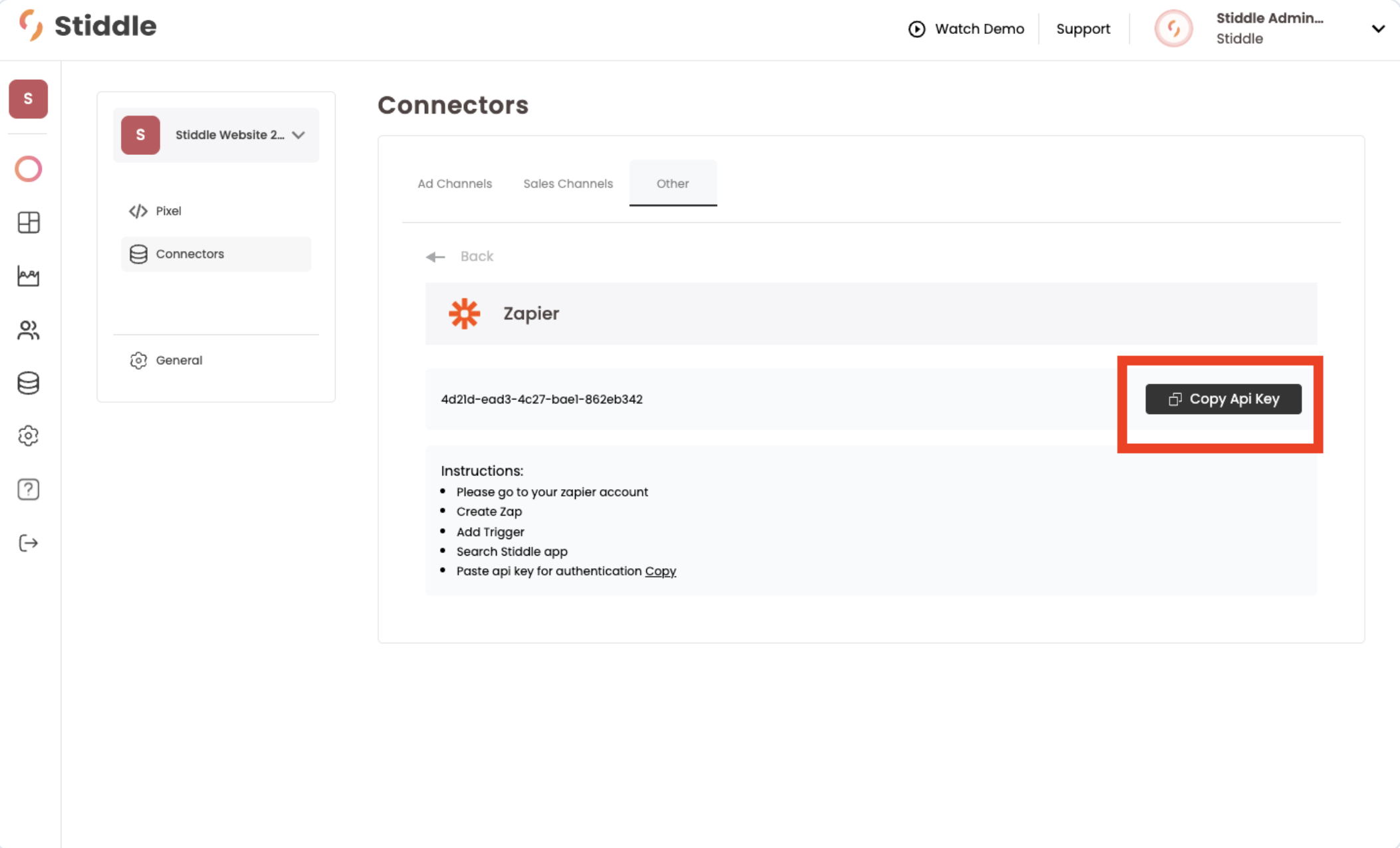
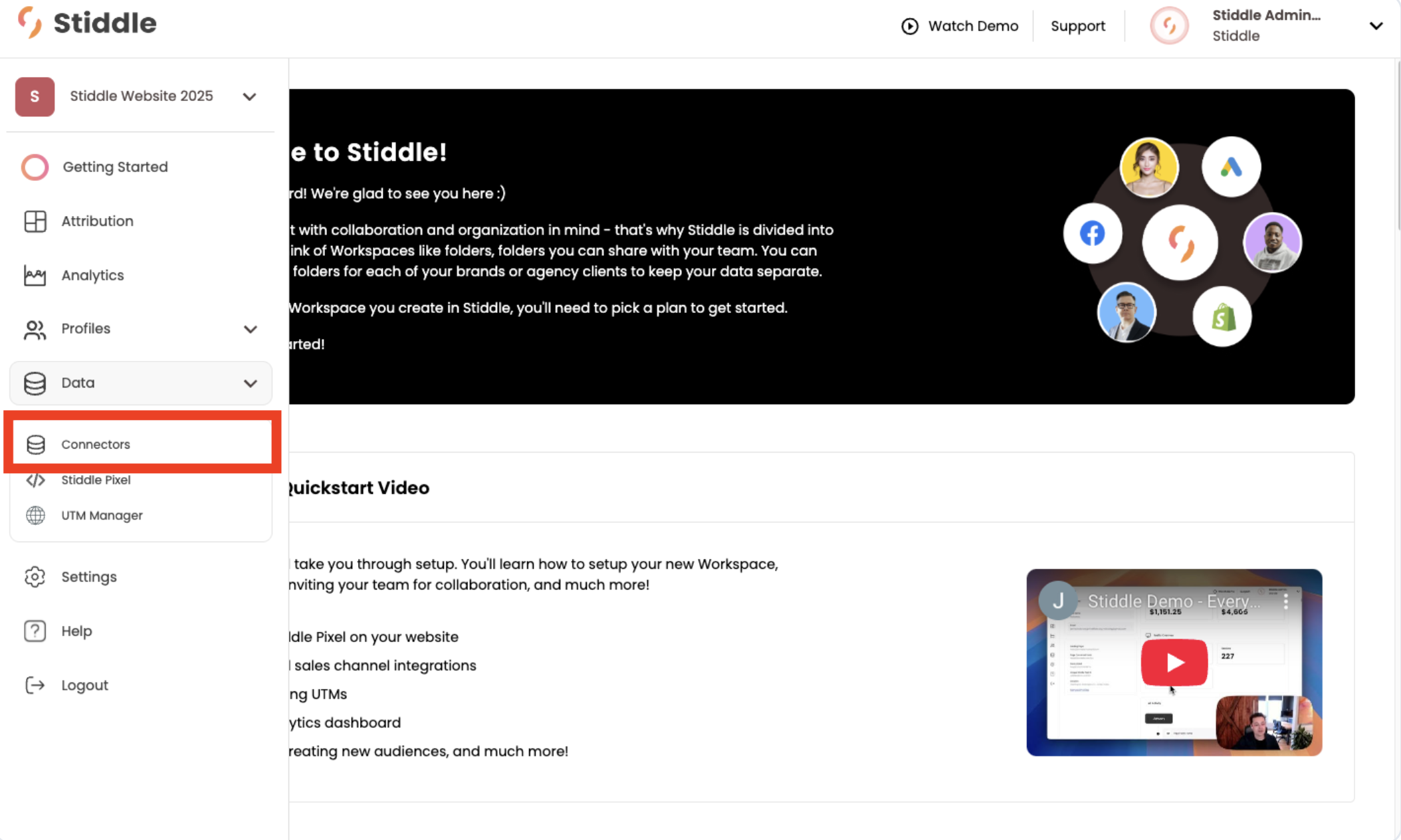
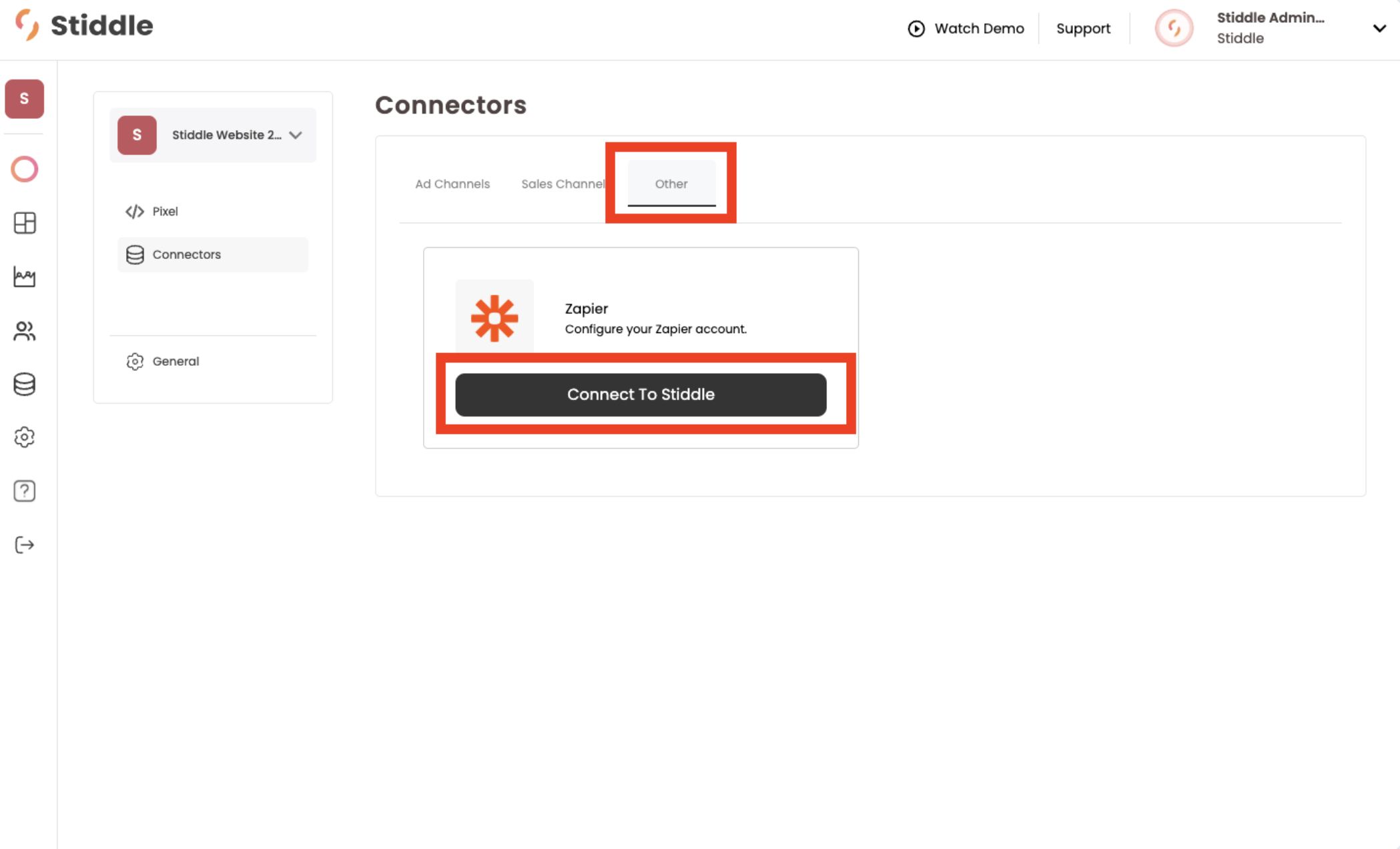
First, log into your Stiddle account and select the workspace you’d like to connect Zapier to. Then, hover over the left side navigation, hover over “Data”, and select “Connectors”. Screenshot2025 12 23at2 11 38PM Once on the connector page, select the “Other” tab, then select the  “Connect to Stiddle” button next to the Zapier logo. Screenshot2025 12 23at2 12 26PM From here, simply select the “Copy API Key” button. This will copy the key to your clipboard.  Screenshot2025 12 23at2 12 51PM
Creating Your First Zap - Trigger

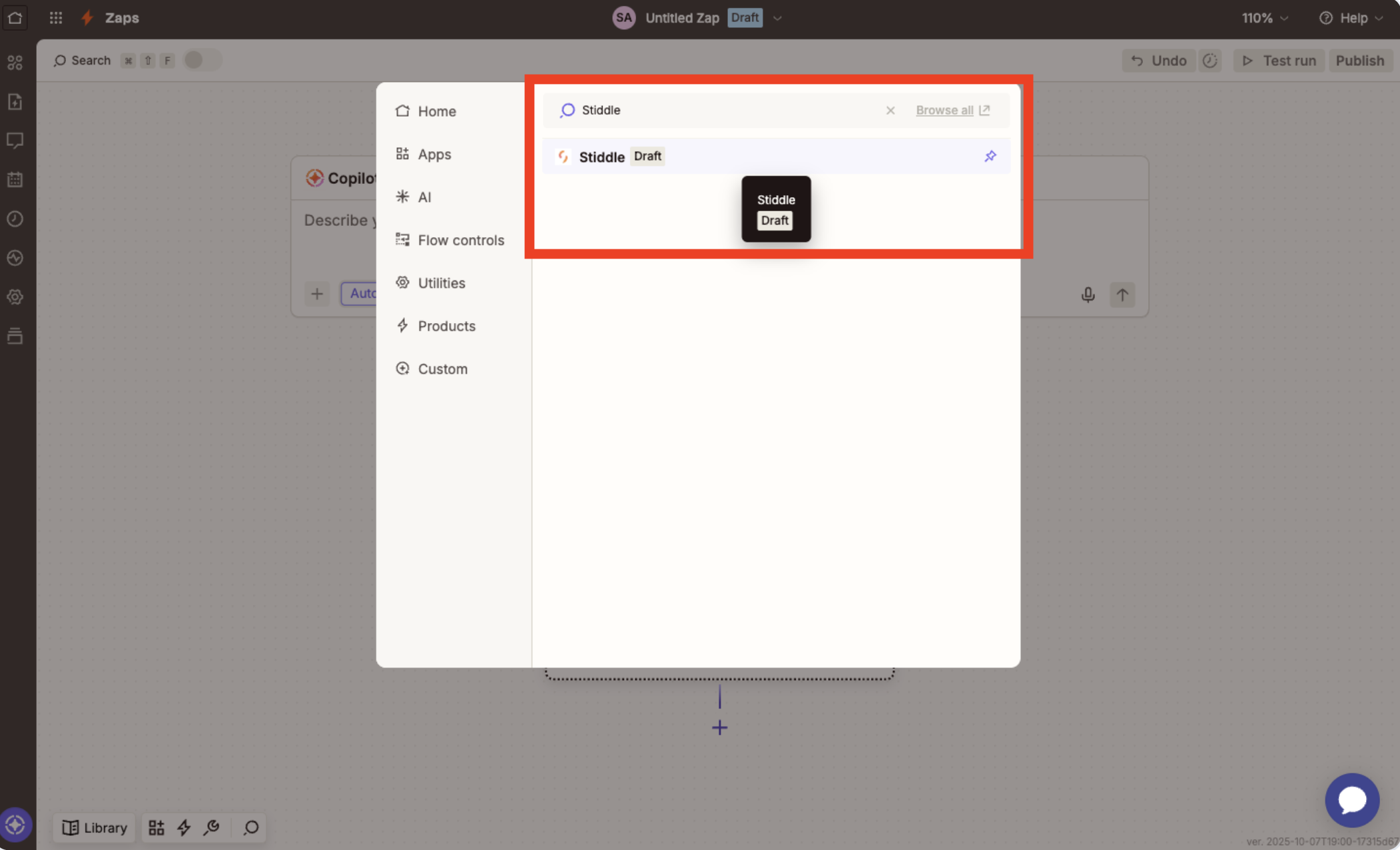
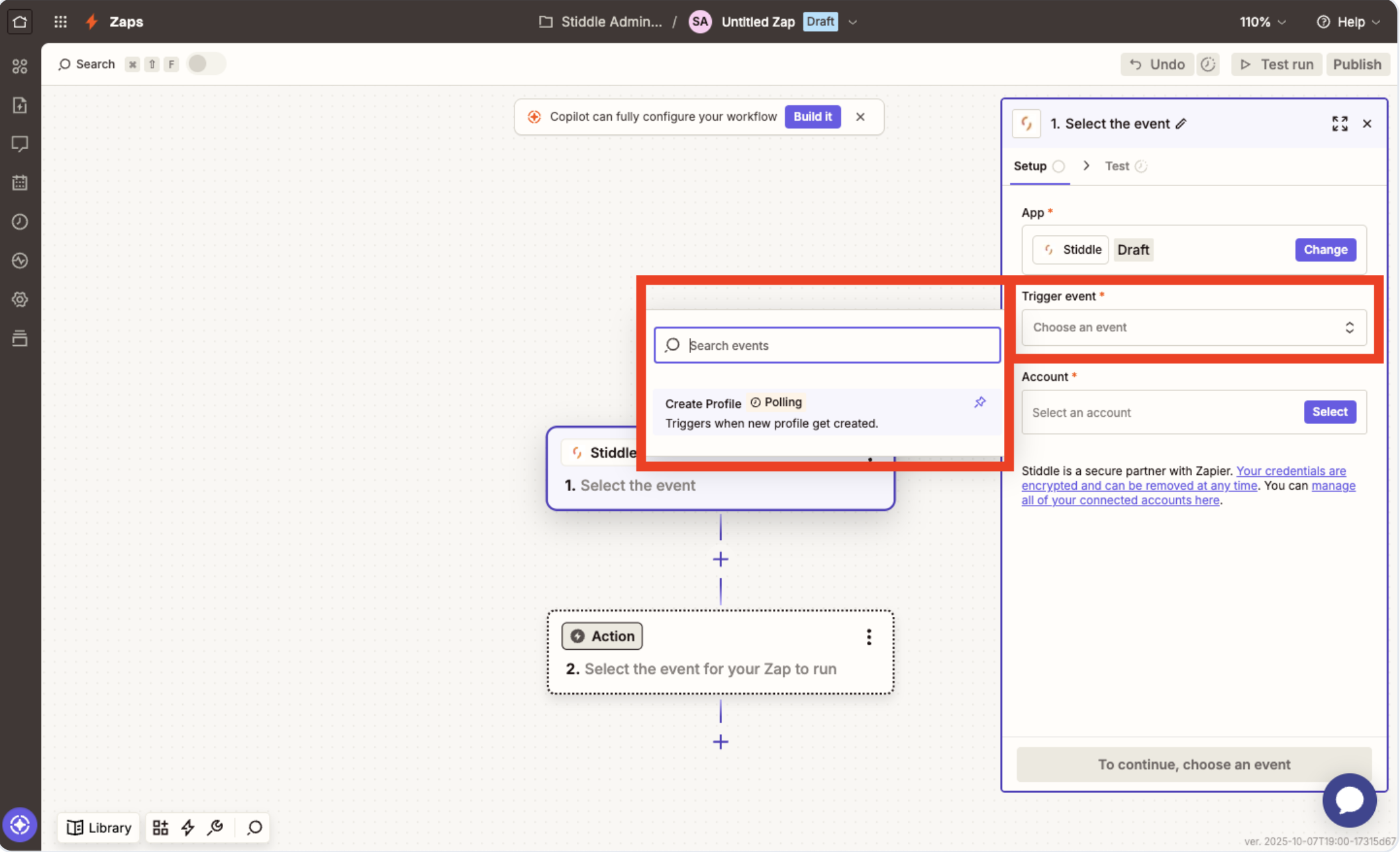
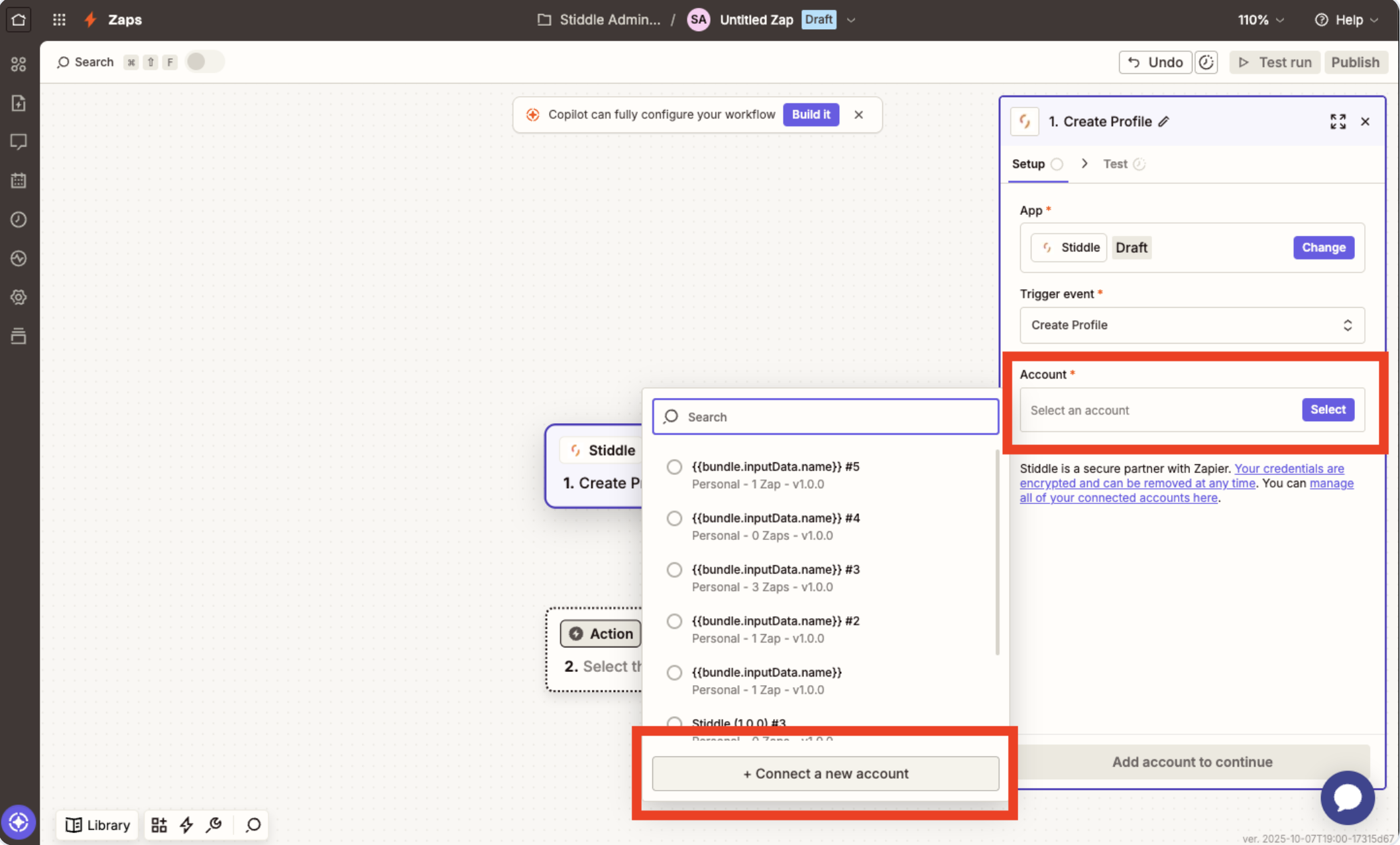
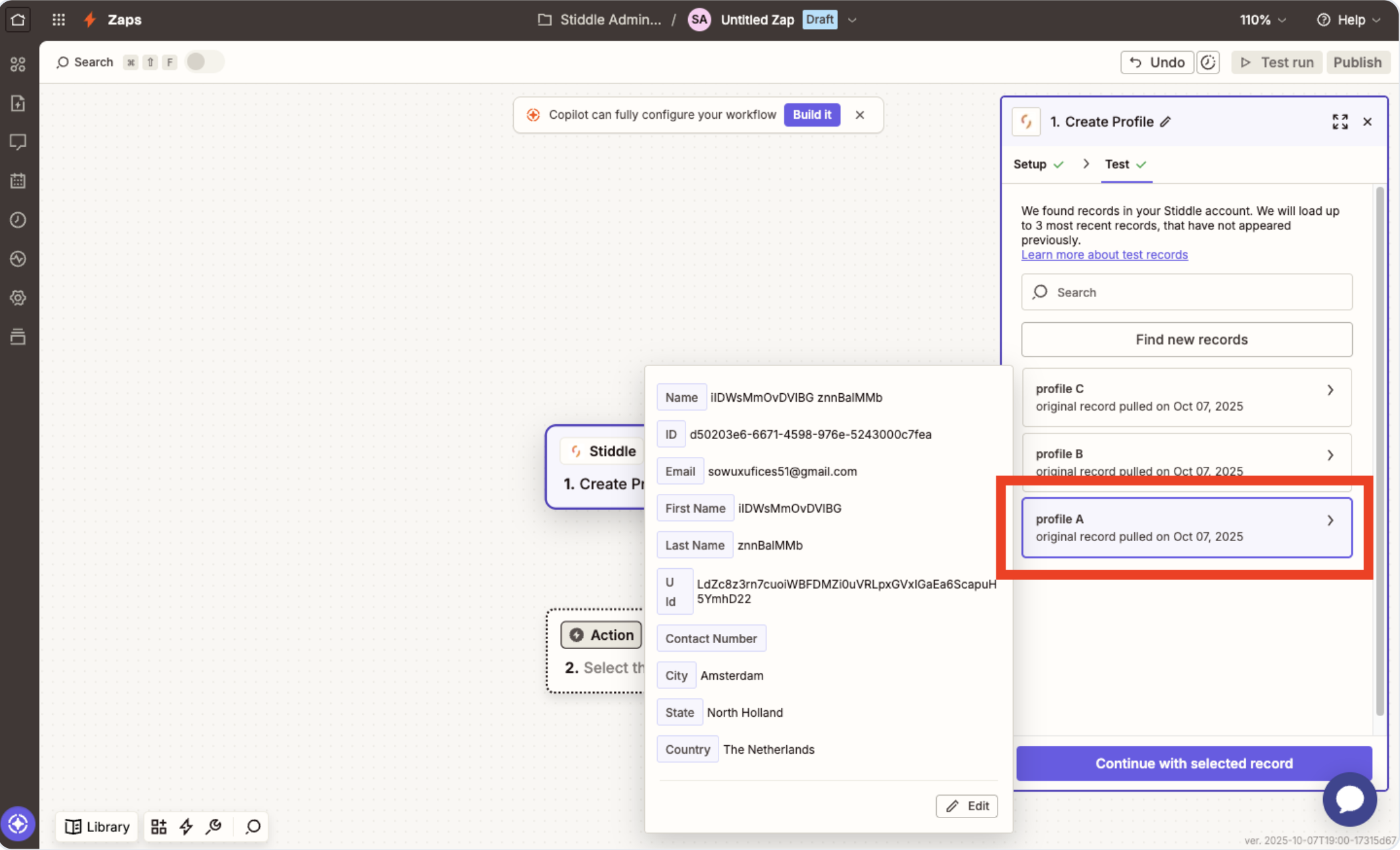
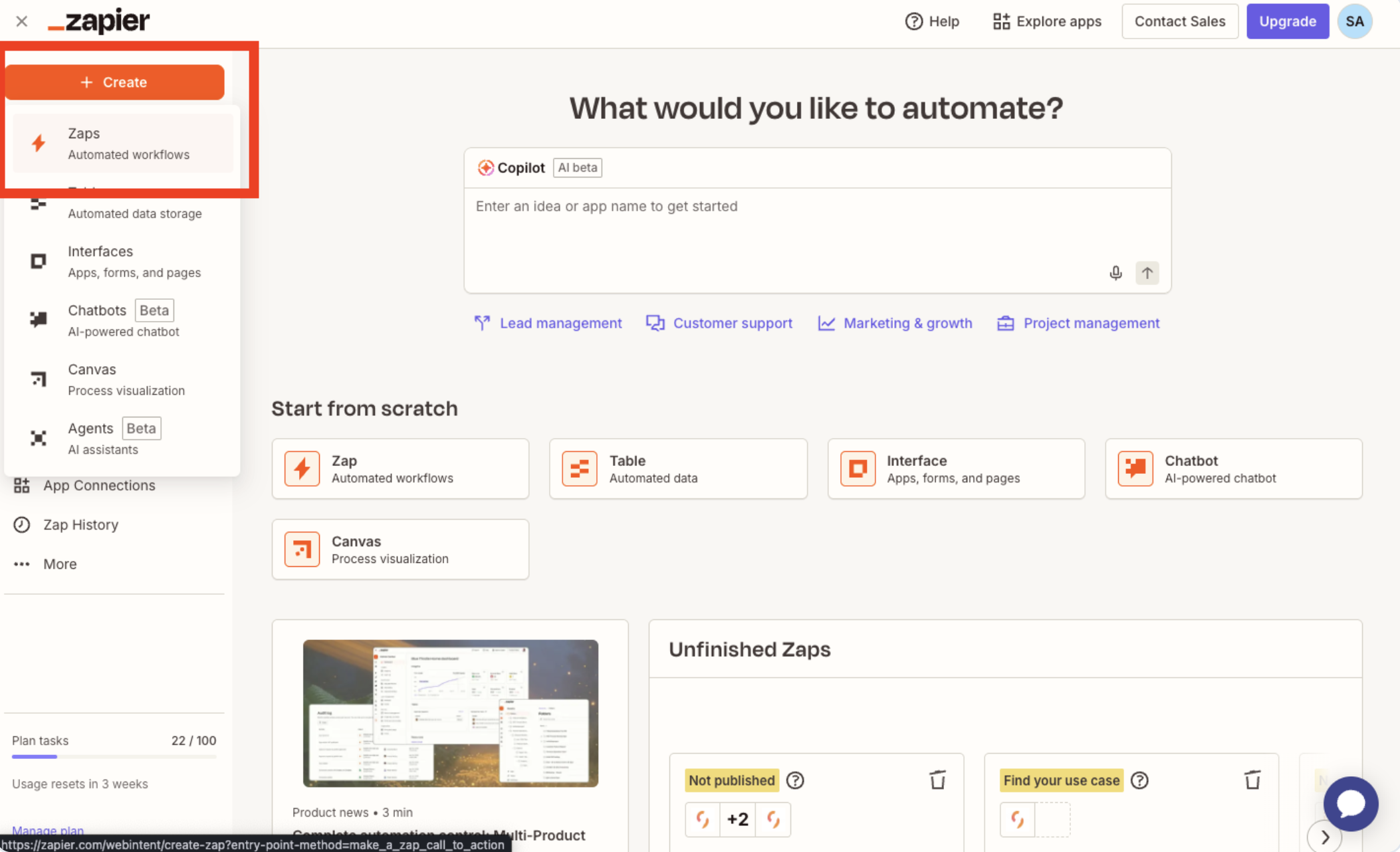
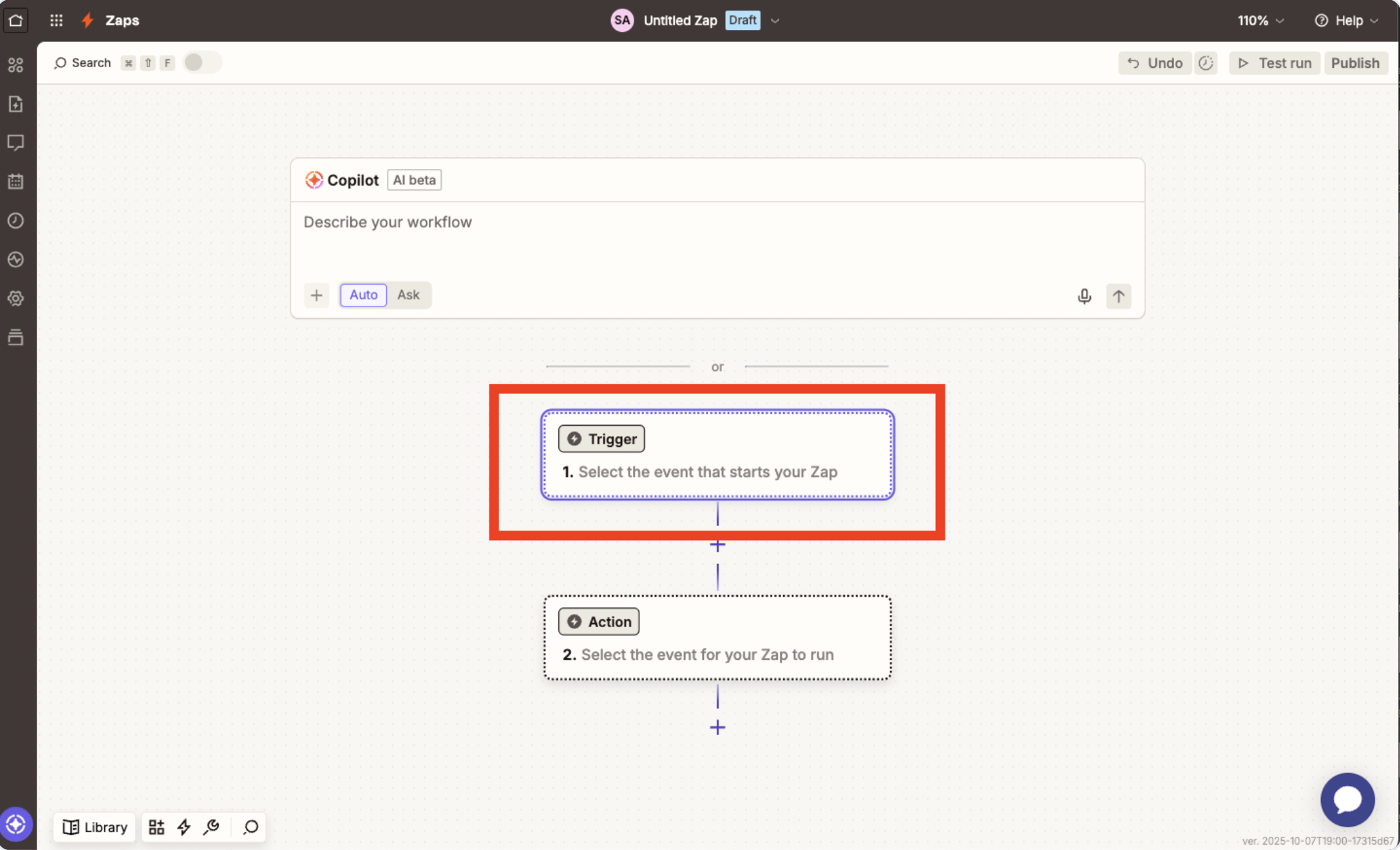
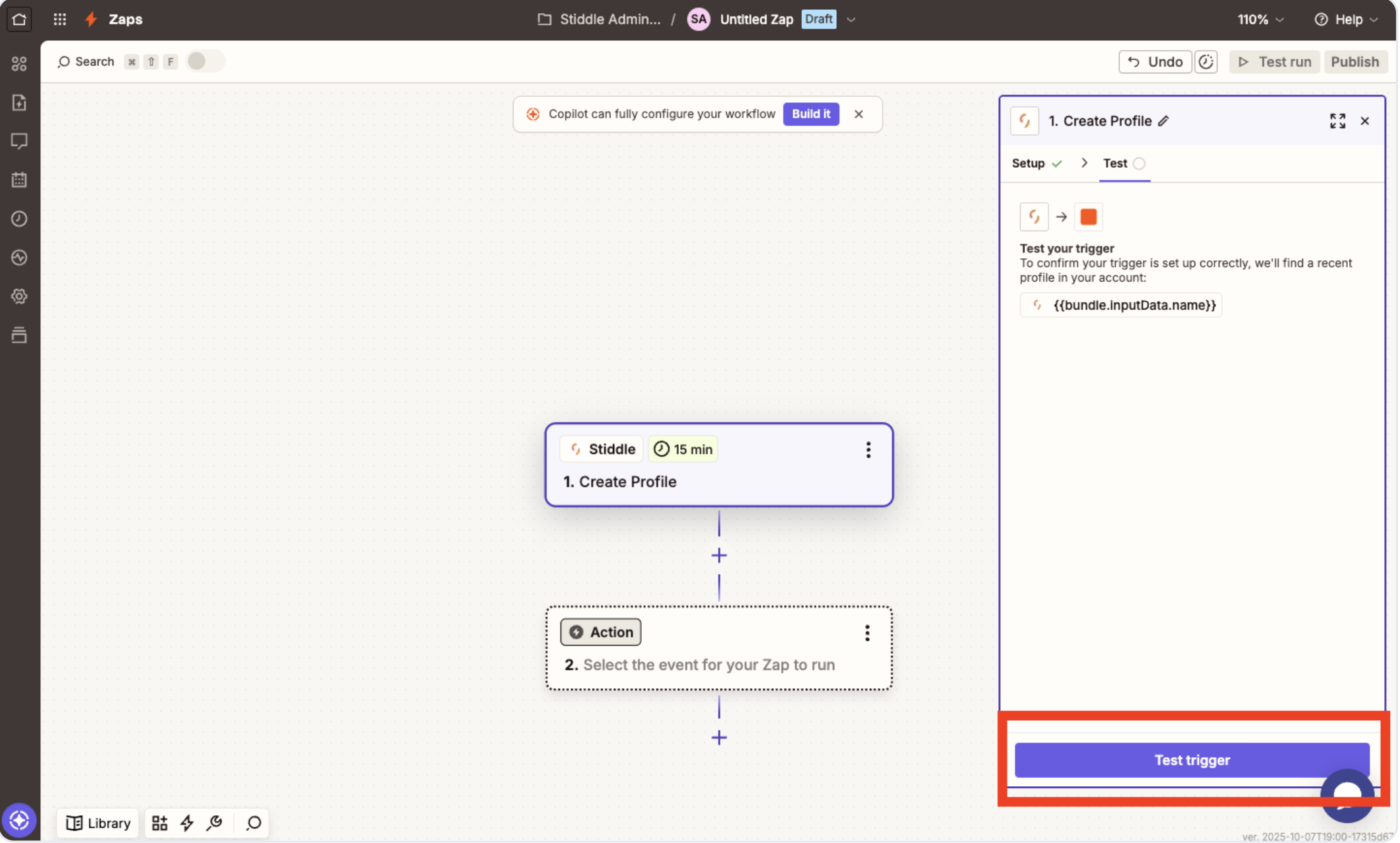
Now it’s time to connect Stiddle and create your first zap in Zapier. First, login to your Zapier account, select the “Create” button in the left-hand navigation, then select “Zaps”. Screenshot2025 12 23at2 13 23PM Once you land on the new zap canvas, select the first “Trigger”.  Screenshot2025 12 23at2 13 53PM In the popup, type “Stiddle”. Then select. Screenshot2025 12 23at2 14 18PM Once the Stiddle trigger is selected, you’ll need to configure the settings in the right-hand menu.  First, select the “Trigger Event”, you’ll see several options, select one. In this example, we’ve selected “Create Profile”. This means that every time a new profile is generated in your Stiddle workspace, it will be triggered here in Zapier. Screenshot2025 12 23at2 14 42PM Now it’s time to authenticate and connect your Stiddle account. To do so, simply select the “Account” button, then select “Create a new account”. Alternatively, if you’ve already connect a Stiddle workspace to Zapier, you will see it displayed in the list. Screenshot2025 12 23at2 15 05PM You will now need to paste the Stiddle API Key that you copied in the previous step. Simply paste the API Key in the popup, then select “Yes, continue to Stiddle”.  You will now see your Stiddle workspace connected to Zapier and selected under “Account”. To continue, select the “Continue” button. Screenshot2025 12 23at2 15 28PM You can then test the trigger to make sure data is flowing and it fires properly. To do this, simply select “Test Trigger”. Screenshot2025 12 23at2 15 50PM You will see a list of a few live profiles from your Stiddle workspace. This is a clear indication that data is now flowing from Stiddle to Zapier! Click “Continue” and you’re almost finished! Screenshot2025 12 23at2 16 11PM
Creating Your First Zap - Action

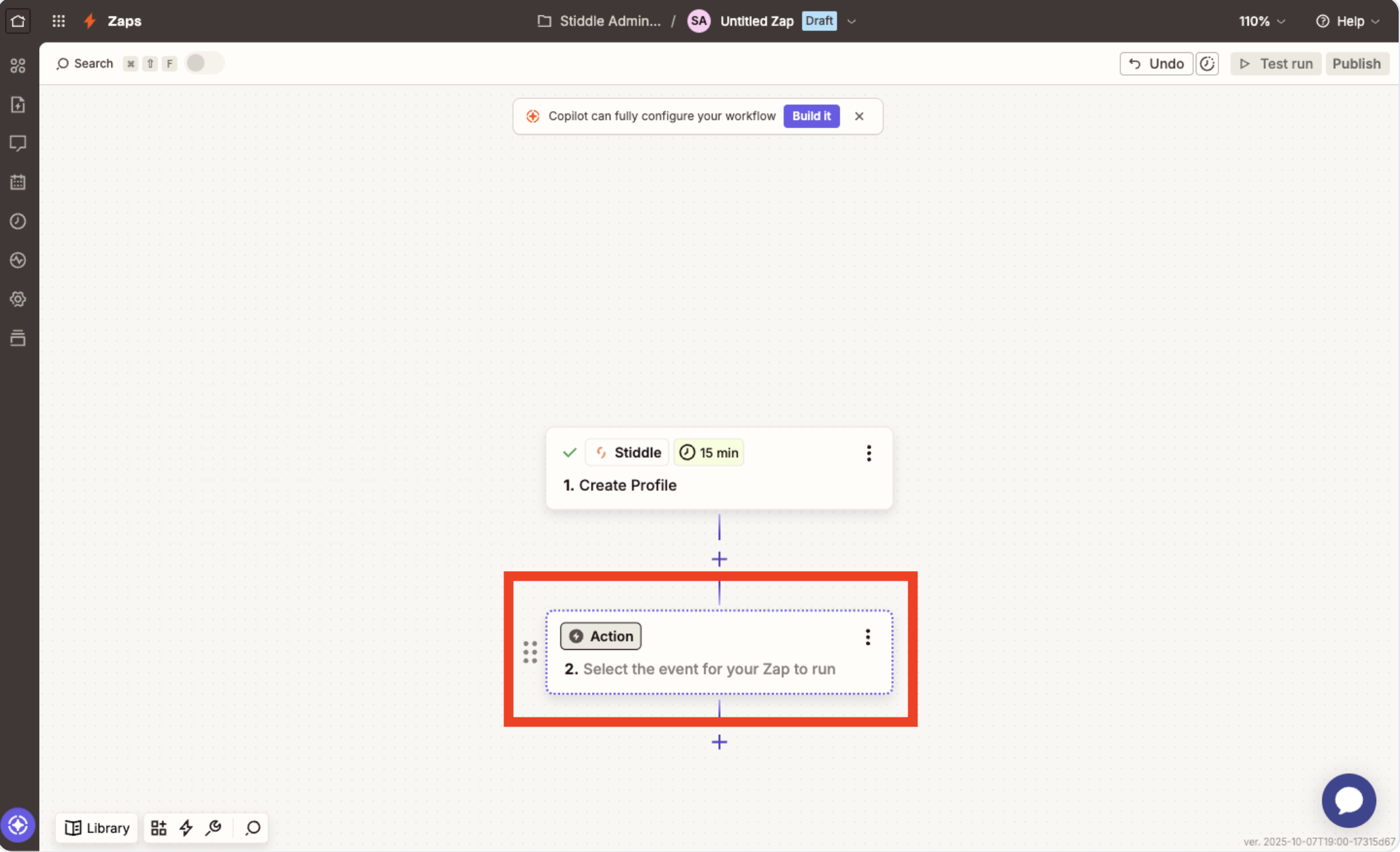
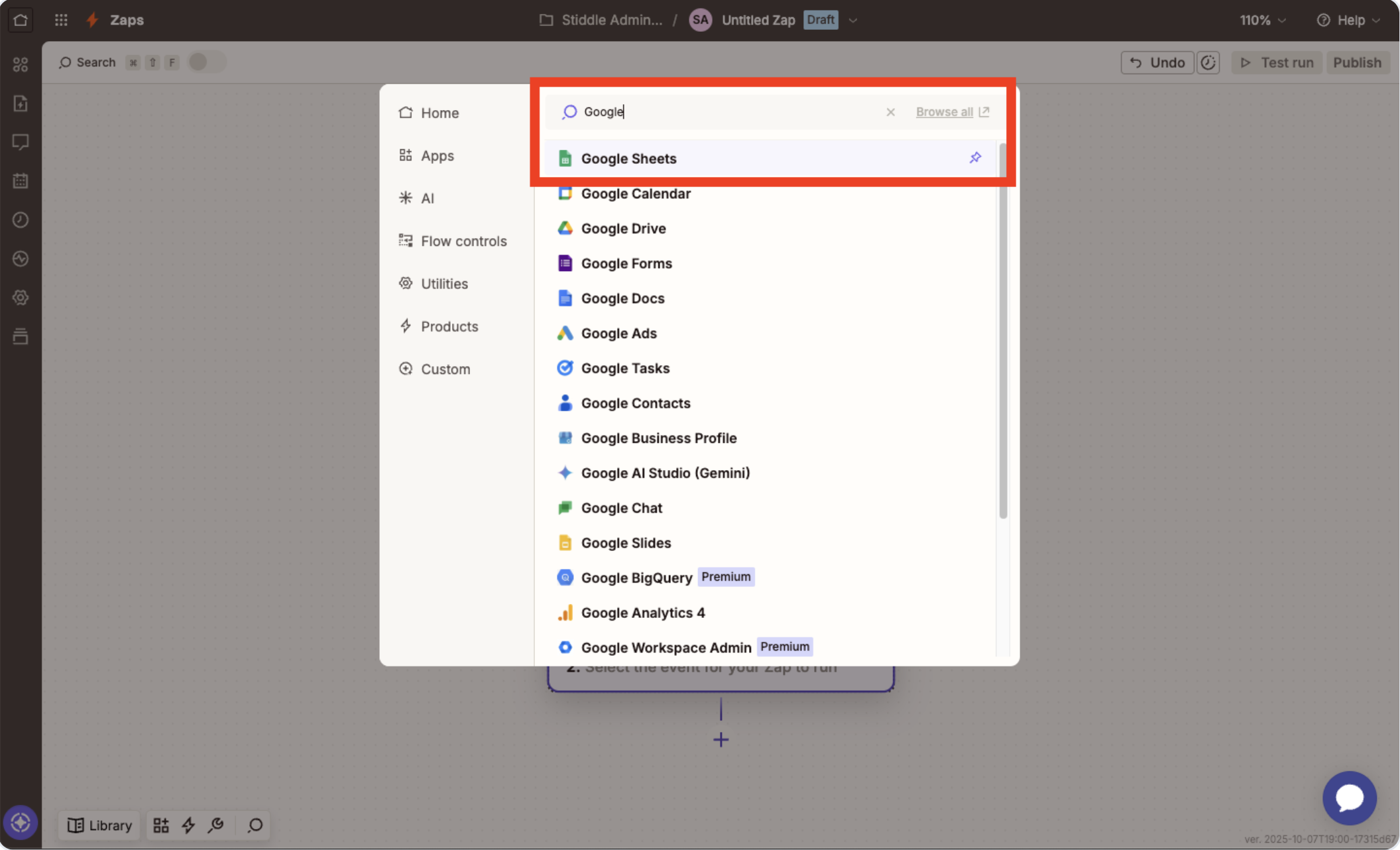
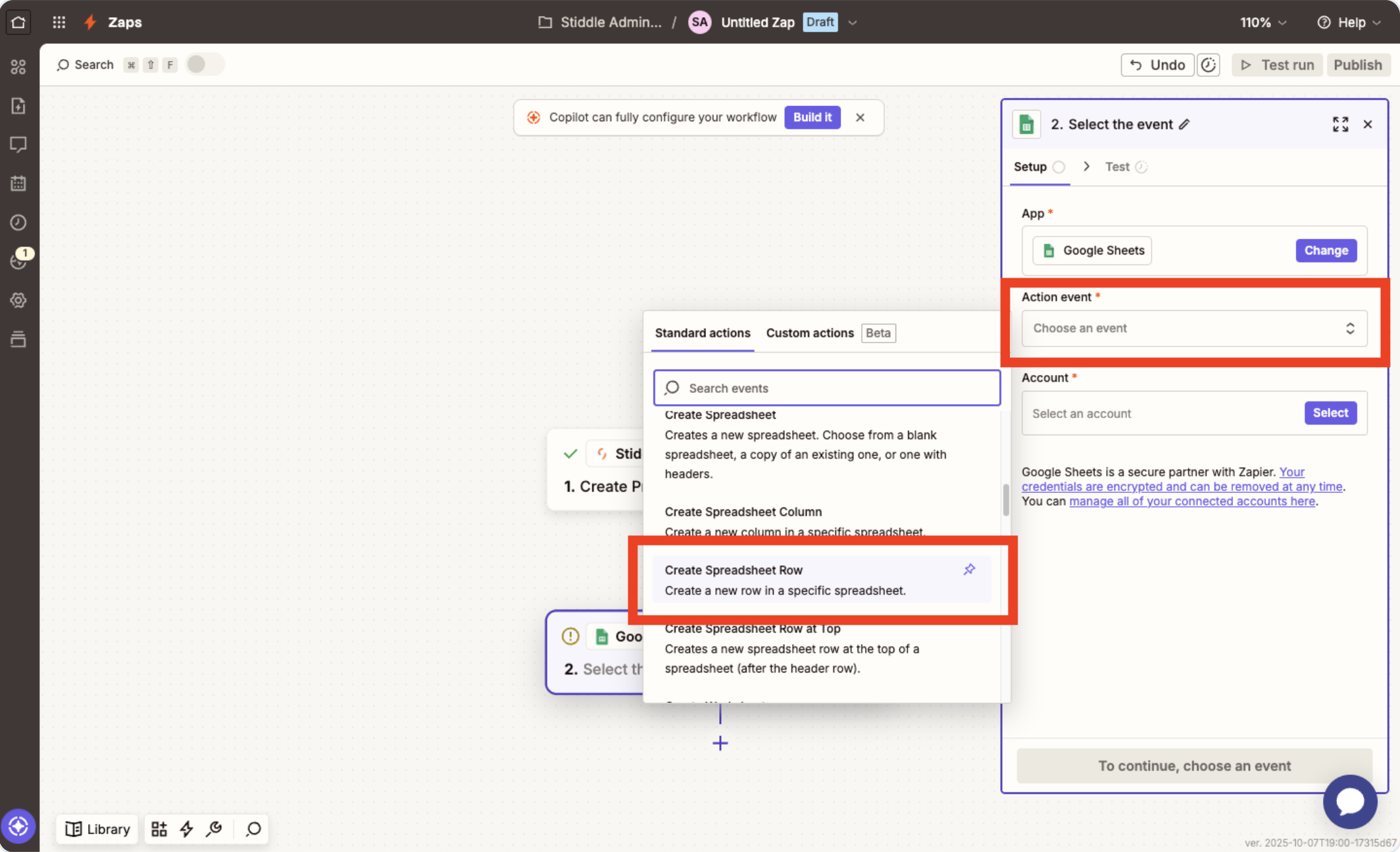
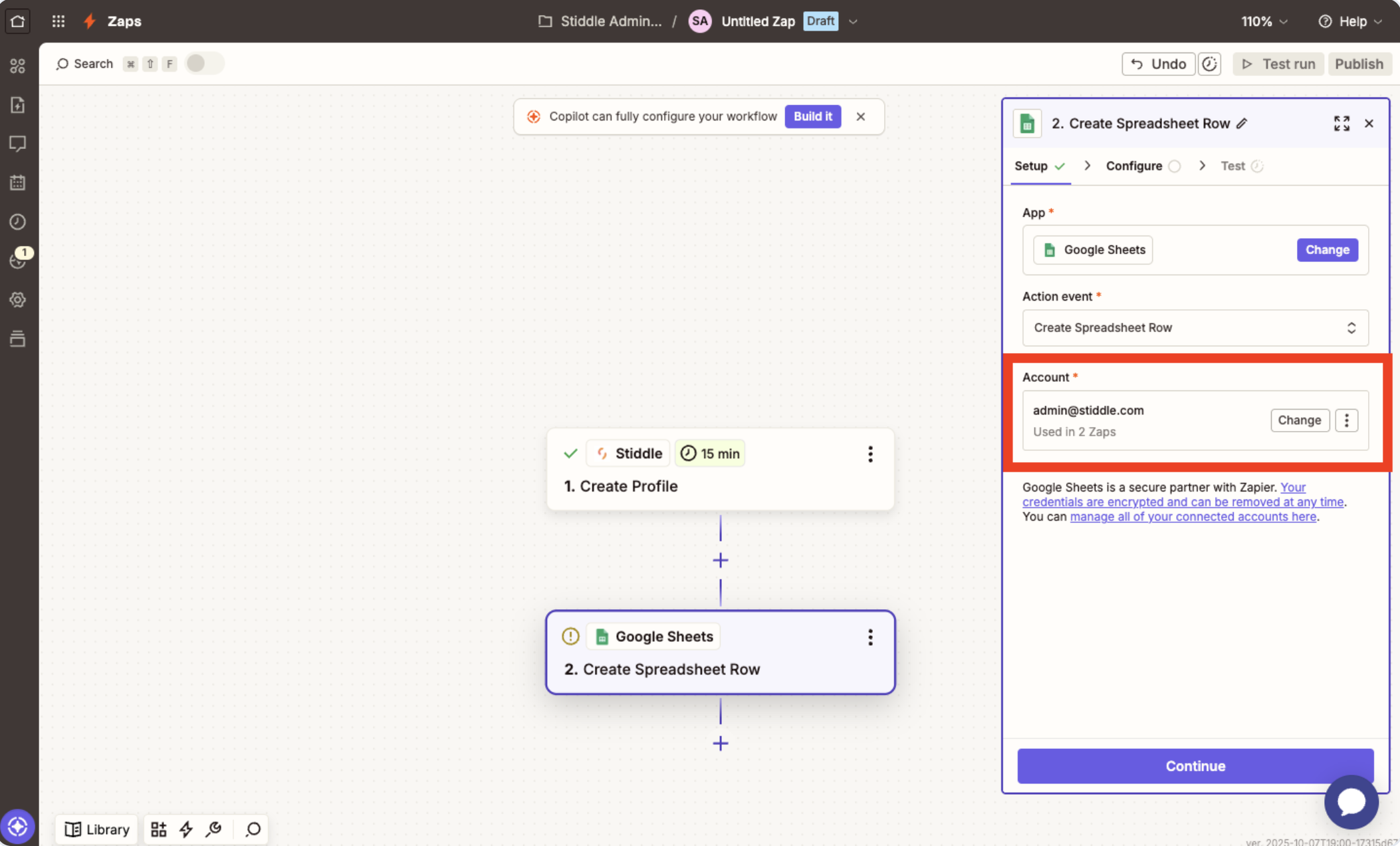
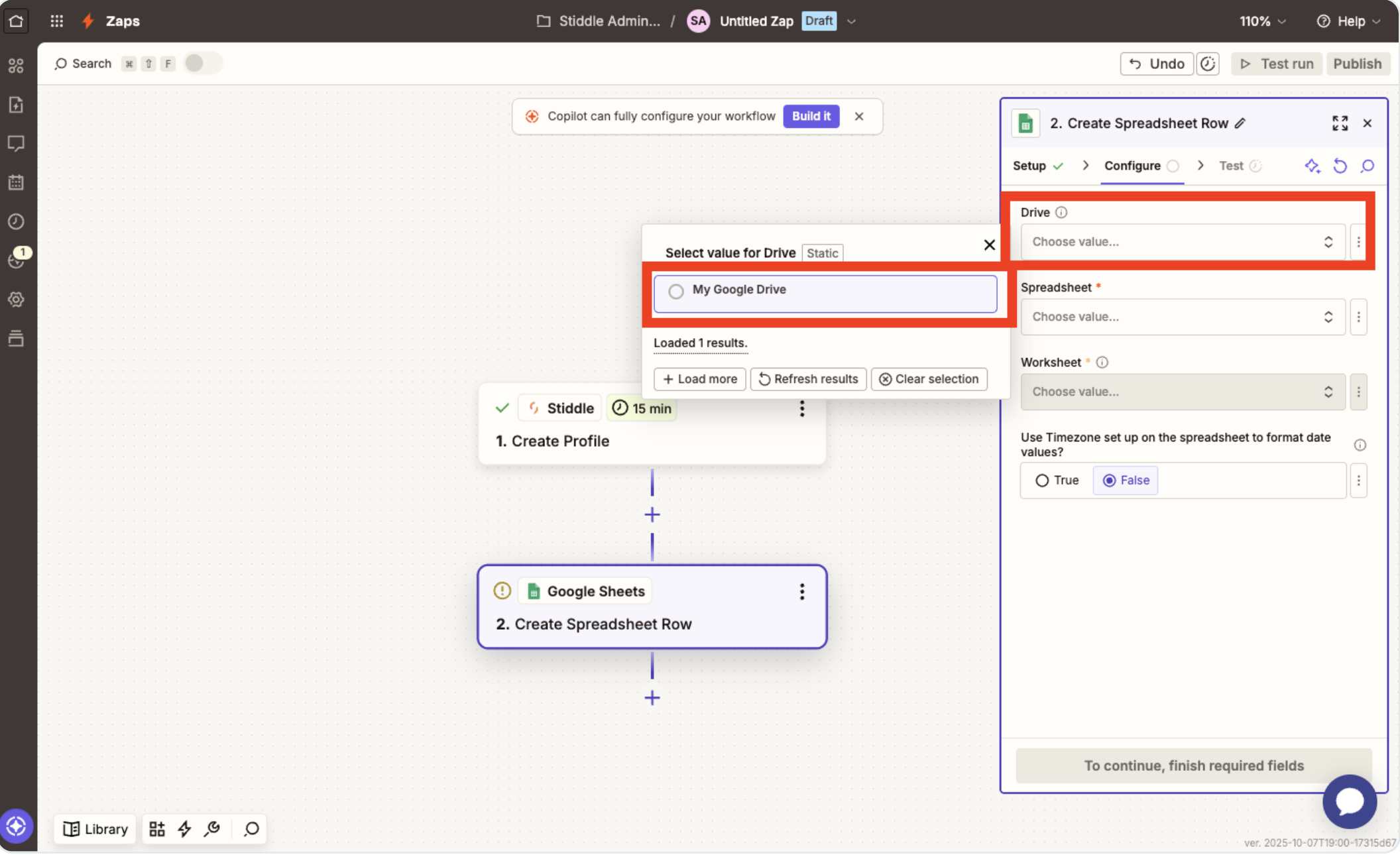
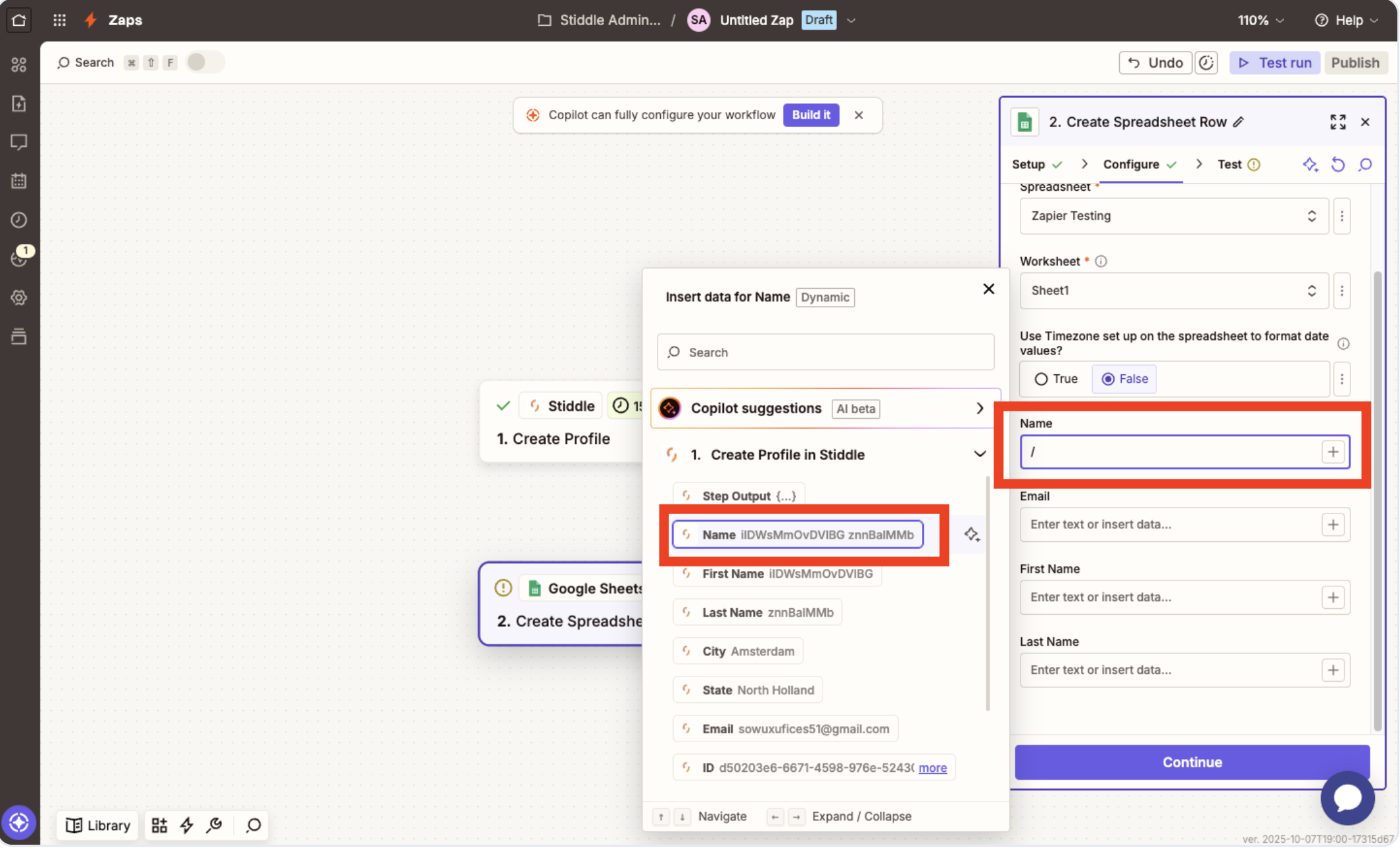
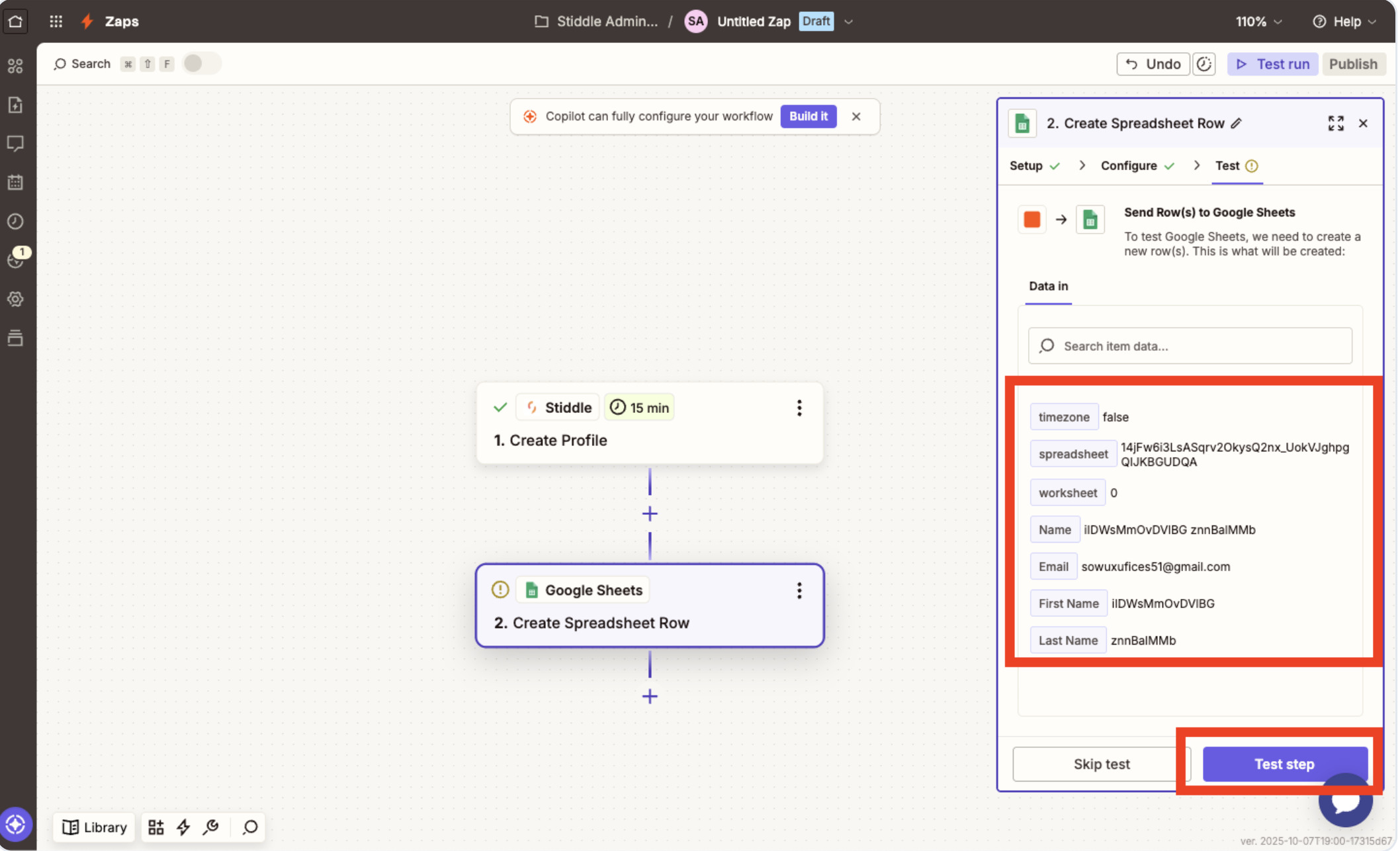
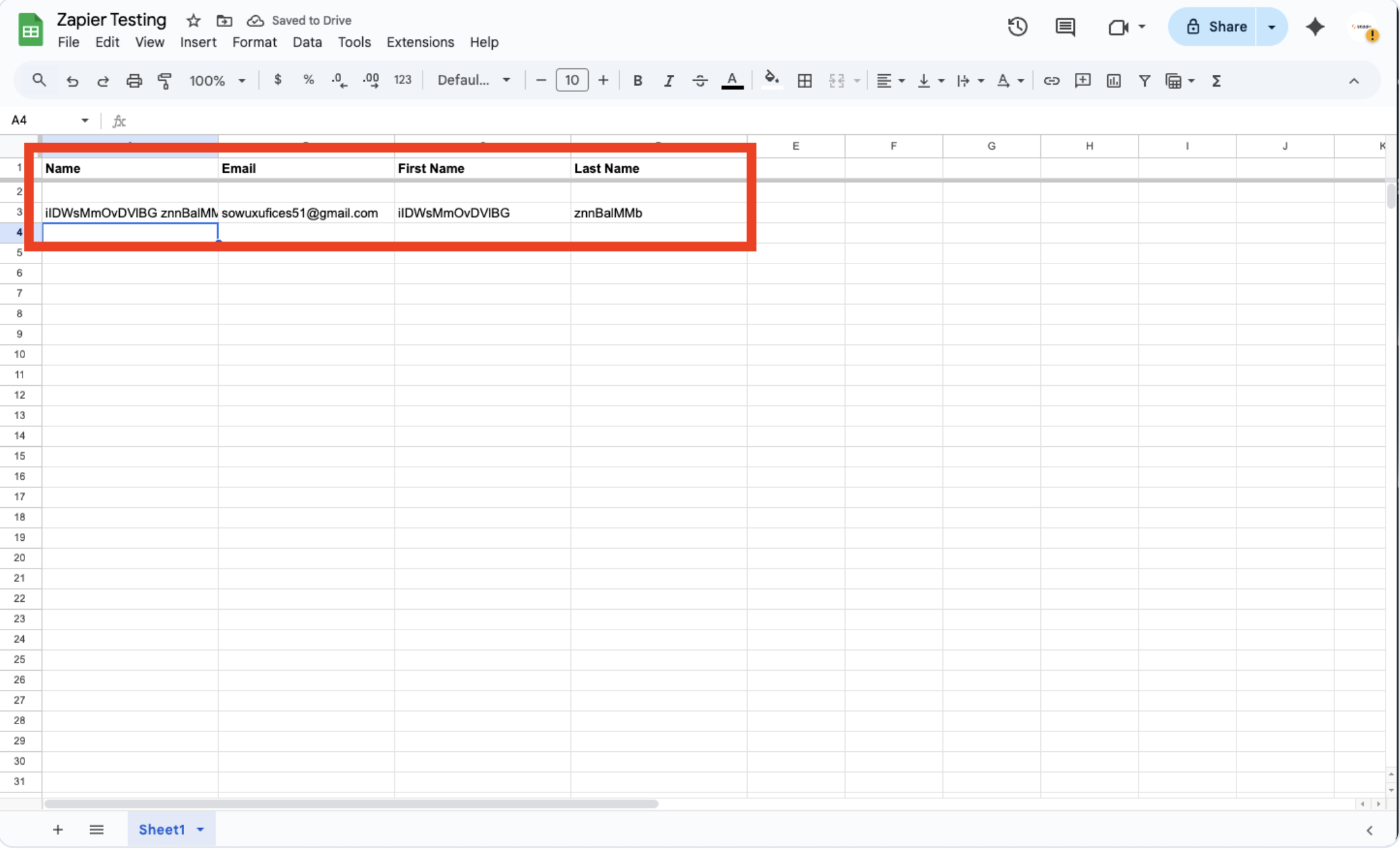
Now that you’ve connected Stiddle to Zapier and created your first trigger, you’ll now need to select an action in Zapier to send the Stiddle data to. In this example, we’re going to send new profiles generated in Stiddle to Google Sheets. To do so, first we’ll need to select an action. In this case, we’ll type “Google Sheets” and select.  Screenshot2025 12 23at2 16 33PM Screenshot2025 12 23at2 16 57PM Once we select “Google Sheets” as an app, we’ll see the configurations in the right-hand side.  Next, simply select an “Action Event”, in this example we’re going to select “Create Spreadsheet Row” - since we want all new Stiddle profiles to be added into a new row within Google Sheets. Screenshot2025 12 23at2 17 18PM After selecting the action event, you’ll need to authenticate and connect your Google Sheets account. To do so, select the “Account” button then follow the steps to connect your Google account. Then select “Continue”. Screenshot2025 12 23at2 17 39PM From here, you’ll need to select a few options so Zapier knows which Google Sheet to send Stiddle profiles to. To start, select your “Drive”, “Spreadsheet”, and Worksheet”. Screenshot2025 12 23at2 18 03PM Once selected, you’ll see more option fields populate. If you don’t see these, follow the Zapier/Google Sheets doc to learn how to format your Google Sheet columns/rows. From here, simply select which criteria from the Stiddle profile you want to map to each column in Google Sheets. Screenshot2025 12 23at2 18 24PM Once finished mapping, select “Continue”. Verify the data is flowing and mapped correctly, then select “Test Step”. Screenshot2025 12 23at2 18 44PM Once tested, you’ll see the first profile sent to your Google Sheet successfully. Finally, click “Publish” and that’s it, you’re now done! Screenshot2025 12 23at2 19 05PM If you have any questions, run into any issues, or want to request a new trigger or action, please reach out to support. [email protected]