

Contents
Getting started- 1. How Stiddle is organized
- 2. Where your workspace data lives
- 3. The Stiddle Data Layer (Quad Tracking)
- 4. Finding your way around
- 5. Setup: script, events, goals, connectors and UTMs
- 8. Analytics — Dashboards (Boards)
- 9. Analytics — Reports & Dashboards Overview
- 10. Reports — Insights
- 11. Reports — Funnels
- 12. Reports — Flows
- 13. People Profiles
- 14. Audiences
- 15. Company Profiles (B2B)
- 16. Deal Profiles (B2B & B2C)
- 17. Smart Scores
1. How Stiddle is organized
Your account owns one or more workspaces (called Spaces in the app). Treat each workspace as a separate company: it has its own data, members, configuration and billing subscription, and nothing crosses between workspaces.
When you log in you land on Getting Started, which explains workspaces and links to guided tours, configuration guides, the technology overview and case studies.
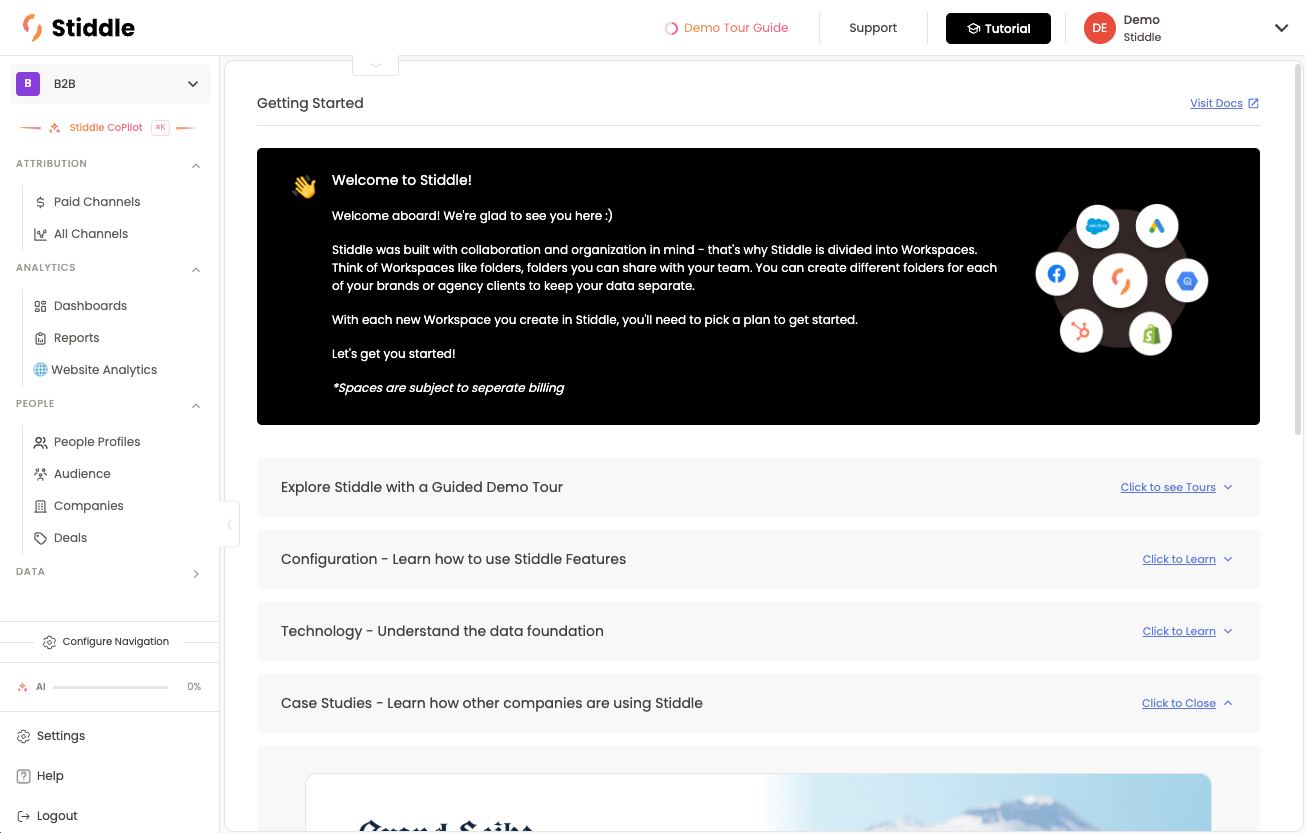
Switching and viewing workspaces
- Click the workspace name at the top of the left nav (e.g. B2B).
- Pick another workspace from the list, or search for it.
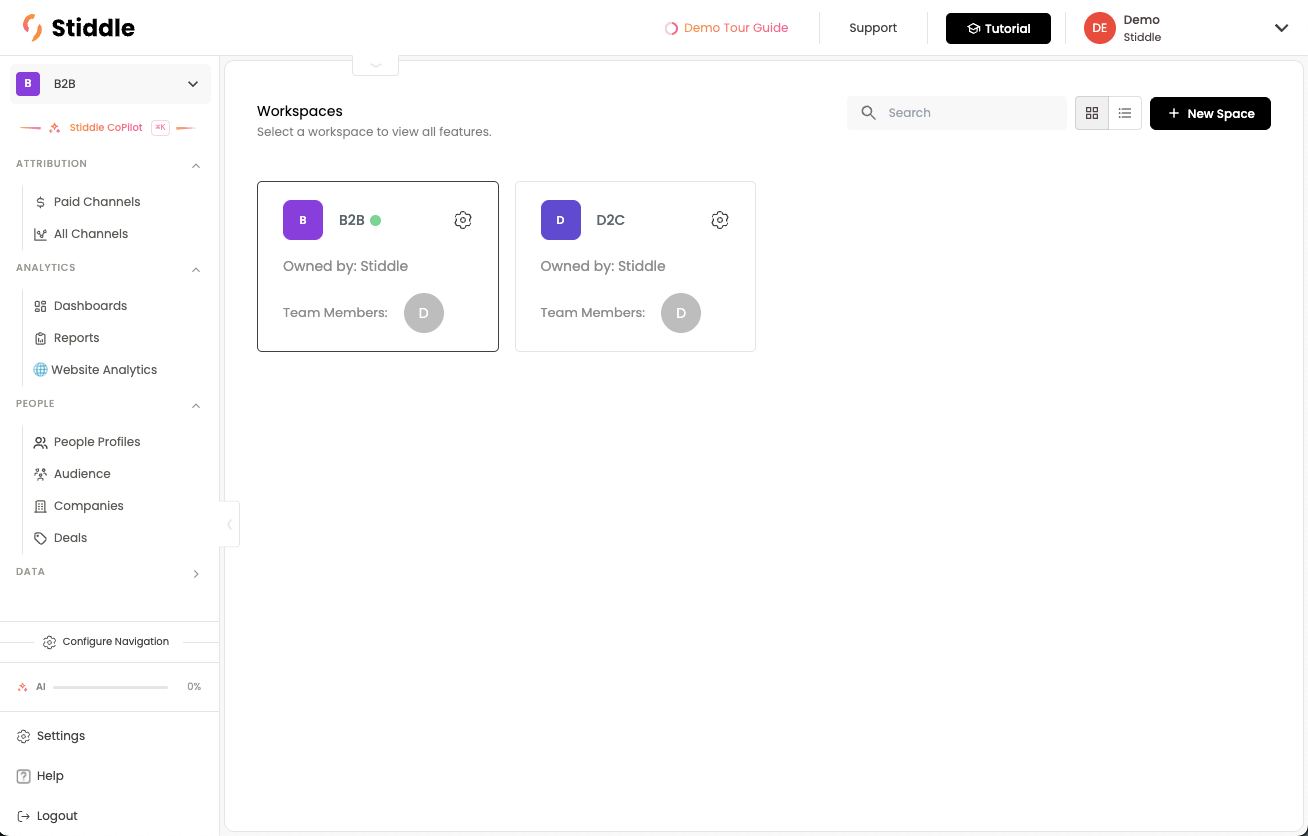
- Click All Spaces to see every workspace as a card with its owner (“Owned by”) and team members. Switch between grid and list view at the top right. The green dot marks the active workspace.
- Click the gear icon on a card to open that workspace’s settings.
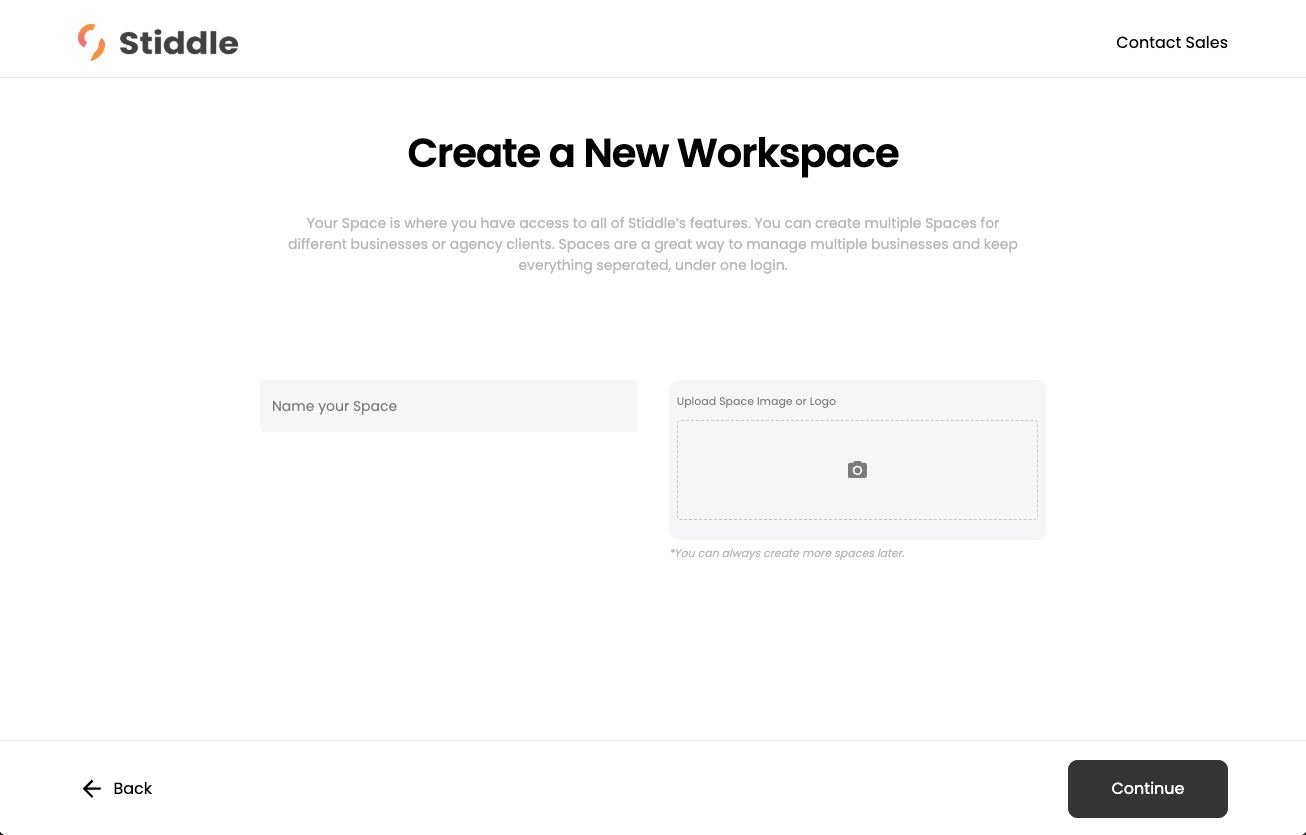
Creating a workspace
- On All Spaces, click + New Space.
- Create a New Workspace: enter Name your Space and optionally upload a space image or logo. Click Continue.
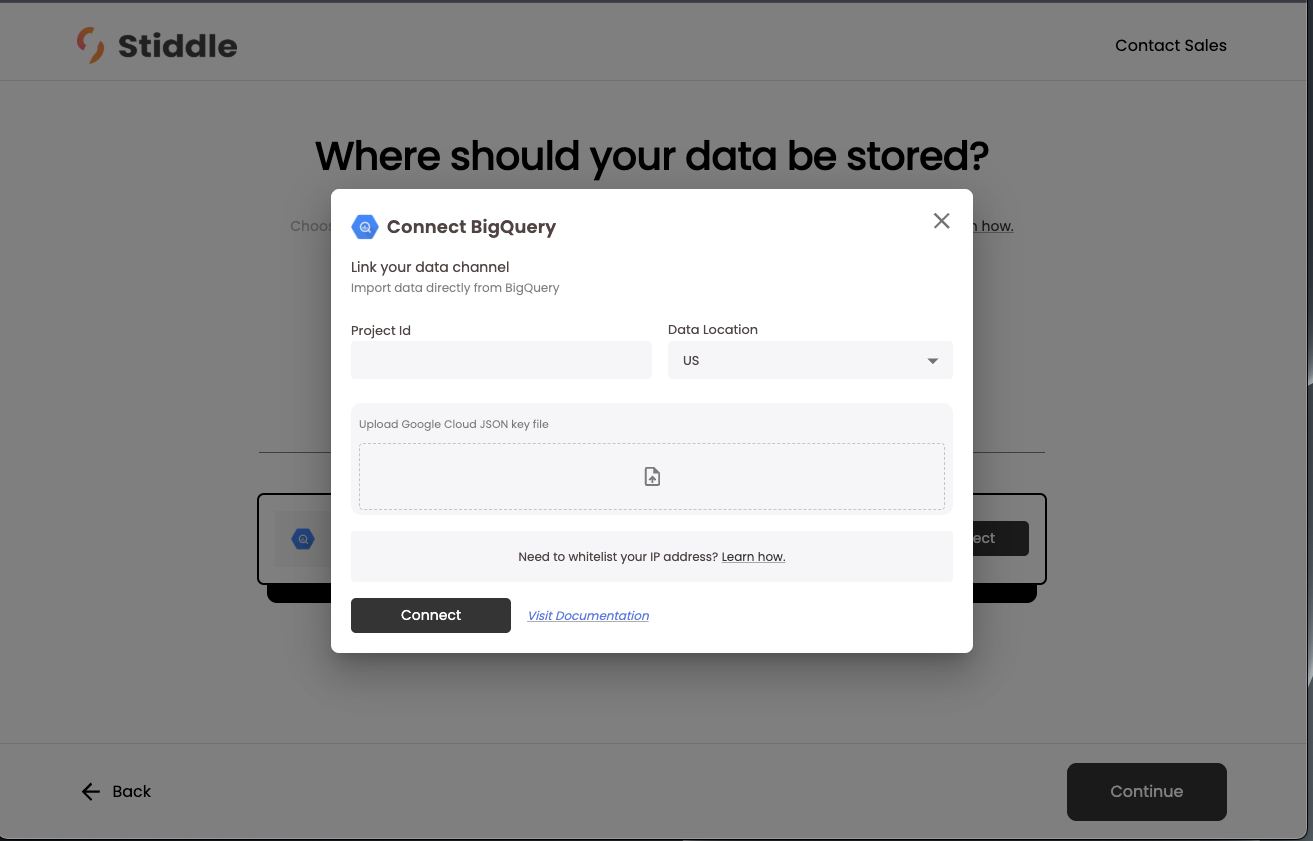
- Where should your data be stored? Choose Stiddle Managed Cloud (the default) and set Select Location to US or EU — or connect your own warehouse with BigQuery → Connect (section 2).
- Click Continue and pick a plan for the workspace. Each workspace is billed separately. Talk to Stiddle Sales for more info.
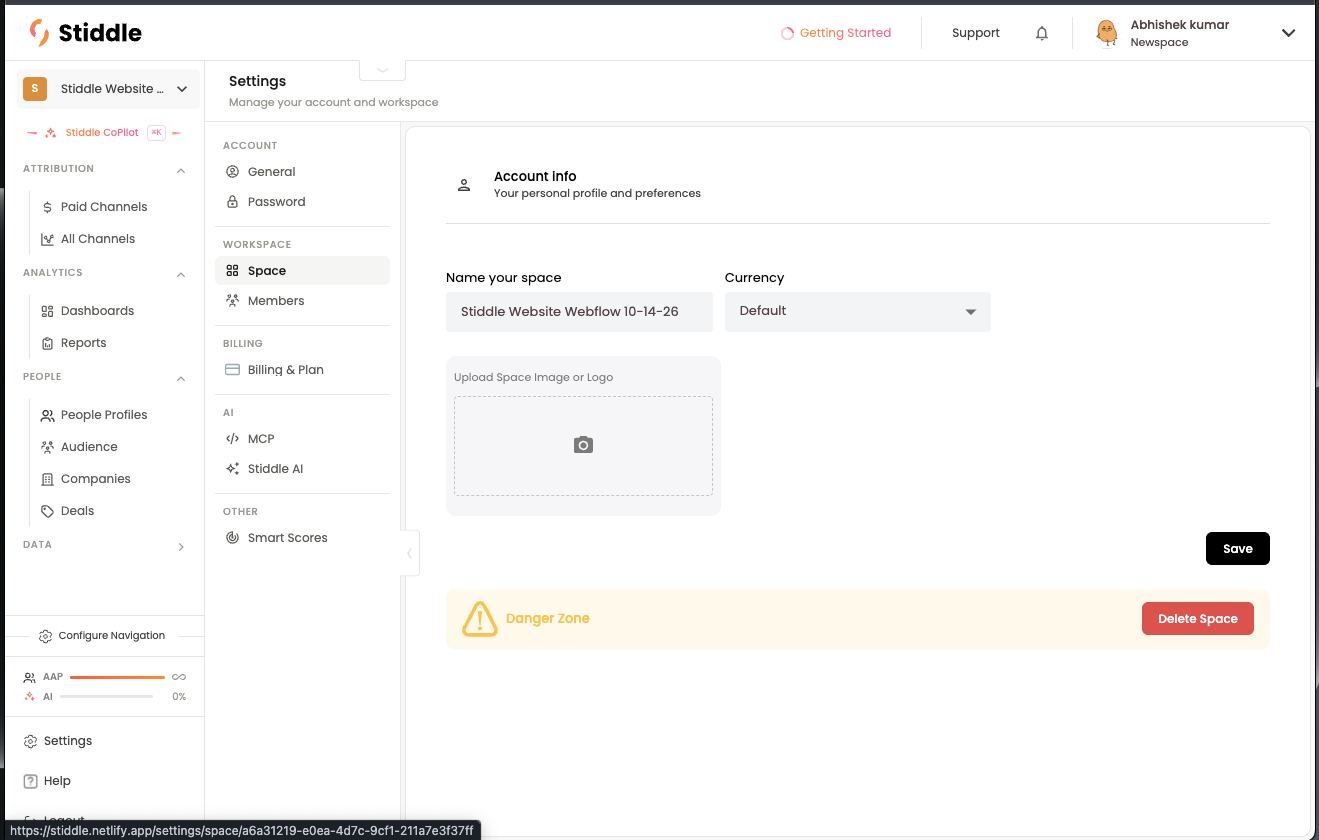
Account settings vs workspace settings
Settings has two kinds of pages. Account settings belong to you, the user, and follow you into every workspace. Workspace settings belong to the active workspace and apply to that workspace only — changing them never affects your other workspaces.
Permissions work the same way: they’re set per workspace, not on your account. Someone can have full access in one workspace and only Analytics Dashboard in another, or no access at all.
Example: you rename yourself in Settings → General and the new name shows in every workspace. You change the currency in Settings → Space while in the “D2C” workspace — only D2C’s reports change; “B2B” keeps its own currency.
Before changing a workspace setting, check the workspace name at the top of the nav — the change applies to whichever workspace is active.
Workspace settings (Settings → Space)
Members and permissions (Settings → Members)
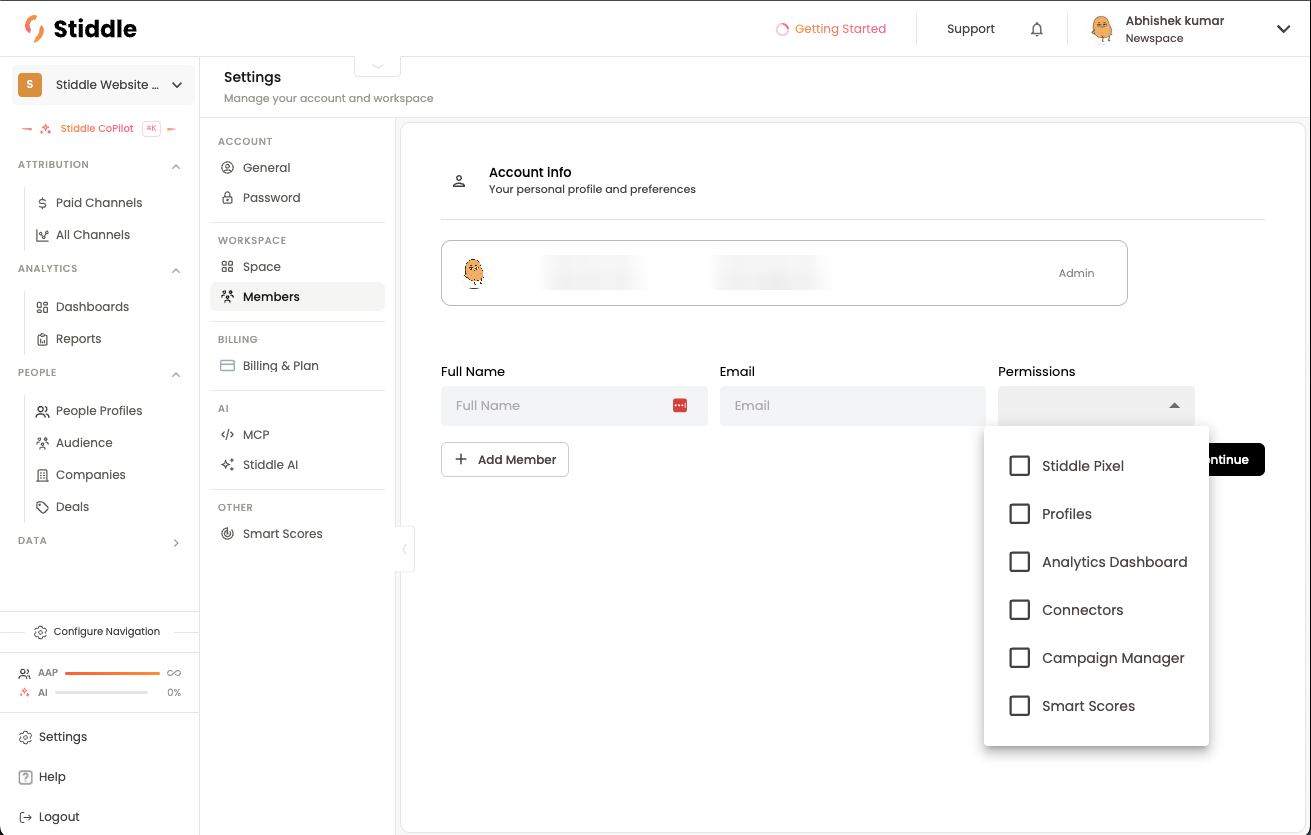
Members belong to one workspace only, so agencies or multi-brand companies can keep each client or team’s data and access fully separate. The top of the page lists current members and their role (e.g. Admin). To add someone:- Go to Settings → Workspace → Members.
- Enter their Full Name and Email.
- Open Permissions and tick the areas they can use.
- Click + Add Member to add more people, then Continue to send the invites.
Your account (Settings → General)
Your personal profile: Change photo, Full name, Company name, Email address (read-only), Business type (e.g. SaaS) and Your role (e.g. Sales). Click Save changes. Danger Zone → Delete Account removes your login. Password is the next page down.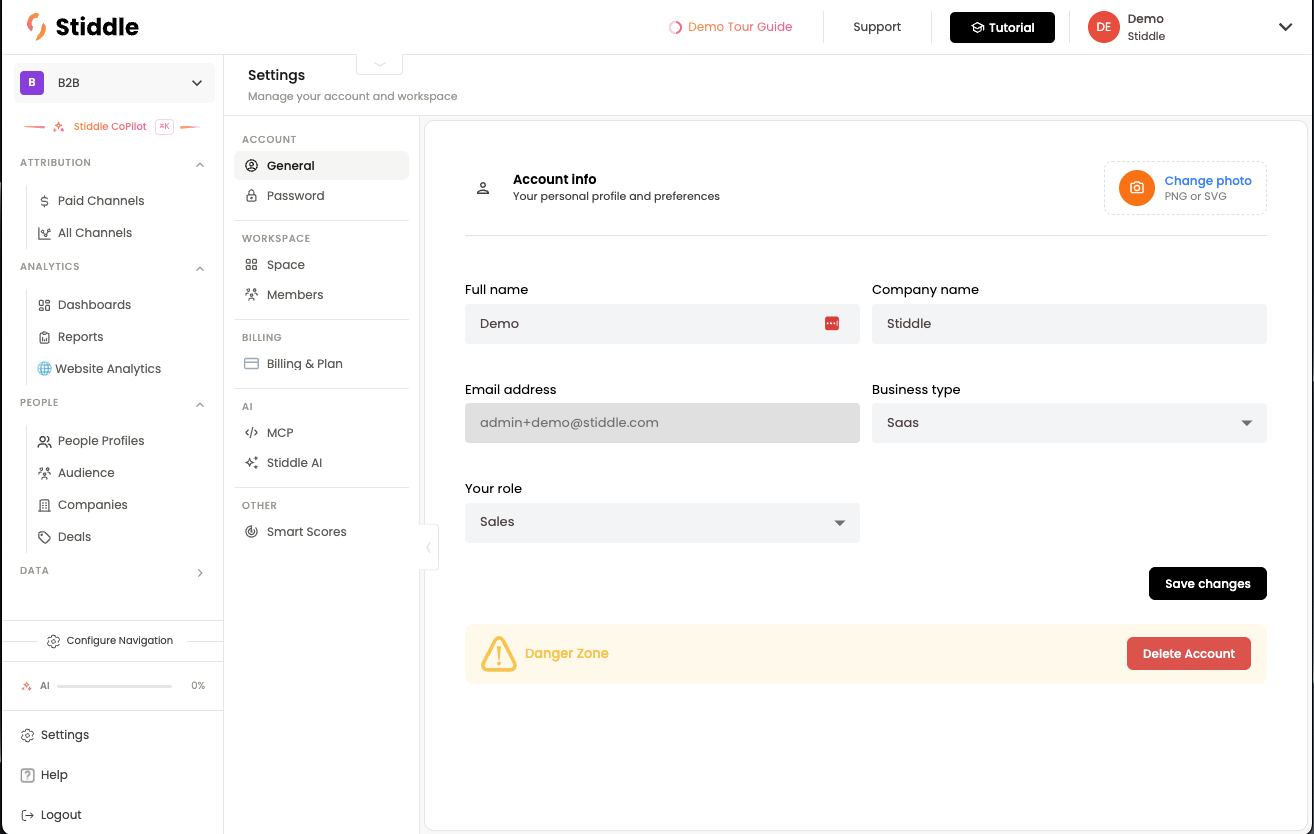
FAQs
Does access to one workspace give access to the others? No. Membership is per workspace. Can I limit what a teammate sees? Yes — tick only the permissions they need when you invite them. Does one subscription cover every workspace? No. Each workspace has its own plan (Settings → Billing & Plan). Can one person belong to several workspaces? Yes. They switch between them from the workspace switcher.2. Where your workspace data lives
Each workspace stores its data either in your own data warehouse (Composable Architecture) or in Stiddle Managed Cloud, in a US or EU location. You choose when you create the workspace, so different companies or clients can use different setups.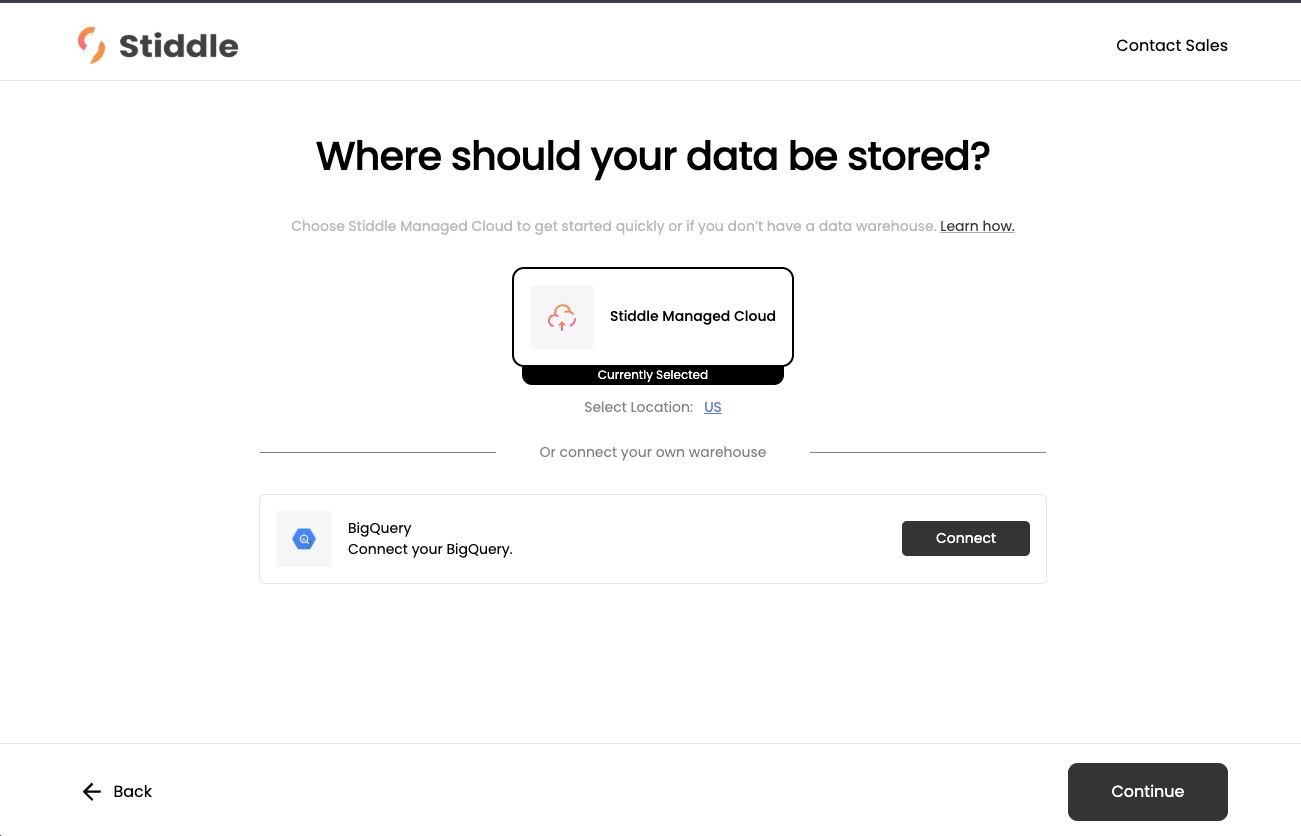
Composable Architecture
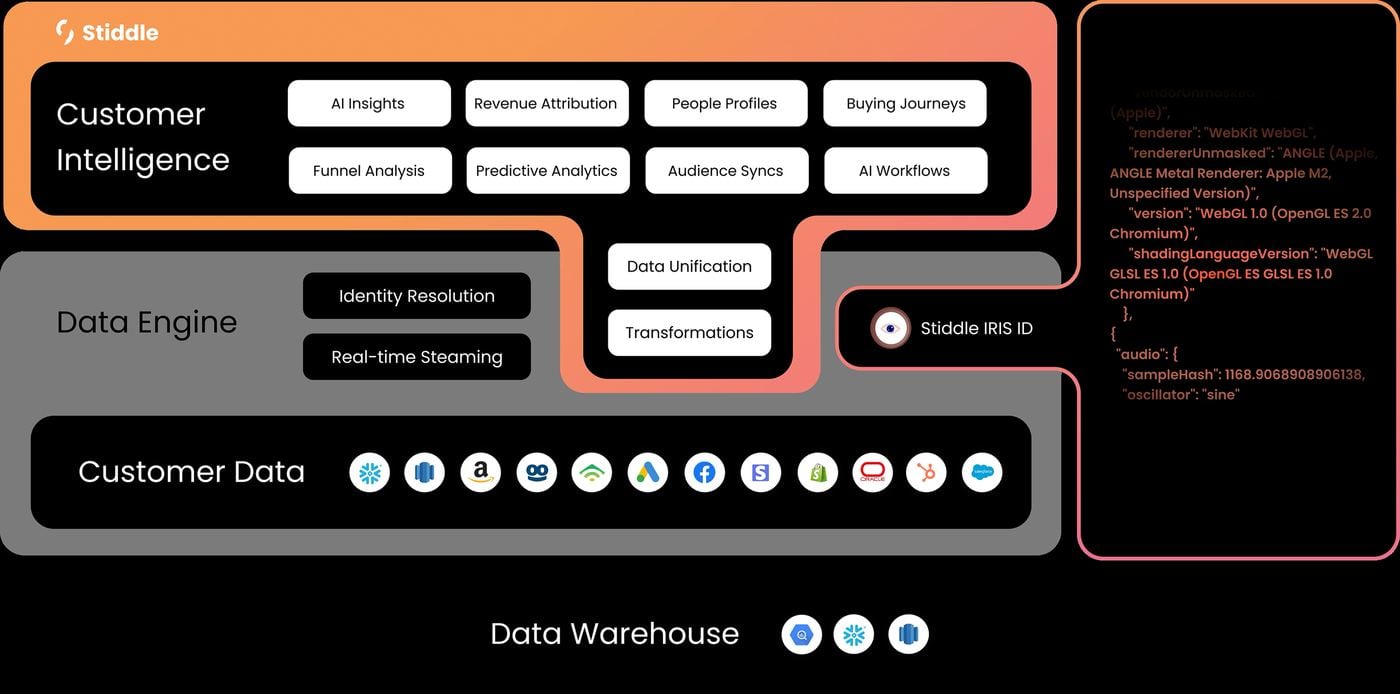
Stiddle sits on top of your existing warehouse. Your data stays where it already lives, which means:- True ownership and access — everything Stiddle produces (identity resolution, attribution, scores, audiences) is written back into your warehouse, where your data team can query it alongside everything else.
- Lower storage cost and simpler governance — one copy of the data, under your existing access policies.
- One source of truth — marketing, sales and data teams work from the same tables.
- Data Warehouse — BigQuery, and in the diagram also Snowflake and Redshift [confirm which are live].
- Customer Data — CRM, ecommerce, ads, email and the other sources you connect.
- Data Engine — identity resolution with the Stiddle IRIS ID, real-time streaming, data unification and transformations.
- Customer Intelligence — AI insights, revenue attribution, people profiles, buying journeys, funnel analysis, predictive analytics, audience syncs and AI workflows.
Stiddle Managed Cloud
If you don’t have a warehouse, keep Stiddle Managed Cloud selected and set the location under Select Location. You get every feature with nothing to provision. Example: a growing company starts on Managed Cloud in the EU, then uses profiles, attribution, dashboards and audiences to see the path from first visit to sale.FAQs
Do I need a data warehouse? No. Stiddle Managed Cloud is fully managed. Can two workspaces use different storage? Yes — one on your BigQuery in the US, another on Managed Cloud in the EU. Which warehouses are supported? Google BigQuery. Others are available upon request. Can I switch storage or location later? You’ll need to talk to support to do so.3. The Stiddle Data Layer (Quad Tracking)
The Stiddle Data Layer combines four sources — sales, browser, ads and marketing — into one identity graph of every customer journey. This is the core of Stiddle: every attribution number, profile, report, audience and score is built on it.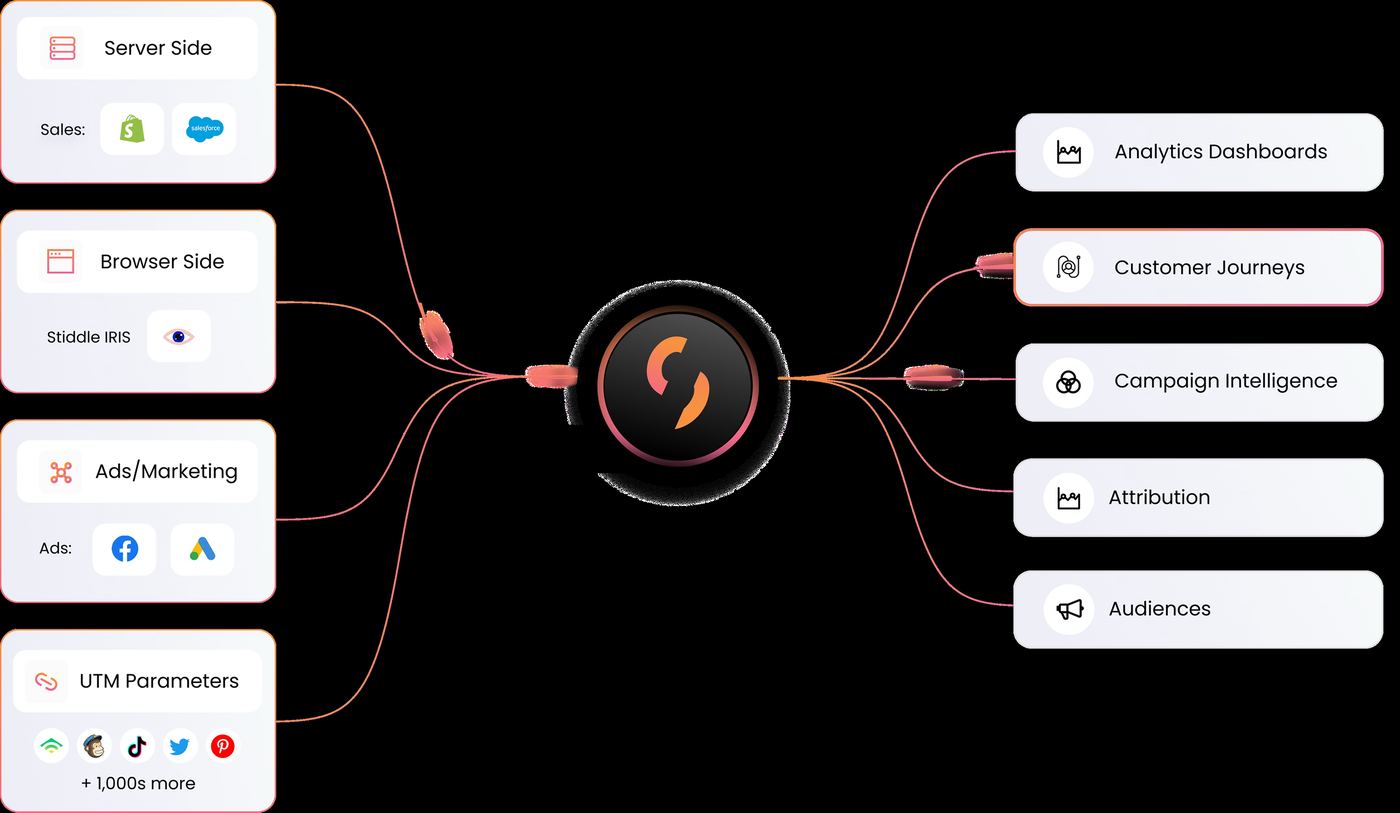
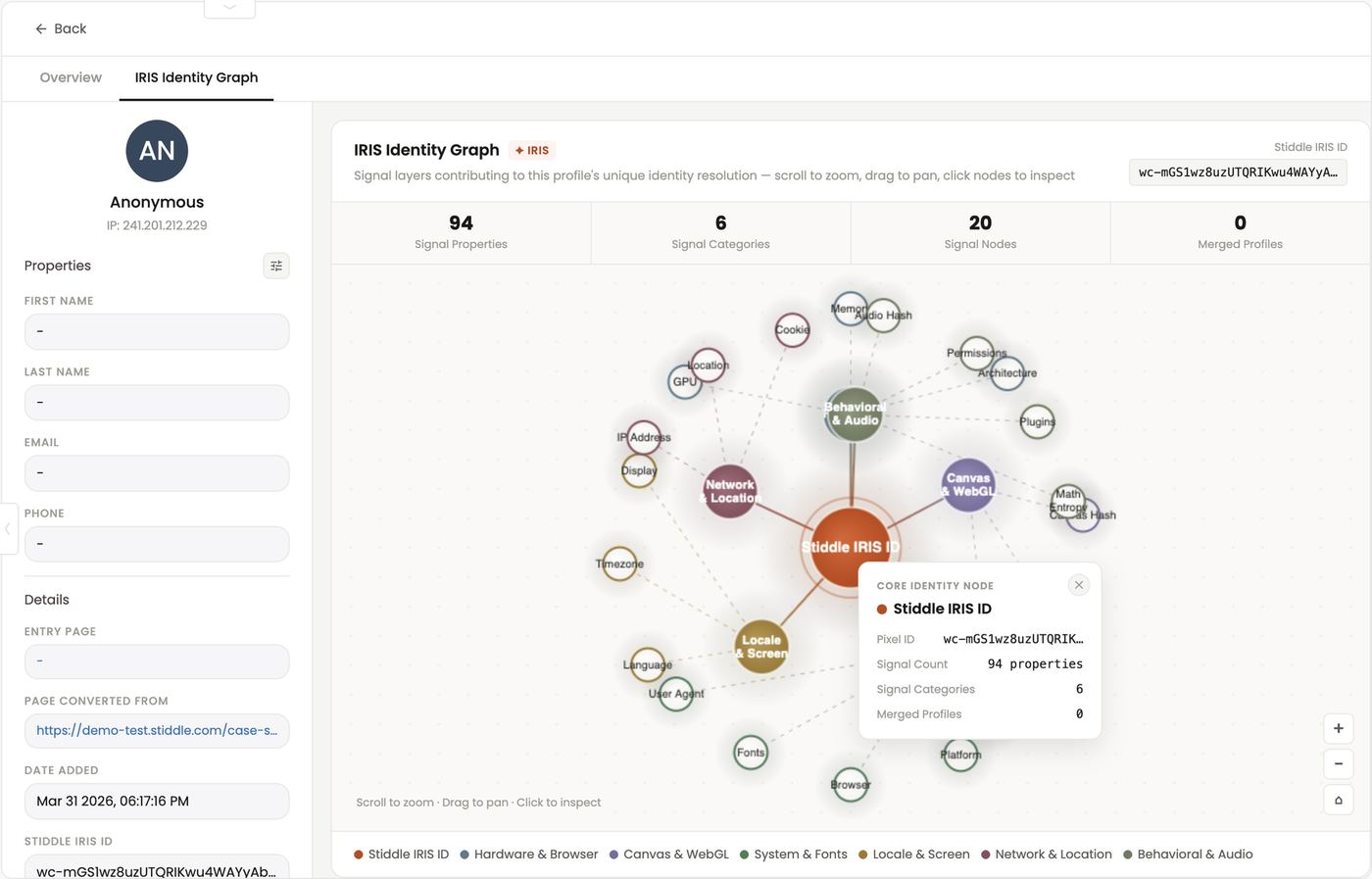
Stiddle IRIS and the identity graph
IRIS identifies visitors without first- or third-party cookies and keeps that identity for up to 3 years, across sessions, devices and incognito browsing. Browser cookies, by contrast, are often reset after about 7 days in browsers like Safari, long before a typical buying cycle ends. How a profile builds up:- A new visitor arrives and IRIS creates an anonymous profile, recording device signals, IP, location and every touchpoint (e.g. Meta ad click → product page → pricing page).
- The visitor keeps coming back over weeks or months; each touchpoint is added to the same profile.
- When they identify themselves — a form, purchase, signup or booked demo — Stiddle merges the history and the profile becomes known.
- Server-side data (CRM stages, orders) is joined to the same person, and in B2B to their company and deals.
Online and offline in one journey
AI search visits (ChatGPT, Claude, Perplexity) appear as their own sources. Offline touchpoints — phone calls from a call-tracking system, or attendees uploaded from a conference — are matched to profiles and appear in the journey alongside digital touches. B2B example: a deal in the demo shows a LinkedIn ad click, a Facebook ad → page view, a whitepaper download, attendance at “SaaS Growth Summit 2026” and a “30-min Discovery Call Booked” meeting — all on one timeline before the deal reached the Meeting stage. B2C example: a shopper clicks a Meta ad, comes back through a Klaviyo email a week later and buys. Stiddle ties both touches to the Shopify order. Stiddle also strips third-party bot and crawler traffic out of analytics and attribution automatically.FAQs
Does IRIS use cookies? No. It’s cookieless. Do I get three years of history on day one? No. IRIS starts building history from when tracking goes live. Three years is how long it keeps recognizing a visitor. Imported CDP, CRM or order history can add earlier records. Can an anonymous profile become known later? Yes, at any point within the 3-year window. All of its earlier touchpoints merge in. Does Stiddle see what someone asked ChatGPT or Claude? No. It sees the visit that arrived from that AI service, not the conversation.4. Finding your way around
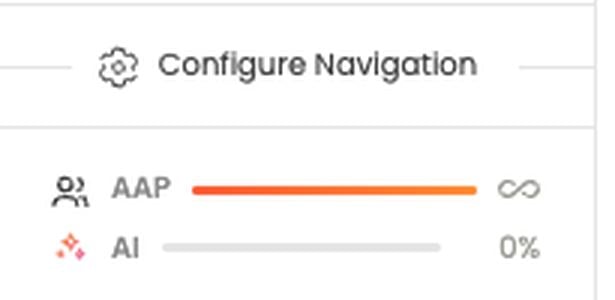
The left nav holds every feature, grouped by job, and you can hide what you don’t use in each workspace. Its footer shows your plan usage (AAP or MAP, and AI tokens) and links to Settings.The left navigation
The header has Getting Started (guided tours), Support, notifications (bell) and your profile menu.
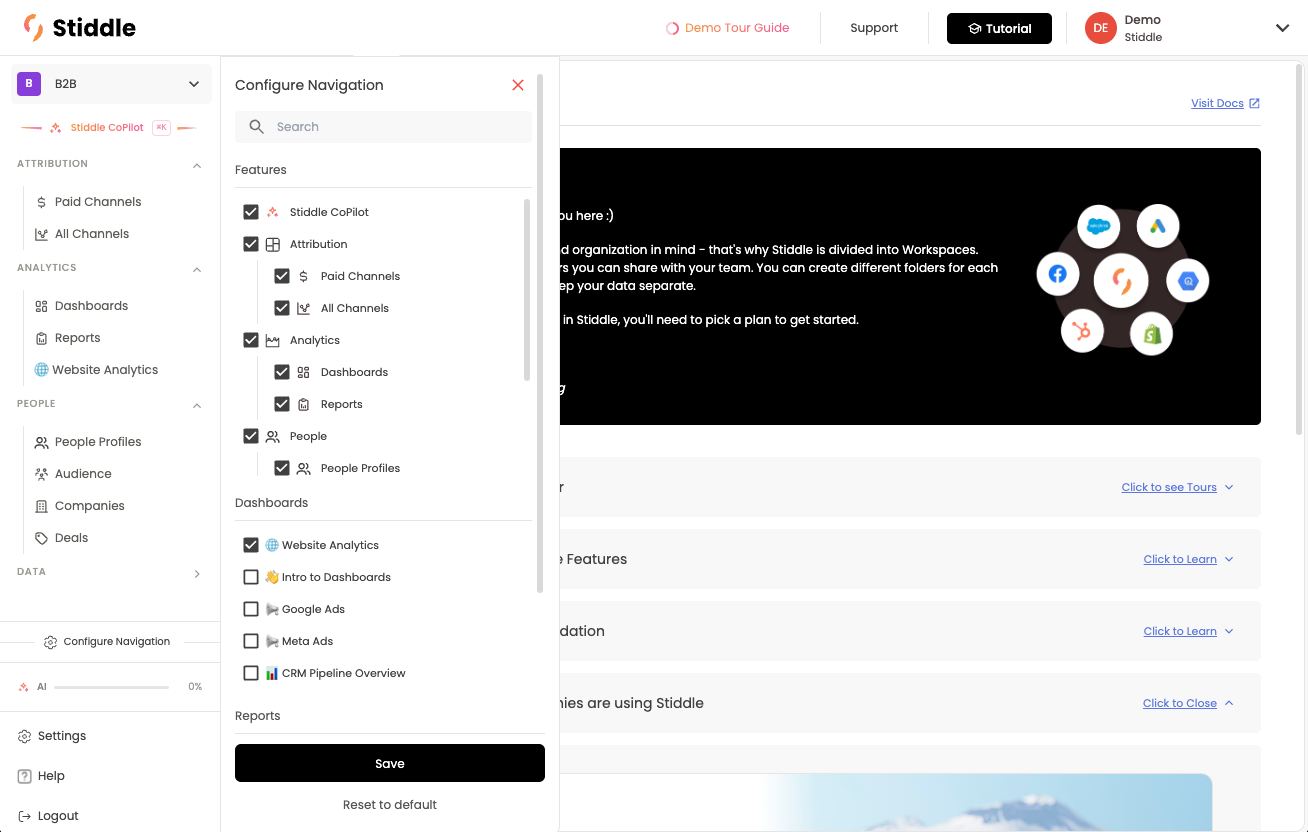
Configure Navigation (show or hide features)
Use Configure Navigation to choose what appears in the nav for this workspace.- Click Configure Navigation at the bottom of the nav.
- Under Features, tick or untick items: Stiddle CoPilot, Attribution (Paid Channels, All Channels), Analytics (Dashboards, Reports), People (People Profiles, Audience, Companies, Deals) and Data. Unticking a parent hides its whole group. Search finds an item quickly.
- Under Dashboards and Reports, tick any saved dashboard or report to pin it straight into the nav — e.g. pin “Website Analytics” so it sits under Analytics.
- Click Save. Reset to default restores the standard layout.
Usage meters
Two bars at the bottom of the nav show what you’ve used of your plan:- AAP or MAP — Annual or Monthly Active Profiles. Depending on your plan, this tracks the unique profiles (unique visitors and customers) active this year or month against what your subscription includes. ∞ means your plan has no profile cap.
- AI — token usage. How much of the workspace’s AI token allowance has been used by CoPilot, MCP and other AI features. Hover for detail, e.g. “AI Token Usage — of 1,000,000 tokens, 100% remaining”. The full breakdown is in Settings → Stiddle AI → Usage Logs (section 18).
Settings
FAQs
If I hide Companies, can a colleague still see it? Yes, if it’s in their nav and their permissions include it. What counts as an active profile? A unique person (anonymous or known) with activity in the period. What uses AI tokens? CoPilot chats, MCP tool calls from outside AI tools, “Ask Stiddle AI” edits and “Build with AI” options. Settings → Stiddle AI → Usage Logs breaks it down by feature and user.5. Setup: script, events, goals, connectors and UTMs
Three ideas show up on every screen: conversion goals (the outcomes you measure), events (everything people do), and the difference between Stiddle-attributed and platform-reported metrics.The Stiddle script
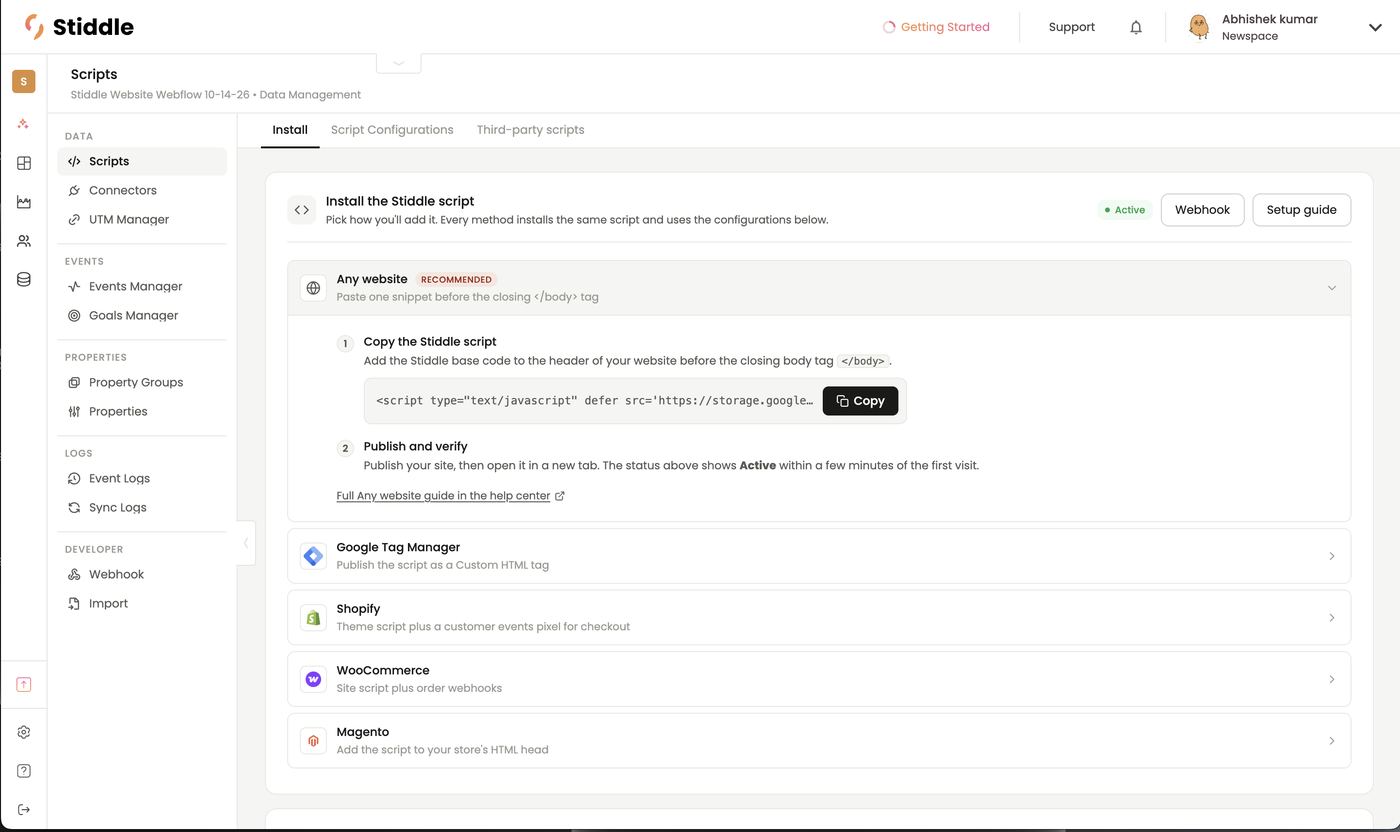
The Stiddle script is the small snippet that runs Stiddle IRIS on your website. It tracks every visit and on-site action, recognizes visitors without cookies for up to 3 years, and powers auto events, forms, the toolbar and third-party scripts. Every website you want to track needs it. Manage it in Data → Scripts, which has three tabs: Install, Script Configurations and Third-party scripts. The status badge at the top shows Active once Stiddle is receiving data. Webhook and Setup guide link to the webhook settings and the full install docs.Install the script
Pick the method that matches your site. Every method installs the same script and uses the same configuration, so use only one per site.
After installing, publish your site and open it in a new tab. The status changes to Active within a few minutes of the first visit. Each method also links to its full guide in the help center.
Any website
- Click Copy next to the Stiddle script.
- Paste it into your site’s code before the closing
</body>tag, on every page (usually your site-wide footer or custom code setting). - Publish, then check for Active.
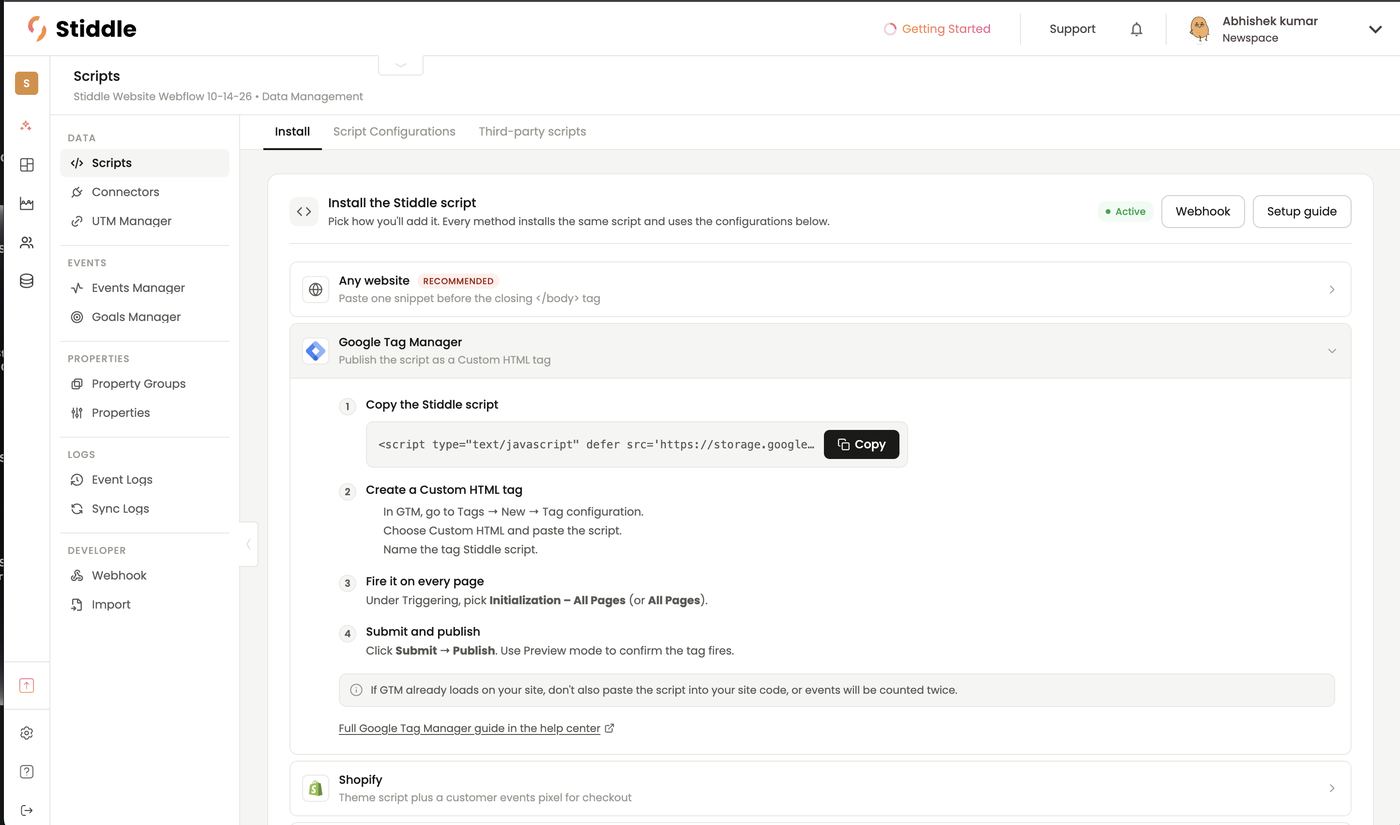
- Copy the Stiddle script.
- In GTM, go to Tags → New → Tag configuration, choose Custom HTML, paste the script and name the tag Stiddle script.
- Under Triggering, pick Initialization – All Pages (or All Pages).
- Click Submit → Publish. Use Preview mode to confirm the tag fires.
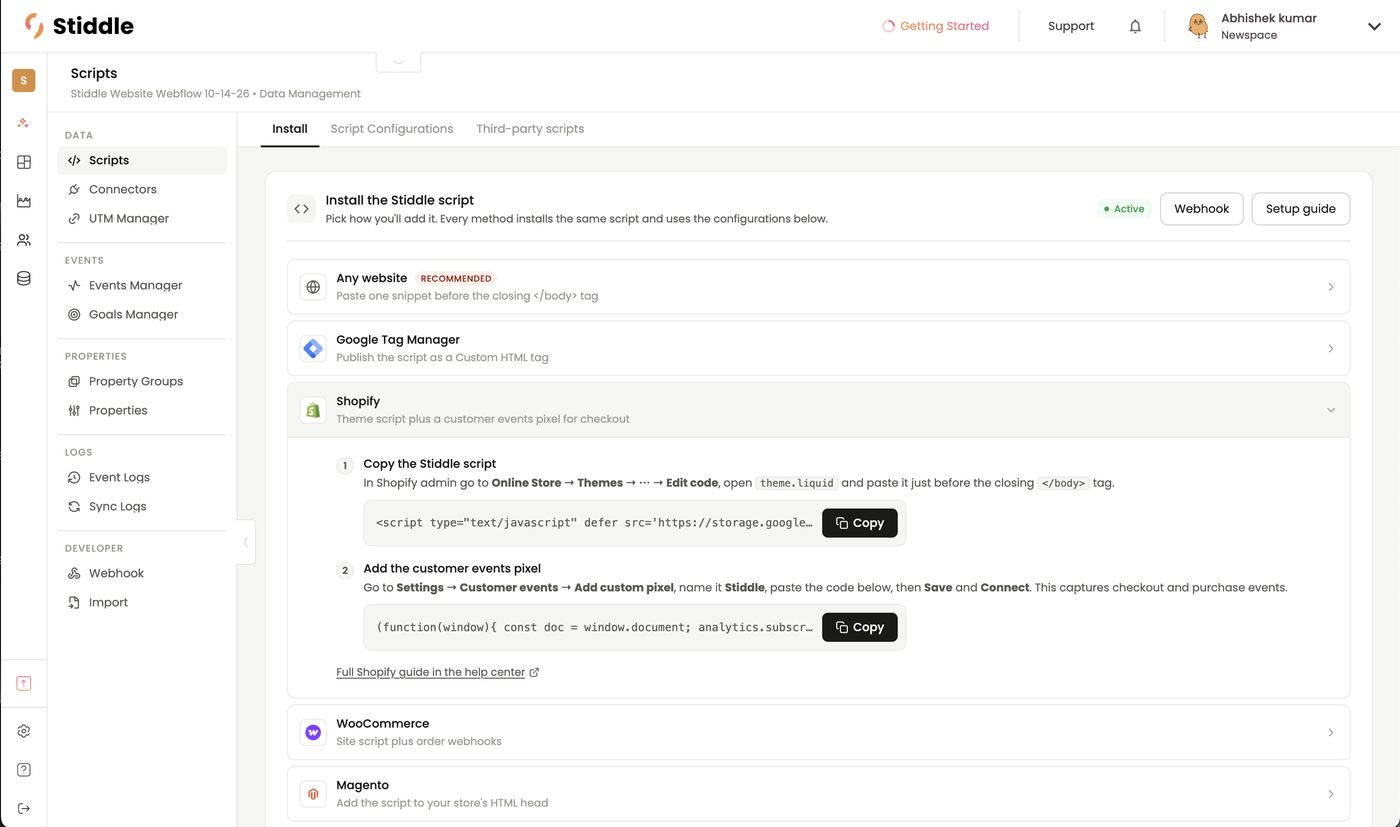
- In Shopify admin, go to Online Store → Themes → ⋯ → Edit code, open
theme.liquid, and paste the Stiddle script just before</body>. - Go to Settings → Customer events → Add custom pixel, name it Stiddle, paste the second code block from Stiddle, then Save and Connect. This captures checkout and purchase events, which Shopify’s checkout pages don’t allow theme scripts to see.
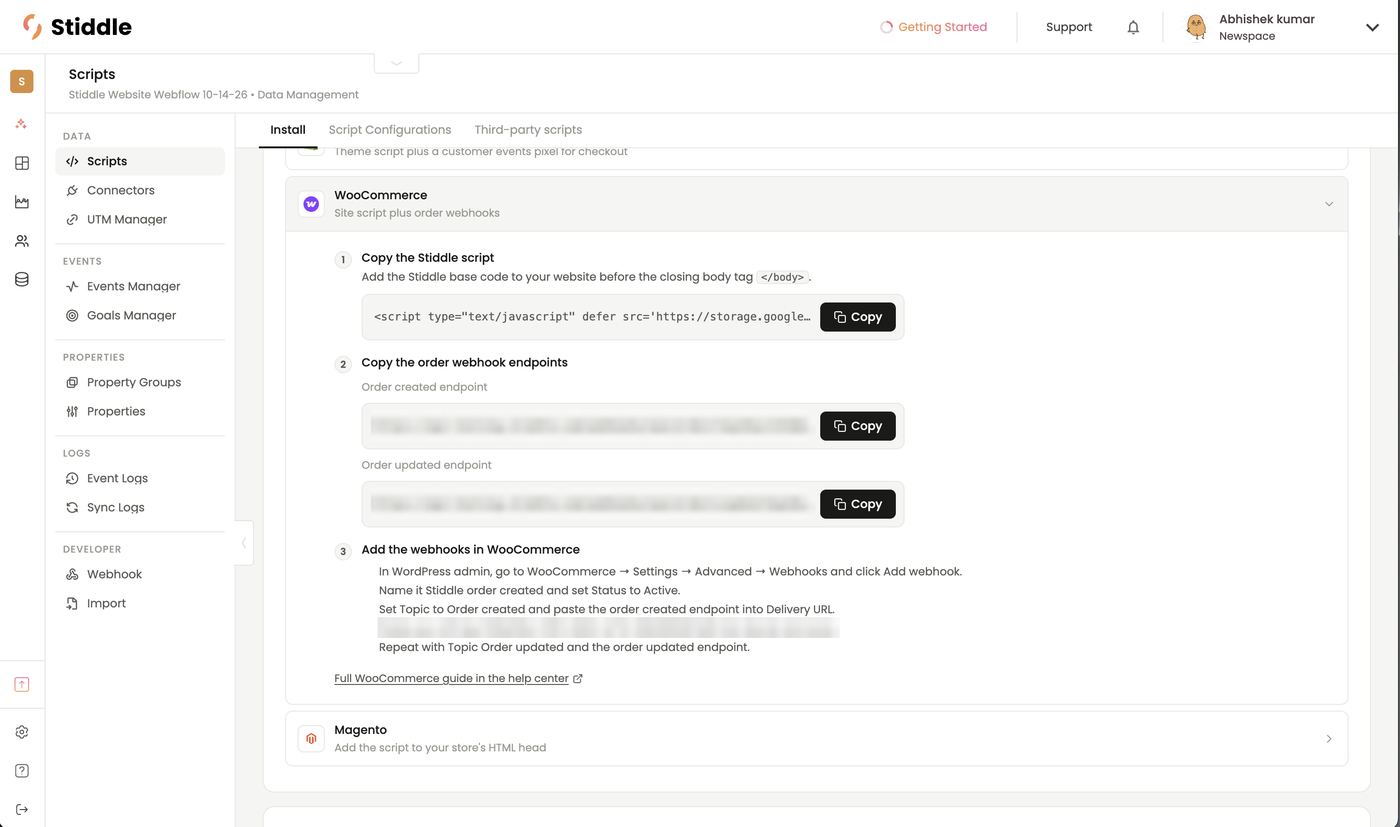
- Copy the Stiddle script and add it to your site before
</body>. - Copy the Order created and Order updated webhook endpoints from Stiddle.
- In WordPress admin, go to WooCommerce → Settings → Advanced → Webhooks → Add webhook. Name it Stiddle order created, set Status to Active, Topic to Order created, paste the order created endpoint into Delivery URL, paste your workspace API key into Secret, and save.
- Repeat with Topic Order updated and the order updated endpoint.
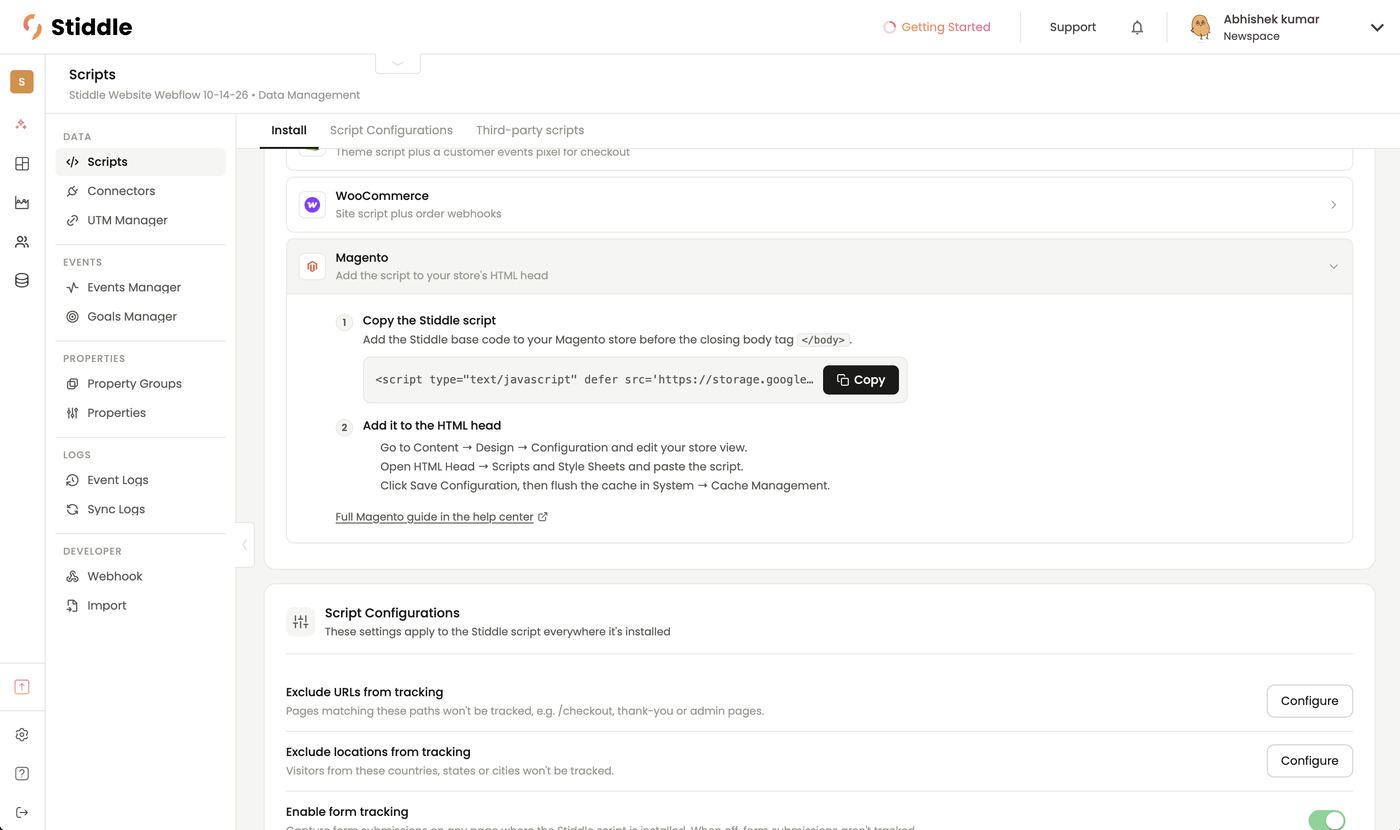
- Copy the Stiddle script.
- Go to Content → Design → Configuration and edit your store view.
- Open HTML Head → Scripts and Style Sheets and paste the script.
- Click Save Configuration, then flush the cache in System → Cache Management.
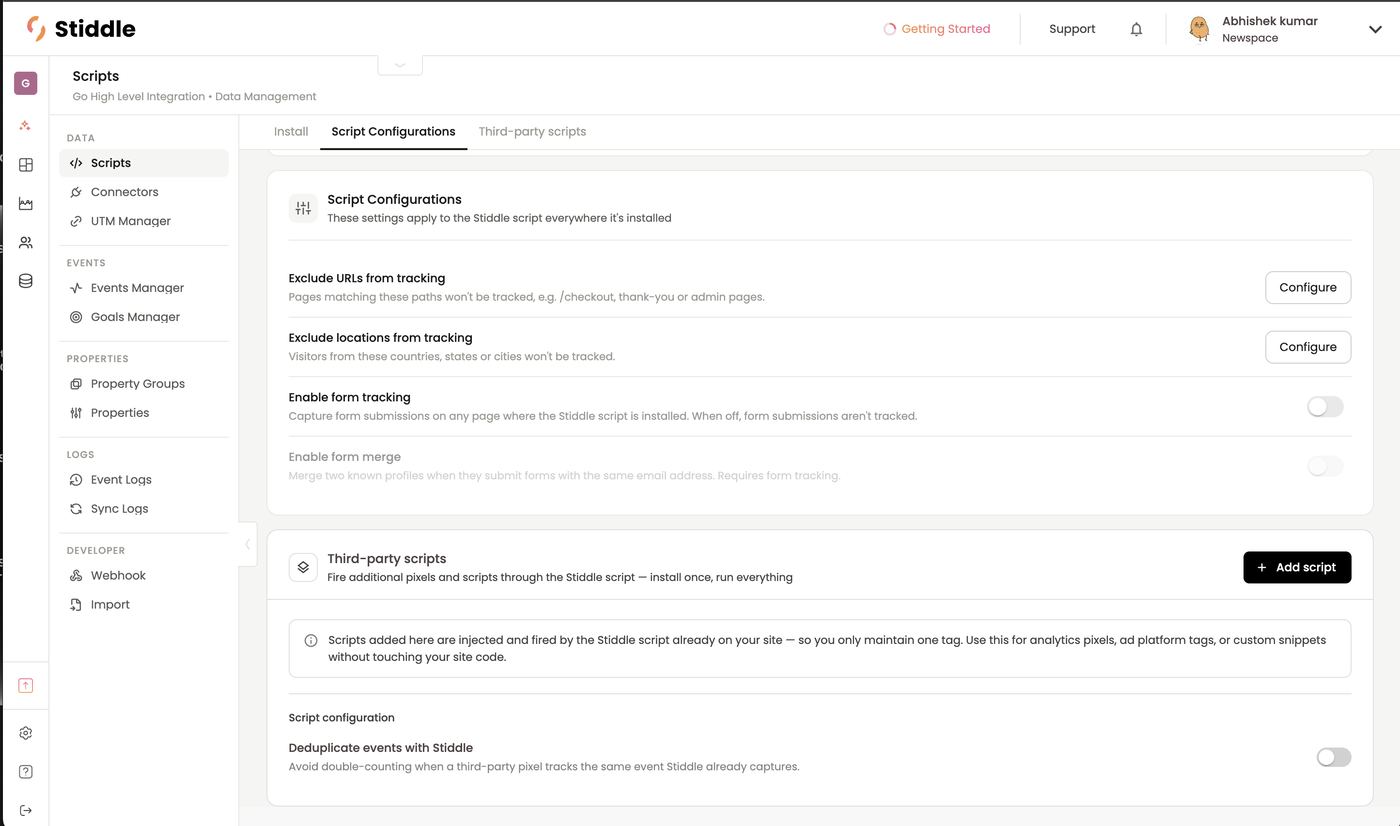
Script configurations
These settings apply to the Stiddle script everywhere it’s installed.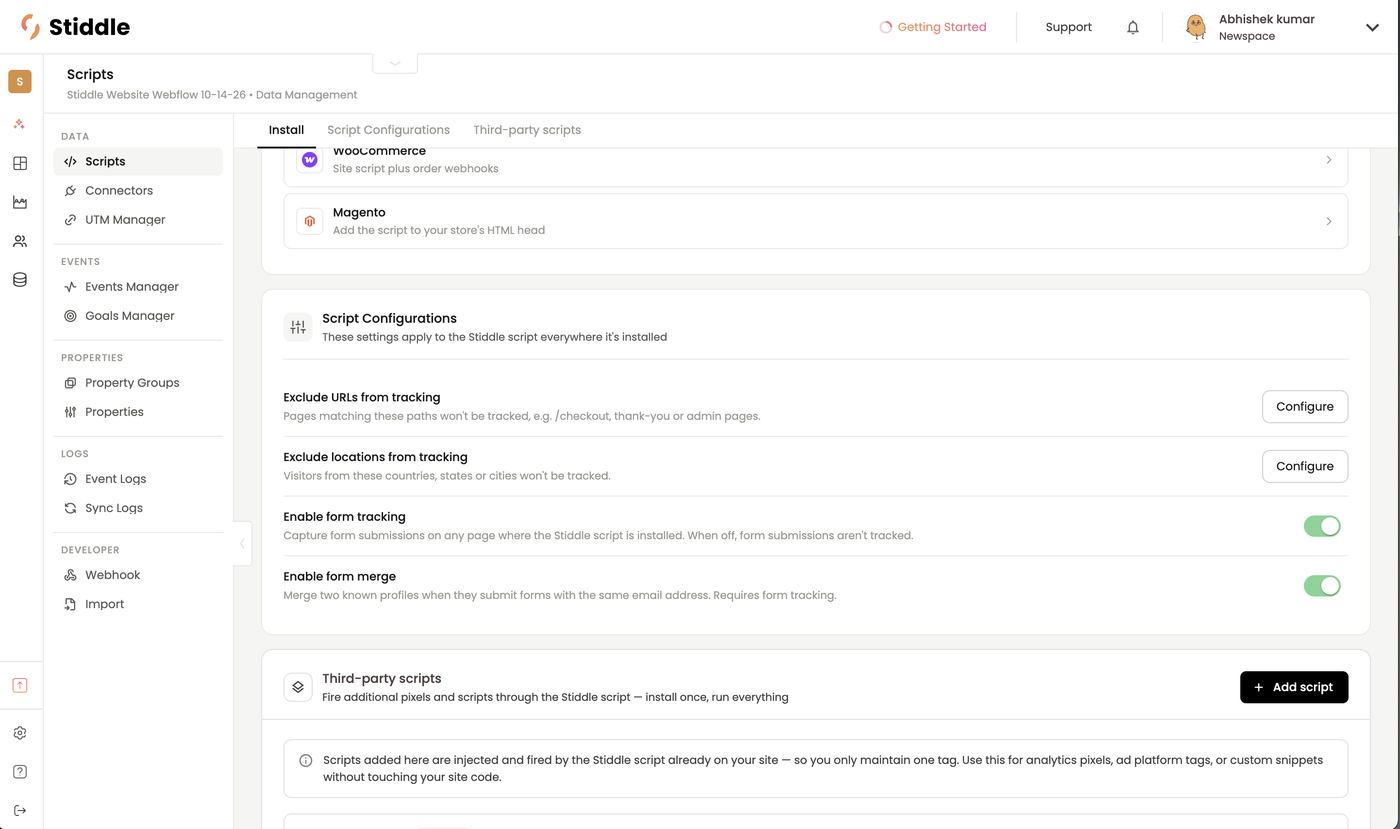
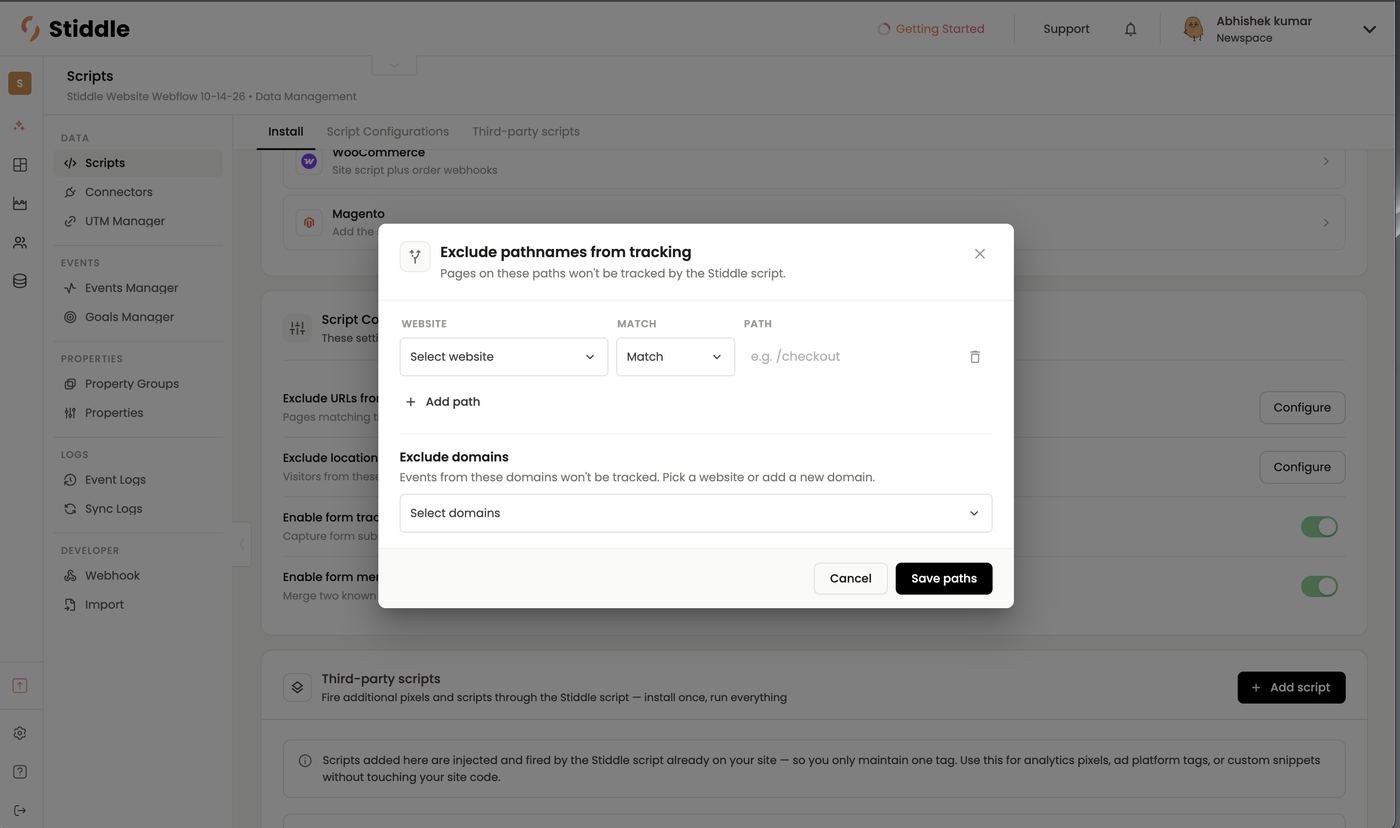
- Click Configure next to Exclude URLs from tracking.
- For each path, choose the Website, a Match rule and the Path (e.g.
/checkout). + Add path adds more; the bin removes one. - Under Exclude domains, pick a website or add a domain whose events shouldn’t be tracked at all — e.g. a staging site.
- Click Save paths.
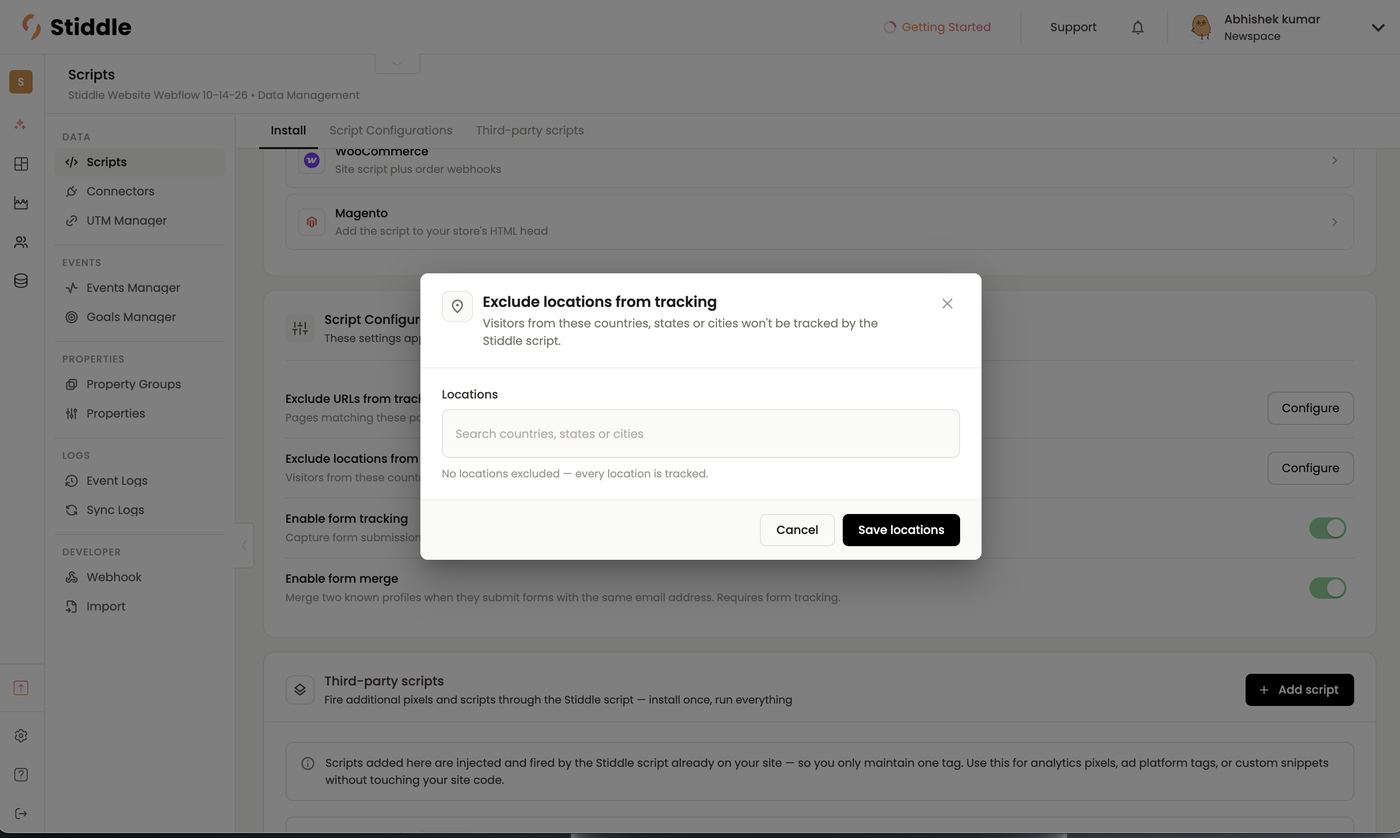
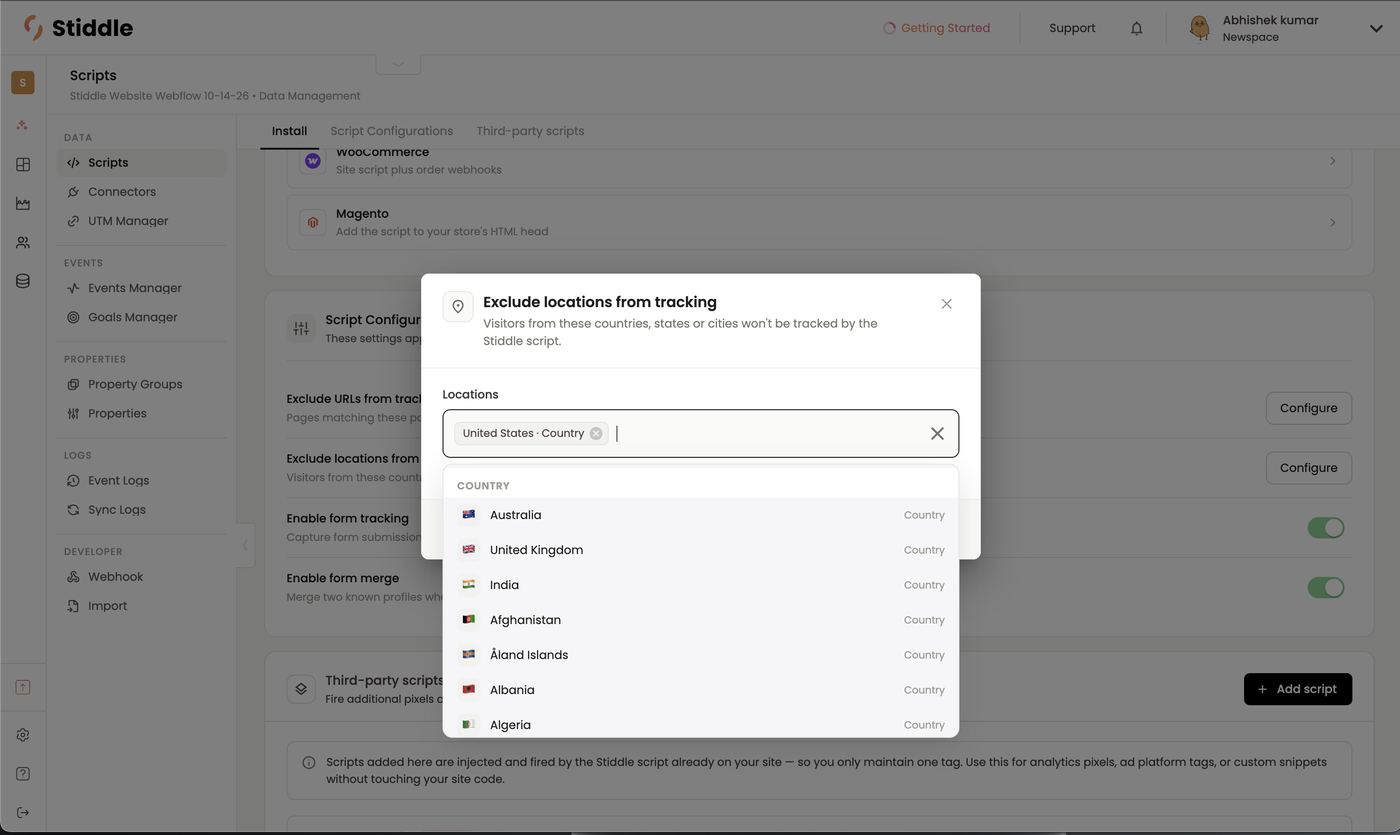
- Click Configure next to Exclude locations from tracking.
- Search for countries, states or cities and select them — each shows as a tag, e.g. United States · Country.
- Click Save locations. With nothing selected, every location is tracked.
Third-party scripts
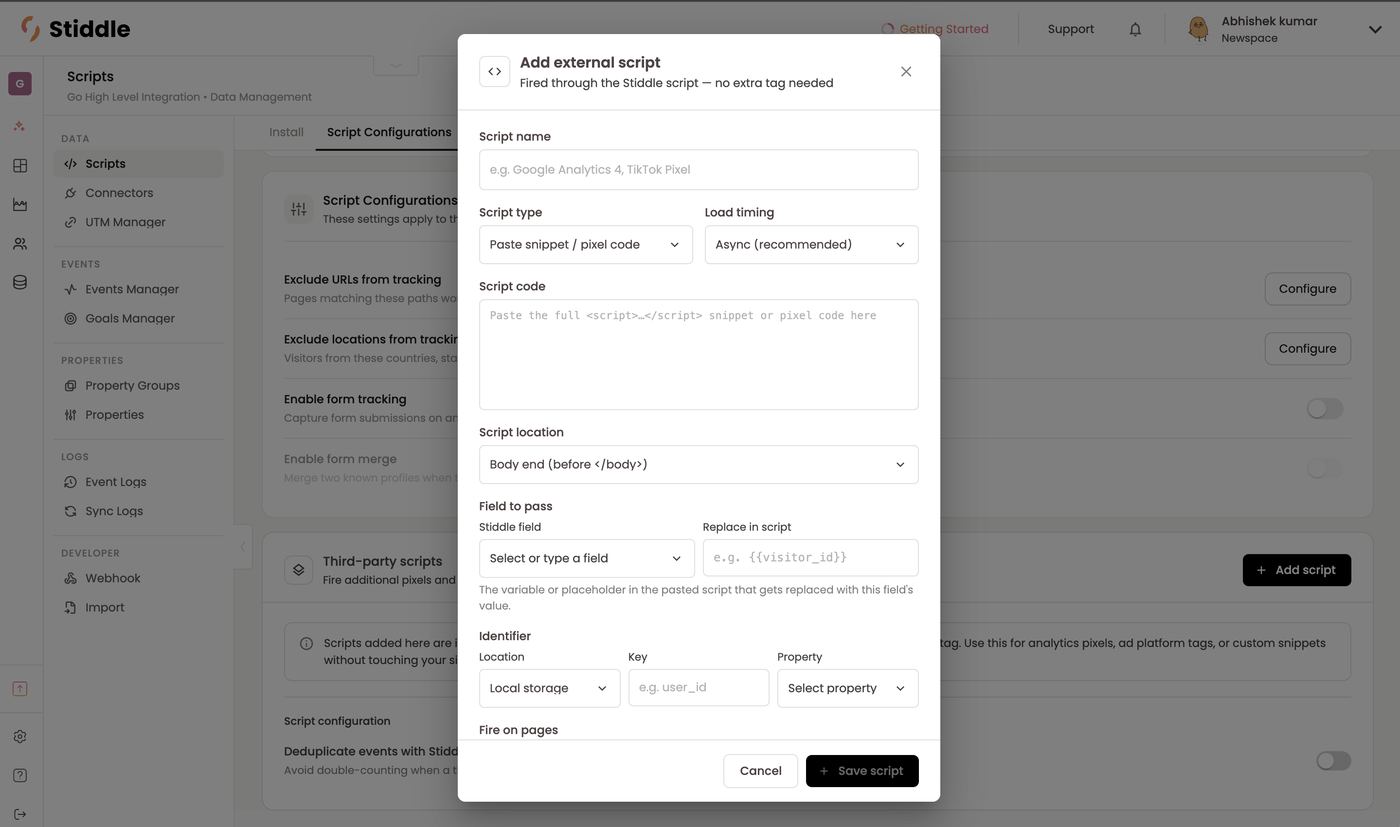
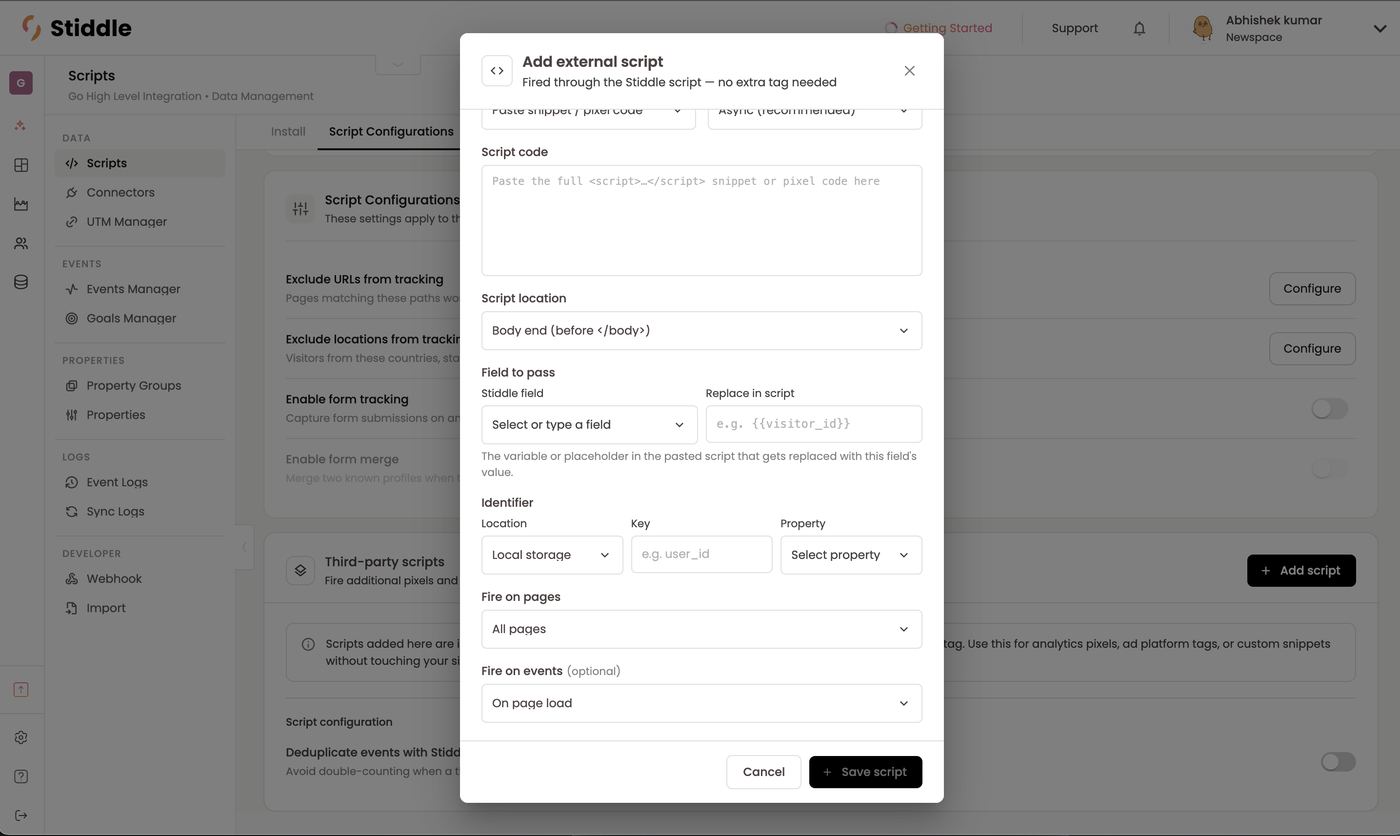
Third-party scripts let you inject another vendor’s script through the Stiddle script, so you only maintain one tag on your site. The main reason to use this is to pass the Stiddle IRIS ID into a third-party script. The vendor can then use IRIS to recognize the same person across their tool and match their data back to Stiddle profiles. This extends IRIS’s persistent identity to other tracking scripts and raises how many profiles Stiddle can identify. Good fits are niche tools such as data enrichment and identity providers or intent and signaling scripts. Don’t add general analytics like Google Analytics here — this isn’t a replacement for Google Tag Manager. Add a script- In Data → Scripts → Third-party scripts, click + Add script.
- Enter a Script name.
- Choose the Script type — e.g. Paste snippet / pixel code [confirm other types] — and Load timing (Async is recommended).
- Paste the vendor’s full
<script>…</script>snippet into Script code. - Choose the Script location — e.g. Body end (before
</body>). - Under Field to pass, pick the Stiddle field to send (such as the IRIS visitor ID) and enter the placeholder used in the vendor’s code under Replace in script — e.g.
{{visitor_id}}. Stiddle swaps the placeholder for the real value when the script fires. - Under Identifier, if the vendor writes back an ID you want to keep, set where to read it (Location, e.g. Local storage), its Key (e.g.
user_id) and the Stiddle Property to save it to. - Set Fire on pages (e.g. All pages) and optionally Fire on events (e.g. On page load).
- Click Save script.
Script FAQs
The status won’t turn Active. Make sure the script is on the live, published site and visit a page. If you use GTM, check the tag fired in Preview mode. I see every event twice. The script is probably installed twice — e.g. in GTM and in the site code. Remove one. Can I track several domains? Yes — install the same script on each. Add them under authorized URLs to use the toolbar there. Should I add Google Analytics or the Meta pixel as third-party scripts? No. Keep those in GTM or your site code. Third-party scripts are for tools that benefit from the IRIS ID. Why aren’t my Shopify purchases tracking? Add the customer events pixel (step 2 of the Shopify install) — the theme script can’t see checkout.Events: what Stiddle tracks
An event is any touchpoint a person has with your company — a page view, a click, a form submission, a CRM stage change, an order. Events do two jobs:- Power goals — turn an event into a conversion goal for attribution tables, reports, dashboards and profiles.
- Show the journey — every event lands on the person’s profile timeline and can be analyzed in reports.
Three ways events are created
Rule of thumb: anything that happens on your website can be built with the toolbar or manually. Anything that comes from another system — your CRM, ecommerce platform, API or webhook — is defined in Events Manager.
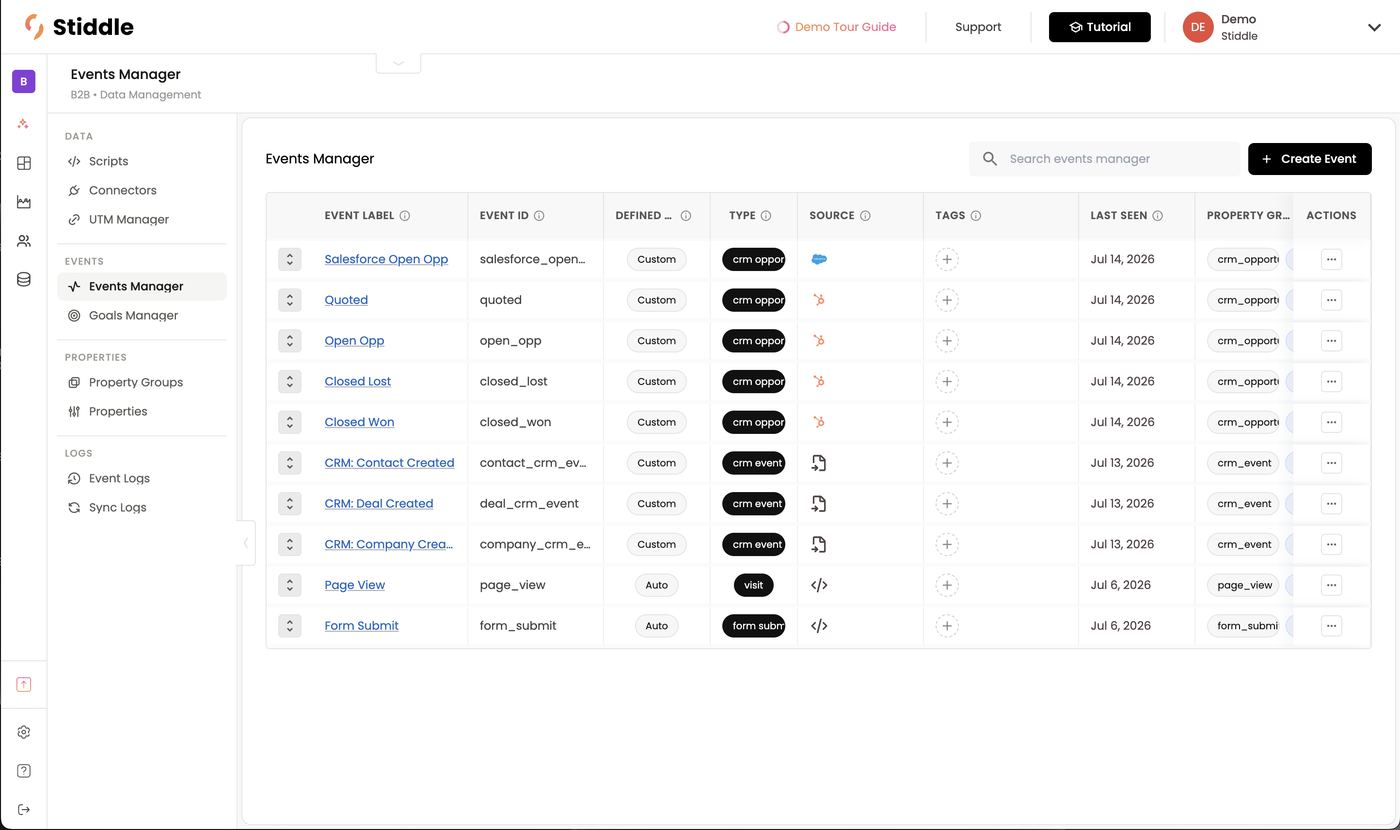
The Events Manager list
Search with Search events manager, and click + Create Event to add one.
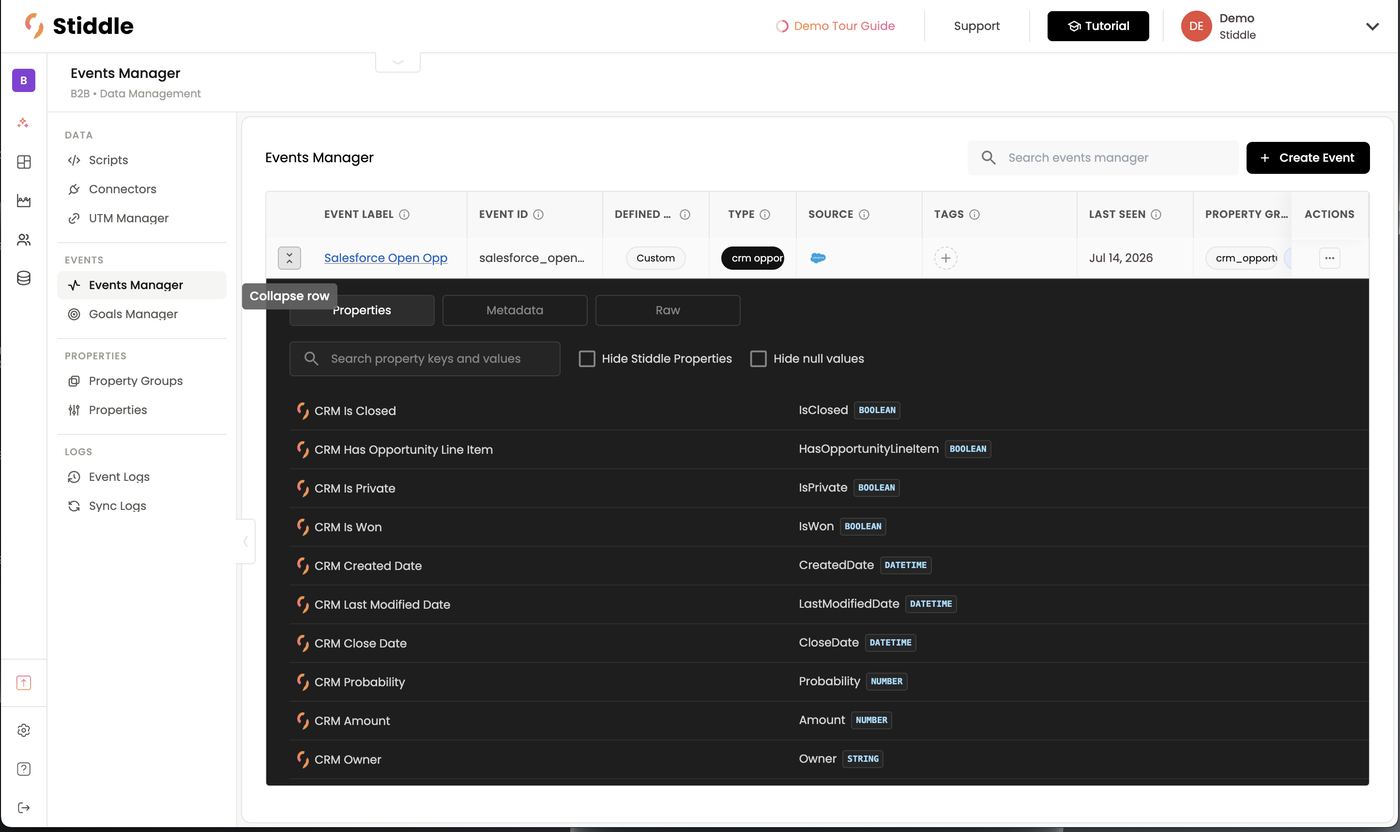
- Properties — every field on the event with its data type (BOOLEAN, DATETIME, NUMBER, STRING). Search keys and values, and tick Hide Stiddle Properties or Hide null values to cut the noise.
- Metadata — details about the event itself.
- Raw — the raw payload, for troubleshooting.
Create an event manually
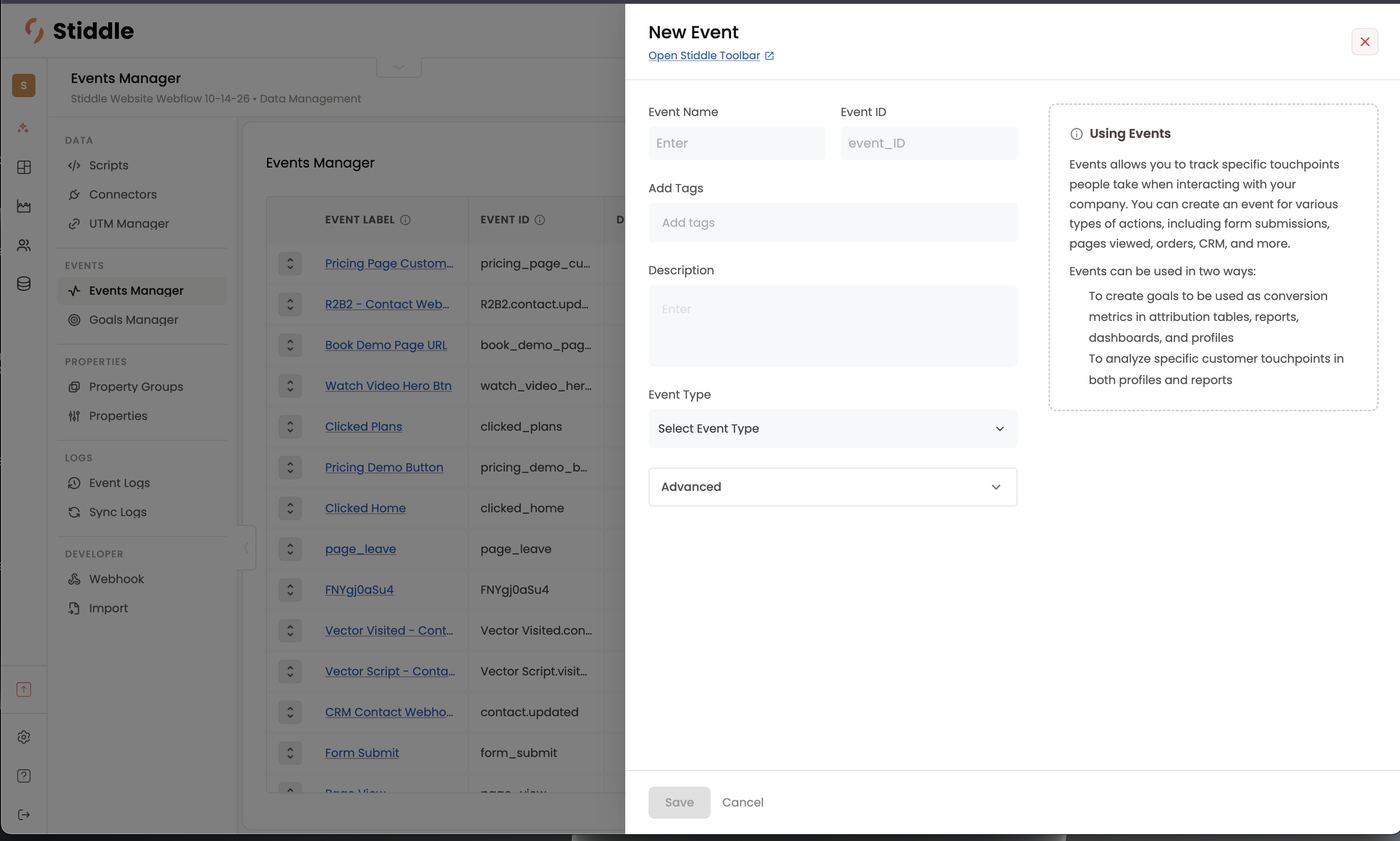
- In Data → Events Manager, click + Create Event.
- Enter an Event Name and Event ID (lowercase with underscores, e.g.
demo_booked). - Optionally Add Tags and a Description so your team knows what it tracks.
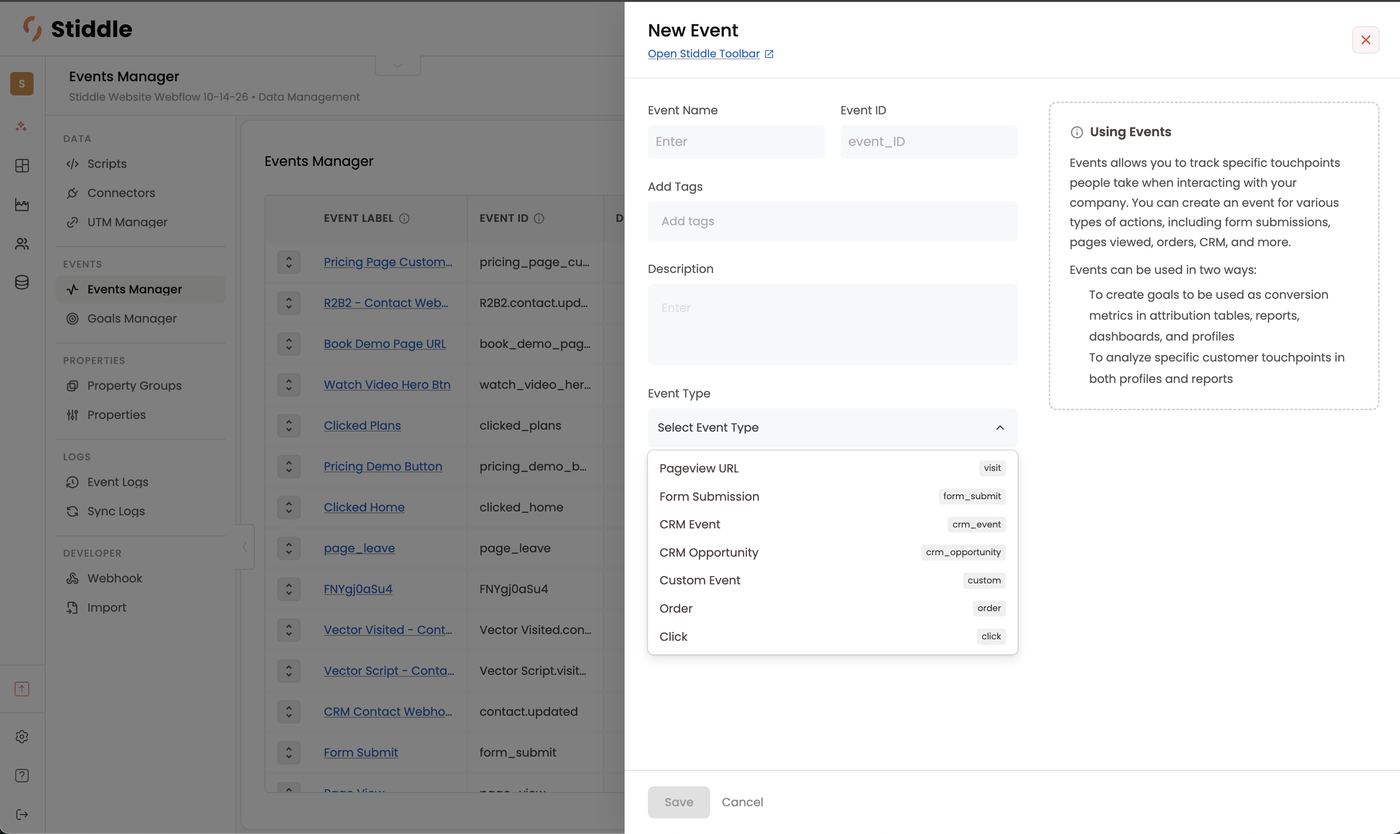
- Choose an Event Type. The rest of the form changes to match — see the table below.
- Fill in the type’s settings. Open Advanced for extra options (see Editing an event below).
- Click Save.
Pageview URL events
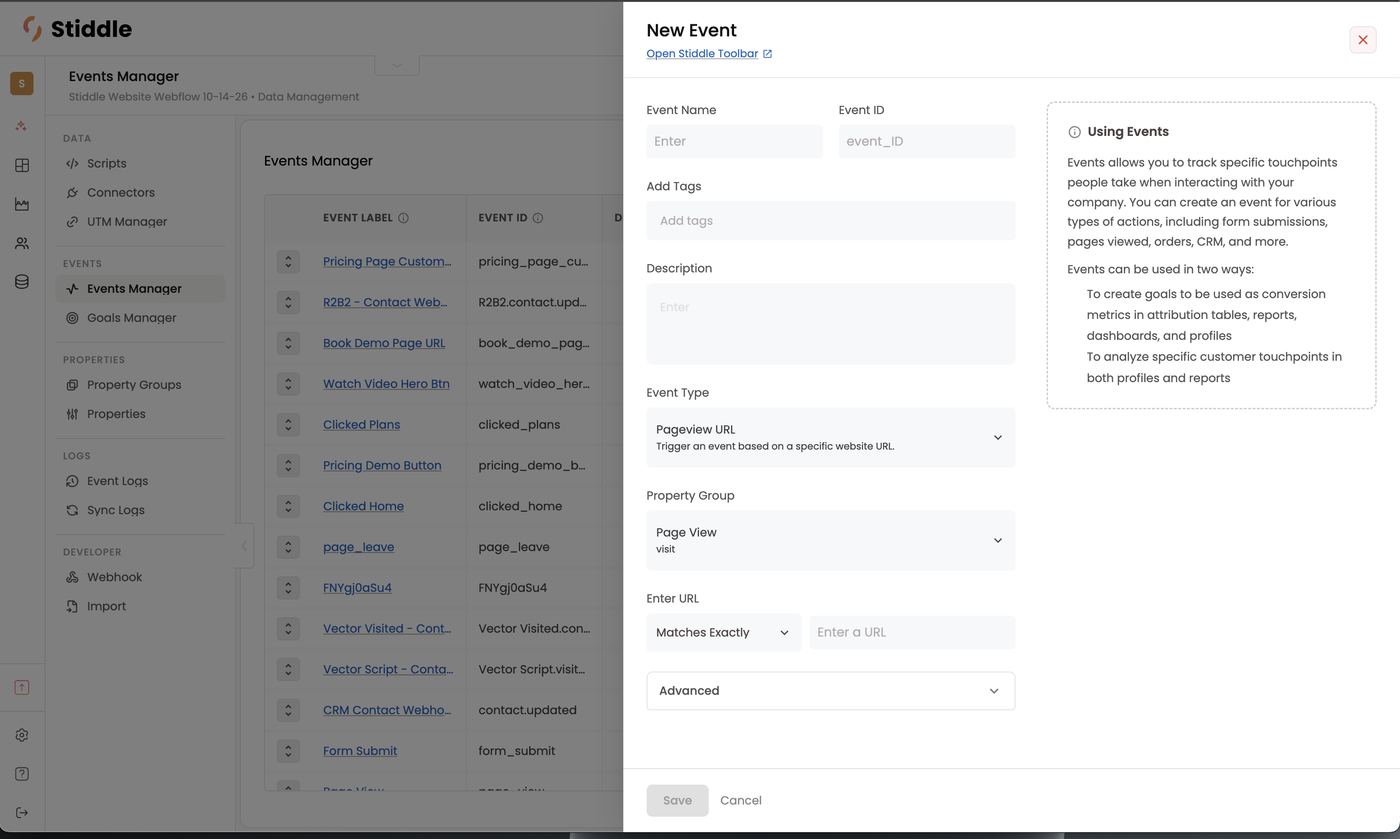
Track visits to a specific page, like the pricing or book-a-demo page.- Event Type → Pageview URL. Property Group fills in as Page View (visit).
- Under Enter URL, pick a match rule — e.g. Matches Exactly — and enter the URL.
- Save.
/book-demo. Make it a goal to see which channels drive demo-page visits.
Click events
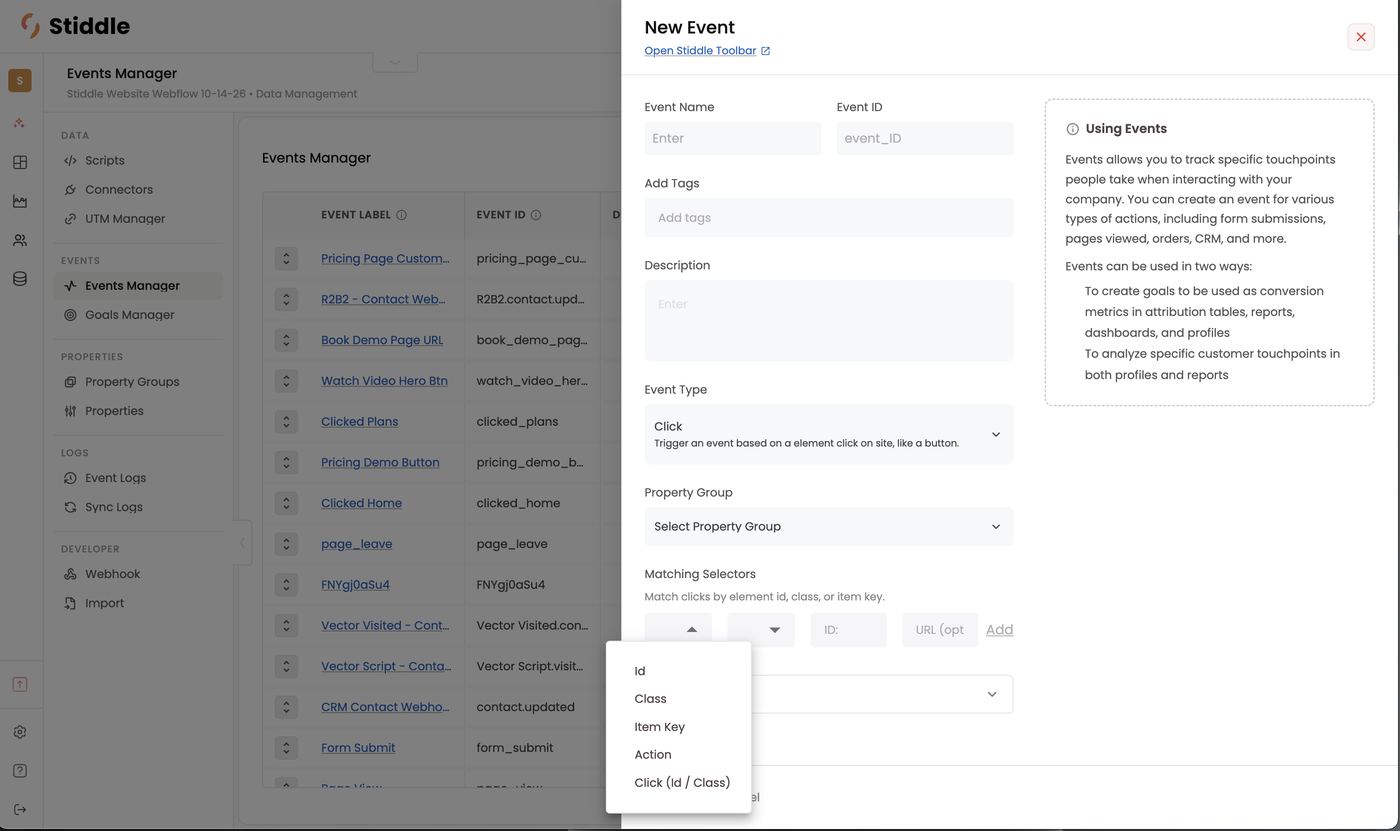
Track clicks on a specific element, like “Watch video” or “See plans”.- Event Type → Click.
- Choose a Property Group.
- Under Matching Selectors, choose how to match the element — Id, Class, Item Key, Action or Click (Id / Class) — pick a condition, enter the value in ID, and optionally a URL to limit it to one page. Click Add for more selectors.
- Save.
Form Submission events
Track submissions of a specific form. Stiddle captures the fields you map — at minimum the email — and uses them to turn anonymous profiles into known ones.- Event Type → Form Submission. Property Group fills in as Form Submit (form_submit).
- Under Select Form, click Configure Form.
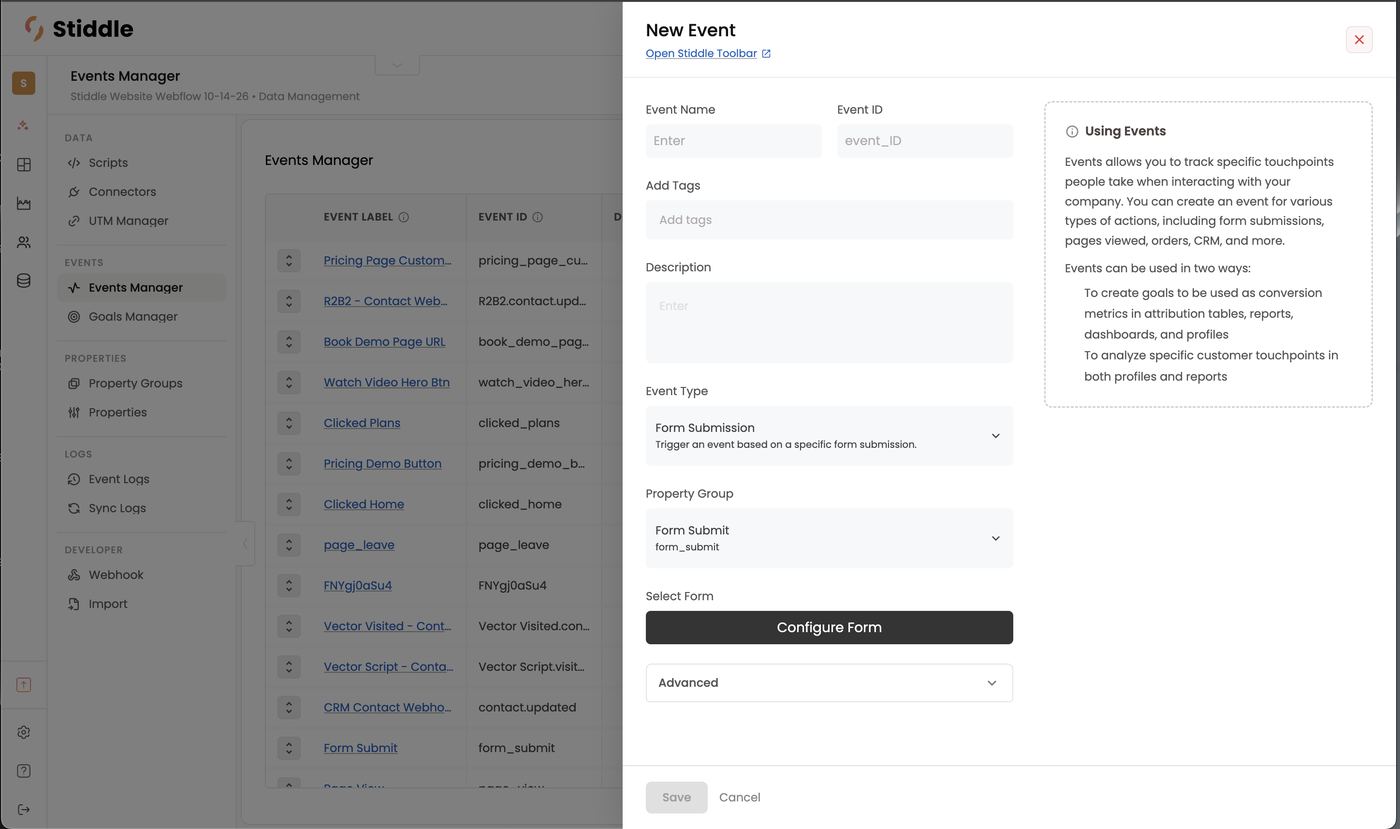
- Find Form: enter the page URL the form lives on and click Next. The Stiddle Pixel must be installed on that page.
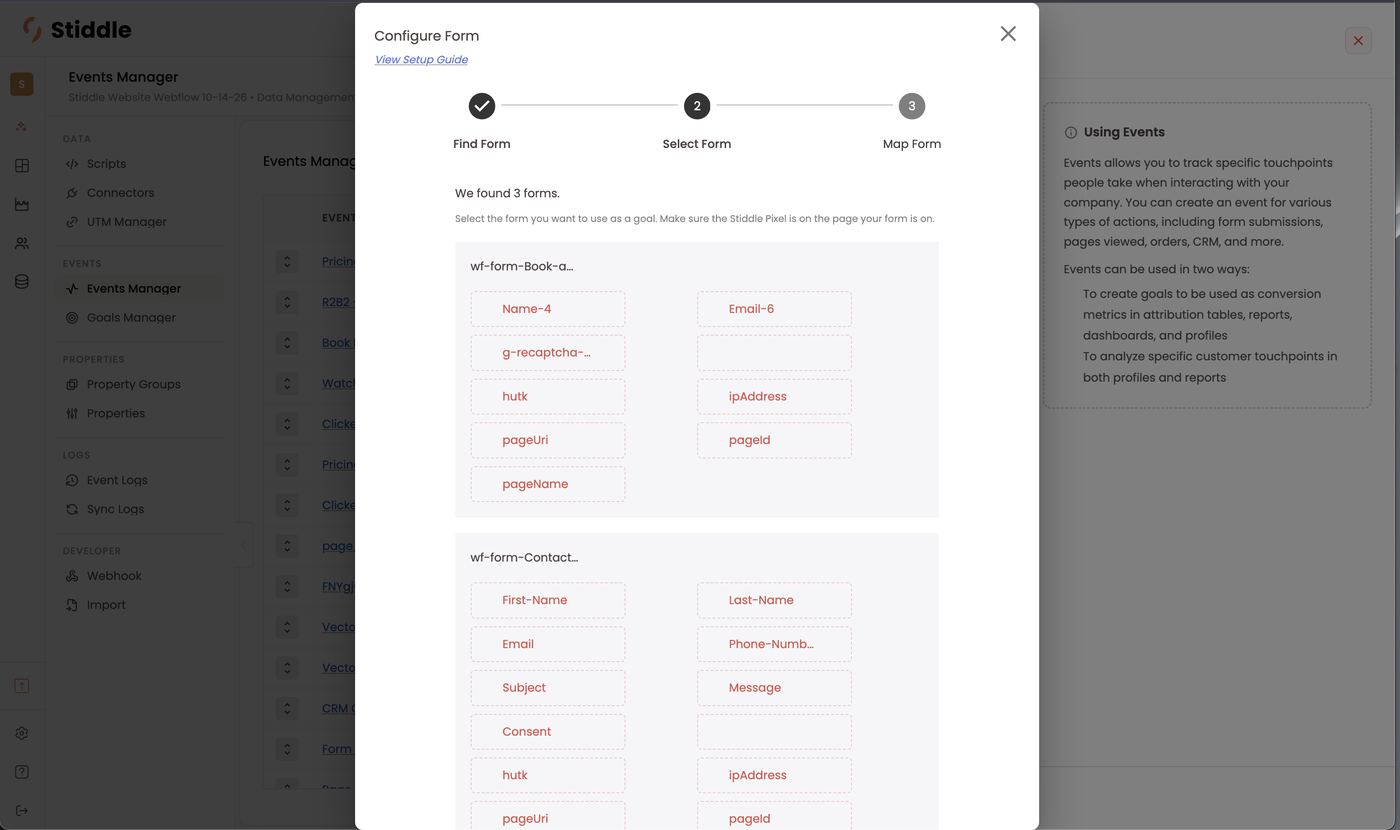
- Select Form: Stiddle lists every form it found on the page with its fields (e.g. “We found 3 forms”). Click the one you want — it’s highlighted in green — then Next.
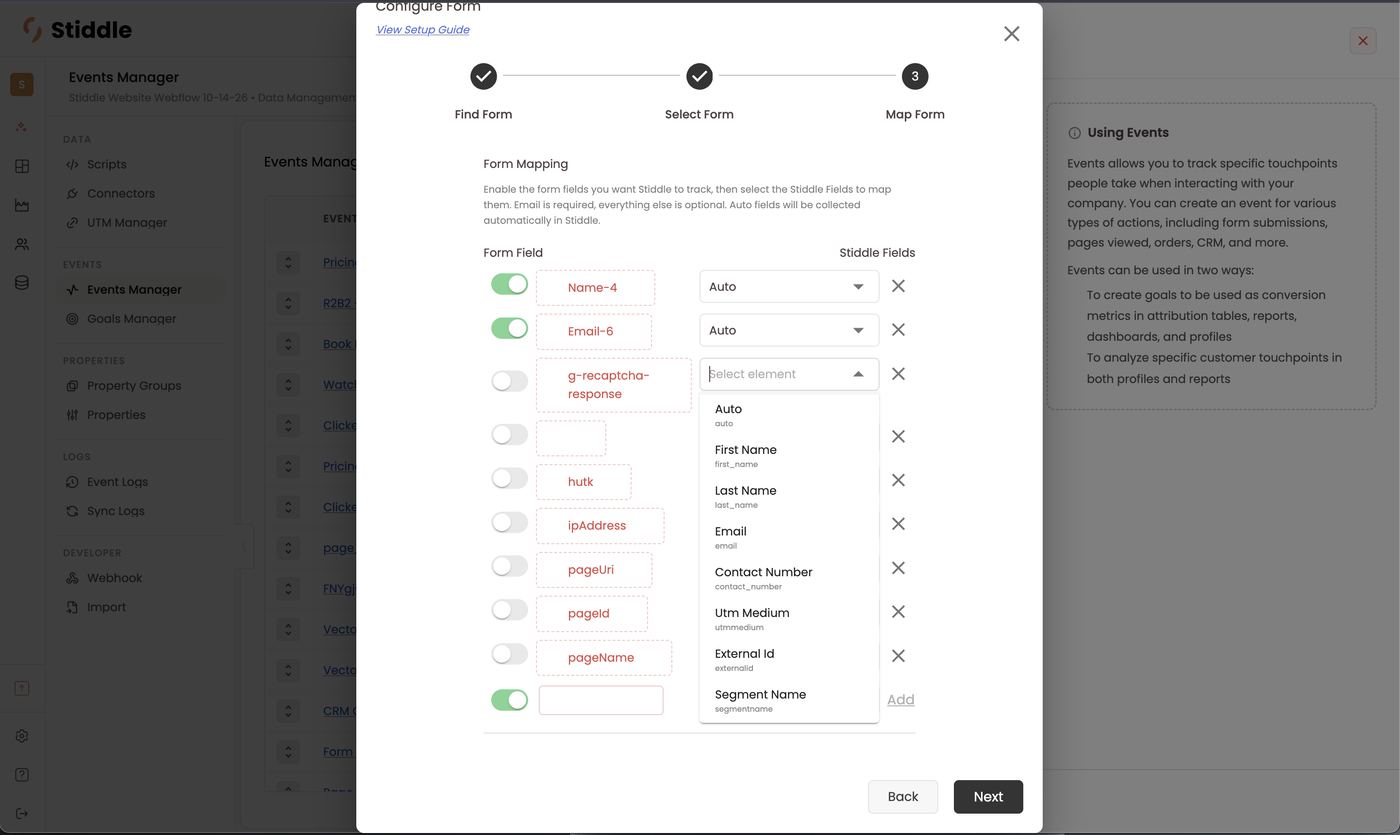
- Map Form: toggle on the fields you want to track, and map each to a Stiddle field — Auto, First Name, Last Name, Email, Contact Number, UTM Medium, External Id, Segment Name and more. Email is required; everything else is optional. Auto lets Stiddle detect the field type. Use Add for extra fields, then Next to finish.
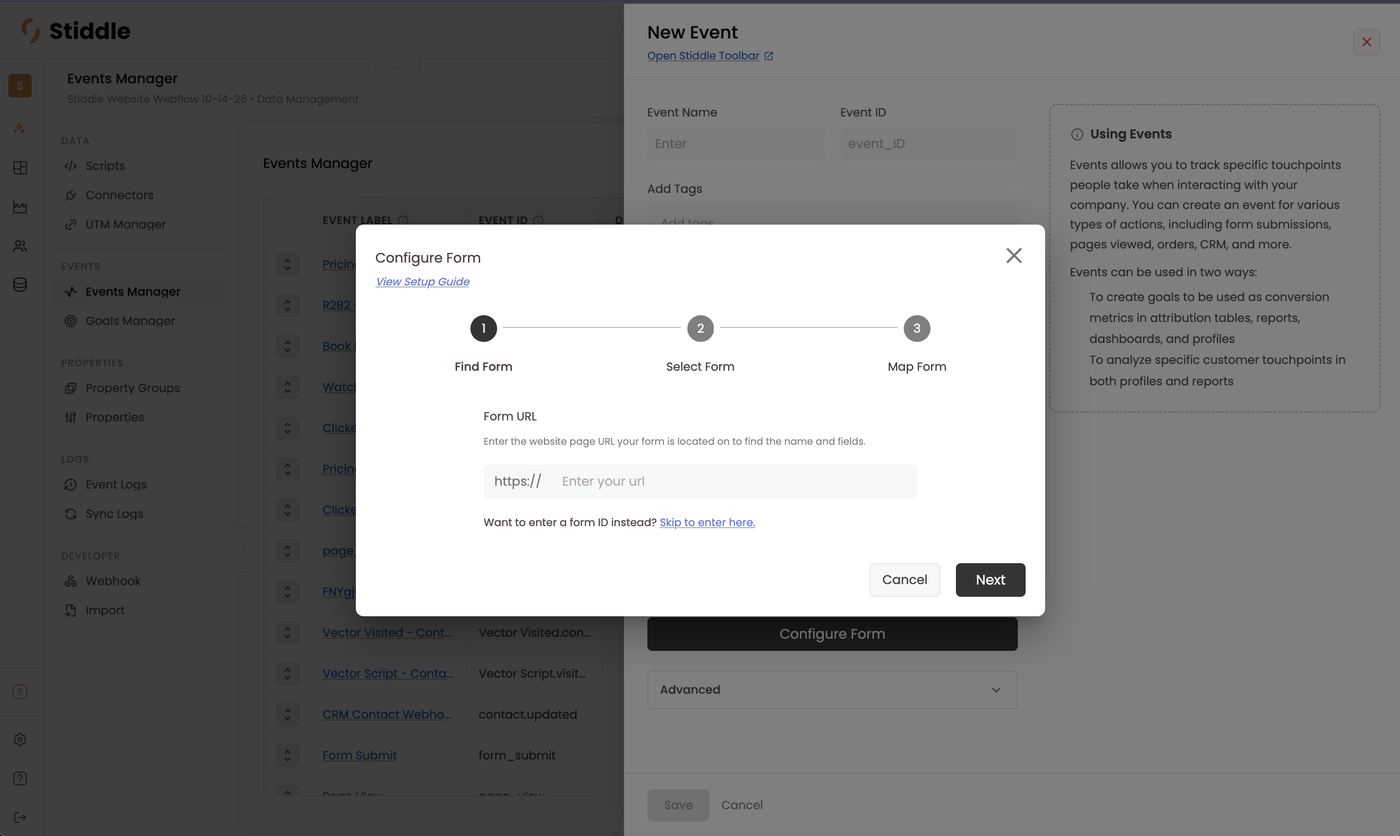
- In step 1 click Skip to enter here, or in step 2 click Want to enter a form ID instead? Click here.
- Under Enter Form ID, choose how to match the form — Id, Class, Item Key, Action or Click (Id / Class) — enter the value and optionally a URL, then Add.
- Under Exclude Parameters, add any IDs, classes, item keys or actions that should be ignored when matching this form.
- Next to map the fields as in Option A.
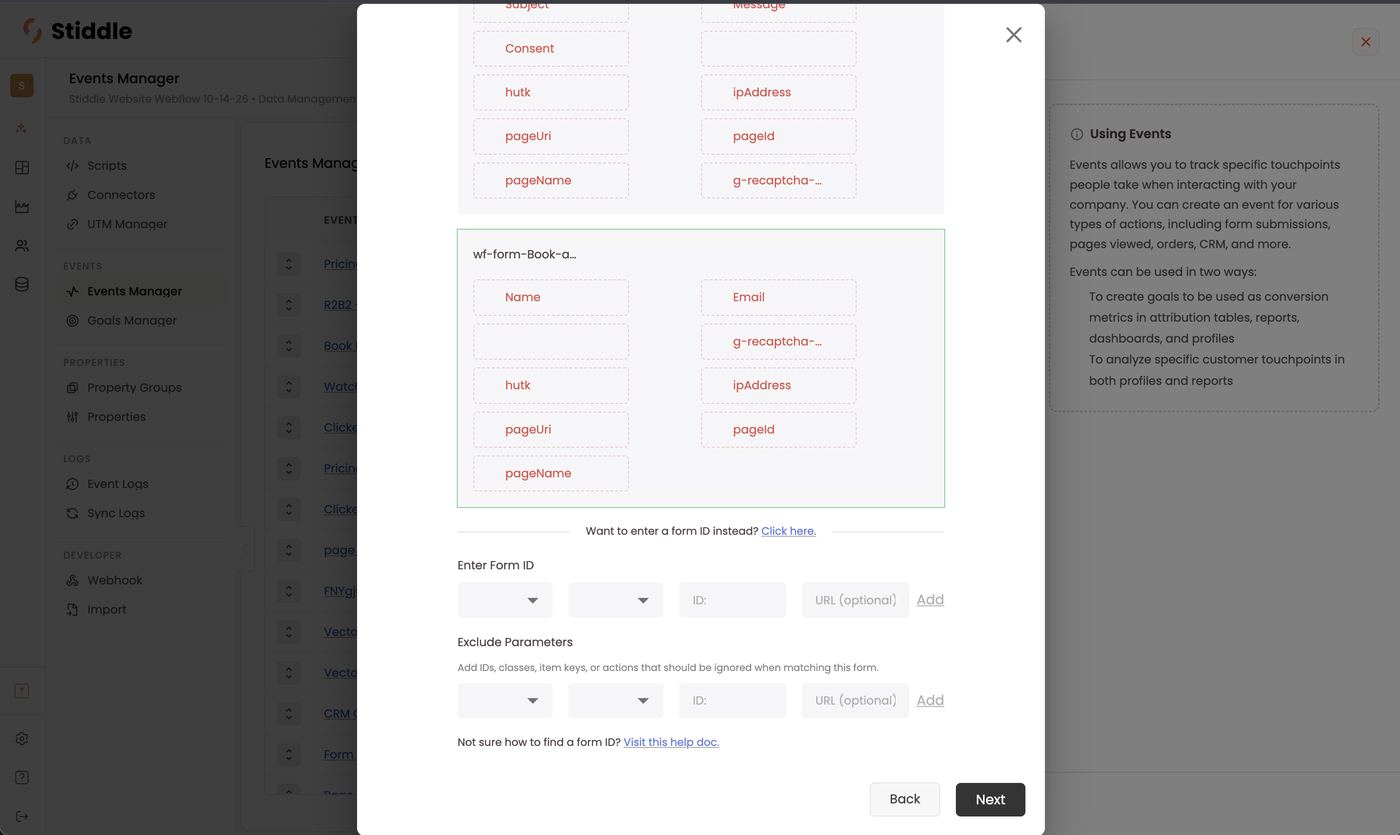
CRM Event events
Fire an event when a CRM record — a company, deal or contact — is created or updated.- Event Type → CRM Event.
- Pick the Source — the connected CRM the event comes from.
- Property Group fills in as CRM Event (crm_event).
- Select Event — e.g. contact created, deal created, company created.
- Save.
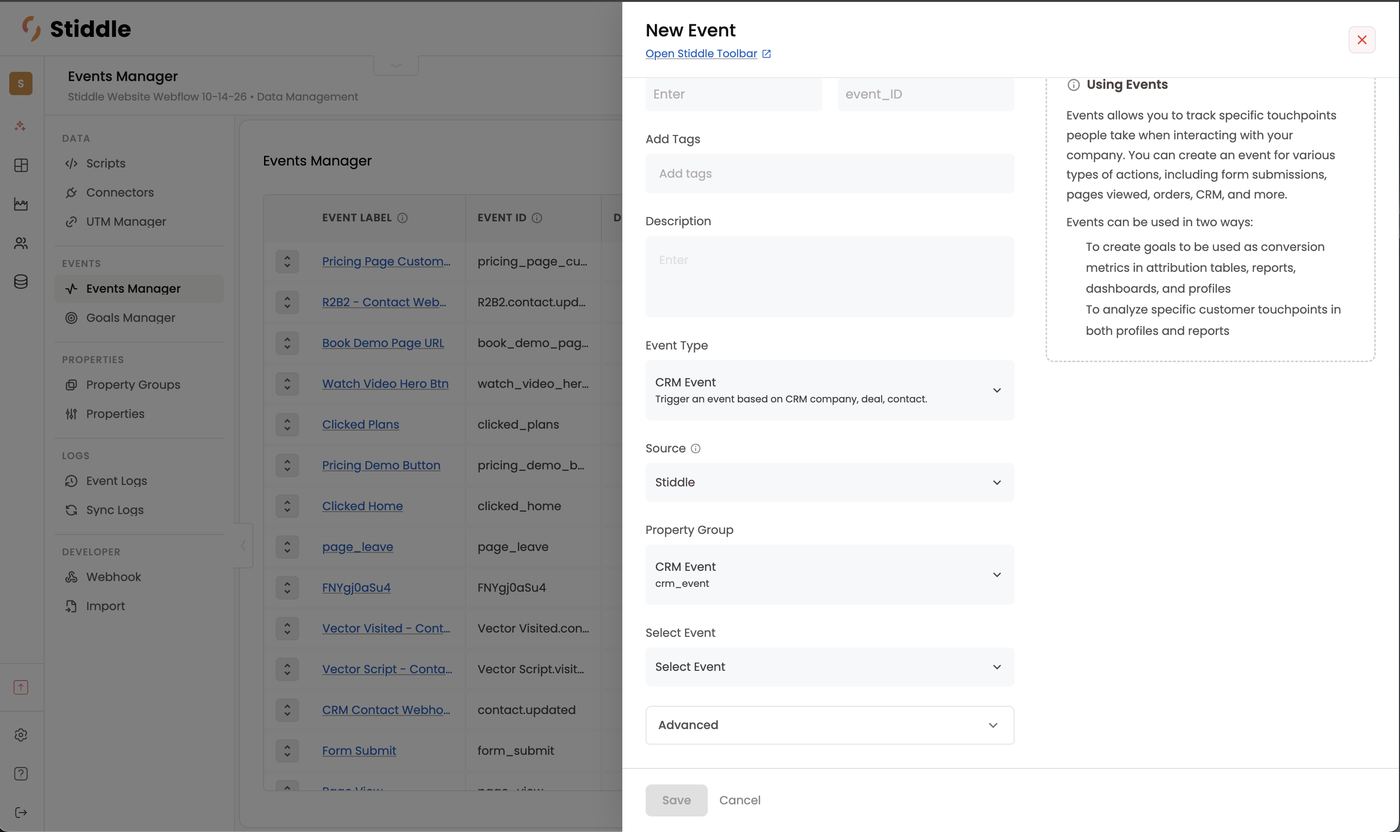
CRM Opportunity events
Fire an event when an opportunity reaches a pipeline stage. These are what power Open Opp, SQL, Closed Won and Closed Lost goals.- Event Type → CRM Opportunity.
- Pick the Source.
- Property Group fills in as CRM Opportunity (crm_opportunity).
- Select Opportunity Stage — pick one or more stages from your CRM pipeline (filter to find them).
- Save.
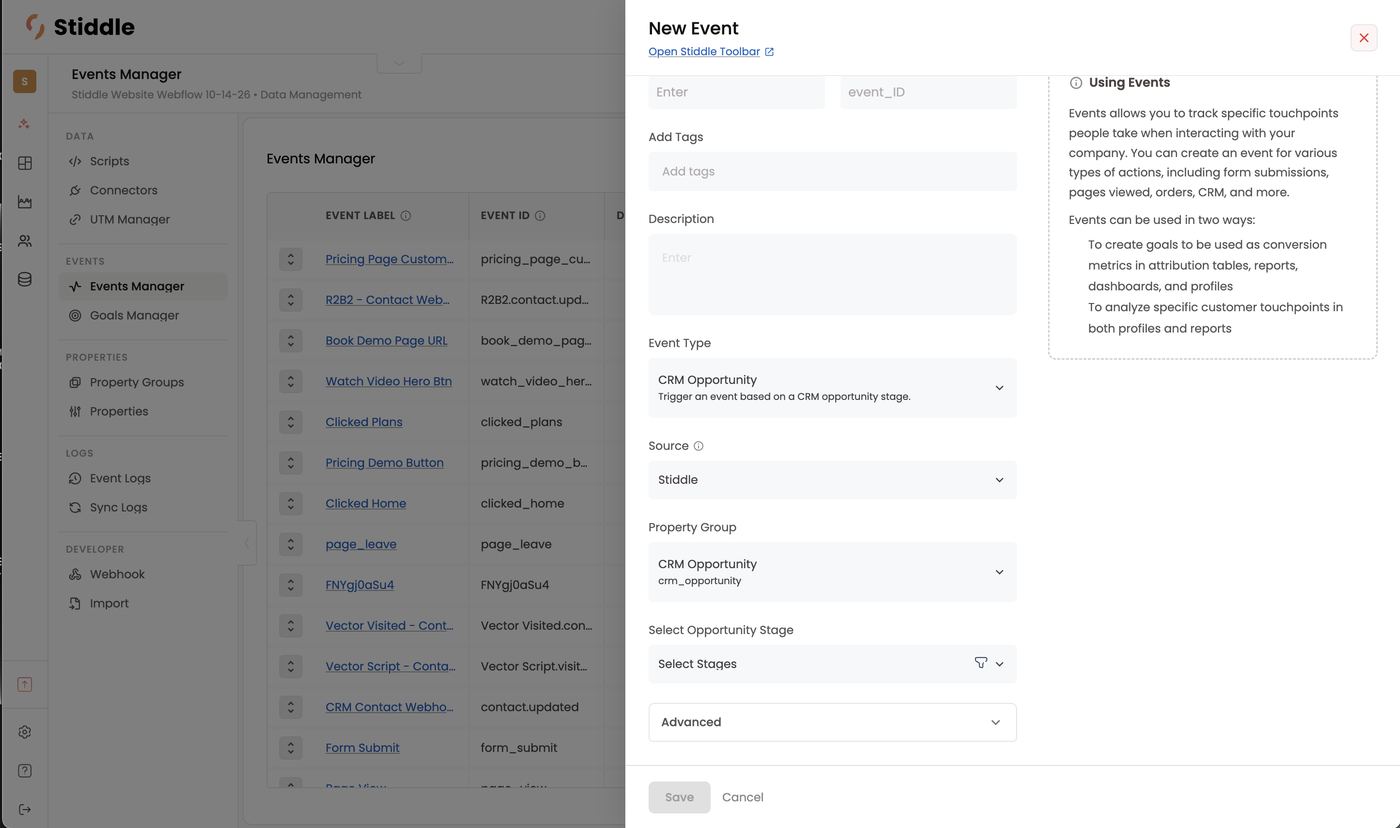
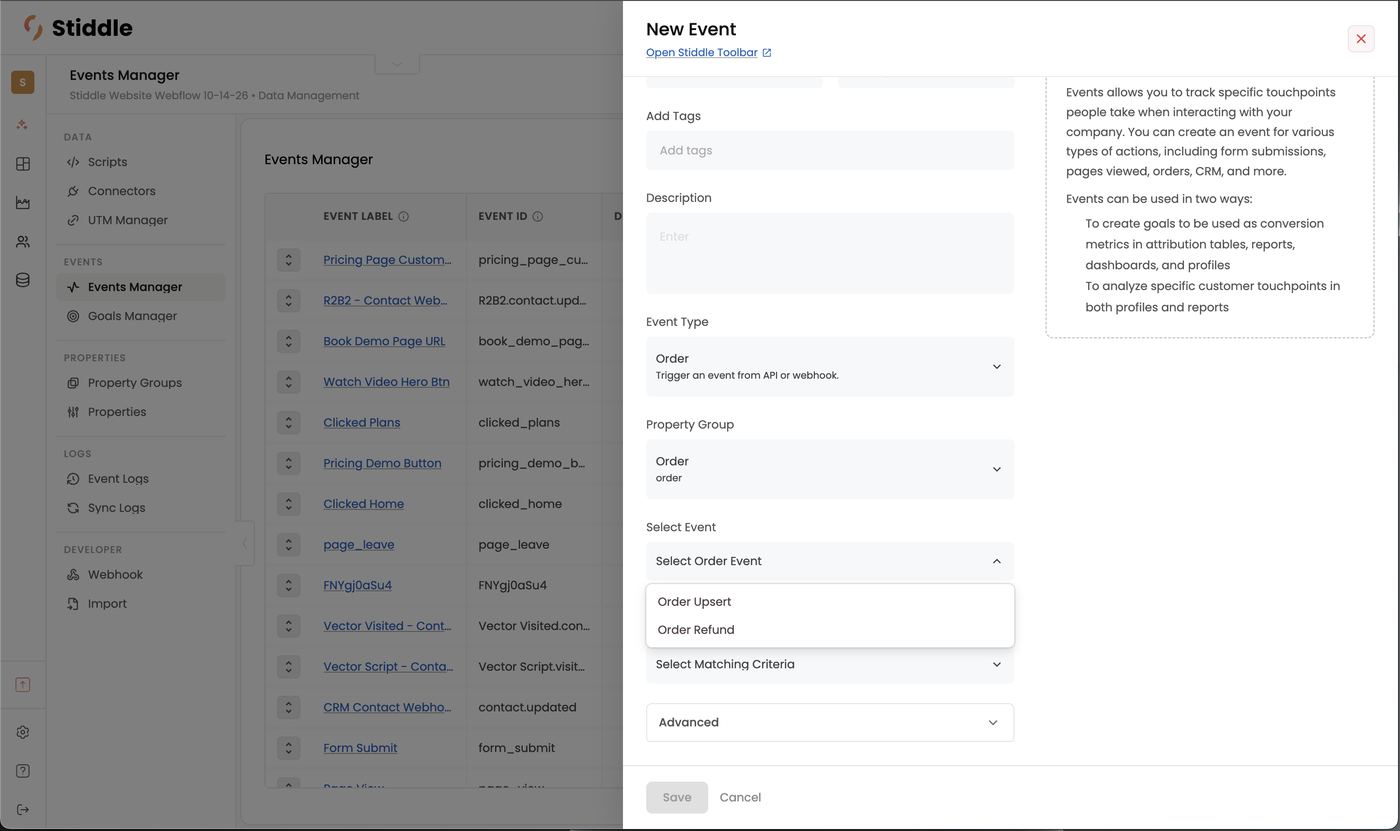
Order events
Track orders sent from your ecommerce platform, API or webhook.- Event Type → Order. Property Group fills in as Order (order).
- Select Event — Order Upsert (an order created or updated) or Order Refund.
- Optionally add Matching Criteria Filters — the order fields to match on, e.g. only orders over a certain value or containing a product.
- Save.
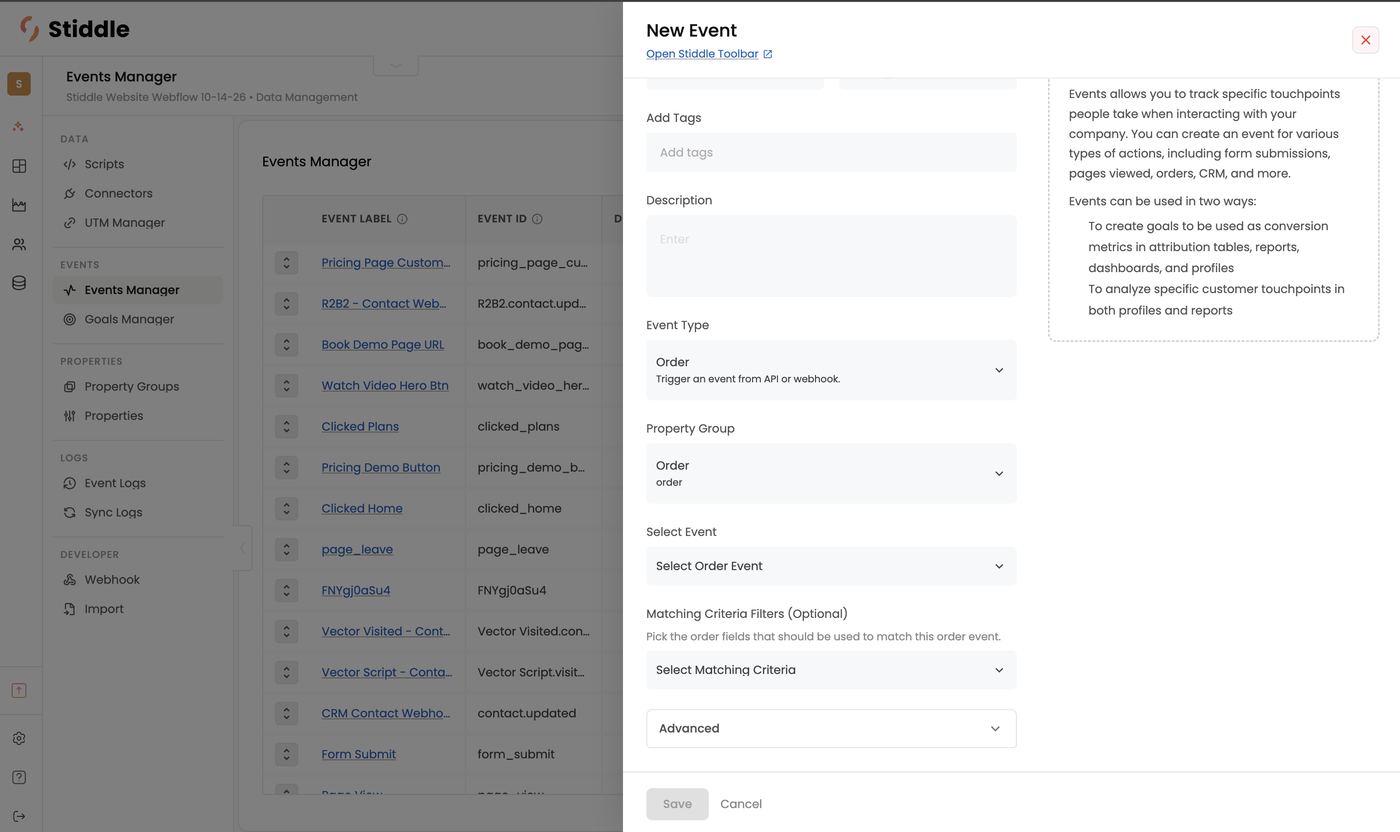
Custom events
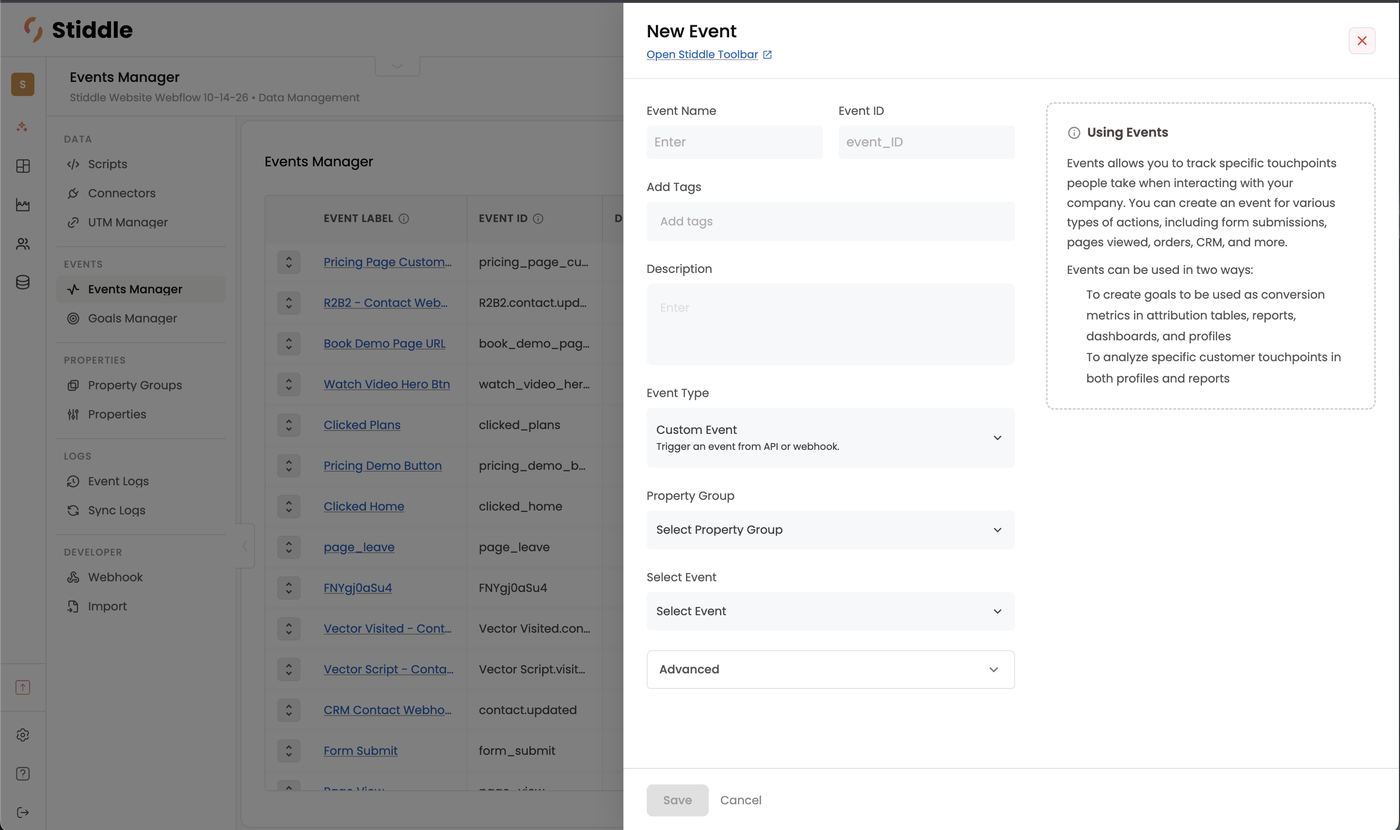
Use a custom event for anything sent through the Stiddle API or a webhook — a product sign-up, a trial started, a support ticket.- Event Type → Custom Event.
- Choose the Property Group that matches the data being sent (see below).
- Select Event — the incoming API or webhook event to listen for.
- Save.
Editing an event and updating past history
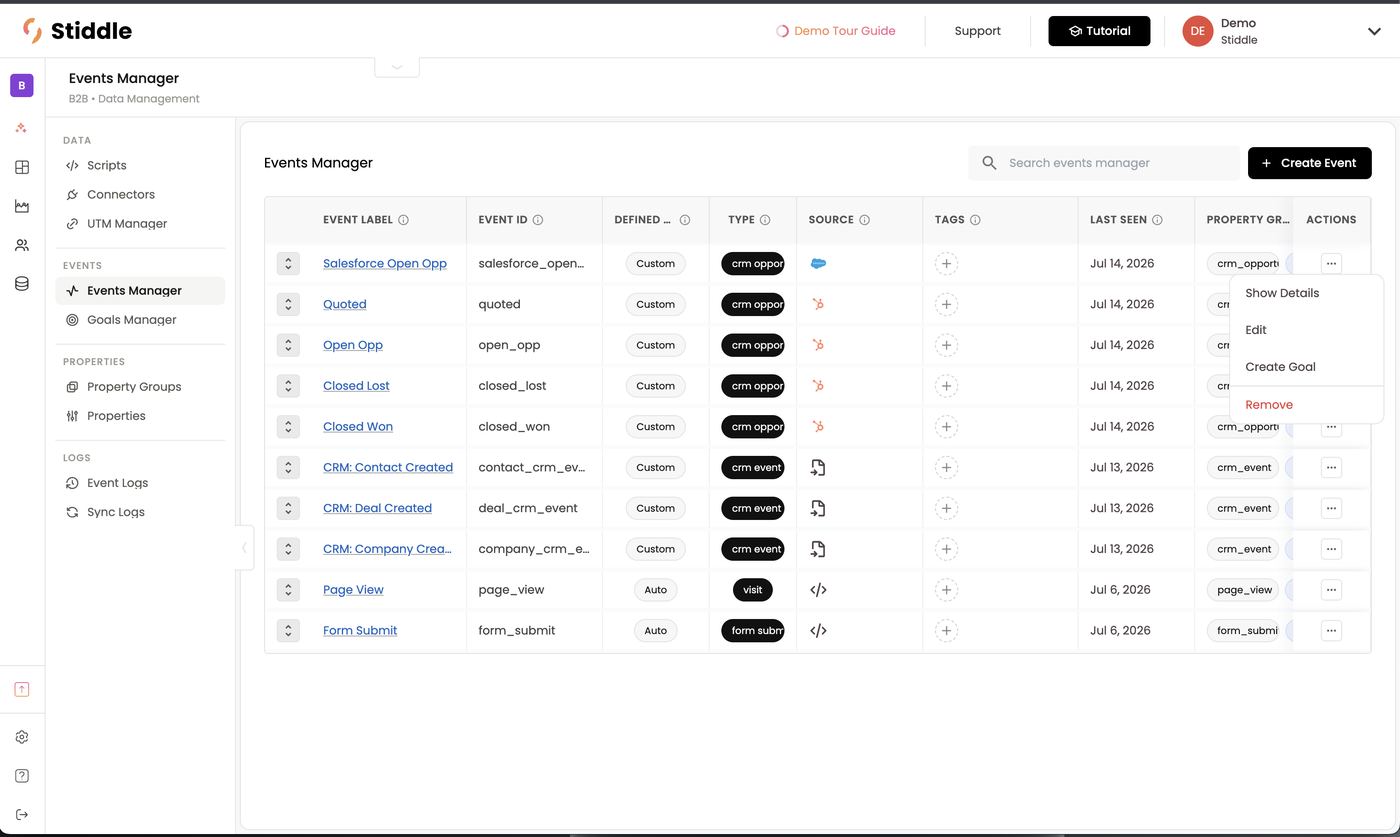
Click an event’s name, or … → Edit, to change it. By default, a change only applies to new events from that point on — events already recorded keep the old definition. To apply the change to history as well, open Advanced and turn on Update past event history. Stiddle re-checks past events against the new criteria: events that now match are added, and events that no longer match are removed. Any goals built on the event are updated too. Example: your “Open Opportunity” CRM Opportunity event accidentally included the Closed Won and Closed Lost stages. Edit the event, remove those two stages under Select Opportunity Stage, turn on Update past event history and save. Past Closed Won and Closed Lost records drop out of Open Opportunity, so historical pipeline numbers are corrected — not just future ones. The history sync runs in the background and can take a while on large accounts before reports reflect the change. Leave it off when you only want the change to apply going forward.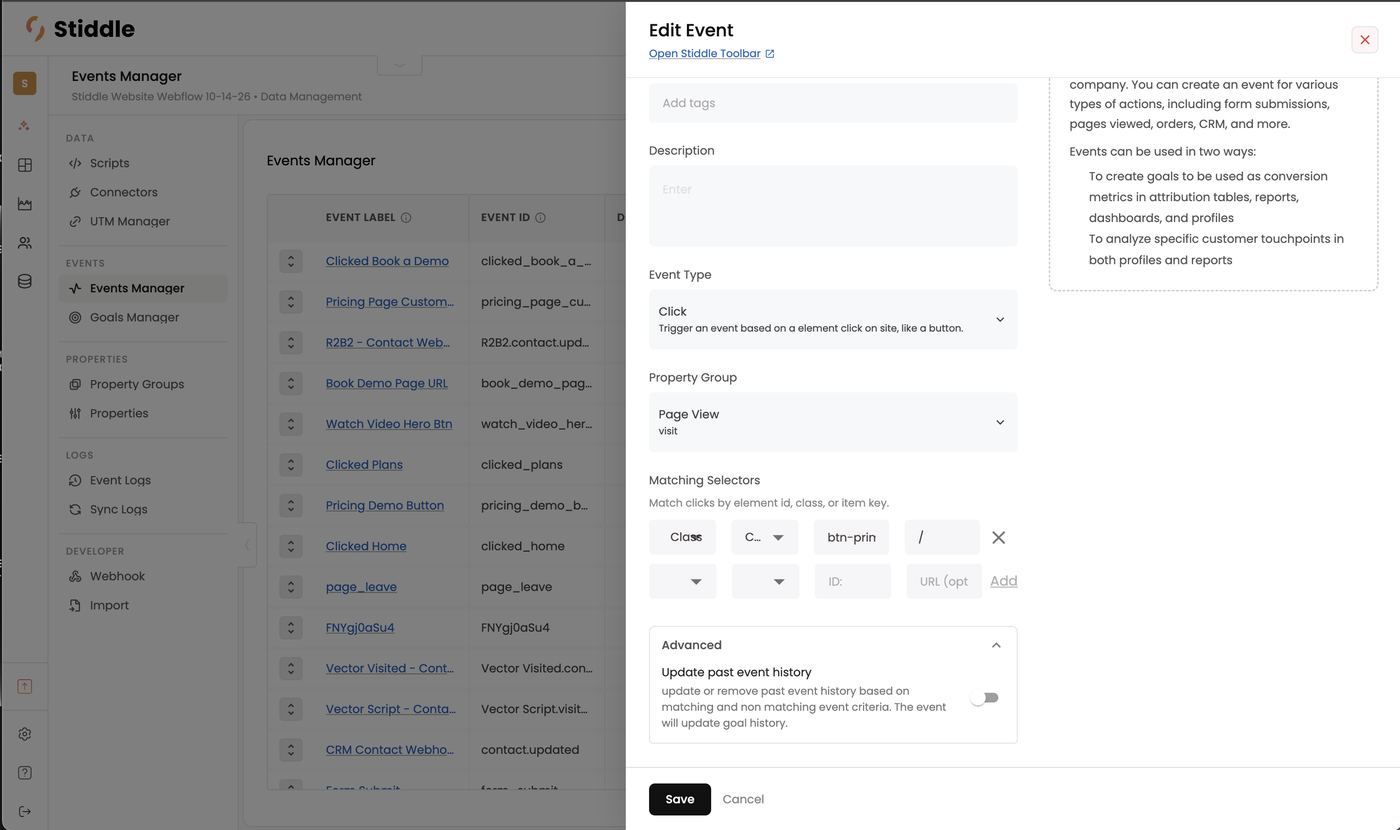
Properties
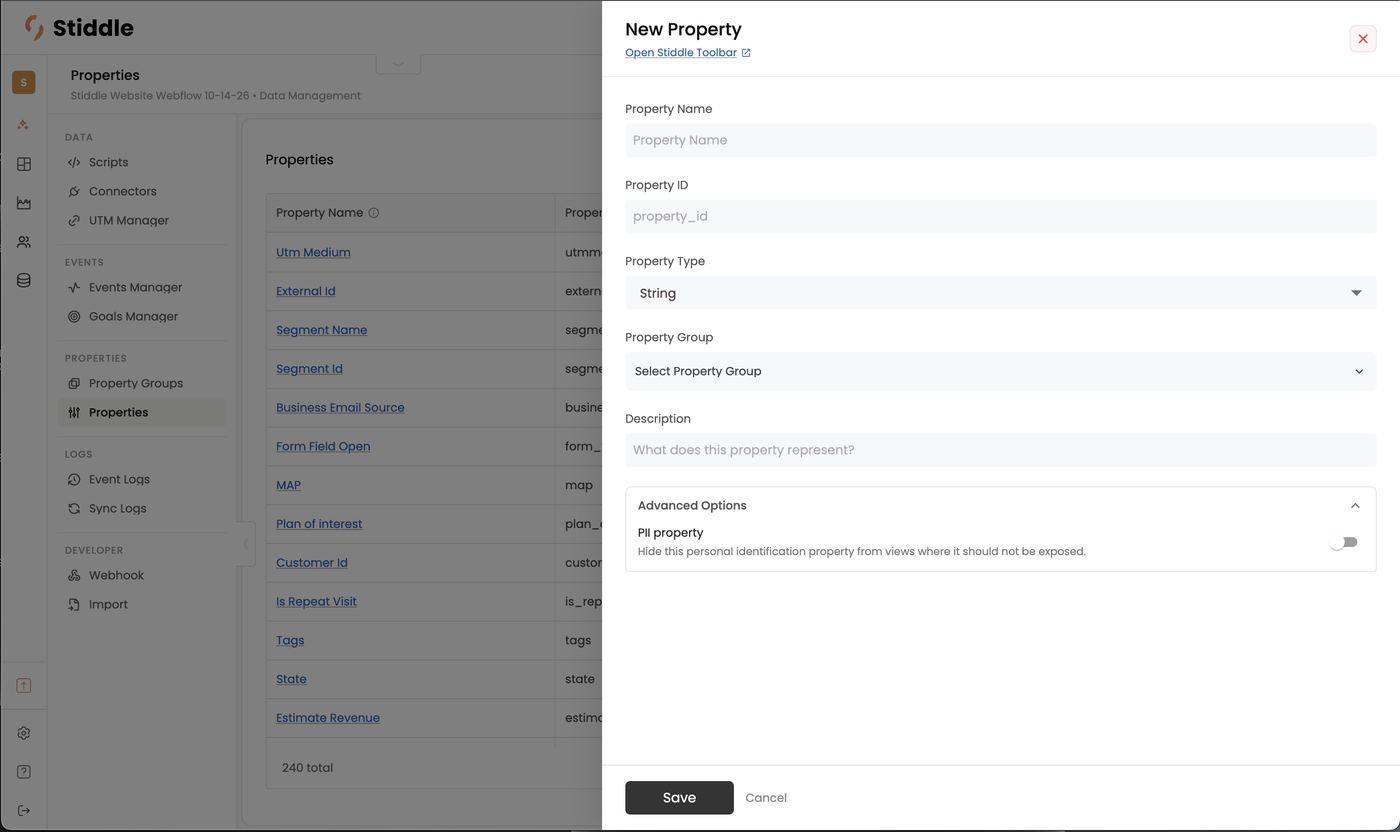
Properties are the fields and metadata Stiddle collects with each event — a page view’s URL and IP address, a form’s email and phone number, a deal’s amount and owner. They’re what you filter, break down and build audiences by across Stiddle. A Salesforce Open Opp event, for example, carries CRM Is Closed (boolean), Created Date and Close Date (datetime), Probability and Amount (number) and Owner (string). Manage them in Data → Properties. The list shows each property’s Property Name, Property ID, Property Type, the Property Groups it belongs to (if any), and an Actions menu. Search with Search properties; the total count sits at the bottom (e.g. 240 total).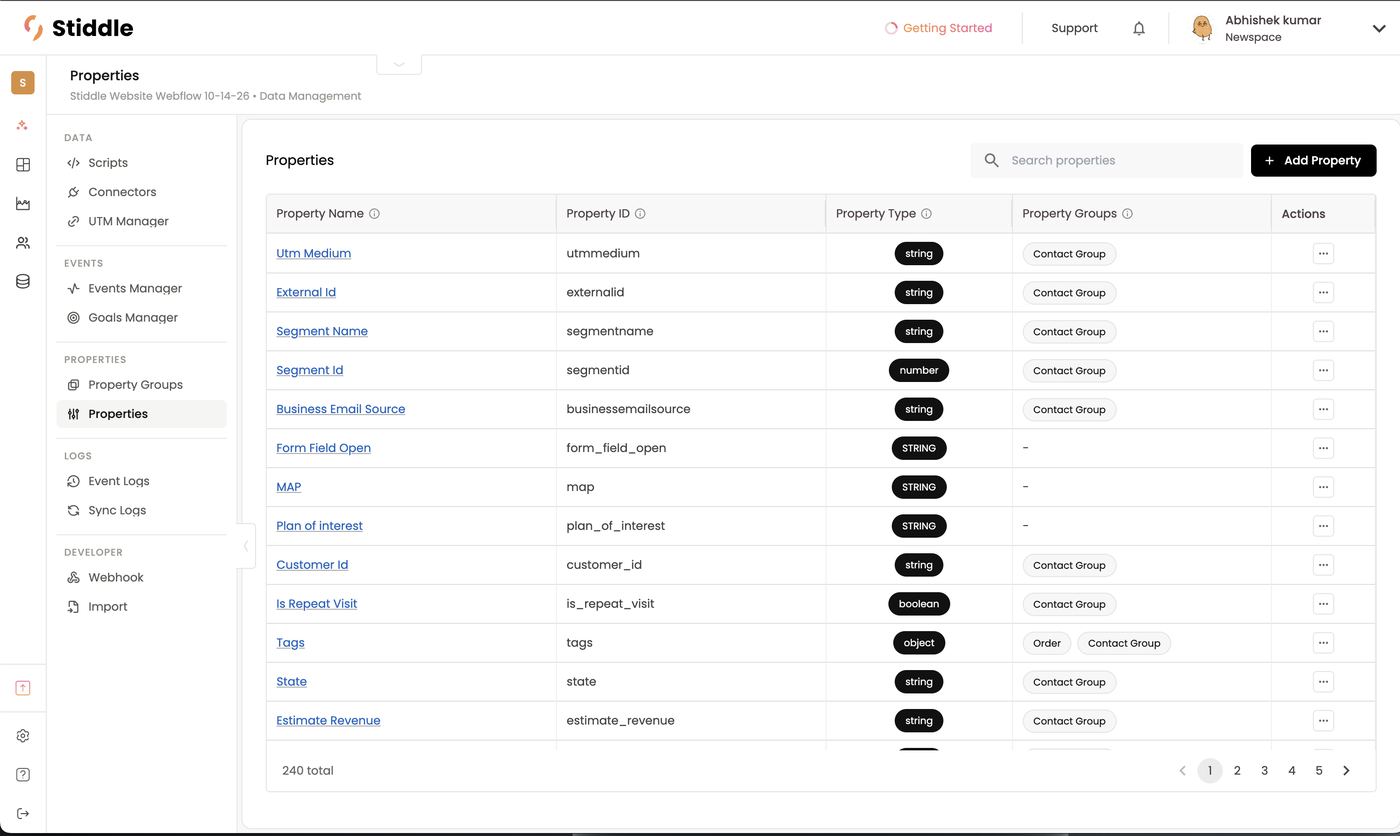
- Click + Add Property.
- Enter a Property Name and Property ID (lowercase letters, numbers and underscores, e.g.
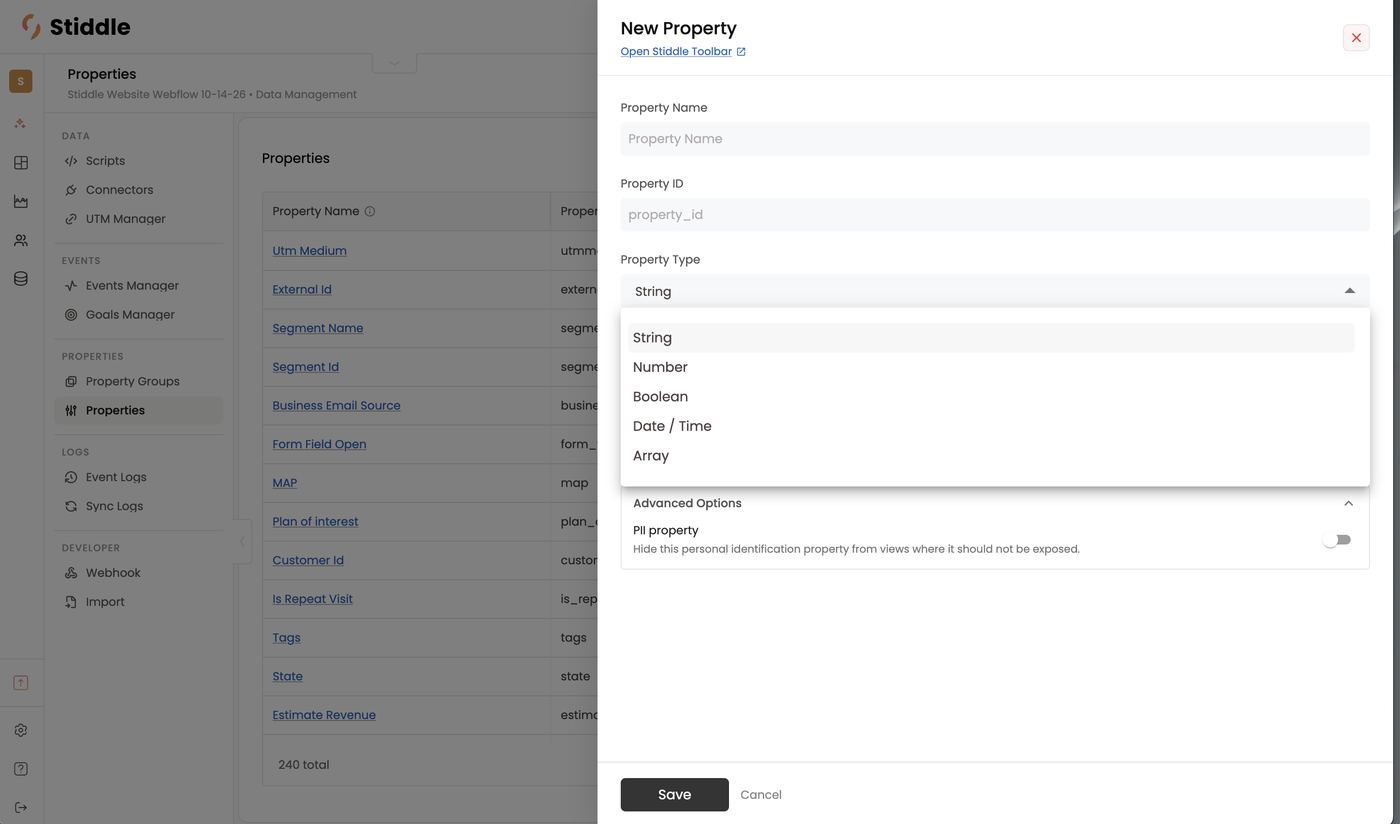
company_name). - Choose a Property Type — the kind of data Stiddle stores:
- Optionally pick a Property Group — properties don’t have to belong to one.
- Add a Description of what the property represents.
- Click Save.
Property groups
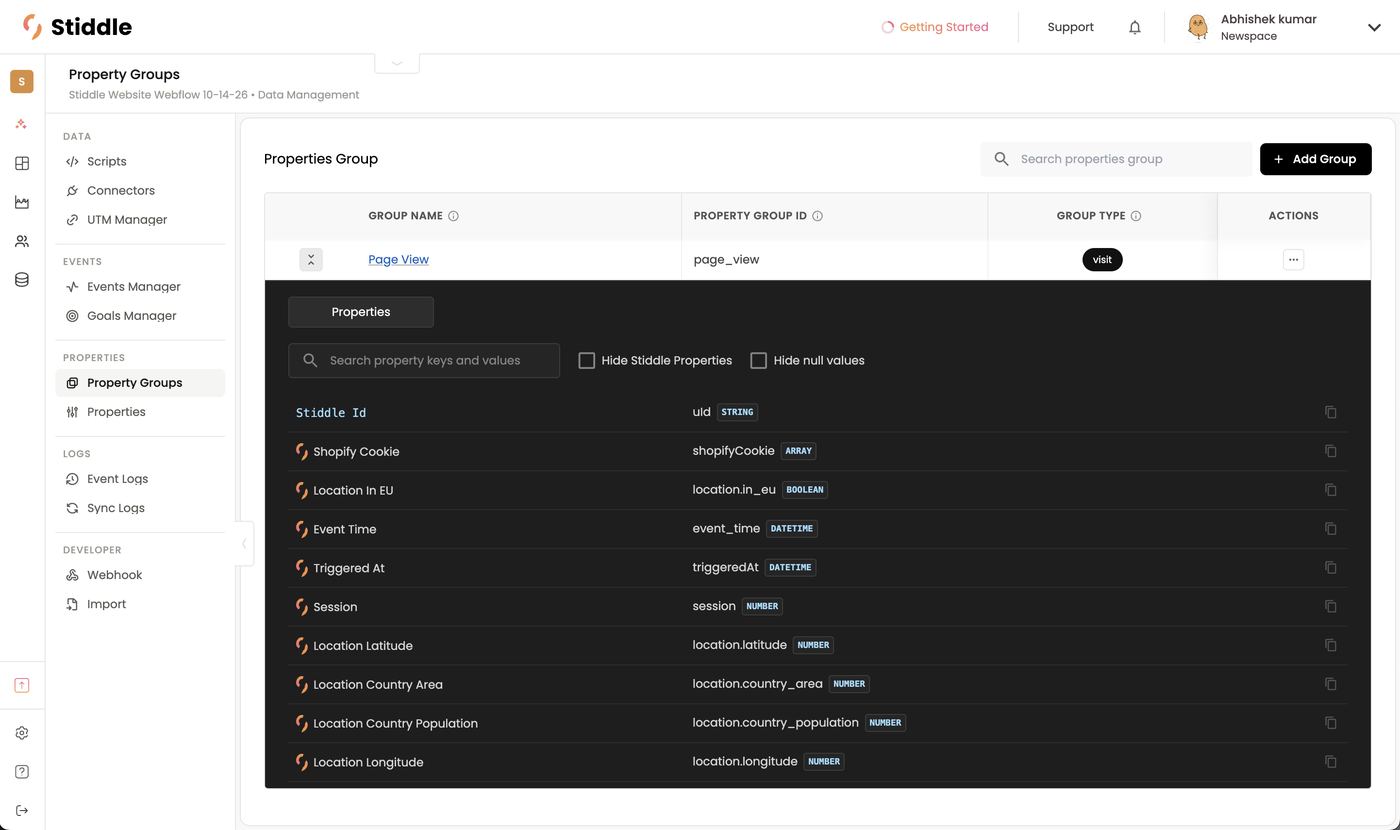
A property group keeps related properties together, because different kinds of events carry different data. A page view group holds properties like IP address, URL and location; a CRM company group holds company name, employee count and domain. Each event uses one property group, which tells Stiddle which properties to expect. Manage them in Data → Property Groups. The list shows Group Name, Property Group ID, Group Type and Actions. Click the arrow on a row to expand it and see every property in the group, with its ID and data type. Properties marked with the Stiddle logo are added by Stiddle automatically (e.g. Stiddle Id, Event Time, Session, Location Latitude); tick Hide Stiddle Properties or Hide null values to filter, and use the copy icon to copy a property ID.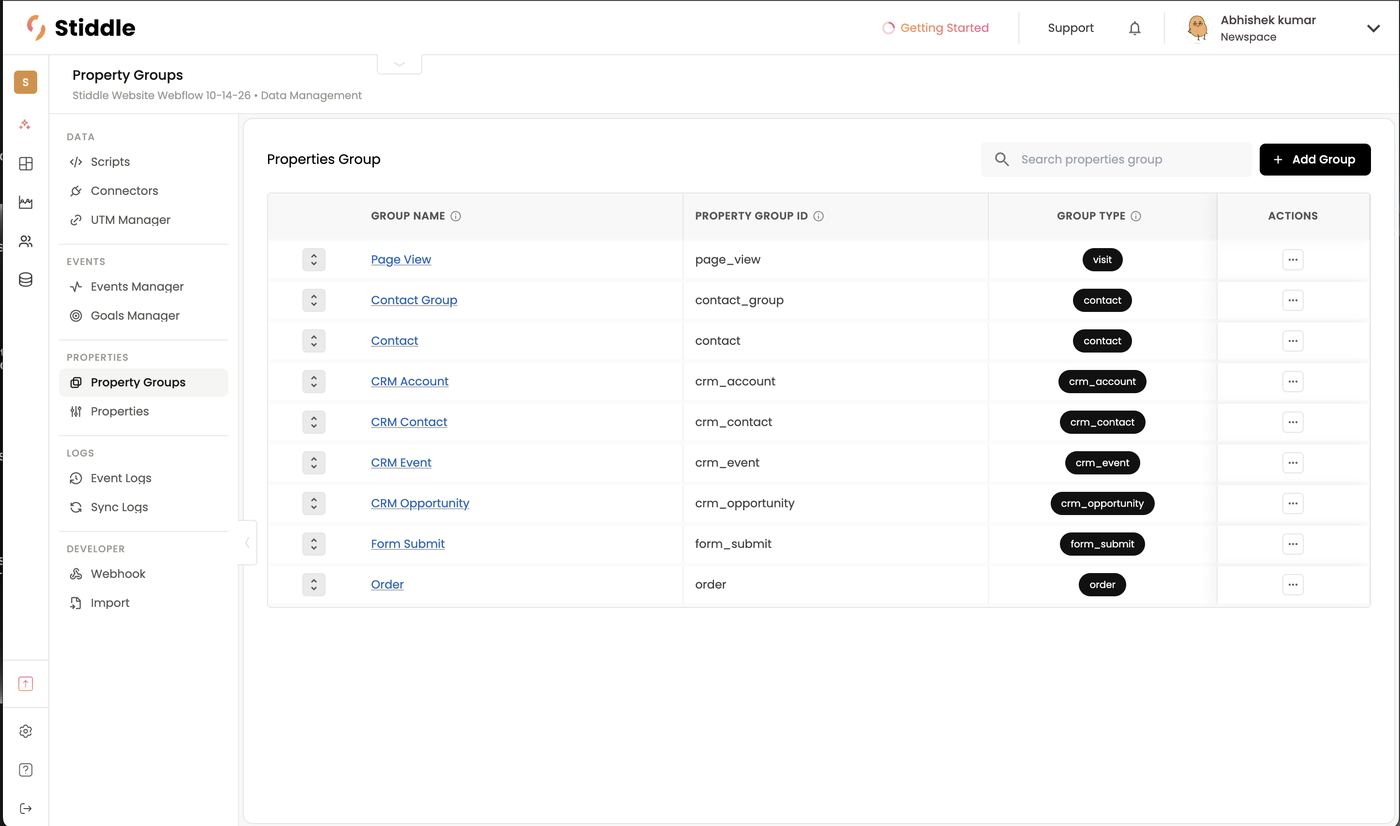
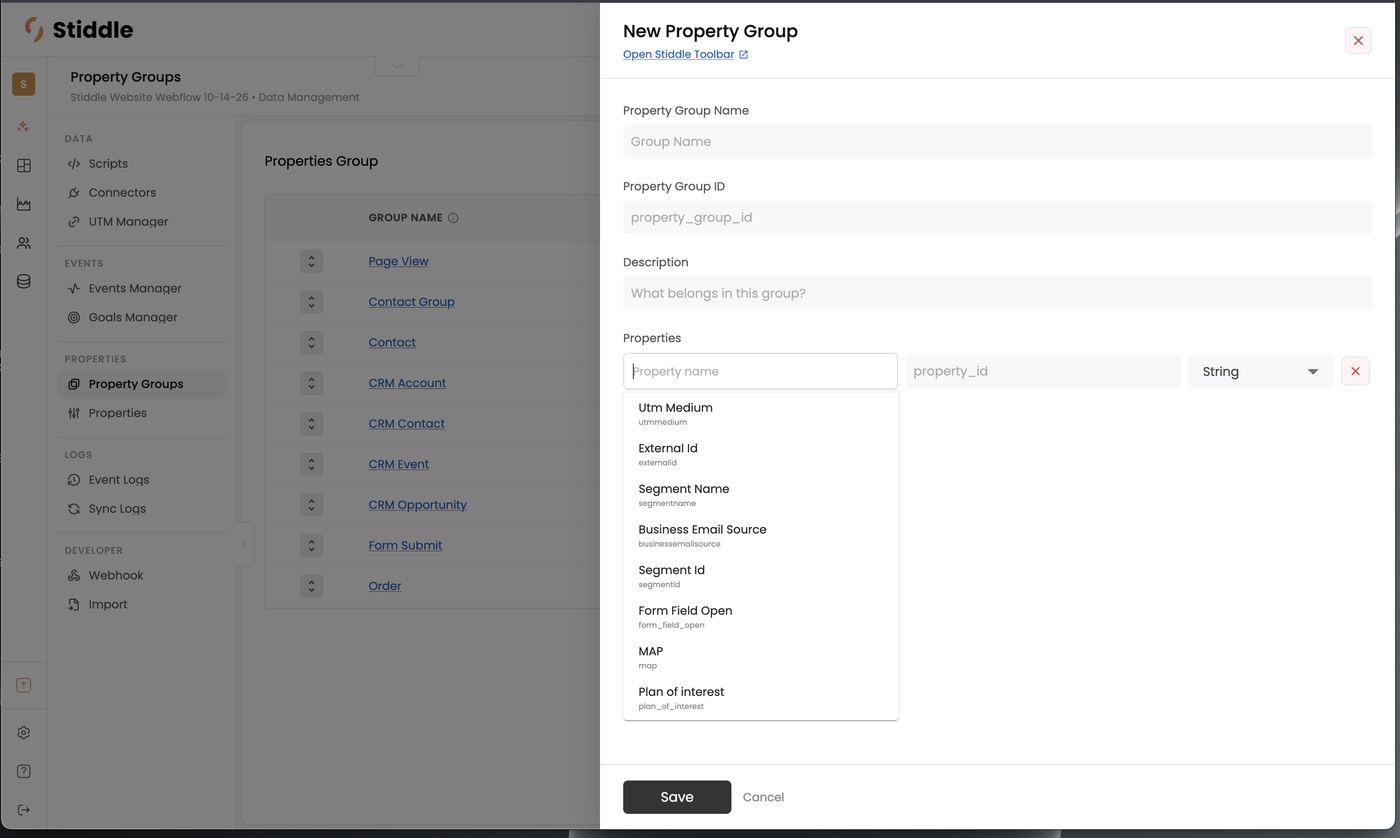
- Click + Add Group.
- Enter a Property Group Name, Property Group ID and a Description of what belongs in it.
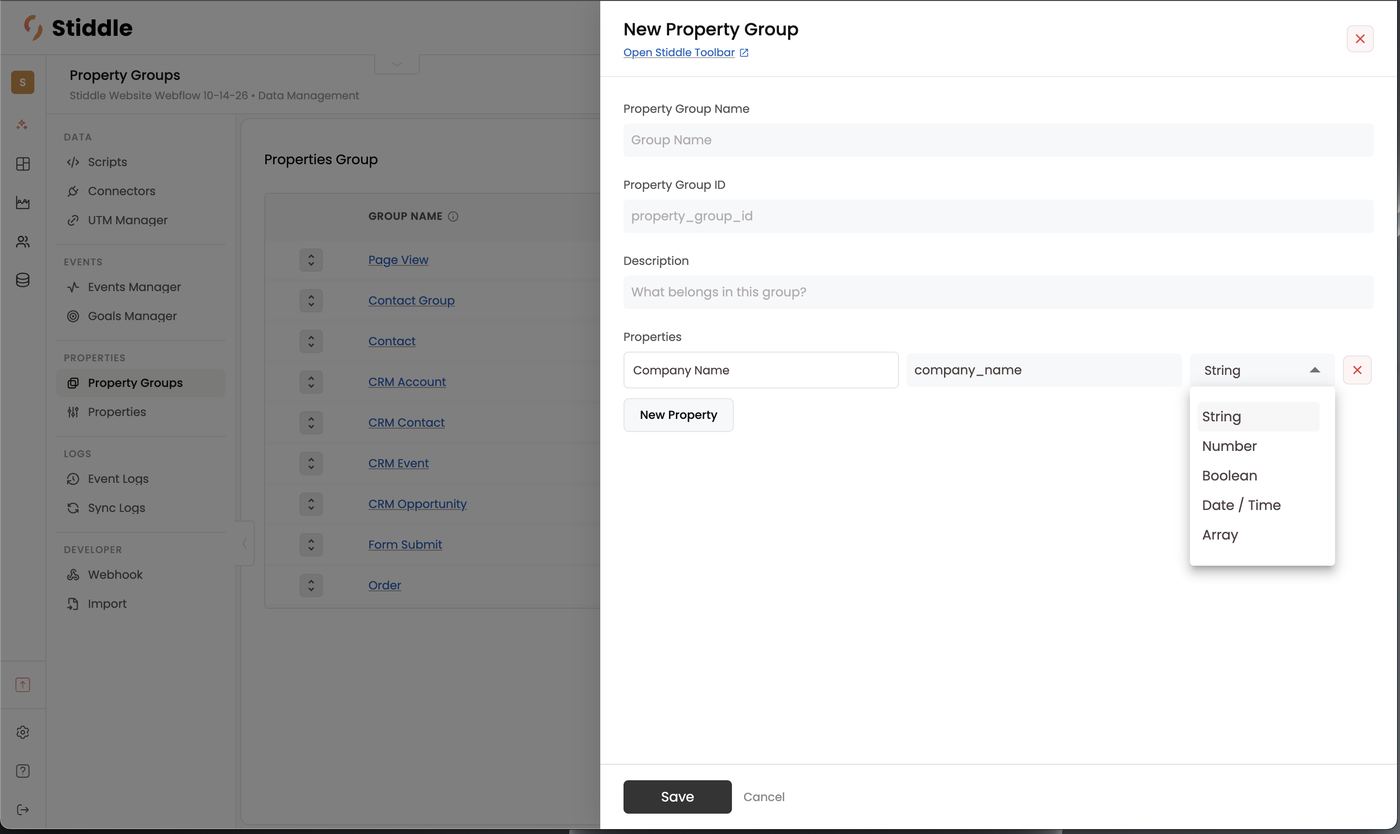
- Under Properties, add each property: start typing to pick an existing one (e.g. Utm Medium, External Id, Segment Name), or type a new name — its ID fills in — and choose its type (String, Number, Boolean, Date / Time, Array). Click New Property for another row; ✕ removes one.
- Click Save. The group is now available when you create events.
The Stiddle Toolbar
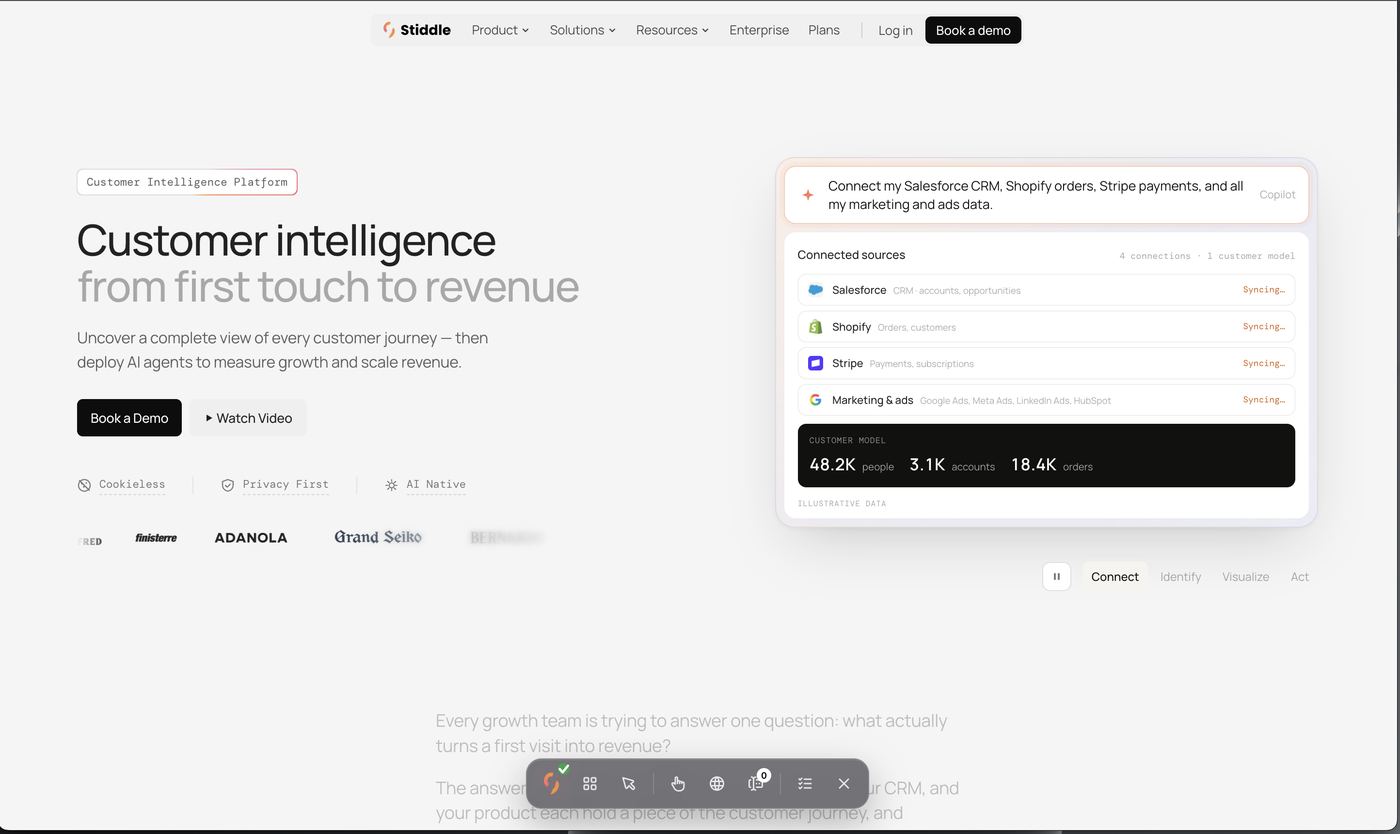
The Stiddle Toolbar opens your live website with a toolbar on top, so you can point and click to create Click, Form Submission and Pageview events — no IDs or selectors to look up. Events you create are saved straight to Events Manager. CRM, order and custom events can’t be created from the toolbar; use Events Manager for those.Launch the toolbar
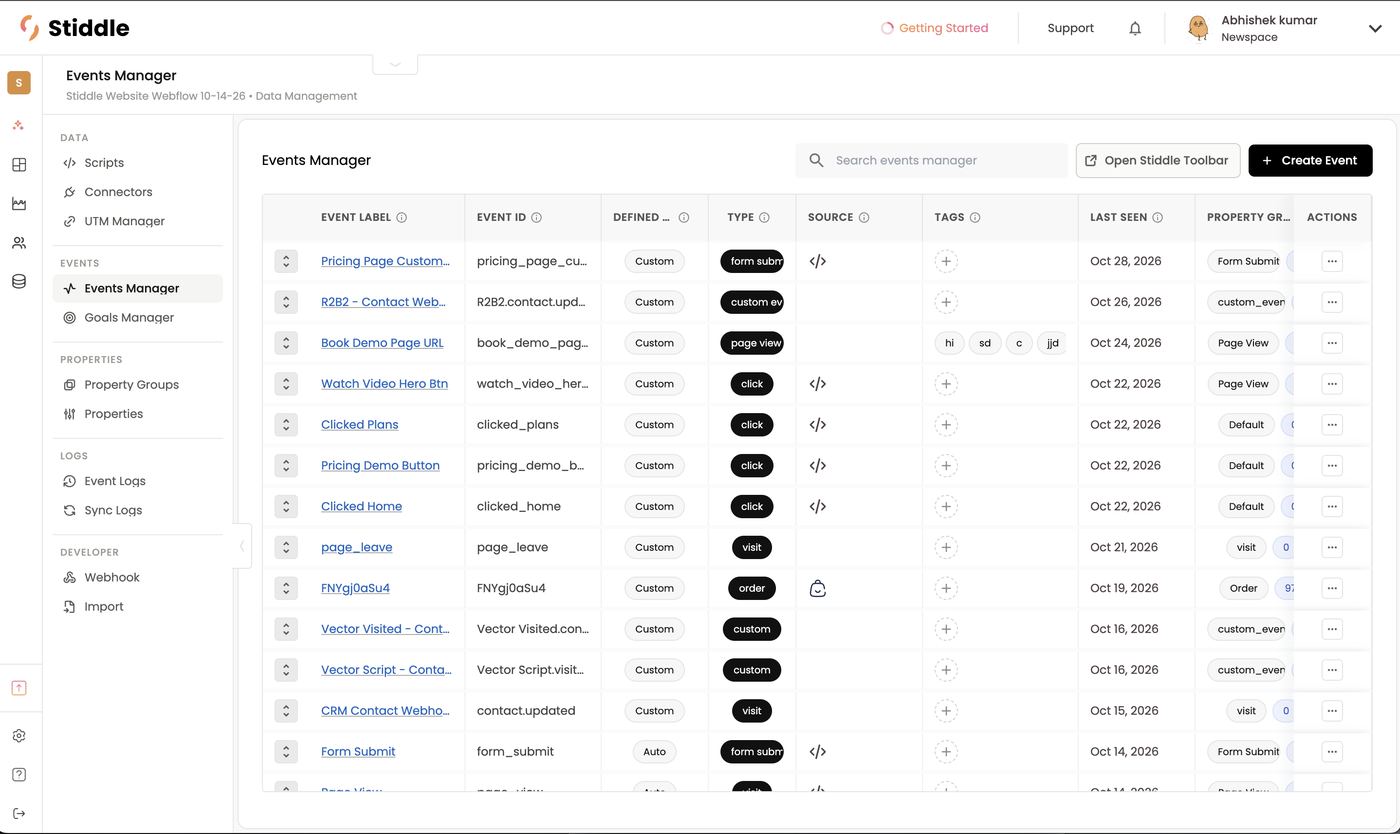
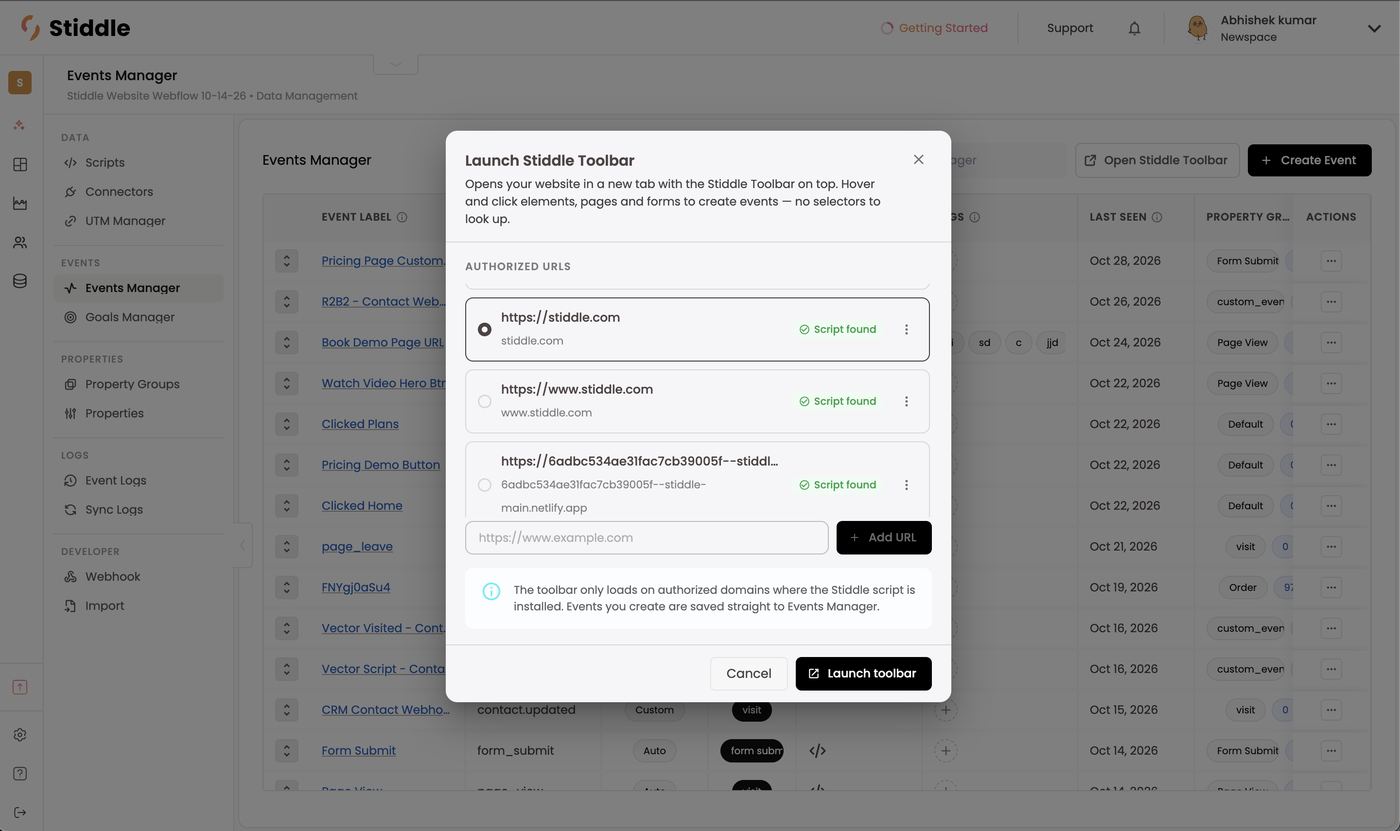
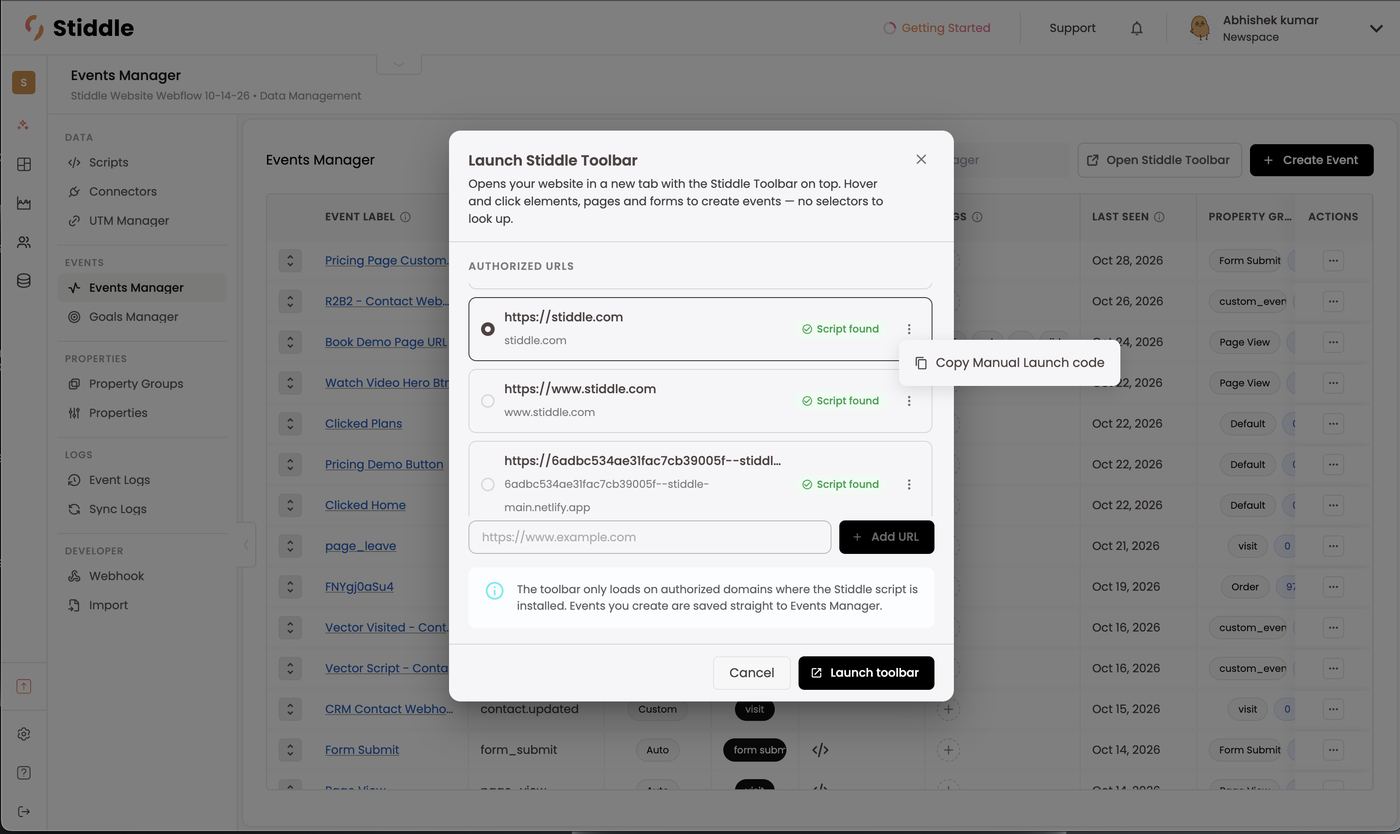
The toolbar only loads on authorized domains where the Stiddle script is installed.- In Data → Events Manager, click Open Stiddle Toolbar (or the link at the top of the New Event panel).
- Under Authorized URLs, pick the site to open. Each URL shows Script found when the Stiddle script is detected. To add a site, enter its URL and click + Add URL.
- Click Launch toolbar. Your site opens in a new tab with the toolbar docked at the bottom.
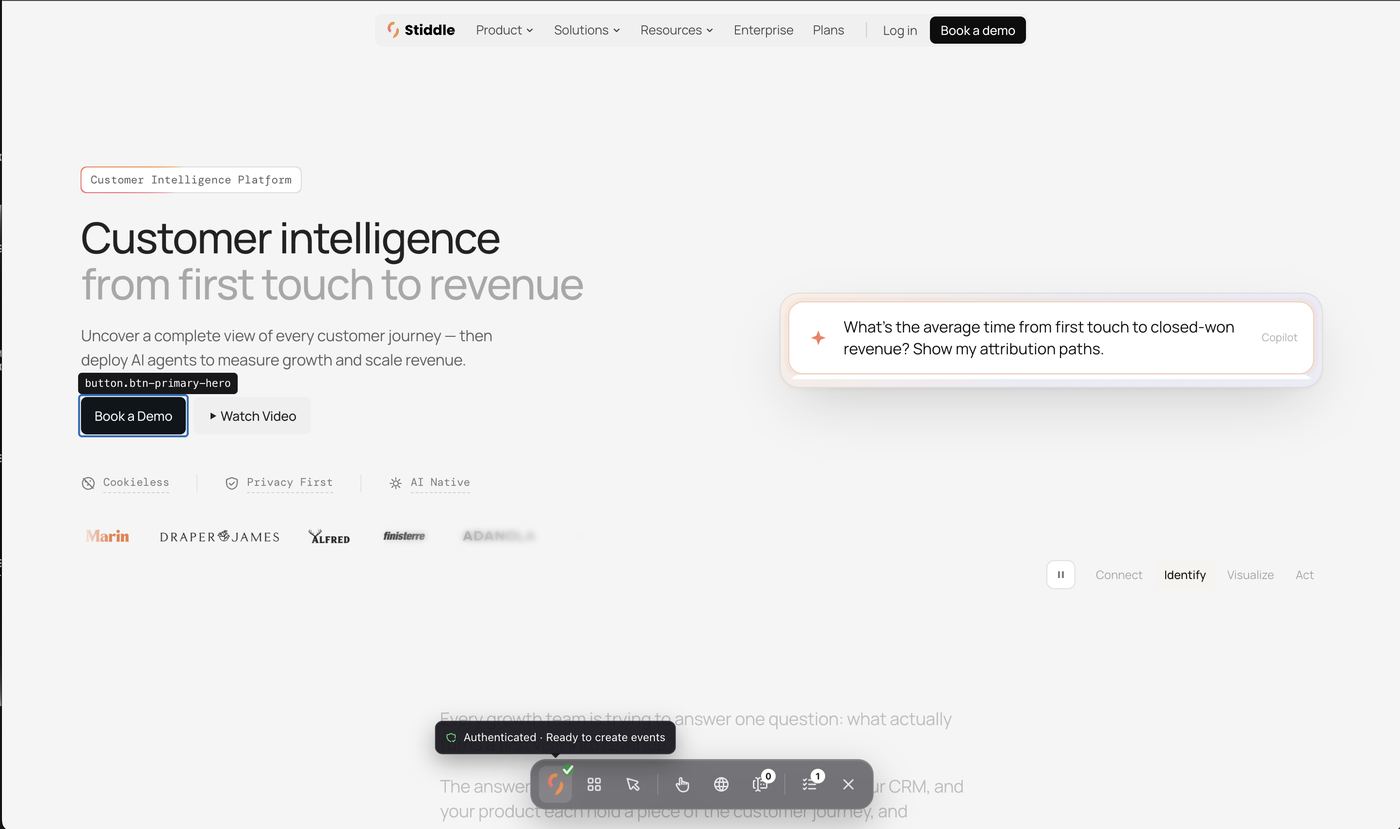
- The Stiddle logo shows a green check, and hovering it shows Authenticated · Ready to create events.
If the toolbar doesn’t appear: manual launch
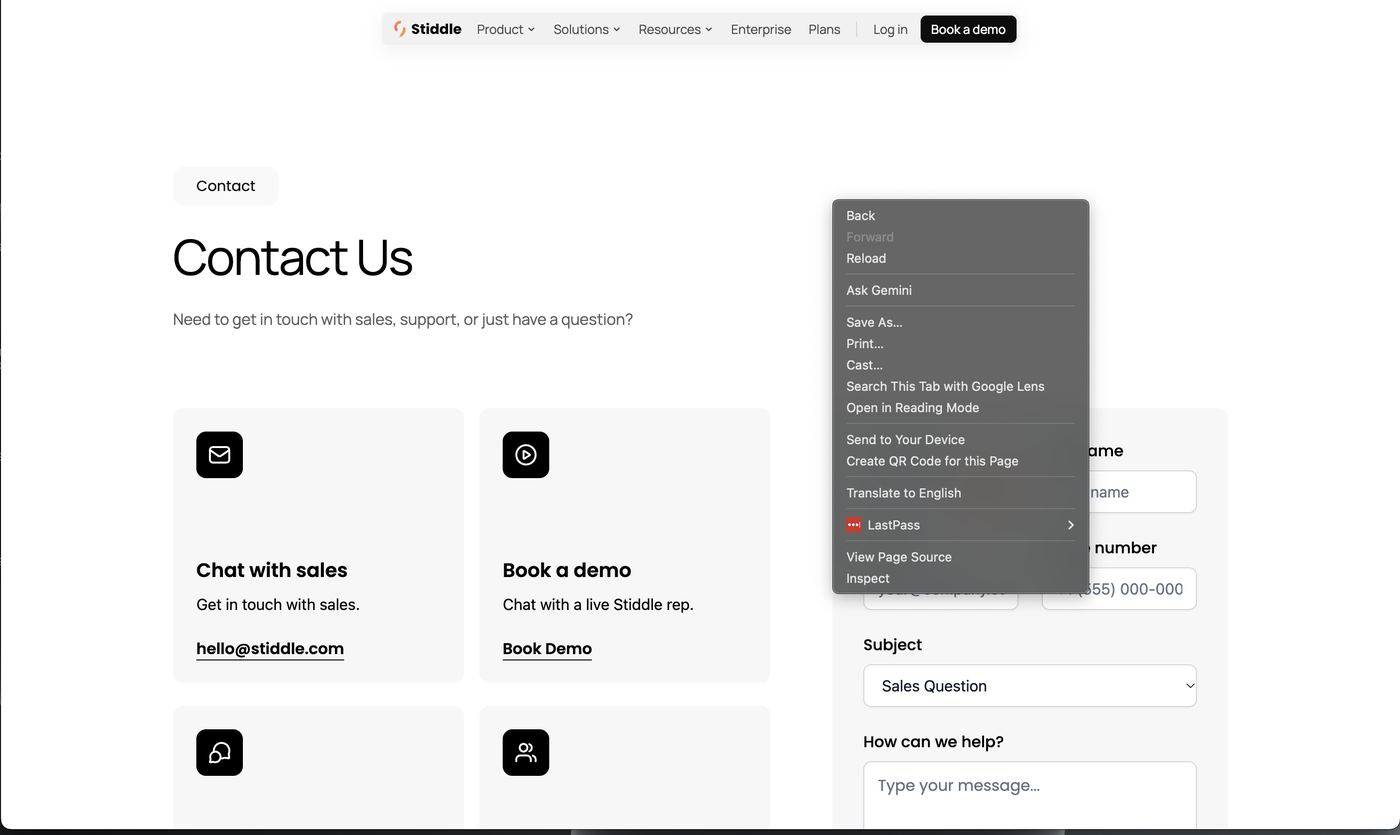
Sometimes the site opens but the toolbar doesn’t show — for example, if the page strips URL parameters on redirect. Launch it by hand:- In the Launch Stiddle Toolbar window, click the ⋮ menu next to the site and choose Copy Manual Launch code.
- Open the site in Chrome, right-click anywhere and choose Inspect, then open the Console tab.
- Paste the code and press Enter. The toolbar loads.
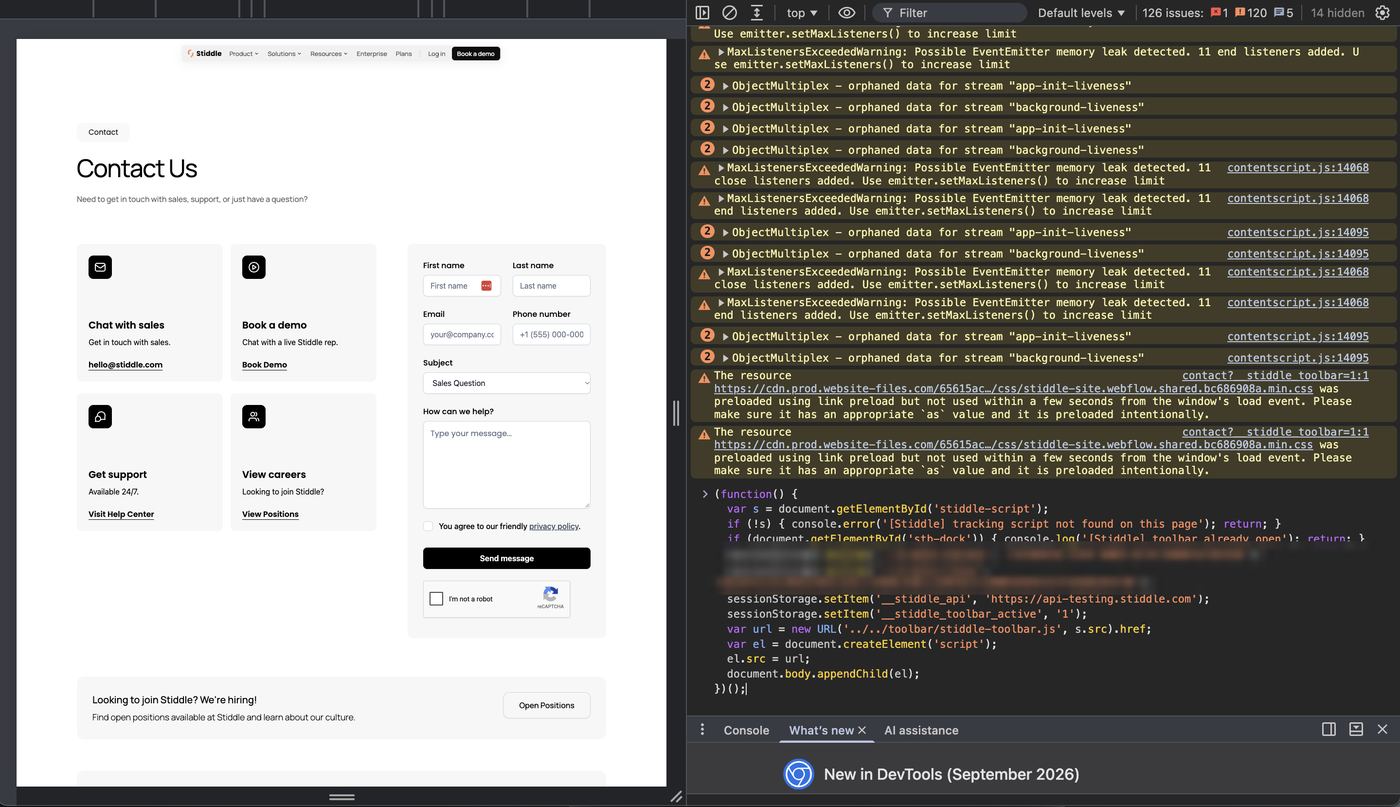
The toolbar buttons
The Create an event menu also shows what’s On this page: the current path, how many forms were detected, how many elements are clickable, and whether the script is active.
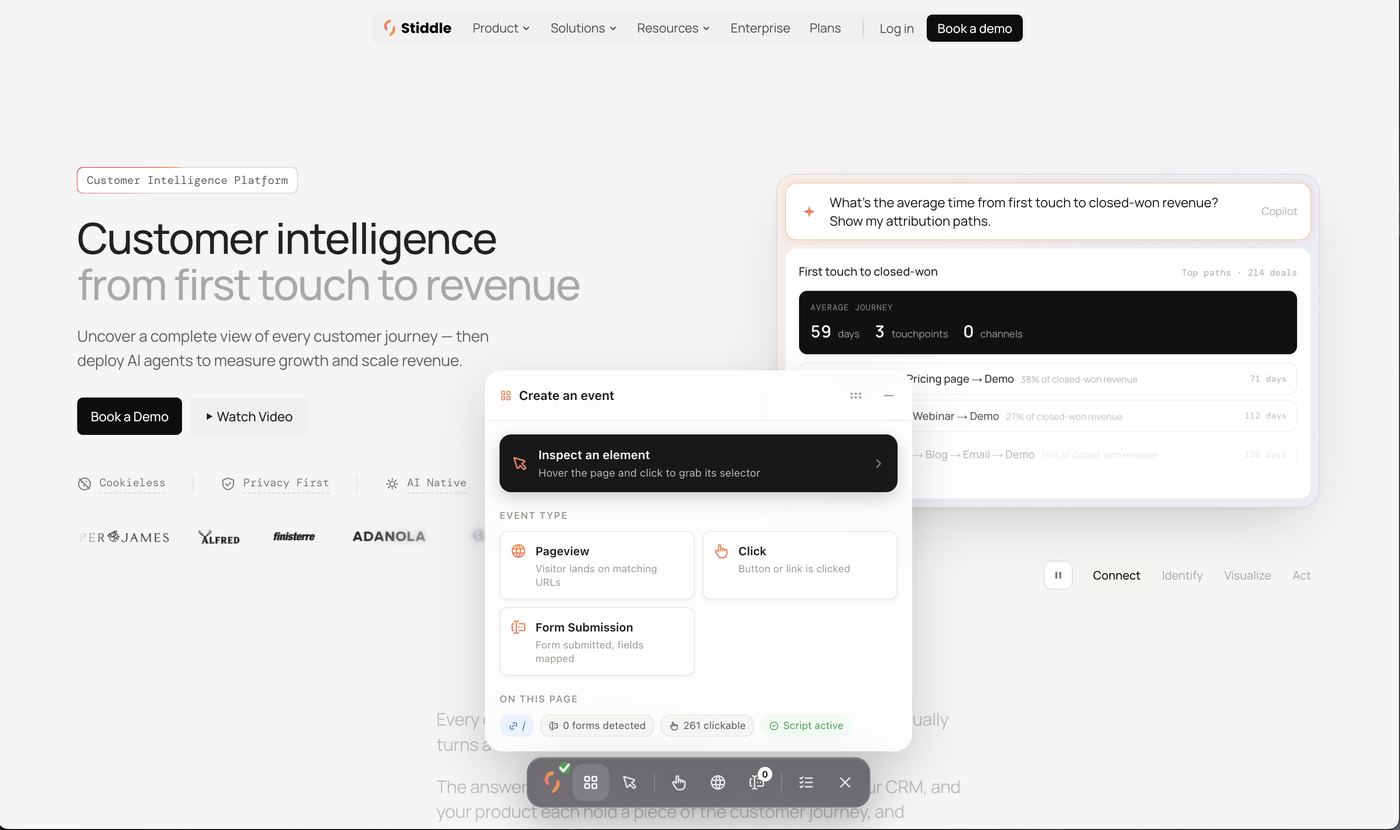
Create a click event
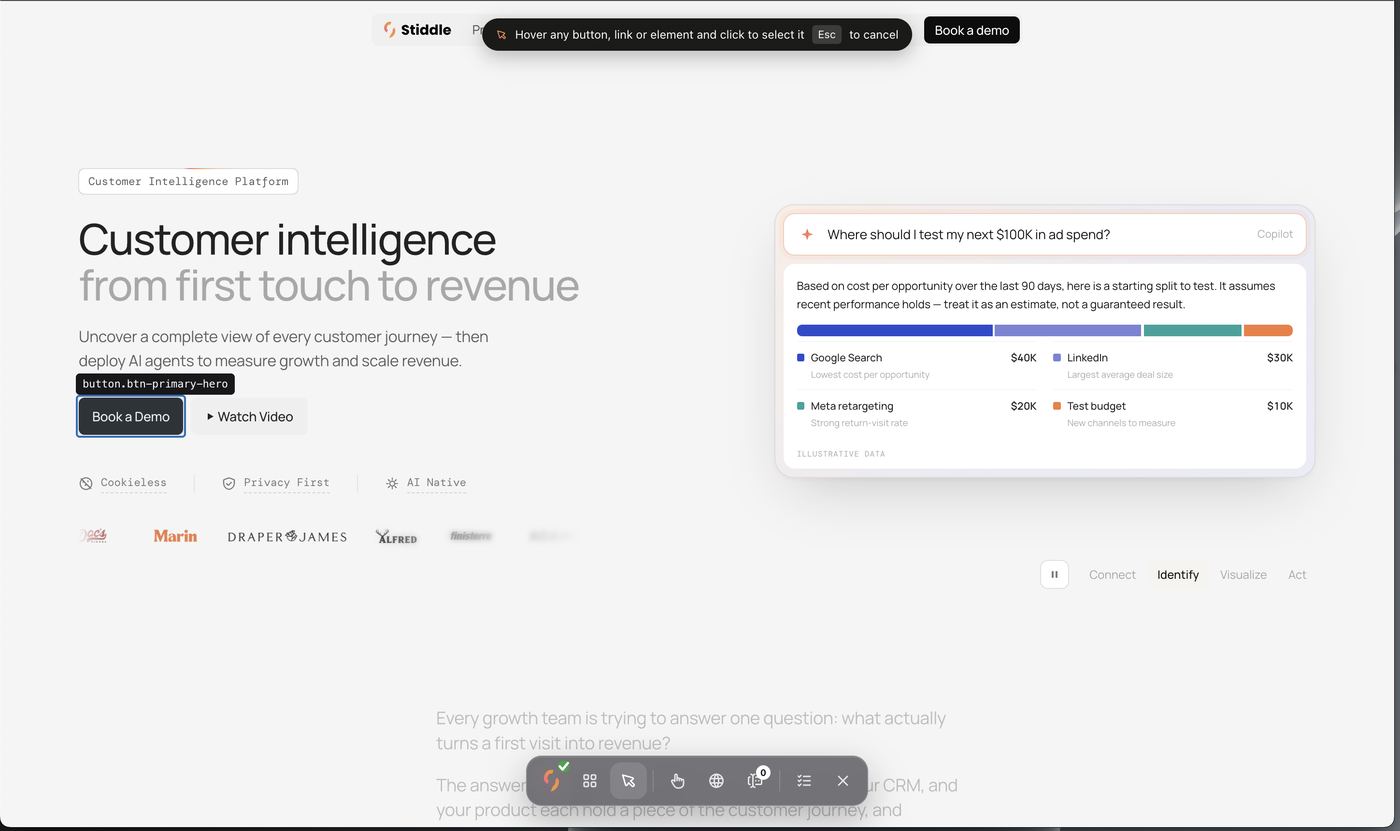
- Click Inspect (or Create an event → Inspect an element). A banner says “Hover any button, link or element and click to select it” — press Esc to cancel.
- Hover the element. Its selector shows above it (e.g.
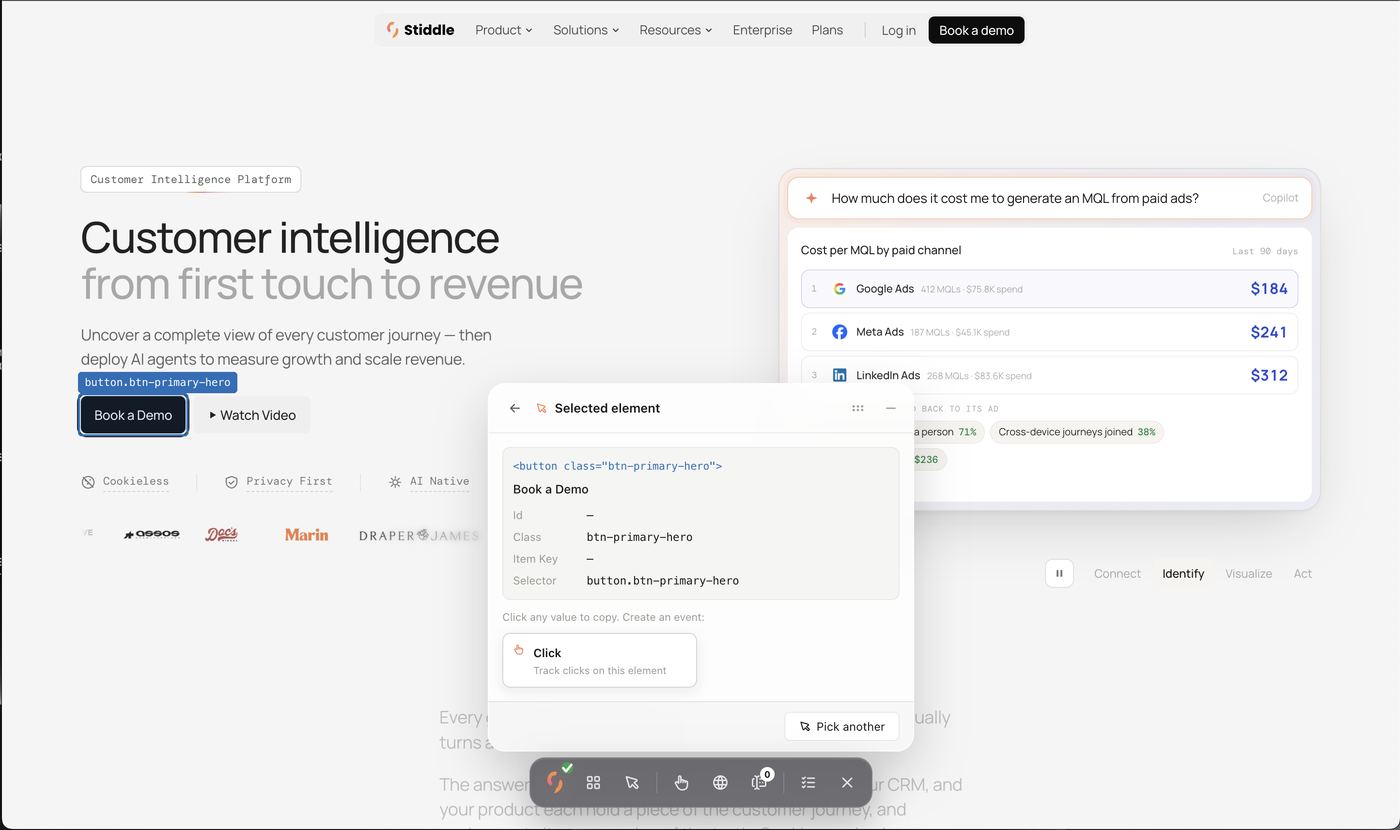
button.btn-primary-hero). Click to select it. - Selected element shows the element’s HTML, text, Id, Class, Item Key and Selector. Click any value to copy it, or Pick another.
- Choose Click — Track clicks on this element.
- In New Click event, check the Event Name and Event ID (filled in for you, e.g. “Clicked Book a Demo” /
clicked_book_a_demo), and the Property Group. - Matching Selectors are filled in too — Selector (Id, Class…), Operator (Equals, Contains…), Value and Page URL. The green Matches 1 · show badge confirms how many elements match; click show to highlight them. + Add selector narrows it further — all selectors must match.
- Click Create event. The element now shows its event name as a label on the page.
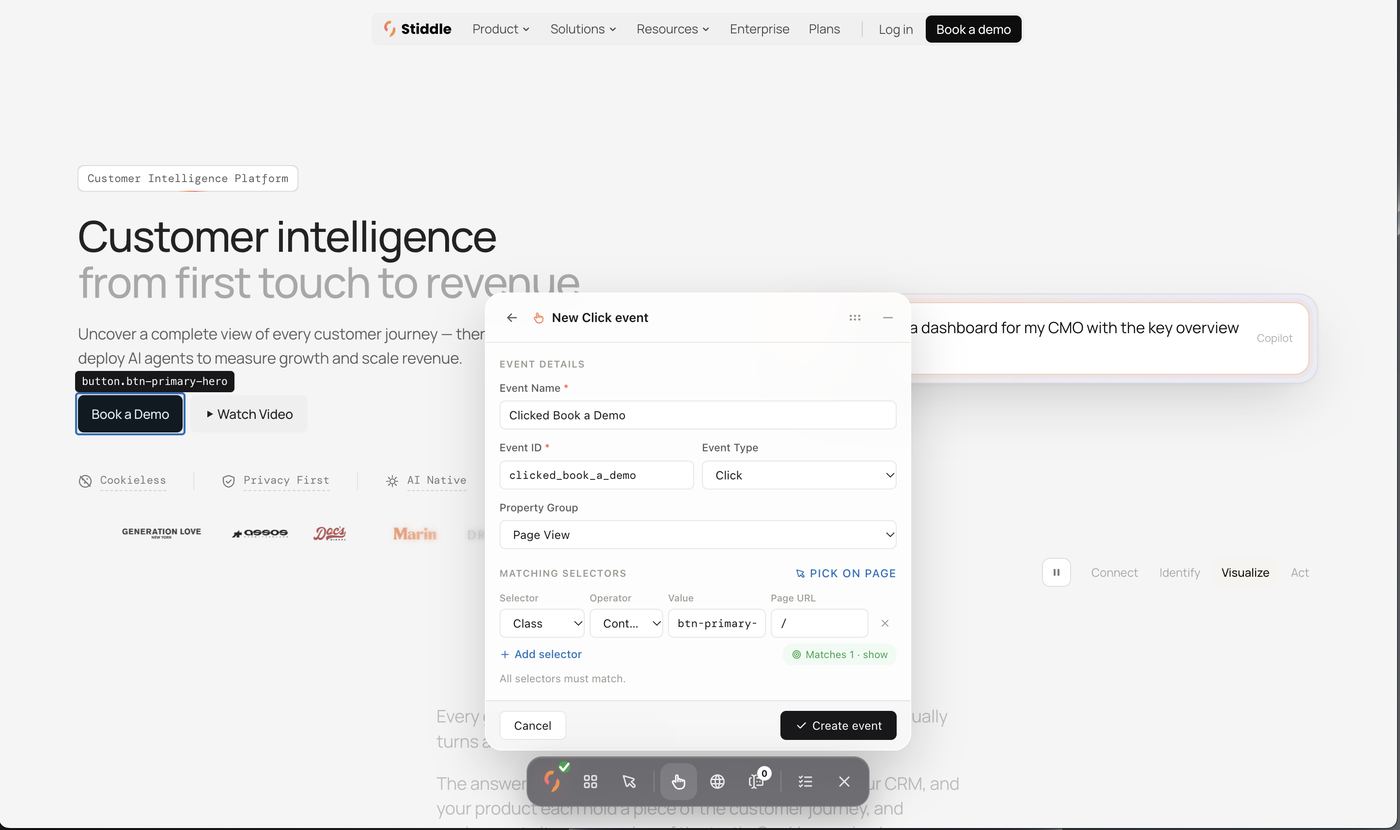
Create a pageview event
- Open the page you want to track and click Pageview (globe).
- Enter an Event Name and Event ID, and check Event Type = Pageview and Property Group = Page View.
- Under Page URL, click Use current to fill in this page, or set a rule — e.g. Contains
/pricing. + Add URL rule adds more. A Matches current page badge confirms the rule fits the page you’re on. - Click Create event.
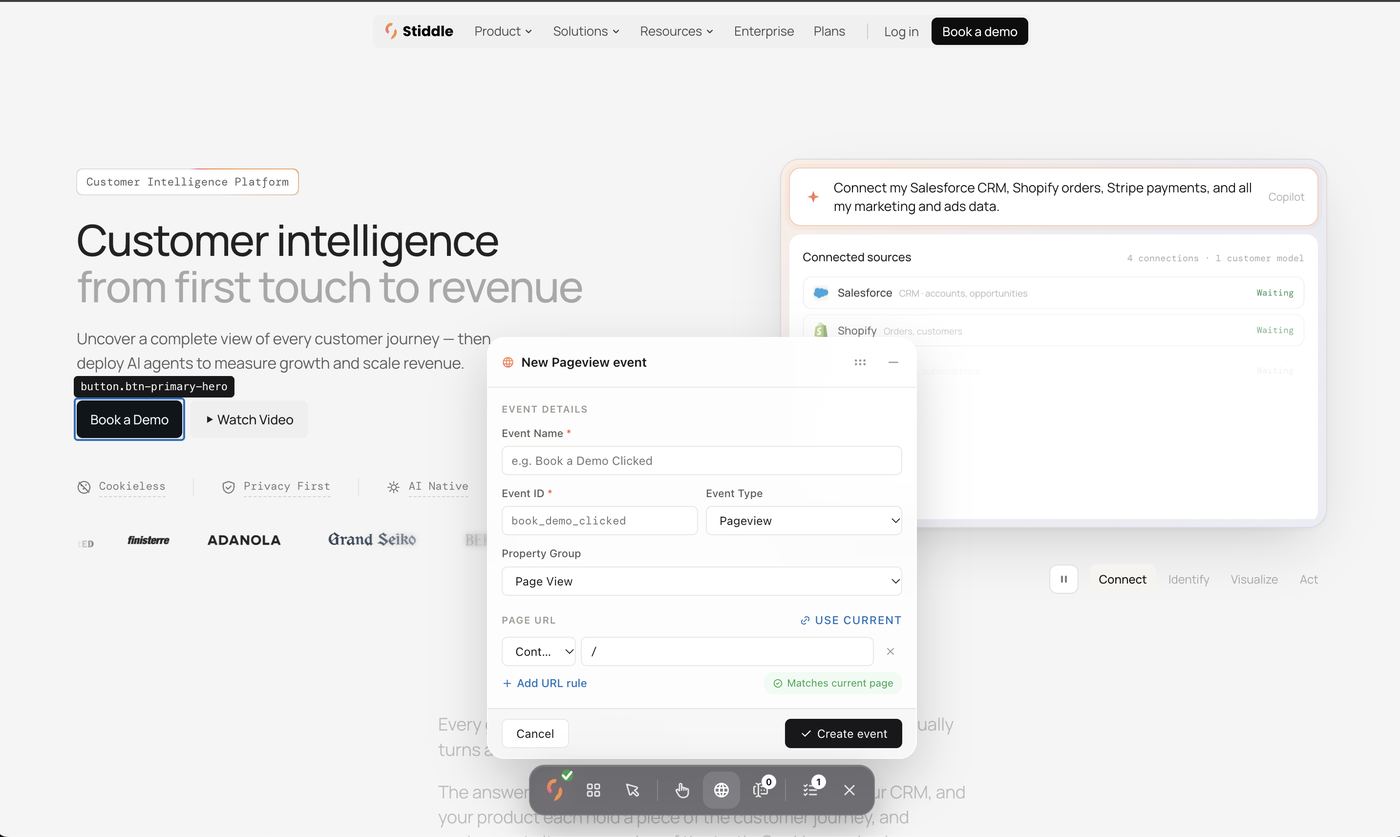
Create a form submission event
- Open the page with the form and click Forms. Stiddle lists every form it found — e.g. “Found 3 forms on /contact” — with its ID, number of fields and whether it’s already tracked. Pick one, or click Or pick a form on the page.
- Find: the selected form is shown with its selector (e.g.
form#wf-form-Contact-Form · 13 fields); click Show to highlight it. Matching Selectors are filled in (e.g. Id Equalswf-form-Contact-Formon/contact) and Matches 1 confirms it. Check the Event Name, Event ID, Event Type (Form Submission) and Property Group (Form Submit), then Next: Map fields. - Select: tick the fields Stiddle should capture when the form is submitted — each shows its name and type (text, email, tel, select). Then Next: Map fields.
- Map: toggle each field on or off and map it to a Stiddle property. Auto lets Stiddle detect it; or search existing properties (Employee Count, Customer Id, State, Company Name…). To add one, type a New property name, or open Create new property and set a Property name, Property ID (lowercase letters, numbers and underscores) and Type (e.g. String).
- Click Create event.
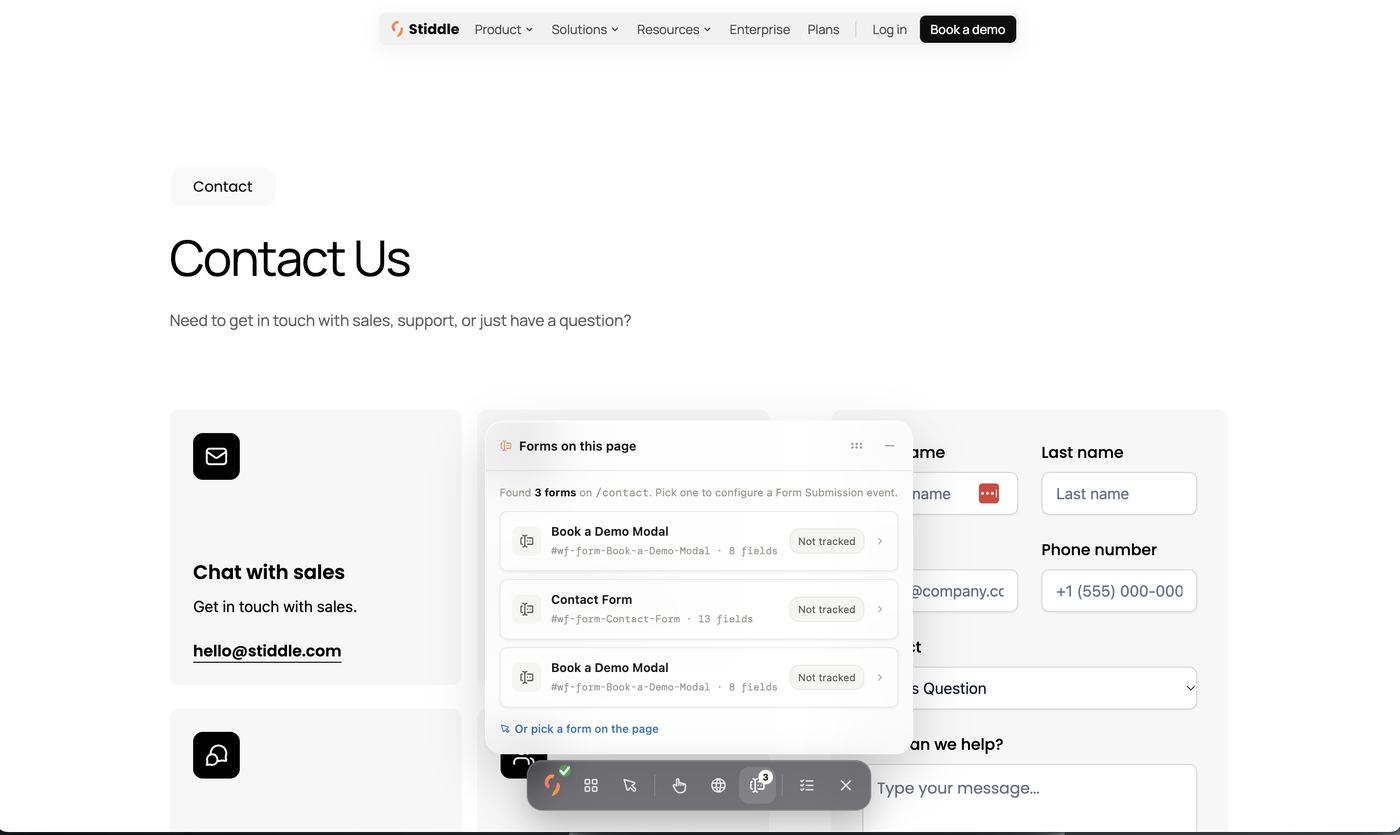
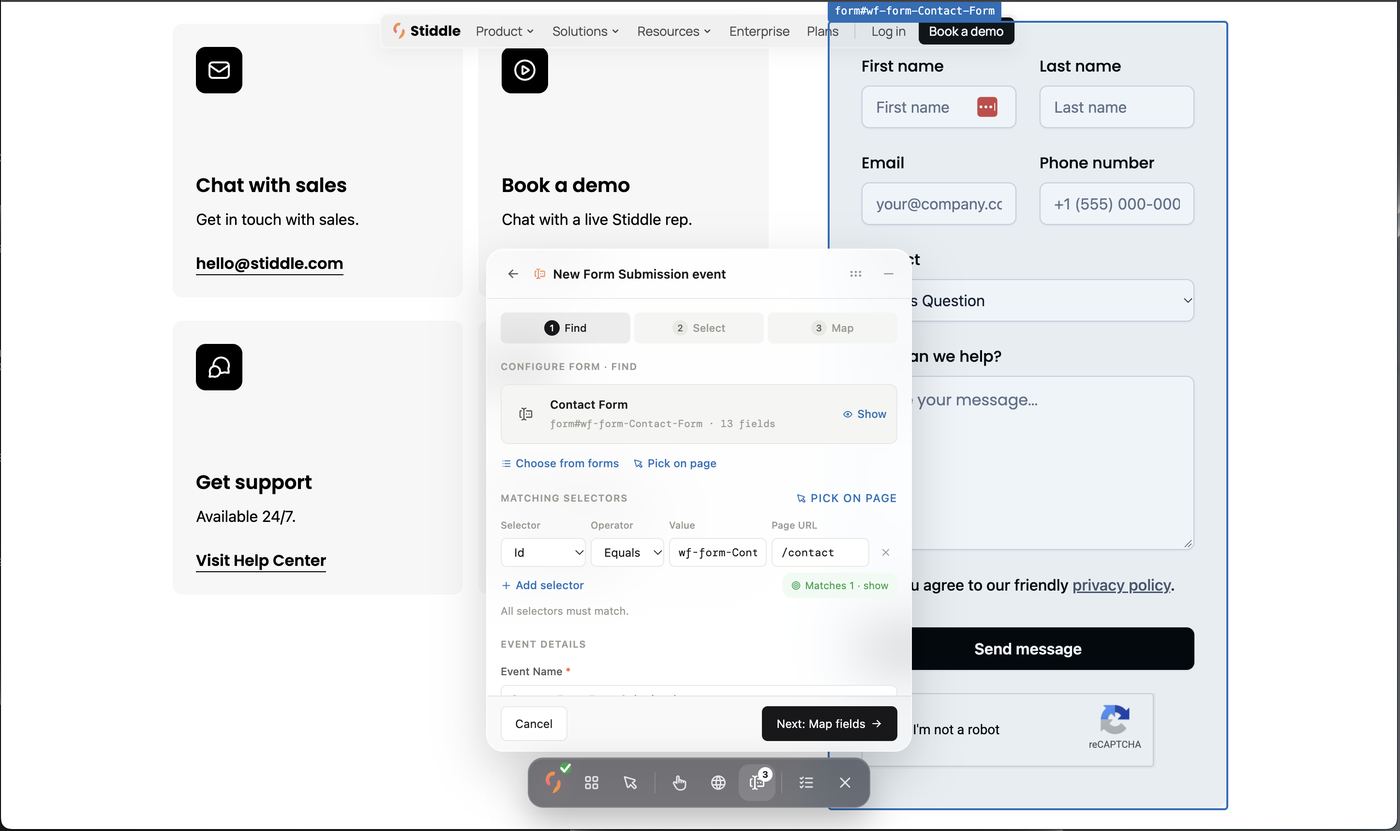
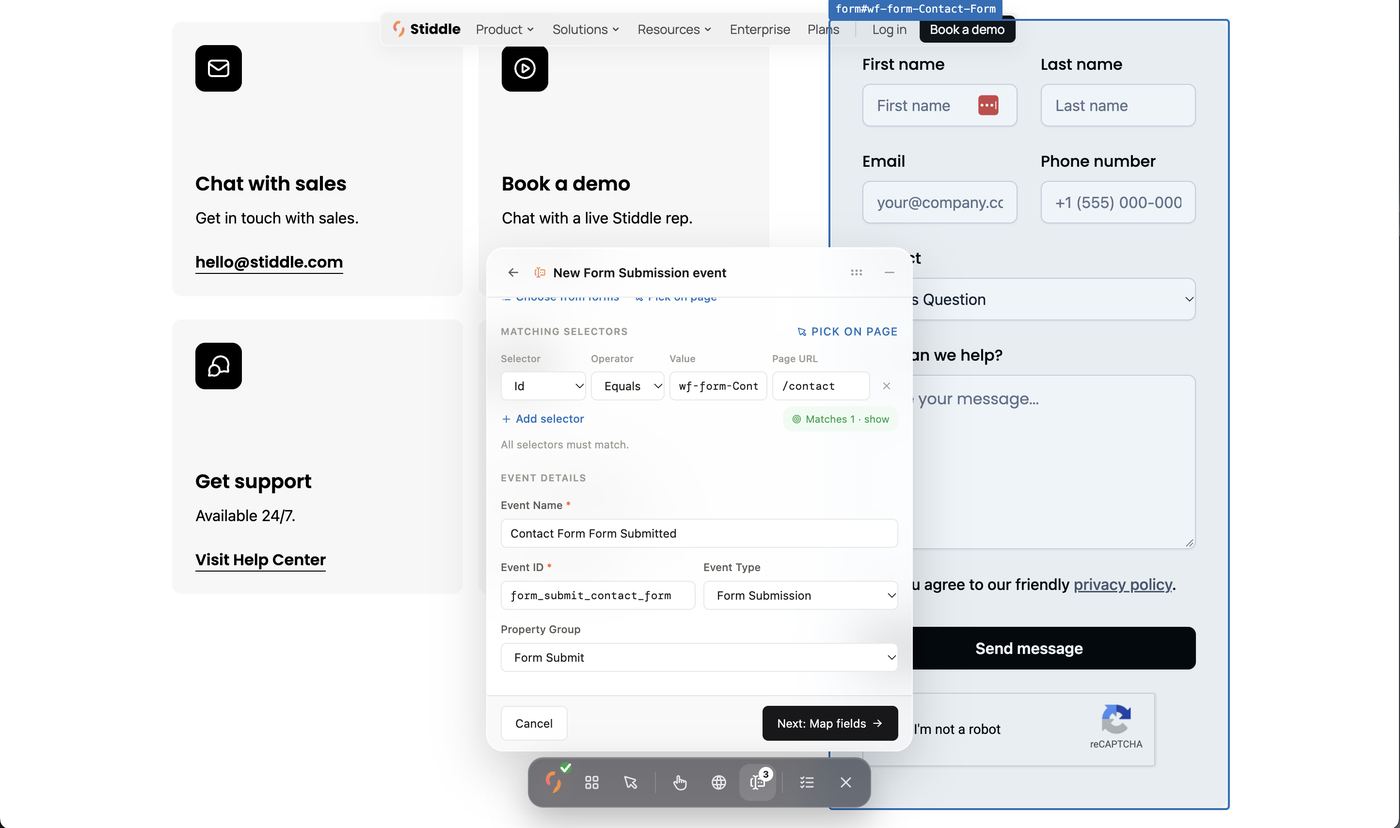
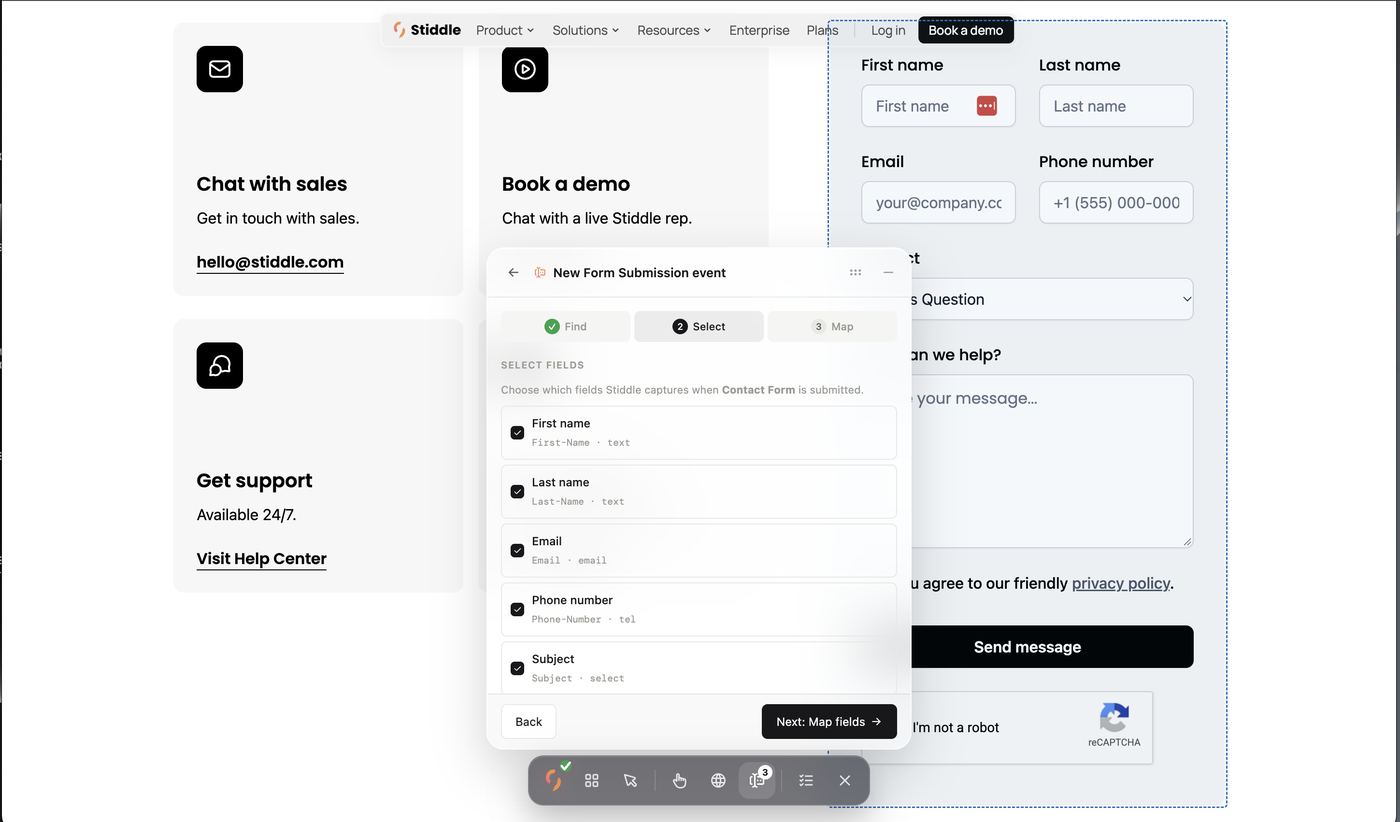
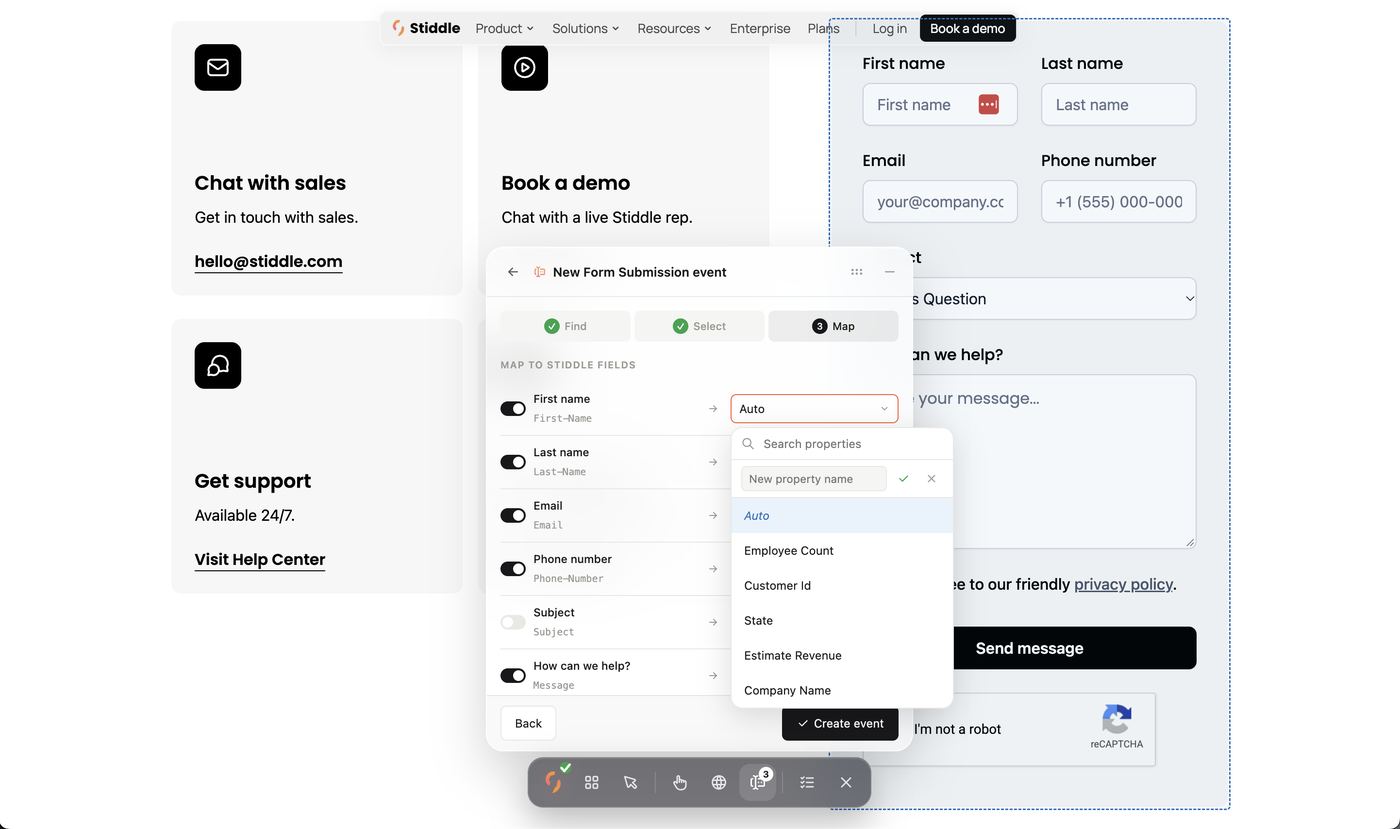
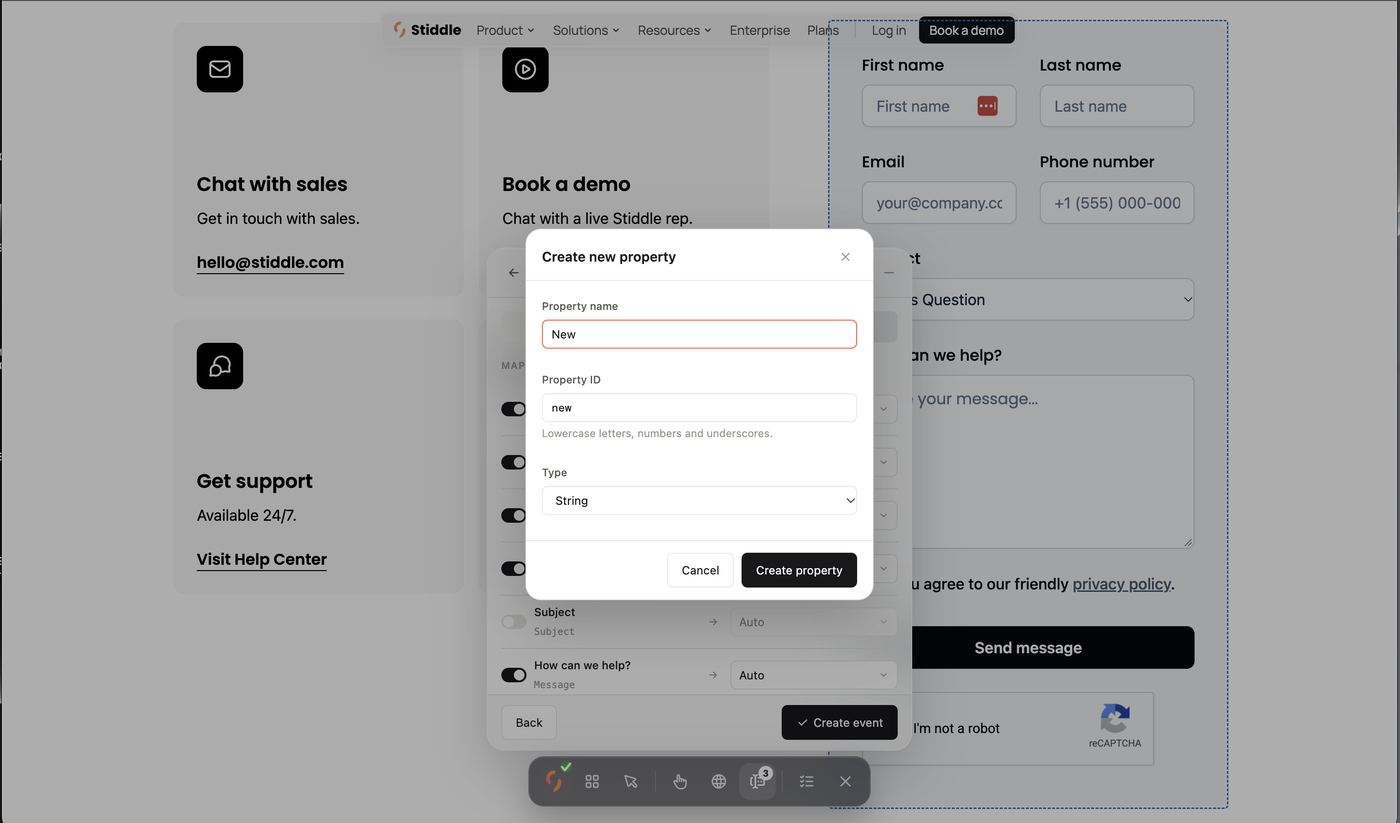
Embedded and iframe forms (Jotform, HubSpot embeds, Typeform and similar). Stiddle can track every form type, but forms that load inside an iframe or a third-party embed usually can’t be picked or auto-mapped with the toolbar or the Configure Form wizard. Contact Support and the Stiddle team will set up tracking for that form manually, free of charge.
See and edit events from the toolbar
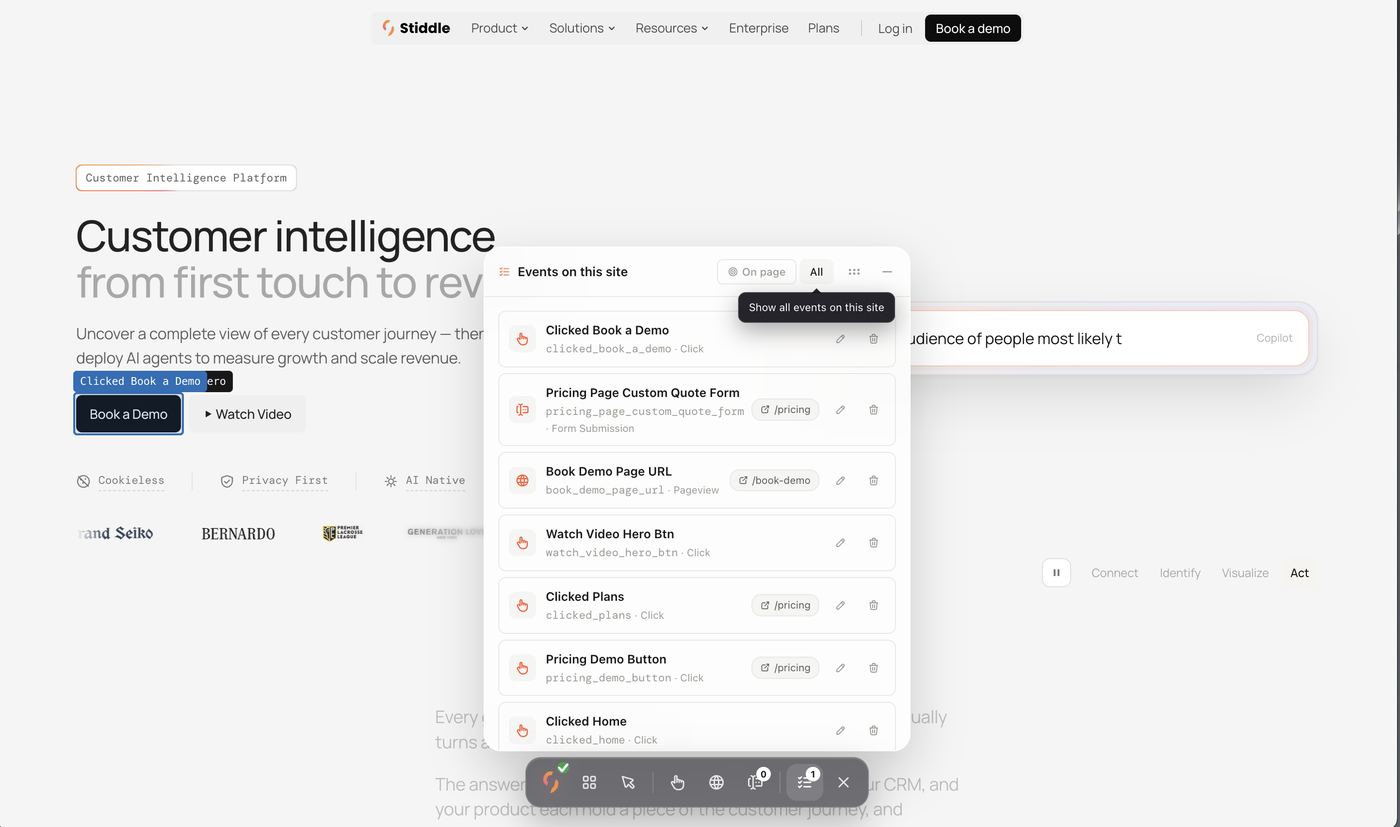
Click Events (list) to see what’s tracked. On page shows events on the current page; All shows every event on the site. Each row shows the event name, ID, type and page path, with edit (pencil) and delete (bin) buttons. Tracked elements are labeled on the page, so you can see at a glance what’s set up.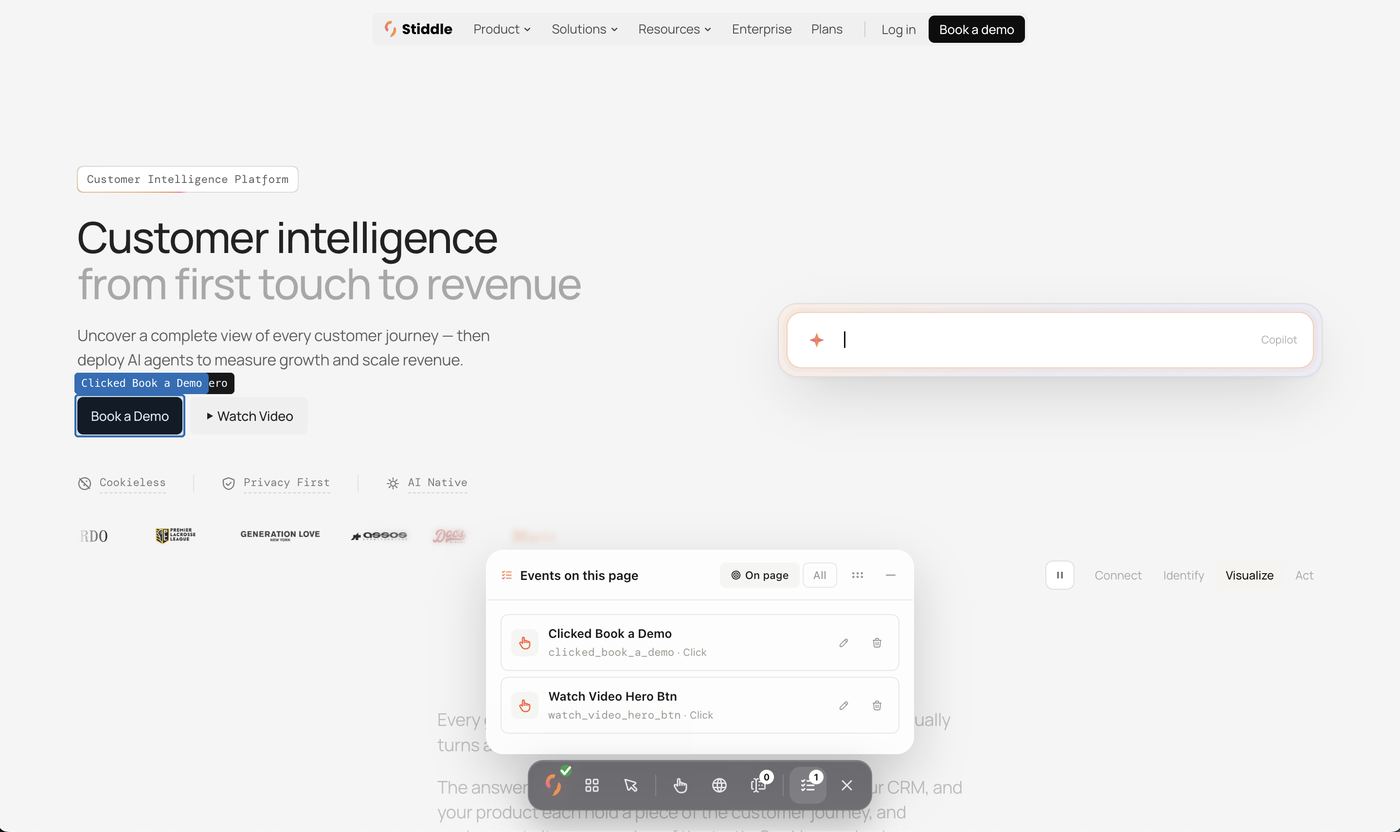
Toolbar FAQs
The toolbar won’t open. Check the site is under Authorized URLs with Script found, then try the manual launch code. “Matches 0” on my selector. The value doesn’t match anything on this page. Use Pick on page to select the element again, or loosen the operator (e.g. Contains instead of Equals). Can I track a button that appears on several pages? Yes — leave Page URL broad (e.g./) or remove it, so the selector matches on every page.
Do toolbar events show up in Events Manager? Yes, instantly. You can edit them in either place.
My form doesn’t appear in “Forms on this page”. It’s probably an iframe or embed (e.g. Jotform or a HubSpot form embed). These can still be tracked — contact Support to have it configured manually for free.
From event to goal
An event becomes a conversion metric once you make it a goal. In Events Manager, open the row’s … menu → Create Goal, or create one in Goals Manager — see Goals below.Event FAQs
What’s the difference between Auto and Custom? Auto events (Page View, Form Submit) are tracked by the Stiddle Pixel automatically. Custom events are ones your team defines. Stiddle can’t find my form. Check the Stiddle Pixel is on that page and the form loads without a login or popup, then try Option B and enter the form ID. If the form is an iframe or third-party embed (Jotform, HubSpot embed), contact Support — they’ll configure it manually for free. Why is Last Seen old or empty? The event hasn’t fired since then. Check the URL, selector or form ID, then look in Event Logs. Can I create CRM or order events from the toolbar? No. The toolbar only handles website events — clicks, forms and URLs. Can I change an Event ID later? No.Goals
A goal turns one or more events into a conversion metric. Once a goal exists, Stiddle attributes it to channels and campaigns, and it shows up as columns in attribution tables, steps in funnels, metrics in reports and the target of Smart Scores. These are often used to track revenue and conversion value. Every goal gives you four attributed metrics, found under the Stiddle Attributed metrics tab for each channel:
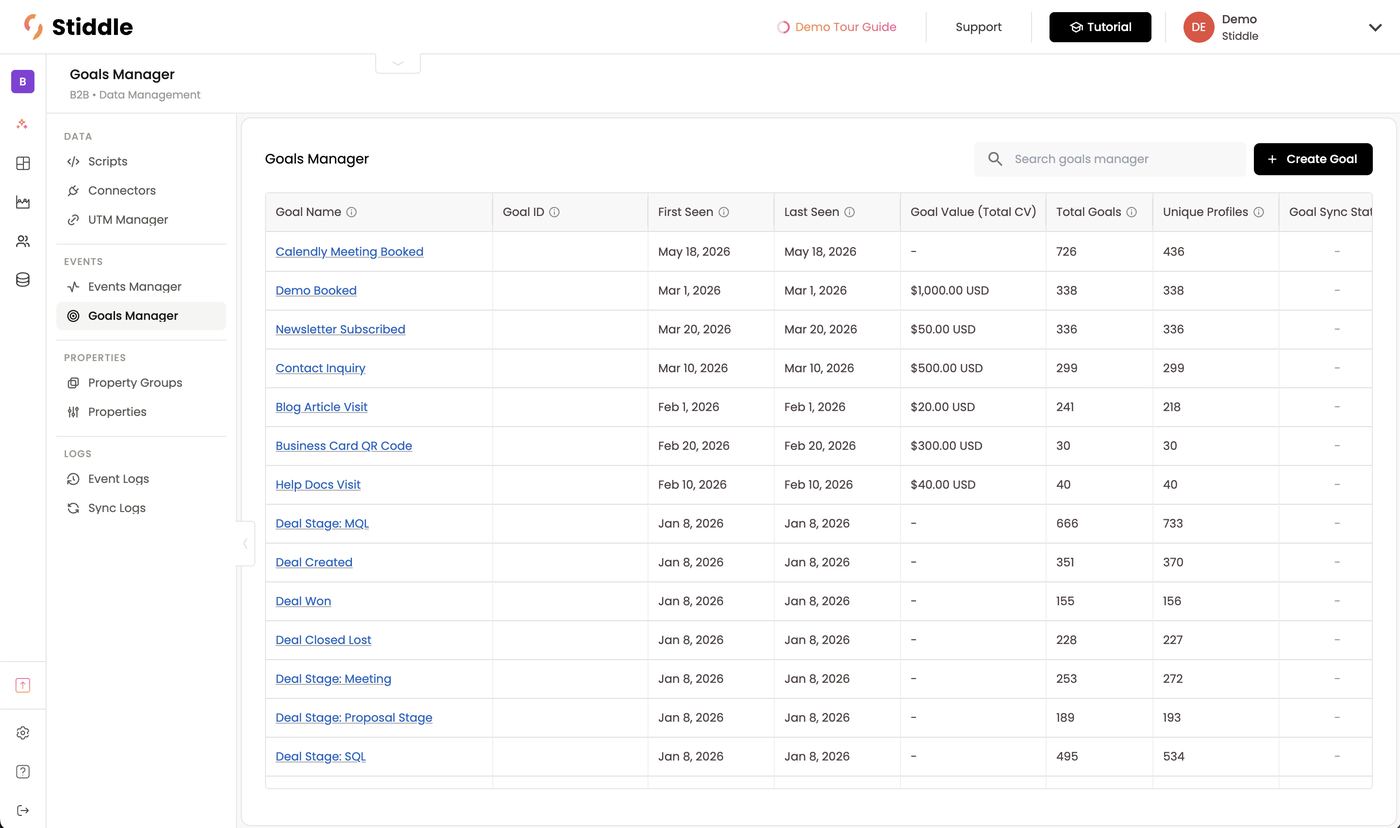
Manage goals in Data → Goals Manager. The list shows Goal Name, Goal ID, First Seen, Last Seen, Goal Value (Total CV), Total Goals, Unique Profiles and Goal Sync Status.
Example goals in the B2B demo: Demo Booked ($1,000 value), Contact Inquiry ($500), Business Card QR Code ($300), Newsletter Subscribed ($50), Help Docs Visit ($40), Blog Article Visit ($20), Calendly Meeting Booked, and CRM stages — Deal Stage: MQL, SQL, Meeting, Proposal Stage, Deal Created, Deal Won and Deal Closed Lost.
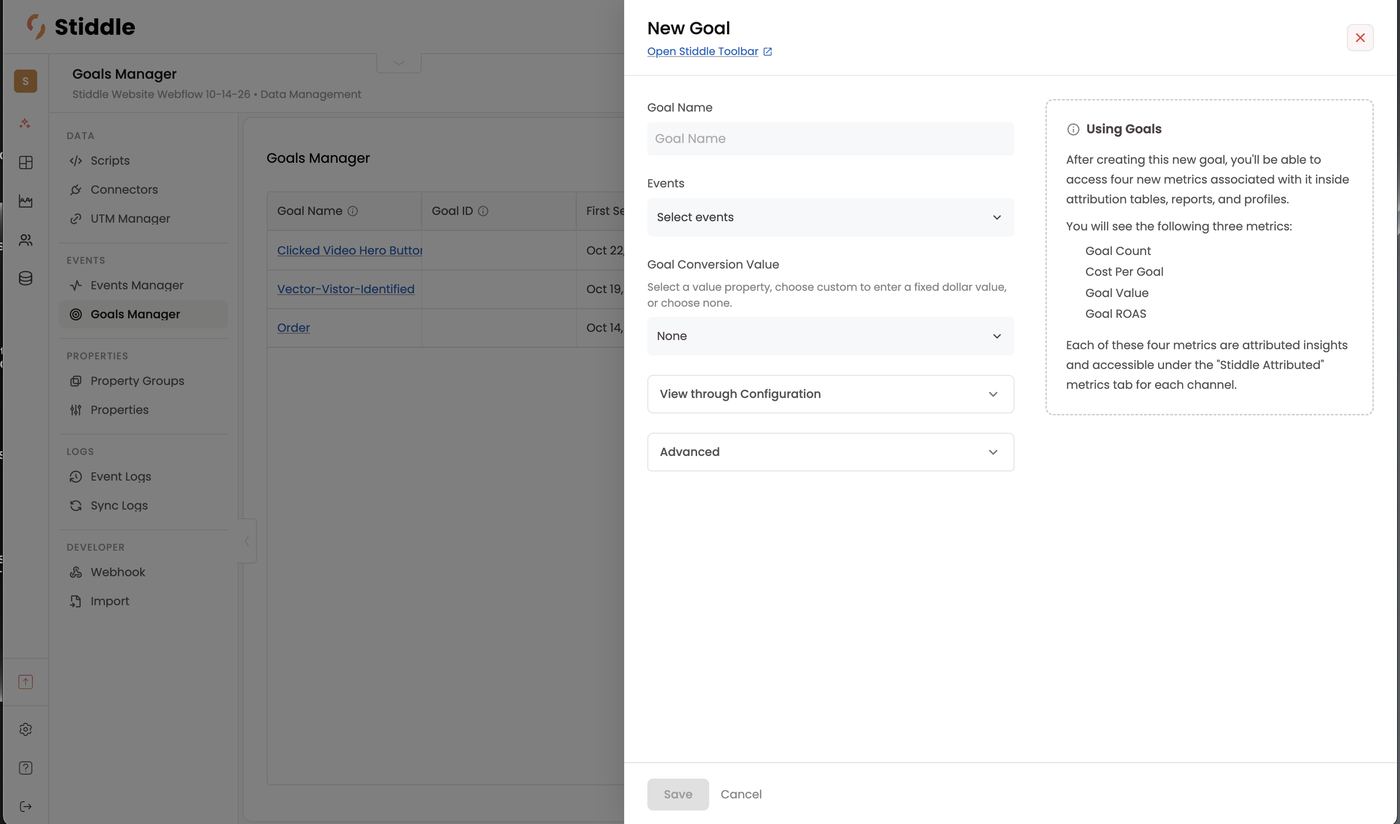
- Click + Create Goal (or … → Create Goal on an event in Events Manager).
- Enter a Goal Name.
- Under Events, pick the event(s) that trigger the goal. The list is grouped by type (Order, Custom, Click, Form Submit…) and searchable.
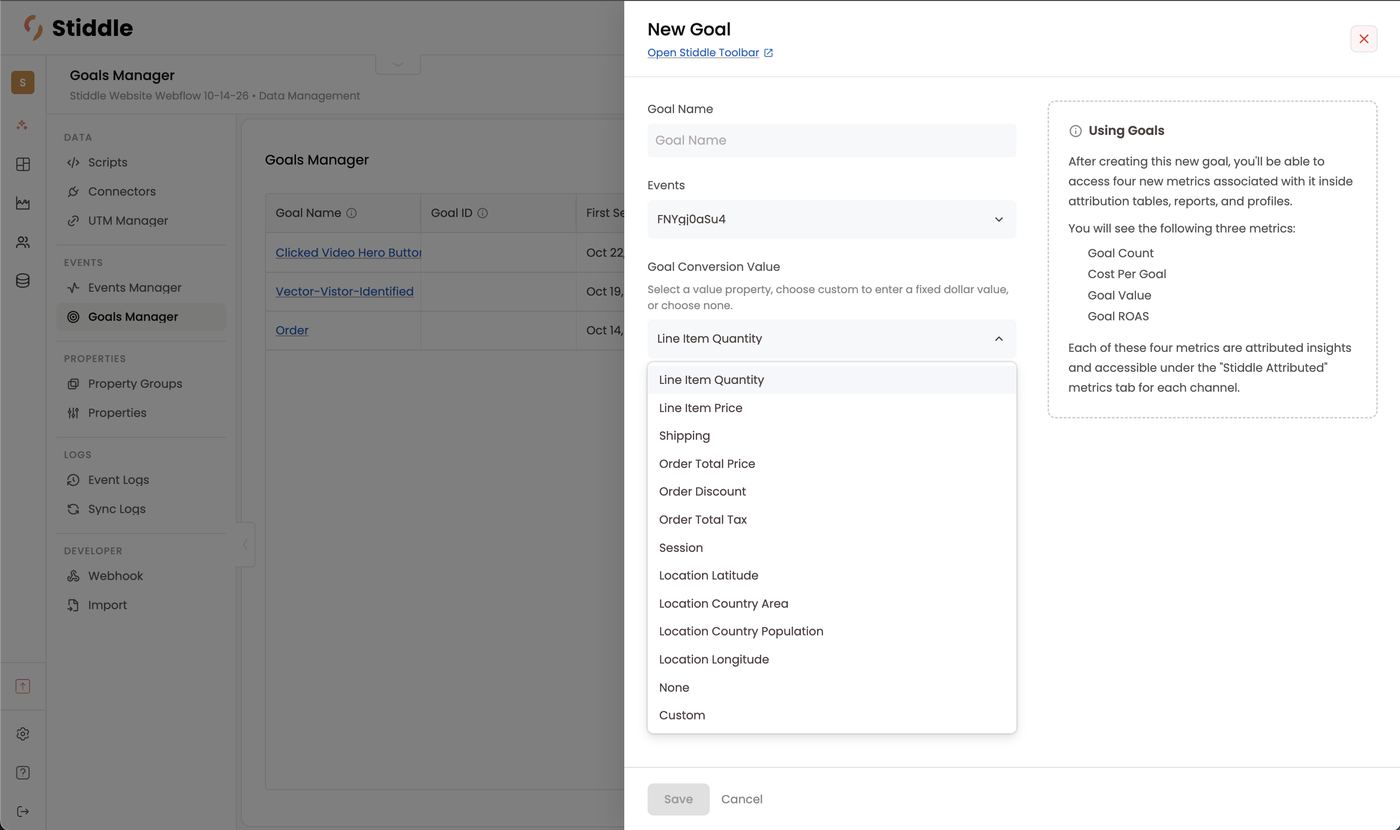
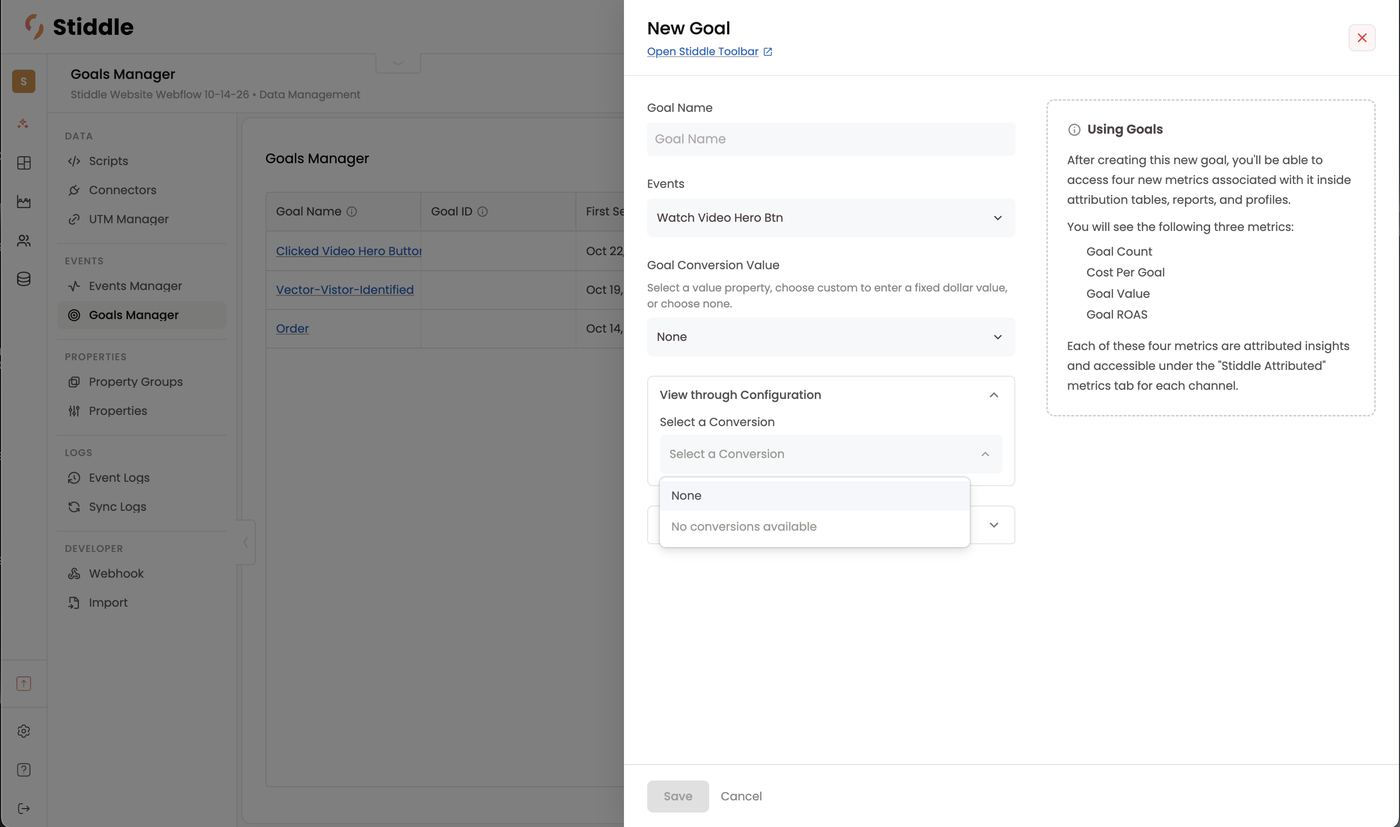
- Set the Goal Conversion Value (below).
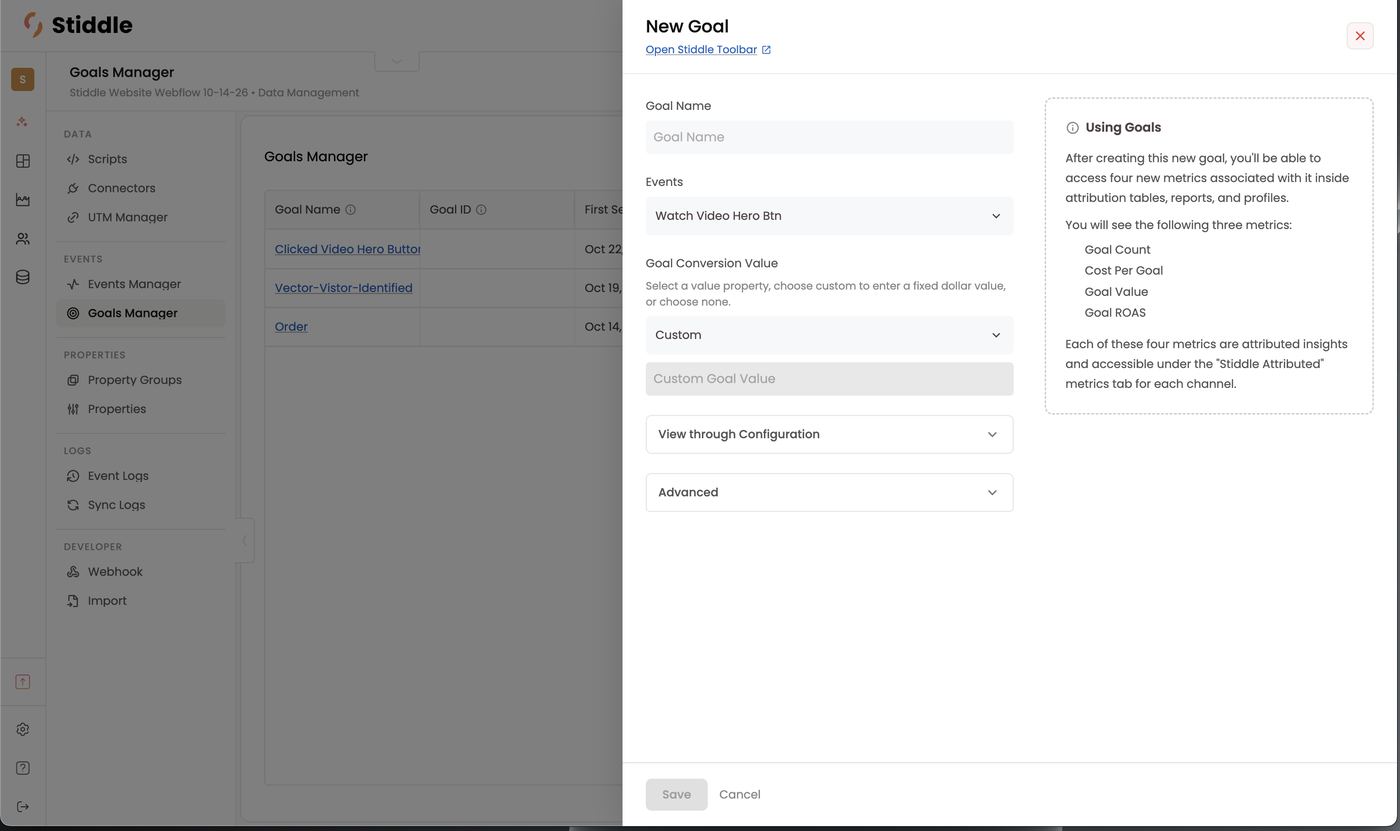
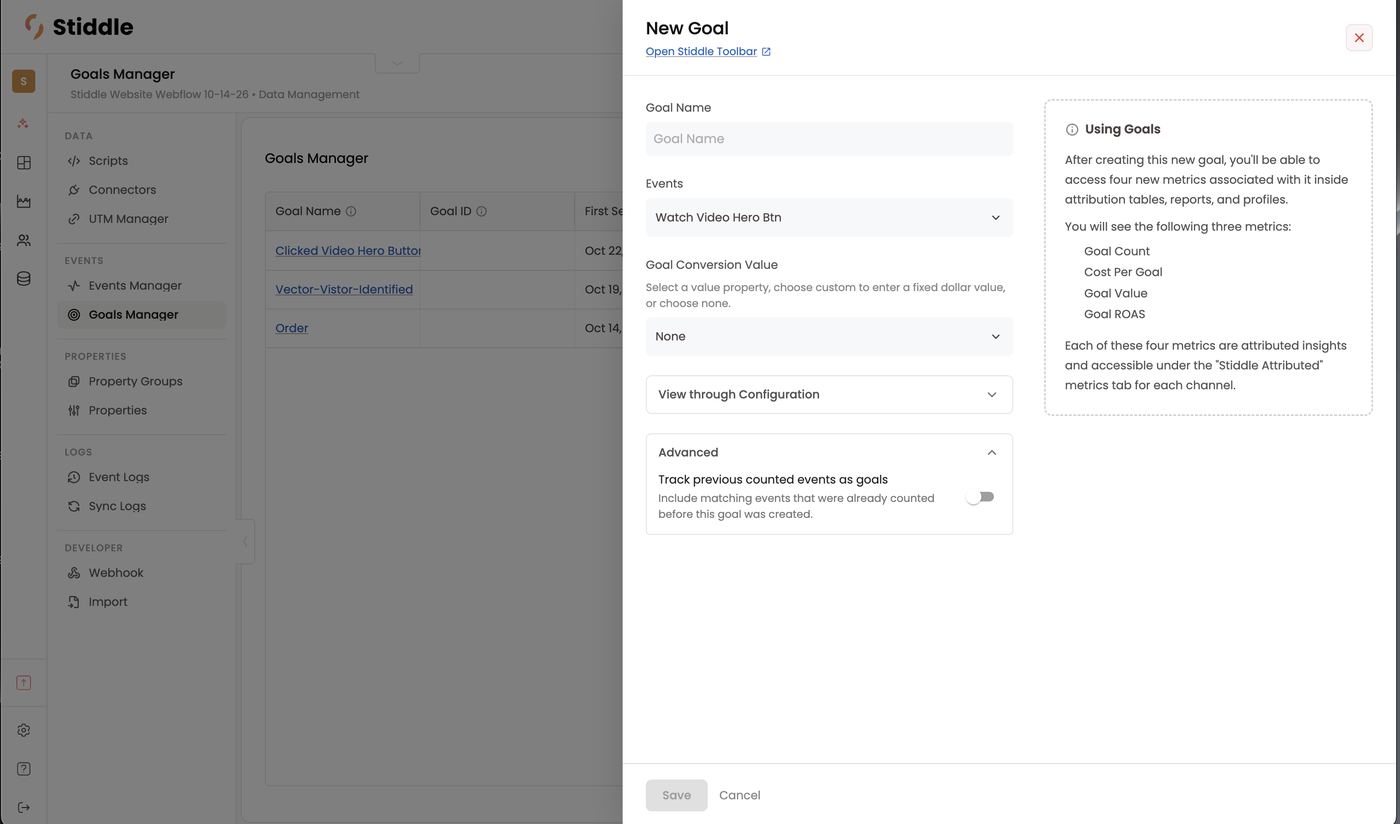
- Optionally set View through Configuration and Advanced options (below).
- Click Save.
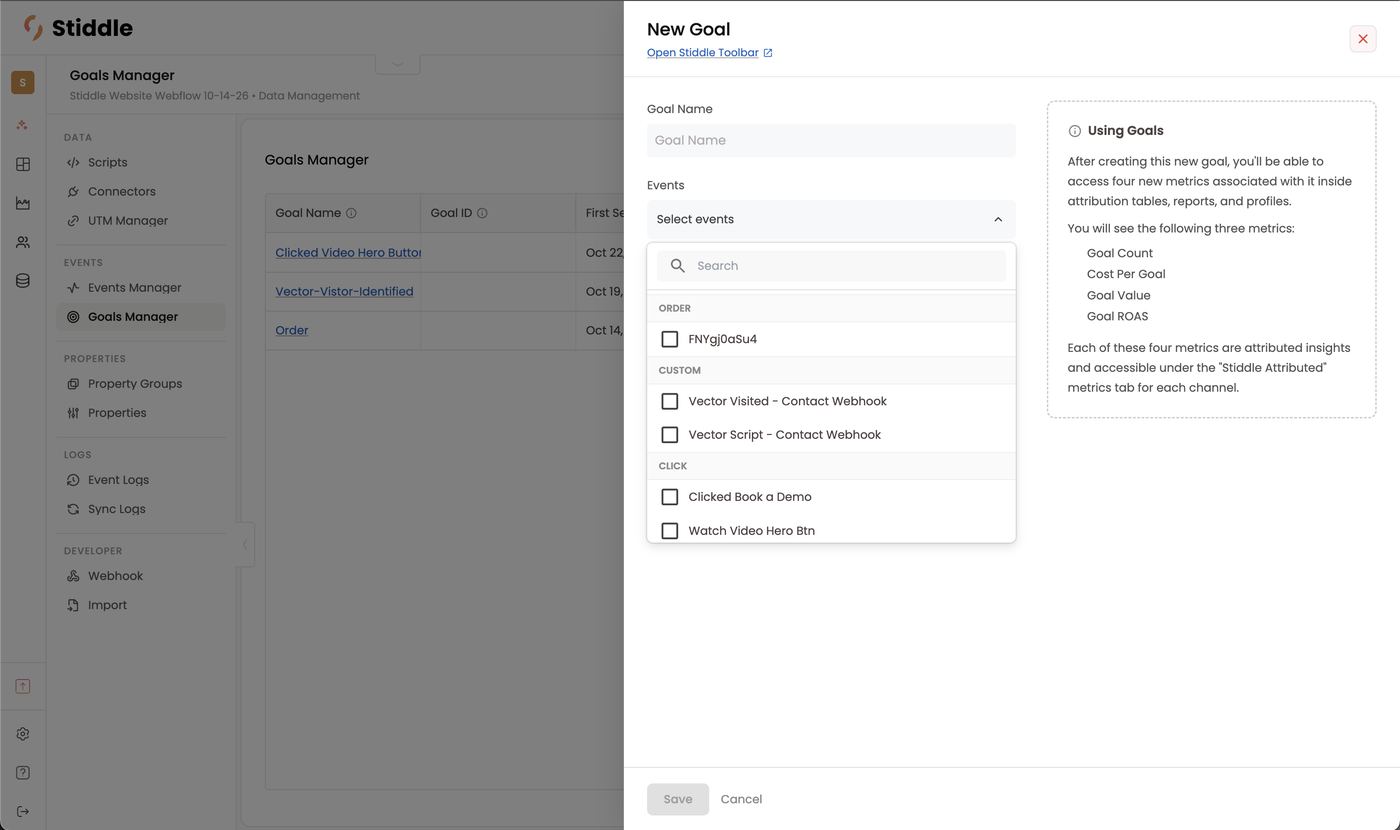
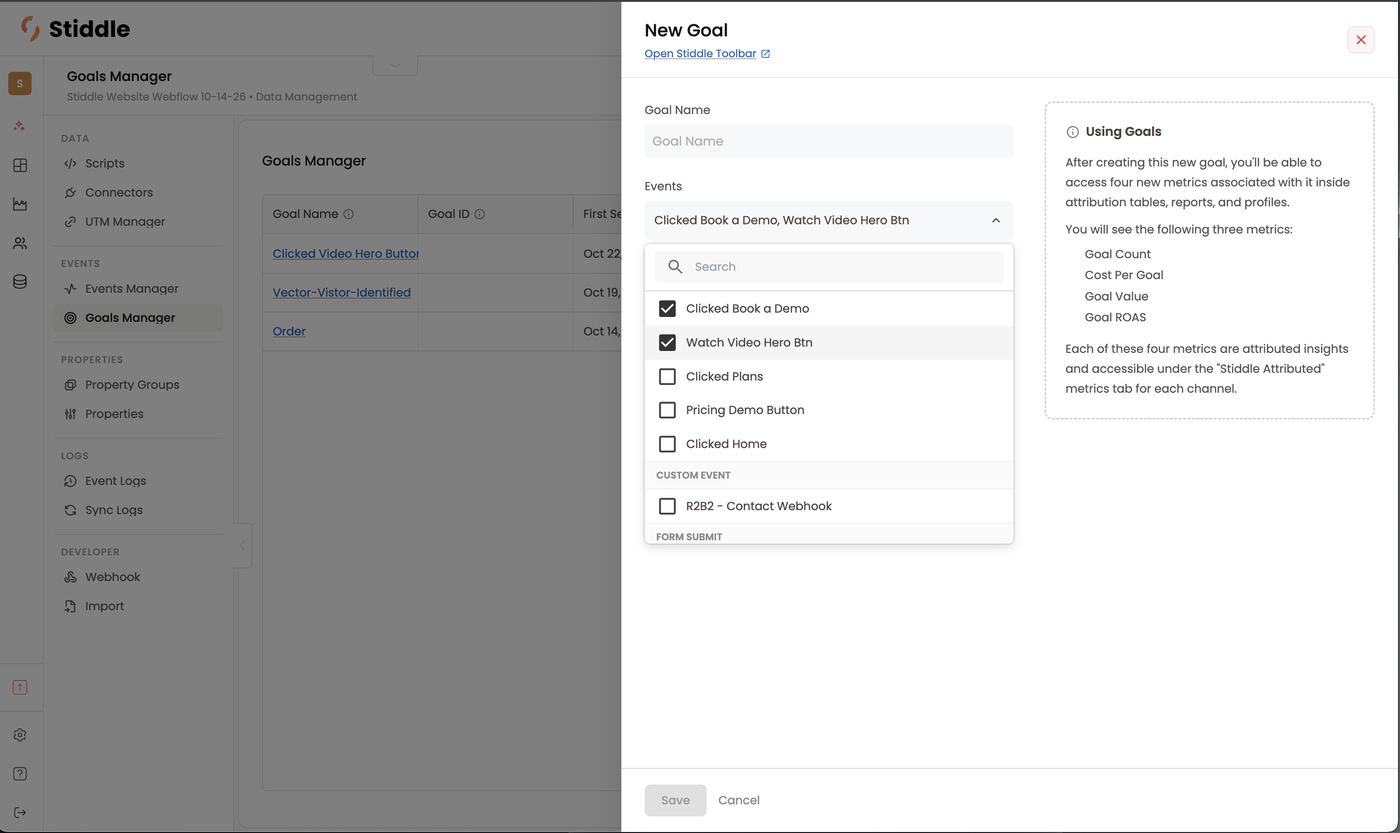
- A value property — map a property on the event that holds the amount. For an Order event, choose Order Total Price to attribute real revenue. For a CRM stage event like Closed Won, choose the opportunity amount property so deal value flows into attribution. The list shows the event’s properties (Line Item Price, Shipping, Order Total Price, Order Discount, Order Total Tax…).
- Custom — enter a fixed dollar amount applied every time the goal triggers, e.g. $1,000 per demo booked. This overrides any property value.
- None — count the goal without revenue.
Connectors (Data → Connectors)
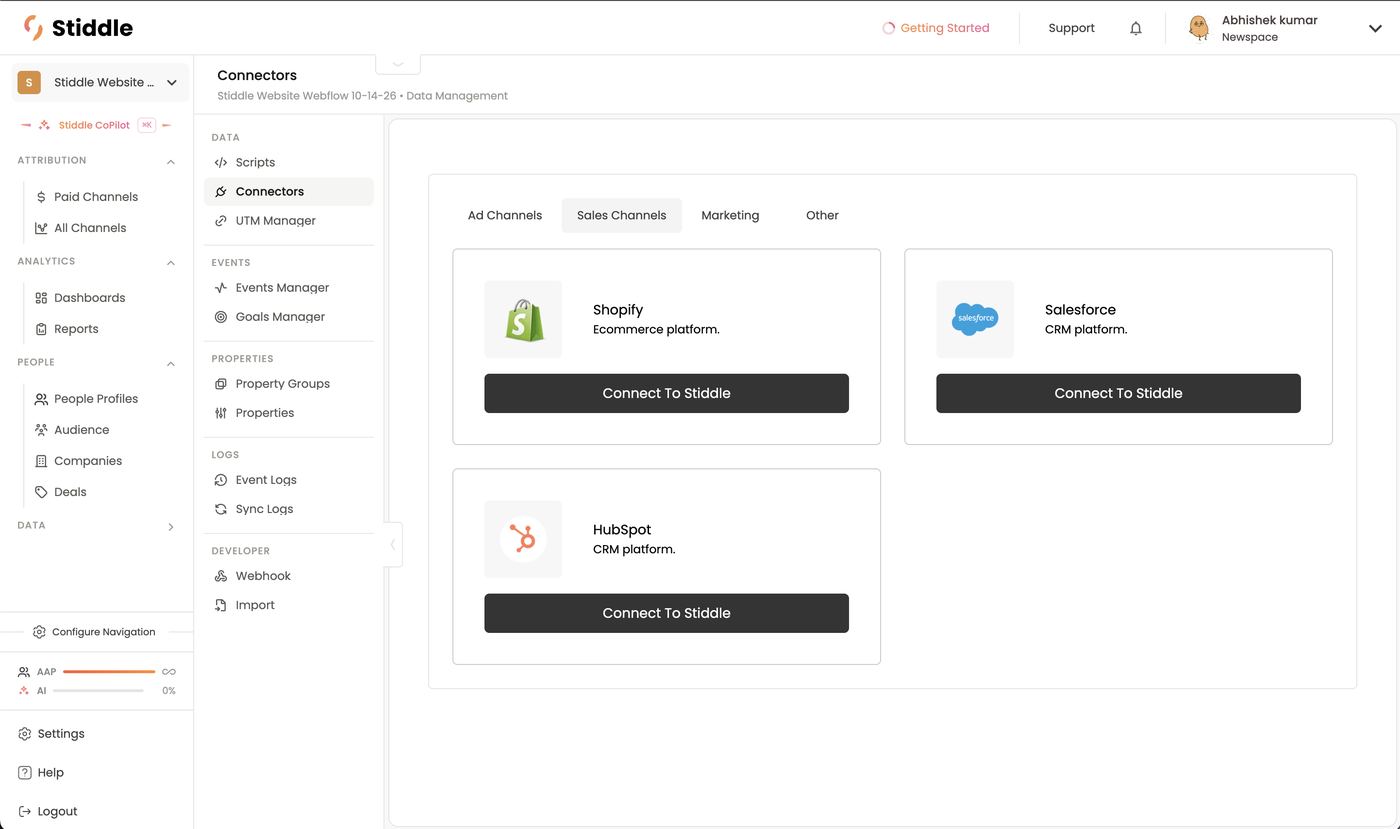
Connectors bring in your ad platforms, sales systems and marketing tools. They’re grouped into four tabs: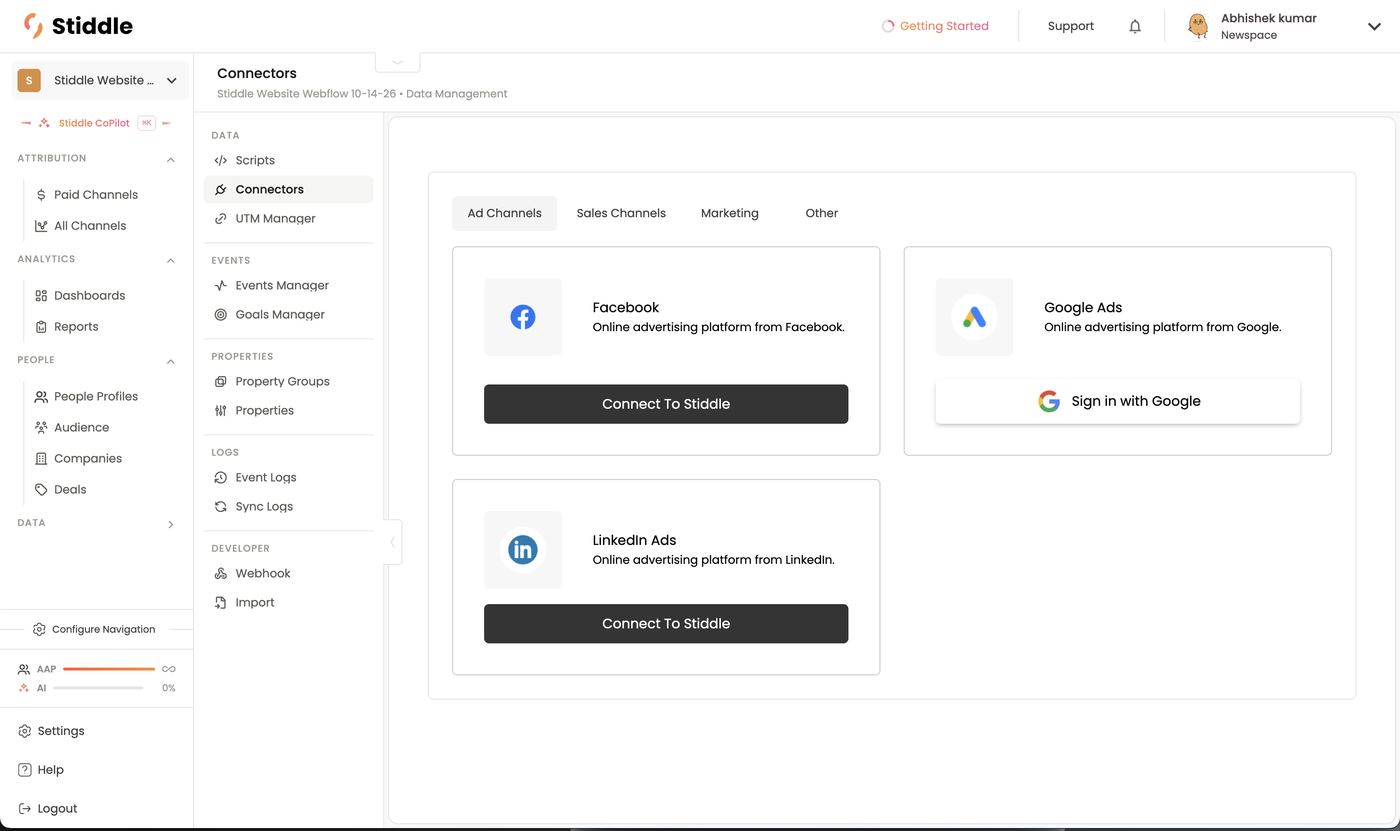
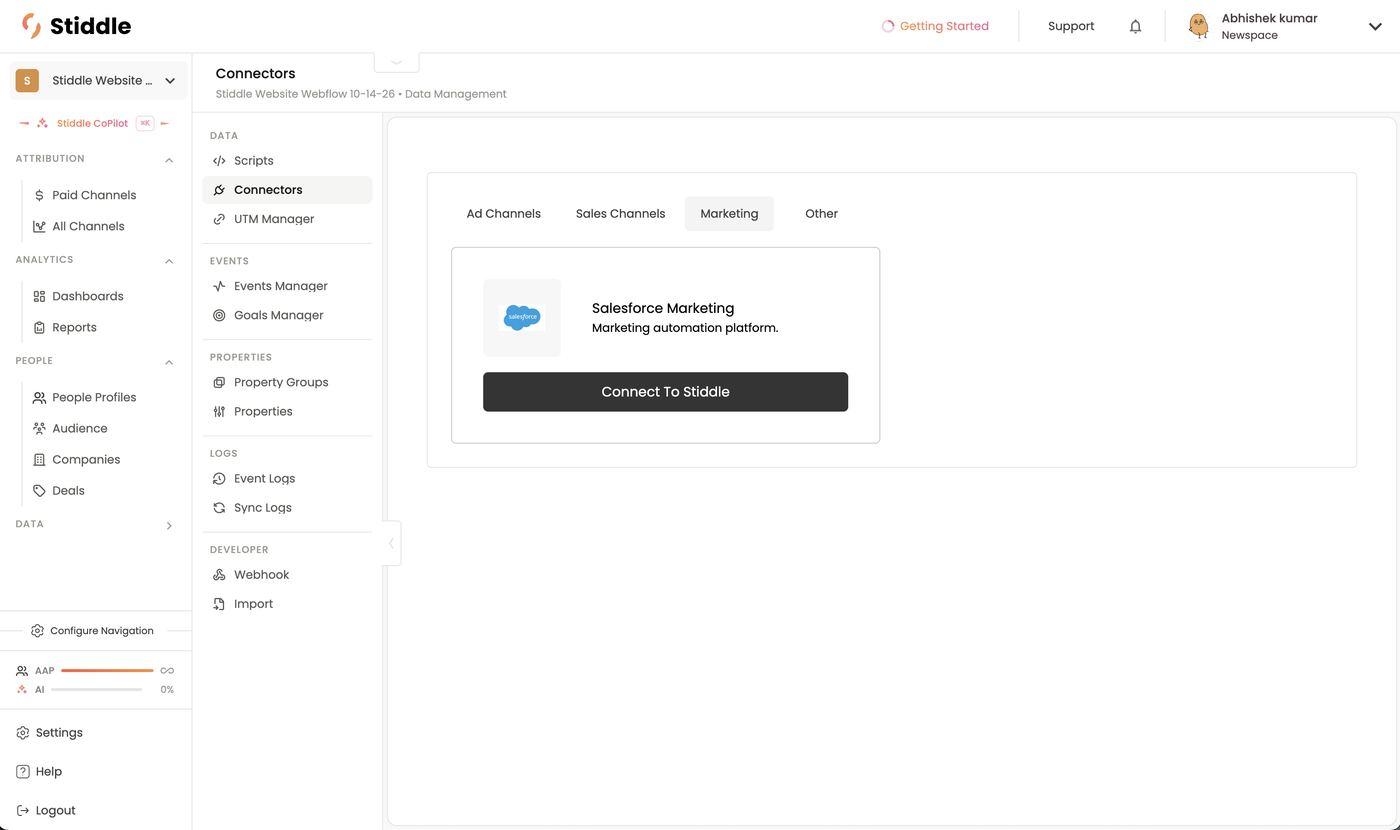
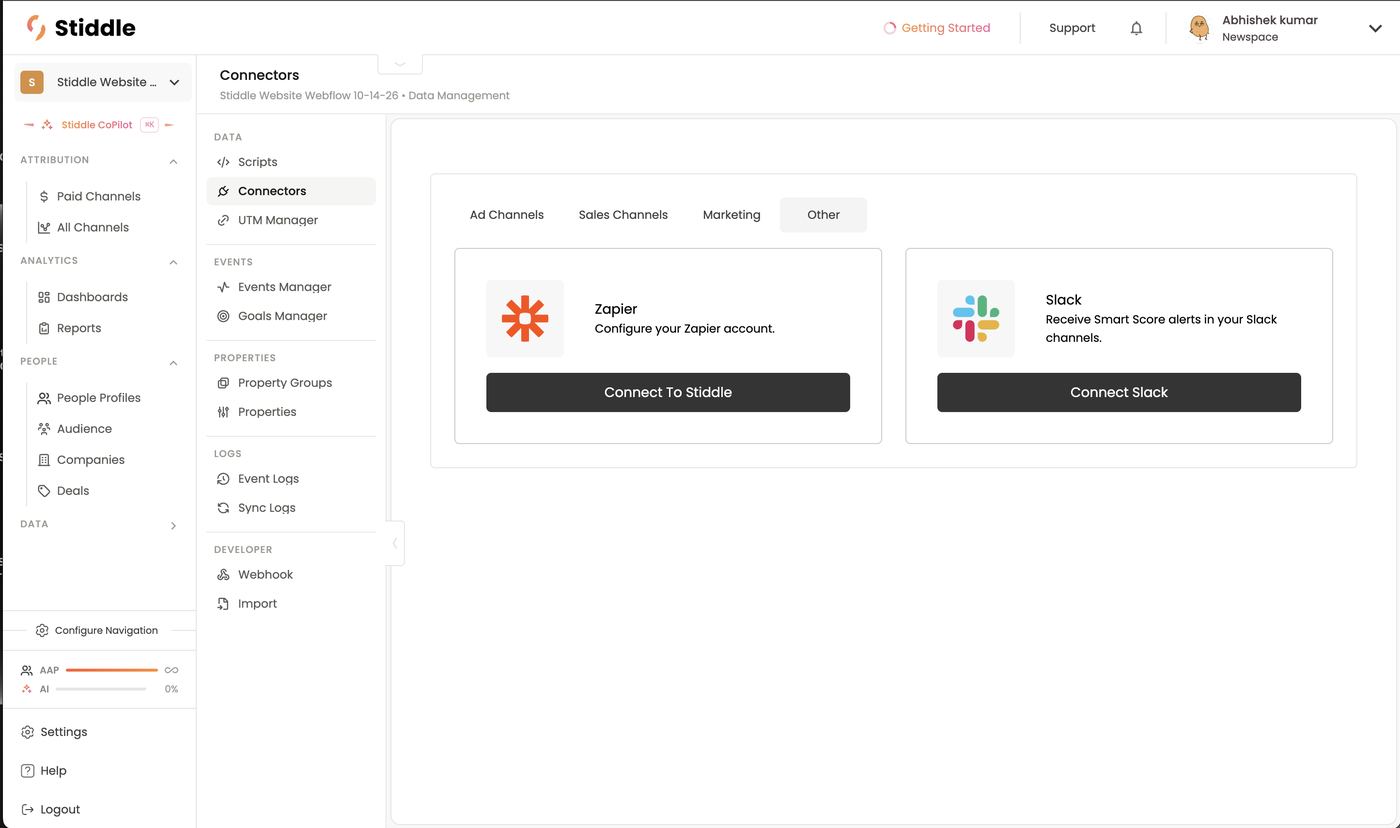
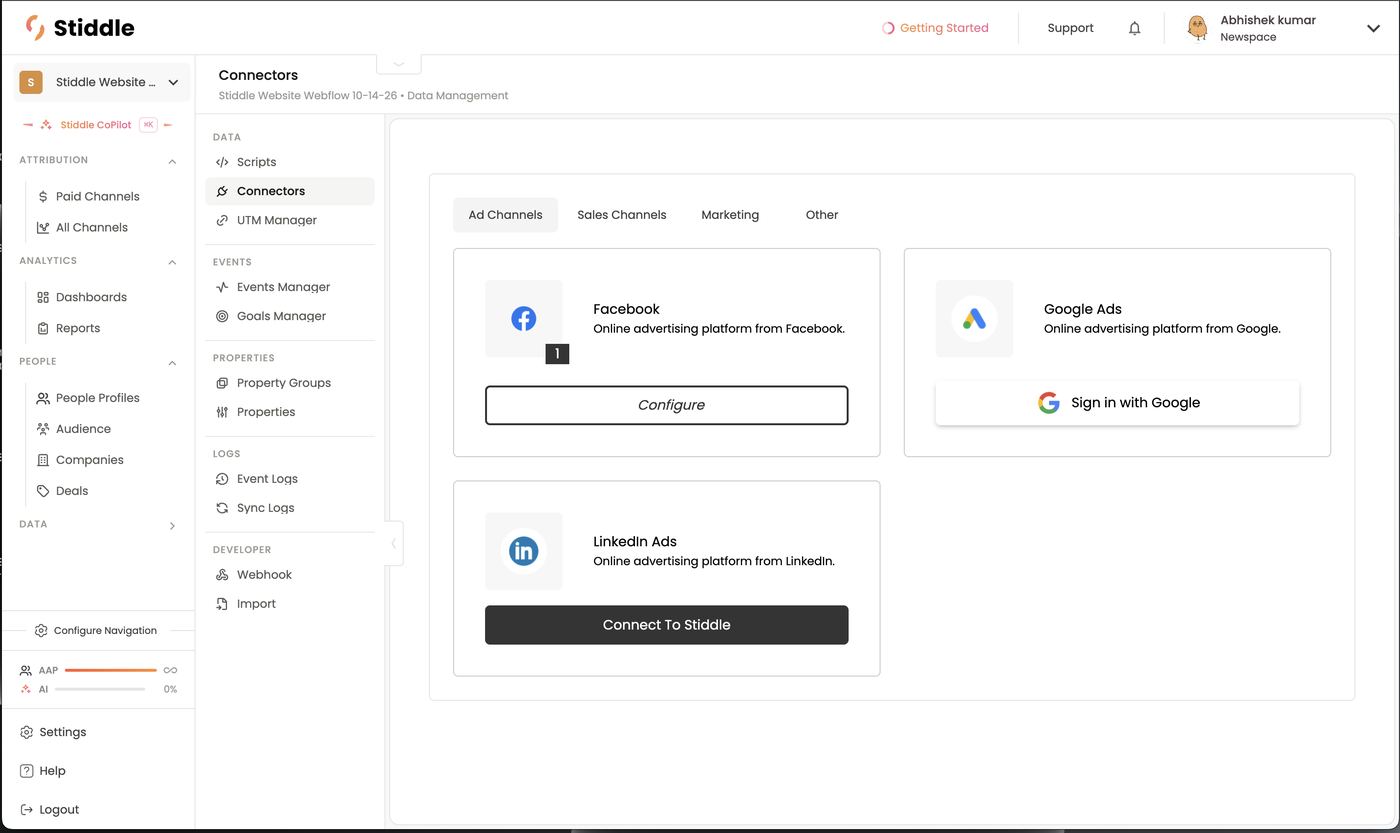
Facebook (Meta Ads)
- On Ad Channels, click Connect To Stiddle on Facebook and log in to Facebook to authorize Stiddle.
- Once connected, the card shows a count badge and a Configure button. Click Configure.
- You’ll see your Facebook user, Last synced, how many ad accounts are connected, a Connected status, and the list of Ad Accounts you can access.
- Click Connect next to the ad account to use in this workspace. It switches to a red Disconnect link once connected.
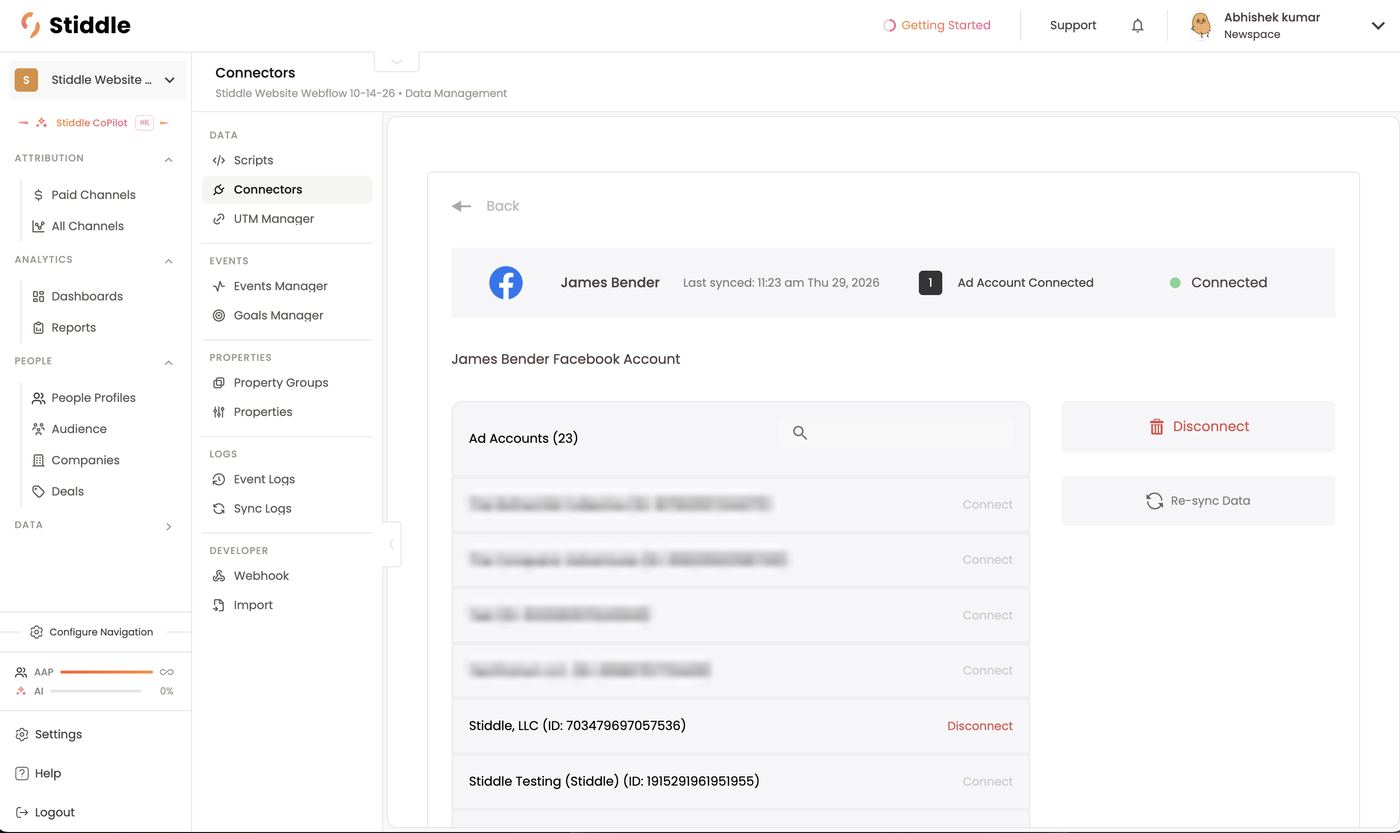

- Open the Facebook connector and click Configure.
- Click the red Disconnect link next to the connected ad account.
- Click the large red Disconnect button (bin icon) on the right, above Re-sync Data, to disconnect the whole integration.
- Click Connect To Stiddle and log in to Facebook again, then reconnect the ad account.
Google Ads
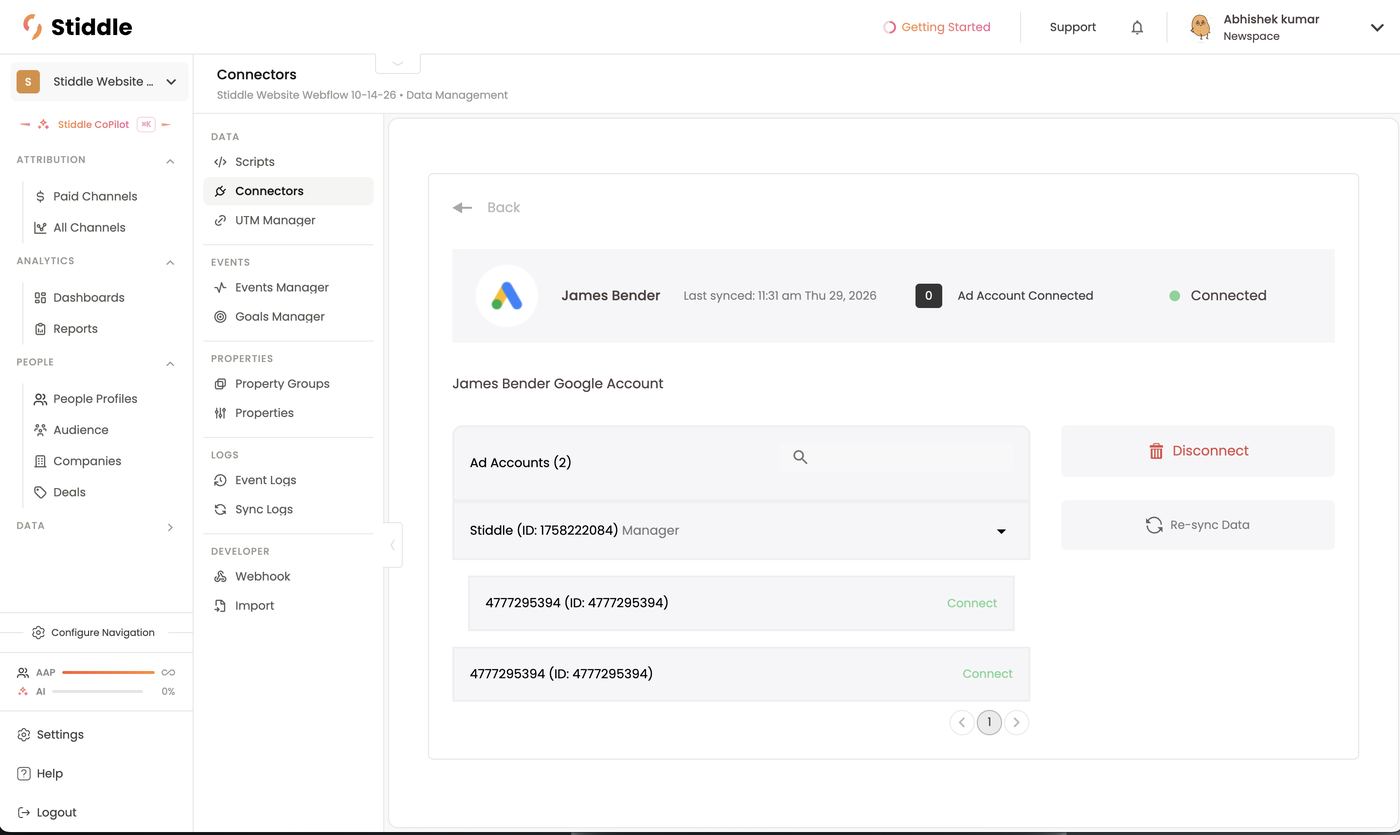
- On Ad Channels, click Sign in with Google and authorize Stiddle.
- Open the connector to see your Google user, Last synced, connected count and the Ad Accounts list.
- Click the green Connect next to the ad account to use.
LinkedIn Ads
Click Connect To Stiddle on LinkedIn Ads, log in, then Configure and Connect the ad account — the same flow as Facebook.Managing a connection
- Re-sync Data — pull the latest data again without disconnecting.
- Disconnect (bin icon) — remove the whole integration.
- Disconnect next to an account — unlink just that ad account.
Shopify
- Install the Stiddle script on your Shopify theme and add the customer events pixel (see The Stiddle script → Shopify above).
- On Sales Channels, click Connect To Stiddle on Shopify.
- Enter your .myshopify.com store URL — not your custom domain — and approve all requested permissions.
- Past orders: stores with fewer than 2,000 orders sync automatically. Larger stores need to upload past orders with a CSV (Data → Import → Orders). Skipping this limits Shopify metrics in analytics and profiles.
- Refunds: set up Stiddle’s refund webhook in Shopify so refunds update profiles, ROAS, conversion value and net profit.
Salesforce
- On Sales Channels, click Connect To Stiddle on Salesforce.
- Enter your Salesforce instance domain (your My Domain URL, not a Lightning URL). To find it, log in to Salesforce, click your profile icon at the top right, and copy the URL shown under your name.
- Log in and approve access with a user who can see the objects and fields you want to sync. Salesforce then shows as Connected.
- Click Configure to set up the connection:
- Create CRM Opportunity events for your pipeline stages in Events Manager, then goals in Goals Manager with the opportunity amount as the conversion value (see Events and Goals above). A common setup: an Open Opp goal for every stage before Closed Won/Lost, plus Closed Won and Closed Lost goals.
- Check People Profiles, Companies, Deals and Sync Logs to confirm records arrived.
HubSpot
Click Connect To Stiddle on HubSpot, log in and approve access. Contacts, companies and deals sync the same way as Salesforce — create CRM Opportunity events and goals for the deal stages you want to track.Zapier
Zapier moves data both ways: send events into Stiddle (e.g. Facebook Lead Form submissions, Calendly bookings, CallRail calls) or send Stiddle profiles and attribution data out to other tools.- On the Other tab, click Connect To Stiddle on Zapier and Copy API Key.
- In Zapier, click Create → Zaps and choose a trigger or action app.
- Search for Stiddle, pick a trigger event (e.g. Create Profile, which fires when a new profile is created in Stiddle), and under Account → Create a new account paste the API key.
- Test Trigger to confirm live data loads, then add an action — e.g. Google Sheets → Create Spreadsheet Row — map the fields, Test Step and Publish.
Slack
Click Connect Slack on the Other tab and pick a workspace and channel. Smart Score alerts (e.g. a record entering 🔥 Very Hot) are then posted there — see Smart Scores → Thresholds & alerts.UTM tracking (Data → UTM Manager)
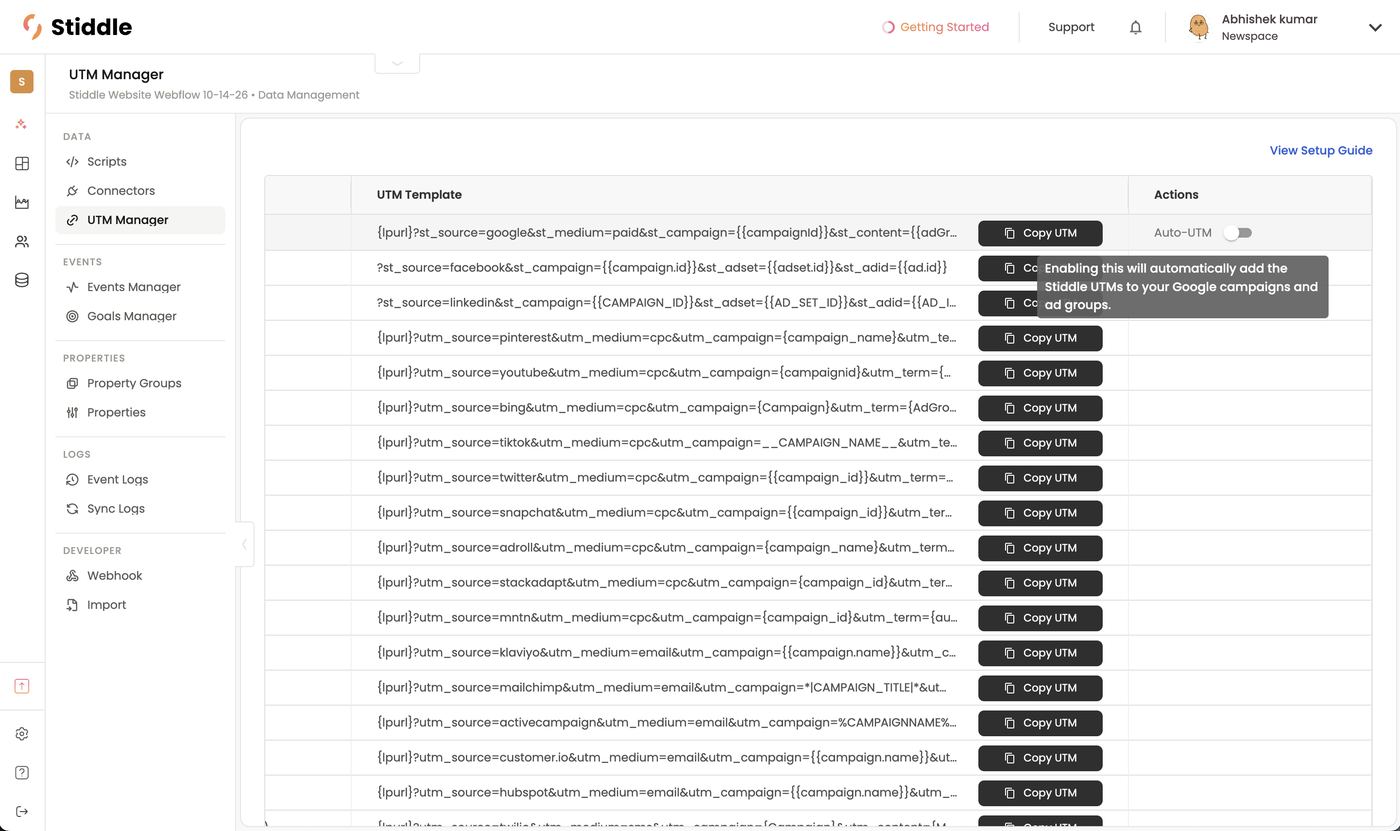
UTMs tell Stiddle which campaign, ad set and ad each click came from, so ad-level attribution works. UTM Manager lists a ready-made template for every common source — Google, Facebook and LinkedIn ads, Pinterest, YouTube, Bing, TikTok, Twitter, Snapchat, AdRoll, StackAdapt, MNTN, Klaviyo, Mailchimp, ActiveCampaign, Customer.io, HubSpot, SMS (Twilio) and more. Click Copy UTM and paste it into the platform. View Setup Guide links to the full article.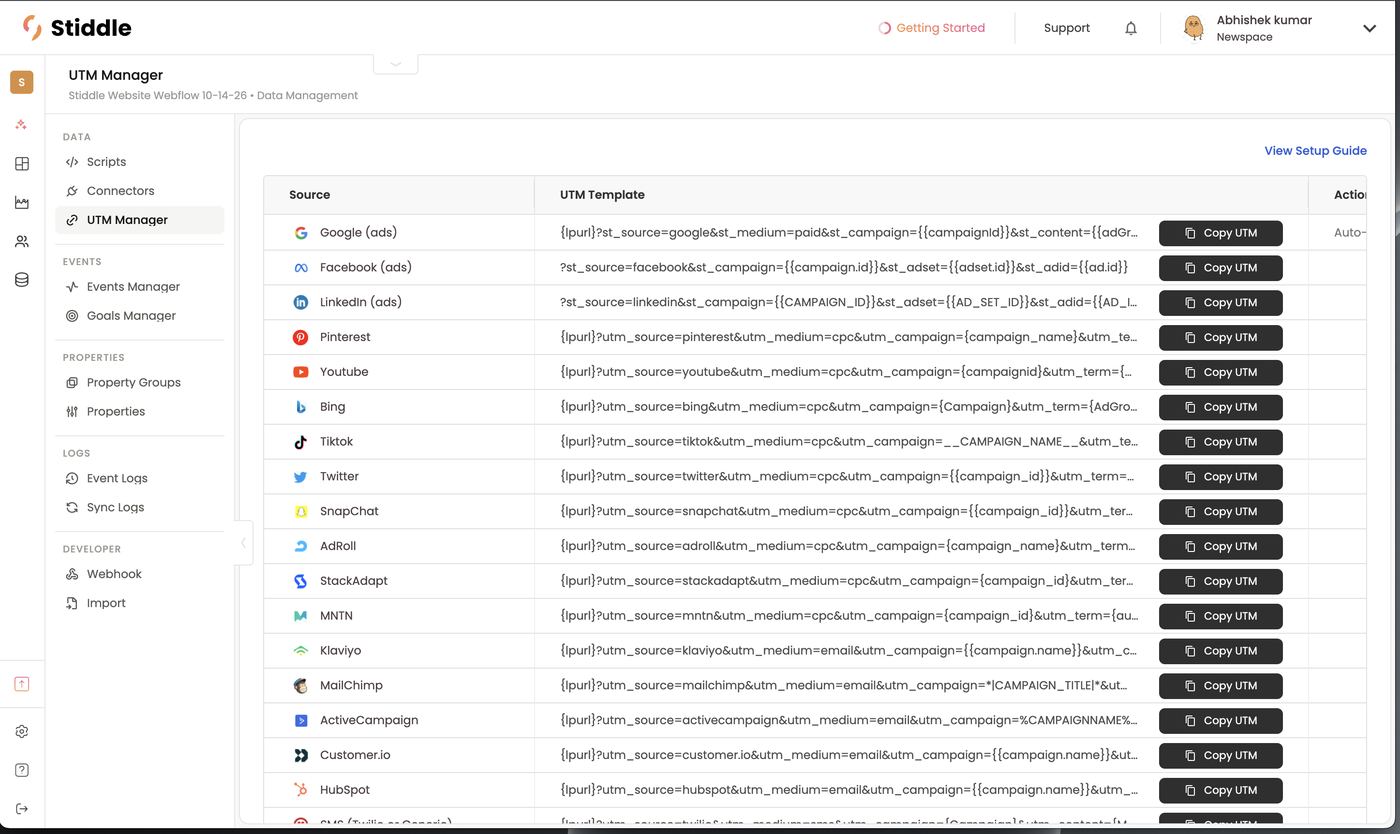
st_source, st_campaign, st_adset, st_adid) and the platforms’ dynamic ID values. Stiddle needs these exact templates to match clicks to campaigns, ad sets and ads — don’t swap them for your own UTMs.
Append, don’t replace. If your ads already have UTMs, add the Stiddle parameters to the end with & — e.g. ?utm_source=meta&utm_campaign=spring&st_source=facebook&st_campaign={{campaign.id}}…. The st_ prefix avoids clashing with existing UTMs. Don’t use the same parameter name twice in one URL.
Google Ads
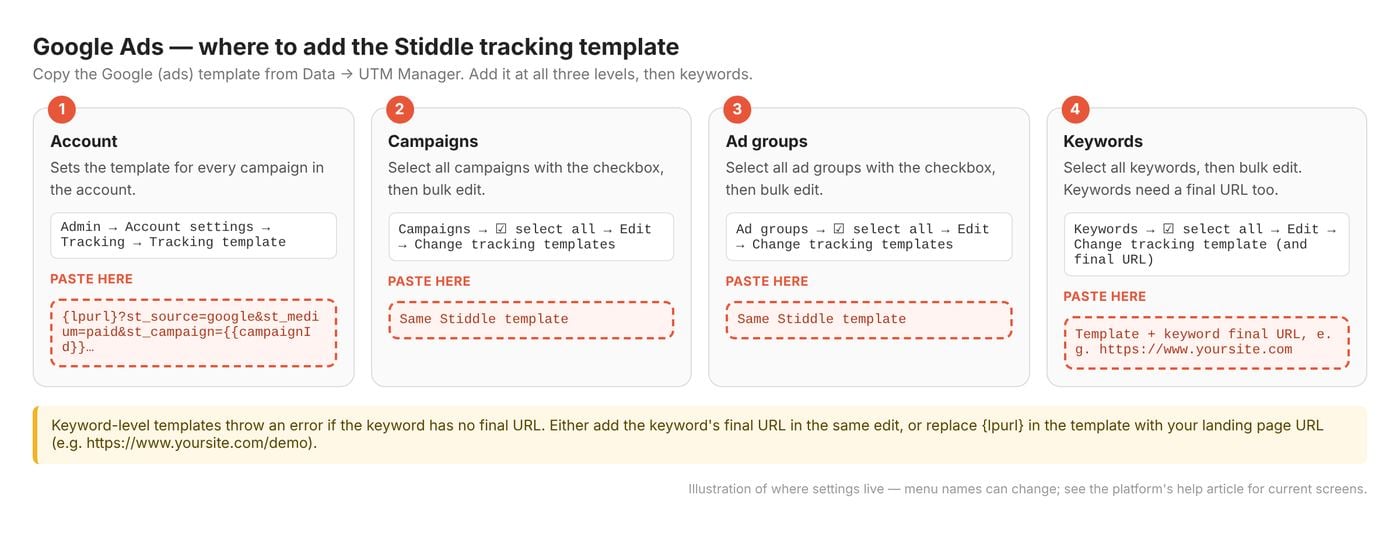
Copy the Google (ads) template and add it as a tracking template in Google Ads at each level. The most specific level wins (keyword → ad → ad group → campaign → account), so missing a level can break attribution for ads that have their own template.- Account: Admin → Account settings → Tracking → Tracking template, paste and save.
- Campaigns: on the Campaigns view, tick the select-all checkbox, click Edit → Change tracking templates, paste and apply.
- Ad groups: on the Ad groups view, tick select all, Edit → Change tracking templates, paste and apply.
- Keywords: on the Keywords view, tick select all, Edit → Change tracking template. Keywords also need a final URL: add the keyword’s final URL in the same edit, or replace
{lpurl}in the template with your landing page URL (e.g.https://www.yoursite.com/demo). Without one, Google shows an error.
Meta Ads
Copy the Facebook (ads) template and paste it into each ad’s URL parameters field:- In Ads Manager, open the Ads tab and tick every ad to tag (bulk edit works).
- Click Edit and scroll to the Tracking section.
- Paste the template into URL parameters — after any existing parameters, joined with
&. - Publish.
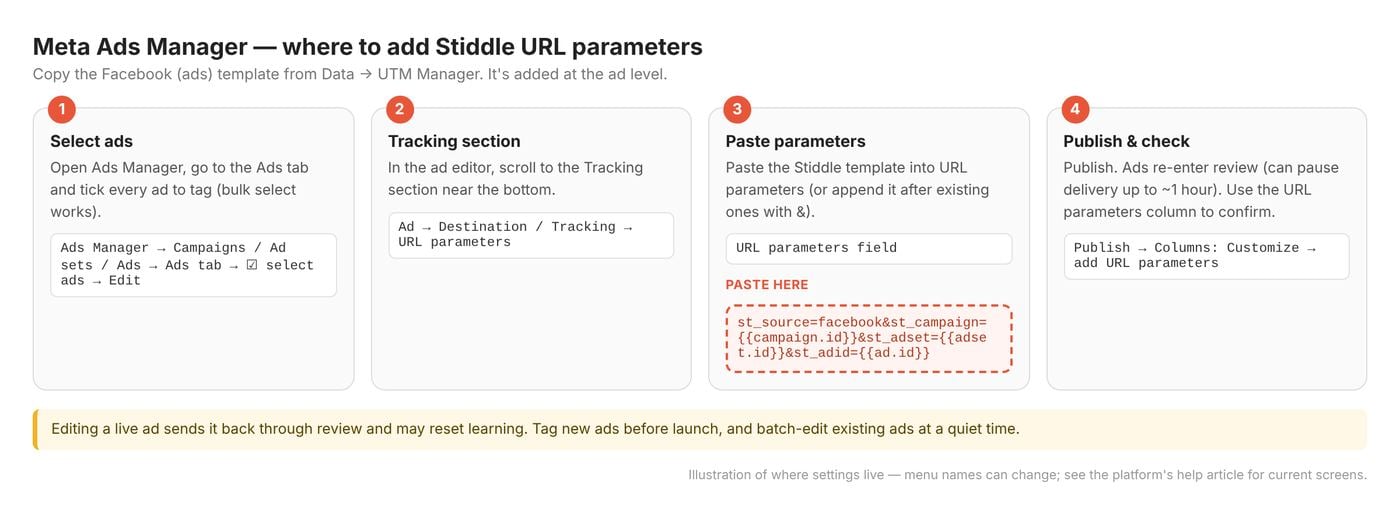
LinkedIn Ads
Copy the LinkedIn (ads) template and add it as URL tracking parameters on your campaigns. LinkedIn applies campaign parameters to every ad in the campaign, including running ones, without re-review. It keeps static UTMs already on your ads and adds the new ones after them — keep parameter keys unique.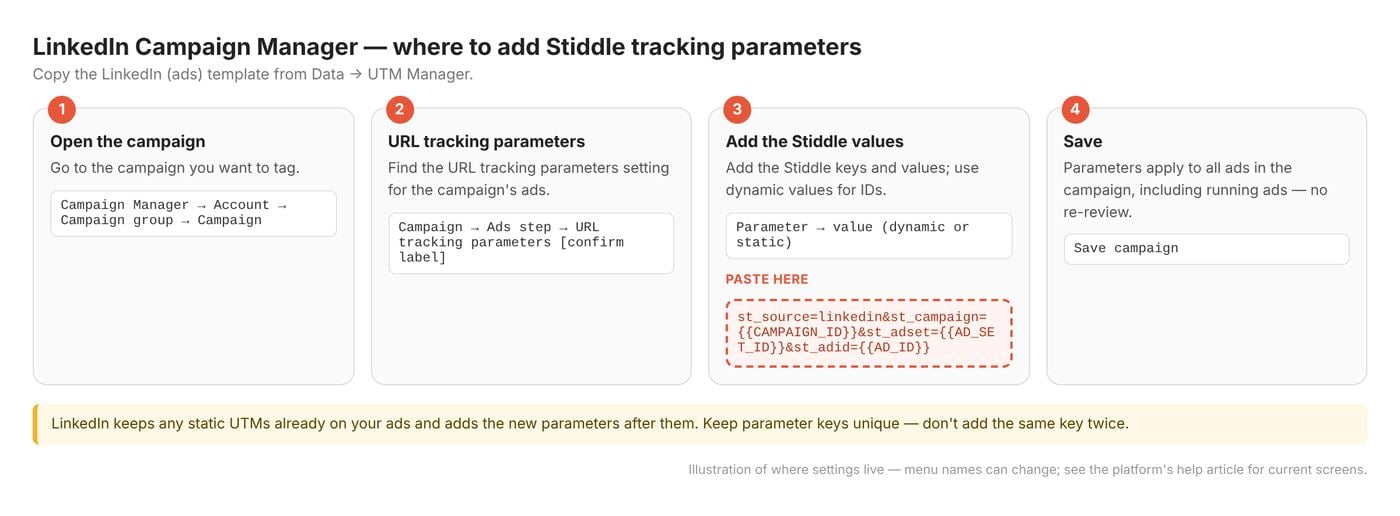
Everything else
For any other ad, email or SMS platform, copy its template from UTM Manager. To track something that isn’t listed — a podcast, a QR code, a partner link — use your own custom UTMs: lowercase, channel-basedutm_source (e.g. podcast) and utm_medium (e.g. cpc, email, paid_social), with utm_campaign, utm_content and utm_term for campaign, creative and keyword. Paid traffic should use utm_medium=cpc, email utm_medium=email, and direct traffic no UTMs. Don’t mix names and IDs within one platform.
To test, click one of your ads (or open its preview link) and check the source and campaign appear in All Channels within minutes.
Full guide: Setting up UTMs for ad tracking
Connector and UTM FAQs
My Facebook data stopped updating. The 60-day connection probably expired — fully disconnect and reconnect. I can’t see my ad accounts after connecting. Wait a minute, then hard refresh the page. Can I connect two ad accounts from the same platform? One per workspace by default; use separate workspaces or ask Support. Spend shows in Paid Channels but no campaigns or ads. The Stiddle UTMs probably aren’t on your ads yet — add the templates above. Google says my keyword template is invalid. Add a final URL to the keyword, or replace{lpurl} with your landing page URL.
Webhooks (Data → Developer → Webhook)
Webhooks let any tool send data into Stiddle in real time — a CRM without a native connector, a form tool, an enrichment provider, your own backend. Each endpoint listens for the event types you choose, and every request is signed so Stiddle can verify it. Available event types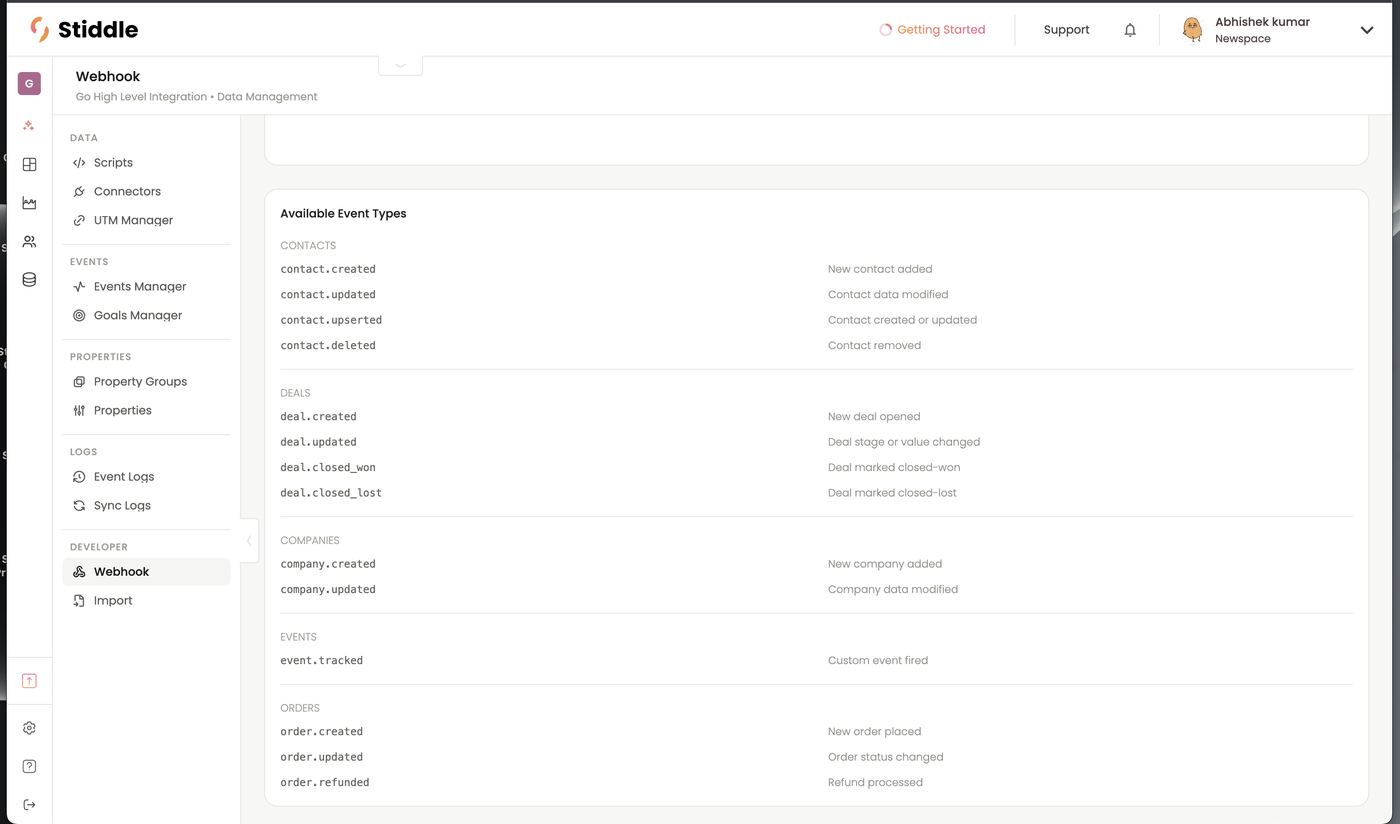
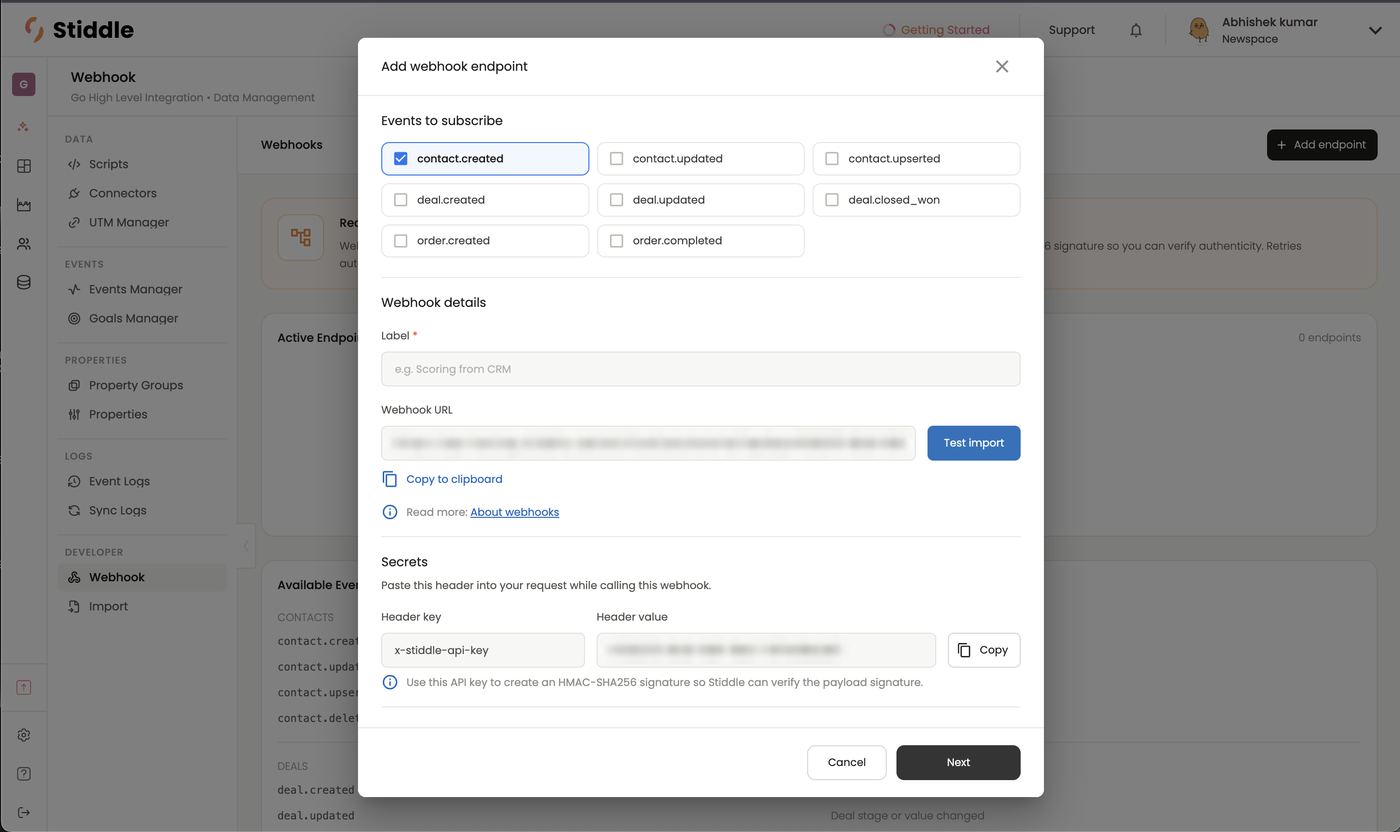
- Click + Add endpoint.
- Under Events to subscribe, tick the event types this endpoint accepts.
- Enter a Label — e.g. “Scoring from CRM”.
- Copy the Webhook URL (Copy to clipboard) and paste it into the sending tool. Click Test import to send a sample and check it arrives.
- Under Secrets, add the header to the sender’s requests: Header key
x-stiddle-api-keyand the Header value shown. Use the same key to sign the payload with HMAC-SHA256 so Stiddle can verify it. - Click Next to map properties.
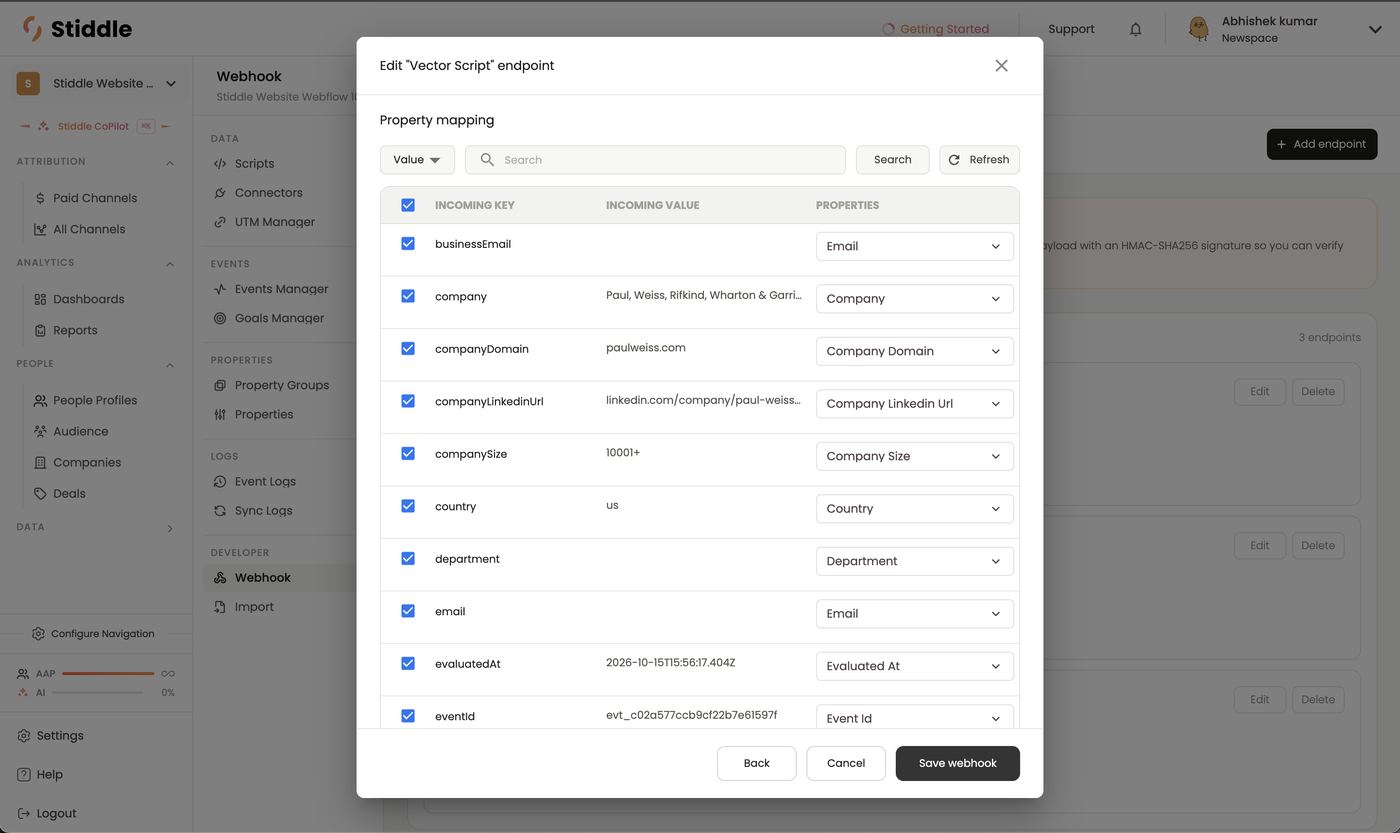
- Tick it to import it, or untick to skip it.
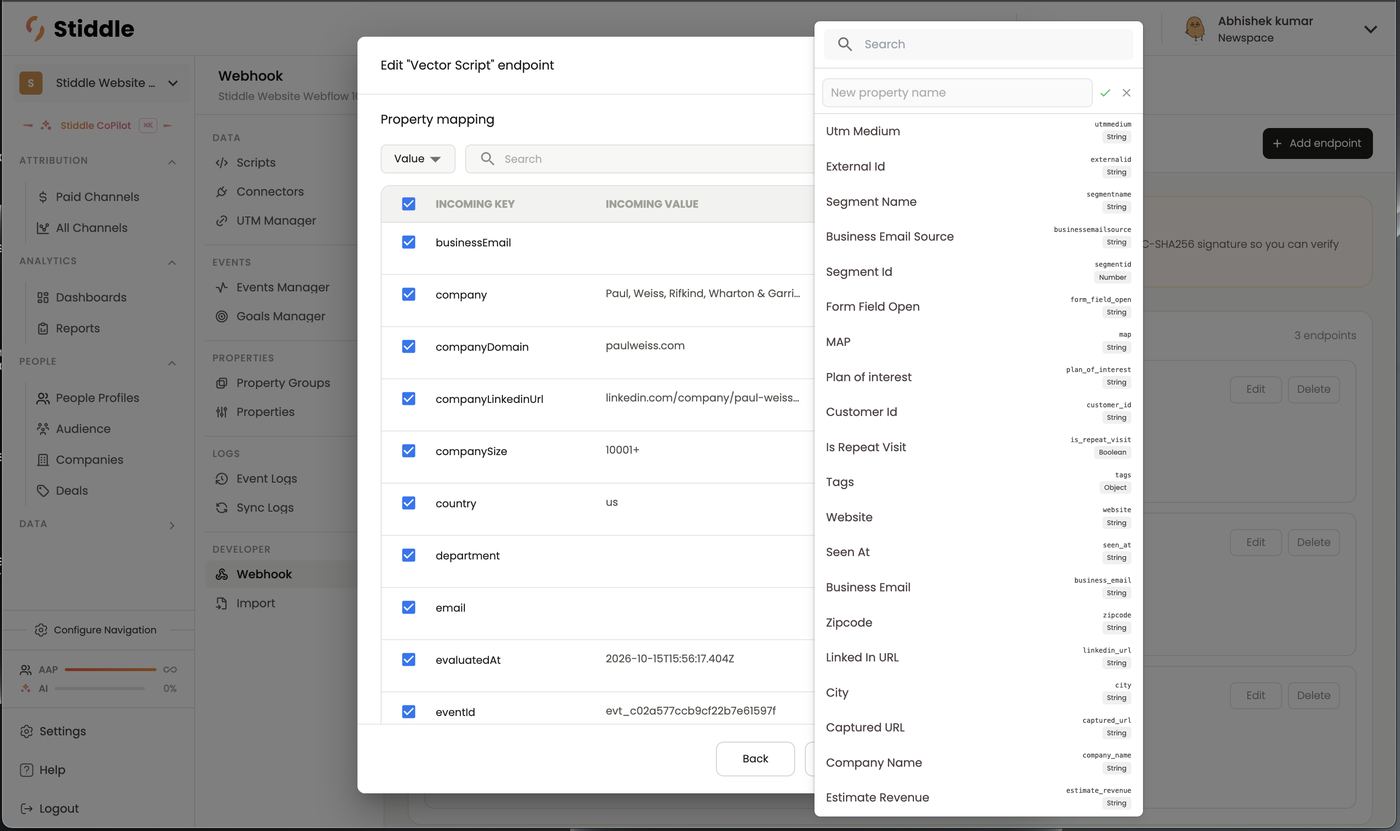
- Pick the Stiddle property it maps to under Properties — search existing ones (Email, Company, Company Domain, Country, Department…) or type a New property name to create one.
- Refresh re-reads the latest payload if the sender’s fields changed.
businessEmail → Email, company → Company, companyDomain → Company Domain, companyLinkedinUrl → Company Linkedin Url and companySize → Company Size.
Import (CSV upload)
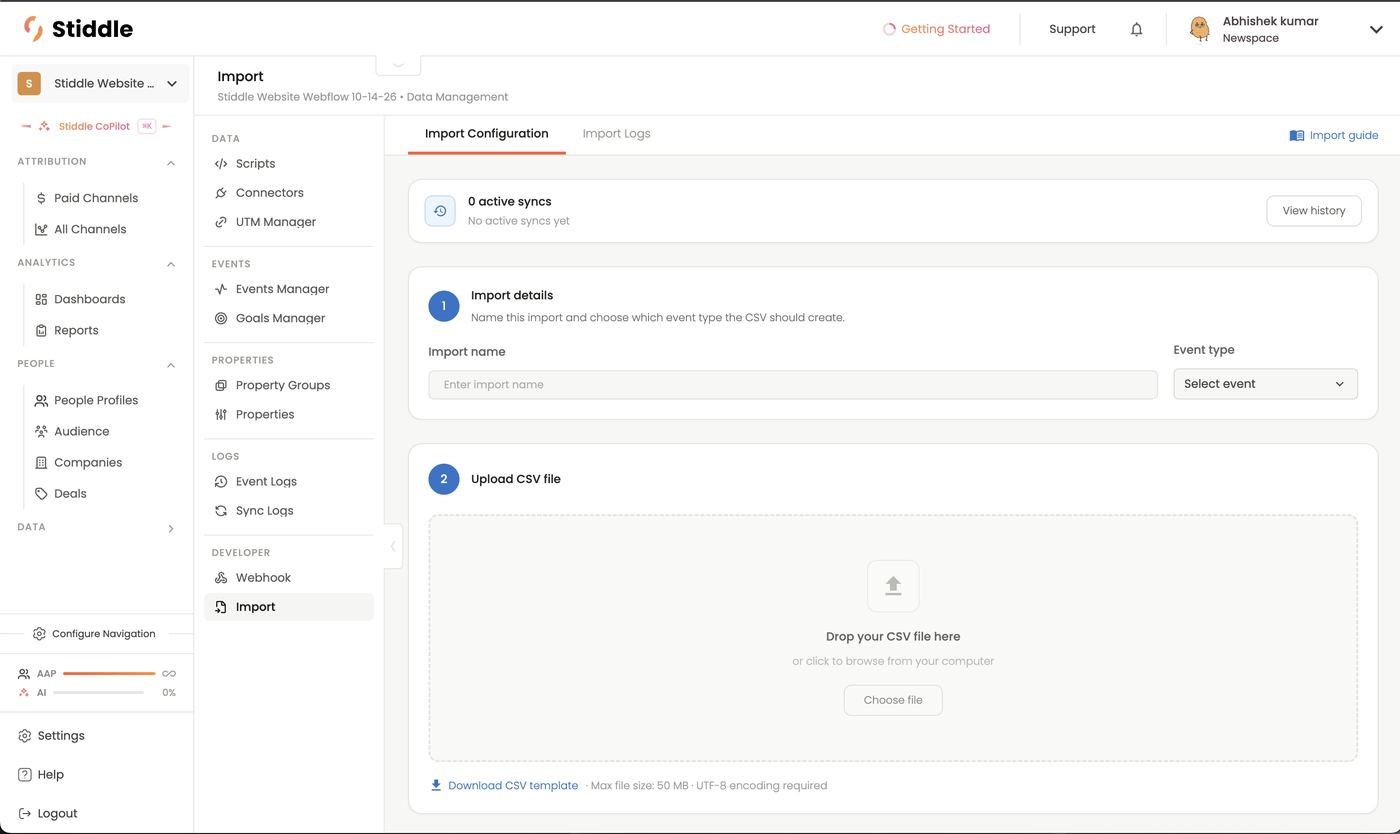
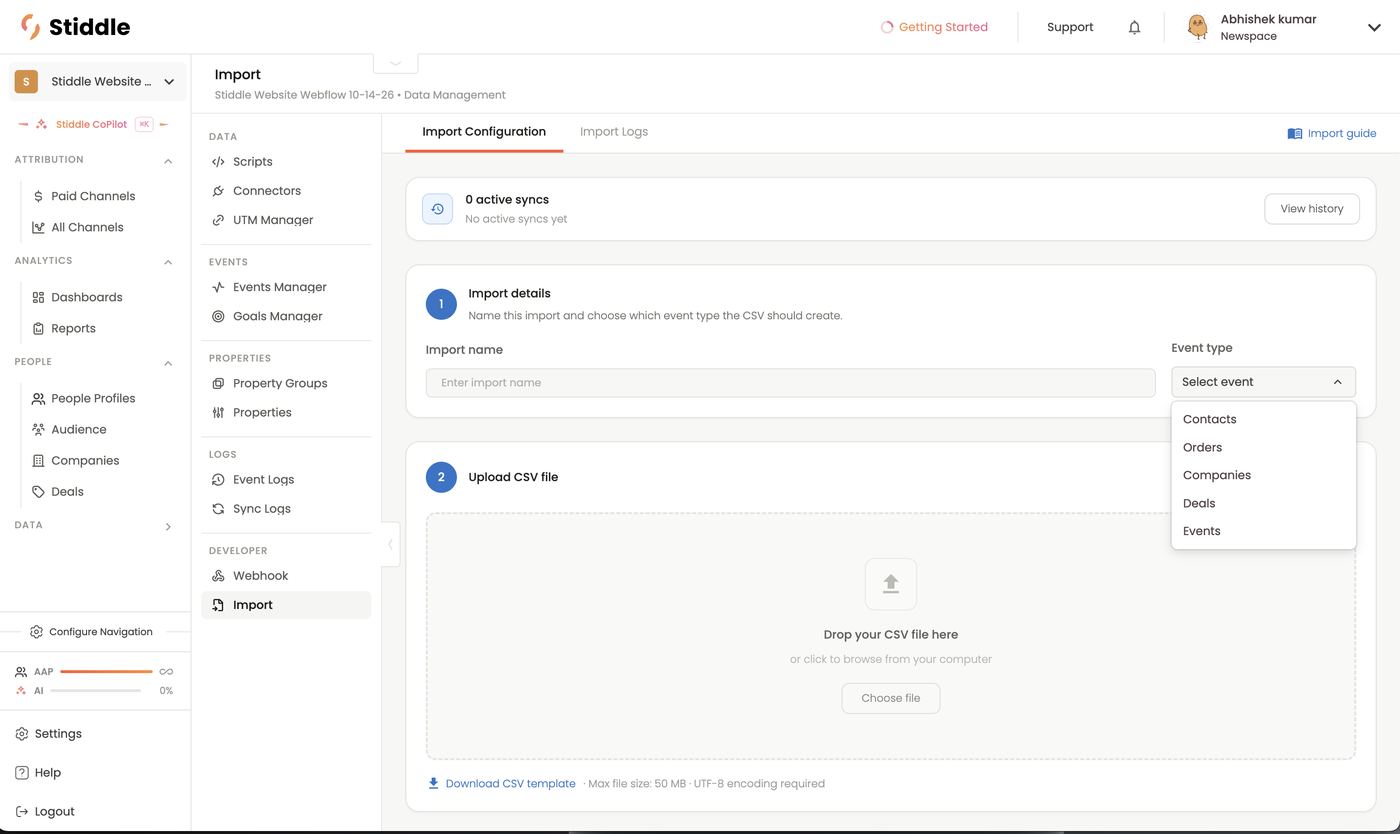
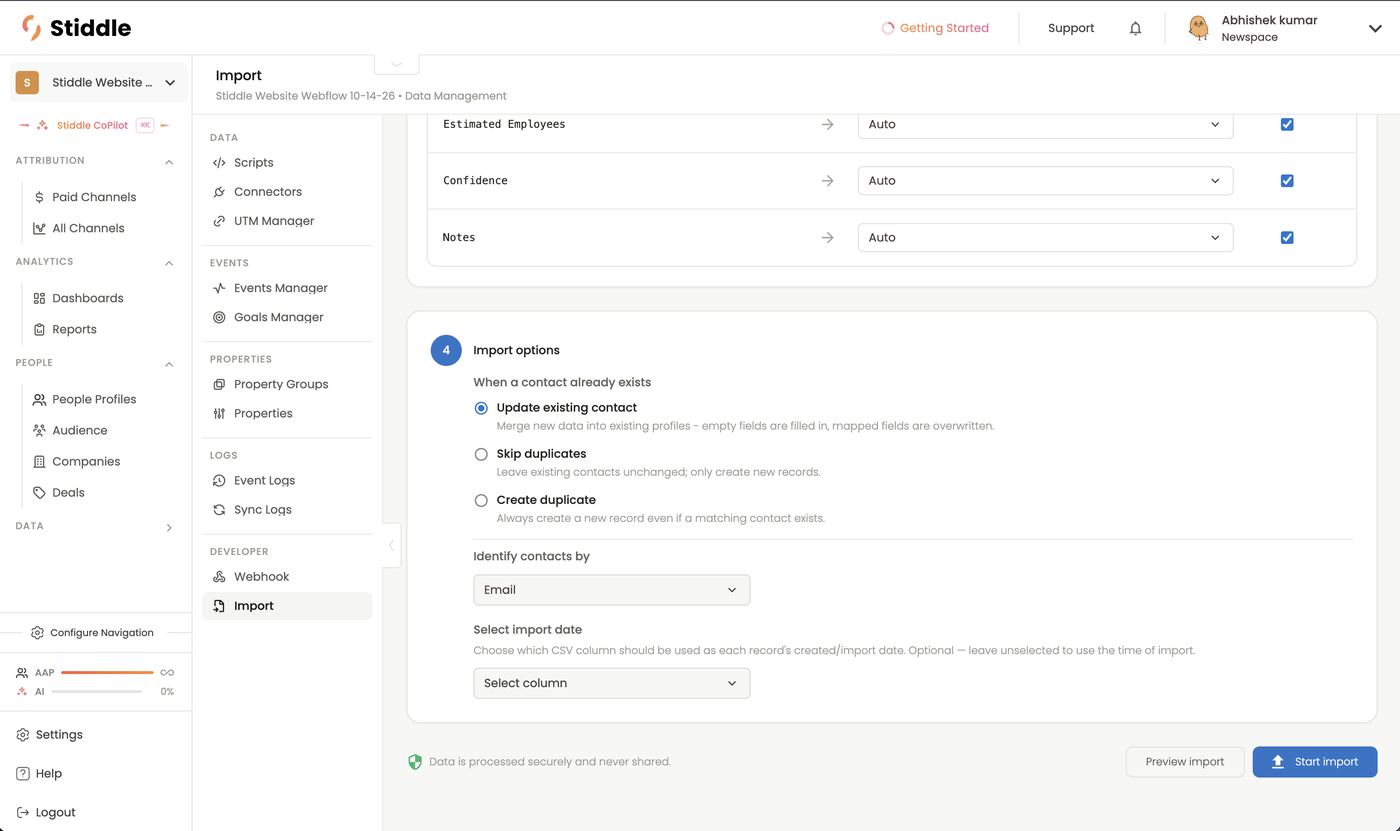
Import loads historical or offline data from a CSV — contacts, companies, deals, orders or events. Use it for a conference attendee list, a target account list, past orders, or CRM history you don’t sync.- In Data → Developer → Import, open Import Configuration.
- Import details: enter an Import name and pick the Event type the CSV creates — Contacts, Orders, Companies, Deals or Events.
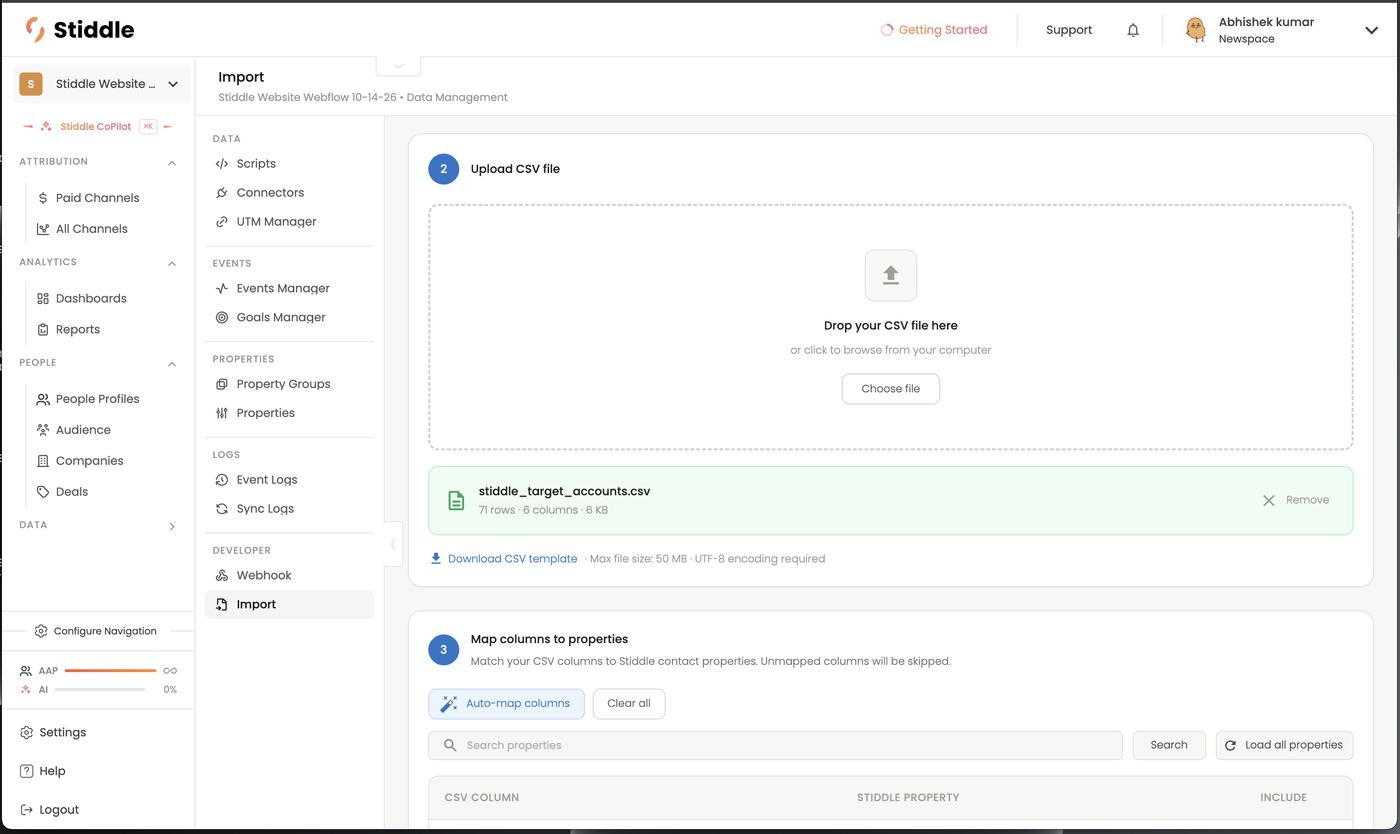
- Upload CSV file: drag the file in or click Choose file. Stiddle shows the file name, rows, columns and size. Max 50 MB, UTF-8 encoding. Download CSV template gives you the expected format.
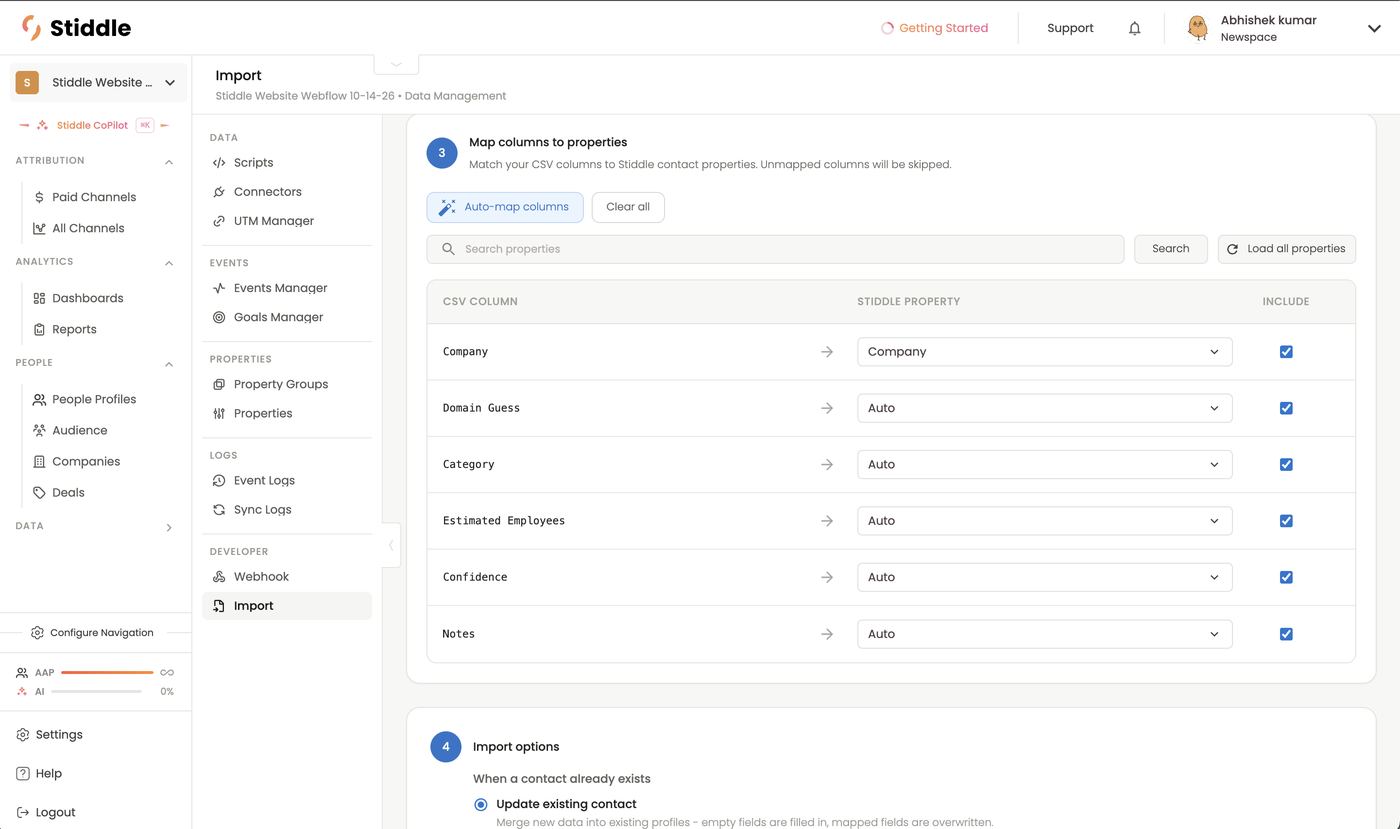
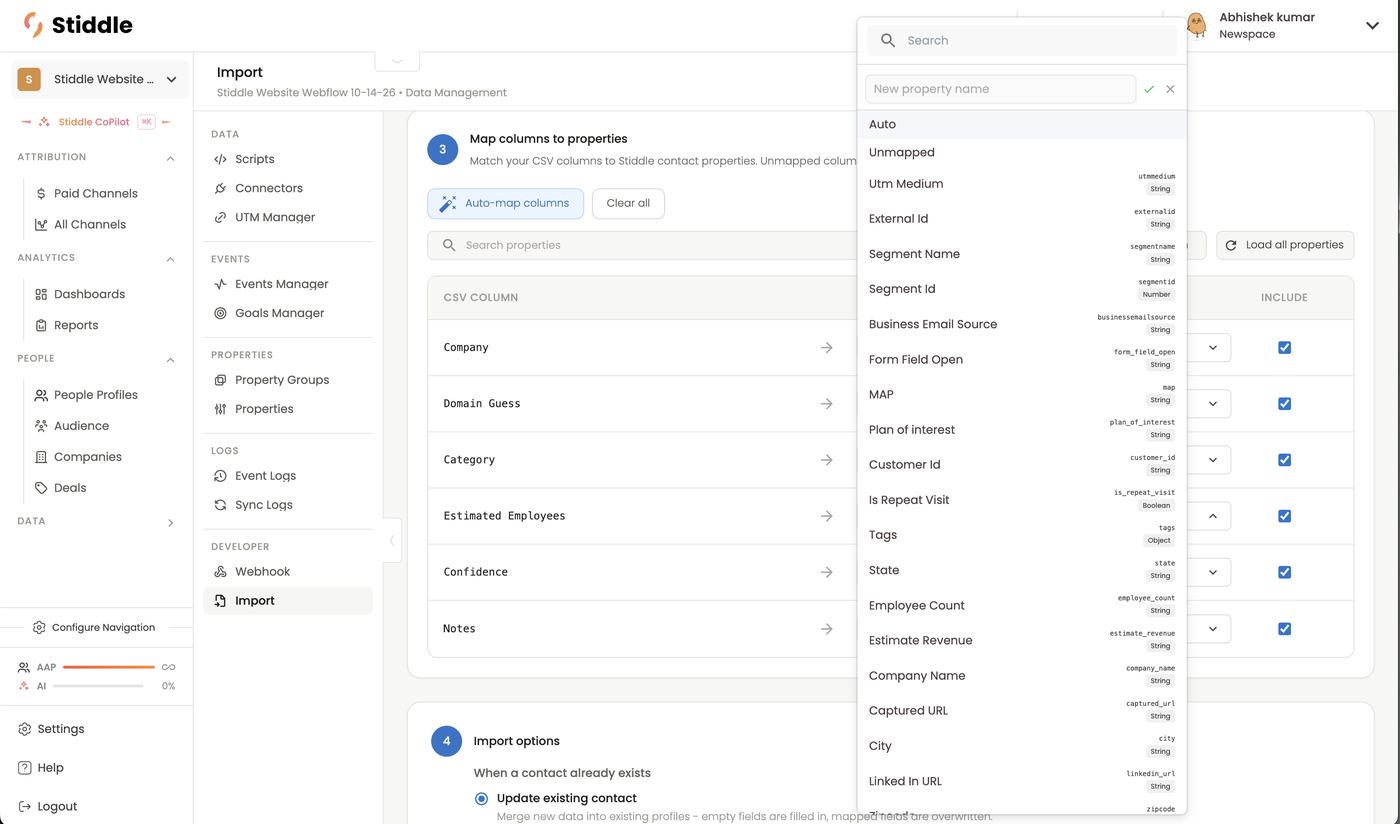
- Map columns to properties: each CSV column gets a Stiddle property. Auto-map columns matches them for you; Auto lets Stiddle detect the field; pick Unmapped or untick Include to skip a column. Search properties, or type a New property name to create one. Load all properties shows every property; Clear all resets mapping.
- Import options:
- When a contact already exists: Update existing contact (merge — empty fields are filled, mapped fields overwritten), Skip duplicates (only create new records) or Create duplicate (always create a new record).
- Identify contacts by — the field used to match existing records, e.g. Email.
- Select import date — optionally pick a CSV column to use as each record’s created date. Leave it empty to use the import time. Set this for historical data so events land on the right date in journeys and attribution.
- Click Preview import to check, then Start import.
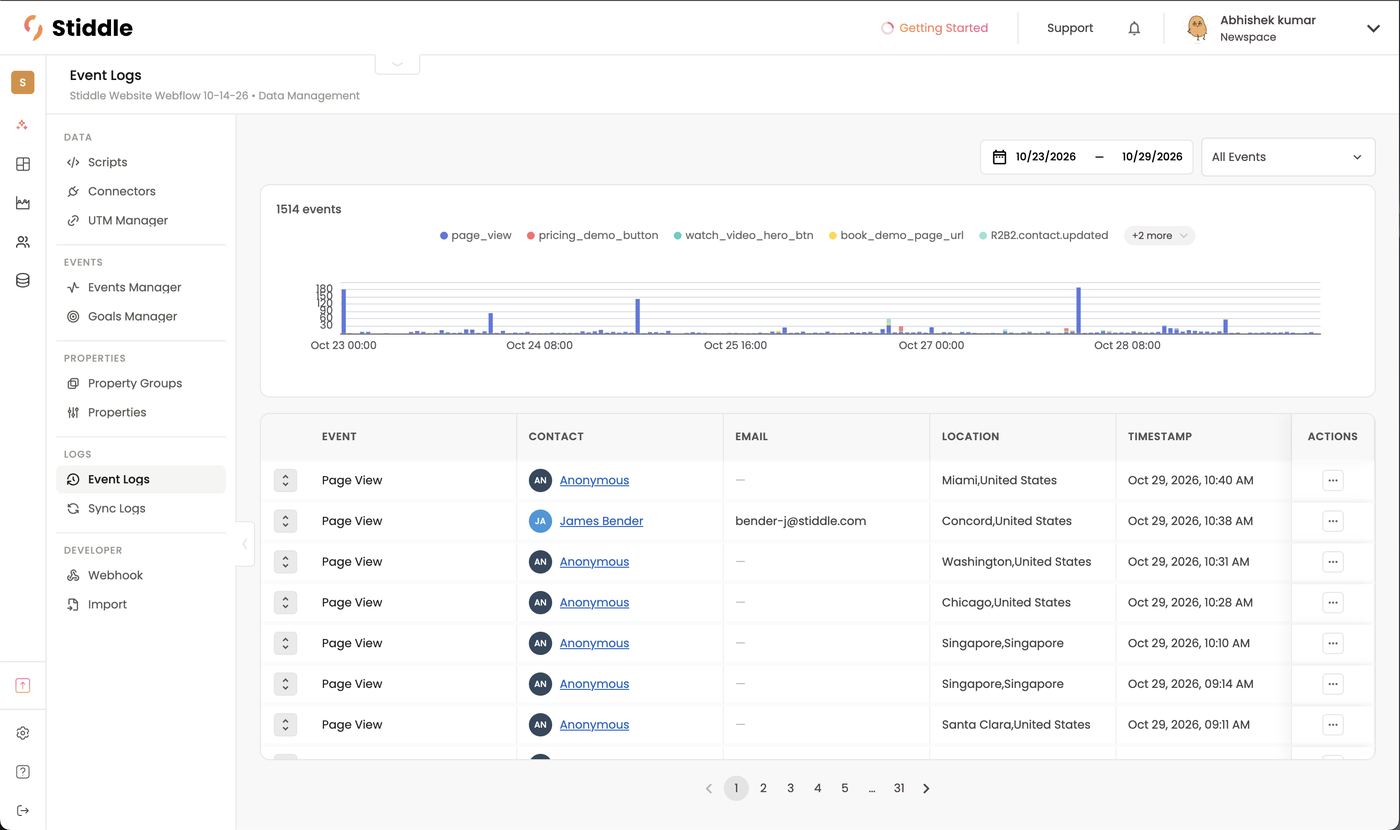
Event Logs
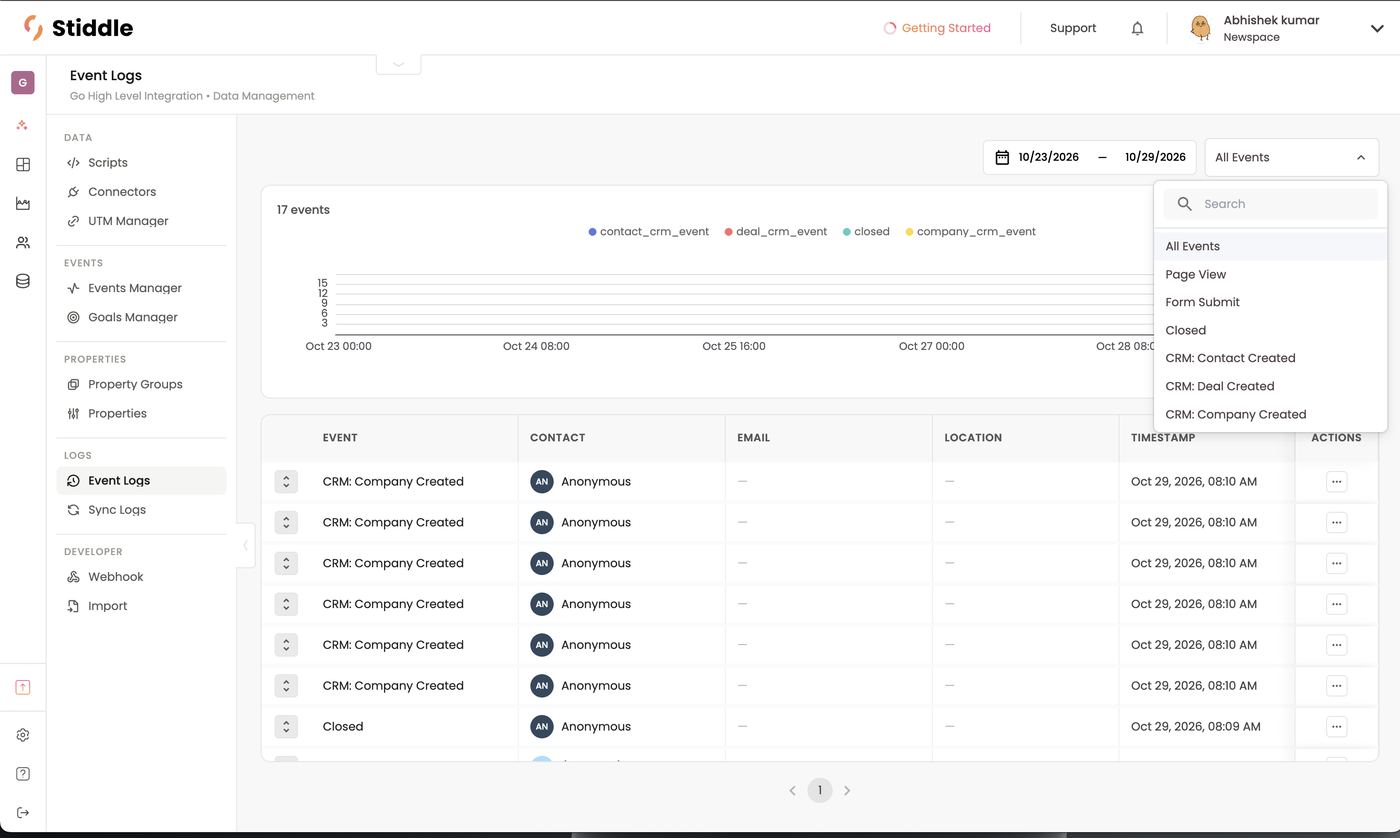
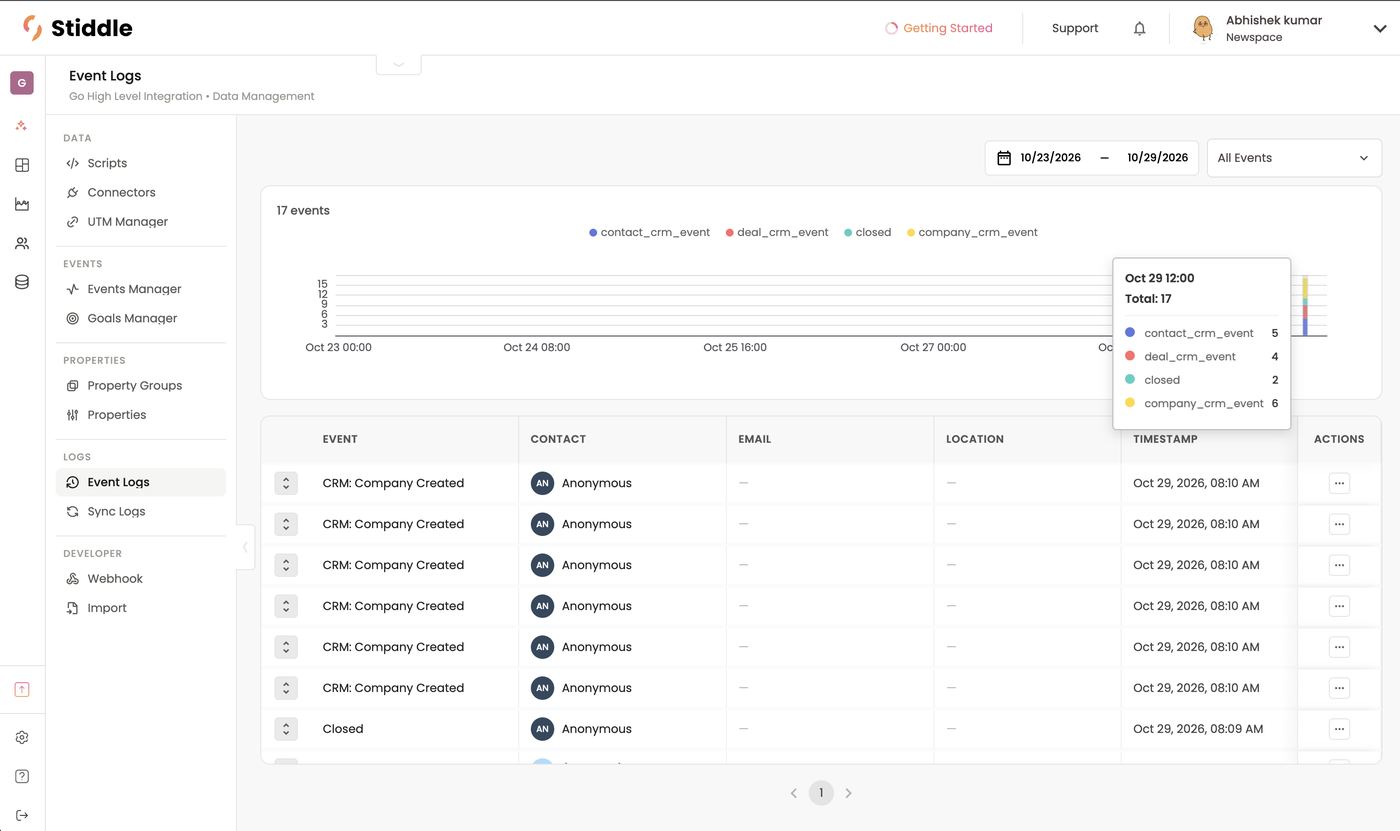
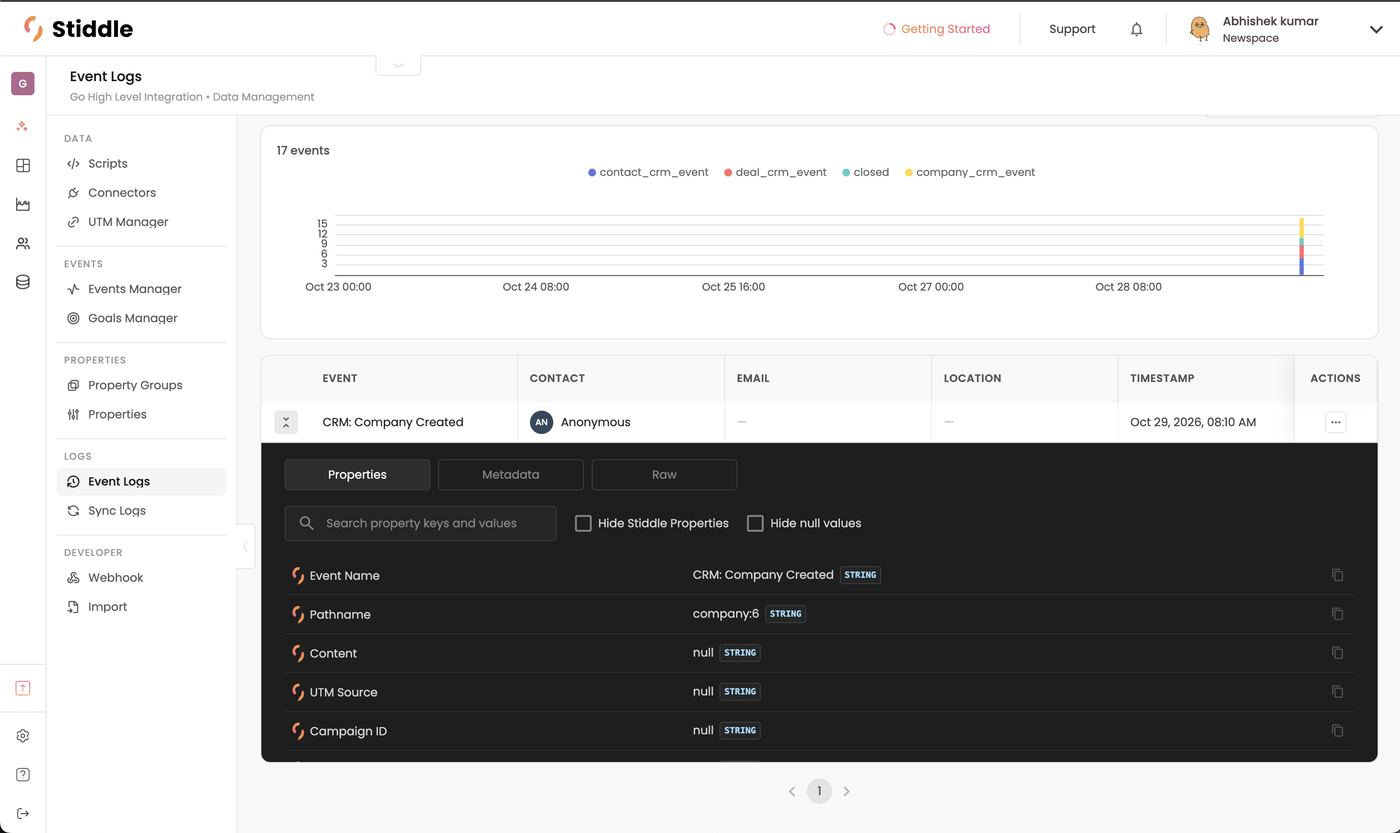
Event Logs is the live feed of every event Stiddle receives — page views, form submits, CRM events, webhooks and imports. Use it to check new tracking is working.- Set the date range and filter to one event (All Events, Page View, Form Submit, CRM: Contact Created…).
- The chart shows event volume over time by type; hover a bar for counts.
- The table lists Event, Contact (click to open the profile), Email, Location and Timestamp.
- Expand a row to see its Properties, Metadata and Raw payload — the fastest way to check a property arrived with the right value.
Sync Logs
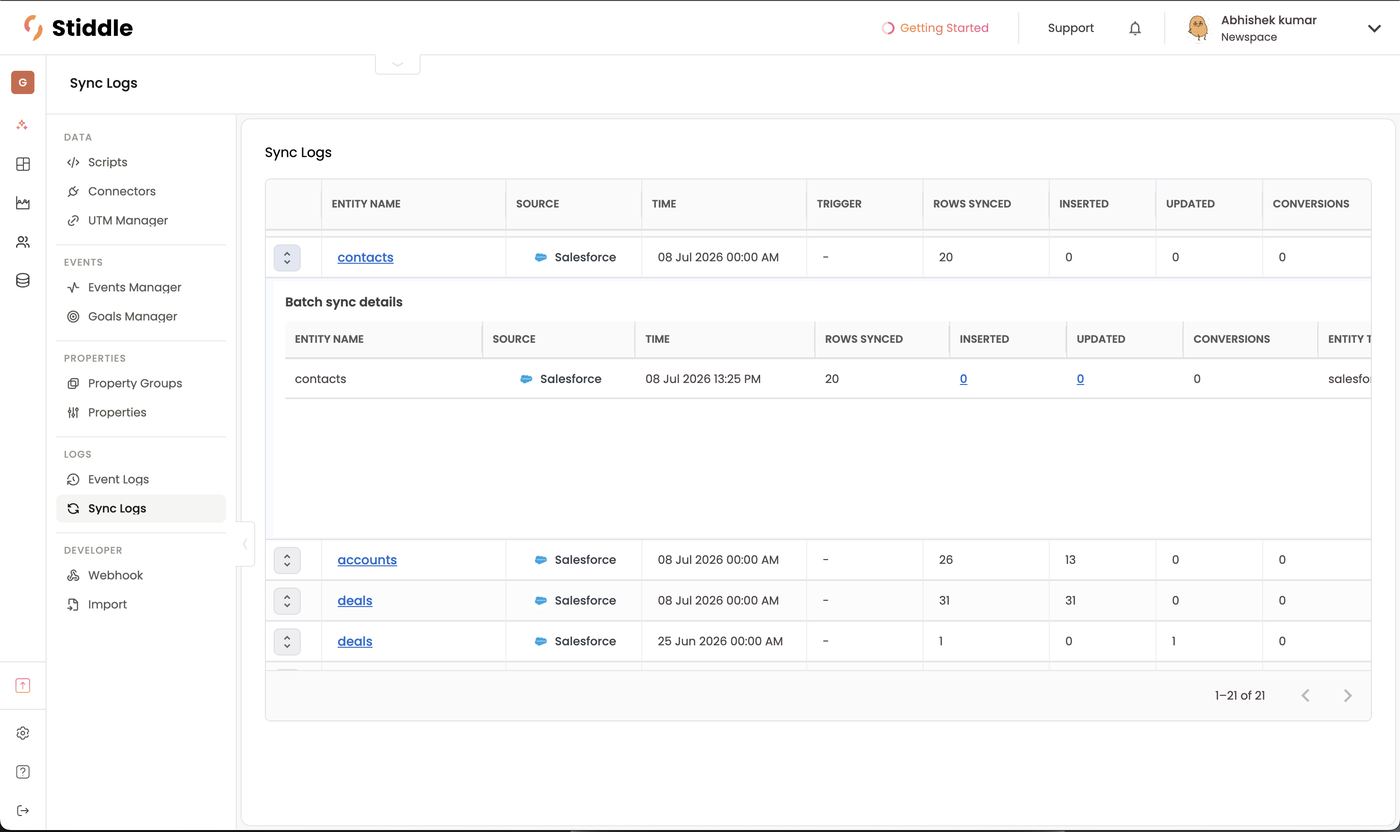
Sync Logs shows every sync from your connected integrations — CRMs like Salesforce and HubSpot, ecommerce platforms and other connectors. Each row shows Entity name (contacts, accounts, deals, orders), Source, Time, Trigger, Rows synced, Inserted, Updated and Conversions. Expand a row for Batch sync details, and click the Inserted or Updated count to see the records. Use it to confirm a CRM sync ran and how many records changed — e.g. 31 Salesforce deals inserted on Jul 8.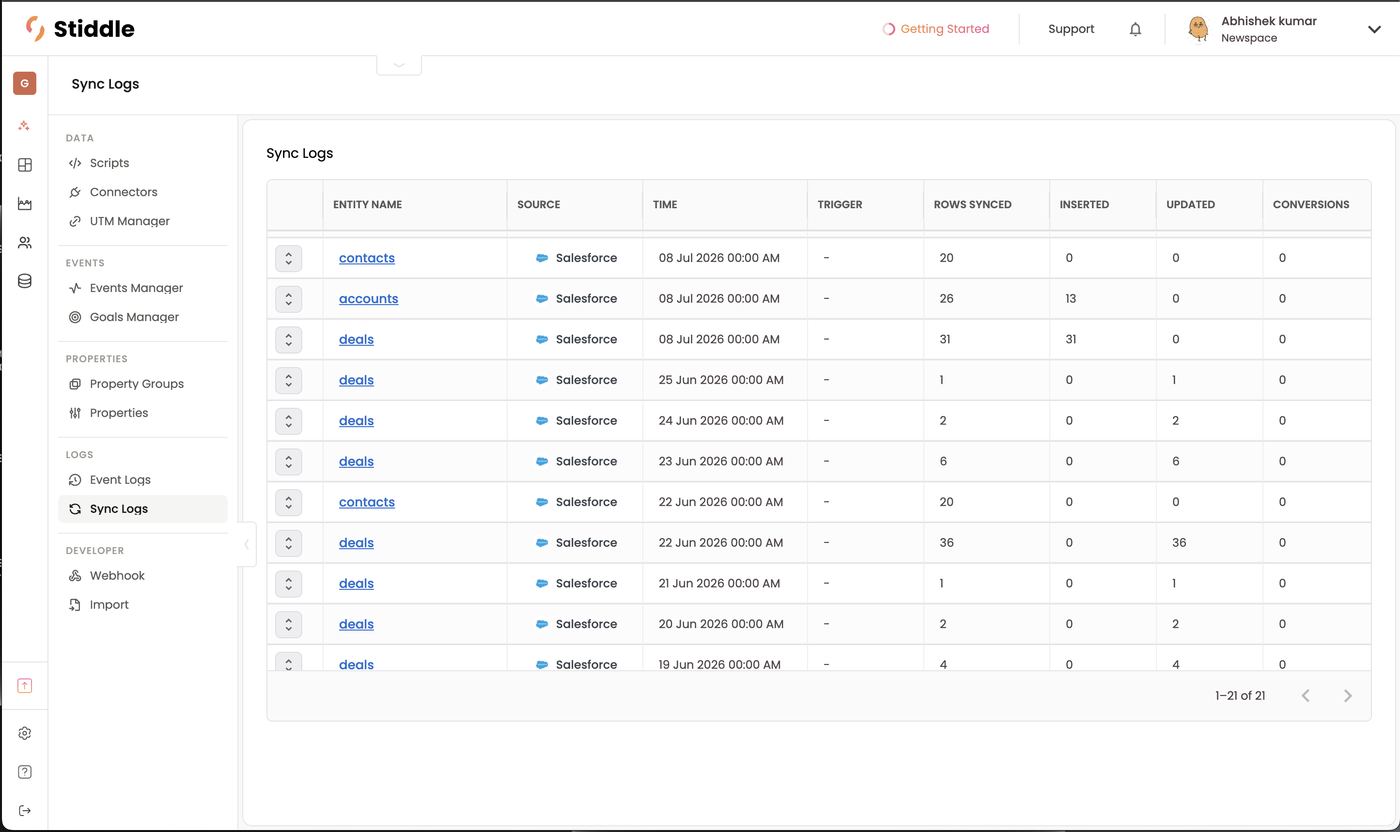
Data FAQs
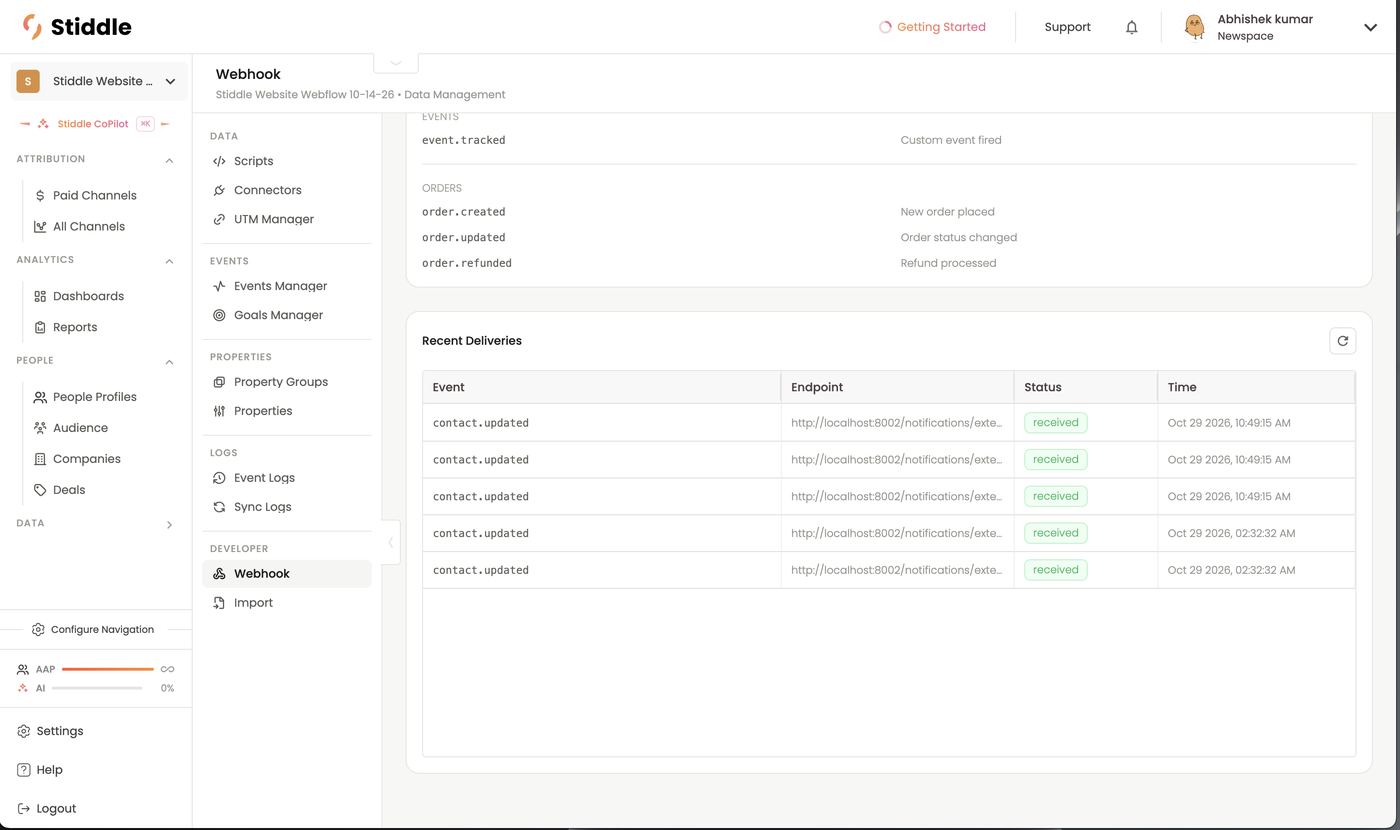
My webhook data isn’t showing up. Check Recent deliveries for the request, then Event Logs for the event. If it’s delivered but properties are empty, re-check the mapping. Should I use a webhook or an import? Webhooks for ongoing, real-time data. Imports for one-off or historical files. My CRM numbers look off. Check Sync Logs for the last successful sync and the rows inserted and updated.Attributed vs platform-reported metrics
The Stiddle icon next to a metric means Stiddle tracked and attributed it. No icon means the number comes straight from the ad platform.
Attributed numbers can be higher or lower than the platform’s. Platforms each claim the same conversion and are limited to short lookback windows, often 7 days. Stiddle de-duplicates across channels and uses the full IRIS history for attribution up to 3-years.
FAQs
Why doesn’t Stiddle match Google or Meta? Each platform credits itself for conversions other channels also touched, and most can’t see beyond a short window. Stiddle counts each conversion once across all channels. Why are there fewer profiles than sessions? One profile is one person, who can have many sessions. Why is pipeline value different from revenue? Open opportunity value is pipeline; only Deal Won (closed won) is realized revenue.6. Attribution — Paid Channels
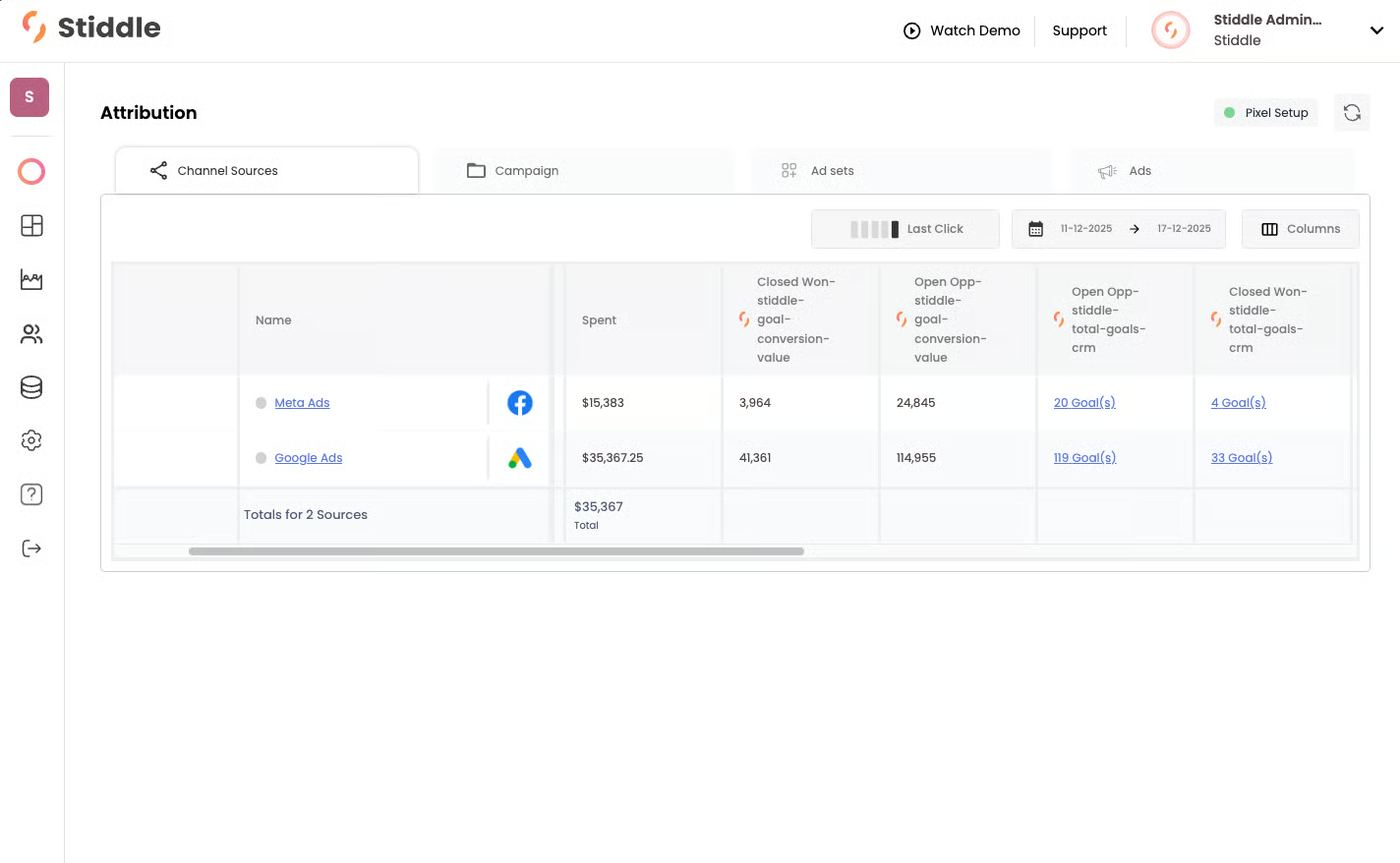
Attribution is the foundation for profitable, scalable GTM decisions. Paid Channels shows what each connected ad account actually drove — leads, pipeline, closed-won revenue or orders — next to what it spent, so you can judge paid media on real outcomes instead of each platform’s own reporting. The same attribution data also shows up in reports, dashboards, profiles and audiences. In the examples below, two channels are connected — Google Ads and Meta Ads — but Stiddle attributes across dozens: PPC, paid social, DSPs, email, SMS, phone, organic and AI search (e.g. ChatGPT).Reading the table
- Tabs: Channel Sources (one row per connected ad account) → Campaign → Ad sets → Ads, plus Keywords for PPC platforms like Google Ads. The other tabs unlock only after you pick a channel source: click an ad account’s name. Hover a locked tab and you’ll see “Please select a channel source to access the campaigns tab.” Once inside an account, the share icon on the far left takes you back to Channel Sources.
- Toolbar: attribution model, date range and Columns, plus Last refreshed / Refresh. The campaign-level tabs add a search box (exact match, or several phrases separated by commas) and Filter.
- Columns: Spent, ROAS, then one column per conversion goal and its conversion value (CV), e.g. Contact Inquiry, Demo Booked, Deal Stage: MQL, Deal Won. A totals row sits at the bottom.
- The Stiddle icon on a column header means Stiddle tracked and attributed that metric. A platform icon (or no icon) means the number comes straight from the ad platform.
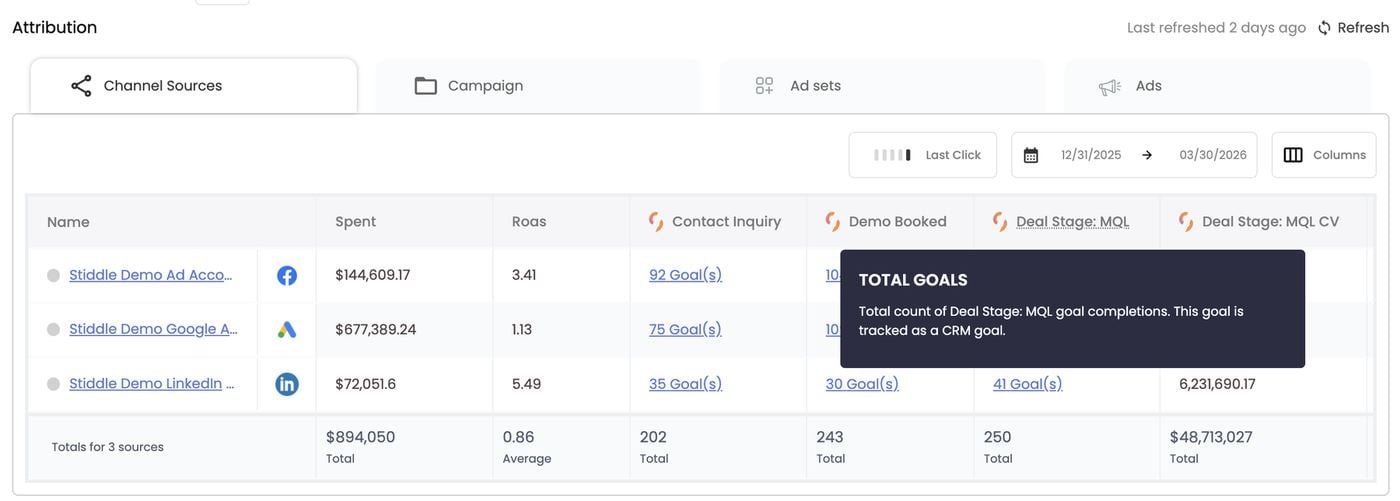
- Hover any column header to see what it measures and, where relevant, its formula. For example, hovering Deal Stage: MQL shows “Total count of Deal Stage: MQL goal completions. This goal is tracked as a CRM goal.”
- Ad platform data is live. Spend, impressions, clicks and other platform metrics sync automatically, so you never upload or refresh spend by hand.

B2B lead-gen example
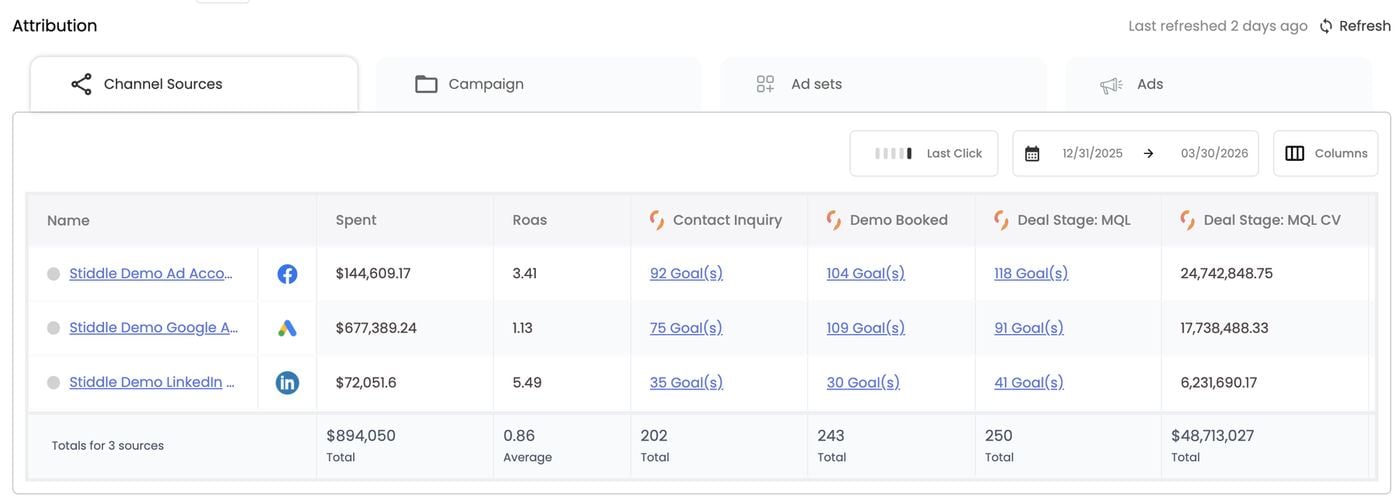
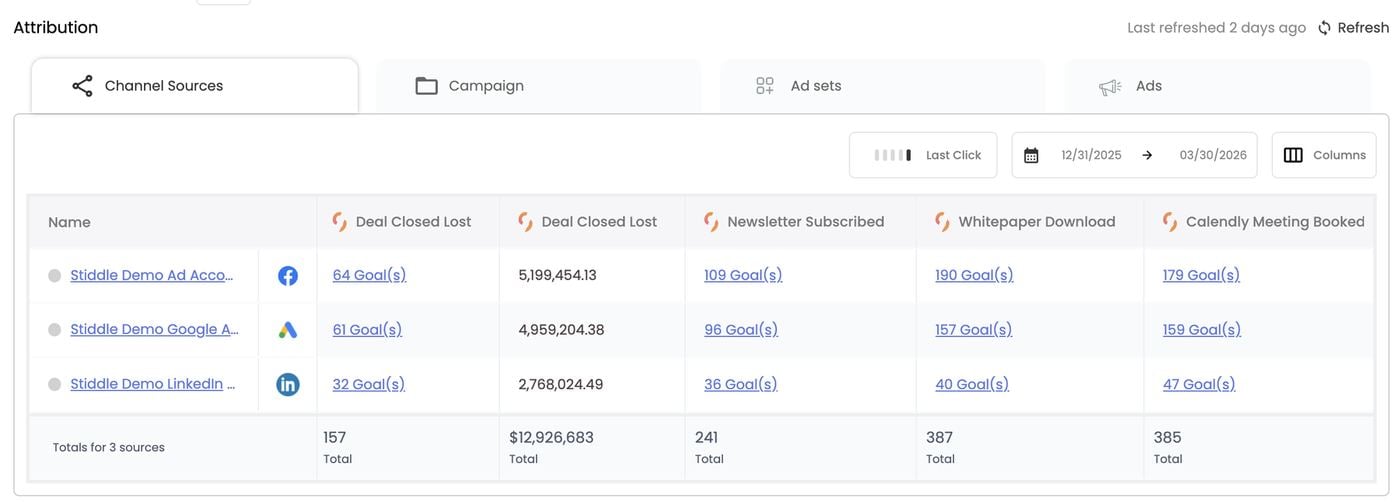
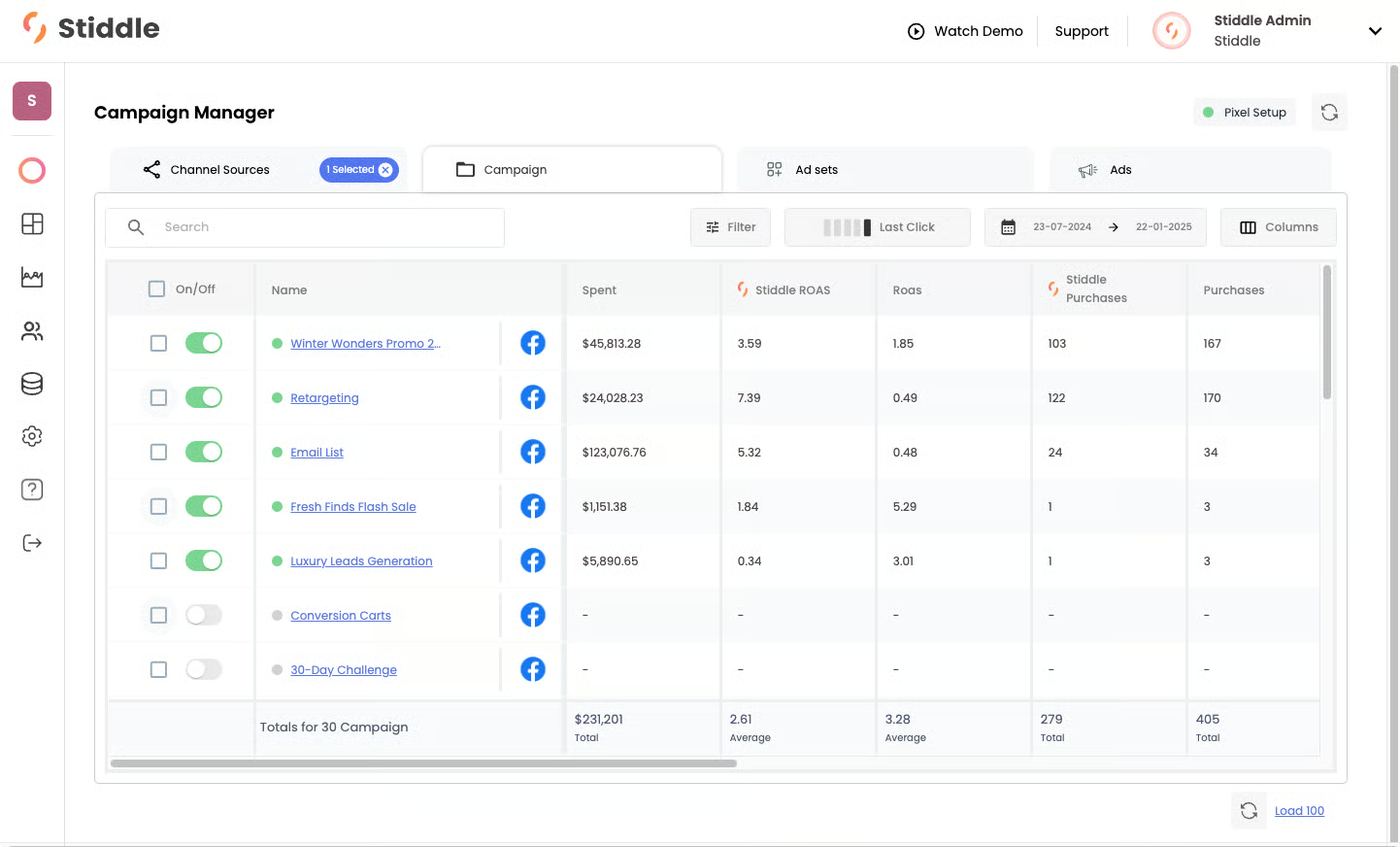
In this B2B workspace, Meta, Google Ads and LinkedIn are connected. Website goals (Contact Inquiry, Demo Booked) and Salesforce deal stages (Deal Stage: MQL and its CV) sit side by side with spend, over the same quarter:
Google is the biggest budget but the most expensive MQL source. Meta creates the most MQLs per dollar, and LinkedIn returns the highest ROAS. That’s the kind of call Stiddle is built for: judging each channel on pipeline, not clicks.
Attributed vs platform numbers (B2B example)
Compare a Stiddle-attributed column with the platform’s own column to see what the platform misses. ROAS — Google under-reports. Google says every $1 on Google Ads returned $10.65. Stiddle’s attributed ROAS is $15.63 — about $5 more per dollar that Google’s reporting doesn’t capture.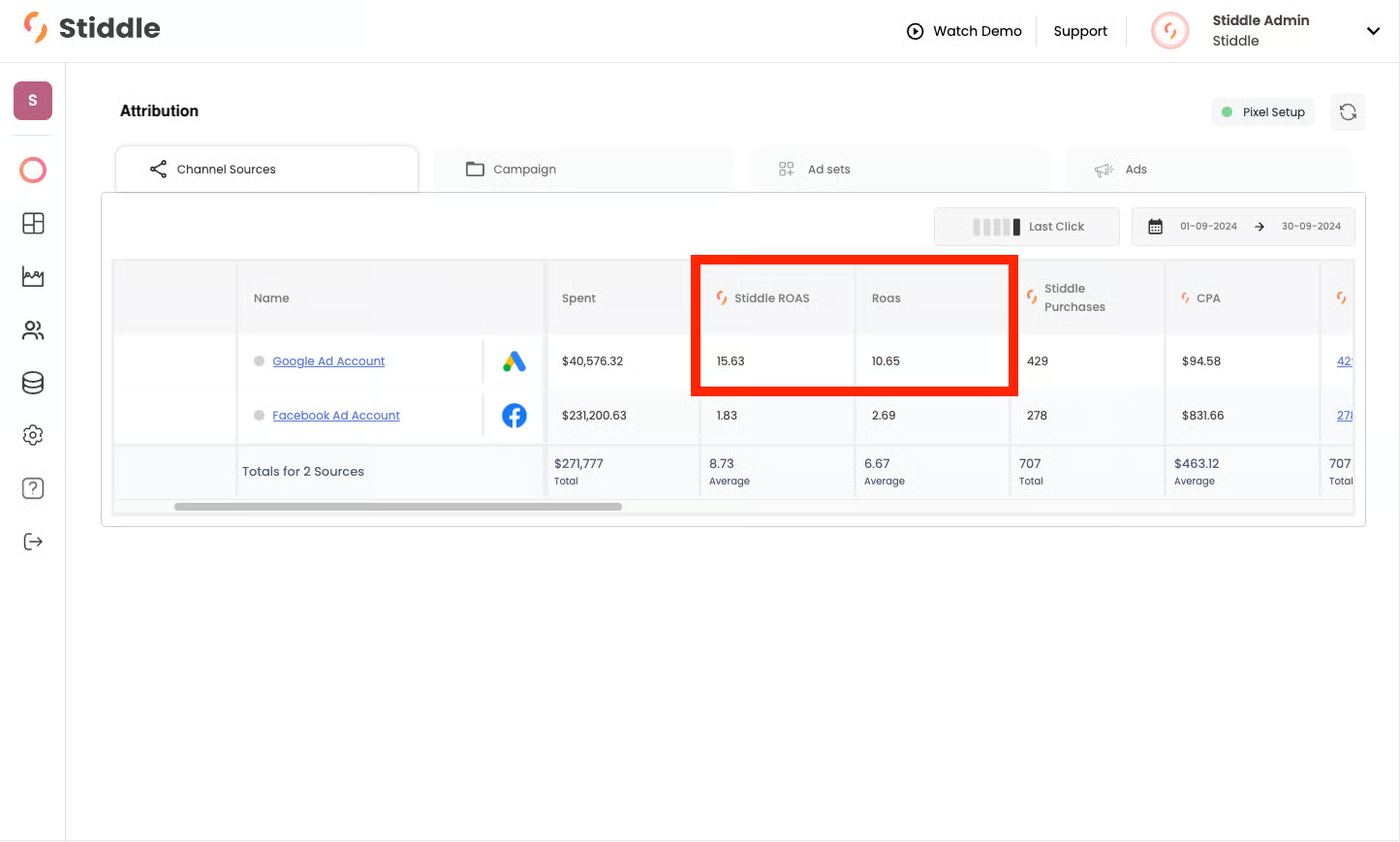
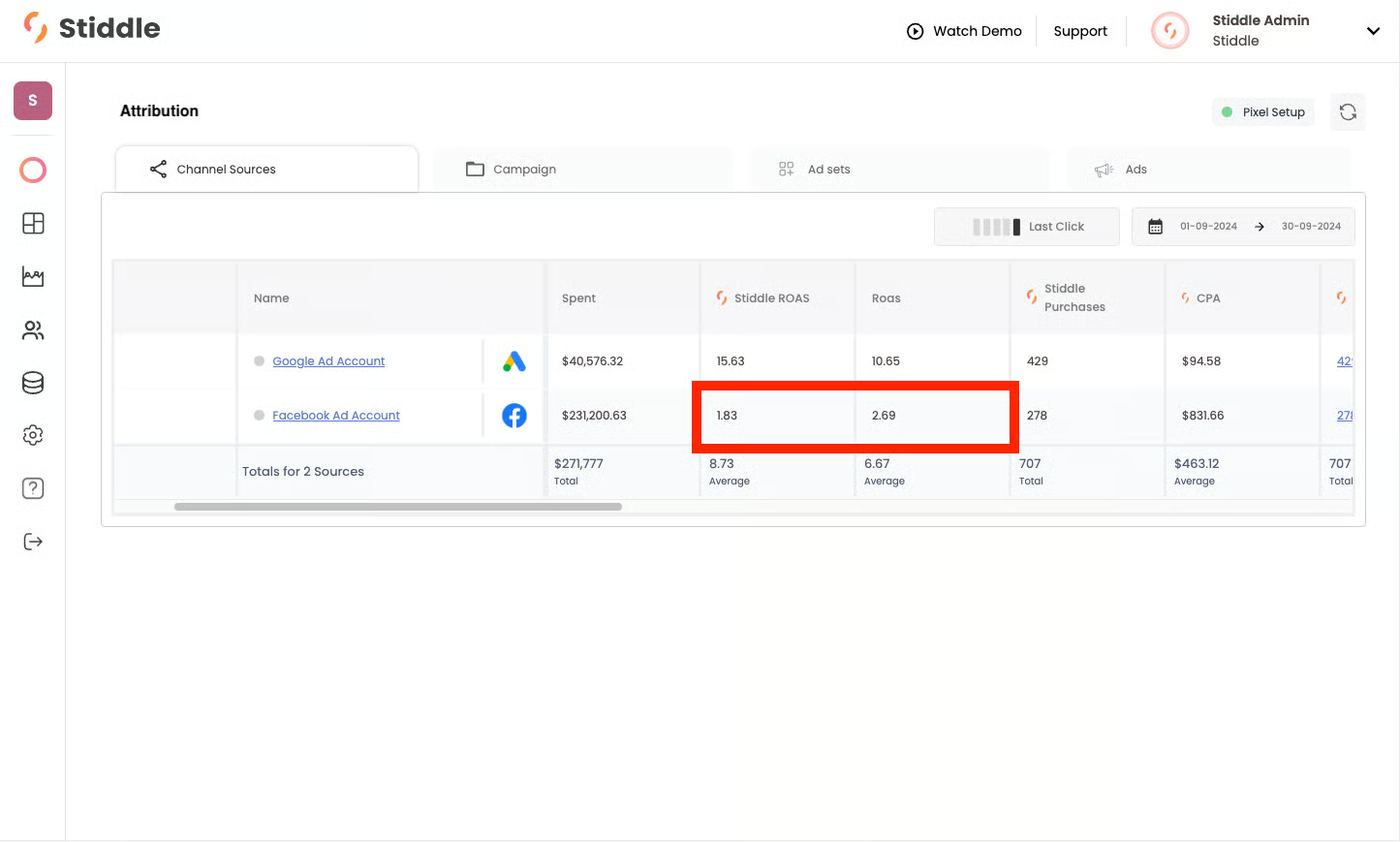
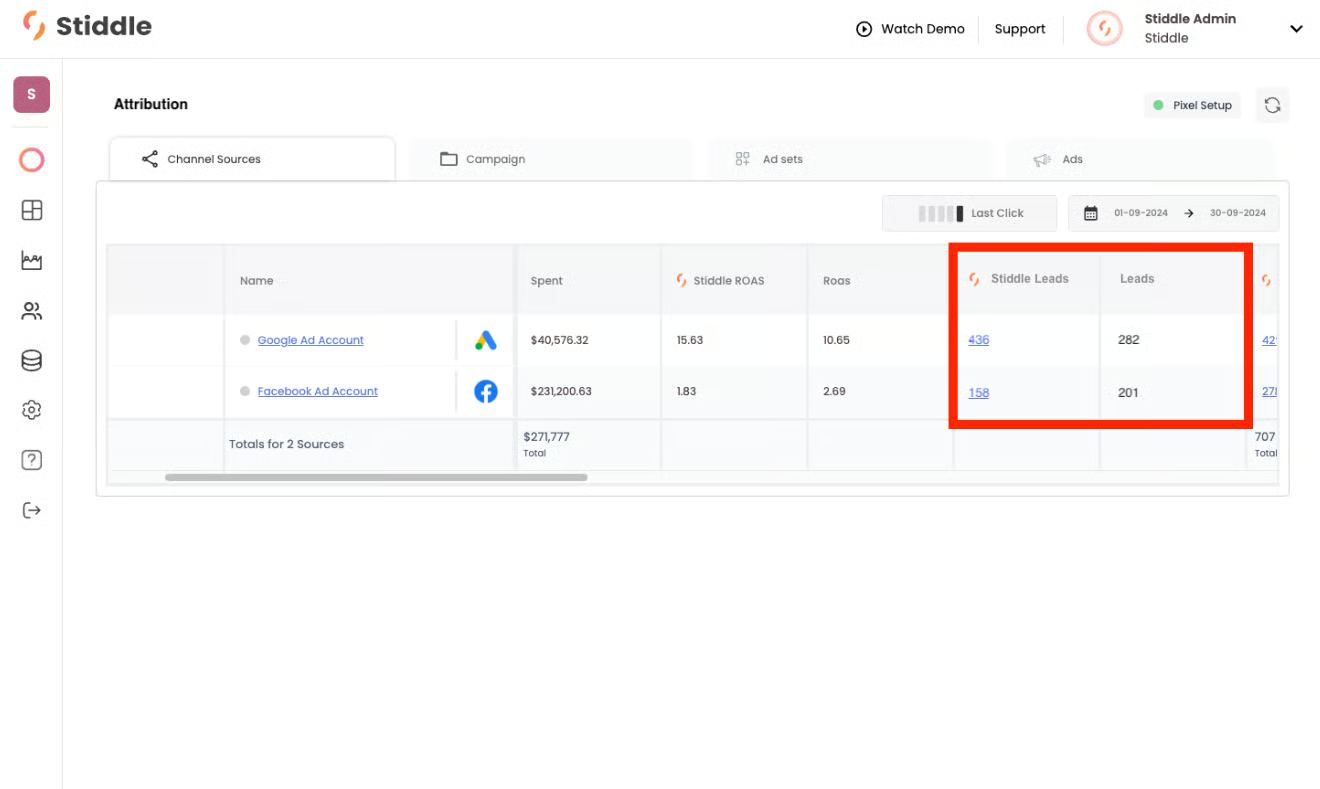
Why platforms get it wrong. Ad platforms don’t talk to each other, so each one claims the same conversion — cross-channel campaigns end up double-counted. And most platforms look back only about 7 days with their own data; longer windows (28 or 90 days) lean on modeling rather than observed touchpoints. Stiddle unifies every channel and attributes each conversion once, based on what actually happened.
Drill into who converted
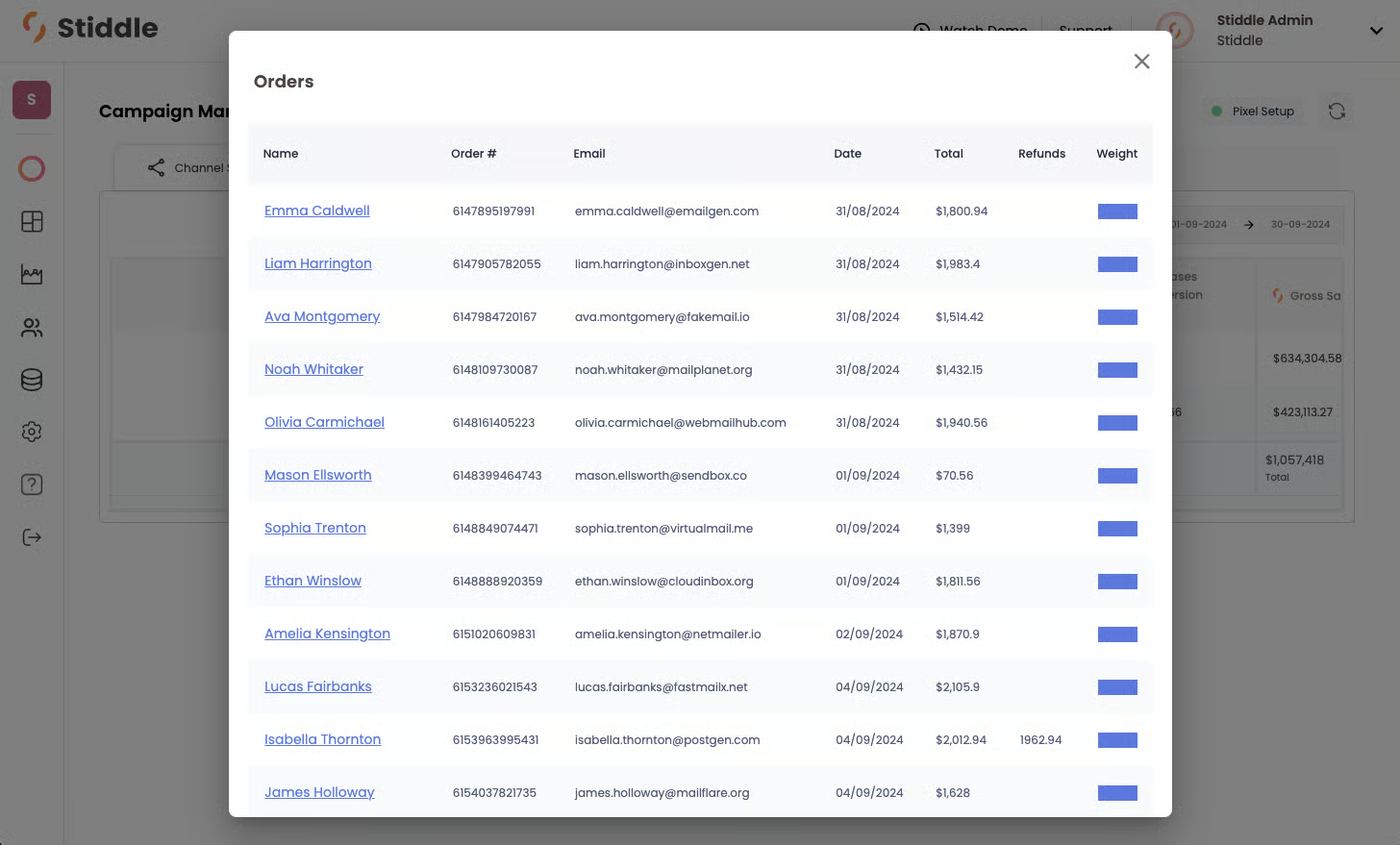
Every number is backed by records. Click an attributed count (e.g. 436 leads, or a Goal(s) link) to see exactly who’s behind it.- Stiddle AI loads the matching records (“Stiddle AI is analyzing sales data…”).
- A pop-up lists them in three tabs — Deal, Company and People — with deal name, stage, amount and deal owner (the rep who closed it), plus a weight showing how much credit this channel got under the selected model.
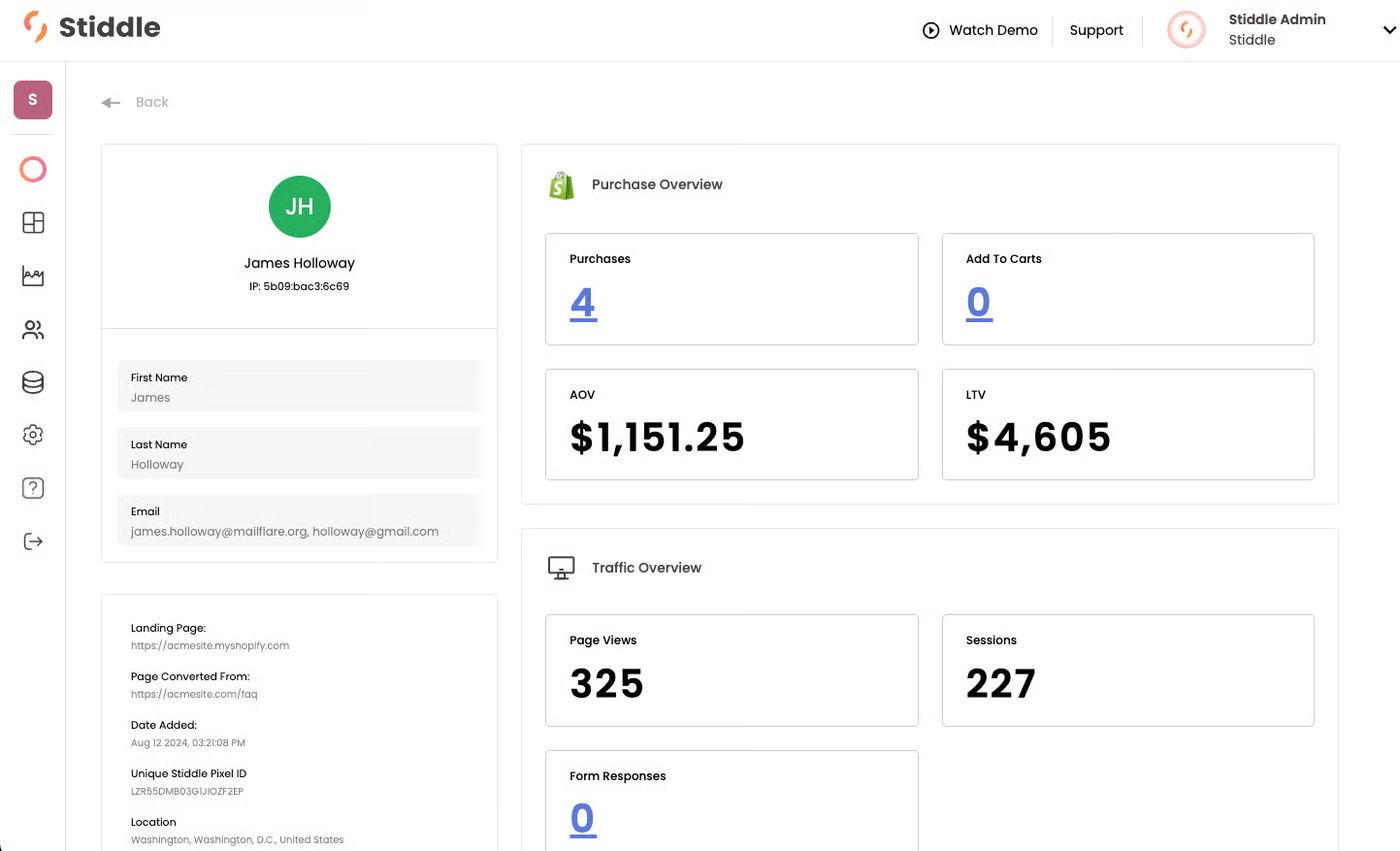
- Click a name to open the full profile.
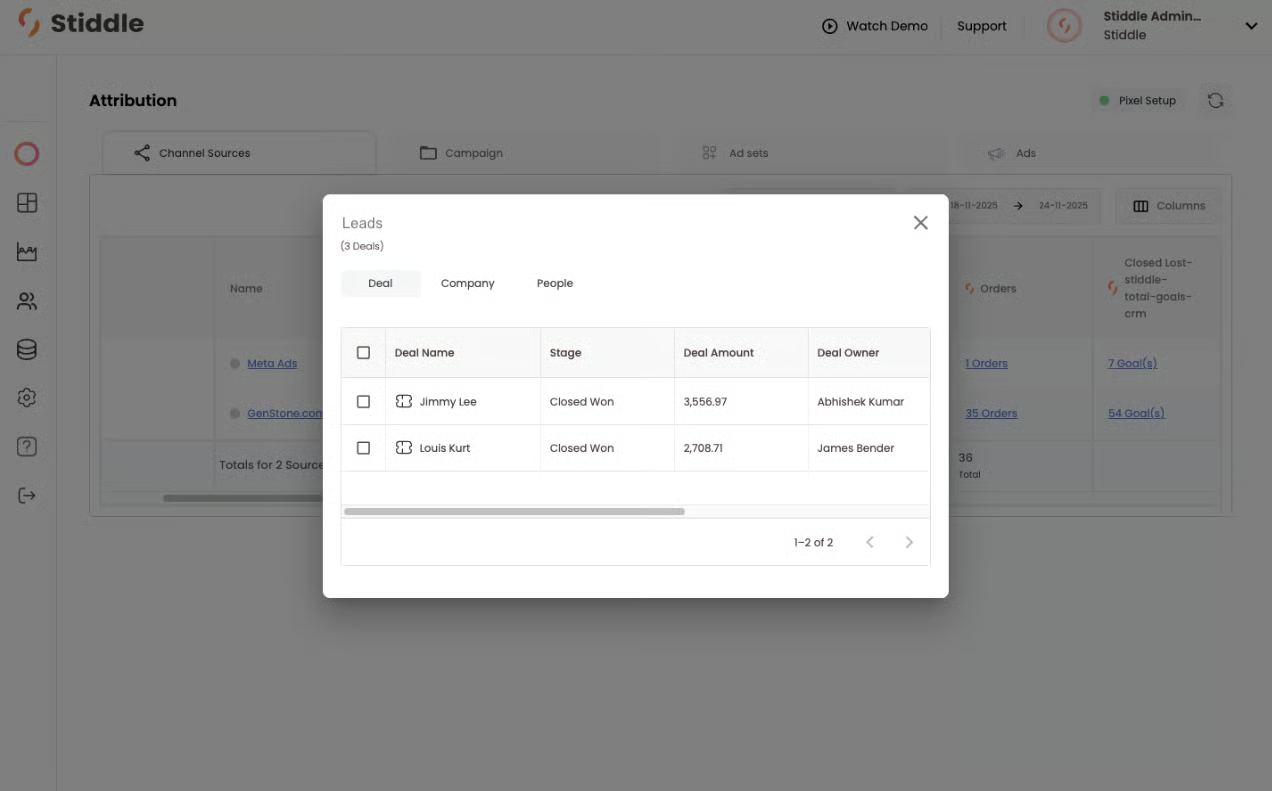
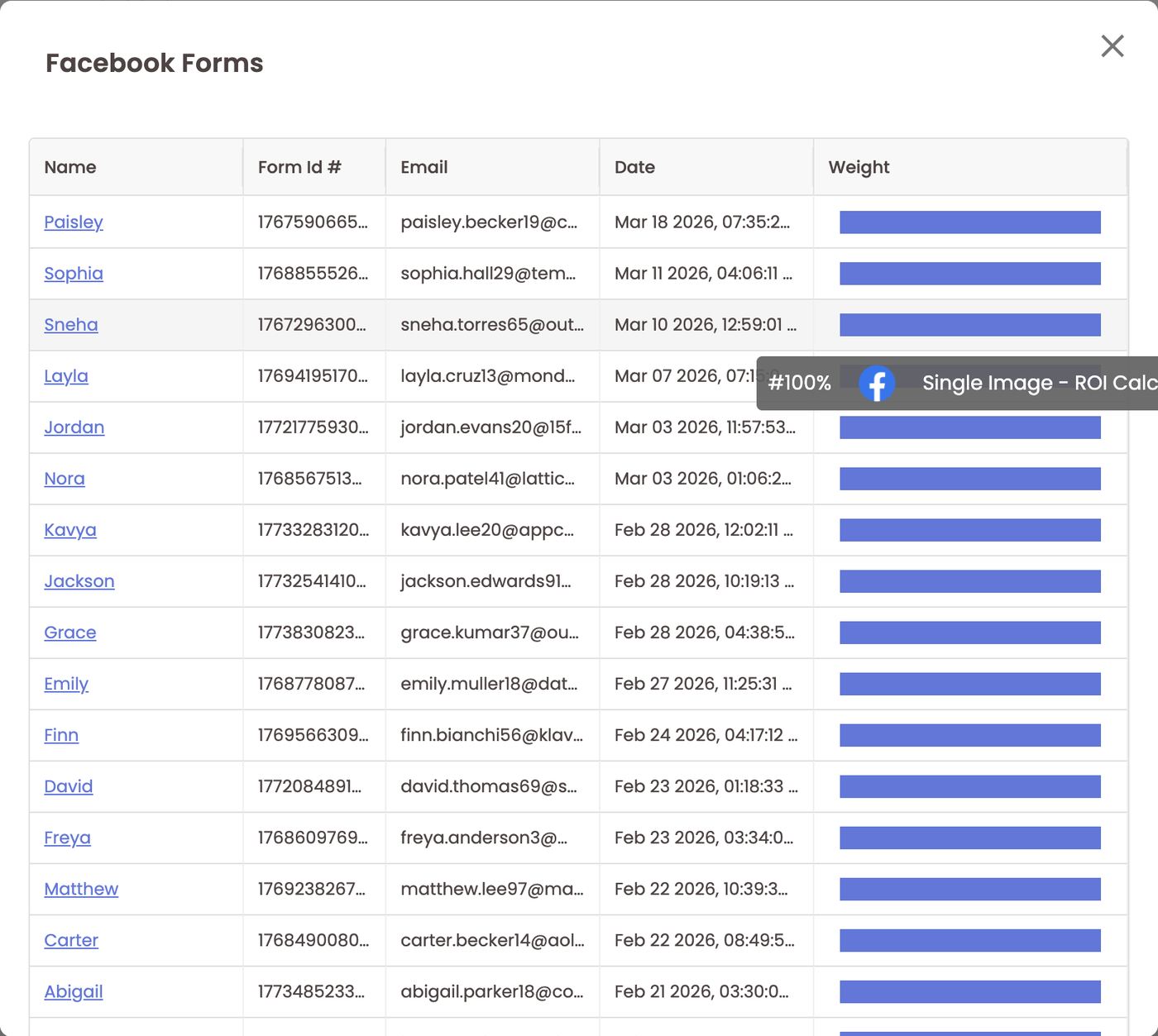
- Form goals list each lead’s name, form ID, email, date and weight. Hover a weight bar to see which ad got the credit and how much. In this example, Meta leads from Facebook lead forms open a Facebook Forms pop-up, and the weight shows 100% to the Single Image – ROI Calculator ad.
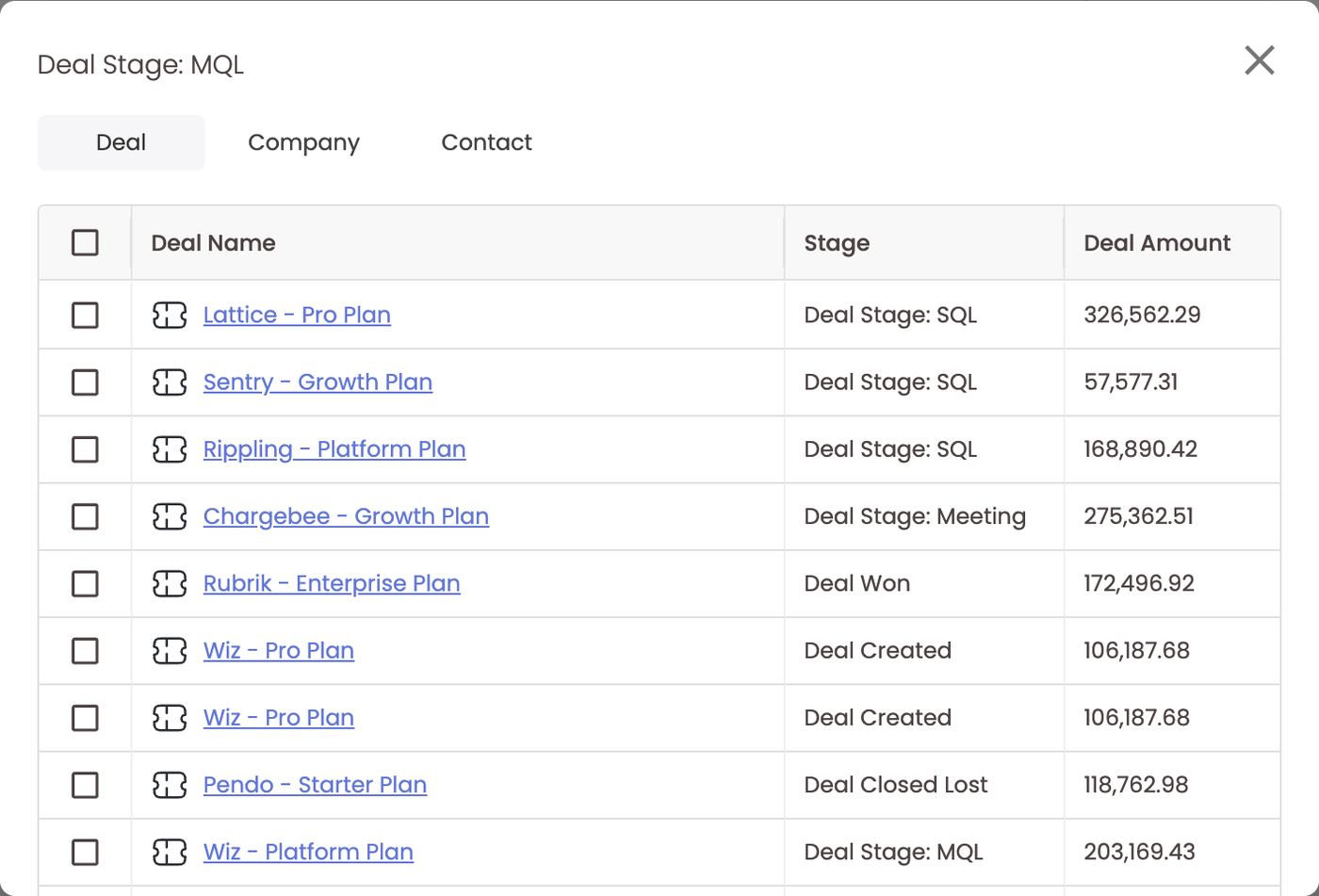
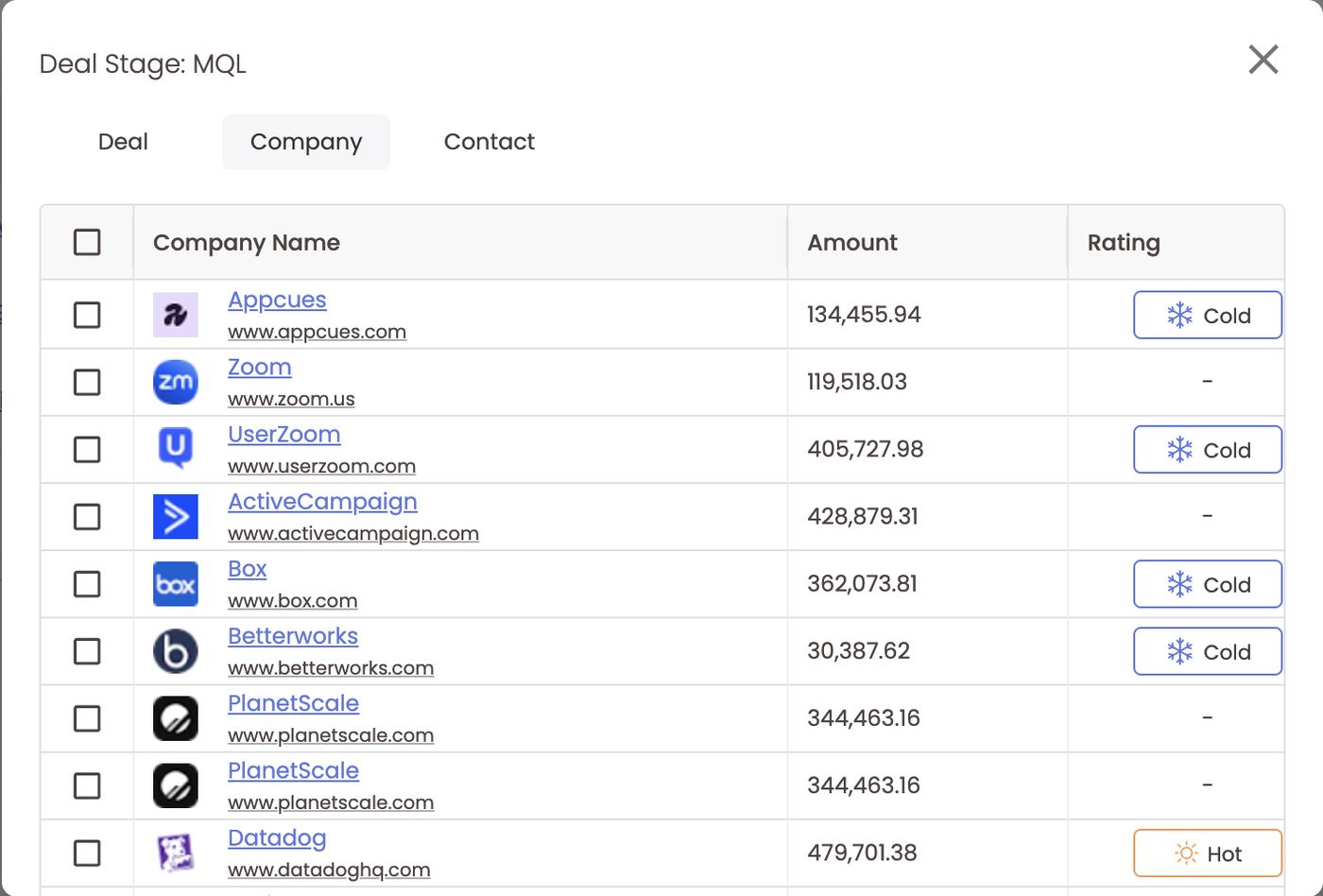
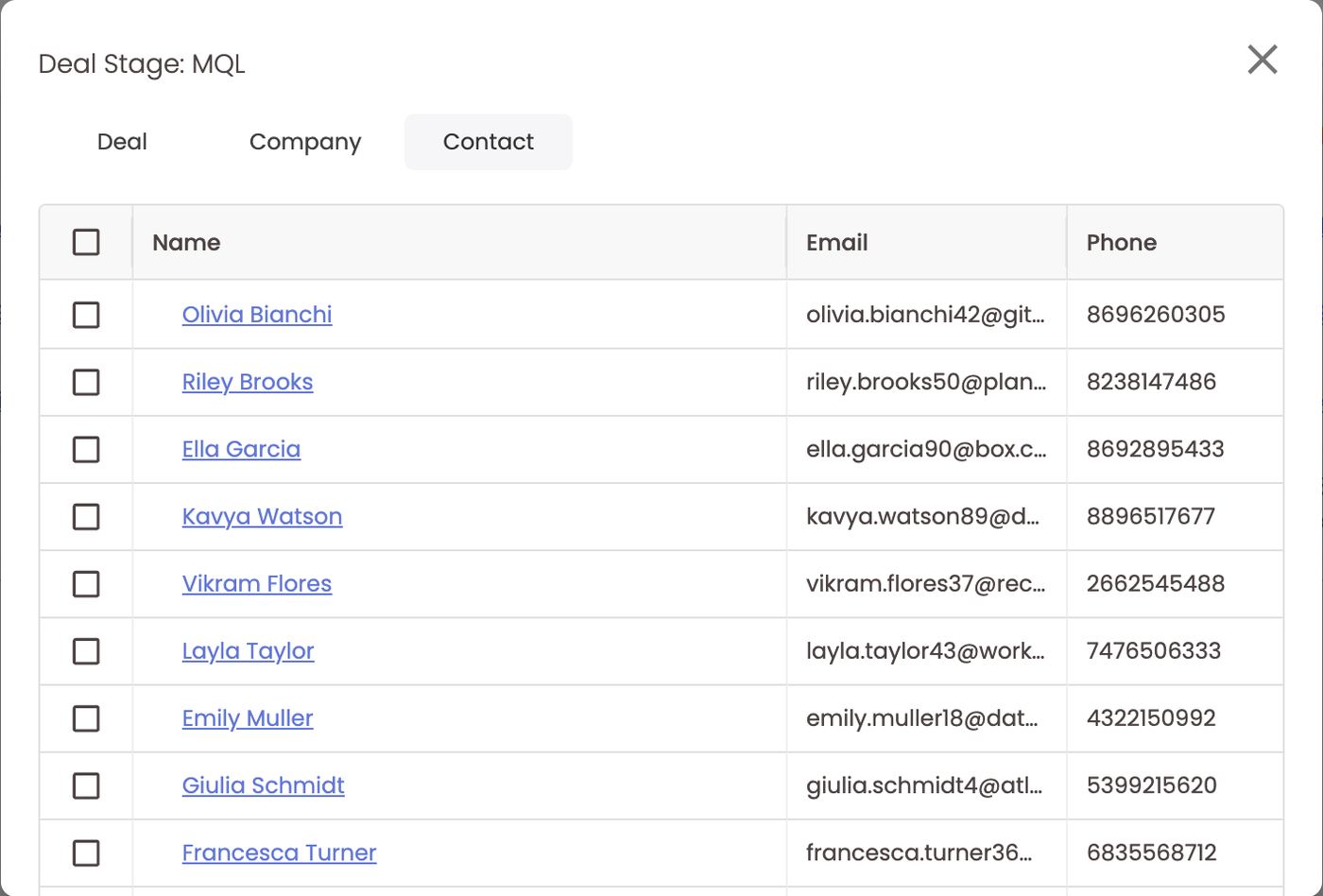
- CRM goals like Deal Stage: MQL open with three tabs:
- Deal: deal name, current stage and amount. A deal that was an MQL may since have moved to SQL, Meeting, Won or Closed Lost.
- Company: company, amount and Smart Score rating (Hot / Cold).
- Contact: name, email and phone.
Follow the journey
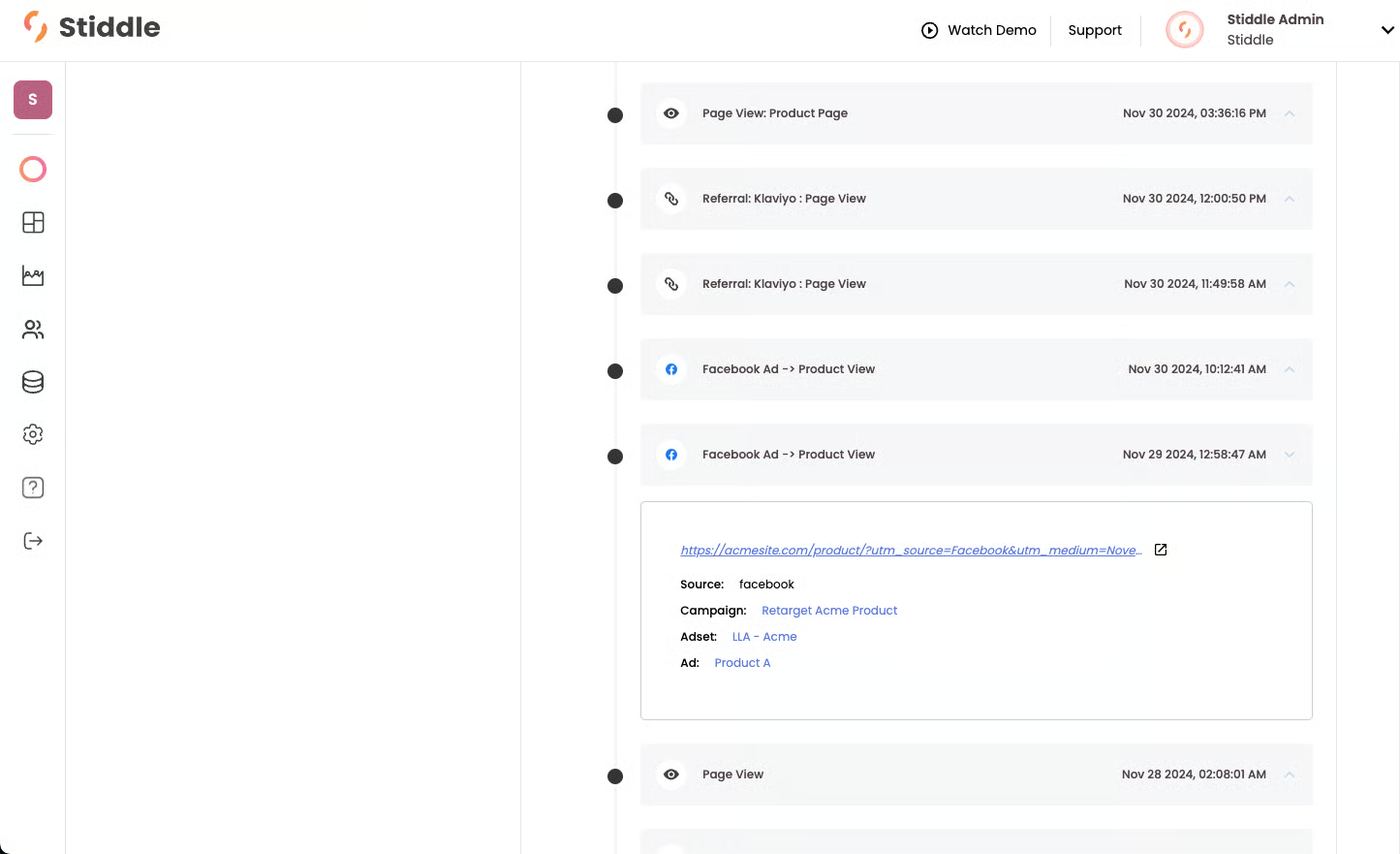
The profile shows identity on the left (name, email, phone, location) and, with Salesforce connected, CRM Overview widgets — lead status, deal amounts open, closed won and closed lost — plus a traffic overview (page views, sessions, form responses, LTV). With an ecommerce platform connected you’d see order KPIs instead.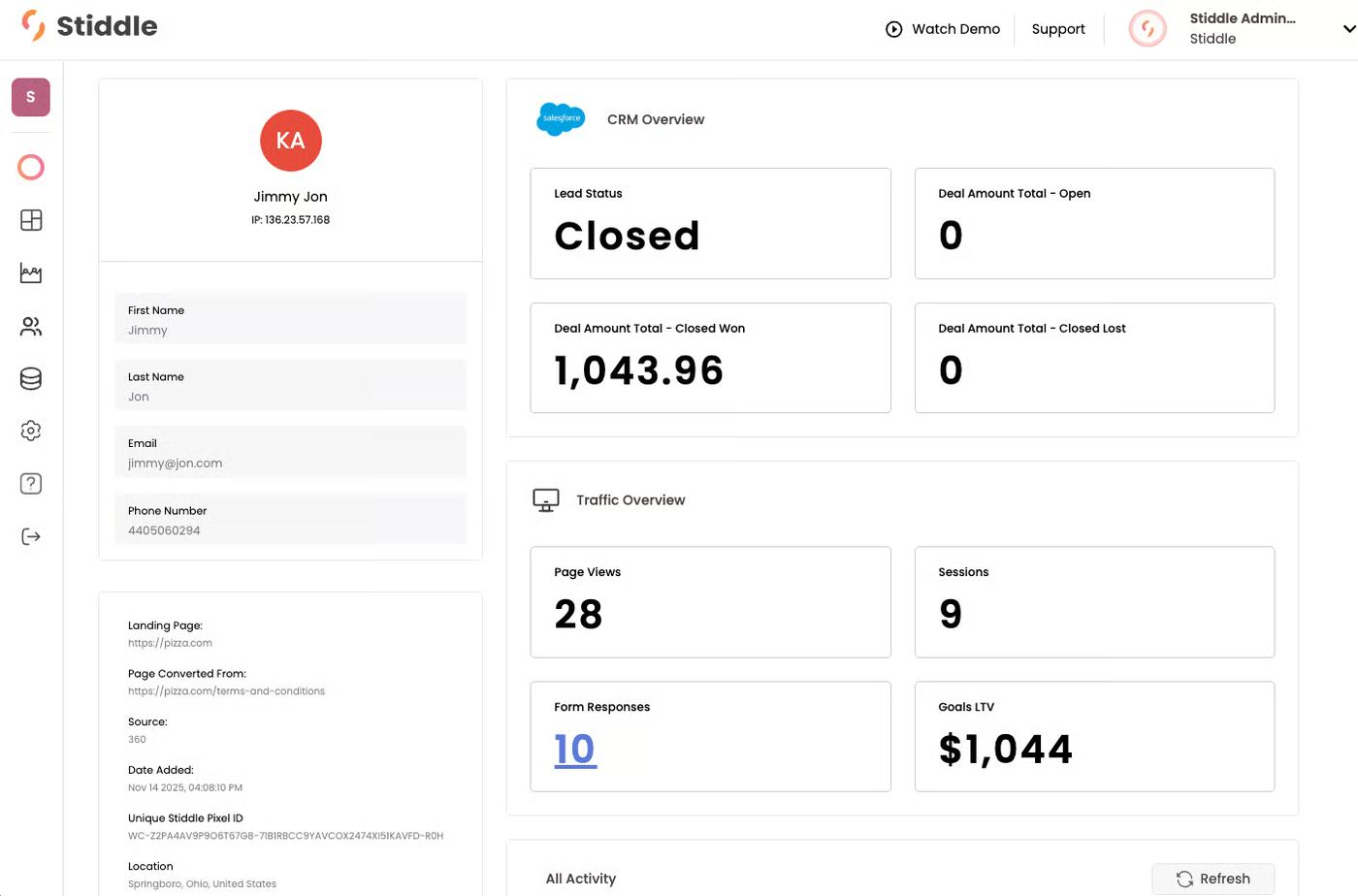
Choosing an attribution model
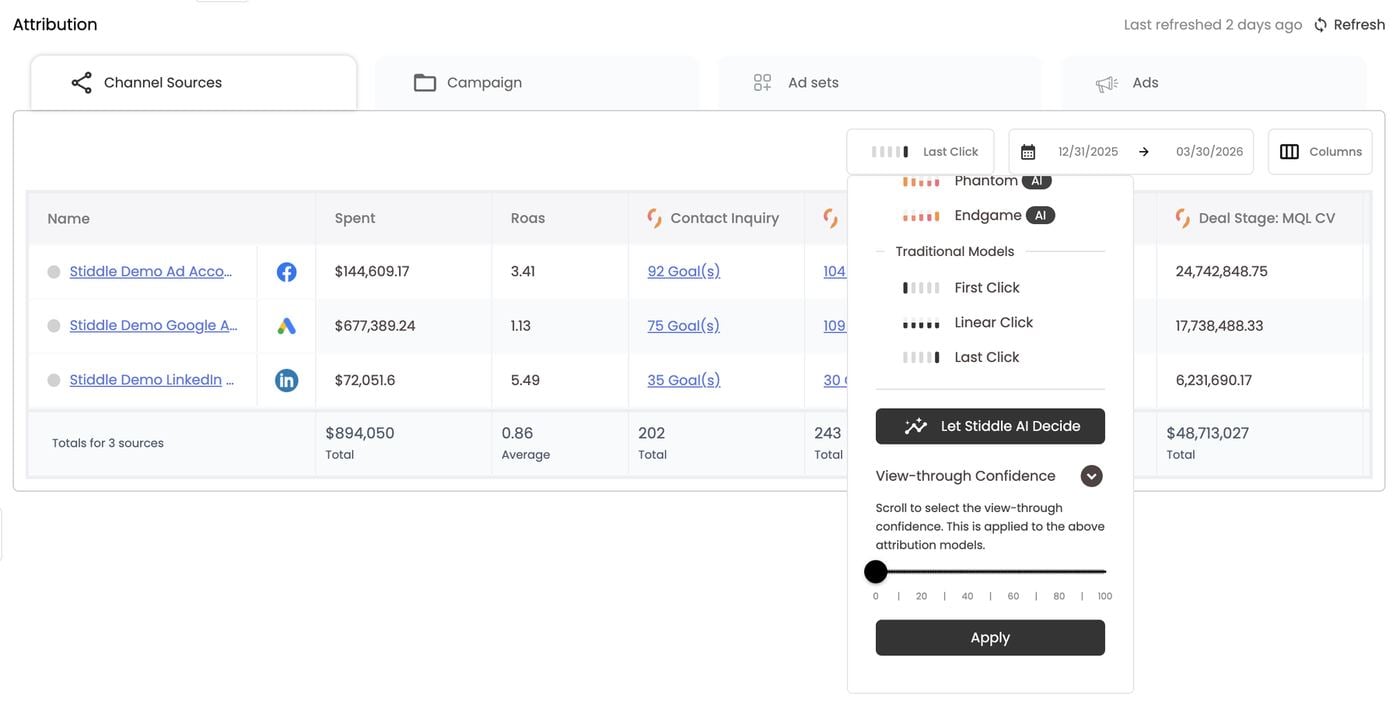
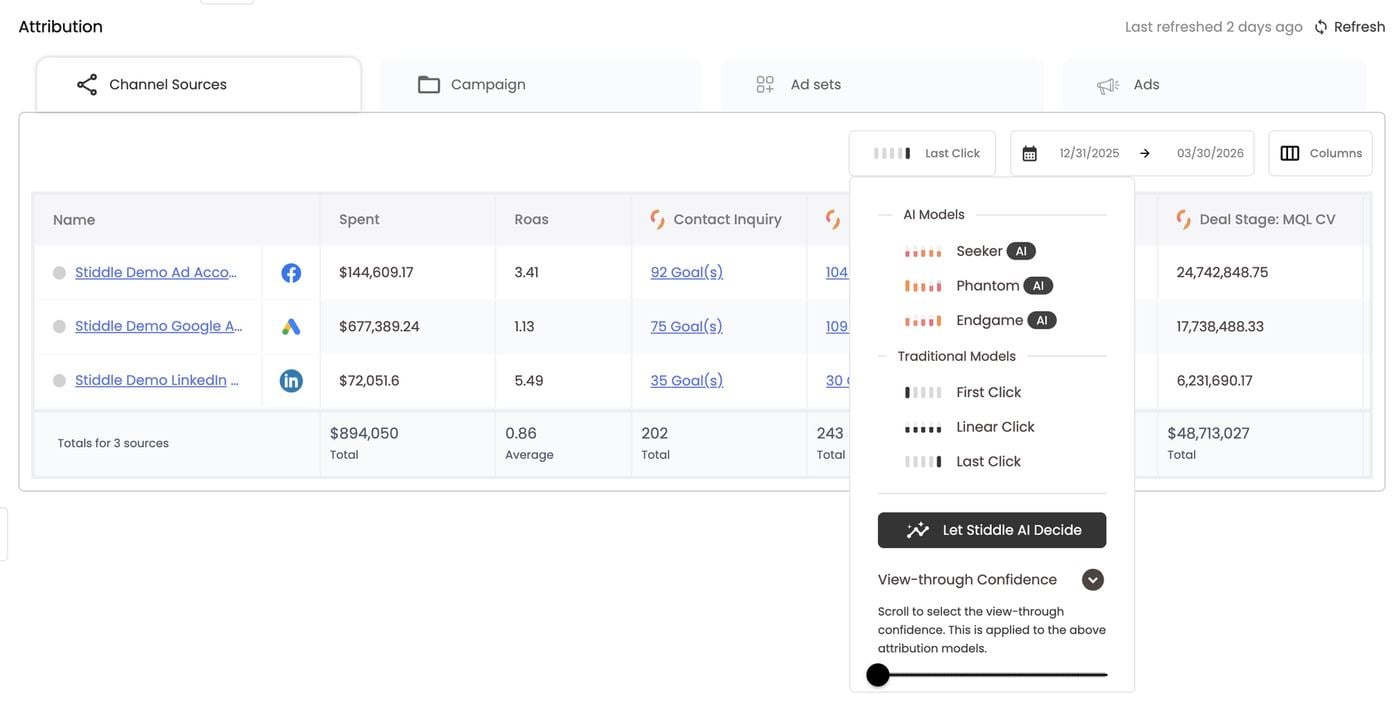
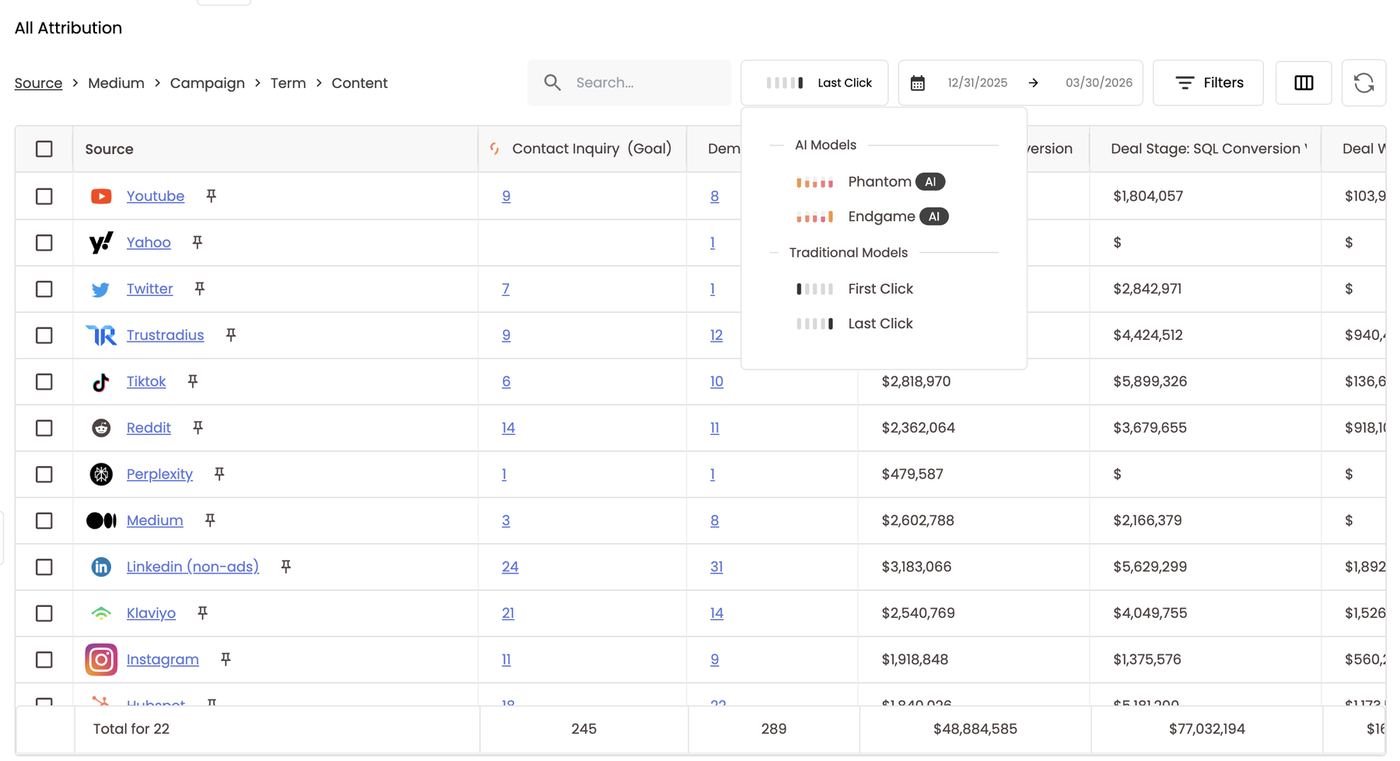
Models decide how credit is split across the touchpoints in a journey. Click the model selector (Last Click by default), hover any model to see what it does, and pick one. Every attributed (Stiddle icon) column recalculates in real time, on every tab, with no page reload. Platform columns never change, because they’re the platform’s own numbers.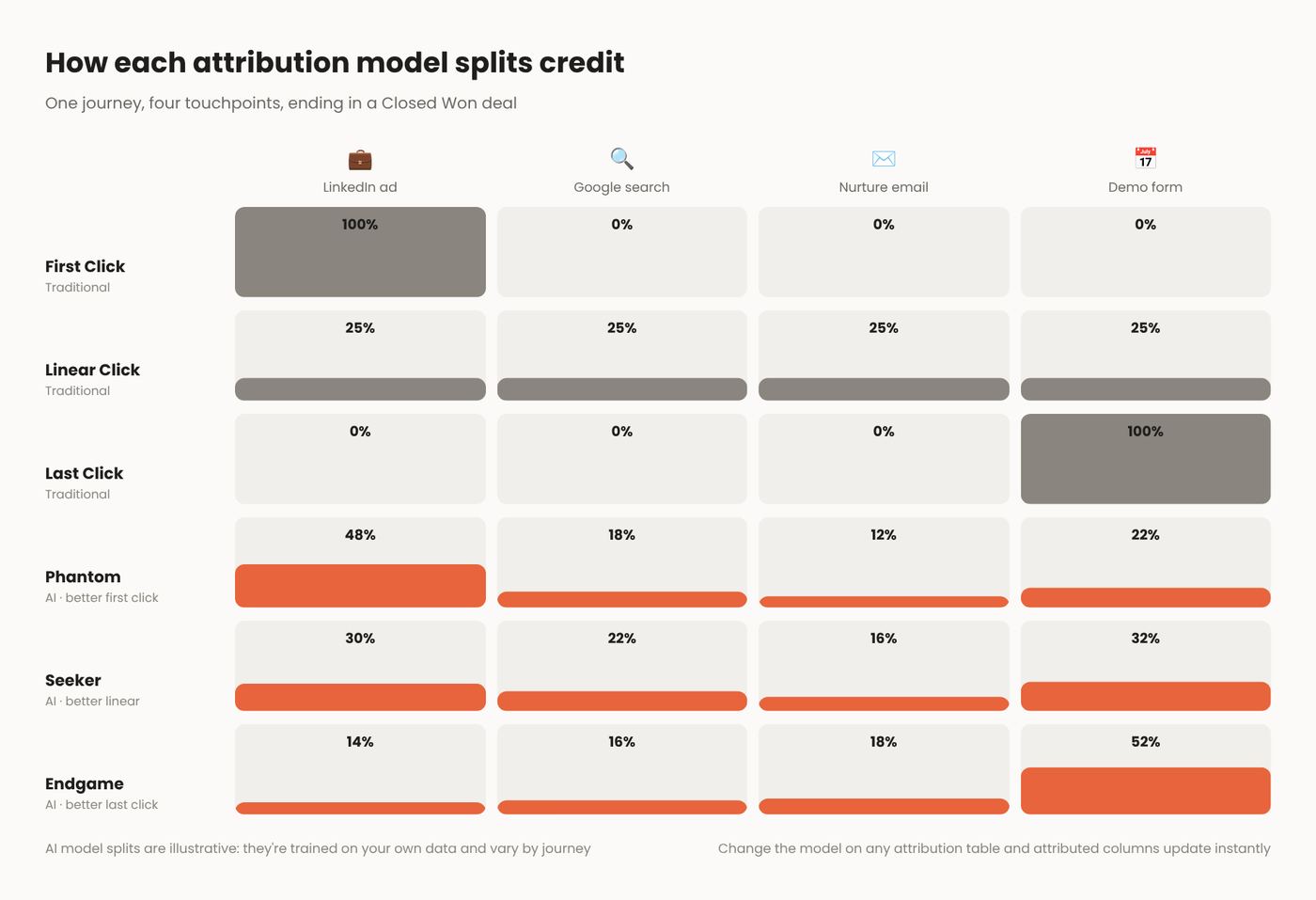
- They’re custom models trained on your own data.
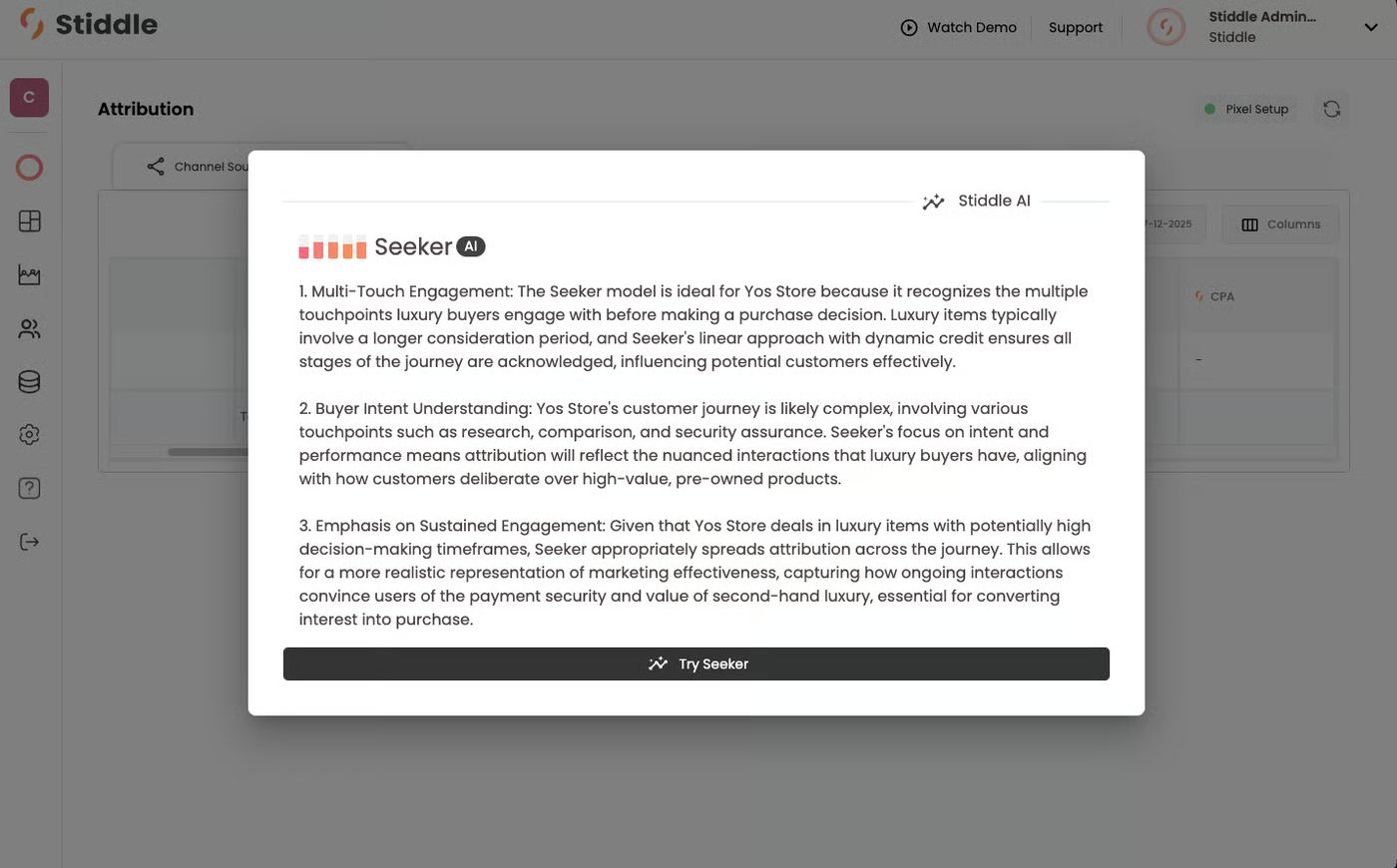
- Stiddle AI explains each model in plain English — why it fits your business and how it weighs touchpoints.
- They account for top-of-funnel view-through data to show its impact on bottom-of-funnel conversions. Set how much weight impressions get with View-through Confidence at the bottom of the menu.
- Drag the slider from 0 to 100: 0 counts clicks only, and higher values give views more weight.
- Click Apply.
- The setting applies on top of whichever model is selected.
Choosing columns
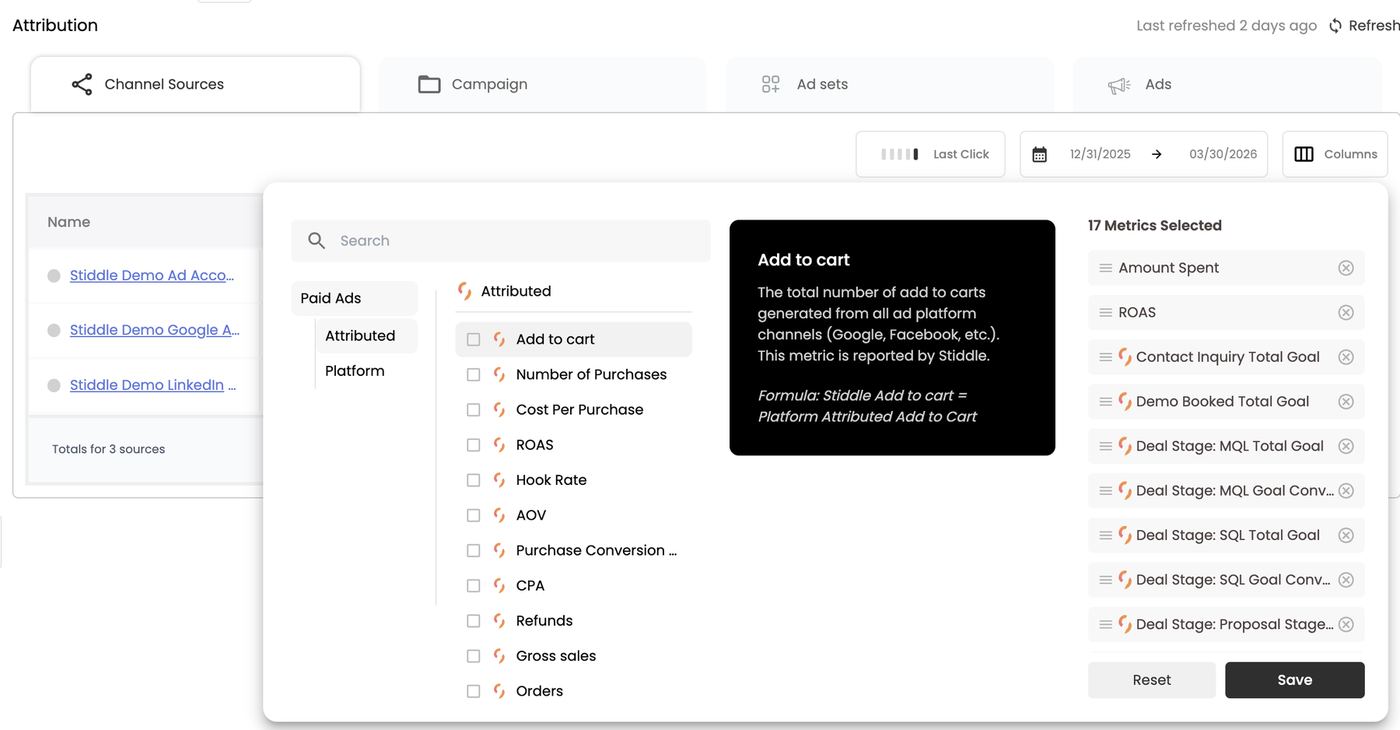
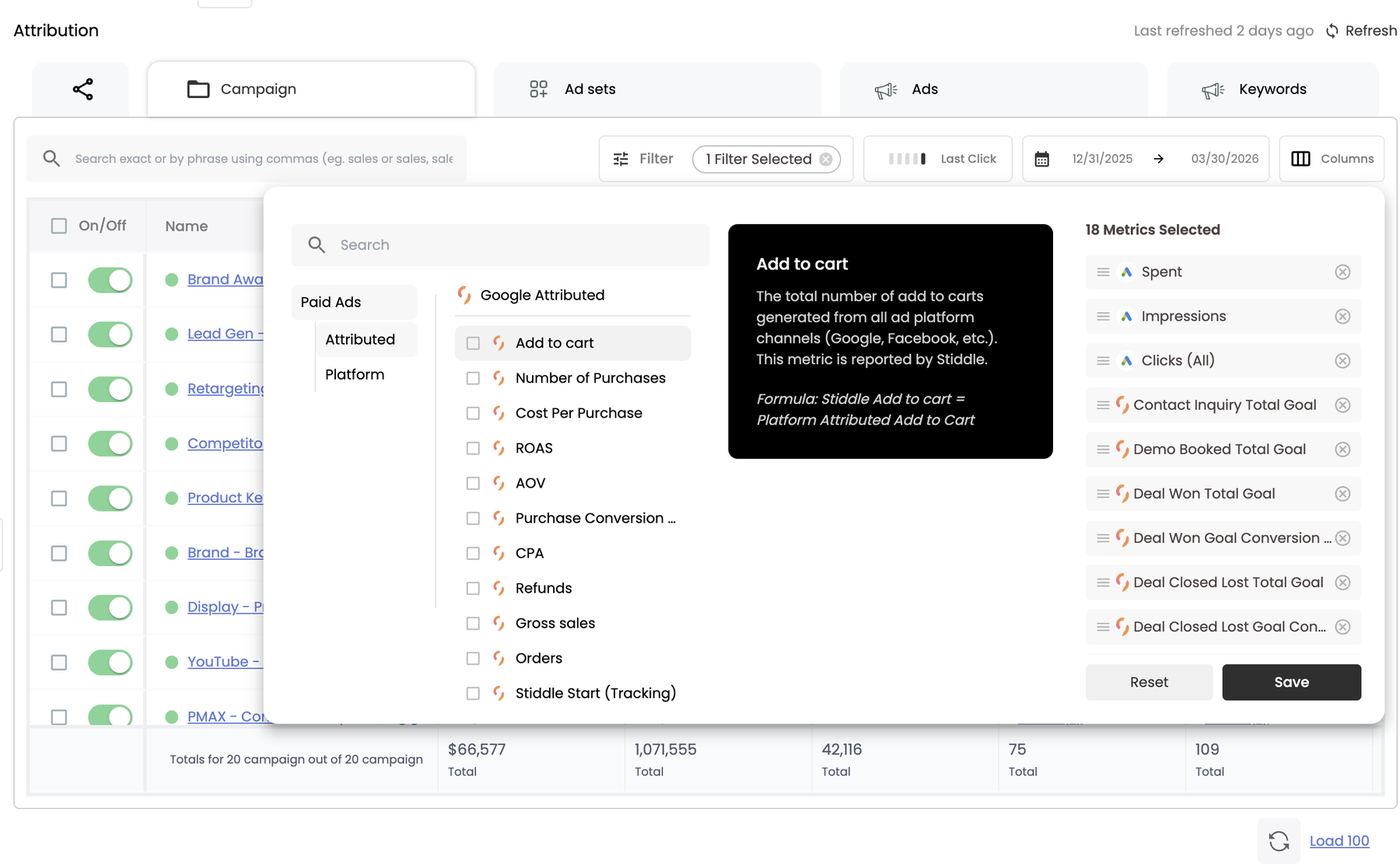
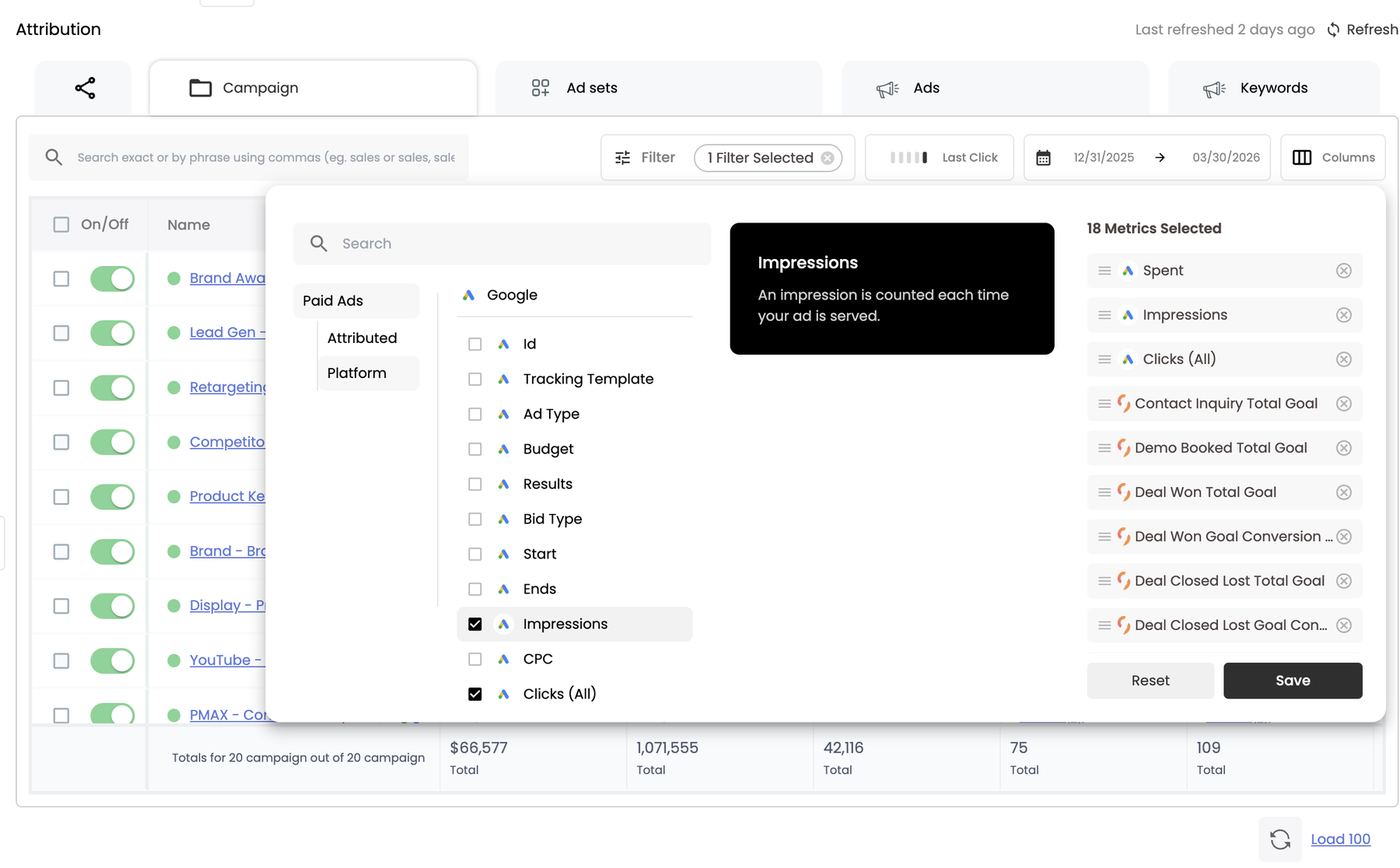
Click Columns to open the column selector. It has three panes:- Left (source): Paid Ads → Attributed for Stiddle-tracked metrics, or Paid Ads → Platform for metrics straight from the ad platform.
- Middle (metrics): tick a metric to add it, or use Search. Hover any metric for its definition and formula. For example, Add to cart reads “Stiddle Add to cart = Platform Attributed Add to Cart.”
- Right (Metrics Selected): your columns, in order. Drag the ≡ handle to move a column (top = leftmost in the table) and click ⊗ to remove one. Click Save to apply, or Reset to go back to the default.
Your custom goals are the attribution columns. Every goal you create in Data → Goals shows up under Attributed with the Stiddle logo: form fills, bookings, CRM stages and purchases. Each goal is available as a total, a conversion %, and a conversion value (CV). That’s what makes Paid Channels report on your outcomes (MQLs, SQLs, Deal Won revenue) instead of platform events.
All Stiddle-attributed metrics are available on every tab; only platform metrics are limited on Channel Sources. Saving columns on Channel Sources doesn’t touch the campaign-level layout, and vice versa.
Campaigns, ad sets, ads and keywords
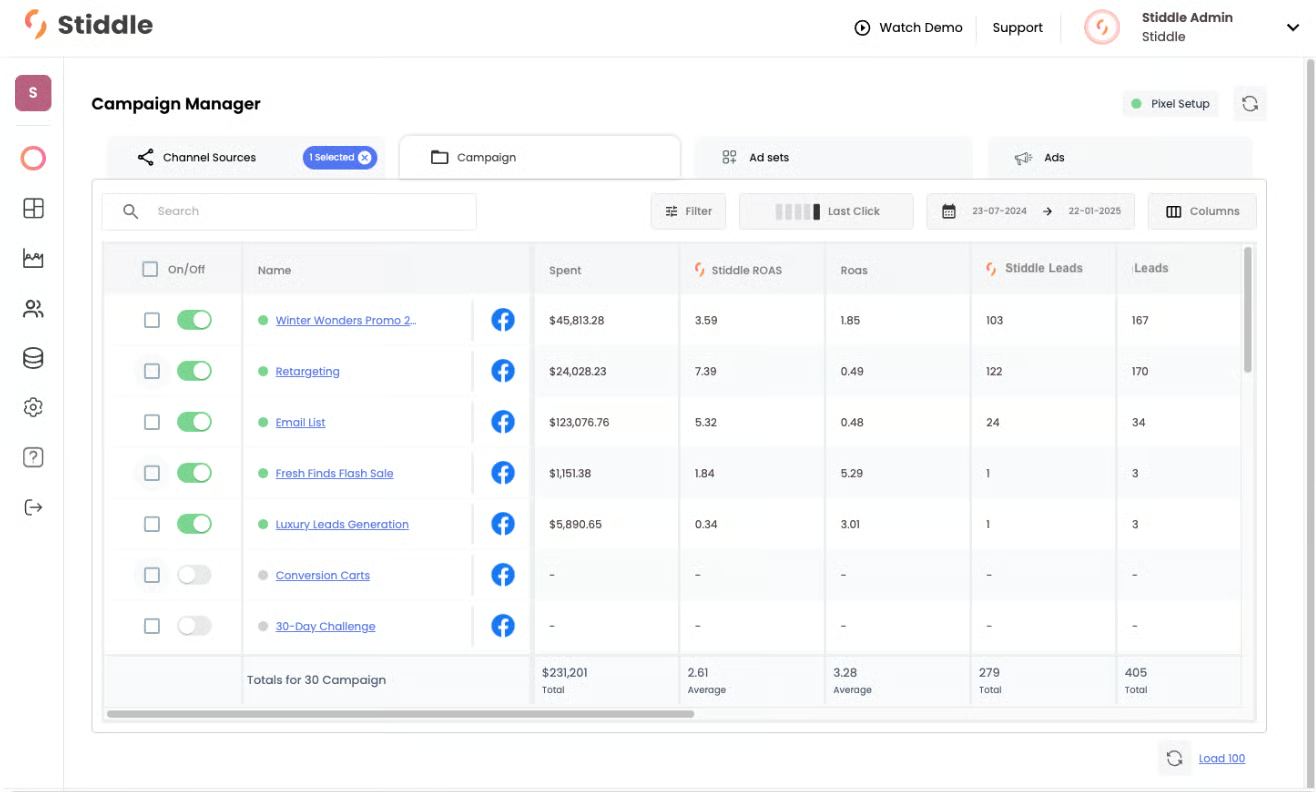
- On Channel Sources, click an ad account’s name, e.g. Stiddle Demo Google Ads. The Campaign tab opens for that account.
- Go deeper with Ad sets (ad groups), Ads and Keywords. Keywords only appears for PPC / search platforms like Google Ads.
- Each row shows a delivery dot, an On/Off toggle, the name, the platform icon and your columns. The totals row counts what’s loaded, e.g. “Totals for 20 campaign out of 20 campaign.”
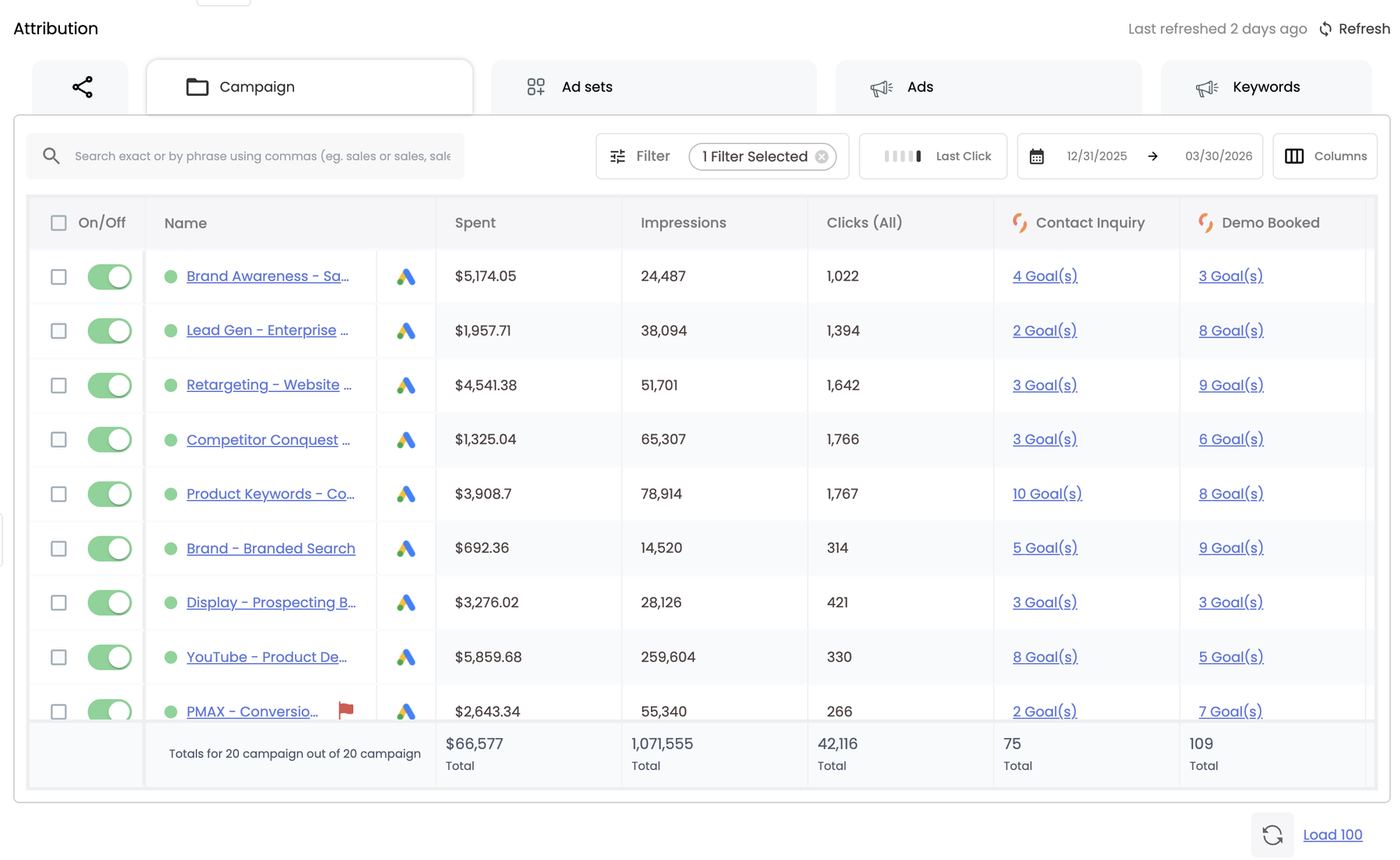
Brand – Branded Search spent only $692 for the quarter. Before giving it all the credit, switch to Phantom: branded search is often the last stop for buyers that LinkedIn or YouTube found first.
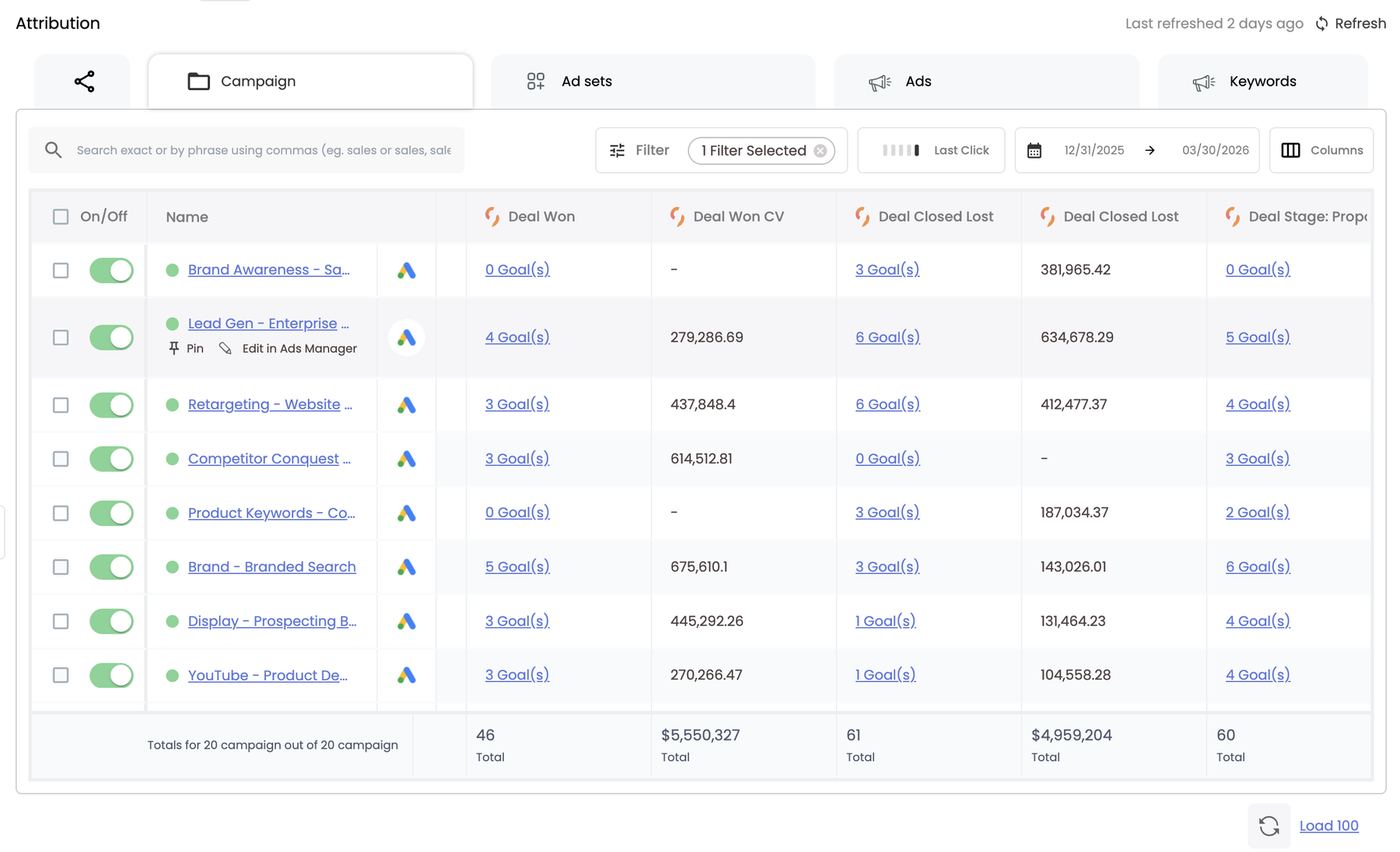
Pin and Edit in Ads Manager. Hover a row’s name to show two actions:
- Pin keeps that campaign, ad set, ad or keyword at the top of the table for quick access.
- Edit in Ads Manager opens that exact campaign, ad set or ad in the ad platform in a new tab, so you can change a budget, bid or creative, or pause it, without searching for it.
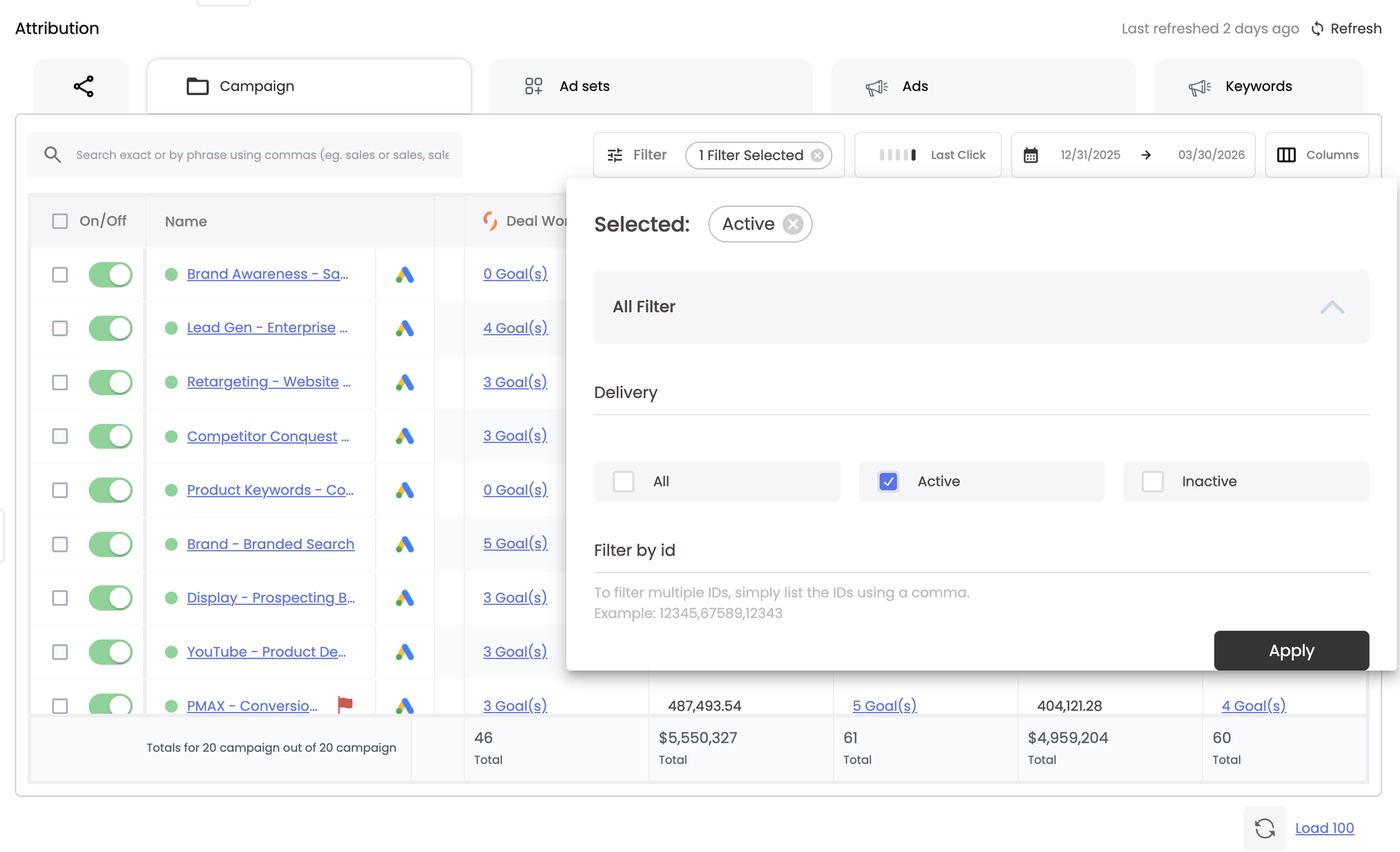
- The campaign-level tabs open with one filter applied, Delivery = Active, shown as the 1 Filter Selected chip. Only running campaigns, ad sets and ads load.
- If a tab looks empty, or you’re reviewing a past date range with paused campaigns, clear the chip (⊗), or open Filter, choose All or Inactive, and click Apply.
- Filter by id takes one or more IDs separated by commas (e.g. 12345,67589,12343).
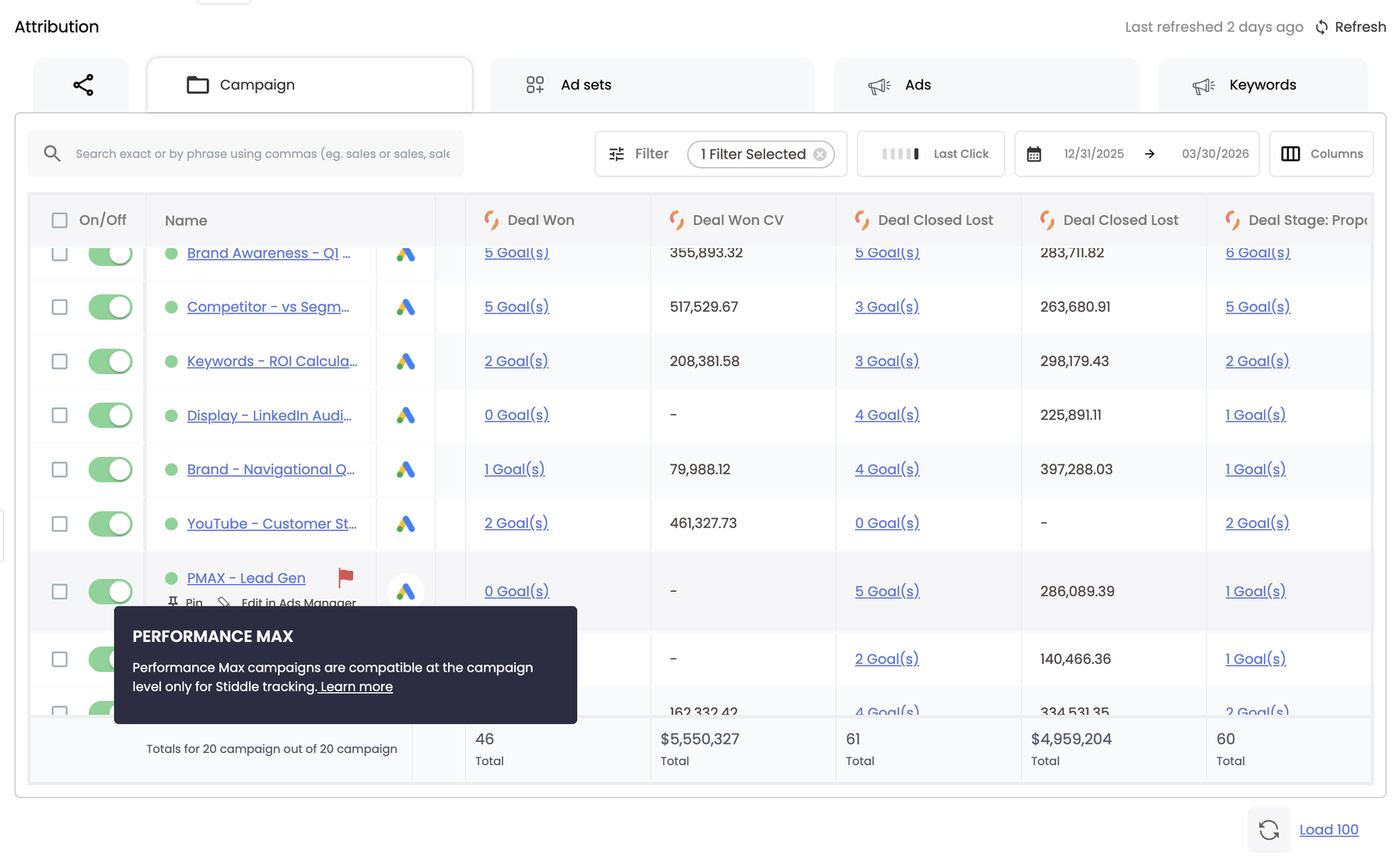
UTMs are what make this work. Stiddle connects each visit and conversion to its campaign, ad set, ad and keyword by reading the Stiddle UTM parameters on your ad URLs. Spend still syncs without them, but attributed goals will be missing or stuck at the account level. Add the Stiddle UTM templates to Google, Meta and LinkedIn before you judge results (see UTM tracking in section 5). Append them to your existing UTMs rather than replacing them.
D2C example: orders and ROAS
With an ecommerce platform like Shopify connected, the same table tracks purchases and revenue instead of leads and pipeline. Stiddle integrates with all major ecommerce platforms (Shopify, Magento, WooCommerce) and supports webhooks for custom stores. ROAS works exactly as in the B2B example above — Google’s platform ROAS of $10.65 vs Stiddle’s $15.63, and Meta’s 2.69 vs Stiddle’s 1.83 — because those screenshots come from this D2C store. Purchases — Stiddle finds what the platforms miss. Google Ads reports 282 purchases; Stiddle attributes 436 — nearly double. For Meta it’s the other way: the platform claims 201, Stiddle attributes 158.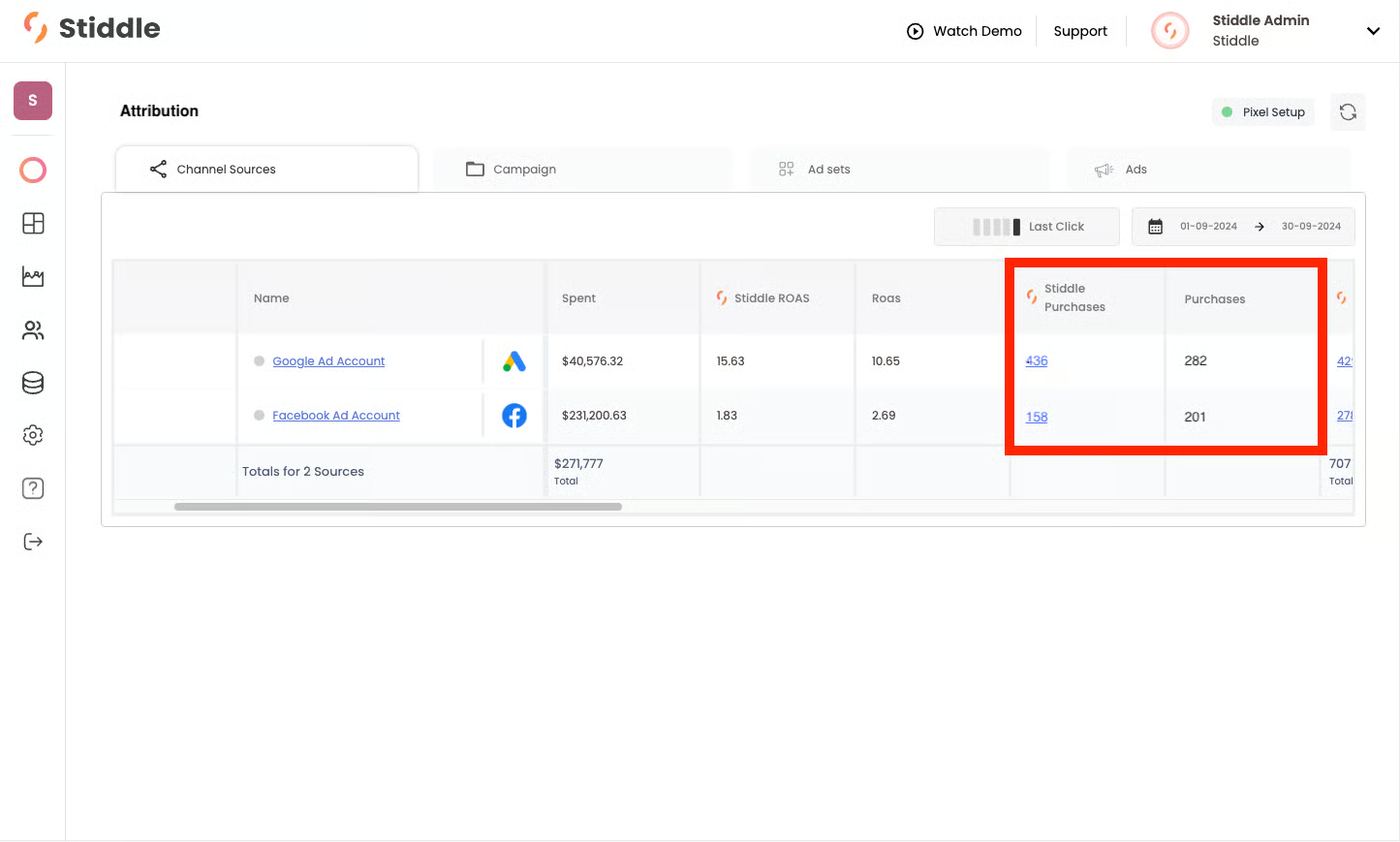
Worked example (B2B)
Question: Which paid channel is most efficient at creating pipeline?- Open Paid Channels, last quarter, model Seeker.
- Add Open Opp, Closed Won and their conversion values via Columns.
- Compare cost per Open Opp and Closed Won CV per channel.
- Click a channel’s Closed Won count to check the deals and reps behind it, then use the Campaign tab to find which campaigns did it.
- Re-check under Phantom and Endgame before moving budget — a channel that only wins under one model is an assist, not a closer.
FAQs
Why is Stiddle’s ROAS higher (or lower) than the platform’s? Stiddle counts each conversion once across all channels and sees beyond the platform’s lookback window. It can go either way. Can I track more than purchases? Yes — any goal: form fills, calls, bookings, CRM stages. Why is a metric blank for a channel? No qualifying events in the range, or the metric doesn’t apply to that channel. Does changing the model change the platform columns? No. Models only affect attributed (Stiddle icon) metrics. Why can’t I open the Campaign tab? Select a channel source first: click an ad account’s name on Channel Sources. I changed columns on Campaigns. Why didn’t Channel Sources change? They’re separate layouts. Campaign, Ad sets, Ads and Keywords share one layout; Channel Sources has its own. Why can’t I add Impressions or CPC on Channel Sources? Platform metrics are limited at the account level. Open an account’s Campaign tab for the full set. Attributed metrics are available everywhere. I don’t see any campaigns, ad sets or ads. The default Active filter hides paused items. Clear it, or choose All. If spend shows but goals don’t, check that your Stiddle UTMs are on the ads. Why is there a red flag next to a campaign? It’s a Google Performance Max campaign, which Stiddle attributes at the campaign level only. Where’s the Keywords tab? It only appears for search / PPC platforms like Google Ads. Do I need to refresh spend? No. Ad platform data like spend syncs automatically.7. Attribution — All Channels
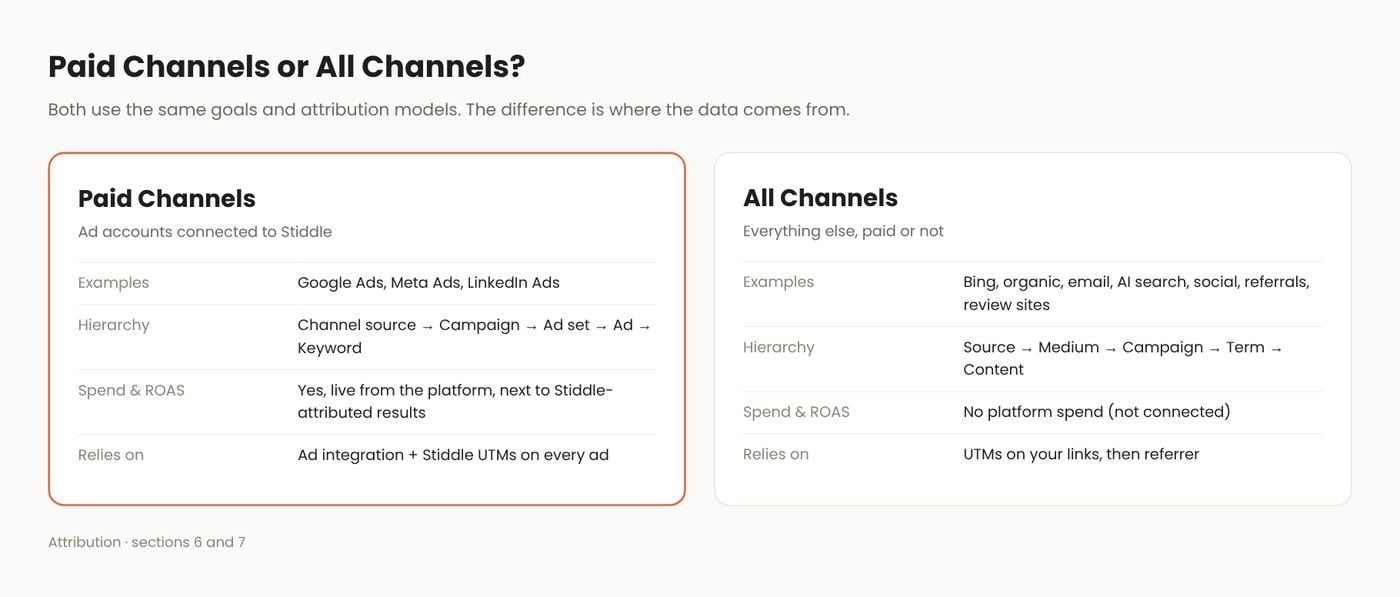
All Channels attributes goals and revenue to every source that isn’t connected to Stiddle as a paid ads integration. That includes paid and non-paid channels: organic search, AI search (ChatGPT, Perplexity), email (Klaviyo, Customer.io), organic social, review sites like TrustRadius, referrals and partners, offline touchpoints, and ad platforms you haven’t connected, such as Bing.All Channels runs on UTMs and referrers. Without an ad platform connection behind it, Stiddle relies on the UTM parameters on your links (utm_source,utm_medium,utm_campaign,utm_term,utm_content). When a visit has no UTMs, it falls back to the referring site. Put consistent UTMs on every email, social post, partner link and unconnected ad and you get clean data you can drill into. A source like{{placement}}in the table means a UTM macro was never filled in, so fix it where the link was built.
Reading the screen
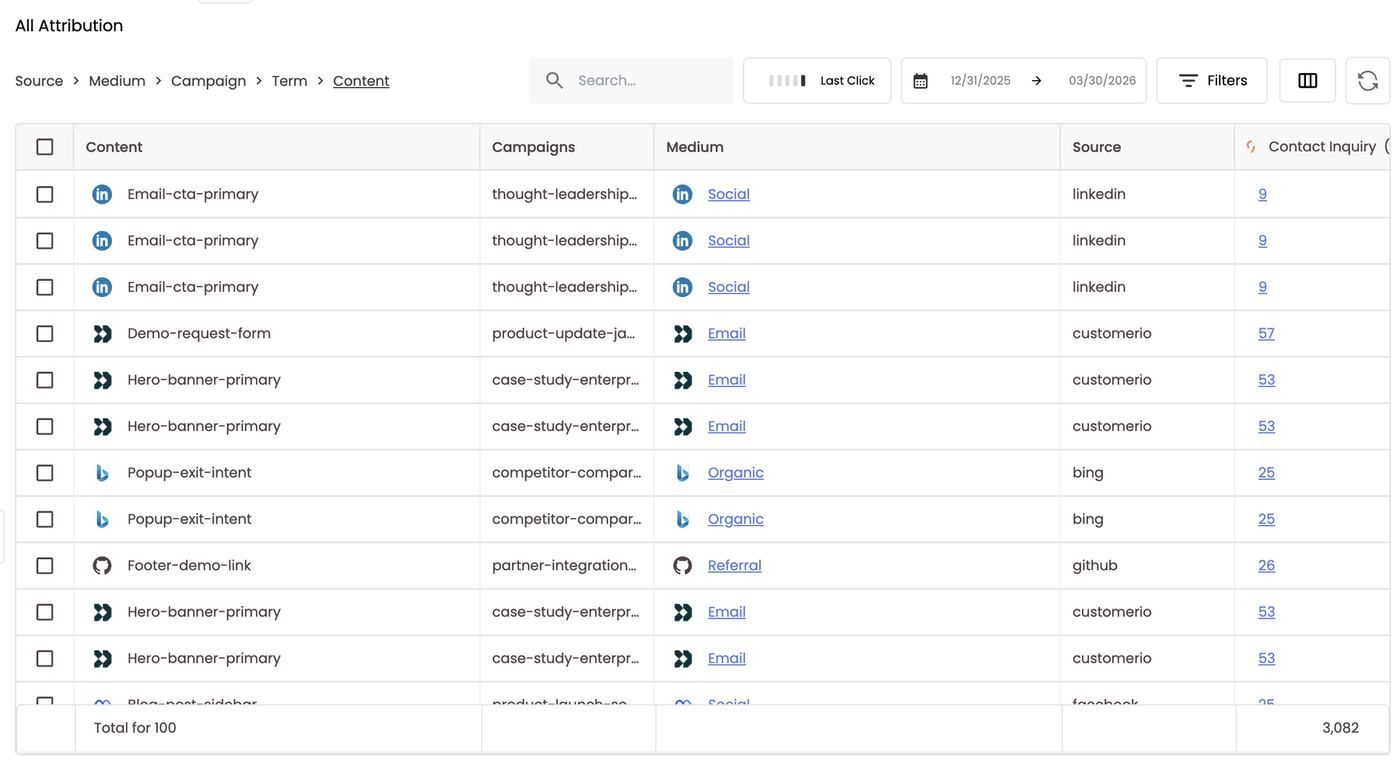
- Hierarchy: Source › Medium › Campaign › Term › Content, matching the UTM levels and referrers.
- The table opens at Source with every source listed.
- Click a source’s name to drill into its mediums, then campaigns, terms and content.
- Click any level in the breadcrumb to jump there. The current level is underlined.
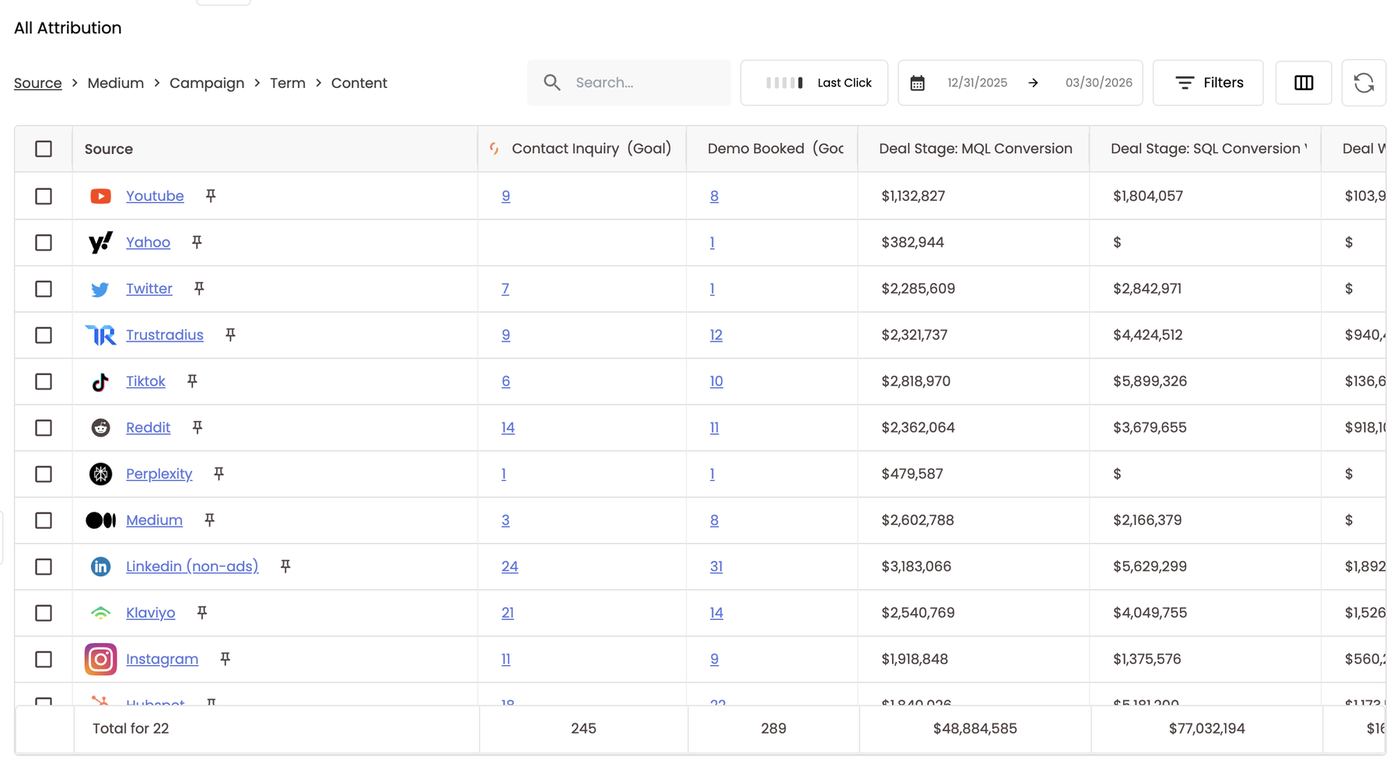
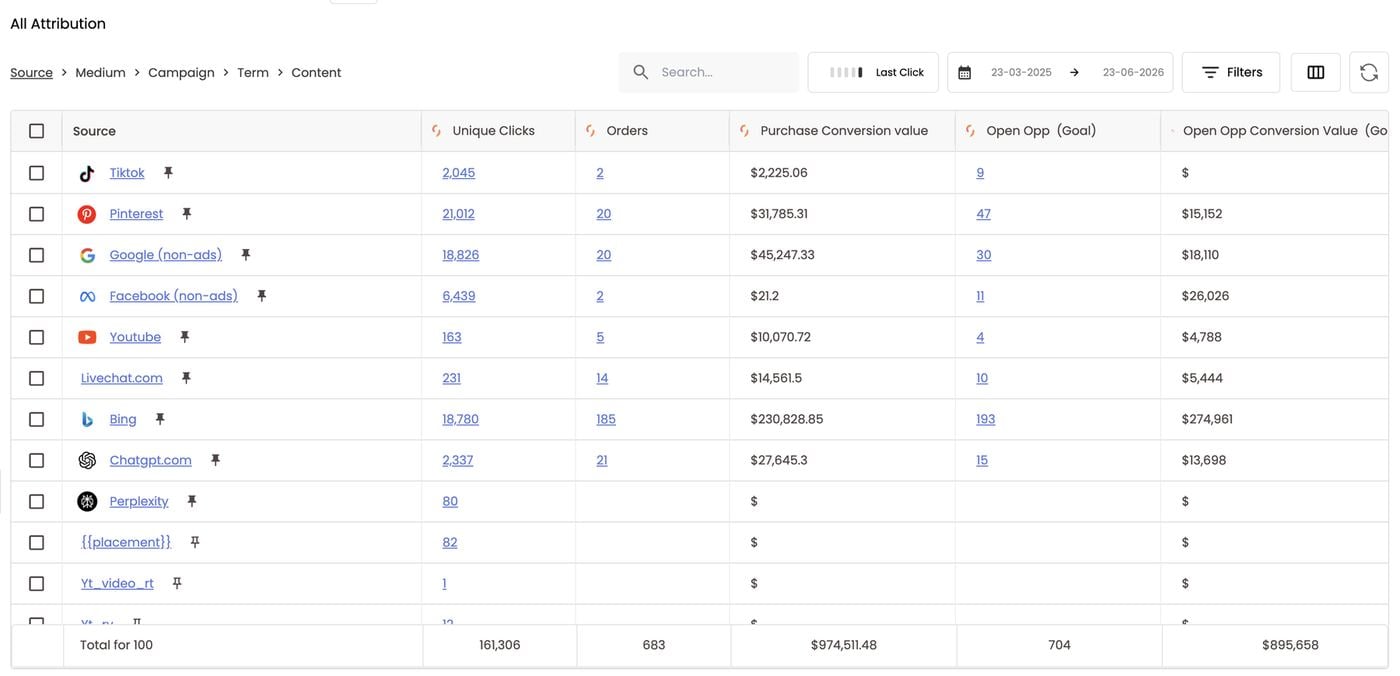
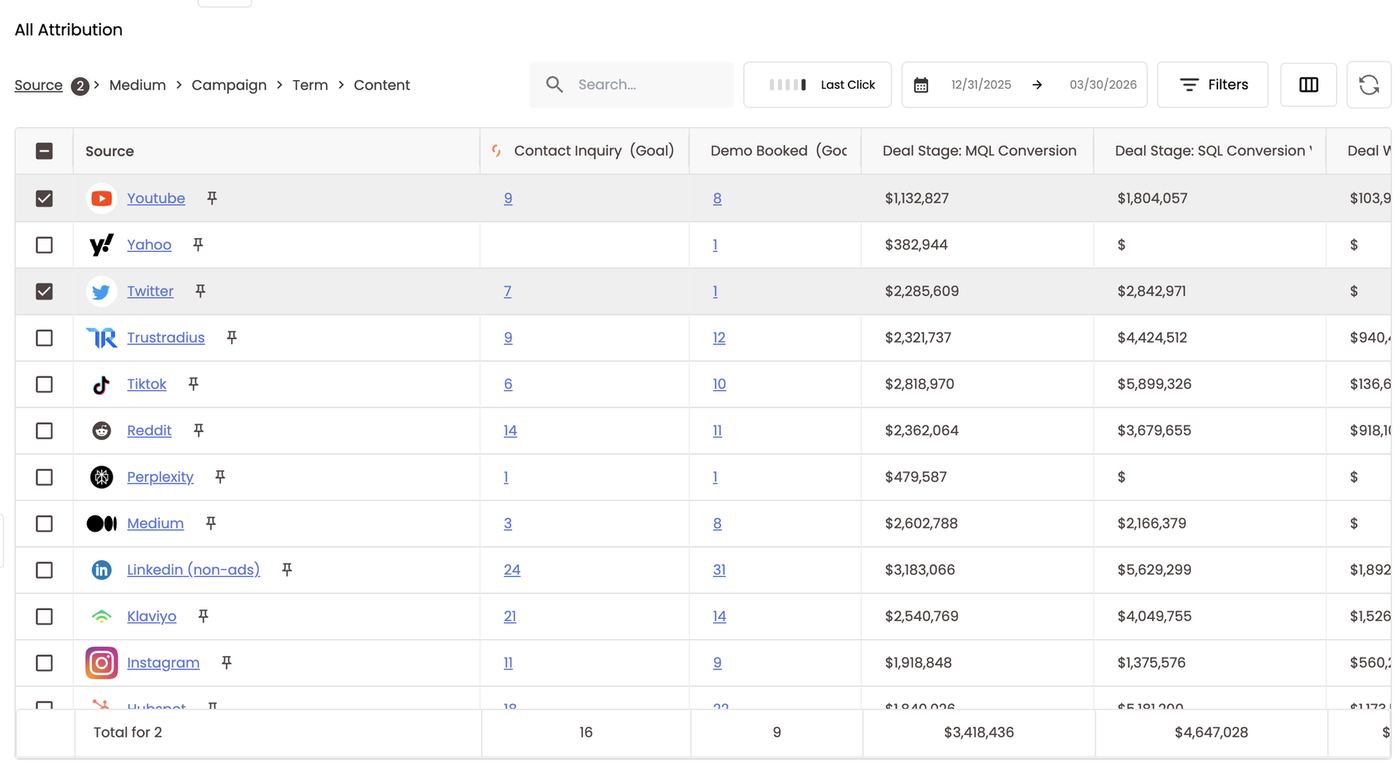
- Rows: one per source, with its logo, e.g. YouTube, Yahoo, Twitter, TrustRadius, TikTok, Reddit, Perplexity, Medium, LinkedIn (non-ads), Klaviyo, Instagram, HubSpot. (non-ads) means organic traffic from a platform whose paid traffic lives in Paid Channels. Click the pin icon to keep a row at the top.
- Columns: your goals (Stiddle icon) and their conversion values, plus metrics like Unique Clicks, Orders, Purchase Conversion value and AOV.
- Toolbar: search, attribution model, date range, Filters, columns and refresh. A Total for N row sits at the bottom.
Select rows to drill into several sources at once
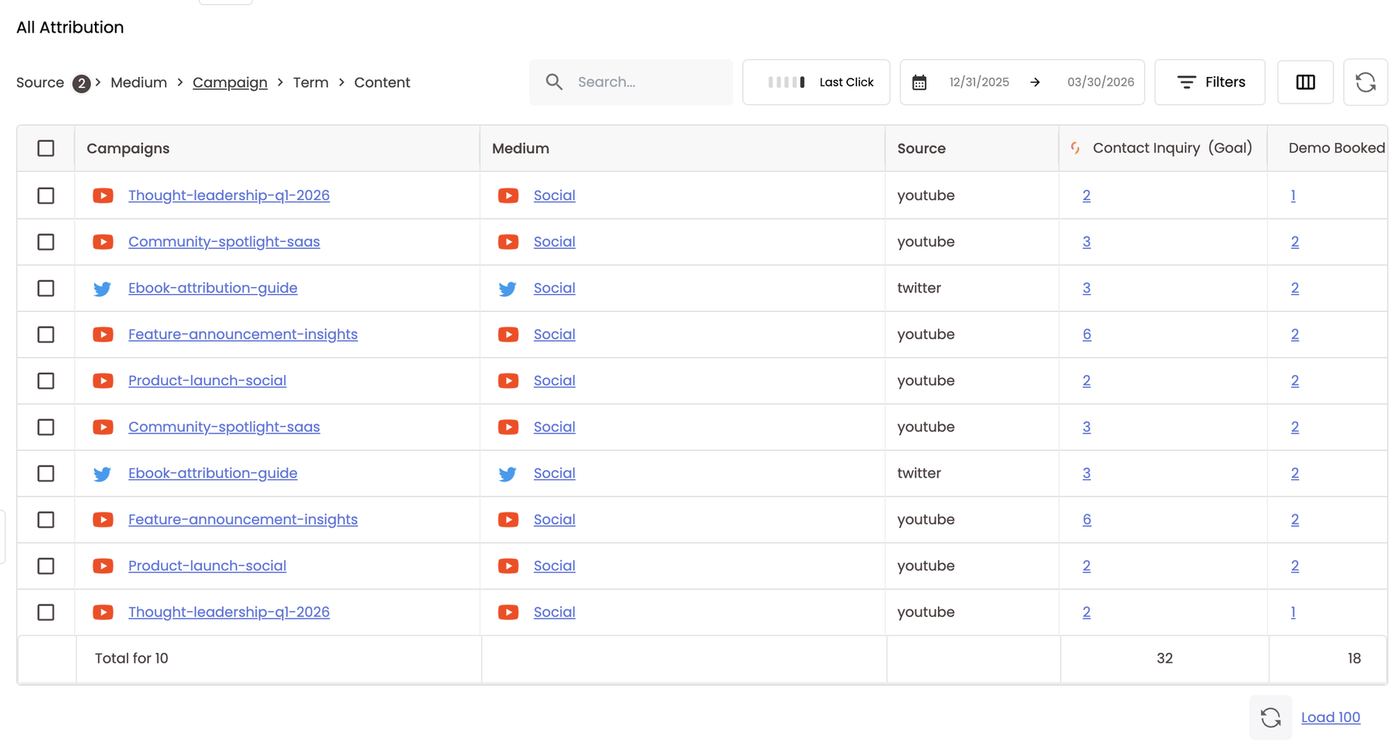
Tick the checkbox on one or more rows, then click the next level in the breadcrumb. That level loads for only the rows you selected, combined. A badge next to the level shows how many rows are selected, e.g. Source (2). Example:- Tick YouTube and Twitter. The totals row switches to Total for 2: 16 contact inquiries and 9 demos booked.
- Click Campaign. The table lists campaigns from both YouTube and Twitter together, such as Thought-leadership-q1-2026 and Ebook-attribution-guide. Medium and Source columns tell you where each one came from.
Worked example (B2B): what did Bing actually drive?
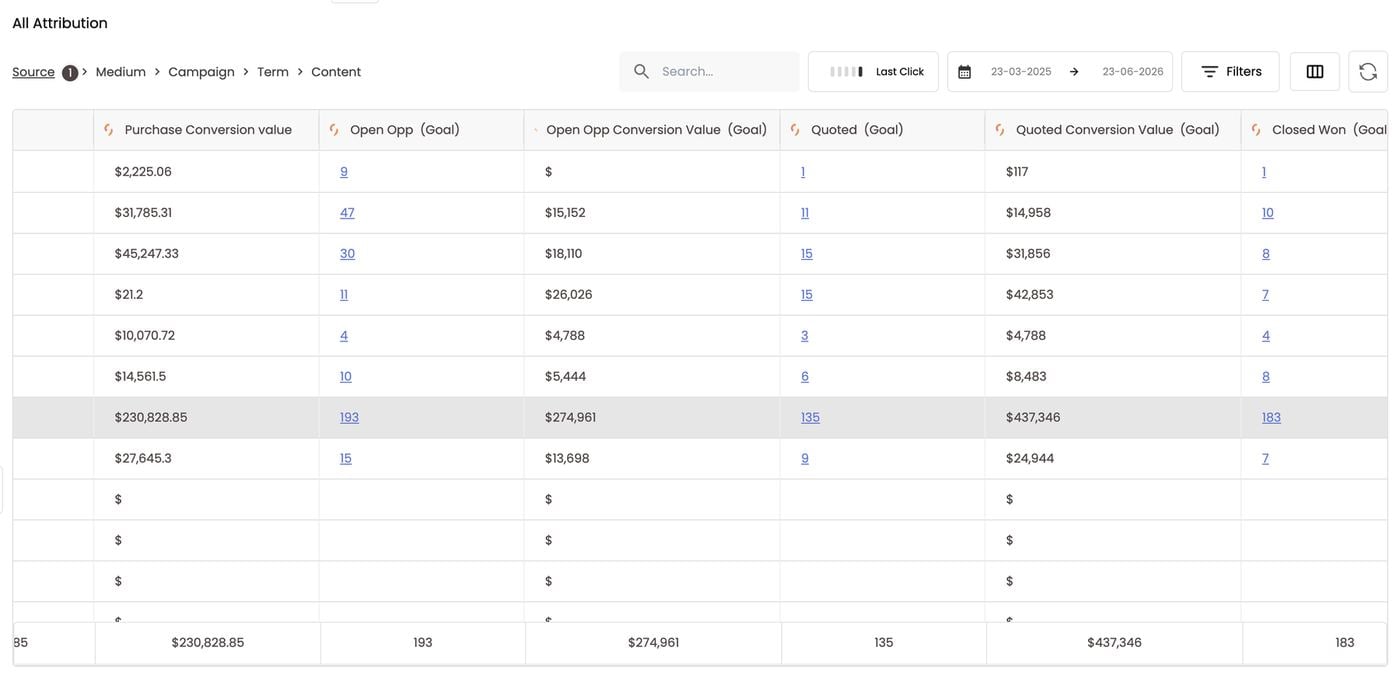
Bing isn’t connected as a paid ads integration here, so it’s tracked through UTMs in All Channels.- Select Bing. Tick its row. The totals row now shows Bing alone: 18,780 unique clicks, 185 orders and 193 open opportunities.
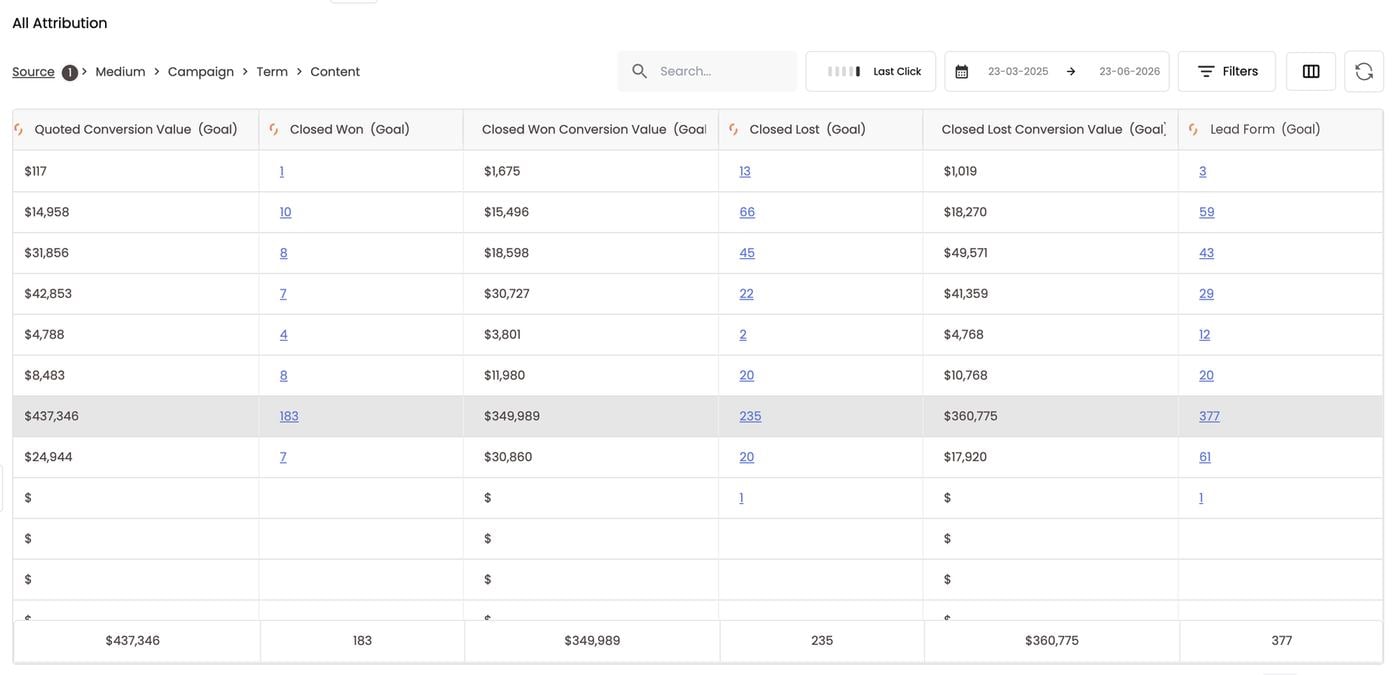
- Look at leads. Scroll right to Lead Form: Bing campaigns generated 377 leads. That’s good to know, but leads don’t necessarily turn into revenue, and not every lead is equal.
- Follow the pipeline. Scroll back to Open Opp, a stage synced from your CRM. 193 of those 377 leads became open opportunities, meaning a sales rep qualified them and started a sales process. Open Opp Conversion Value puts that pipeline at $274,961.
- Keep going down the funnel to see Bing’s impact on every stage, through to revenue Bing actually generated and influenced: 183 Closed Won deals worth $349,989.
So for whatever you spent on Bing, you can now say it drove 377 leads, 193 open opportunities worth $274,961 and $349,989 in closed-won revenue. Divide your Bing spend by each row for cost per lead, per opportunity and per closed deal.
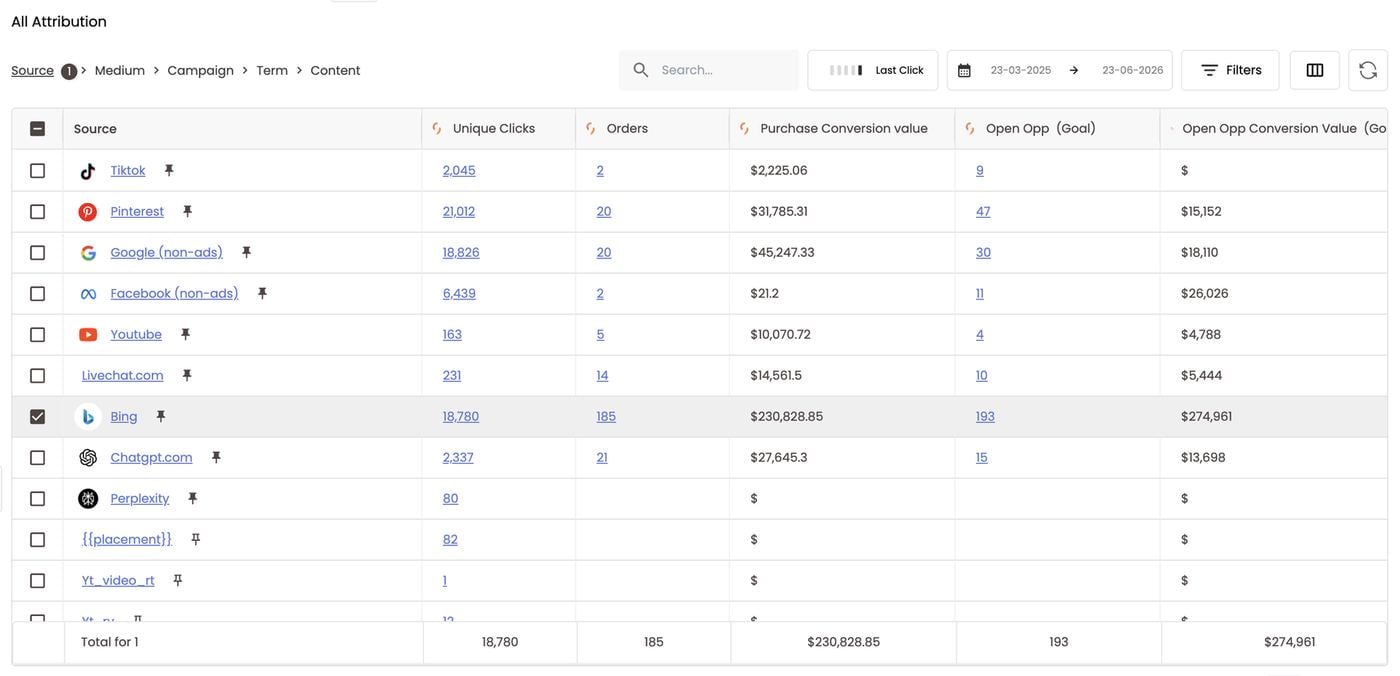
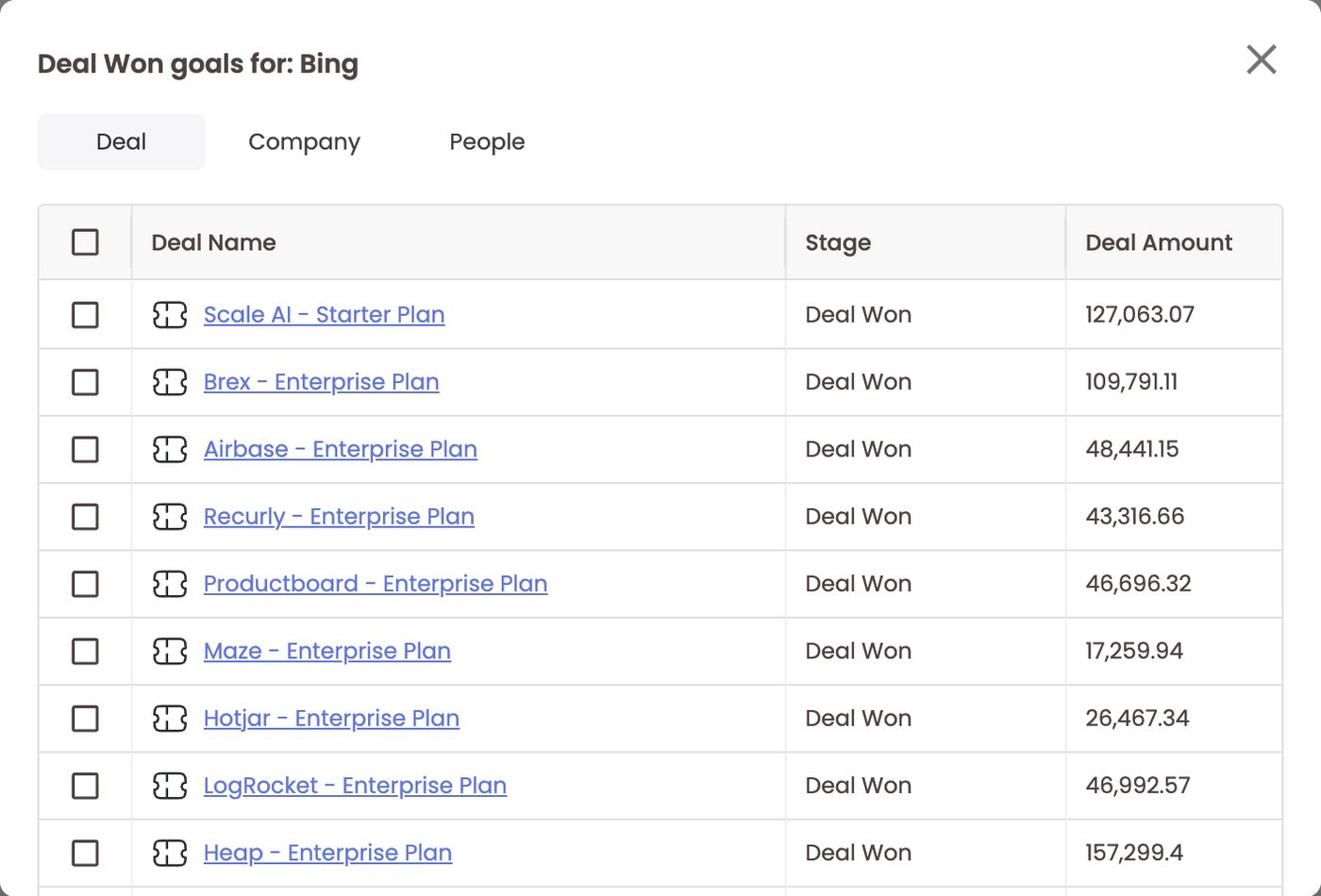
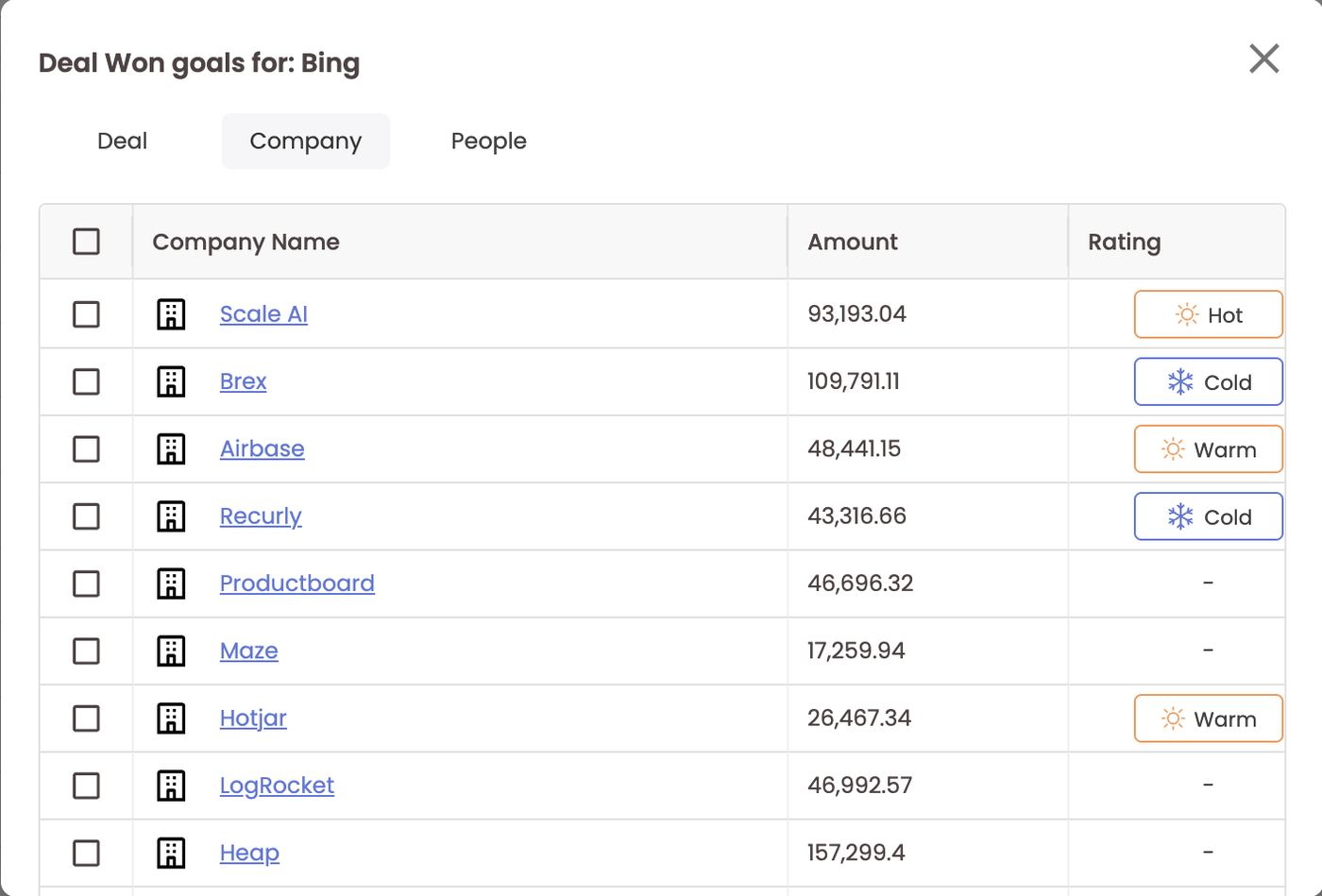
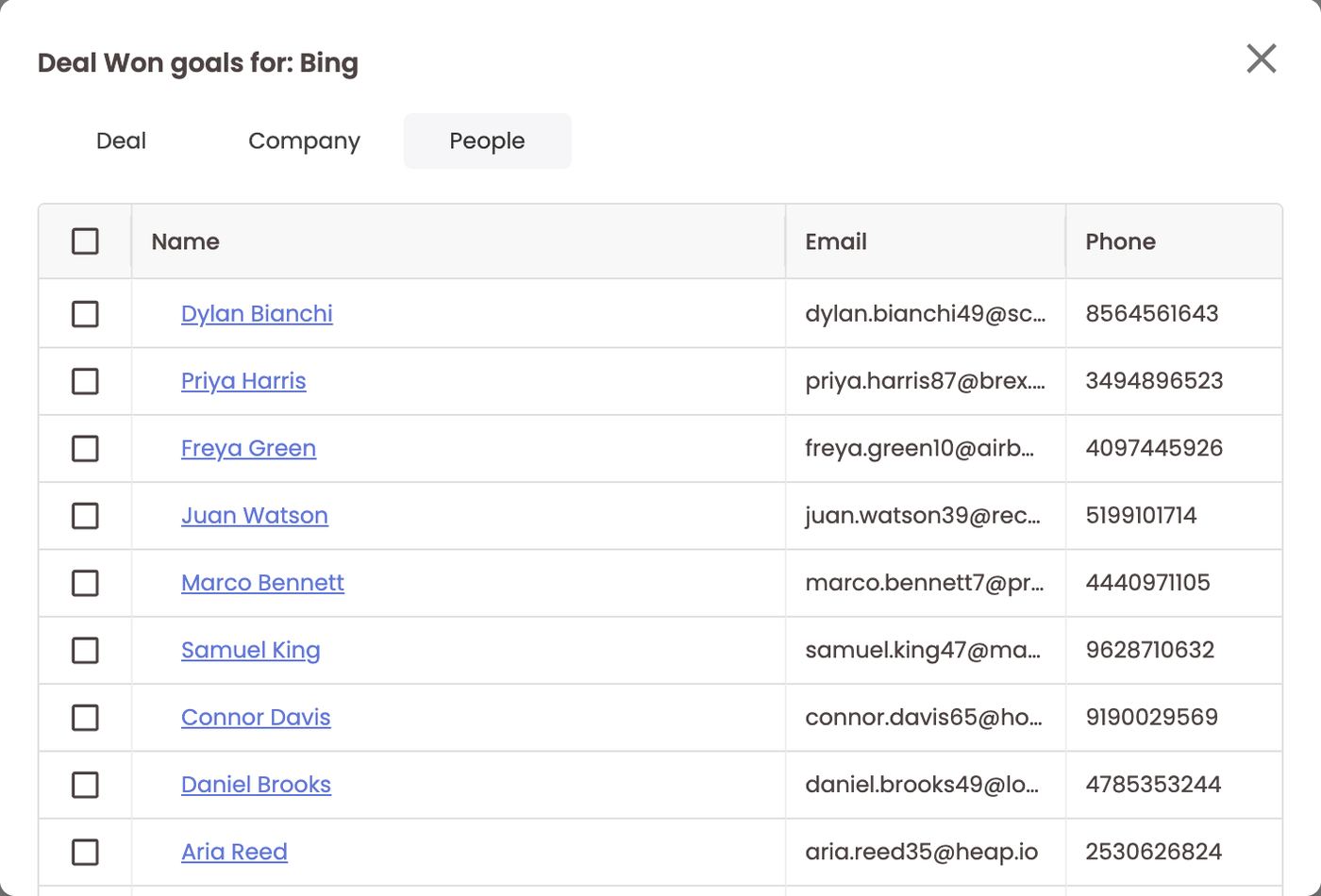
- See the data behind the numbers. Click any goal count, e.g. the 183 Closed Won, to open Deal Won goals for: Bing. It has three tabs:
- Deal: every closed opportunity, with its stage, deal amount and the sales rep responsible.
- Company: the accounts Bing influenced, with amount and Smart Score rating (Hot / Warm / Cold).
- People: the individual people at those companies, with email and phone. In B2B, many people at one company interact with your marketing; grouping them by company shows the whole buying committee behind a deal.
Attribution models
The model selector works exactly as in Paid Channels (section 6):- AI models: Seeker, Phantom and Endgame.
- Traditional models: First Click, Linear Click and Last Click.
Filters
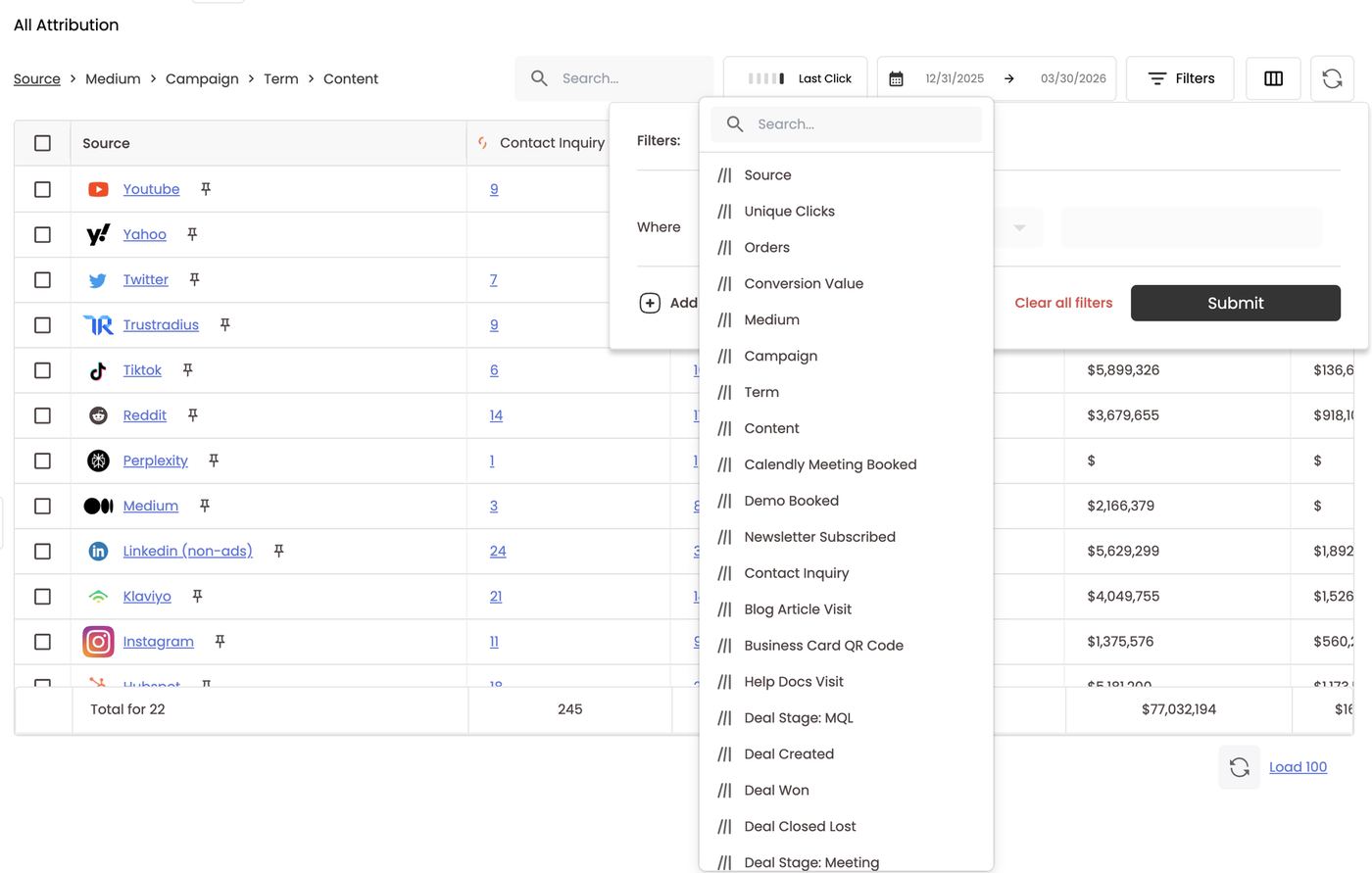
Filters load only the sources or campaigns that match properties in Stiddle.- Click Filters.
- Under Where, pick a field. You can use Source, Unique Clicks, Orders, Conversion Value, Medium, Campaign, Term, Content, or any goal (Calendly Meeting Booked, Demo Booked, Newsletter Subscribed, Contact Inquiry, Blog Article Visit, Business Card QR Code, Help Docs Visit, Deal Stage: MQL, Deal Created, Deal Won, Deal Closed Lost…).
- Choose an operator and a value.
- Click Add for more conditions, then Submit. Clear all filters resets.
Columns
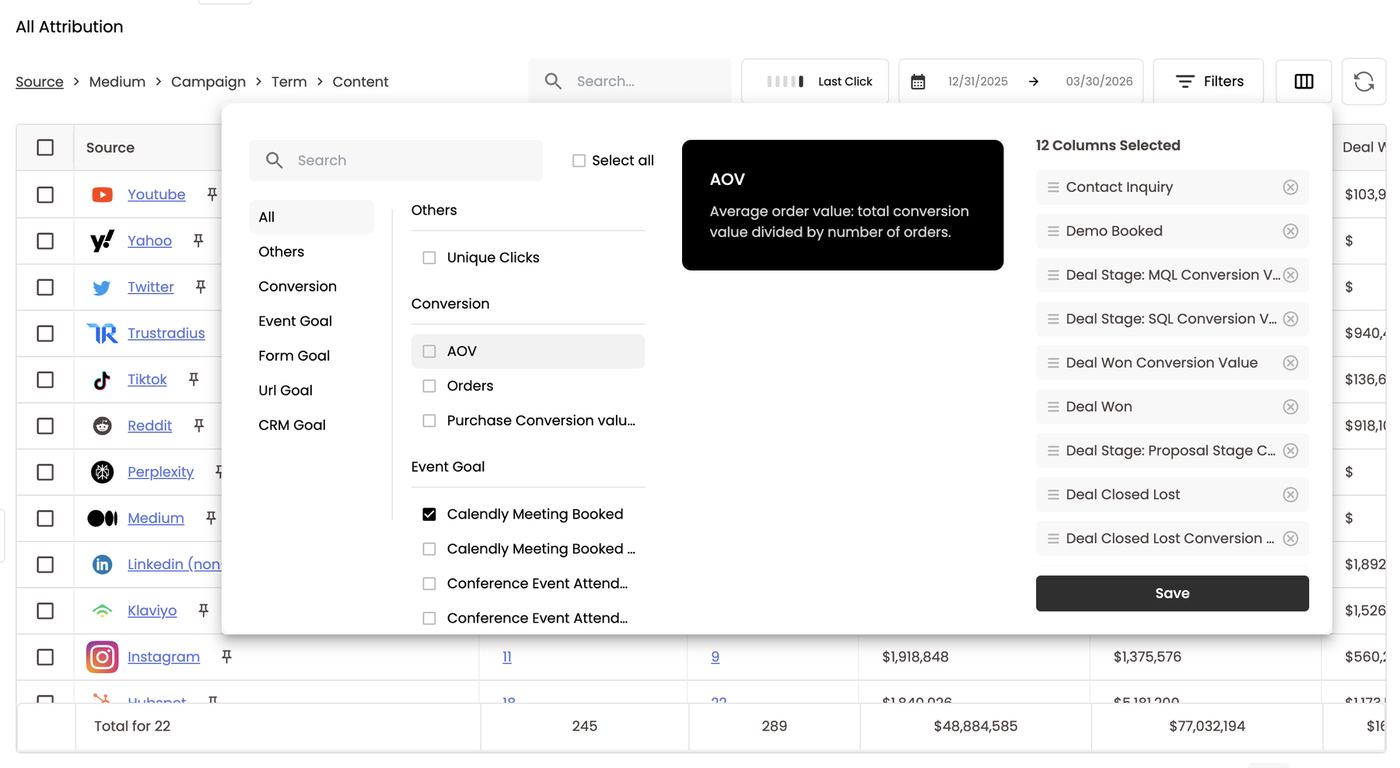
Click the columns icon:- Browse by category: All, Others (Unique Clicks), Conversion (AOV, Orders, Purchase Conversion value), Event Goal, Form Goal, Url Goal and CRM Goal.
- Search, or tick Select all.
- Hover a metric for its definition. For example, AOV reads “Average order value: total conversion value divided by number of orders.”
- Drag ≡ to reorder, click ⊗ to remove, then Save.
Loading more rows
The table loads 100 rows at a time. Scroll down and the next 100 load automatically, or click Load 100 at the bottom.AI search and offline sources
AI assistants show up as their own sources: ChatGPT and Perplexity appear in the examples above, and Claude does too when it sends traffic. Offline touchpoints, such as a Business Card QR Code scanned at an event or an uploaded attendee list, are goals and touchpoints as well, so they’re credited like any other channel.Worked example (D2C)
Question: Is email or organic social doing more for revenue?- Open All Channels, model Seeker, last 90 days.
- Compare Klaviyo against Instagram and TikTok on Orders and Purchase Conversion value.
- Click Klaviyo, then Campaign, to see which flows or newsletters drove it.
- Switch the model to Last Click. If Klaviyo’s share jumps, email is mostly closing sales that other channels started. That’s useful context before cutting top-of-funnel spend.
FAQs
What’s the difference from Paid Channels? Paid Channels covers ad accounts connected to Stiddle, with spend and platform metrics. All Channels covers everything else, paid or not, by UTM hierarchy and referrer. Why is Google, Facebook or LinkedIn listed as “(non-ads)”? That row is organic traffic from the platform. Paid traffic from a connected ad account is in Paid Channels. Can a channel get credit without being the last touch? Yes, under any model except Last Click. Why is a source missing its campaign? The visit arrived without UTM parameters, so there’s nothing below Source to drill into. Why do I see{{placement}} or odd source names? A UTM macro wasn’t filled in, or naming is inconsistent (e.g. YouTube vs Yt_video_rt). Fix it where the link is built.
Can I look at two sources together? Yes. Tick both rows, then click the next level in the breadcrumb.
Do column changes apply to every level? Yes. One layout covers Source, Medium, Campaign, Term and Content.
8. Analytics — Dashboards (Boards)
A dashboard — called a Board in the app — is a canvas of sections and widgets. Every widget is a report underneath, so anything you can build as a report you can put on a board, next to text, images and video.The Analytics library
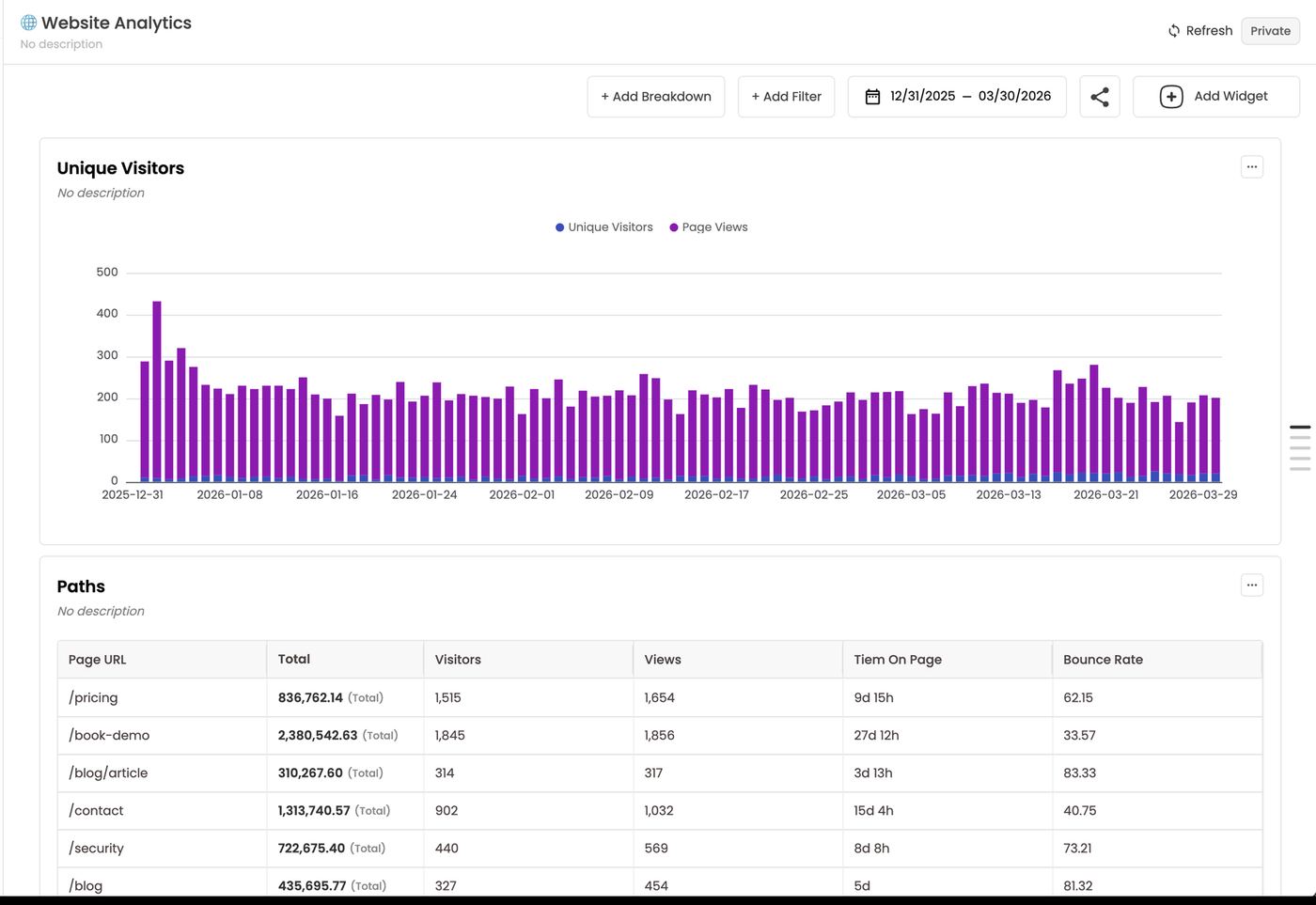
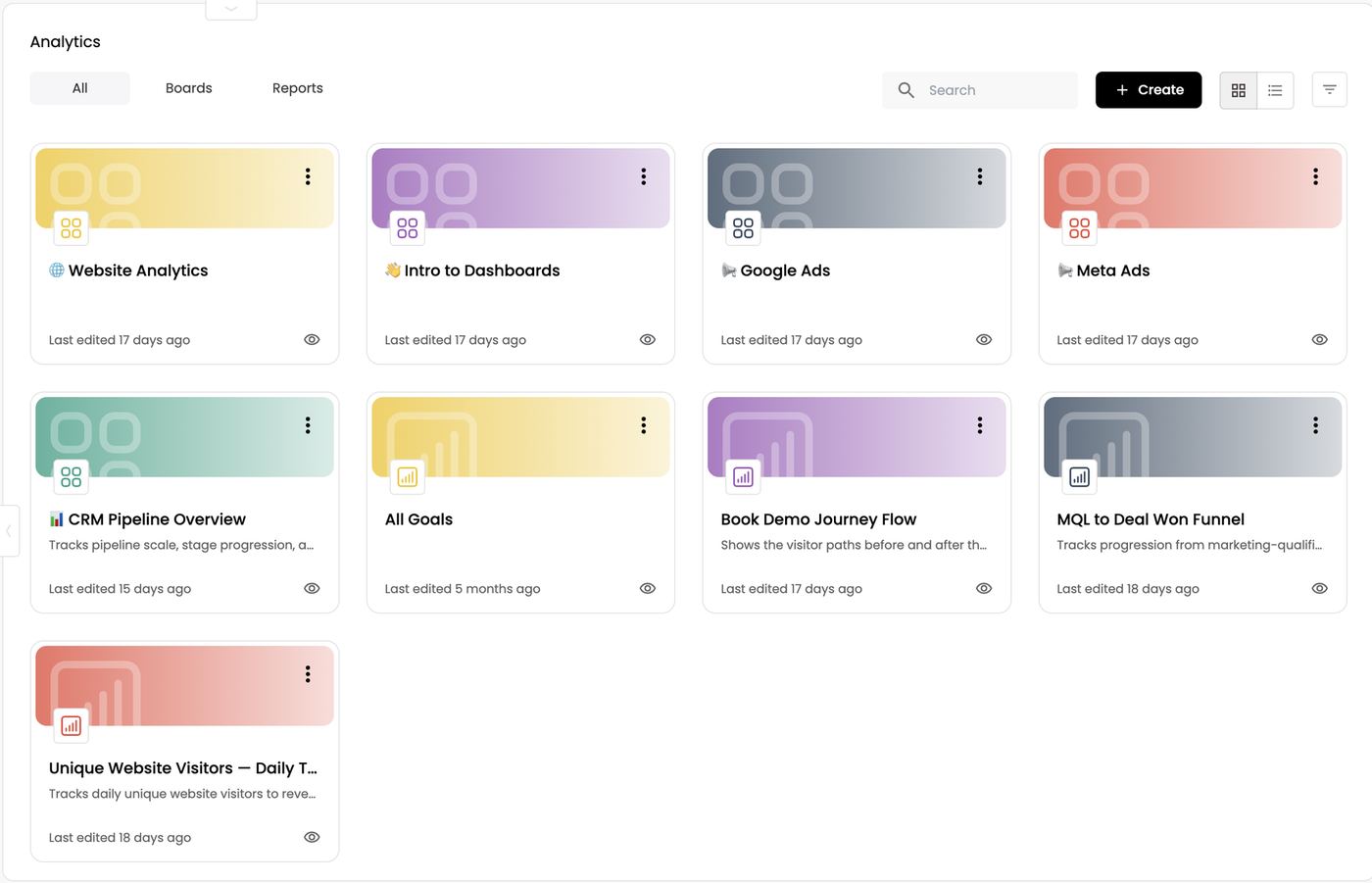
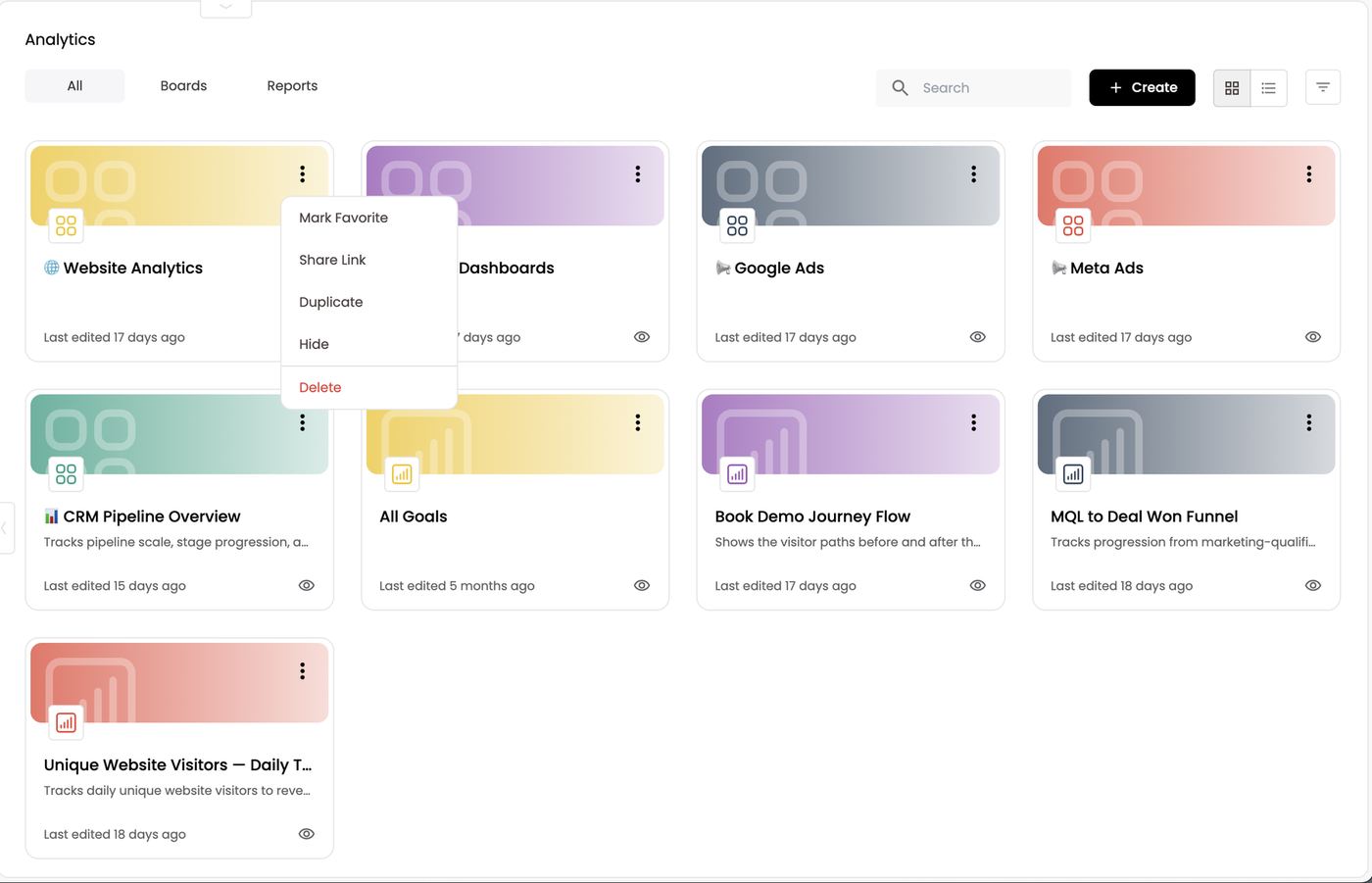
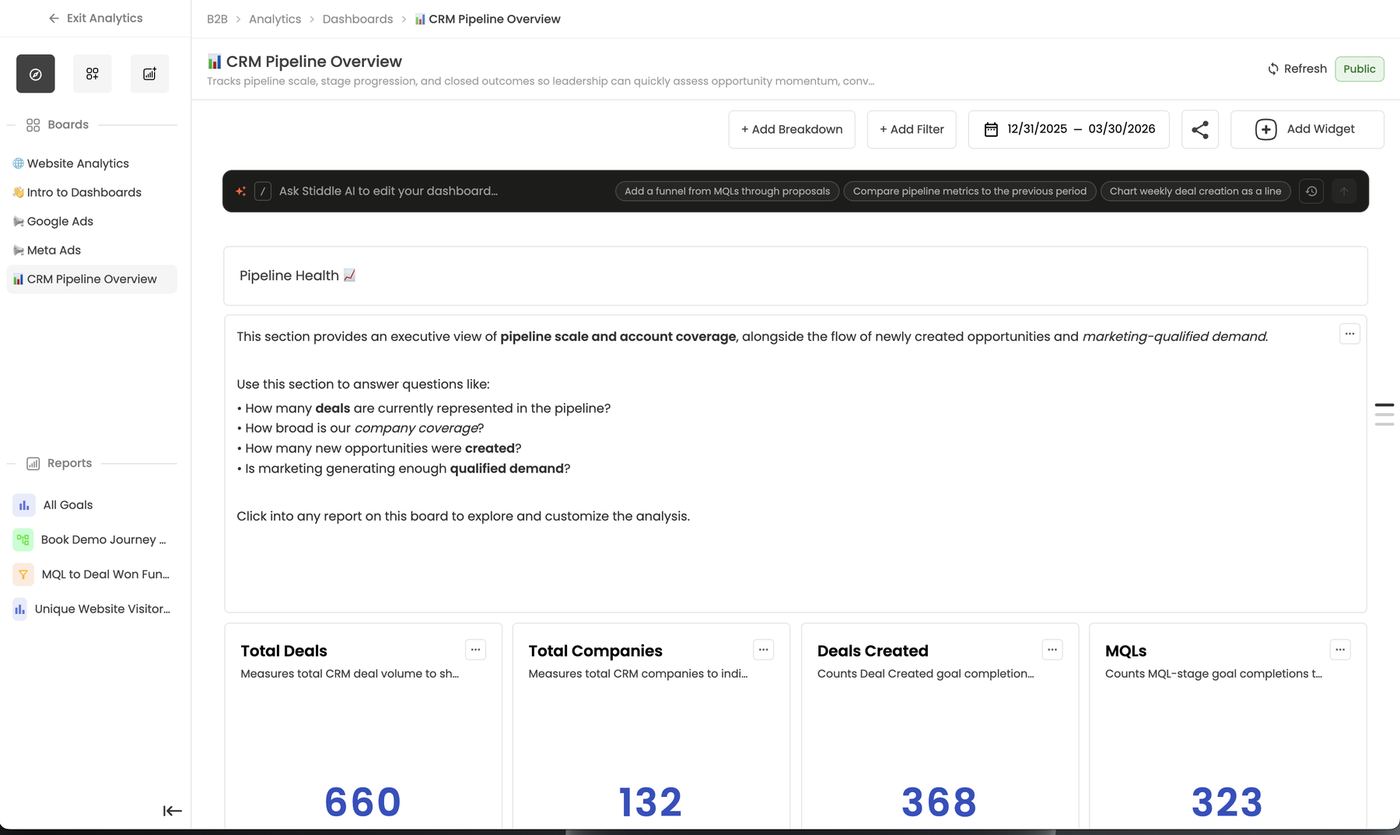
Open Analytics → Dashboards. The library has three tabs — All, Boards, Reports — plus search, grid/list view and a filter. Dashboards can include things like: Website Analytics, Google Ads, Meta Ads and CRM Pipeline Overview, etc. Each card shows when it was last edited.Create a dashboard
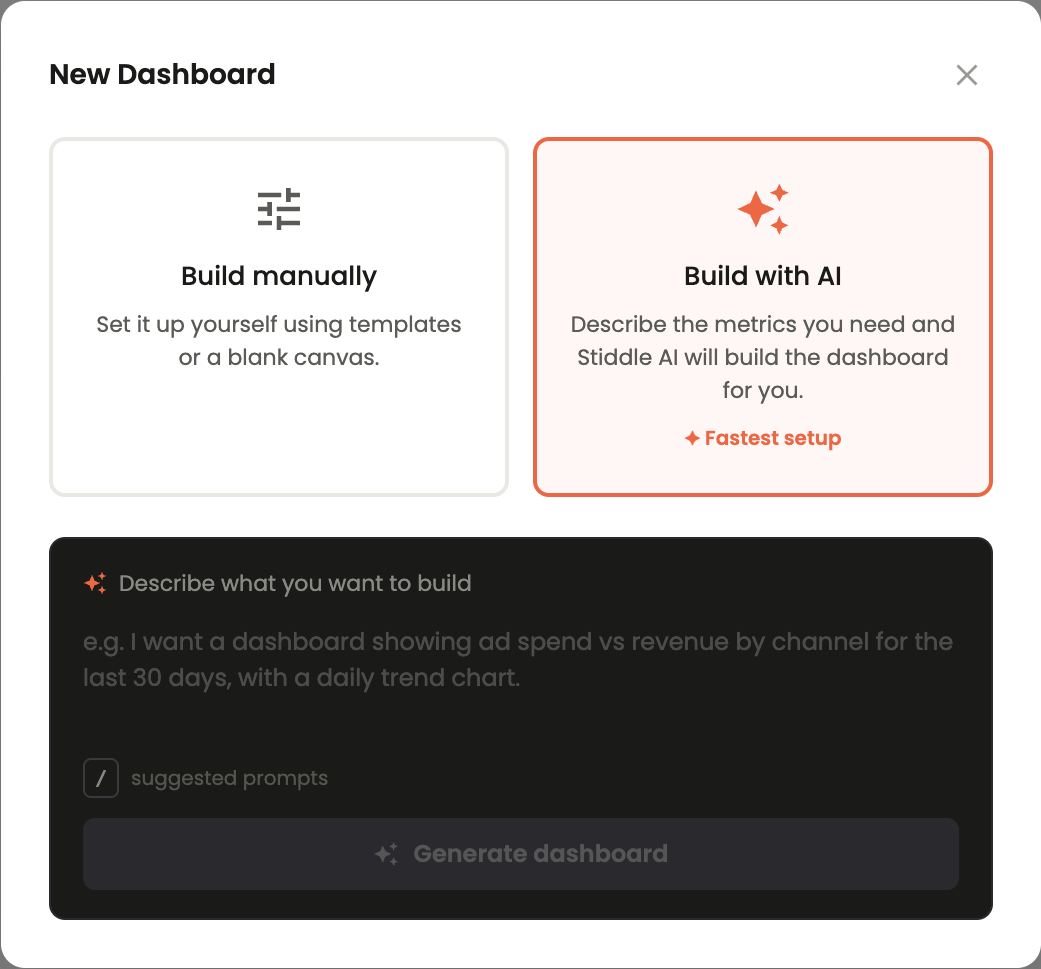
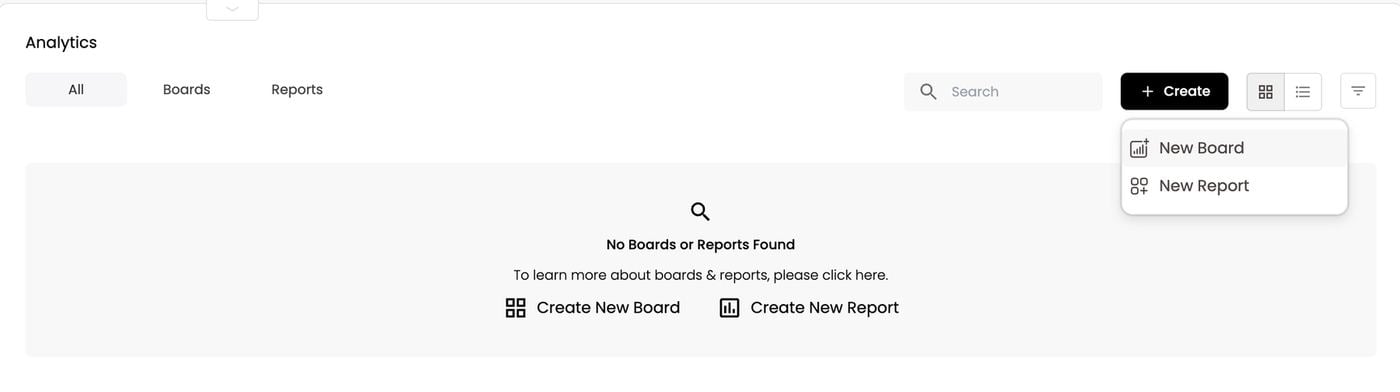
Create one from the Dashboards or Analytics page (+ Create → New Board, or Create New Board on an empty library) or from the New Board icon in the analytics side panel. Then choose:- Build with AI (fastest setup): describe the metrics you need and click Generate dashboard. Write it for your audience, e.g. “Create a dashboard for my CMO” or “A dashboard for our CFO with the relevant spend, pipeline and revenue metrics.” Press / for suggested prompts.
- Build manually: start from a template or a blank canvas and add widgets yourself.
How a dashboard is built: sections and widgets
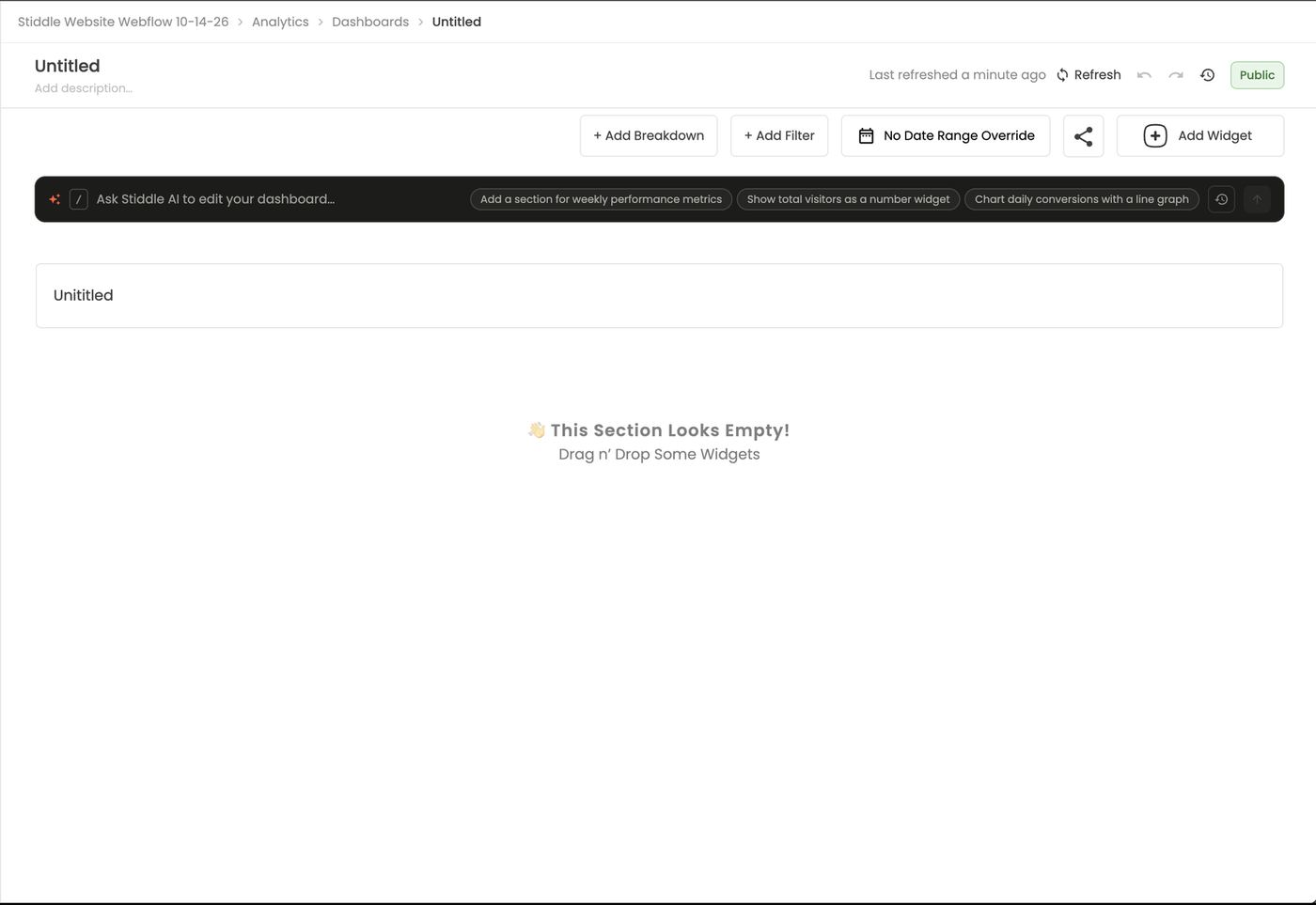
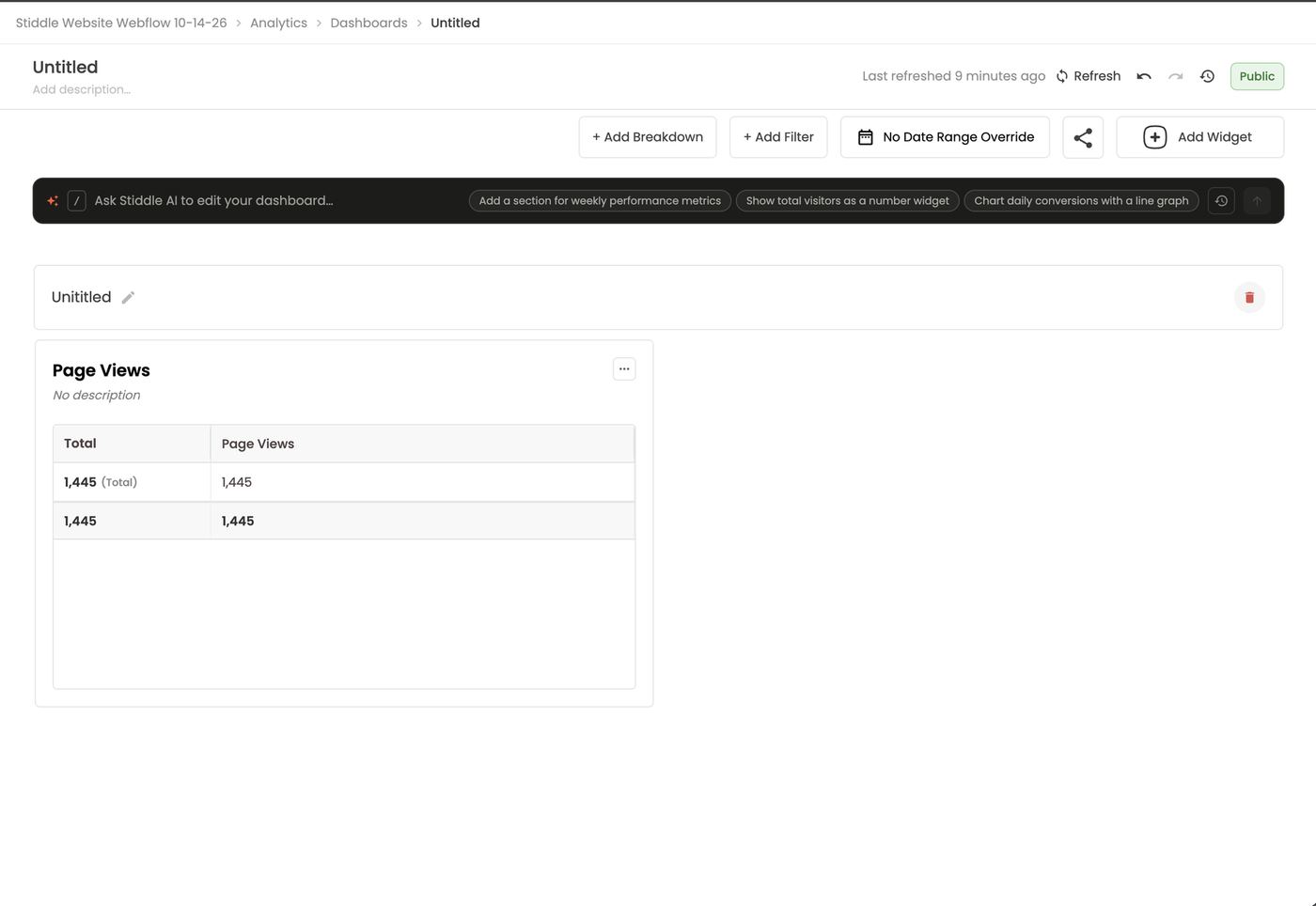
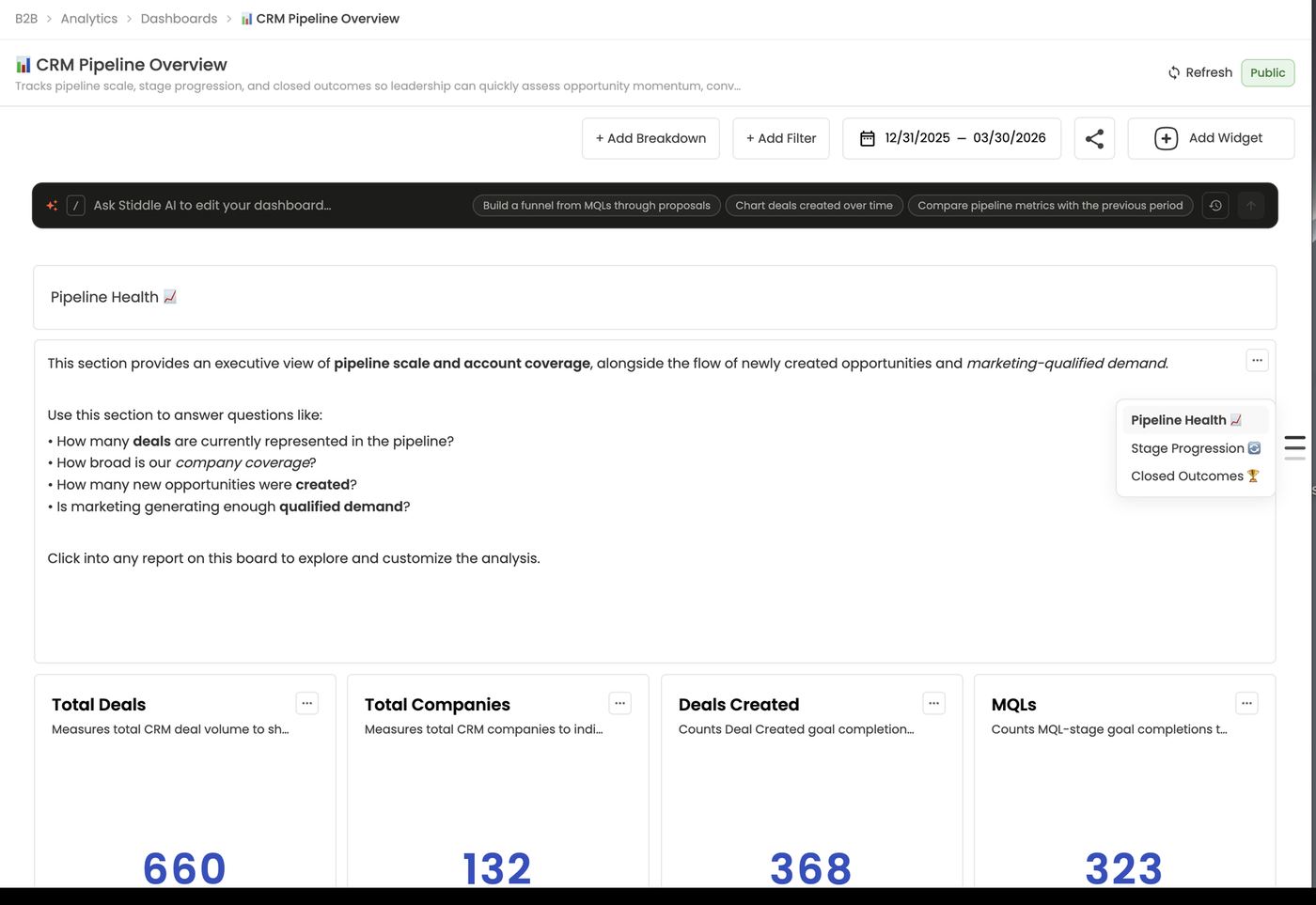
- Sections are the titled bands that organize the board (e.g. Pipeline Health, Stage Progression, Closed Outcomes). Hover a section title to rename it (pencil) or delete it (bin). Deleting a section removes its widgets from the board but never deletes the reports behind them.
- Widgets sit inside sections. Drag a widget to reposition it within its section, and drag a corner to resize it. Widgets can’t be moved from one section to another.
- Section anchors on the right edge list every section. Click one to jump to it.
Add widgets
Click Add Widget. The panel has three parts:
New metric widgets appear as a table by default. An existing report keeps the visualization it was saved with.
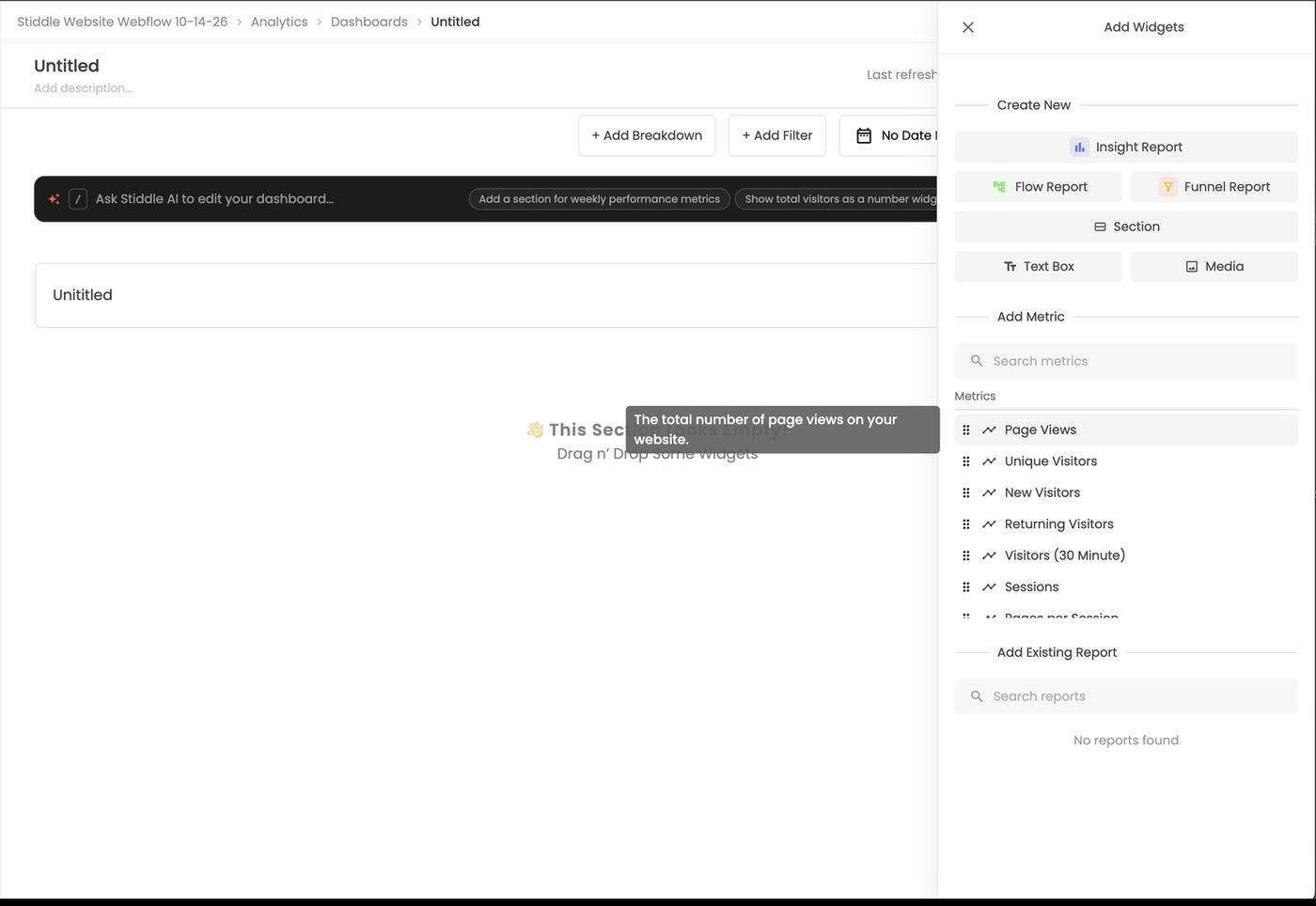
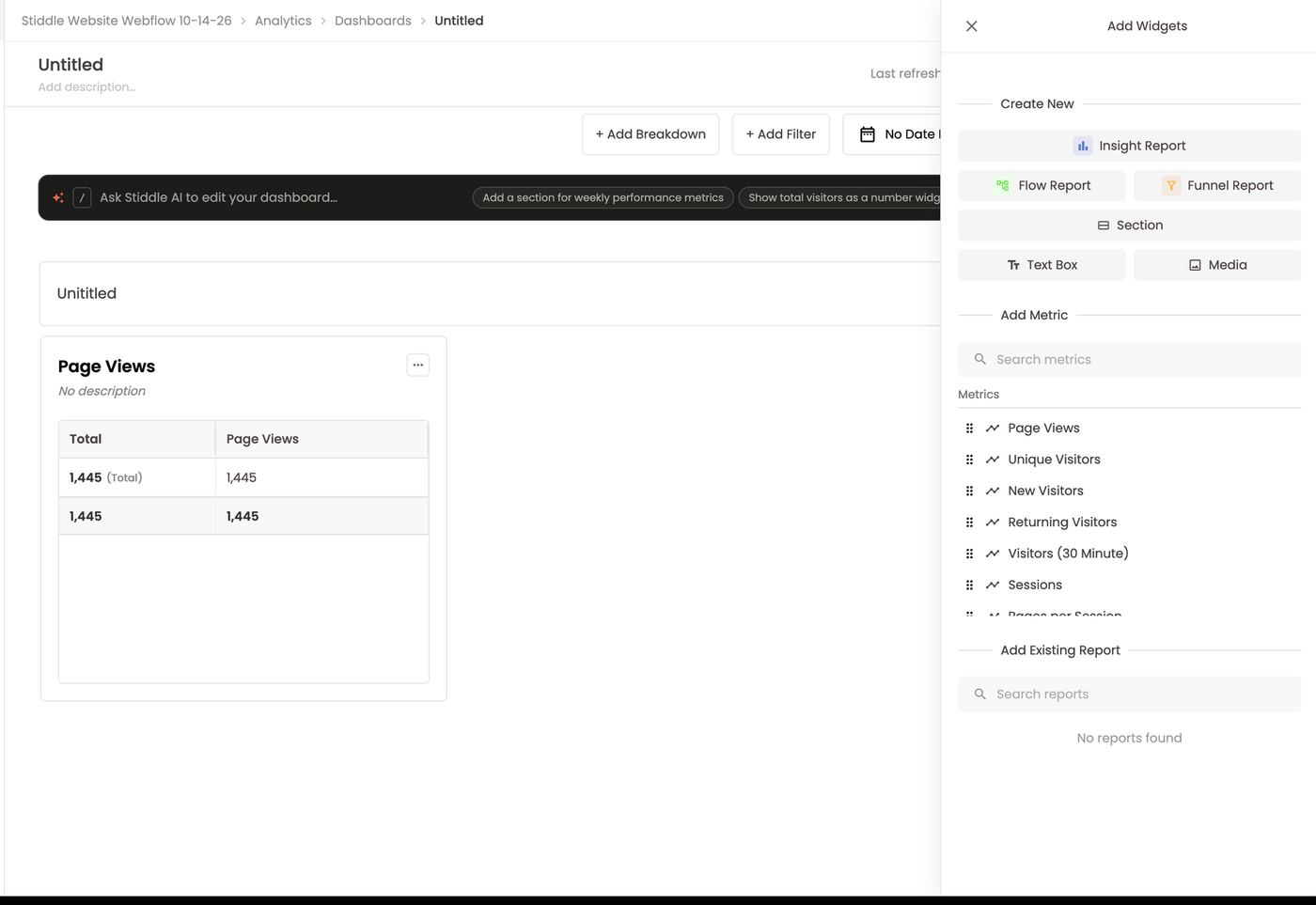
Widgets are linked to their reports. A widget is its report, so editing the report changes the widget on every dashboard that uses it. To change it on one dashboard only, Duplicate the widget and edit the copy.
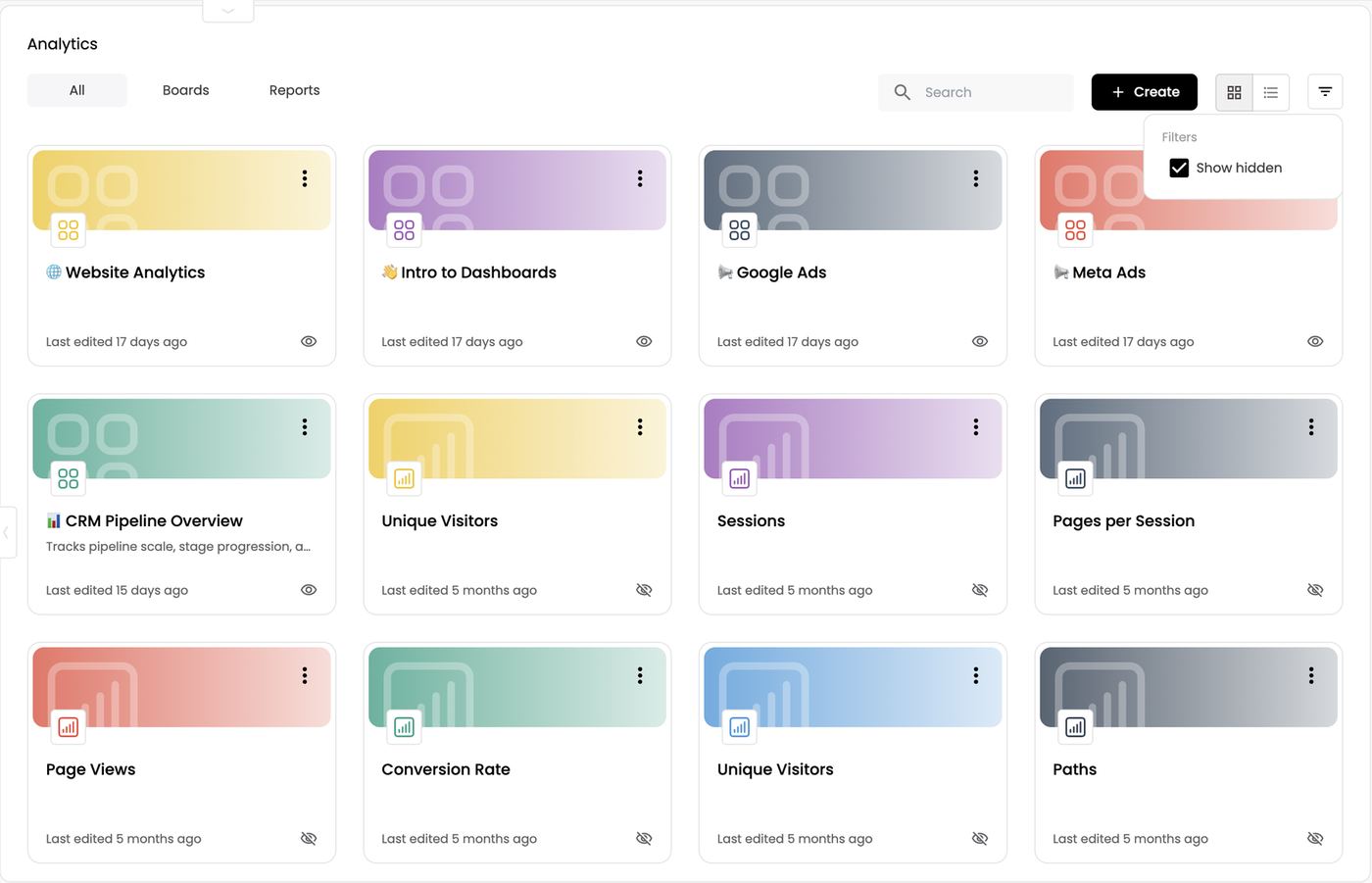
Widget reports are hidden in the library. Reports created from a dashboard, by dragging a metric or with Create New, are marked hidden on the Analytics page so the library stays tidy. Use the filter → Show hidden to see them (section 9).
Work with a widget
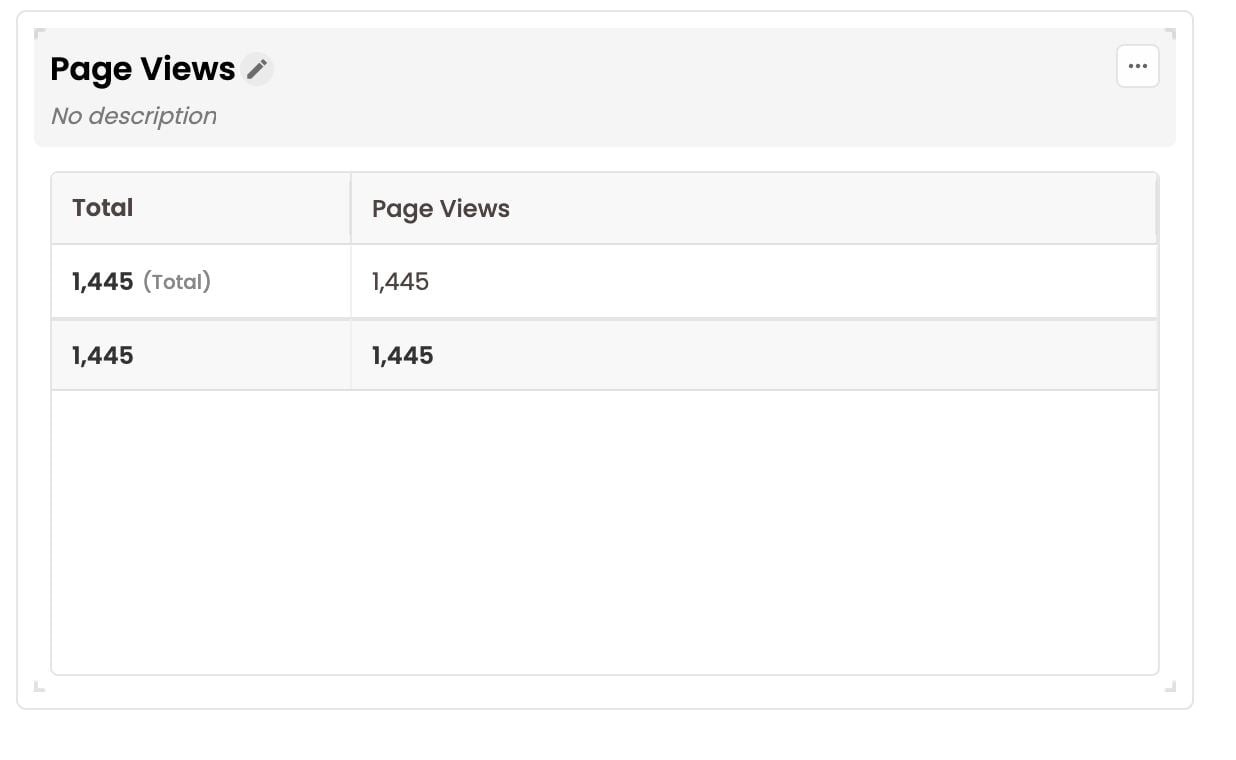
Hover a widget to see its tools:- Rename: click the pencil next to the widget name to edit its name and description.
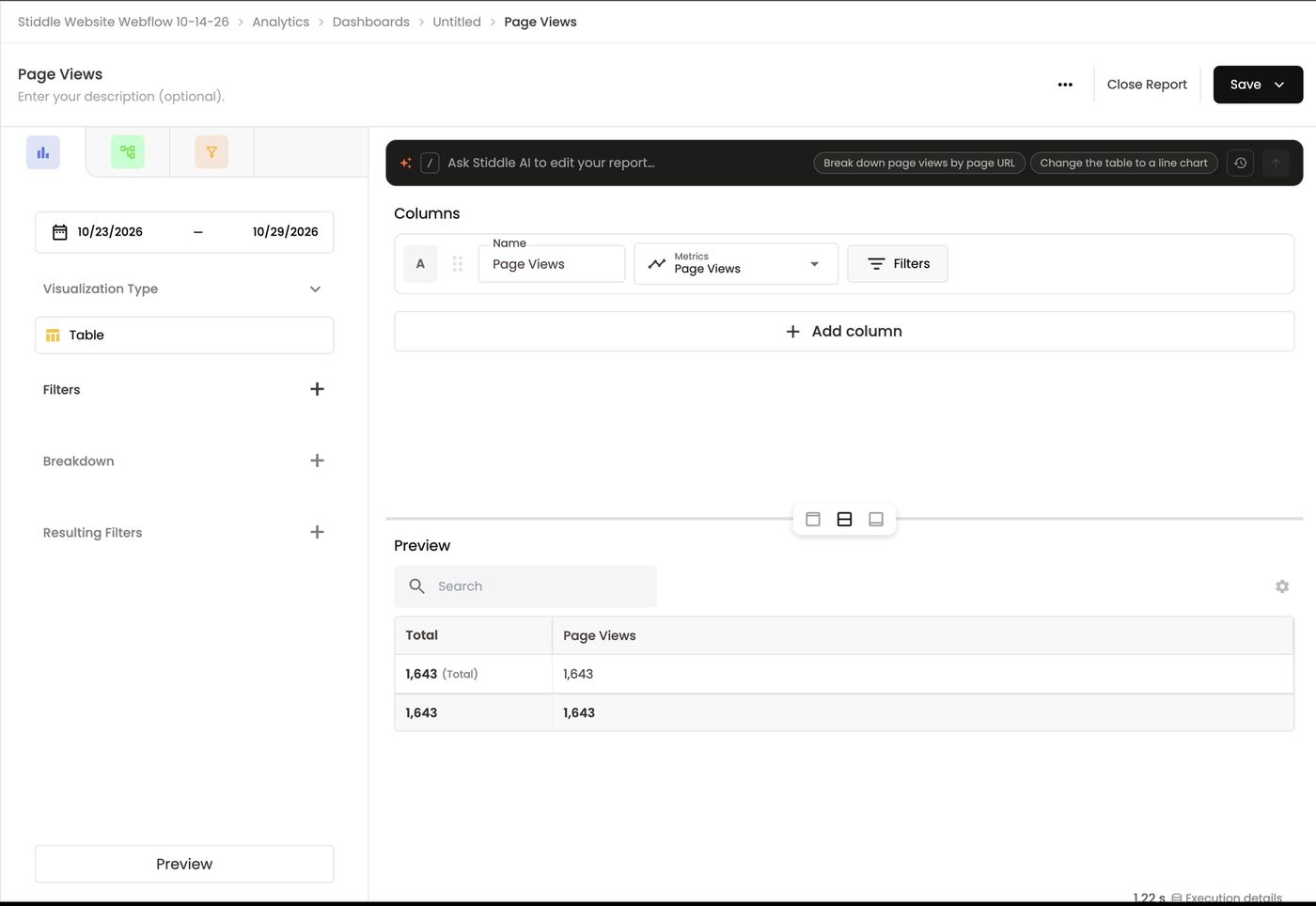
- Edit: click the top of the widget, near the name, or choose Edit Report from the menu. It opens in the report builder with Close Report at the top. Make your changes, Save, then Close Report to return to the dashboard with the update applied. Use this to change a widget’s visualization, e.g. table to bar chart, or ask AI to do it.
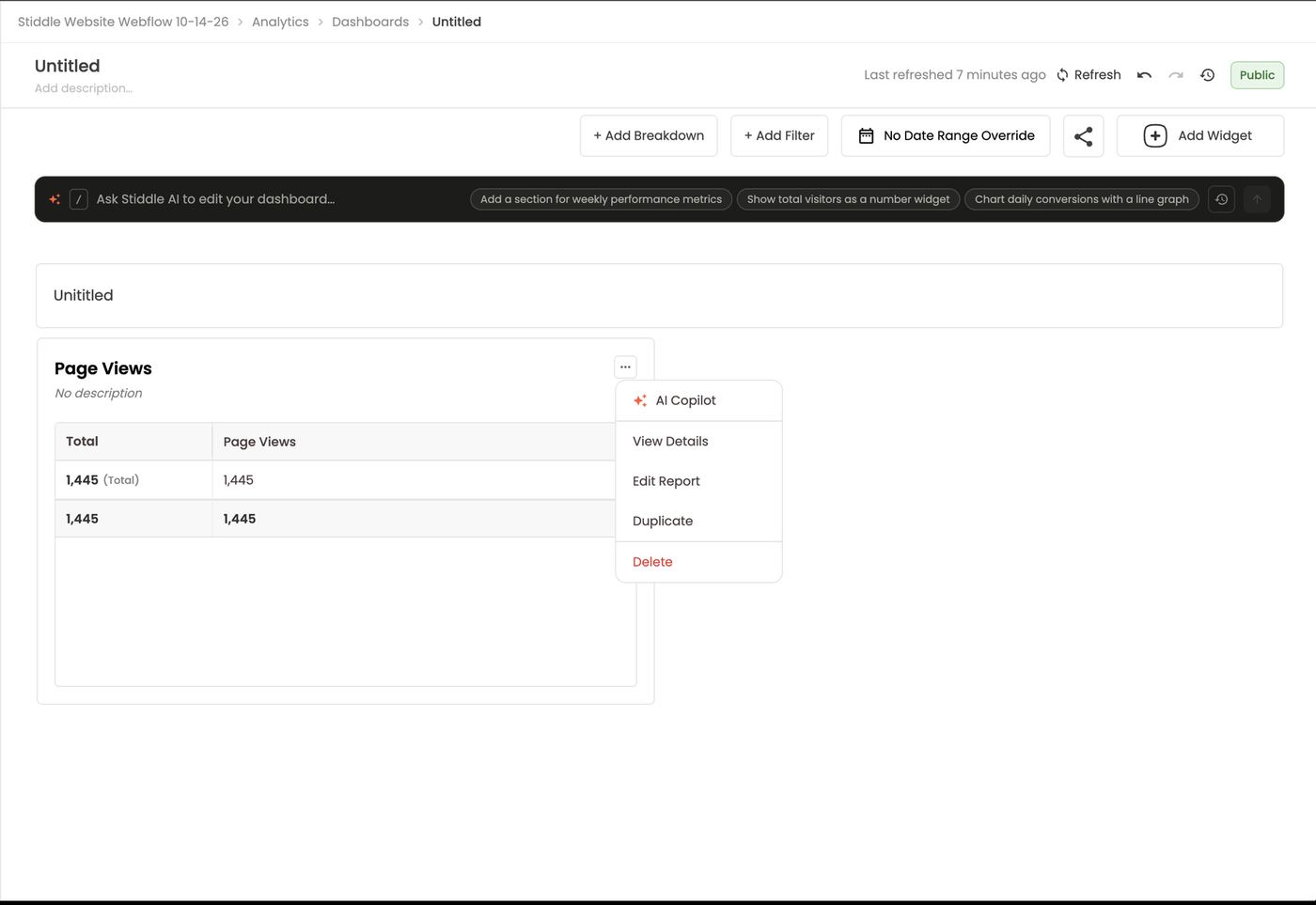
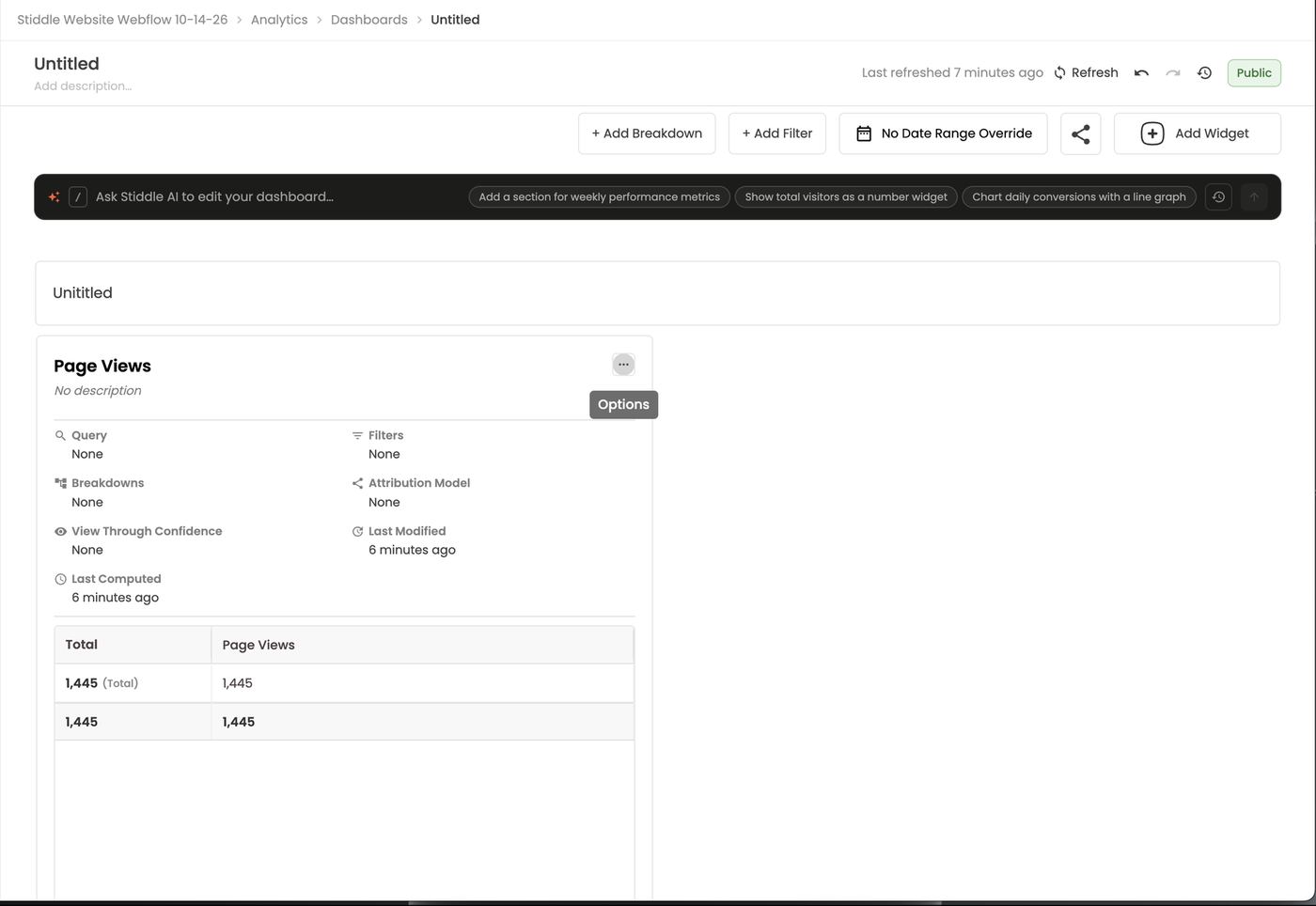
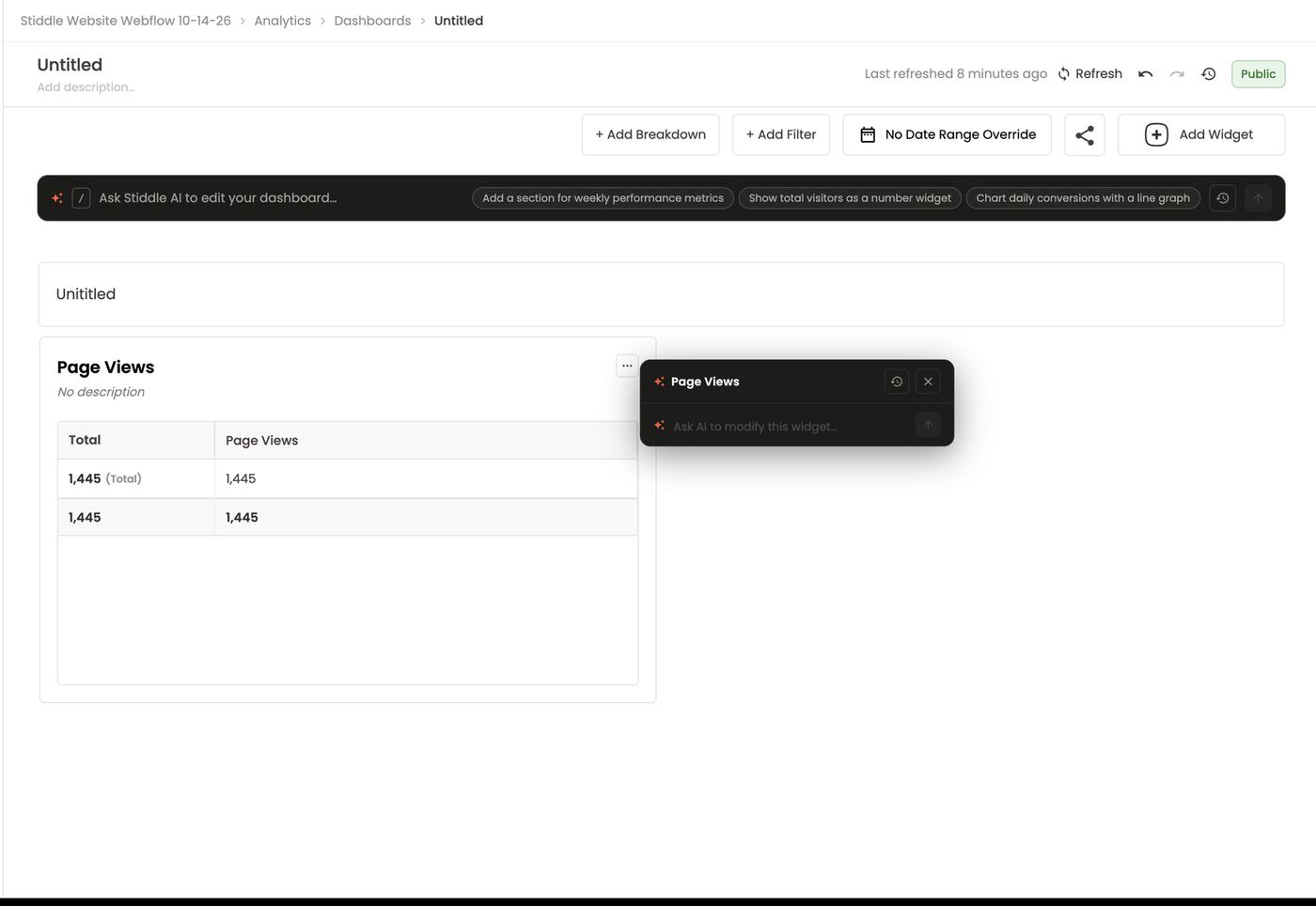
- … menu:
- AI Copilot: opens Ask AI to modify this widget…. Your prompt changes only this widget’s report, e.g. “Make this a line chart by week.”
- View Details: shows what’s applied: query, filters, breakdowns, attribution model, view-through confidence, last modified and last computed.
- Edit Report, Duplicate and Delete. Deleting removes the widget from the board but doesn’t delete its report, so you can add it back any time from Add Existing Report.
Dashboard-wide controls
- + Add Breakdown, + Add Filter and the date range (No Date Range Override by default) are overrides for every widget on the board. They change what the dashboard shows but don’t change the reports behind the widgets.
- Ask Stiddle AI to edit your dashboard… adds sections and widgets, rearranges them and changes them, e.g. “Add a section for weekly performance metrics” or “Show total visitors as a number widget.”
- Refresh reloads the data. Last refreshed shows when.
- Undo / Redo step back or forward through your edits.
- Revision history lists every change (widgets added, updated, removed) with a time. Use the ⋮ menu on a revision to Jump to this version or Delete revision.

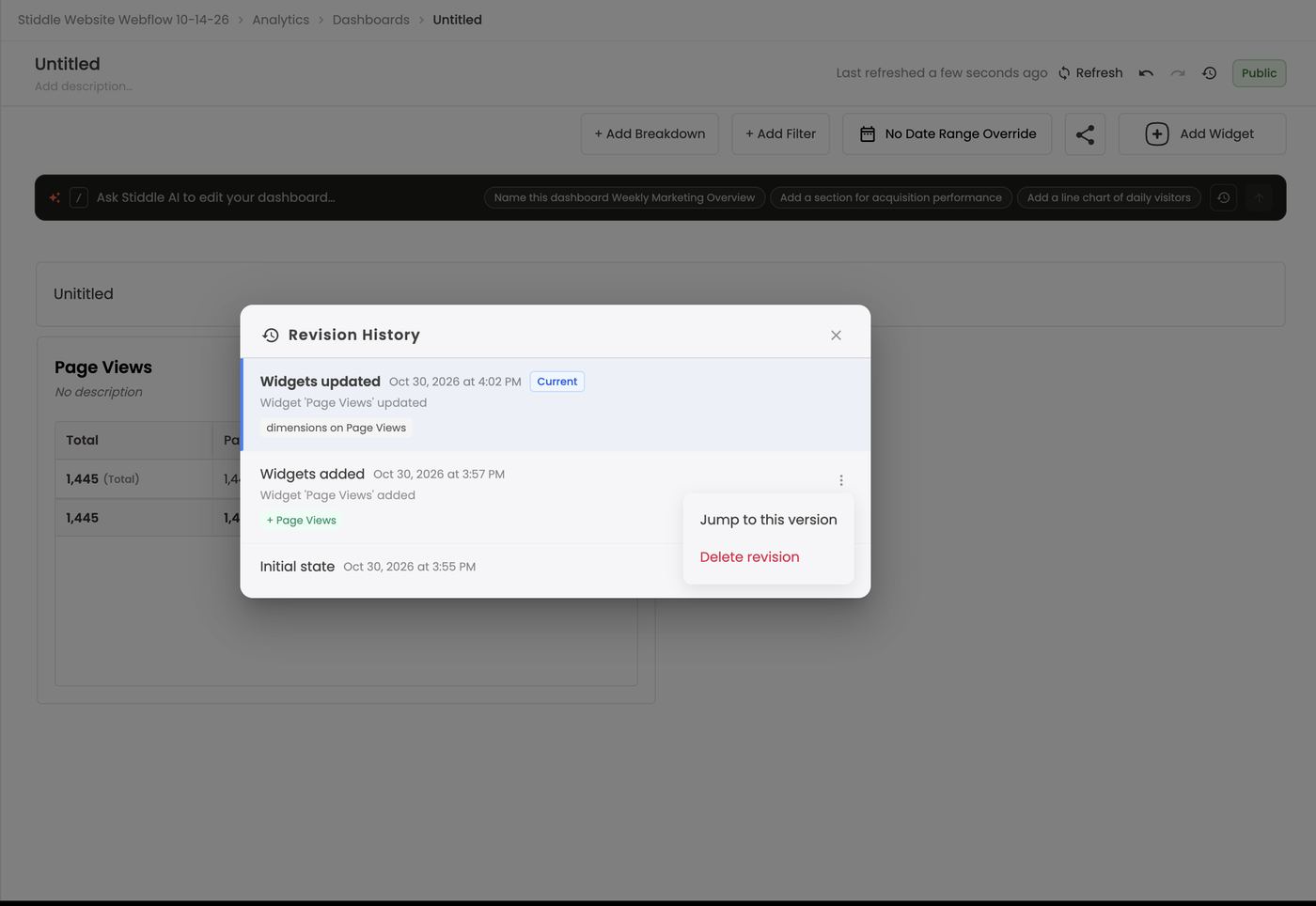
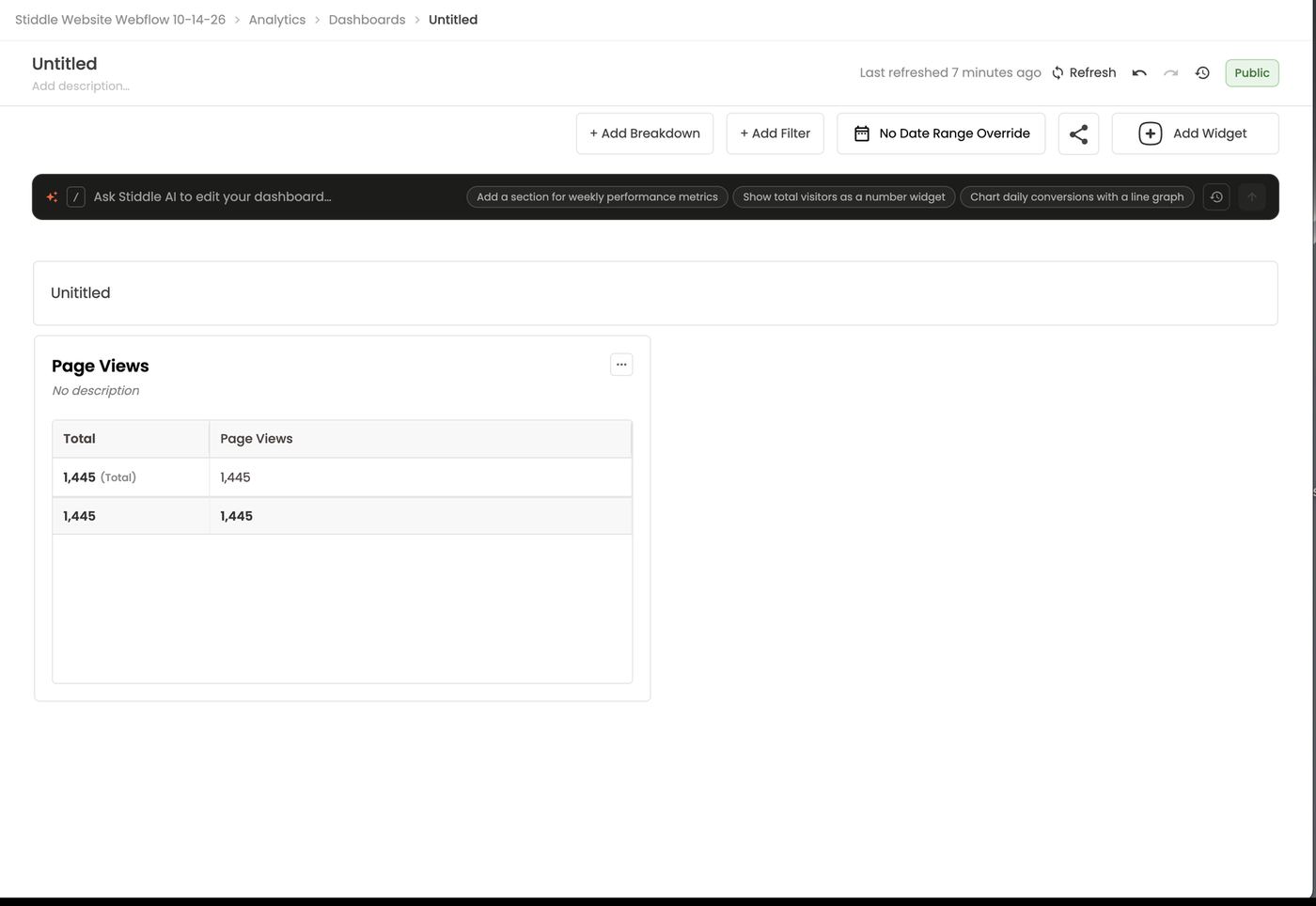
Worked example — weekly B2B board
- + Create → New Board → Build manually → Create Blank Board, name it “Weekly Pipeline”.
- Add Widget → Section: “Spend & Pipeline”.
- Add Widget → Insight Report: Ad Spent (platform) by channel.
- Add Widget → Insight Report: Demo Booked and Deal Stage: SQL (attributed, Seeker model) breakdown by source.
- Add Existing Report → MQL to Deal Won Funnel.
- Set the board date range to the last 7 days, then share it.
Sharing
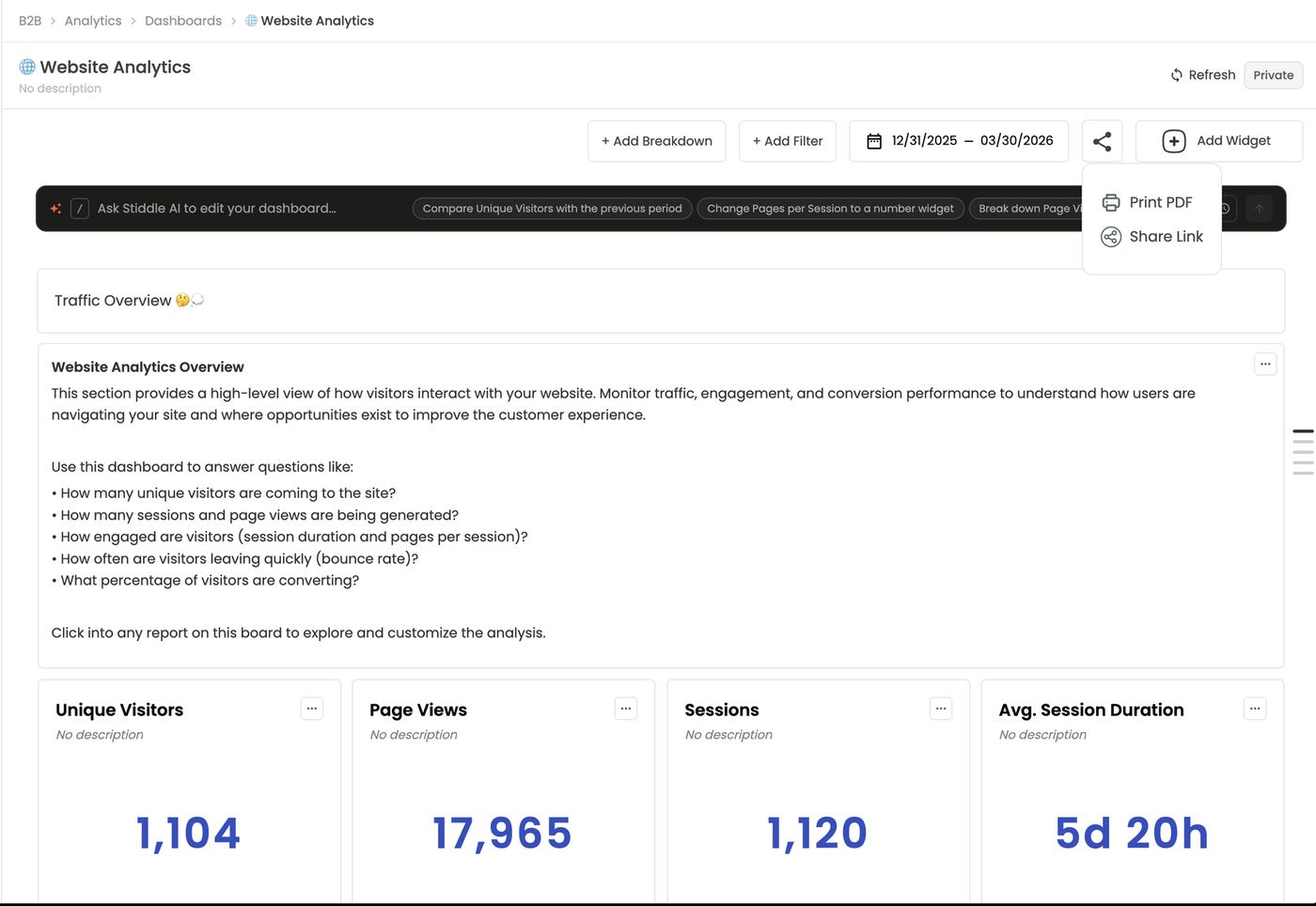
Click the share icon:- Print PDF downloads the dashboard as a PDF.
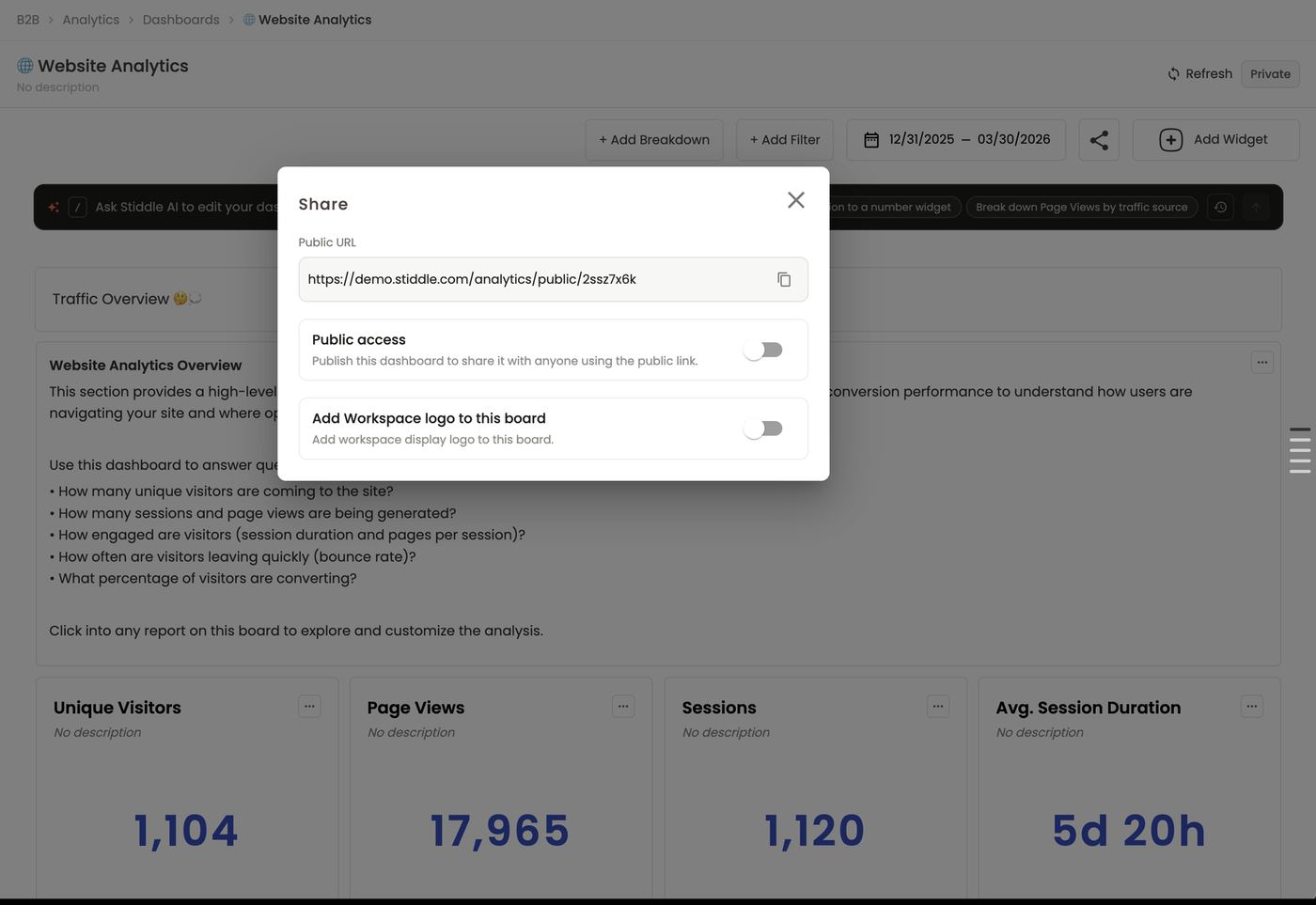
- Share Link opens Share:
- Public URL: a live, hosted link. Copy it to share.
- Public access: turn it on to publish the dashboard to anyone with the link, or off to disable the link at any time.
- Add Workspace logo to this board: white-labels the public dashboard with the workspace logo saved in Settings.
FAQs
Why is a widget empty? Usually the date range has no data, or a funnel has fewer than two steps / a flow has no step. Change the range or edit the report. If I edit a report used on two boards, do both change? Yes, if it’s the same report widget, it will be updated both places. If you duplicate, then you can change it unique. Do board filters override a widget’s own filters? Board filters and breakdowns apply on top of every widget on the dashboard widget, they do not change the report. Can I build a board just by describing it? Yes — Build with AI, or ask CoPilot and use Add to dashboard on its answer. If I delete a widget or section, is the report deleted? No. Only the widget leaves the board, and you can add the report back from Add Existing Report. Can I move a widget to another section? No. Widgets move and resize within their own section. How do I change a widget from a table to a chart? Open it in the report builder (click its title or Edit Report) and change the visualization, or ask the widget’s AI Copilot. Can people with the public link edit the dashboard? No. They can only view it. Invite teammates in Workspace settings to collaborate. How do I undo a mistake? Use Undo, or Revision history → Jump to this version.9. Analytics — Reports & Dashboards Overview
Reports are the saved analyses behind every widget. There are three types — Insights, Funnels and Flows (sections 10–12) — and all three are built in the same report builder.The Reports library
Open Analytics → Reports (or the Reports tab in the Analytics library). Dashboards can include reports like: All Goals (Insight), Book Demo Journey Flow (Flow), MQL to Deal Won Funnel (Funnel) and Unique Website Visitors — Daily Trend (Insight). Create one with + Create → New Report. Reports vs dashboards. A report visualizes Stiddle data as one analysis. There are three report types: Insights (metrics, trends and breakdowns), Funnels (conversion between steps) and Flows (the paths people take). A dashboard (board) is a page made of widgets, and every widget is a report. When you edit and save a report, every dashboard that uses it as a widget updates too.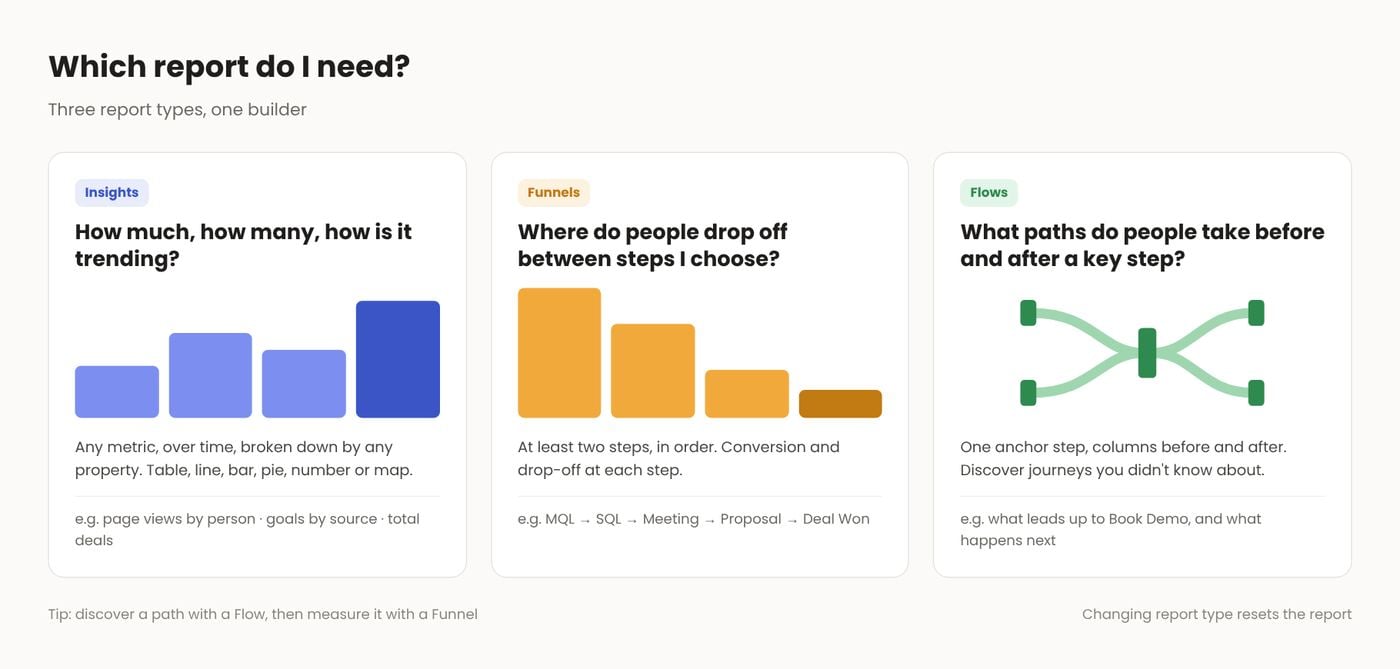
Want to change a widget on one dashboard only? Duplicate the report first, edit the copy, then add the copy to the dashboard you want. The original report, and every dashboard using it, stays as it was.
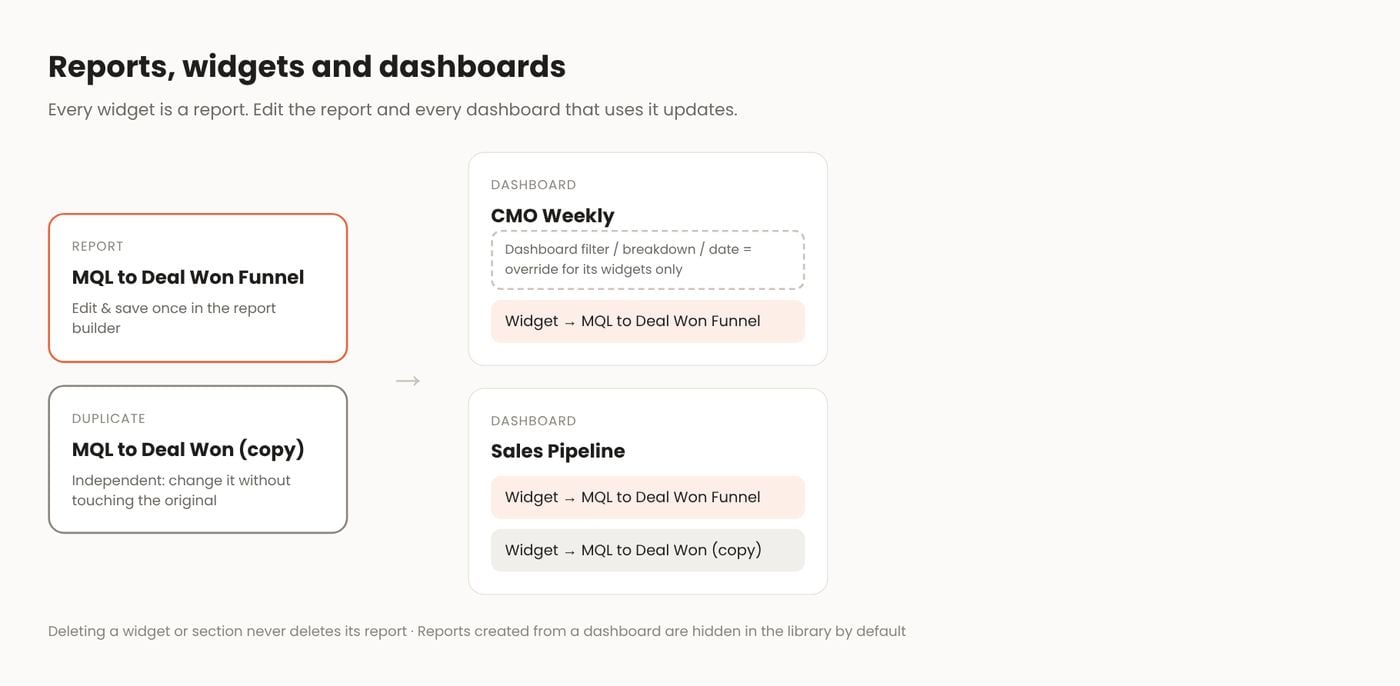
- Card view shows each board or report as a card with its name, description and when it was last edited.
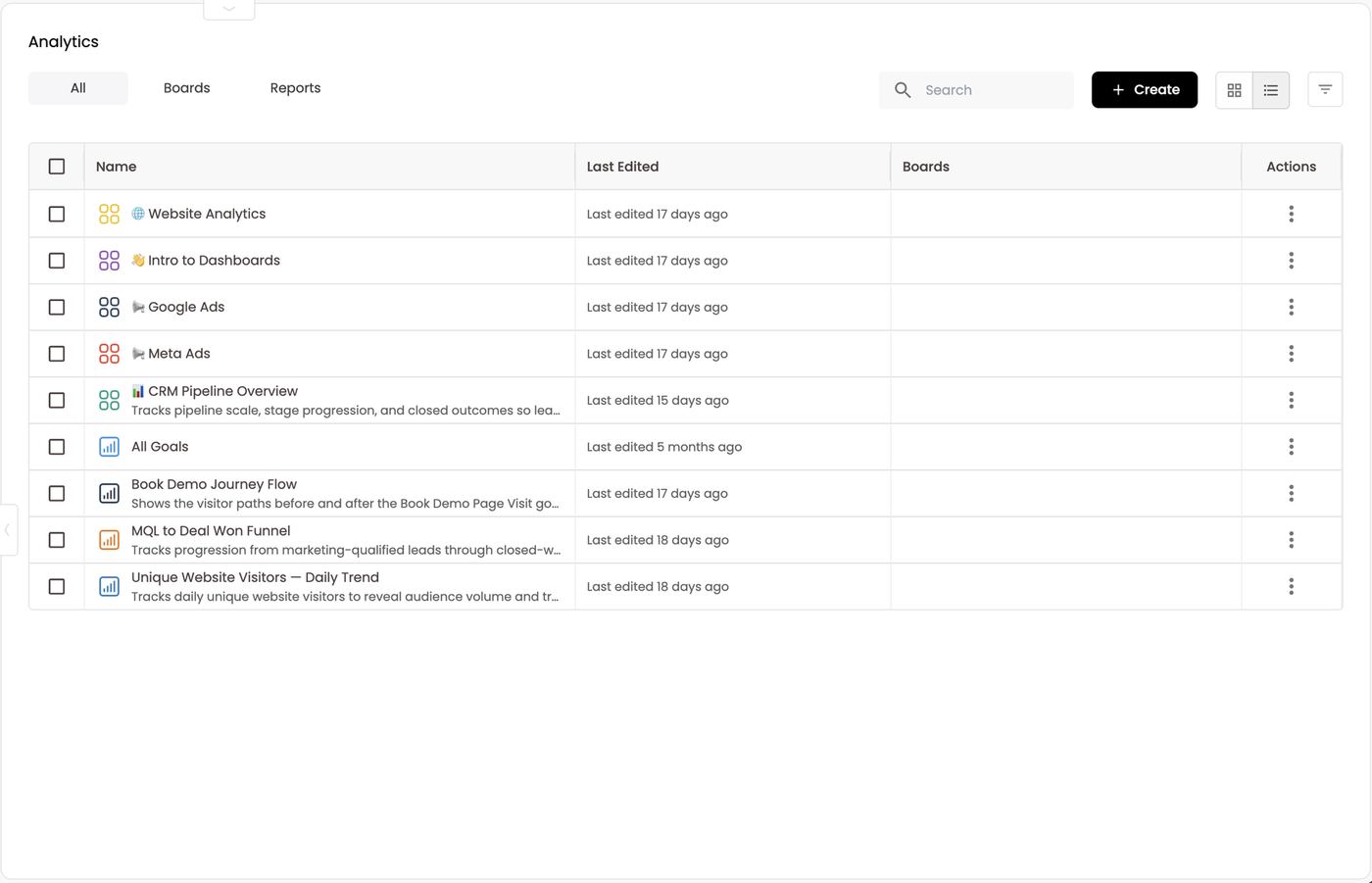
- List view shows a table with Name, Last Edited, Boards (the dashboards a report is used on as a widget) and Actions. It’s the quickest way to see which reports feed which dashboards.
Create a report
- Click + Create → New Report (or Create New Report on an empty library, or the New Report icon in the analytics side panel).
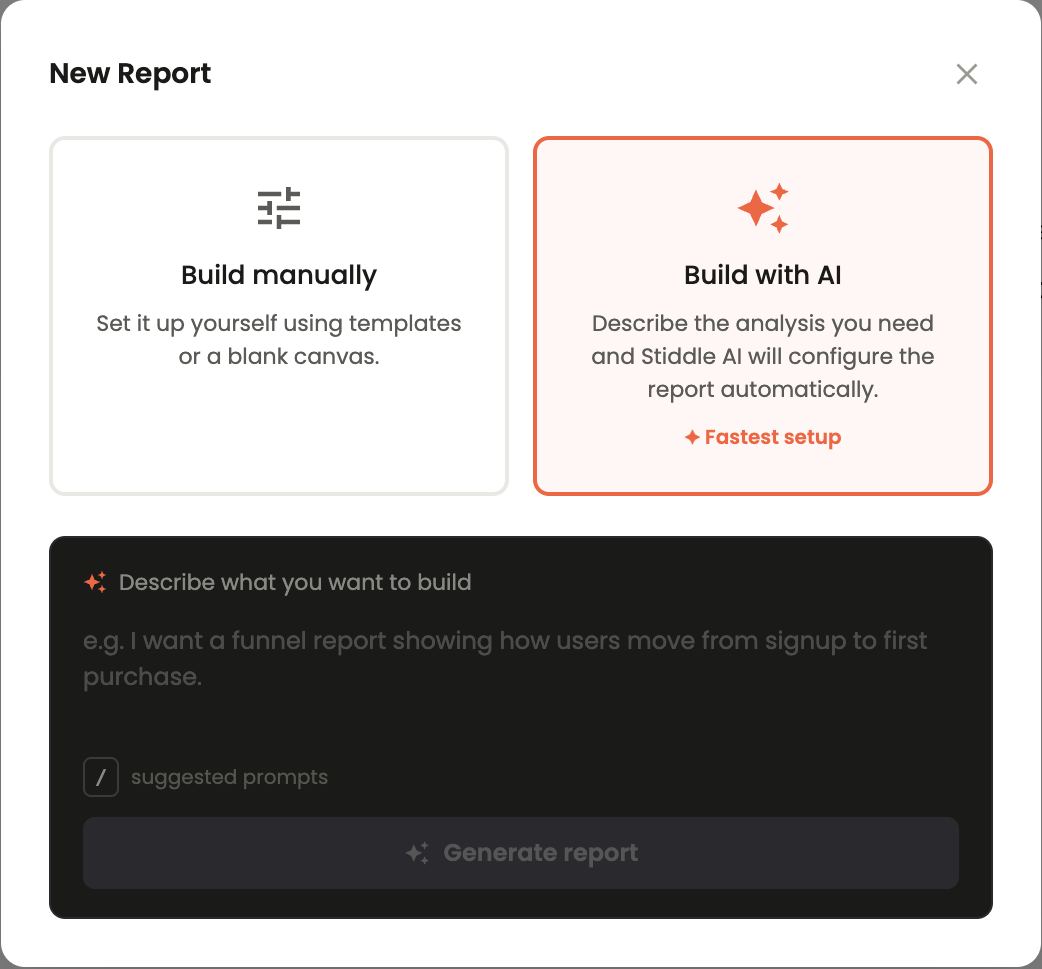
- Choose how to start:
- Build with AI (fastest setup): describe the analysis, e.g. “A funnel report showing how users move from signup to first purchase”, then Generate report. Type / for suggested prompts.
- Build manually: start from a template or a blank canvas.
The report editor
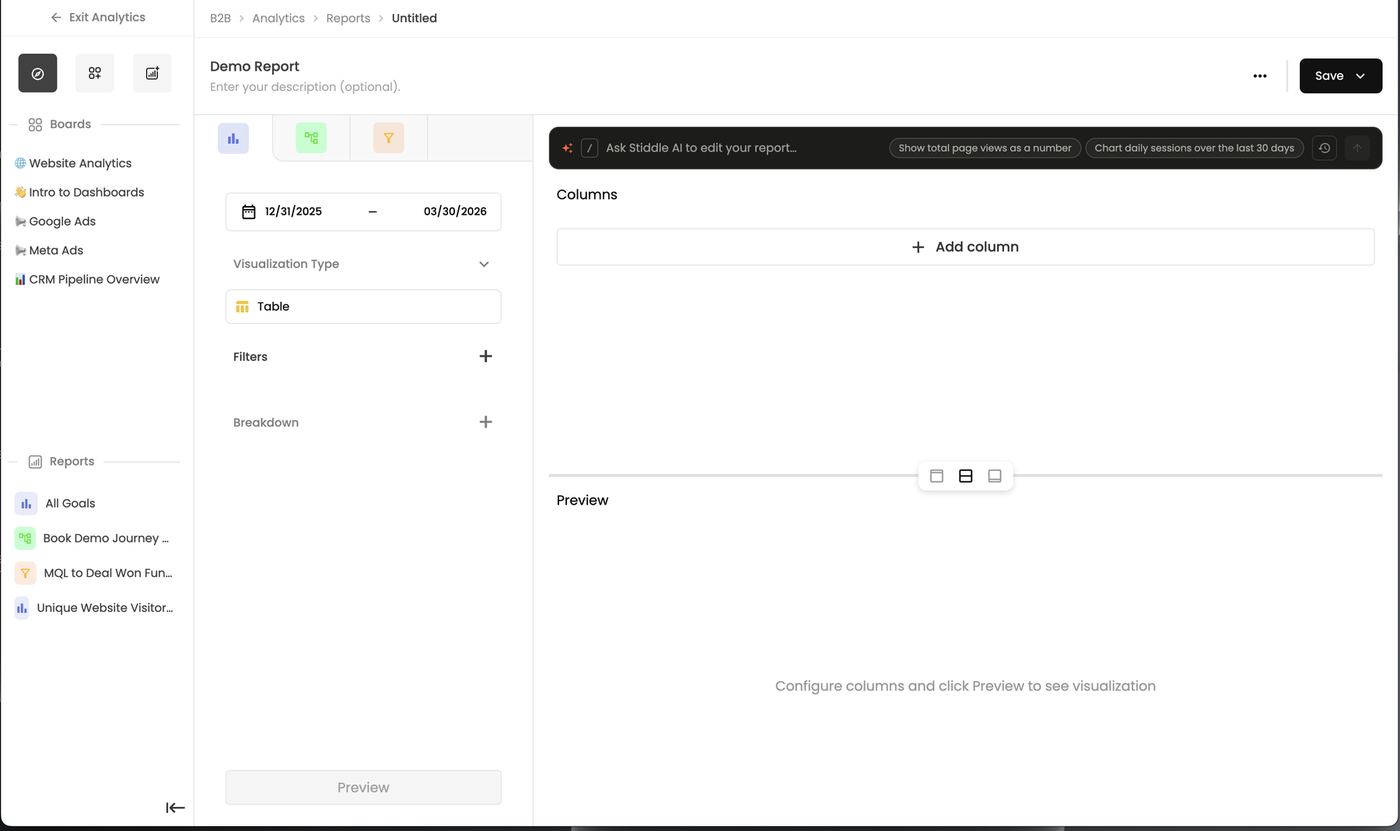
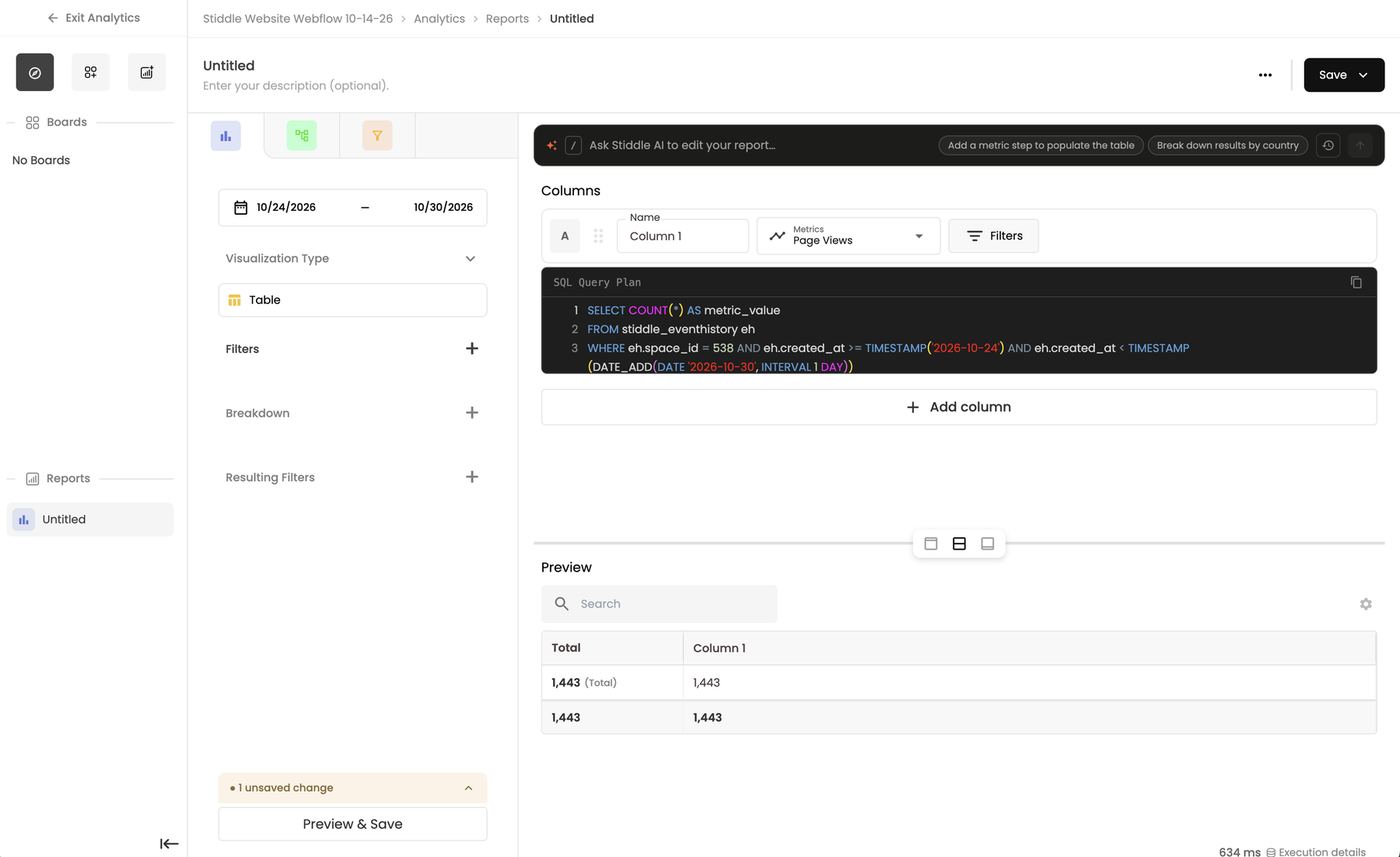
A new report opens full screen in the report builder as an Insight by default. Switch to Flow or Funnel with the type tabs at the top left. There are three ways to build it:
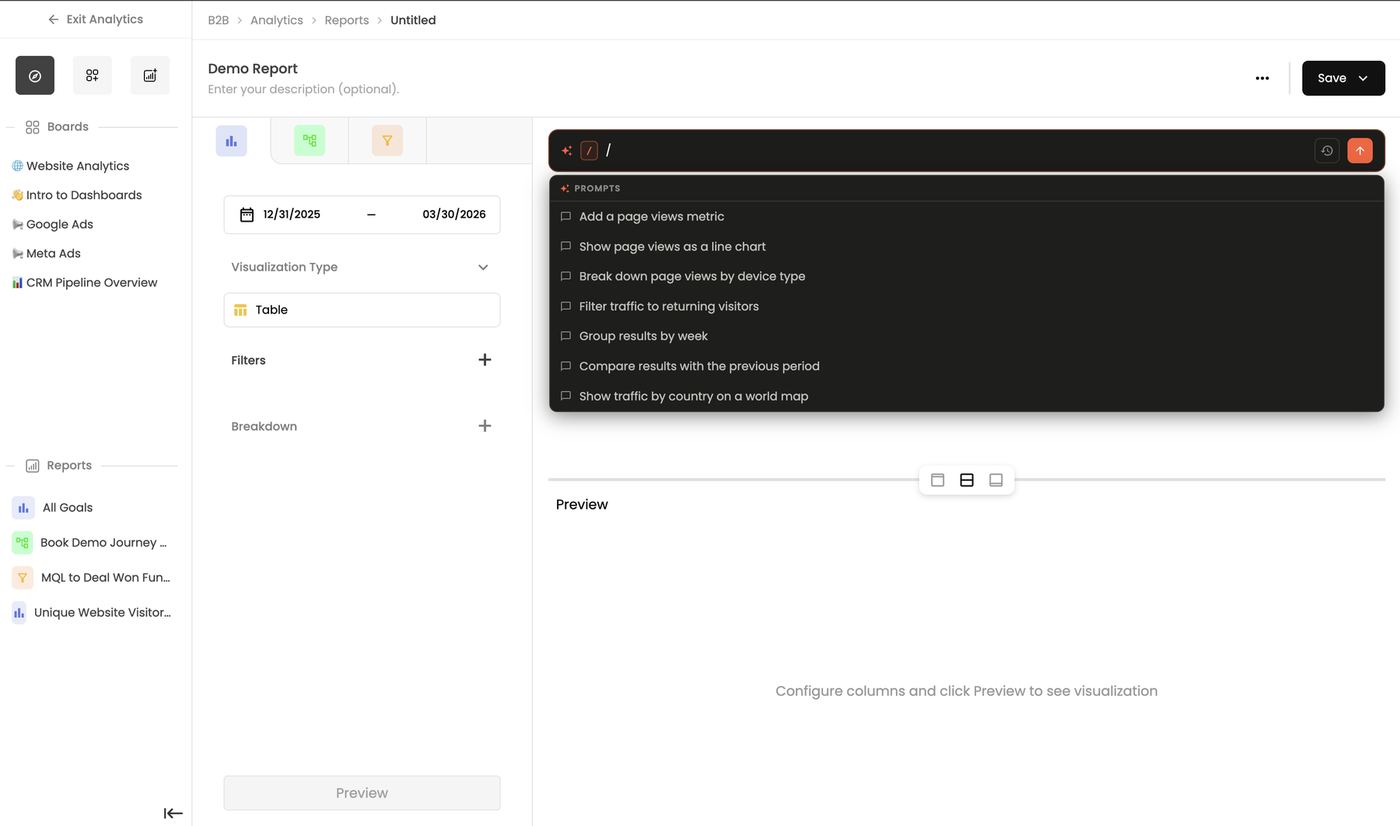
- Ask Stiddle AI. Use the bar at the top, e.g. “Show page views as a line chart”, “Break down page views by device type”, “Compare results with the previous period” or “Show traffic by country on a world map”. Press / for more prompts.
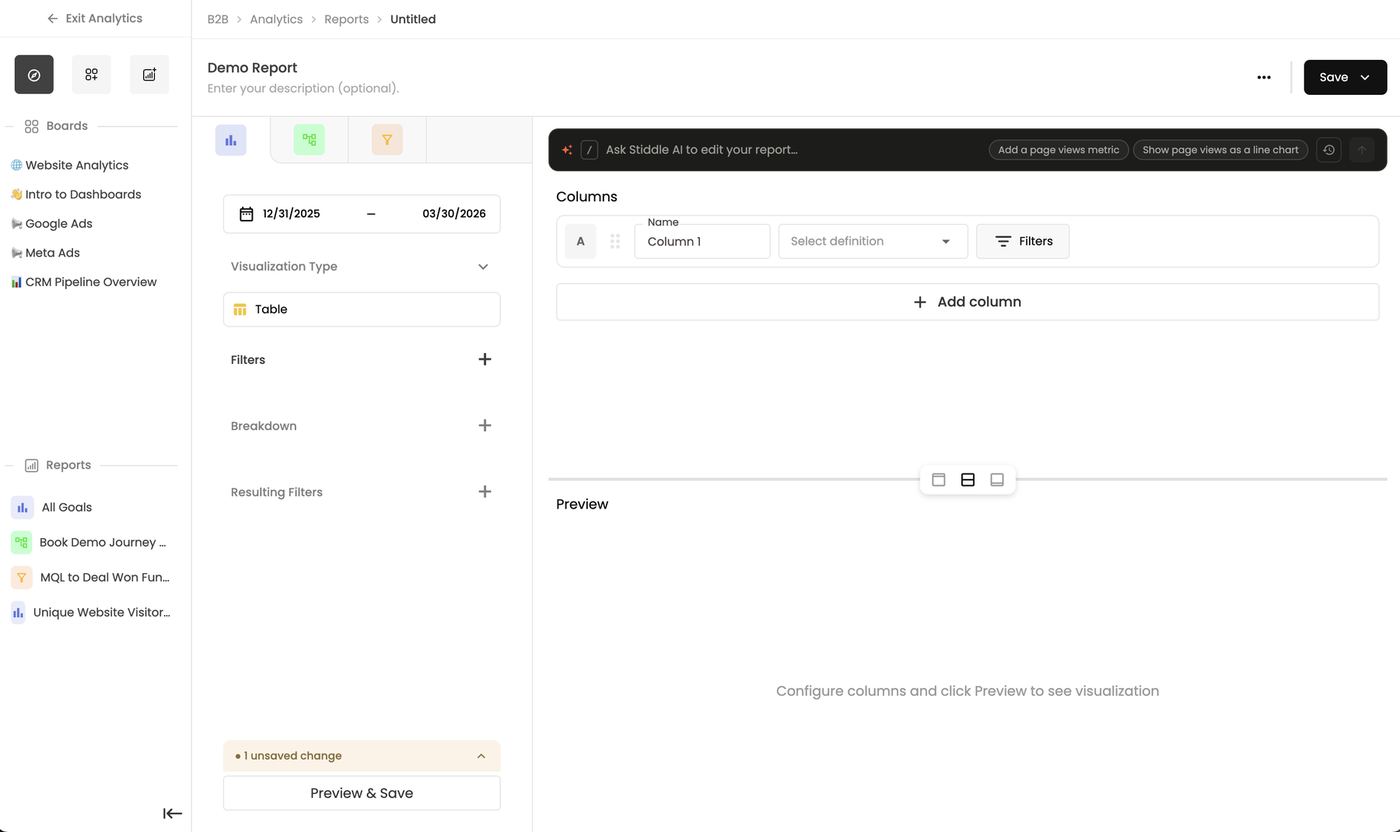
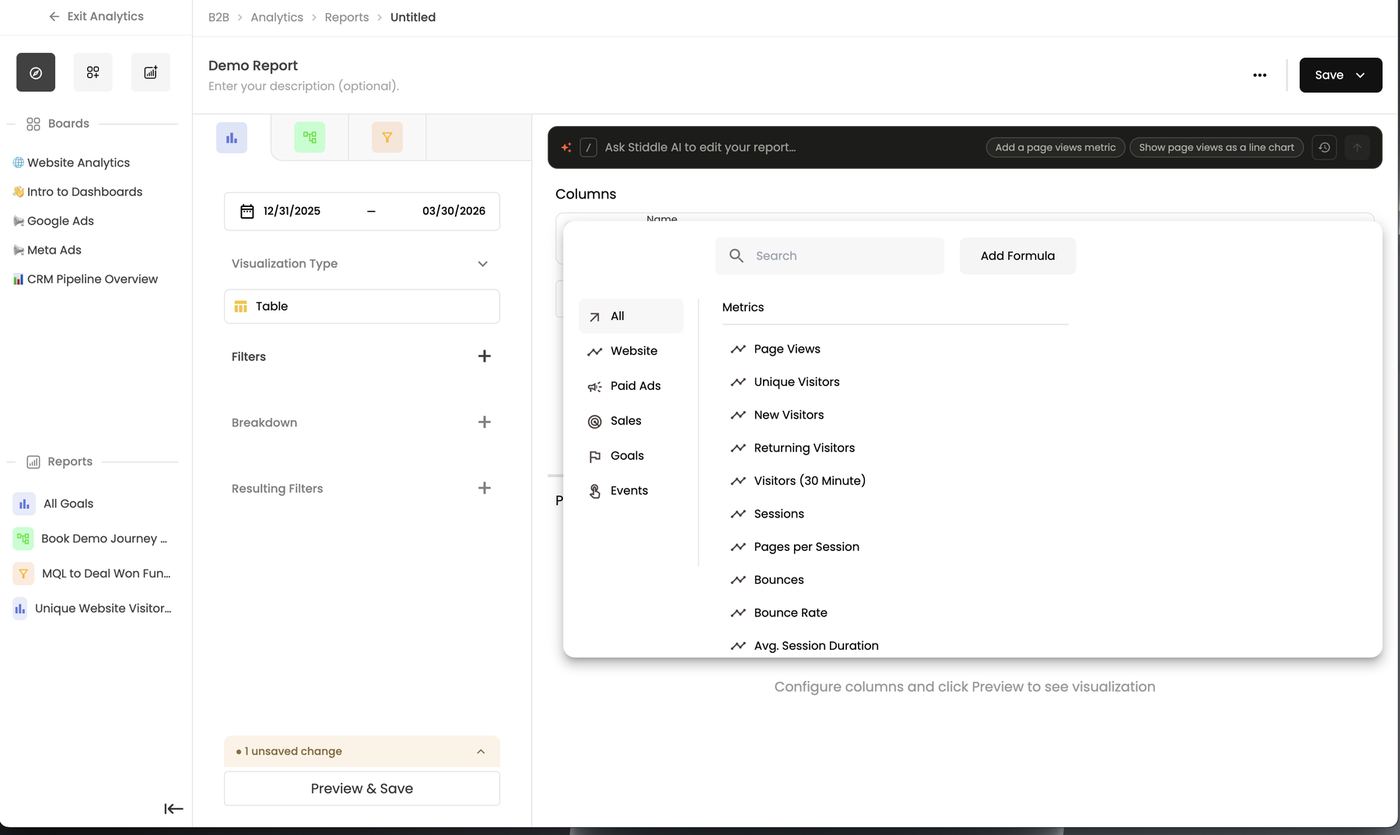
- Add columns manually. Click + Add column, name it, then Select definition and pick a metric from Website (page views, unique, new and returning visitors, sessions, pages per session, bounce rate, session duration…), Paid Ads, Sales, Goals or Events. Each column can have its own Filters. Add Formula combines columns, e.g. A ÷ B for a conversion rate.
- Use SQL. Each column shows its SQL Query Plan, which you can copy and edit to write custom SQL for that column. Hover a column and click </> to open it.
The analytics side panel
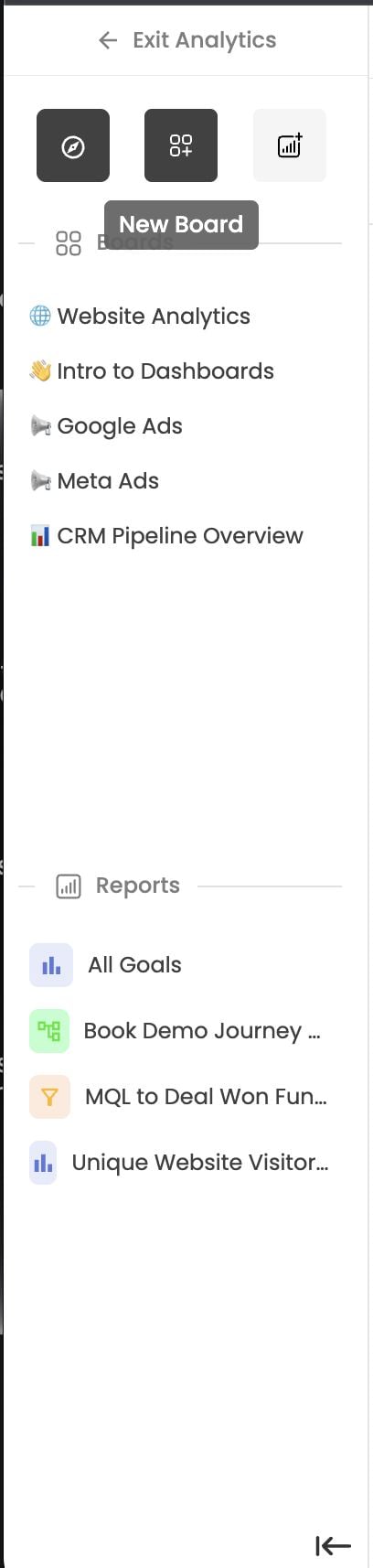
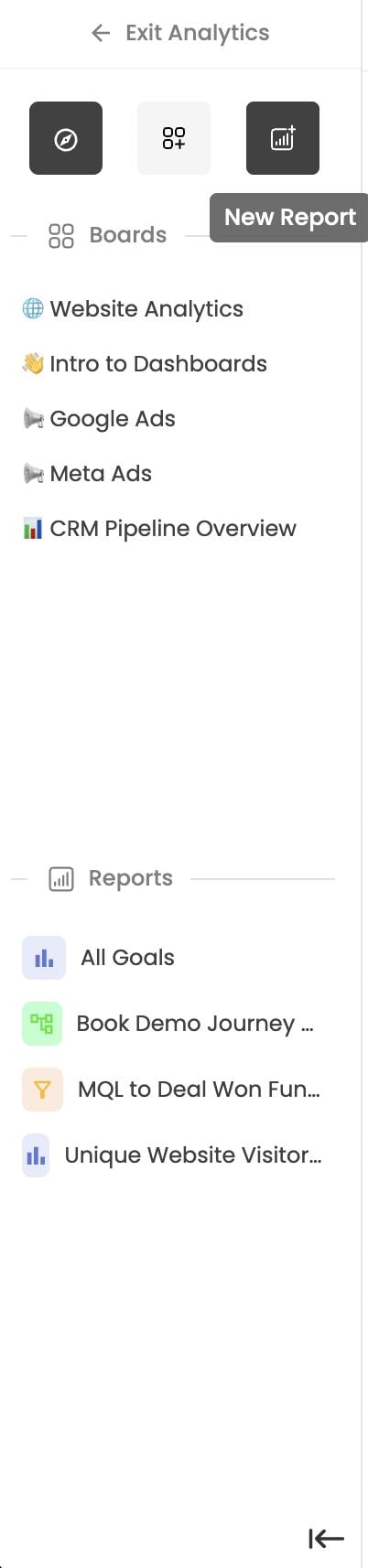
When you’re inside a report or dashboard, the left panel stays open so you can jump between them without going back to the library:- ← Exit Analytics returns to the Analytics library.
- Three icons at the top: Explore (compass), New Board and New Report.
- Boards are listed at the top, and Reports below. Click any one to open it.
- ⇤ collapses the panel.
Create a dashboard
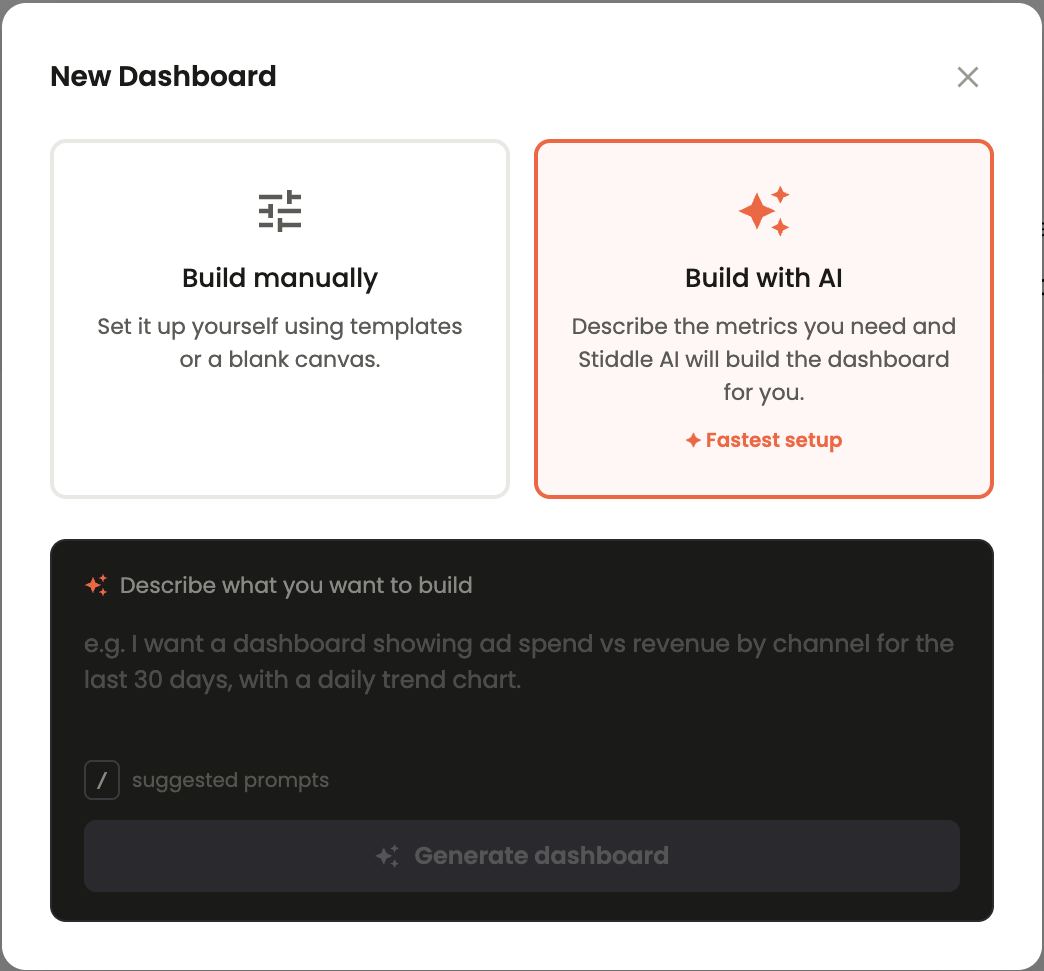
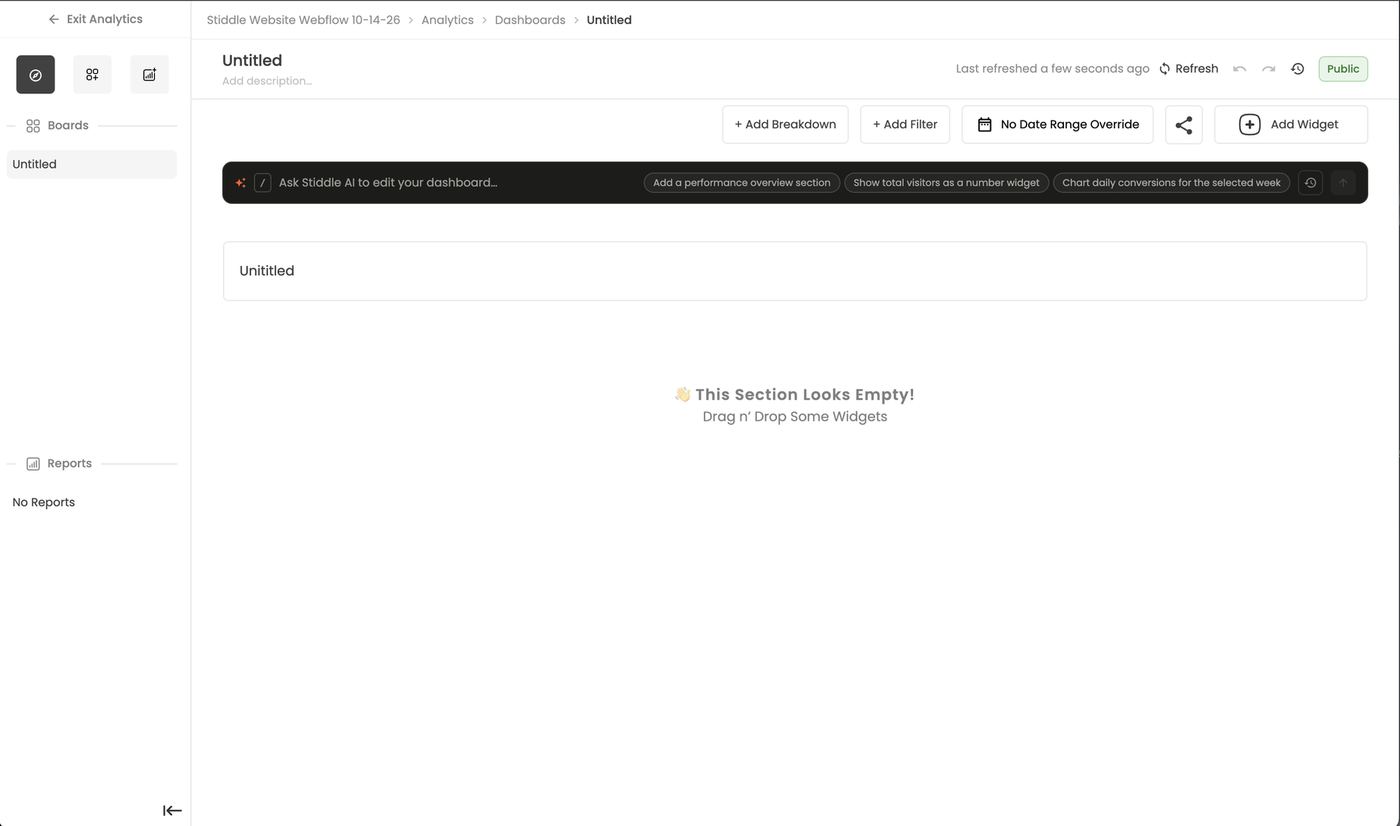
Create a dashboard from the Dashboards or Analytics page (+ Create → New Board), or from the New Board icon in the side panel. Then choose:- Build with AI (fastest setup): describe the metrics you need, e.g. “A dashboard showing ad spend vs revenue by channel for the last 30 days, with a daily trend chart”, then Generate dashboard. Stiddle AI builds the sections and widgets.
- Build manually: start from a template or a blank canvas, then Add Widget, add sections, filters and breakdowns yourself, or use the Ask Stiddle AI to edit your dashboard… bar (e.g. “Add a performance overview section”, “Show total visitors as a number widget”).
FAQs
What’s the difference between a report and a dashboard? A report is one analysis. A dashboard arranges many reports, text and media together. A dashboard is made up of several reports that are saved as widgets. Can I save a report without putting it on a dashboard? Yes. It stays in the Reports library and can be added to any board later from Add Existing Report. Does Duplicate make an independent copy? Yes, if duplicated it remains independent and any changes made won’t reflect the original. If I edit a report, do my dashboards change? Yes. Every dashboard that uses the report as a widget shows the change once you save. Duplicate it first if you only want to change one dashboard. Why can’t I find a report I made on a dashboard? Reports created from a dashboard are hidden by default. Turn on Show hidden in the filter. How do I see which dashboards use a report? Switch to list view and check the Boards column. What does Favorite do? It pins the board or report to the top of the library. What type is a new report? Insight by default. Switch to Funnel or Flow with the type tabs.10. Reports — Insights
Insights answer “how much, how many, and how is it trending?” — any metric, over time, broken down by any property. Use them for KPI tiles, trend lines and tables like goals by source. There are three ways to build an Insight, and you can mix them in the same report:Build an Insight
- + Create → New Report and choose the Insight tab (bar icon).
- Set the date range.
- Under Columns (or Data), set up column A:
- Name — the label shown in the report.
- Metric — opens the metric/definition picker. Categories: All, Website, Paid Ads, Sales (CRM/ecommerce), Goals (All, Event, Form, URL, CRM) and Events. Search, or click Add Formula to combine columns. For example, Google Spent + Meta Spent = Blended Spent.
- Aggregation — e.g. Total or Conversion Value.
- Attribution model — for attributed metrics (Last Click by default; see section 6).
- Filters — conditions that apply to this column only.
- + Add column for more metrics (B, C…). Drag the handle to reorder.
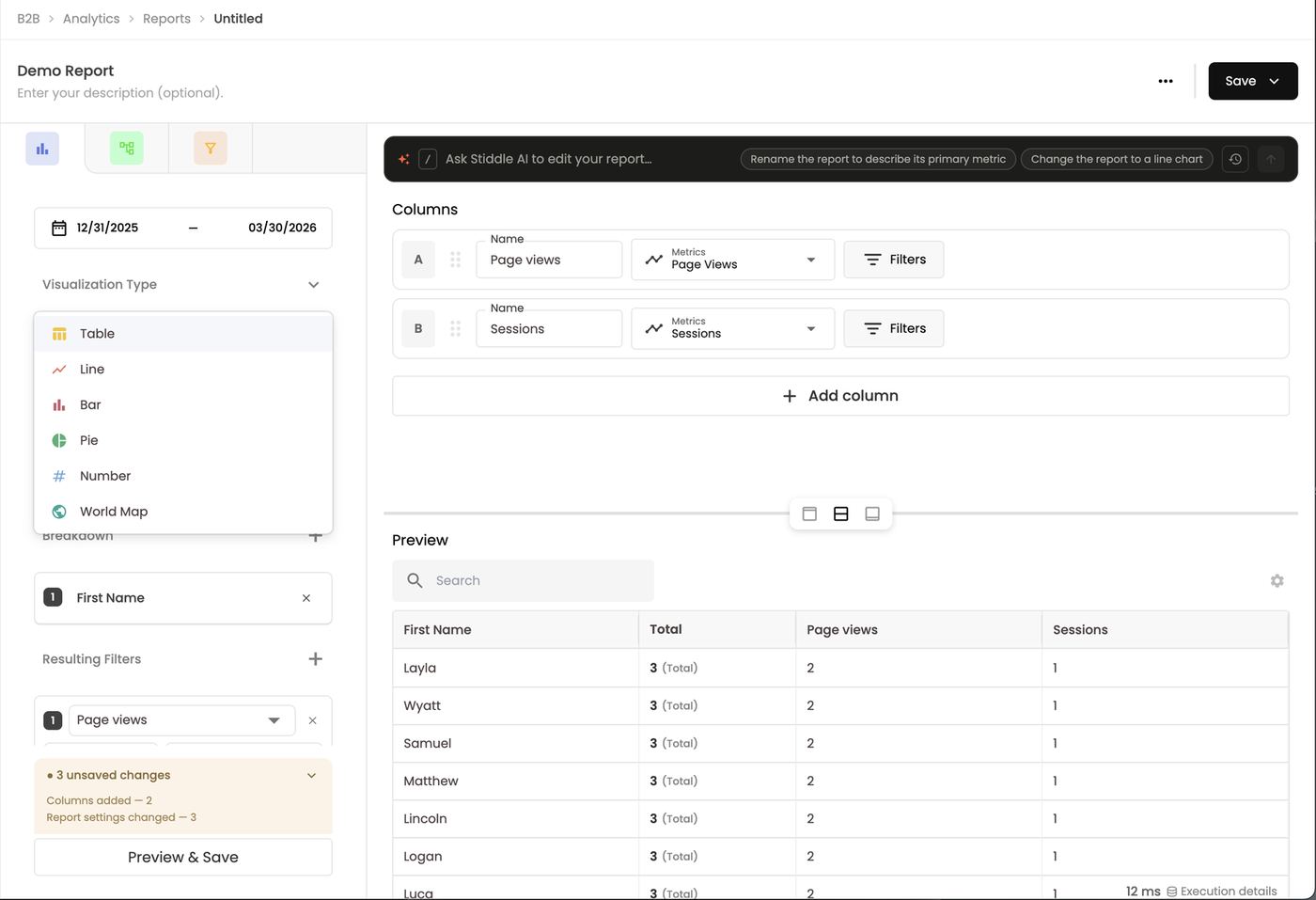
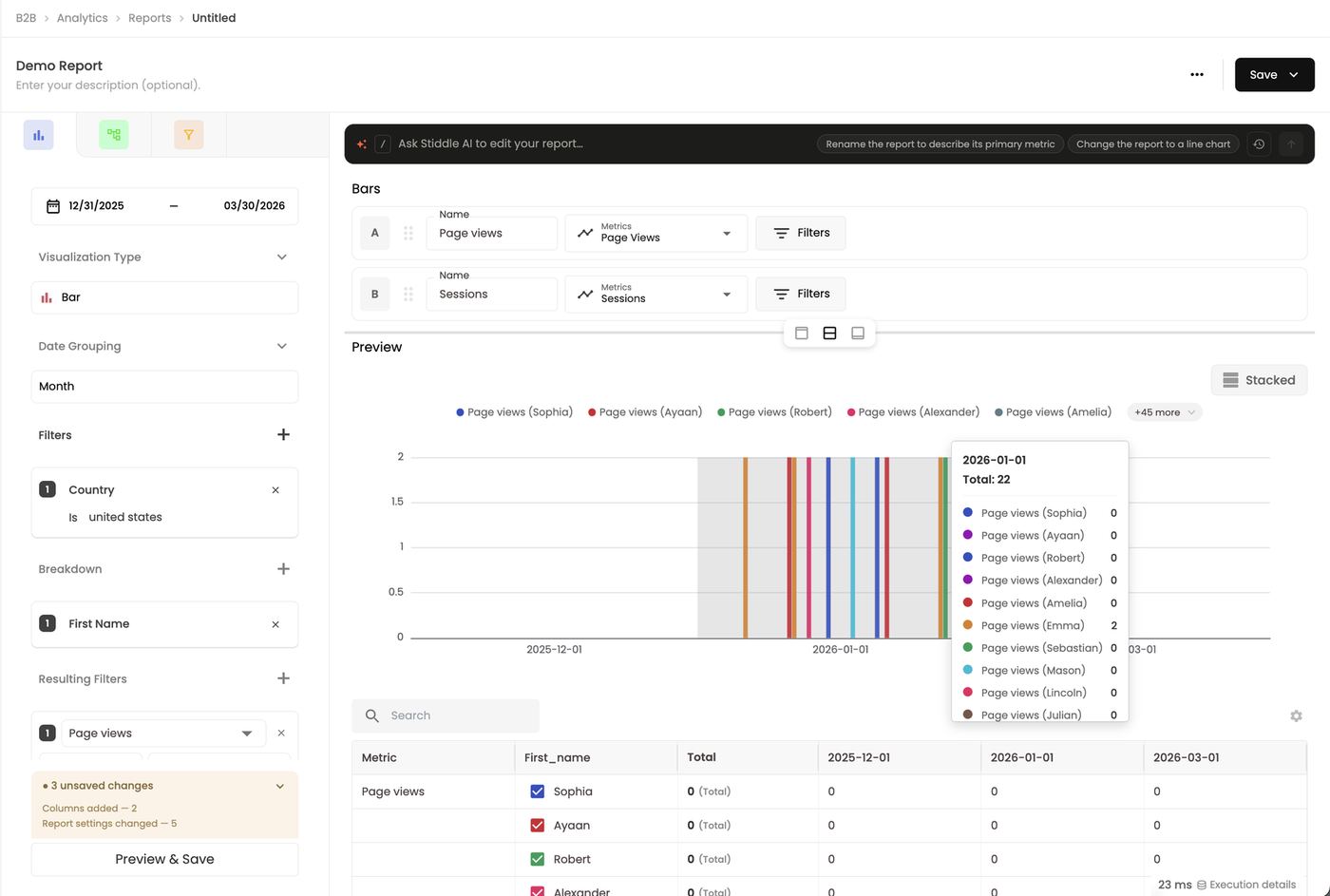
- Pick a Visualization Type: Table, Line, Bar (with a Stacked option), Pie, Number or World Map.
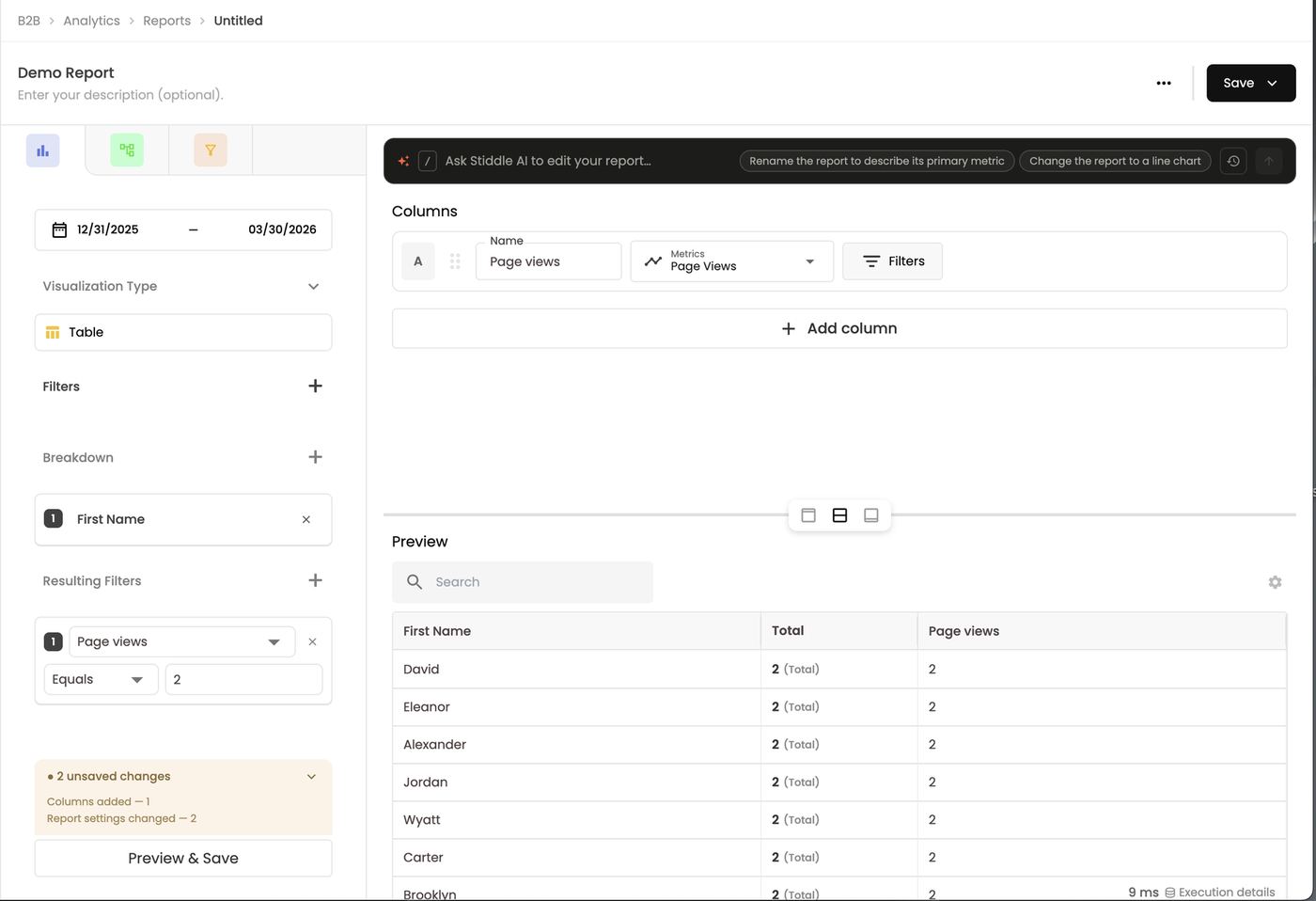
- Add report-wide Filters, a Breakdown (e.g. by Goals, Source, Campaign) and Resulting Filters (filter on the computed results).
- Click Preview, then Save.
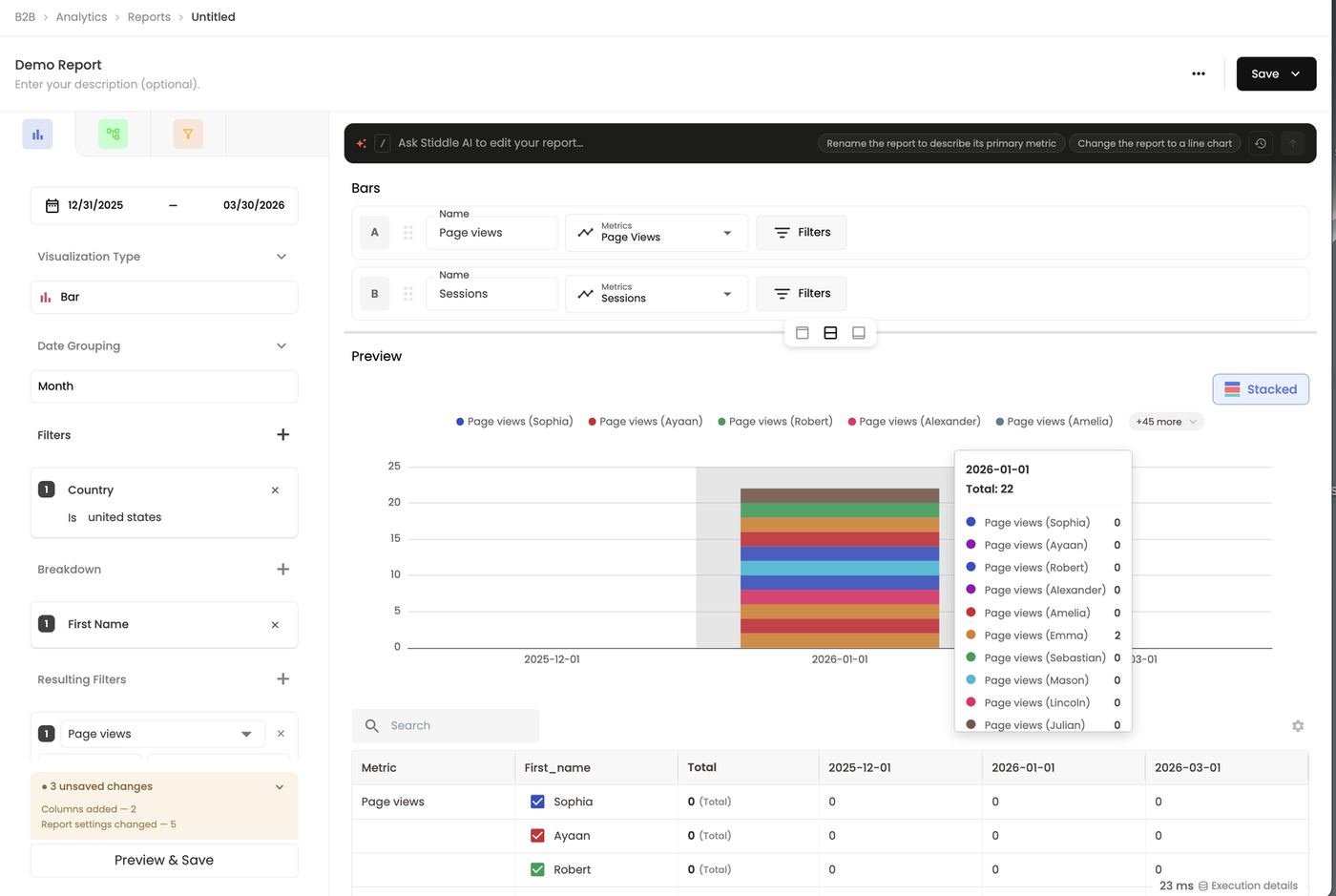
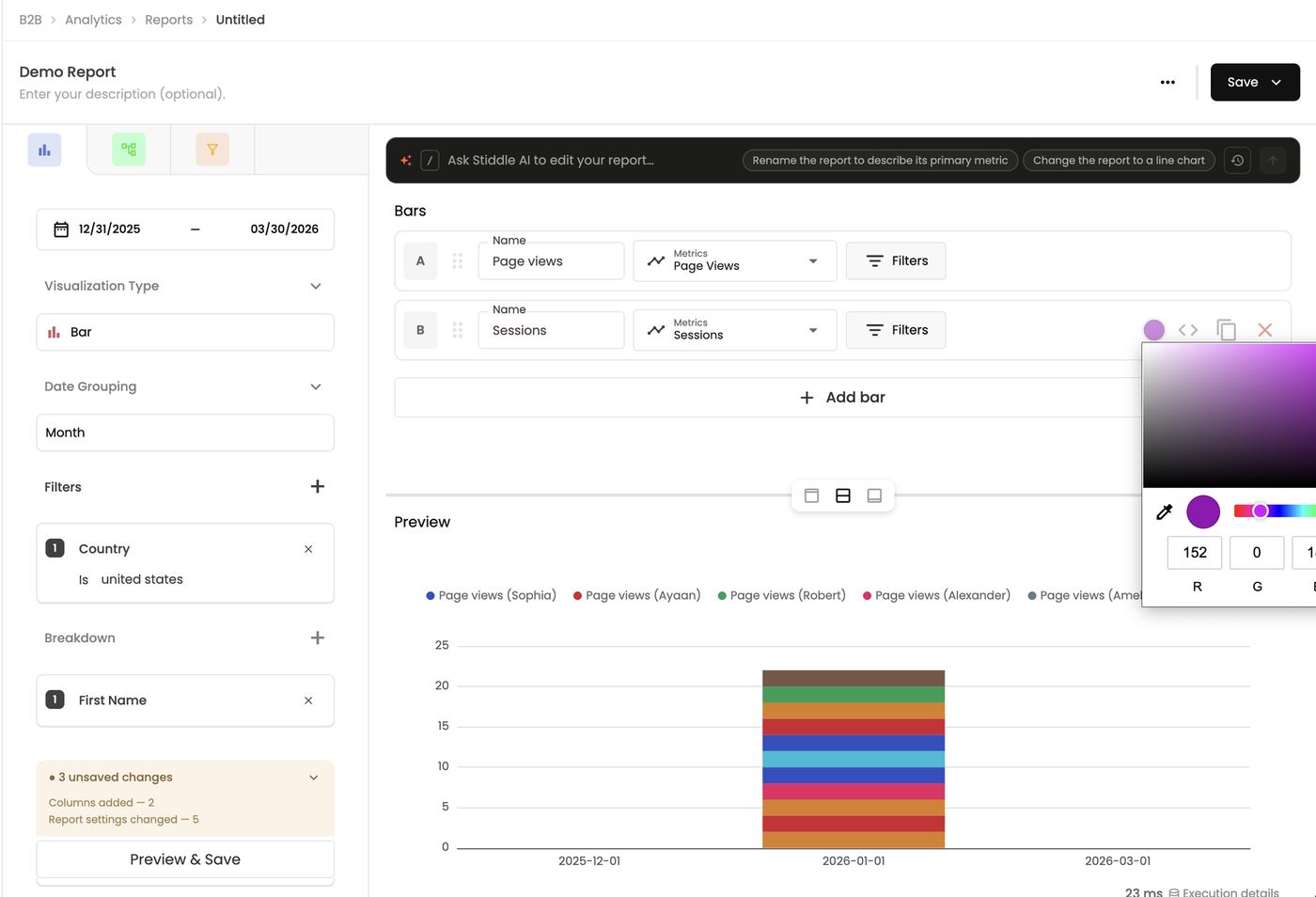
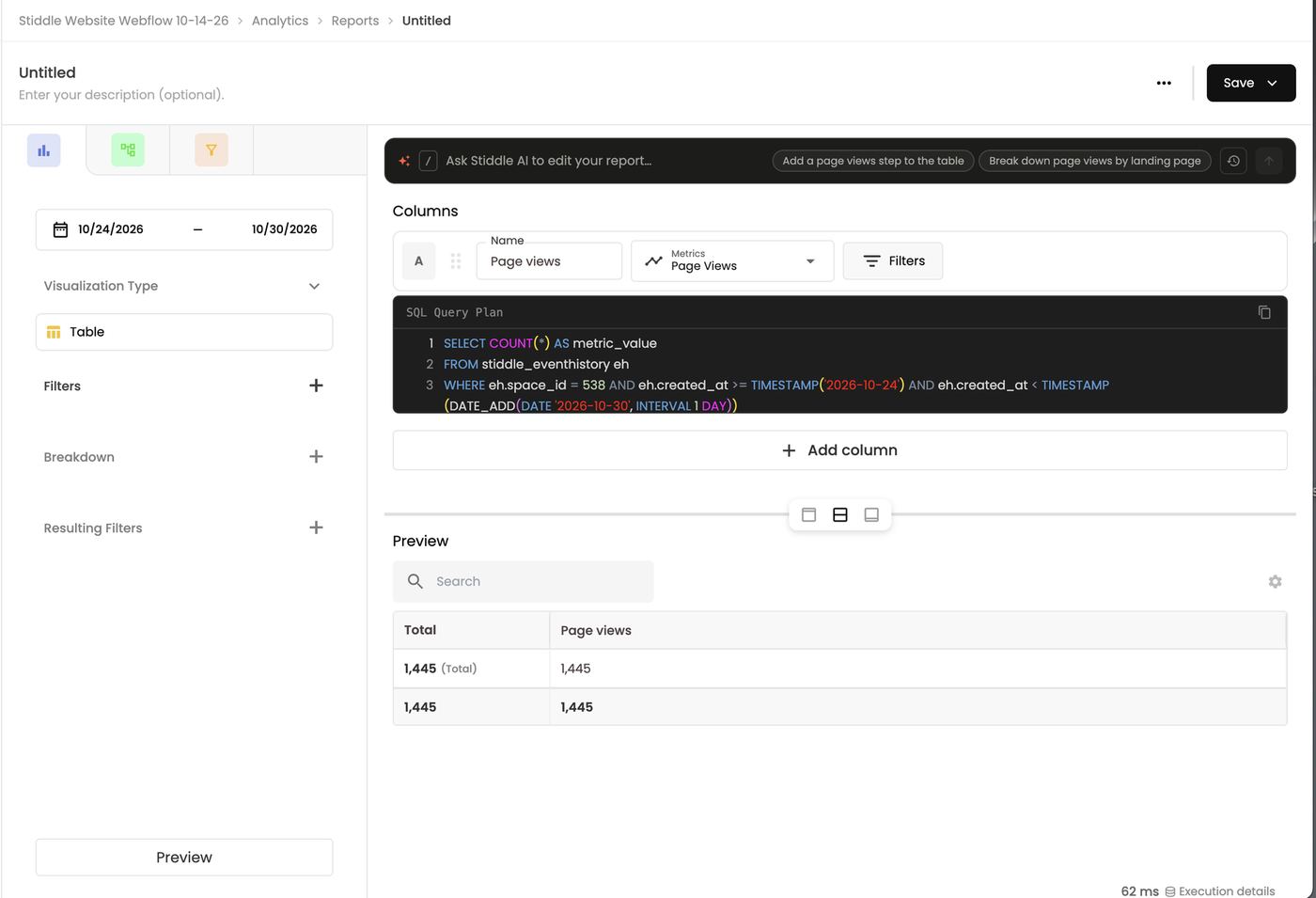
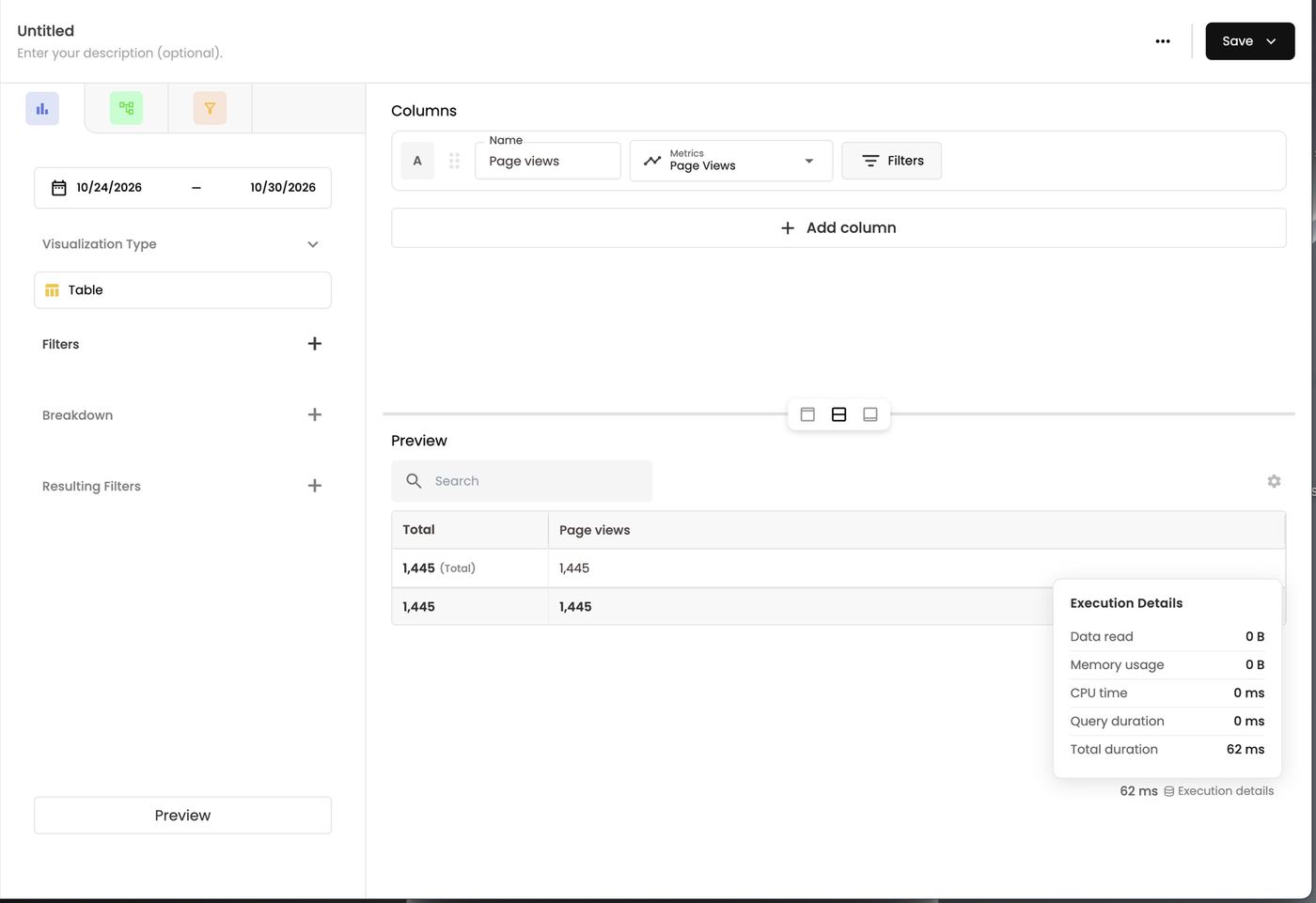
Walkthrough: page views by person
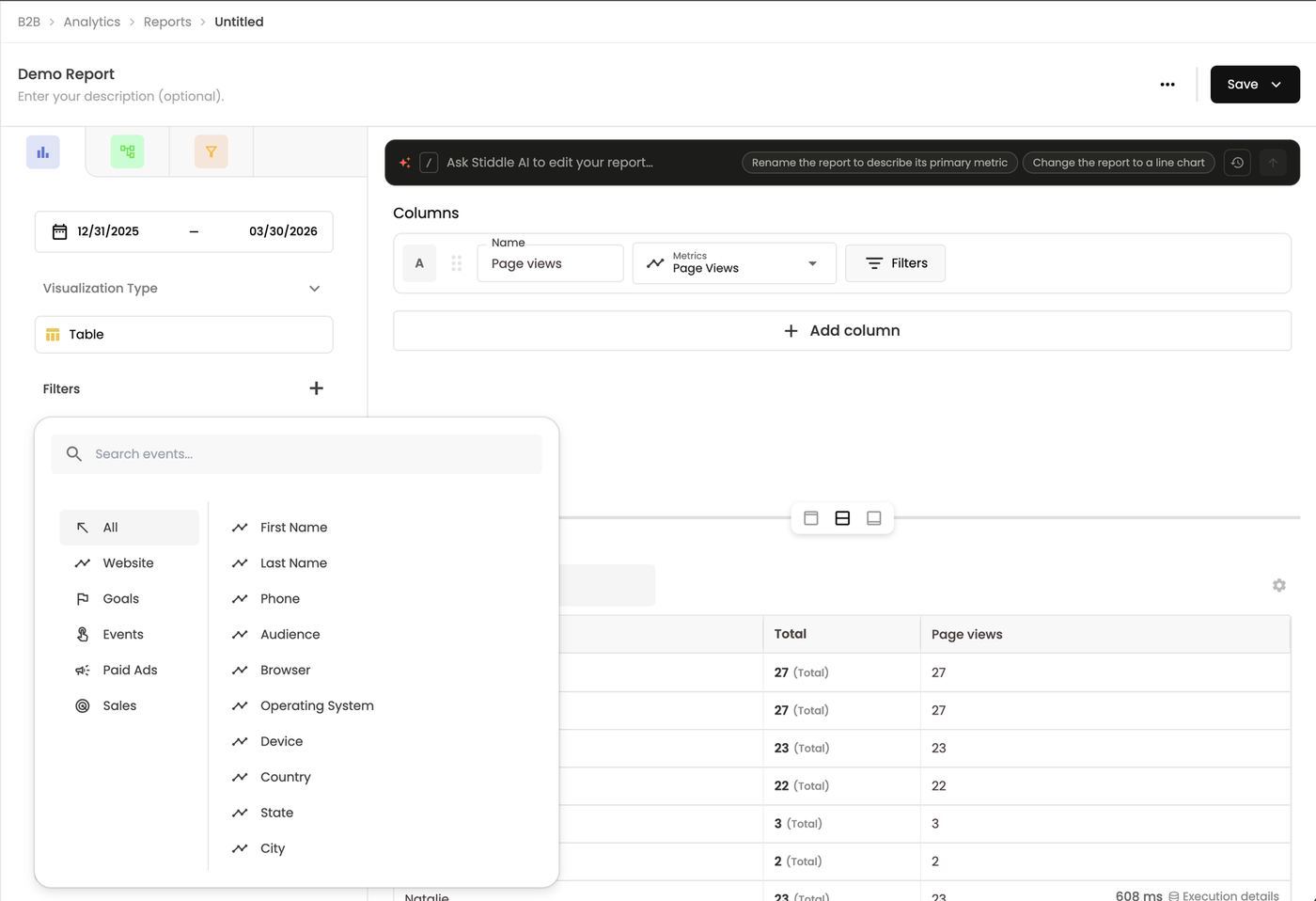
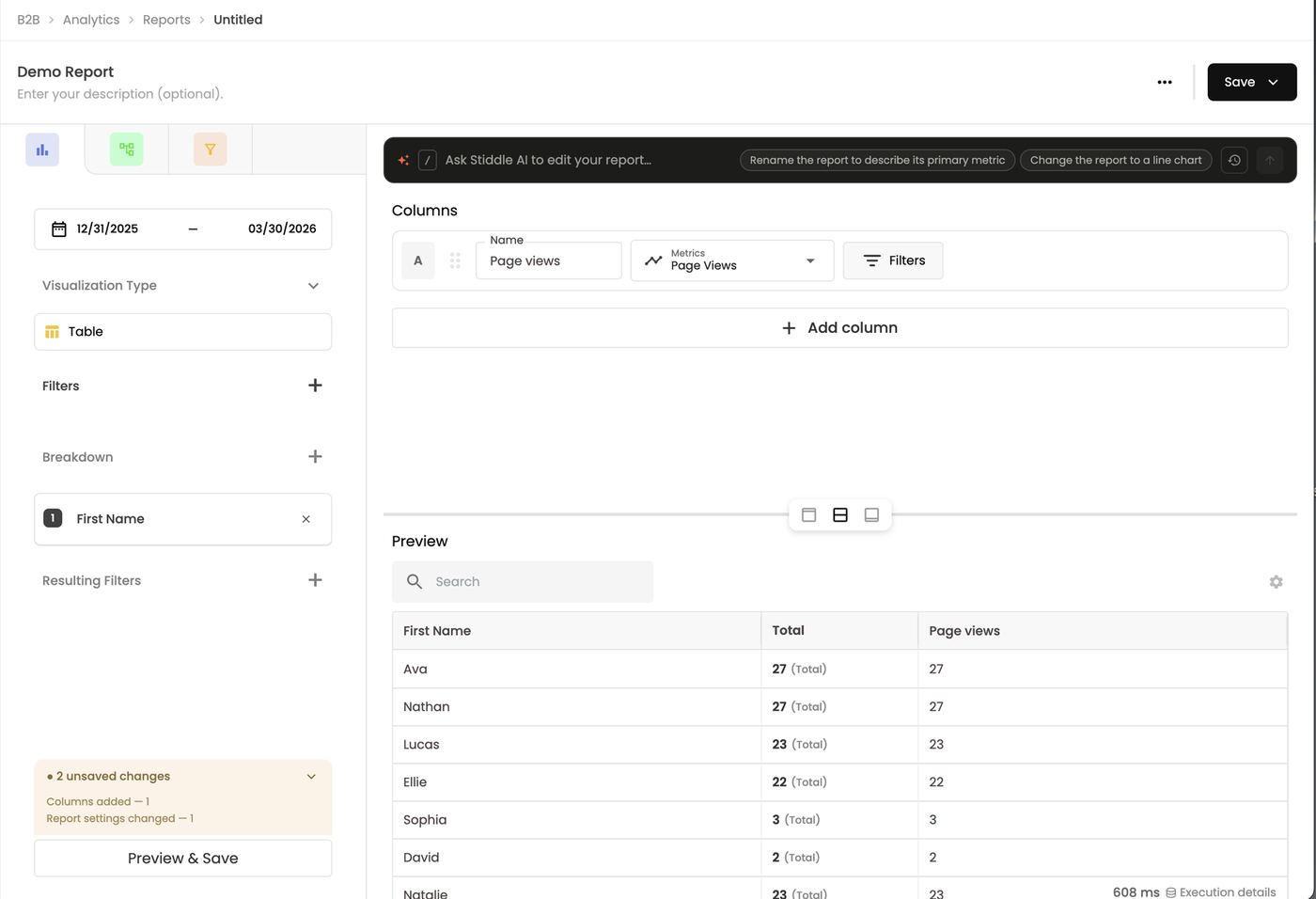
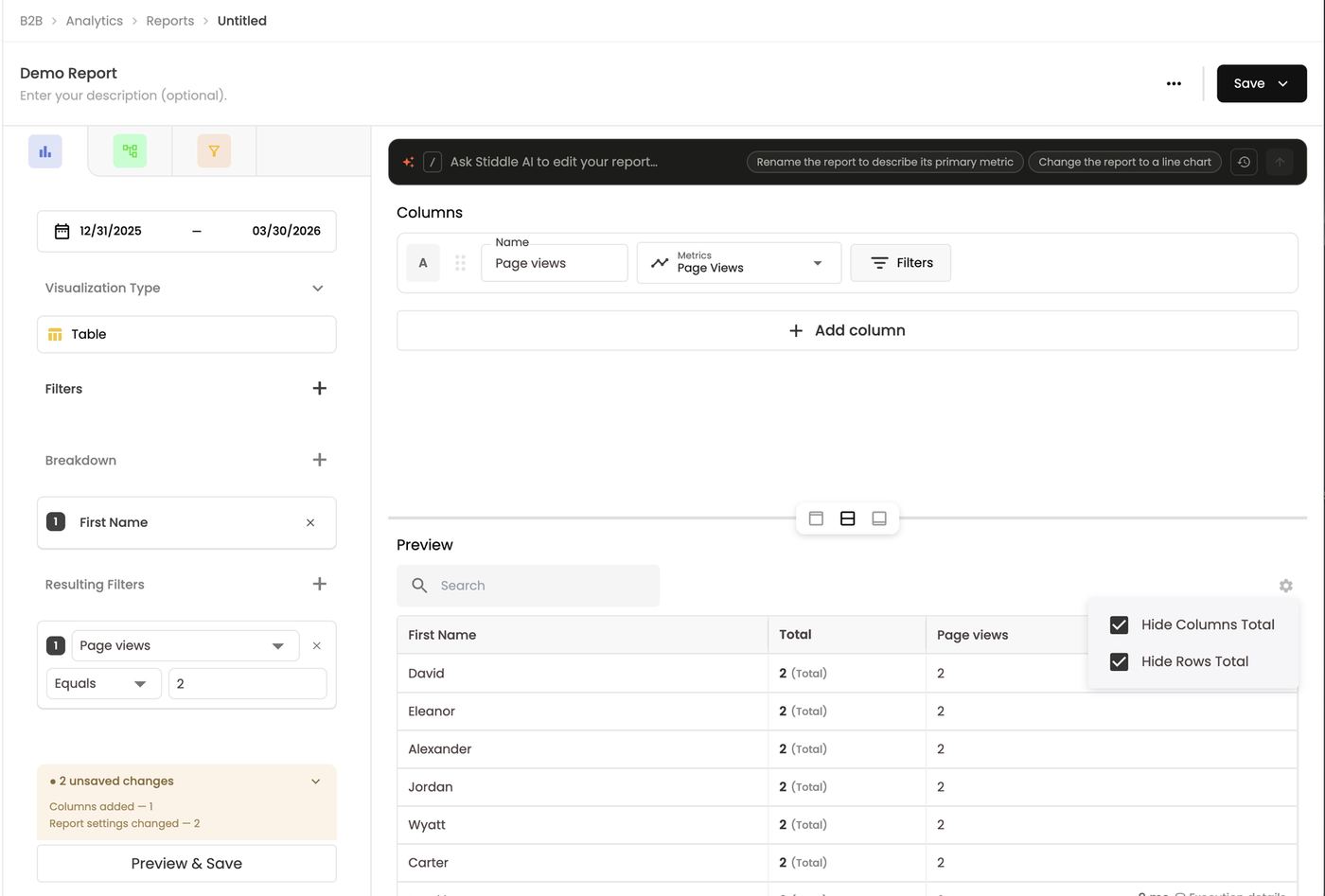
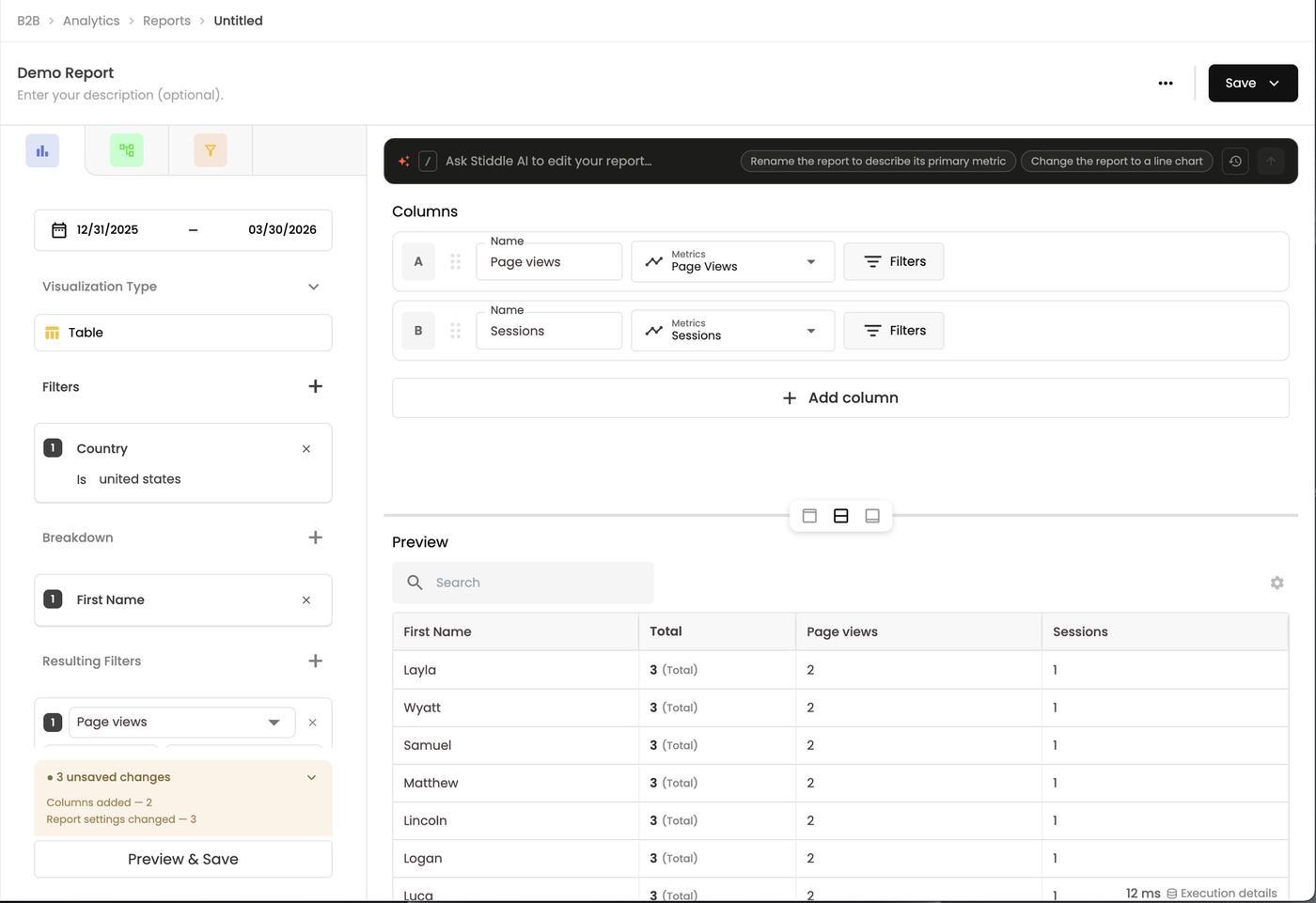
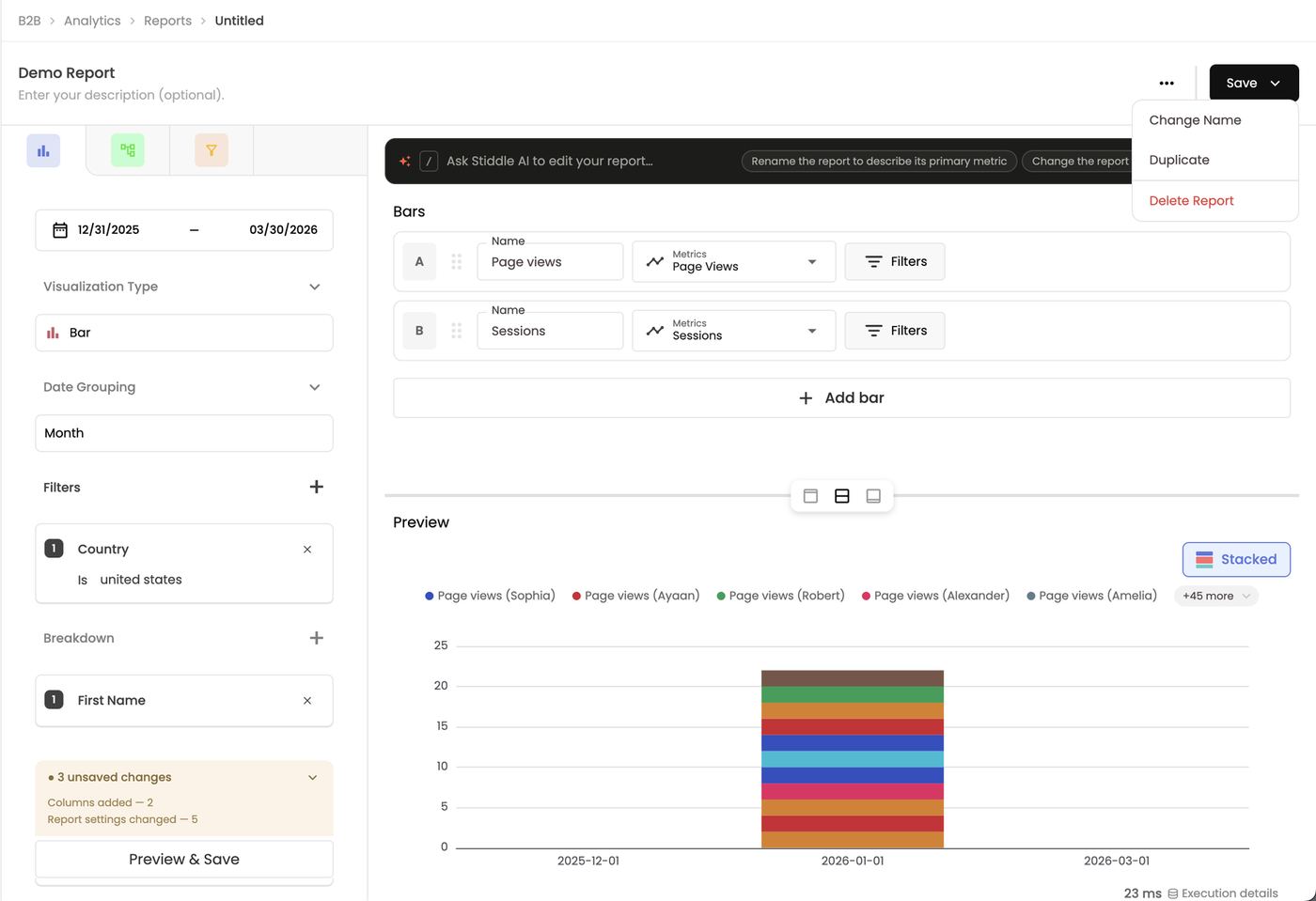
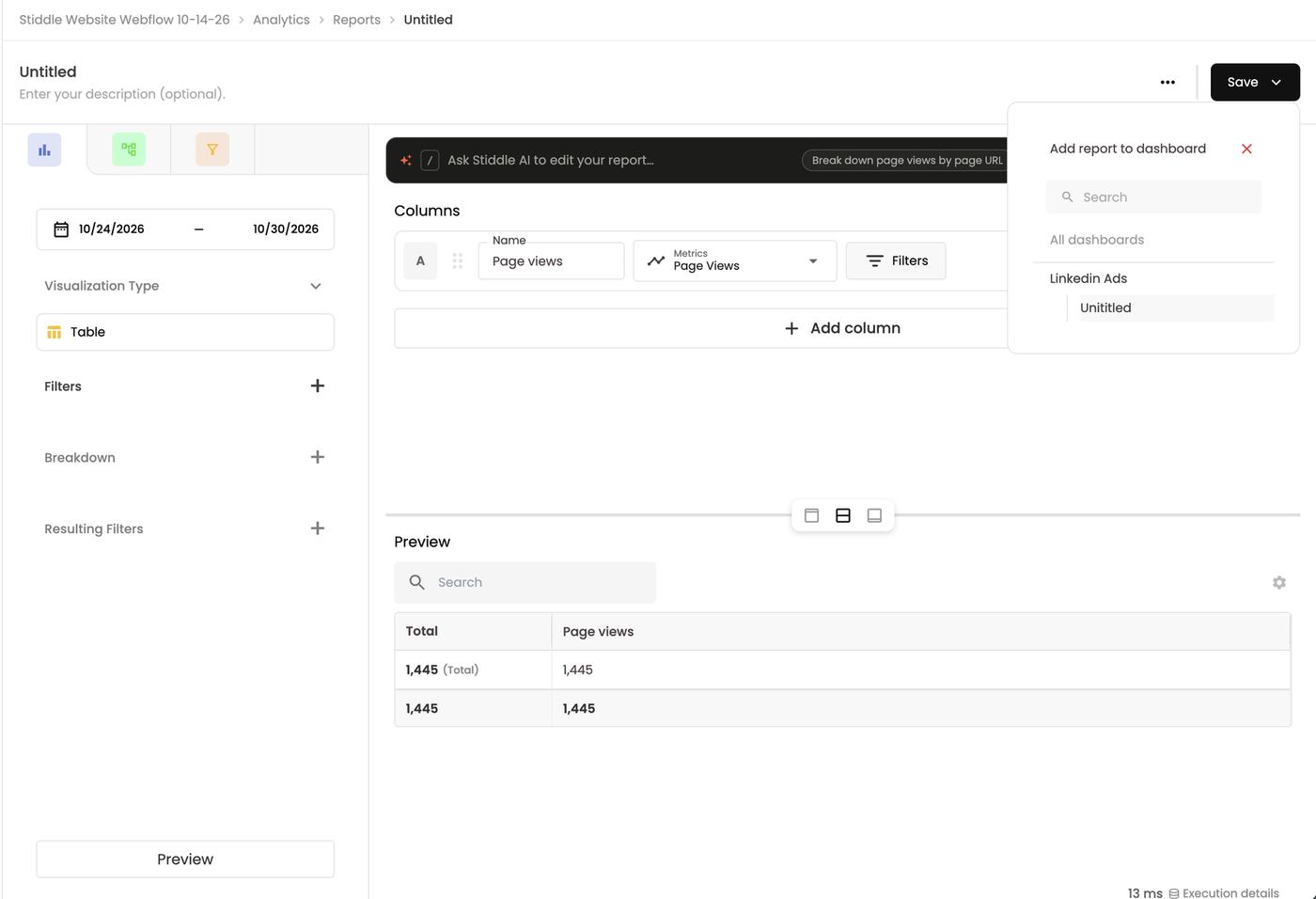
1. Add a column. Click + Add column, rename Column 1 to Page views, and choose Metrics → Page Views as the definition. The left panel shows an unsaved changes badge listing what changed (e.g. Columns added — 1). Click Preview & Save to see the result.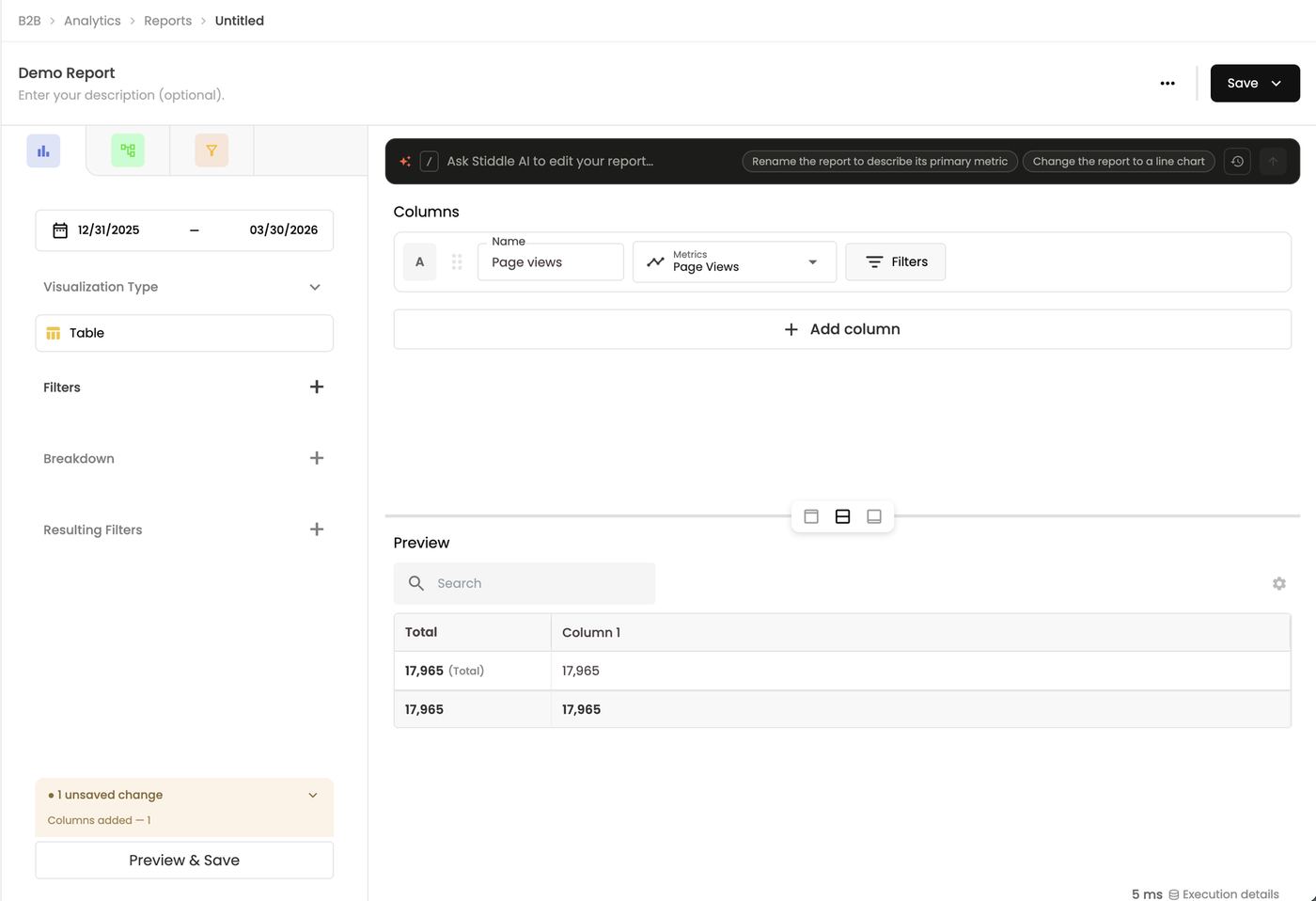
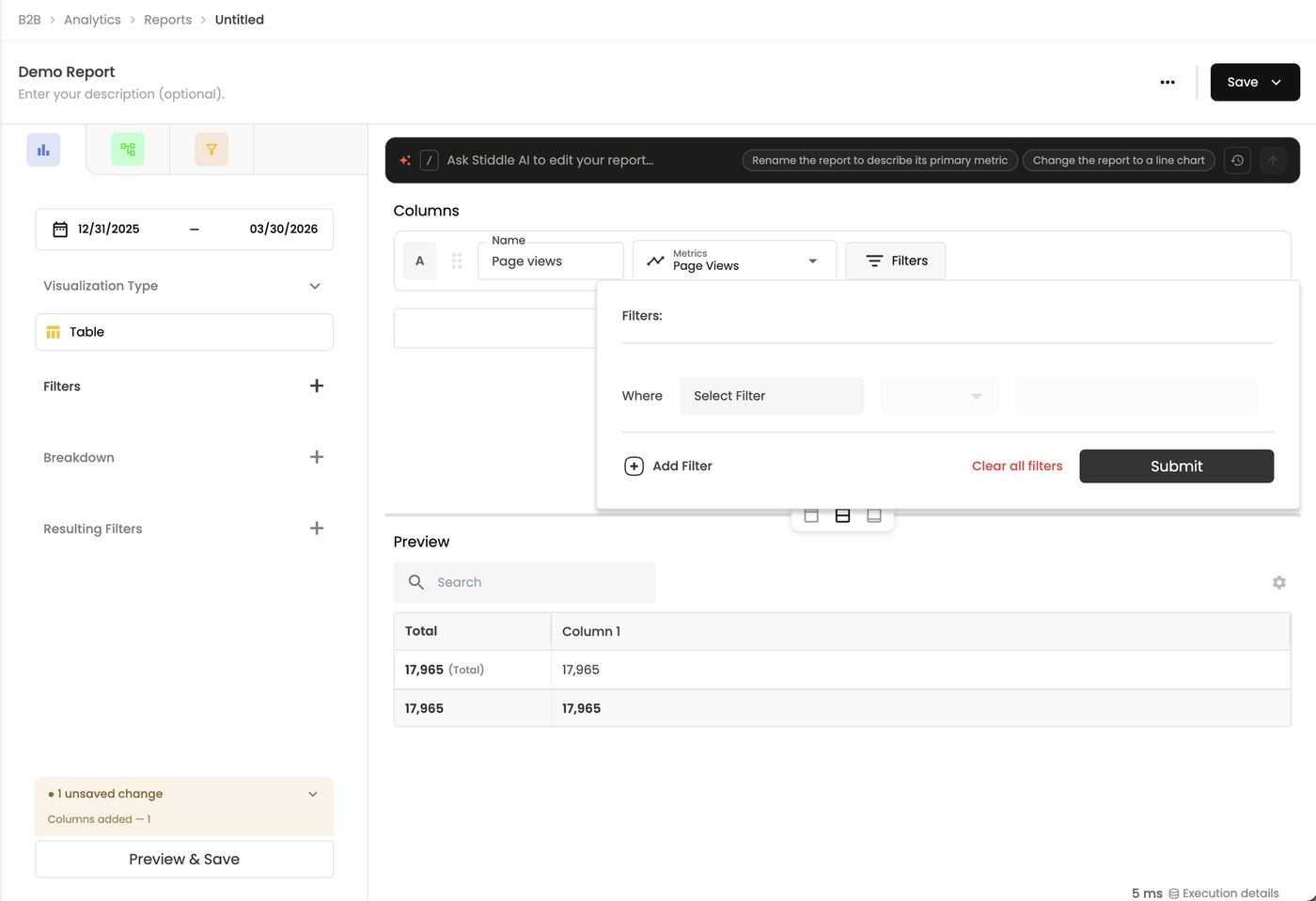
- Column filter: click Filters on a column, then Where → field, operator and value. It only affects that column.
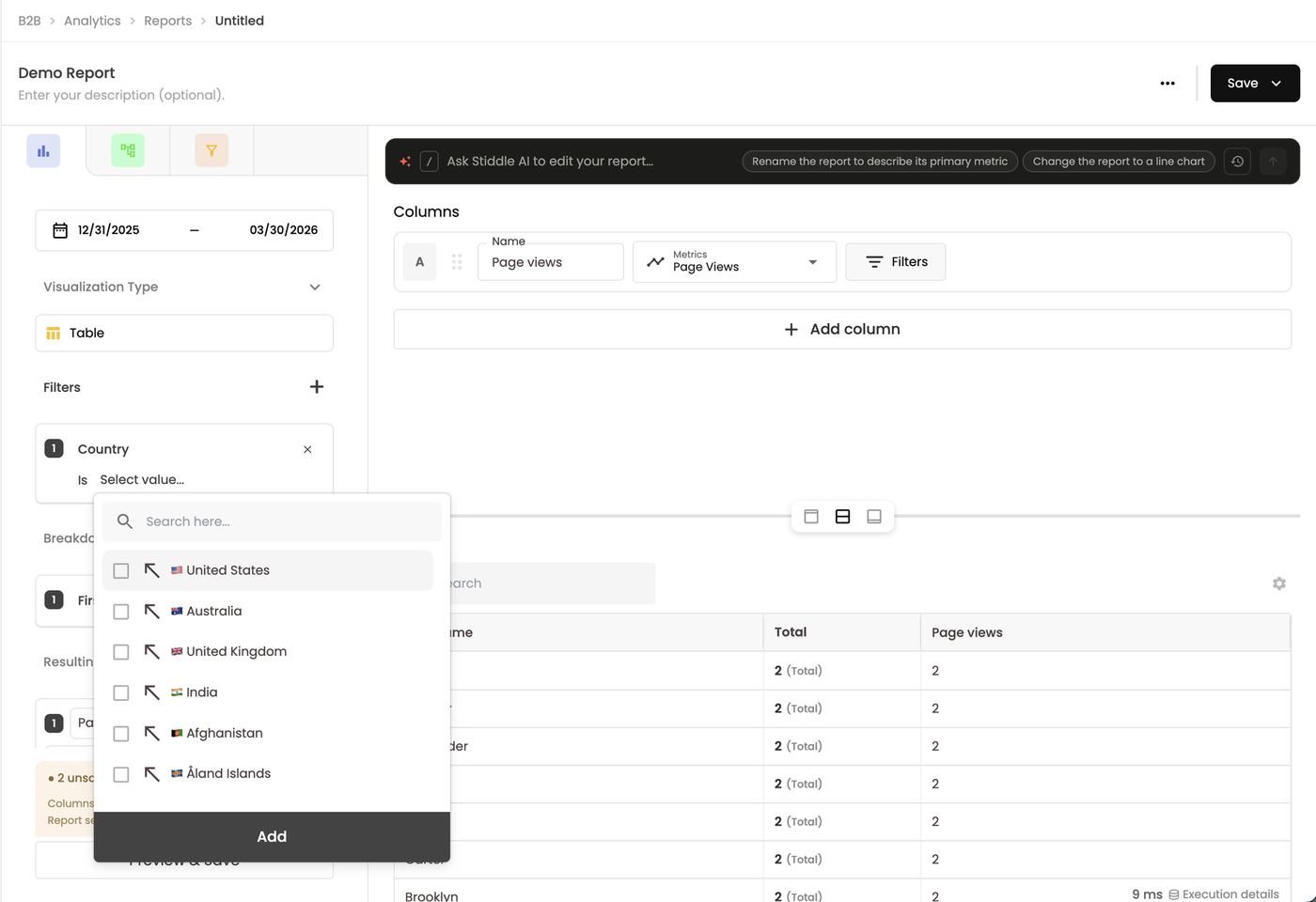
- Report filter: click + next to Filters in the left panel. It applies to every column. Fields are grouped under Website (name, phone, audience, browser, OS, device, country, state, city…), Goals, Events, Paid Ads and Sales.
Build with Stiddle AI
Describe what you want in the Ask Stiddle AI to edit your report… bar, or press / for suggestions such as Show weekly total events as a line chart or Compare total events against the previous period. Stiddle AI changes the columns, filters, breakdowns and visualization for you and explains what it did. Example: “Show total events as a single metric” → “Changed the report to a single-number view showing total events and removed the first-name breakdown.” → 10,636. Click the history icon to view or hide history, the earlier prompts and replies for this report. You can also build and edit the same report from the Stiddle CoPilot page or through MCP (sections 18–19).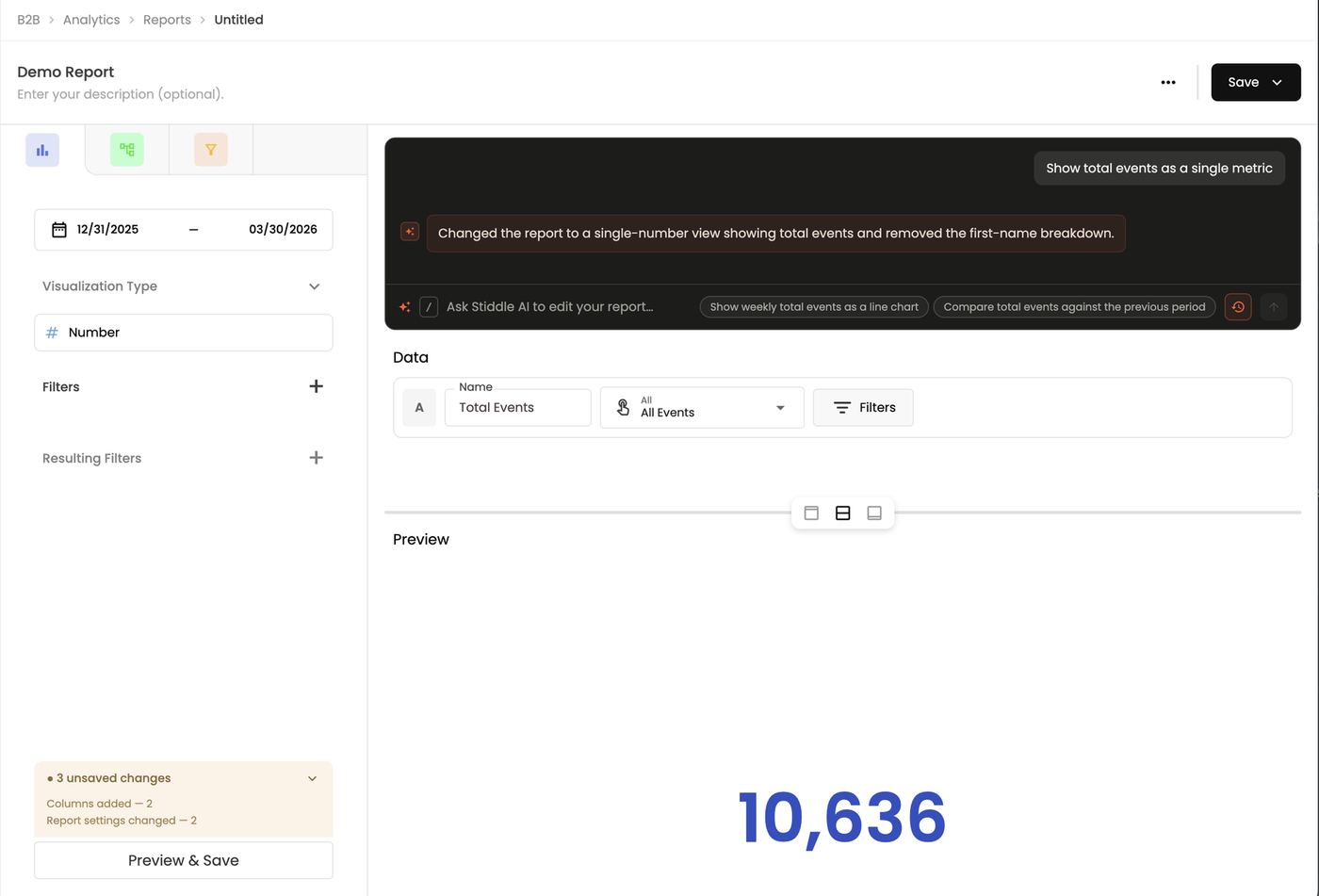
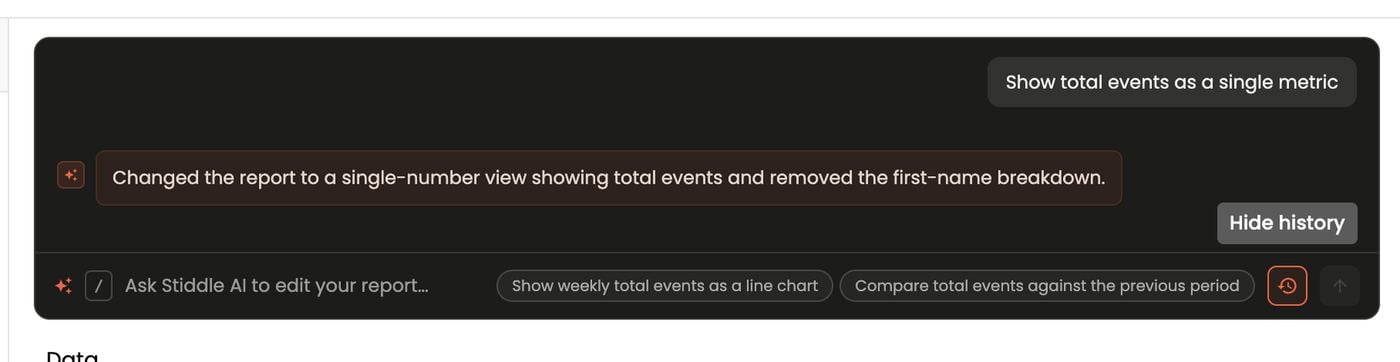
Changing the report type resets it. Switching between Insight, Flow and Funnel clears the report’s data, after a Change Report Type confirmation. Create a new report with the type you want instead.
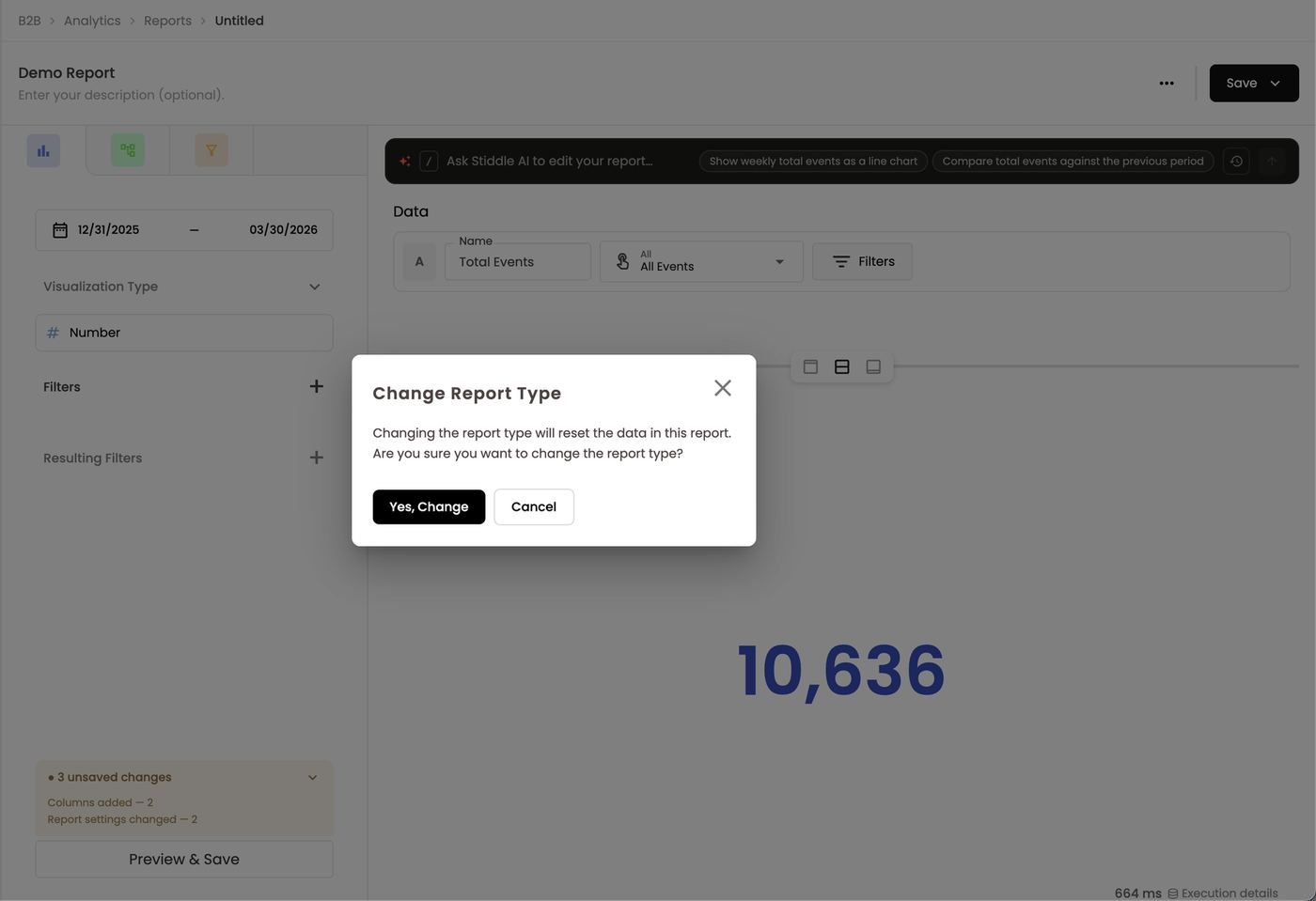
Examples
- Total Deals — CRM → Total Deals, aggregation Total, visualization Number → Total.
- All Goals — Goals → All Goals, Total, Last Click, breakdown by Goals, visualization Table → Pricing Page Visit, Whitepaper Downloads, Demo Booked, Deal Closed Lost, Blog Article Visit, Phone Call.
- Unique Website Visitors — Daily Trend — Website → Unique Visitors over time.
FAQs
What’s the difference between a column filter and a report filter? A column filter changes one metric. A report filter changes every column. Why do totals change after I add a breakdown? A person can fall into several breakdown groups (e.g. touched two sources), so groups don’t always sum to the total. Can I make a custom metric like cost per demo? Yes — Add Formula in the metric picker. What’s the difference between a filter and a resulting filter? A filter decides which data goes into the calculation (e.g. only US visitors). A resulting filter keeps or drops rows after the calculation (e.g. only people with 2 page views). Where do I see unsaved changes? In the badge above Preview & Save. Expand it for a list of changes. Can I edit the SQL? Yes. Hover a column and click </>. How do I put a report on a dashboard? Save → choose the dashboard → choose the section. Why did my report reset? You switched the report type. Create a new report of the type you need instead.11. Reports — Funnels
Funnels measure how many people move through a sequence of steps you define, and where they drop off. Use them to find the leakiest stage between first touch and revenue.Build a funnel
- + Create → New Report and choose the Funnel tab (orange icon).
- Set the date range. The palette icon next to it changes the chart’s colors and style.
- Under Steps, click + to add each step in order — any event, page, ad click, goal or CRM stage. You need at least two.
- On each step: the pencil renames it (e.g. Deal Stage: MQL → MQL), the filter icon adds a condition to that step only, and × removes it. Drag a step to reorder it. For example, drag MQL below SQL to swap their order.
- Add report-wide Filters. Applied to all steps.
- Add a Breakdown (e.g. by Source) to split every step by channel.
- Save.
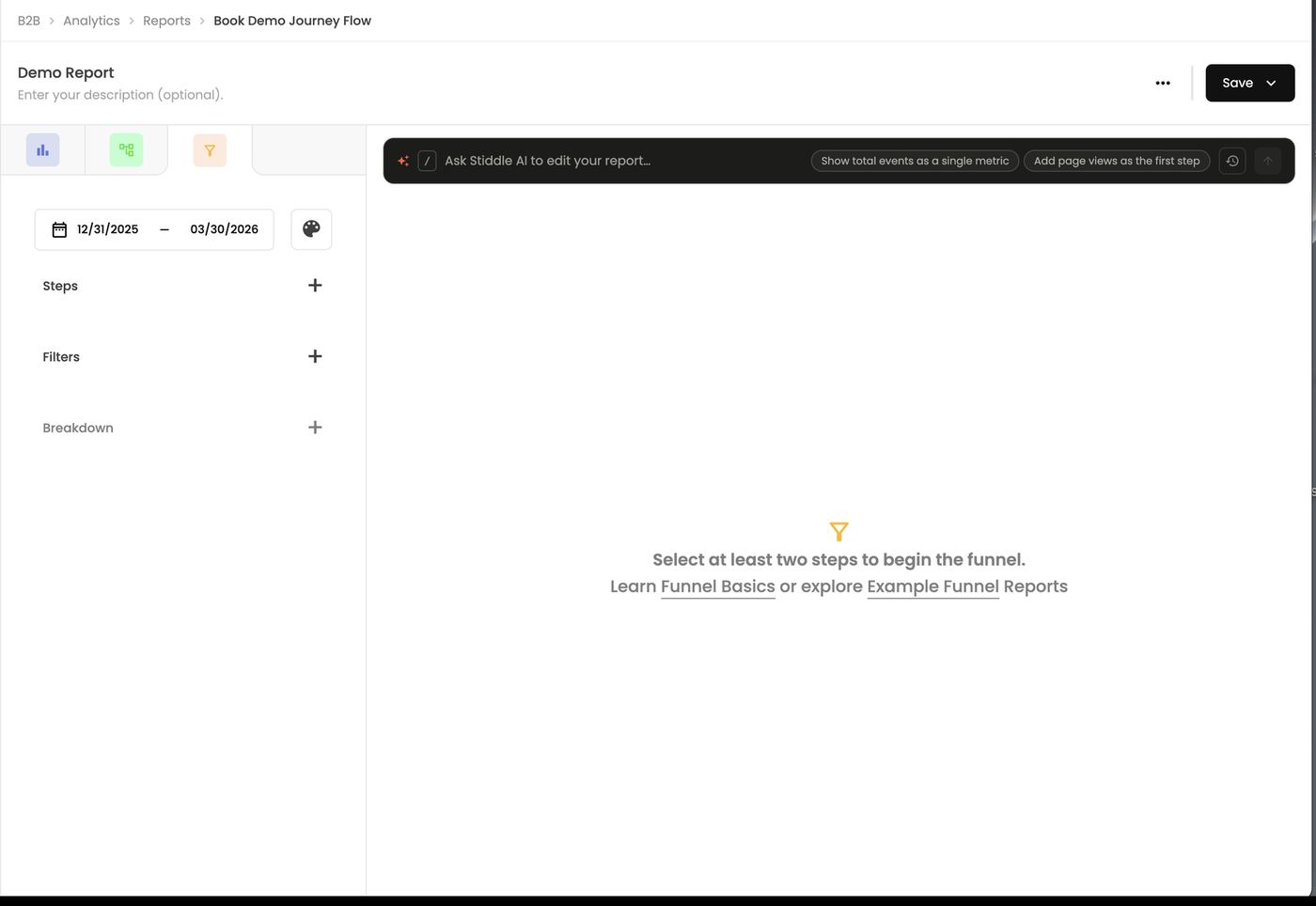
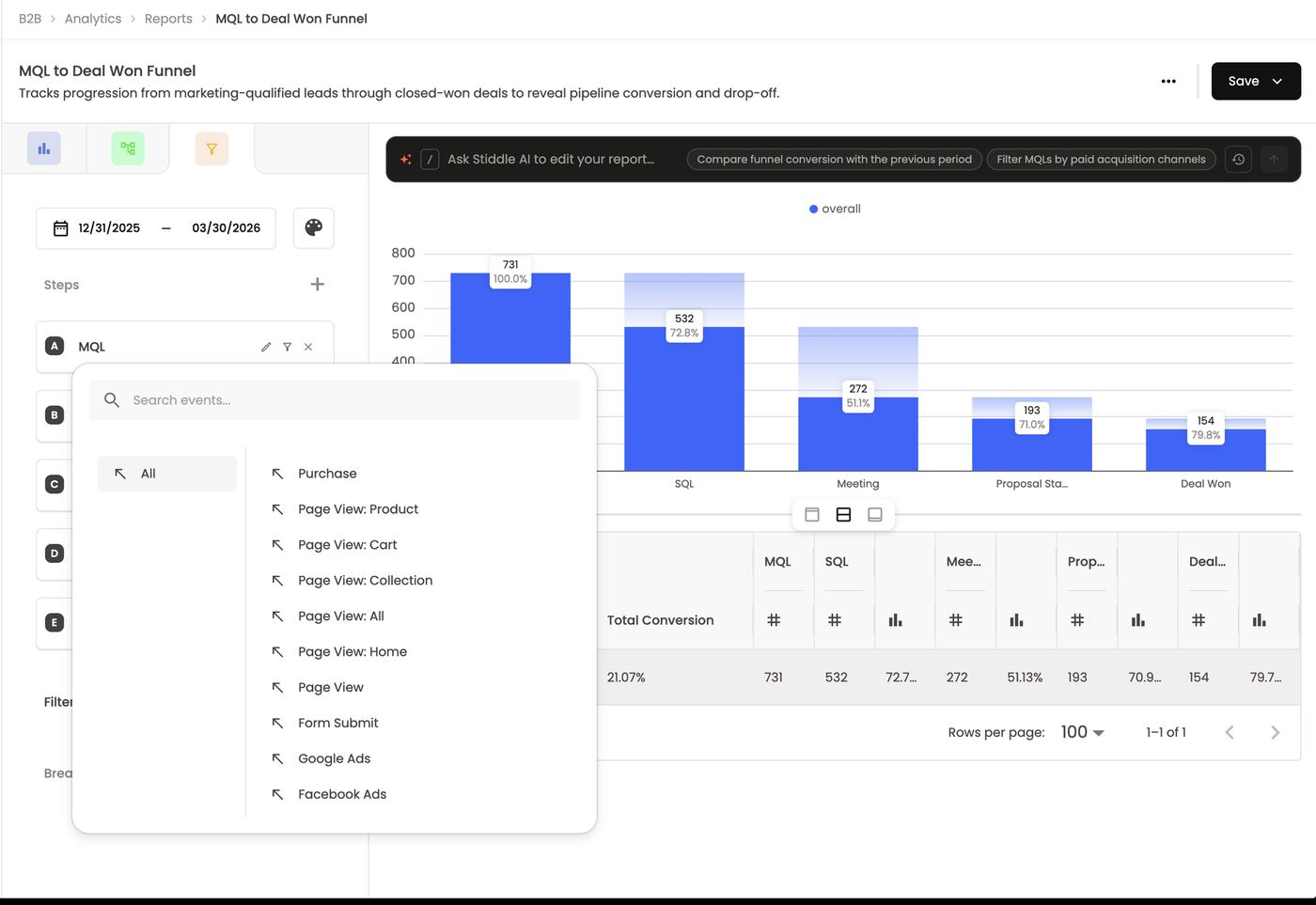
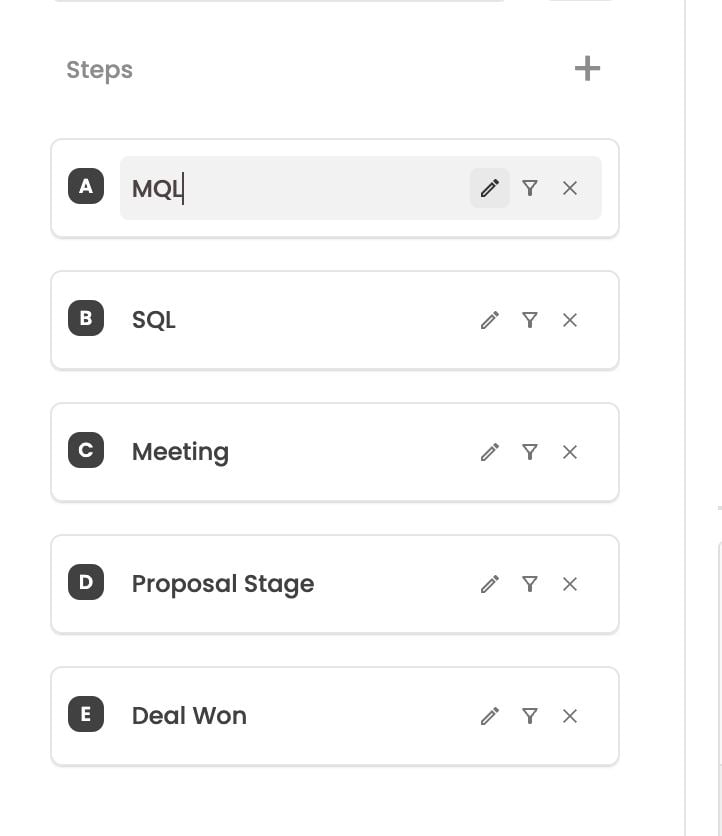
Step filters vs funnel filters
Use a step filter to define who enters or what counts at one stage. Use a funnel filter to narrow the whole analysis.
Breakdowns
Click + next to Breakdown and choose a property, e.g. UTM Source. Each value becomes its own row in the table under the chart, and its own bars, with counts and conversion rates per step. As in Flows, the property must exist on the steps’ events. A CRM stage has no website source, so break CRM funnels down by a property the contact or deal carries.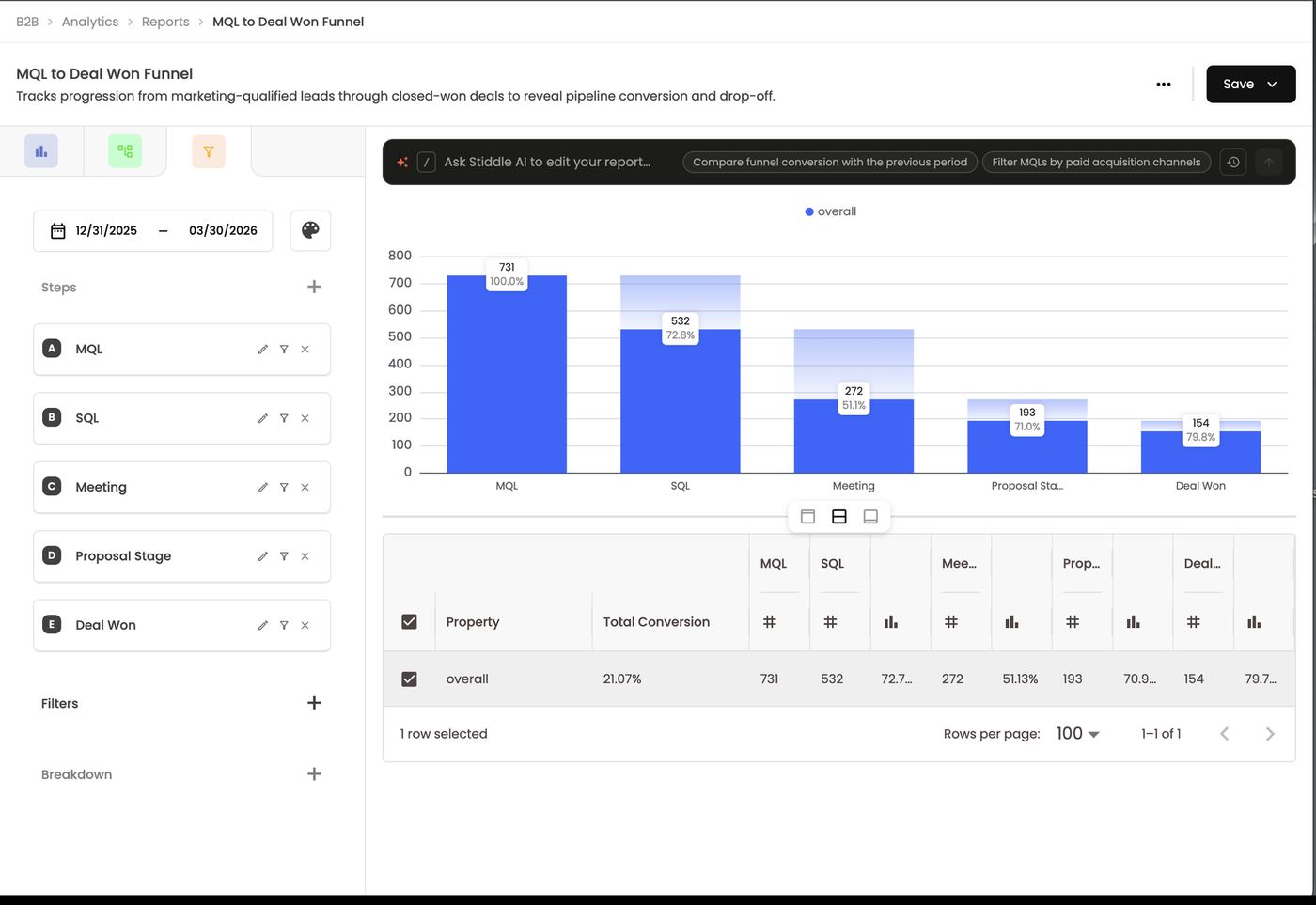
Hover and click
- Hover the solid bar for Conversions, Conversion Rate, Drop off Total and Drop off Rate from the previous step. For MQL → SQL: 532 converted (72.78%), 199 dropped off (27.22%).
- Hover the faded part for the drop-off on its own: Drop-off overall 199 · 27.22%.
- Click a bar → View users to list everyone who reached that step, e.g. the 154 contacts at Deal Won, searchable by name or email, with View to open each profile. Use it to build a retargeting audience, such as everyone who reached SQL but not Meeting.
- The palette icon picks the funnel’s color.
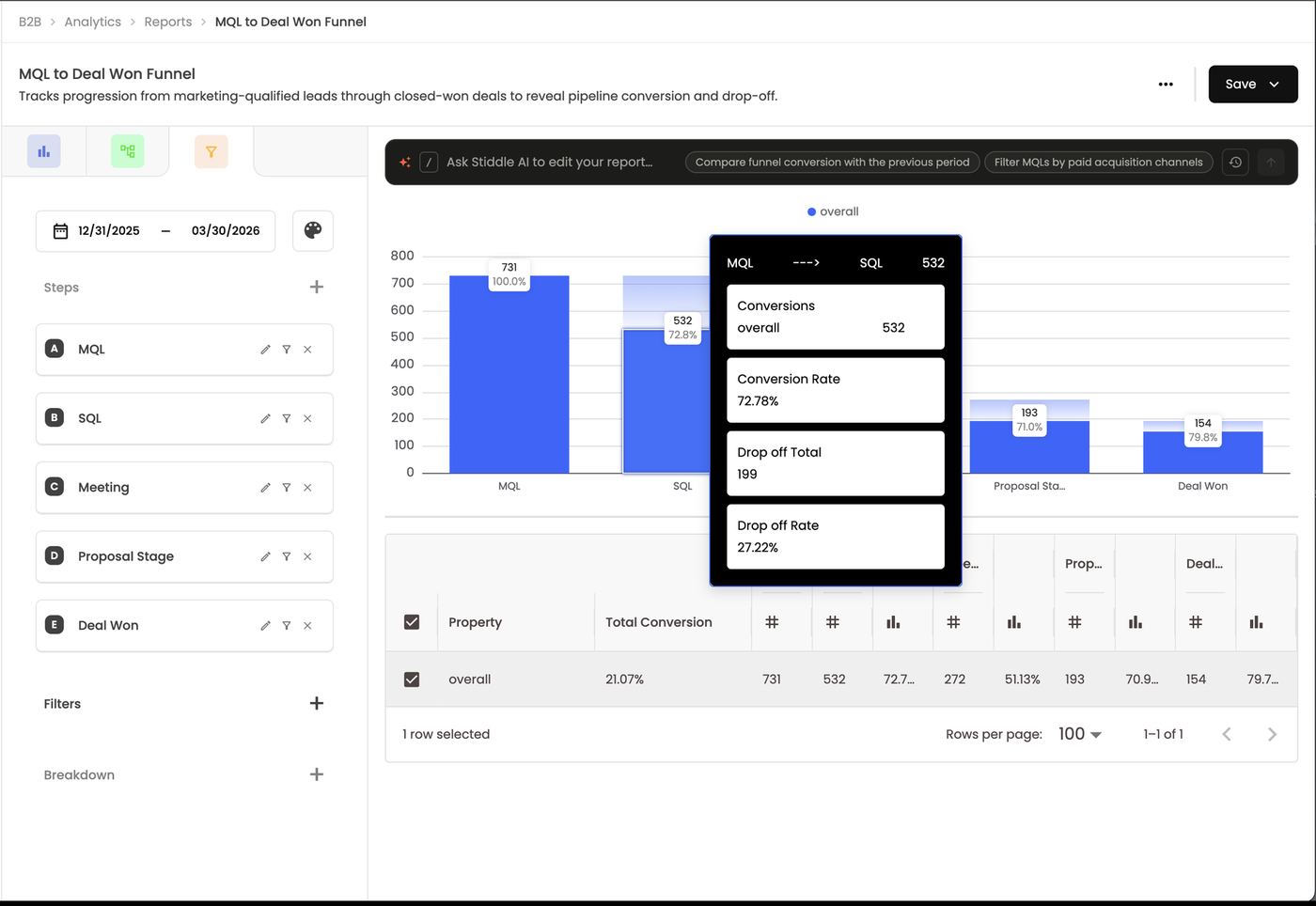
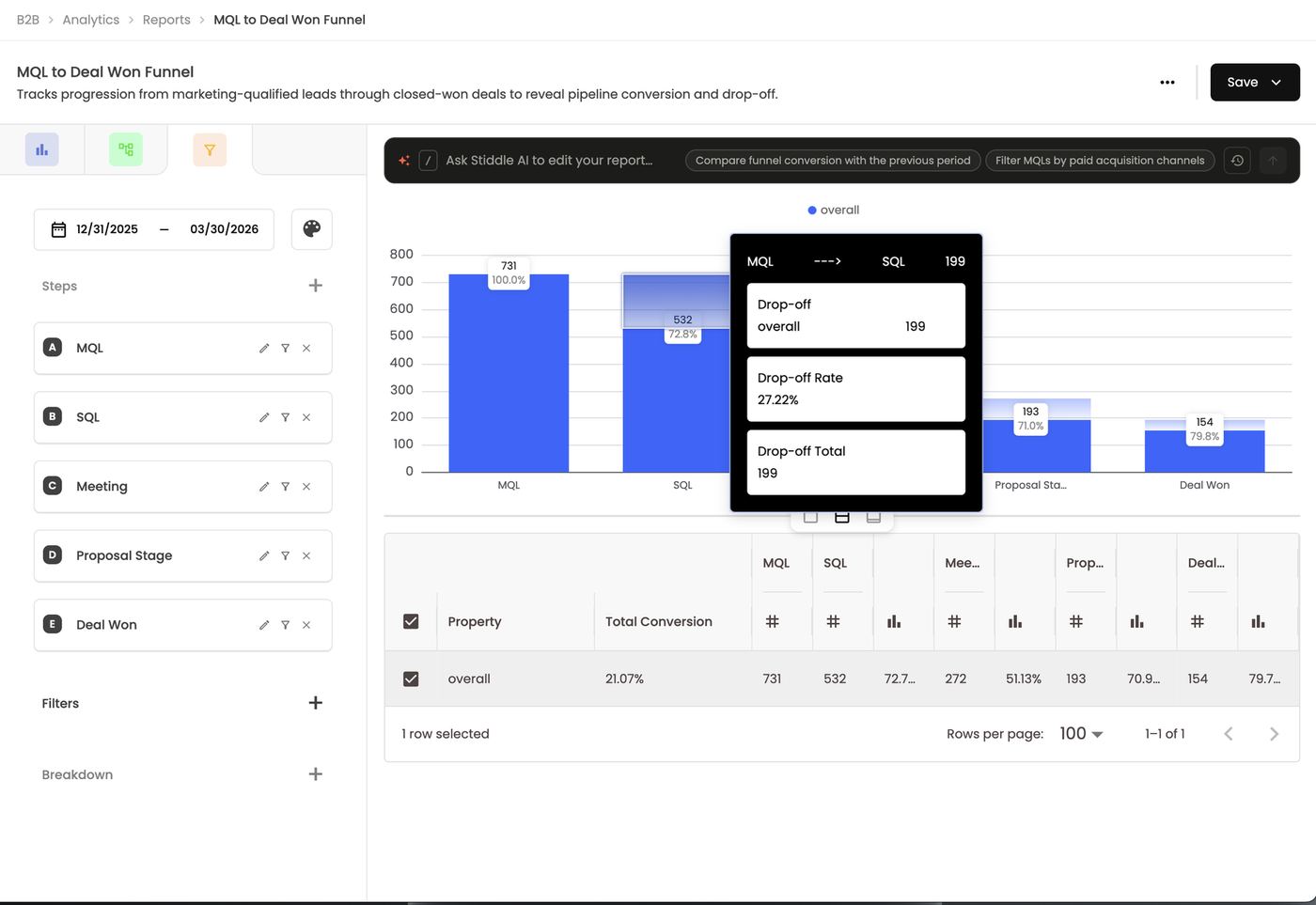
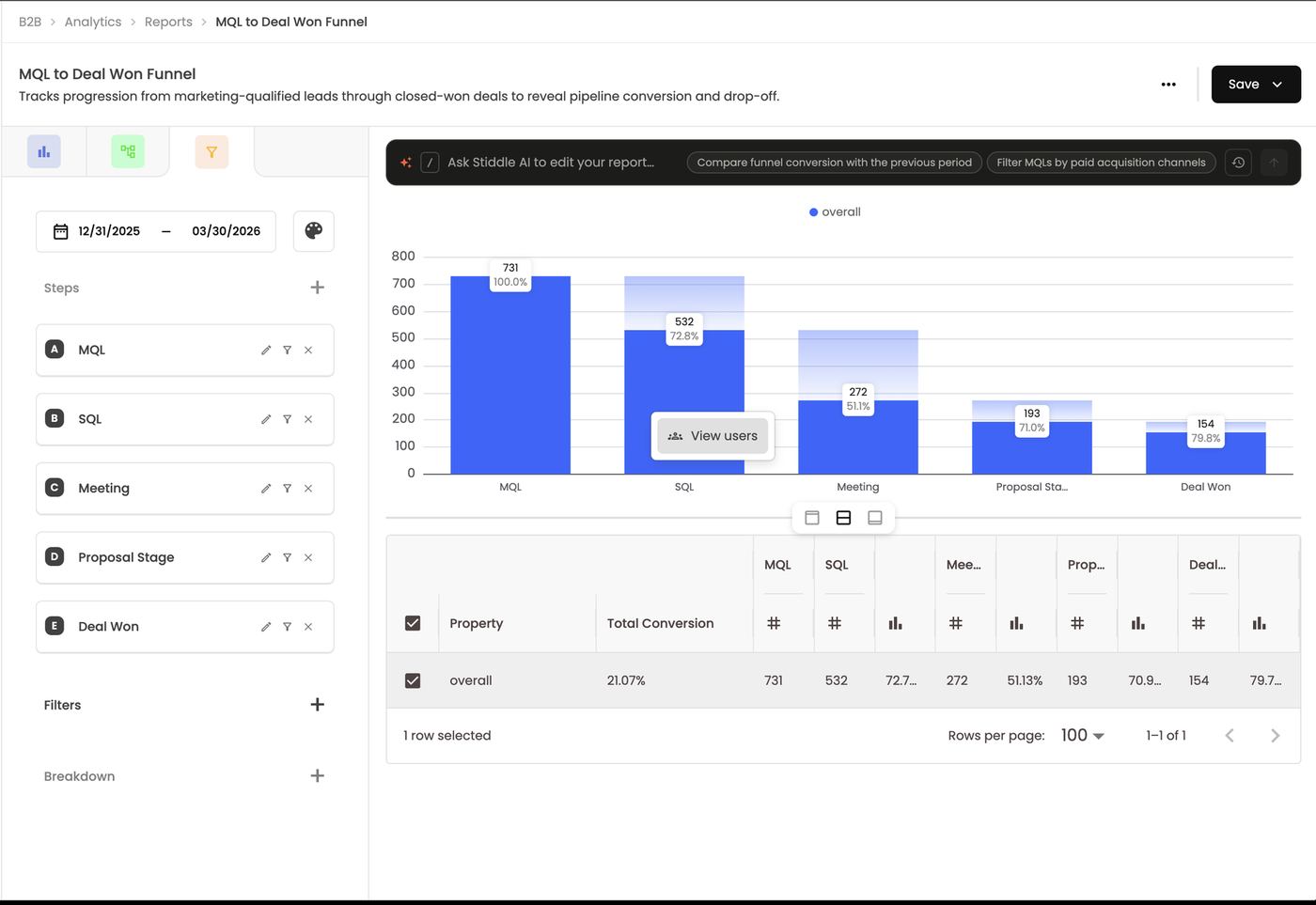
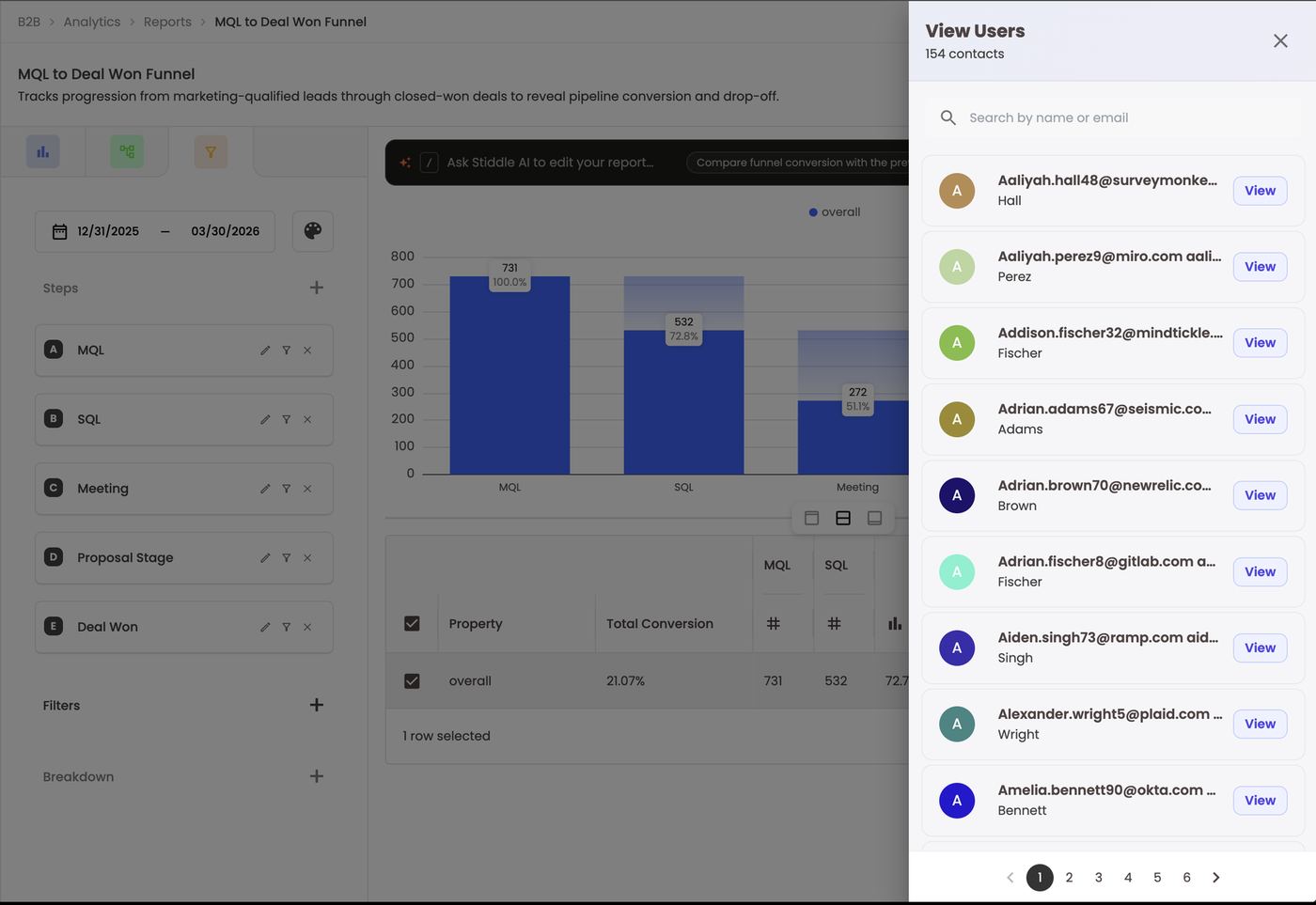
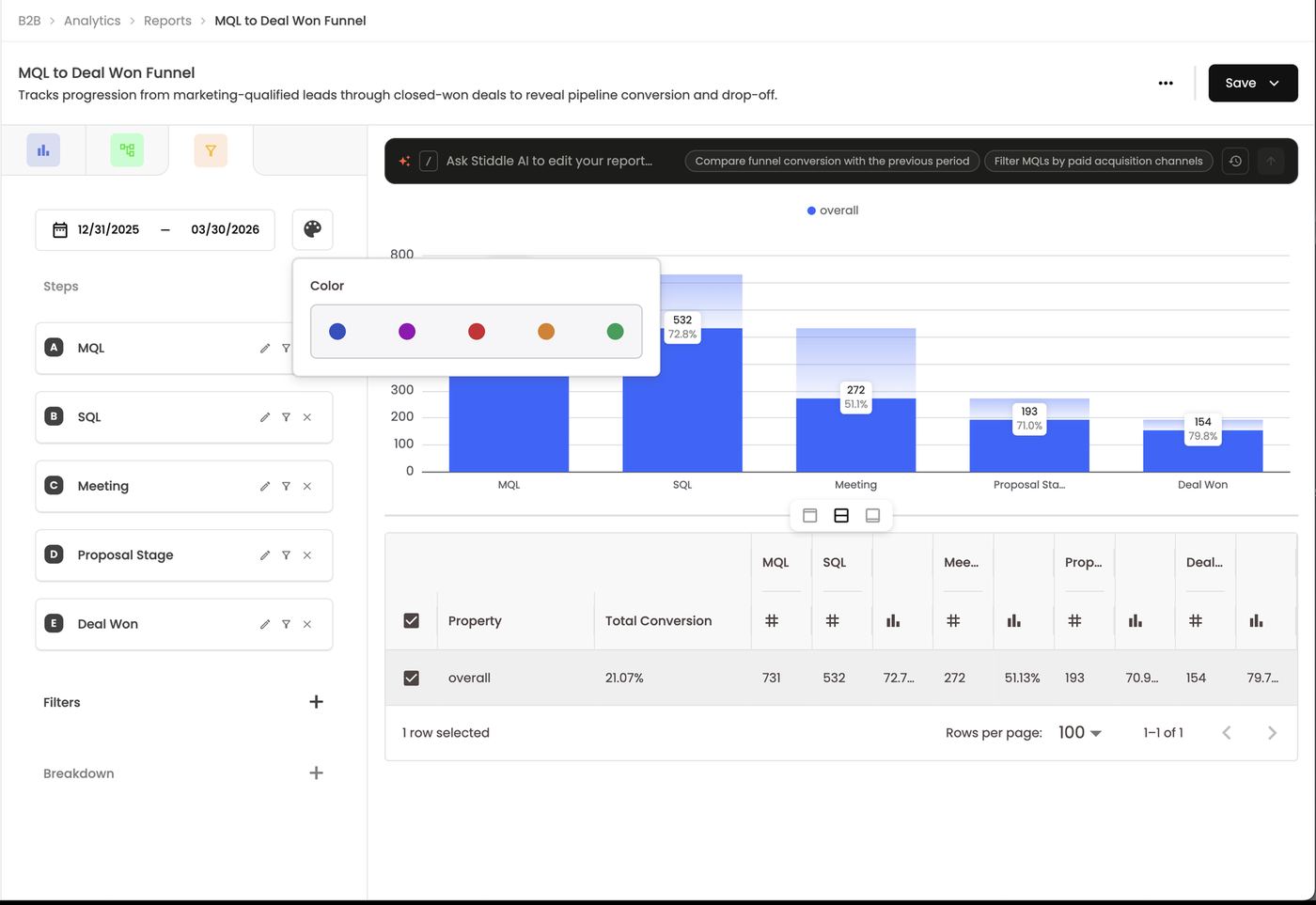
Report options
The same as Insights and Flows: … → Change Name / Duplicate / Delete Report, and Save → dashboard → section to add the funnel as a widget. Changing the report type resets the report.Reading the result
The chart shows each step’s count, with the faded bar showing how many came from the step before. The percentage on each bar is conversion from the previous step. The table below adds Total Conversion (first step to last) and per-step counts and rates for each breakdown row. Example — MQL to Deal Won Funnel (B2B):
Total conversion is 154 ÷ 731 = 21.07%. The biggest leak is SQL → Meeting, so that’s where to look first — add a breakdown by Source to see which channels’ SQLs book meetings.
B2C version: Home page → Product view → Add to cart → Checkout → Purchase, broken down by source.
FAQs
Is the percentage relative to the first step or the previous one? The previous one. Total Conversion is first to last. Do steps have to happen in order, and within what window? Yes. Can steps span multiple sessions? Yes — steps are tied to the person’s IRIS profile, not one session. They can also be changes to company or deals, so you are understanding the drop off and conversion across company or deals steps instead of people. How many steps do I need? At least two. Can I change the order of steps? Yes. Drag a step up or down. Should I filter a step or the whole funnel? Filter a step to change who enters or counts at that stage. Filter the funnel to narrow every step. How do I retarget people who dropped off? Click the step they reached → View users, then add them to an audience.12. Reports — Flows
Flows map the actual paths people take before and after a key action. Use them when you don’t yet know the journey — then turn the path you care about into a funnel to measure it. Flows show customer journeys in aggregate: what people did before a key step, and what they did after it.Build a flow
- Create a new report (+ Create → New Report) and click the green Flows type tab. An empty flow says “Select at least one step to begin the flow.”
- Either describe the flow to Stiddle AI in the bar at the top, or build it manually as below.
- Add a step. Click + next to Steps and pick an event or goal, e.g. Goal: Book Demo Page Visit. Steps can be any event or goal: page views, form submits, purchases, ad clicks, CRM stages. This becomes the anchor (column A) in the middle.
- Add columns before and after. Click + at the top left of the chart and choose Add 1 column, Add 3 columns or Add 5 columns. Columns to the left (A − 1, A − 2…) show what people did before the anchor; columns to the right (A + 1, A + 2…) show what they did after. The step card shows the result, e.g. 2 Steps Before, 2 Steps After.
- Set the date range, Rows (how many nodes per column; the rest group into Other) and Selected Events (which events can appear, e.g. All events visible (37)). The palette icon changes the flow’s colors.
- Add Filters to narrow who’s included.
- Add a breakdown with Expand Events by Property (see below).
- Click Save.
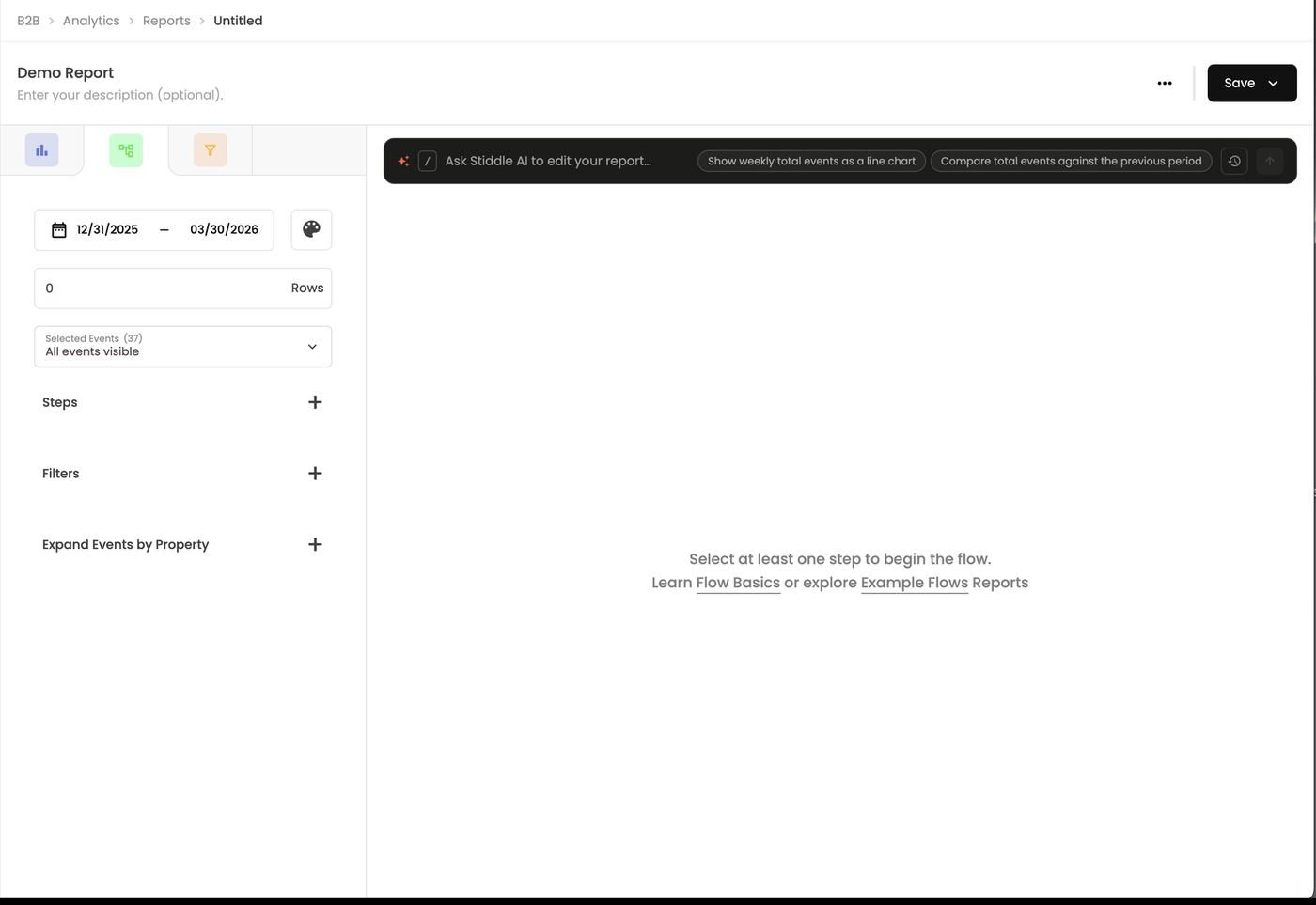
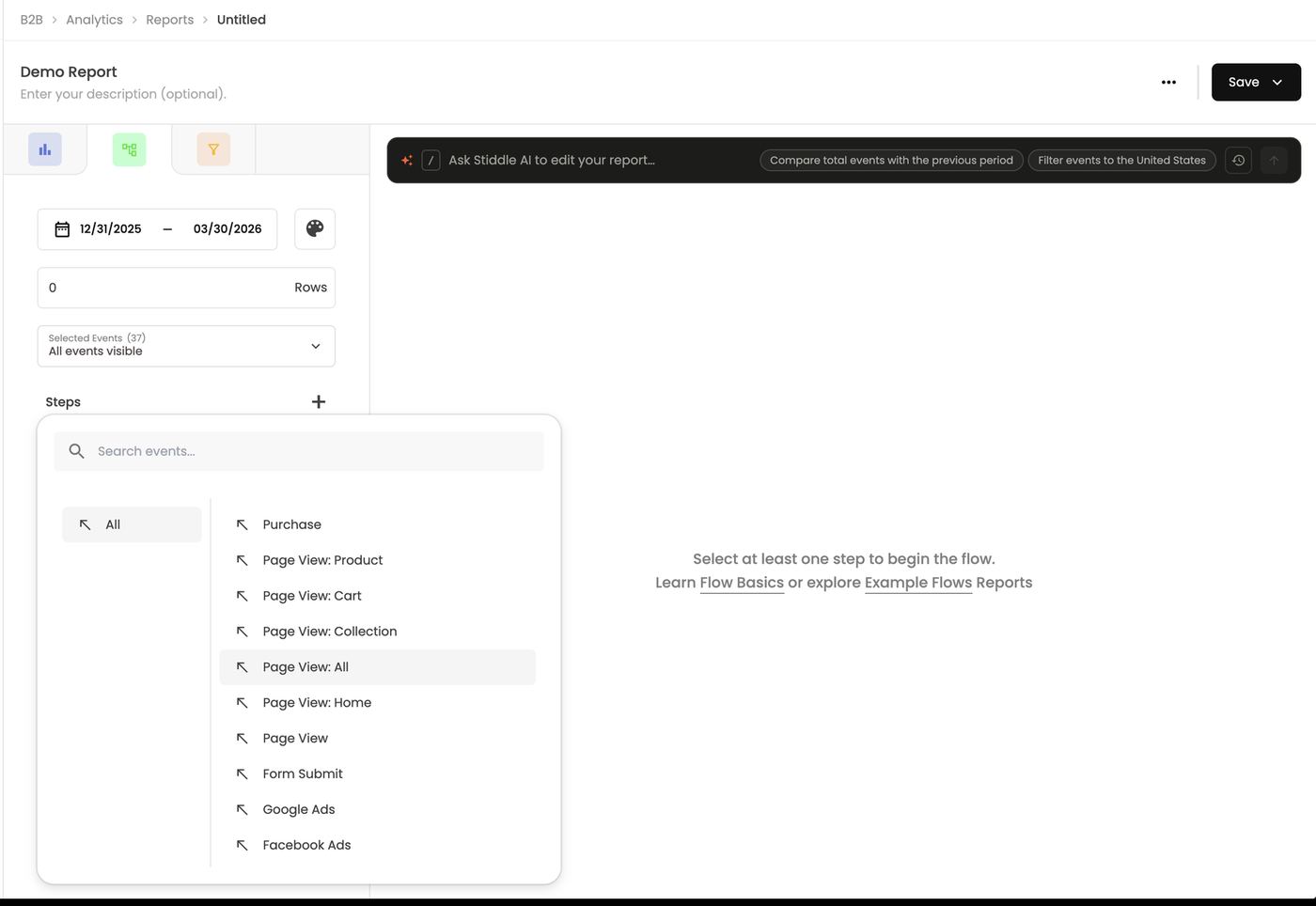
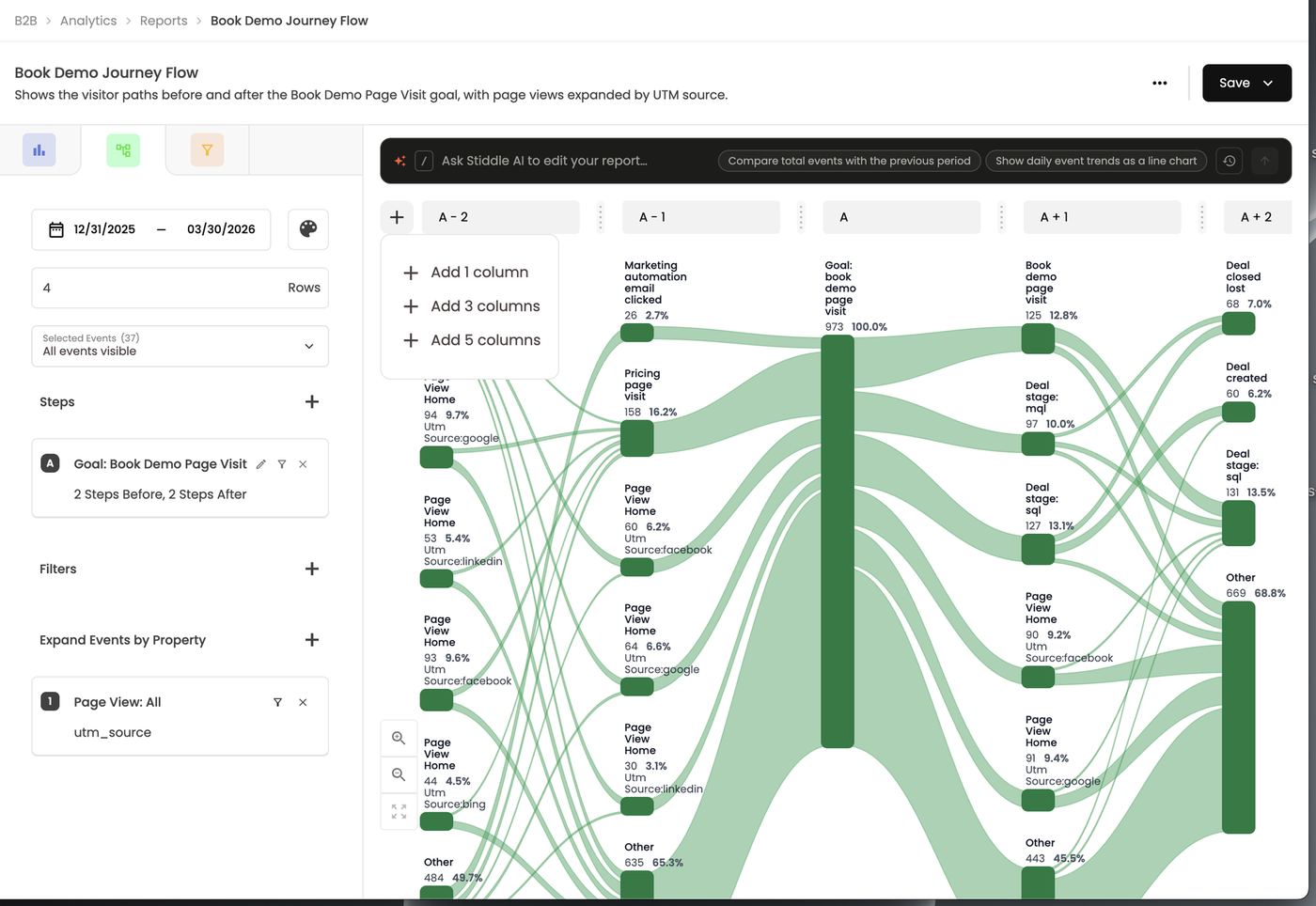
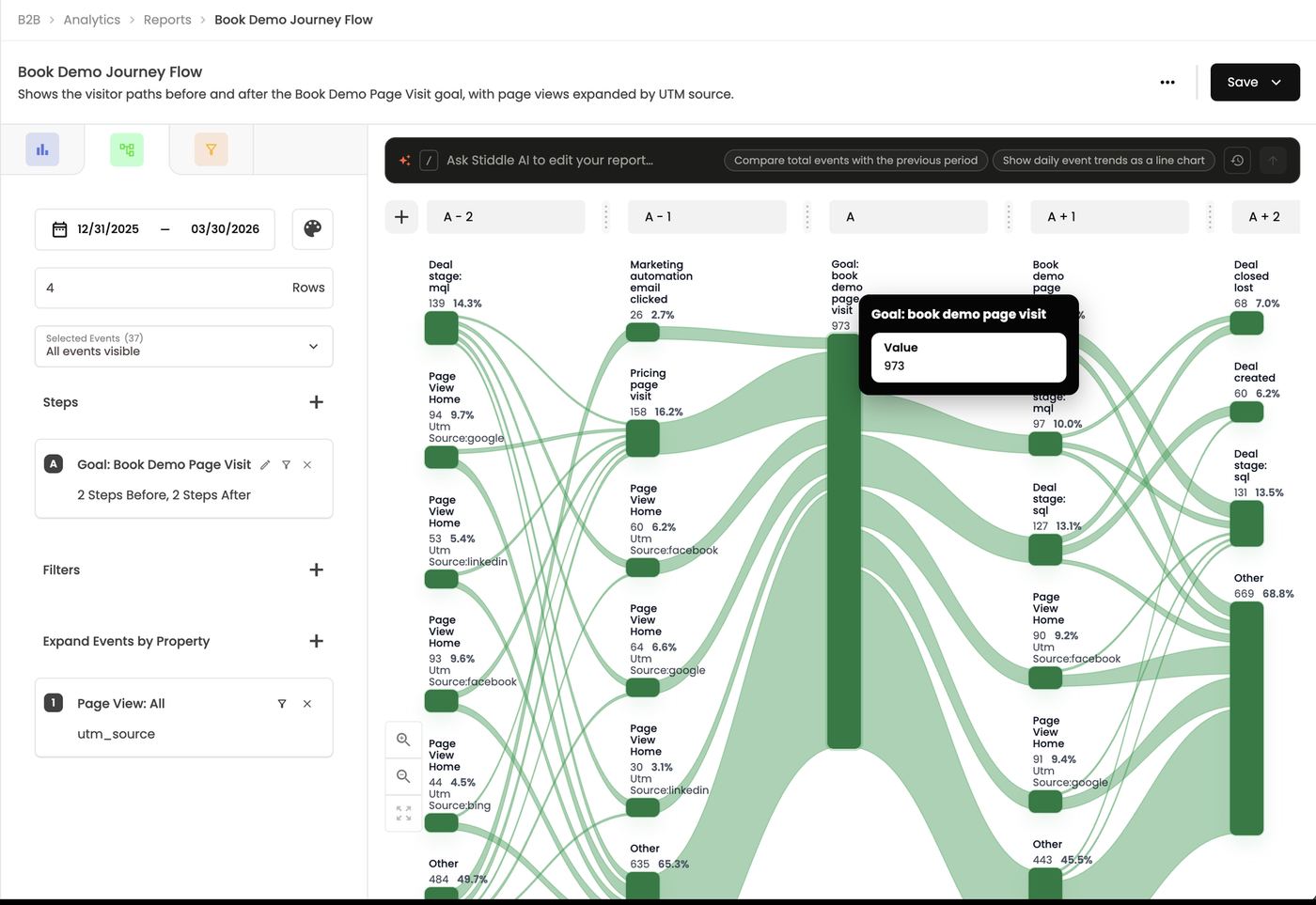
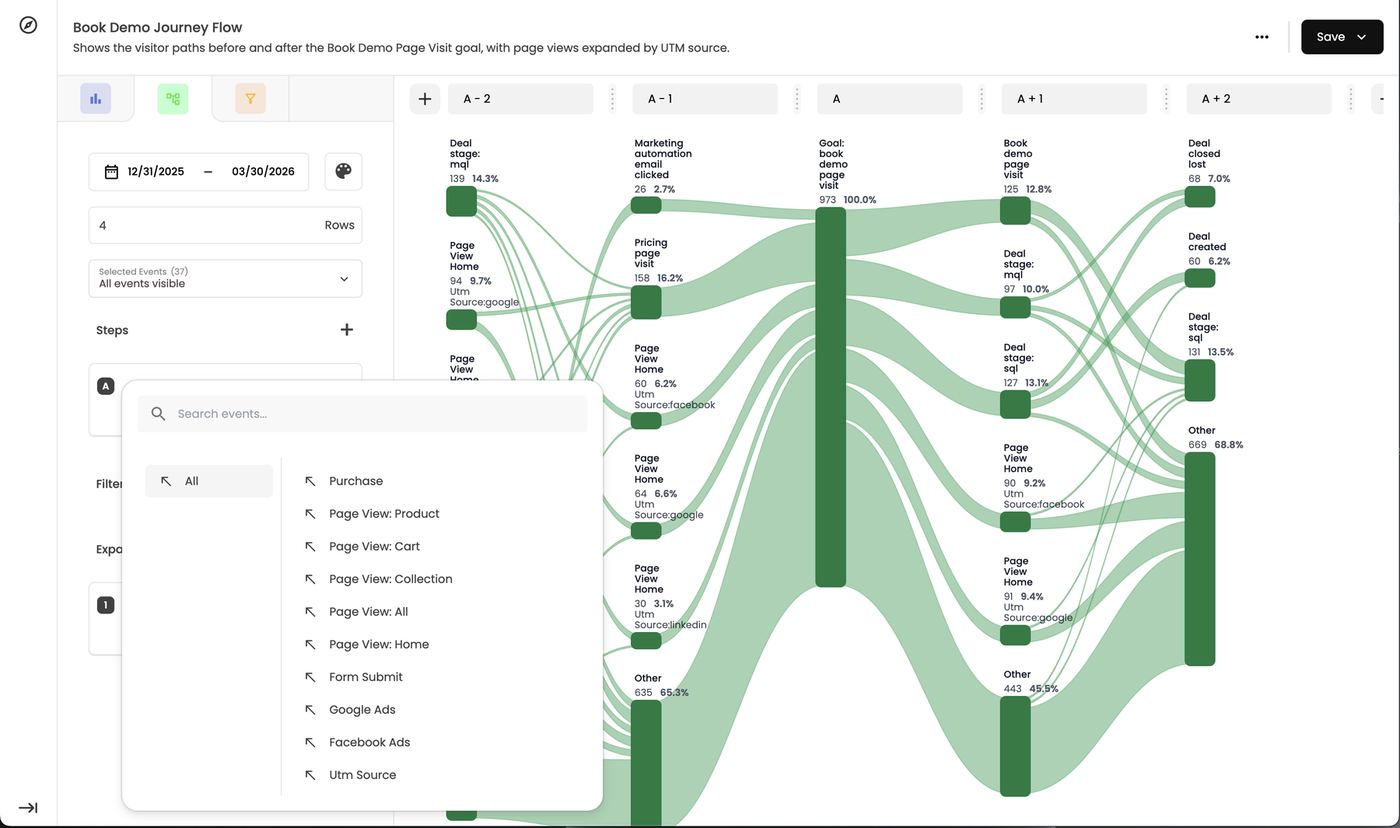
Breakdowns: Expand Events by Property
To break a flow down by source, campaign or another property:- Click + next to Expand Events by Property.
- Choose the event to expand. Page View: All (every page and visit) is usually the best choice.
- Choose the property: UTM Source, UTM Medium, UTM Campaign, UTM Content, UTM Term, Events, Facebook Ad – Campaign / Adset, and so on.
The property has to exist on the event. A breakdown only works when the event you expand actually stores that property. Website events like Page View carry UTMs and referrers, so expanding them by source works. A CRM goal like Closed Won, or an order, has no website source property, so expanding it by source shows nothing. Expand the page-view event instead.
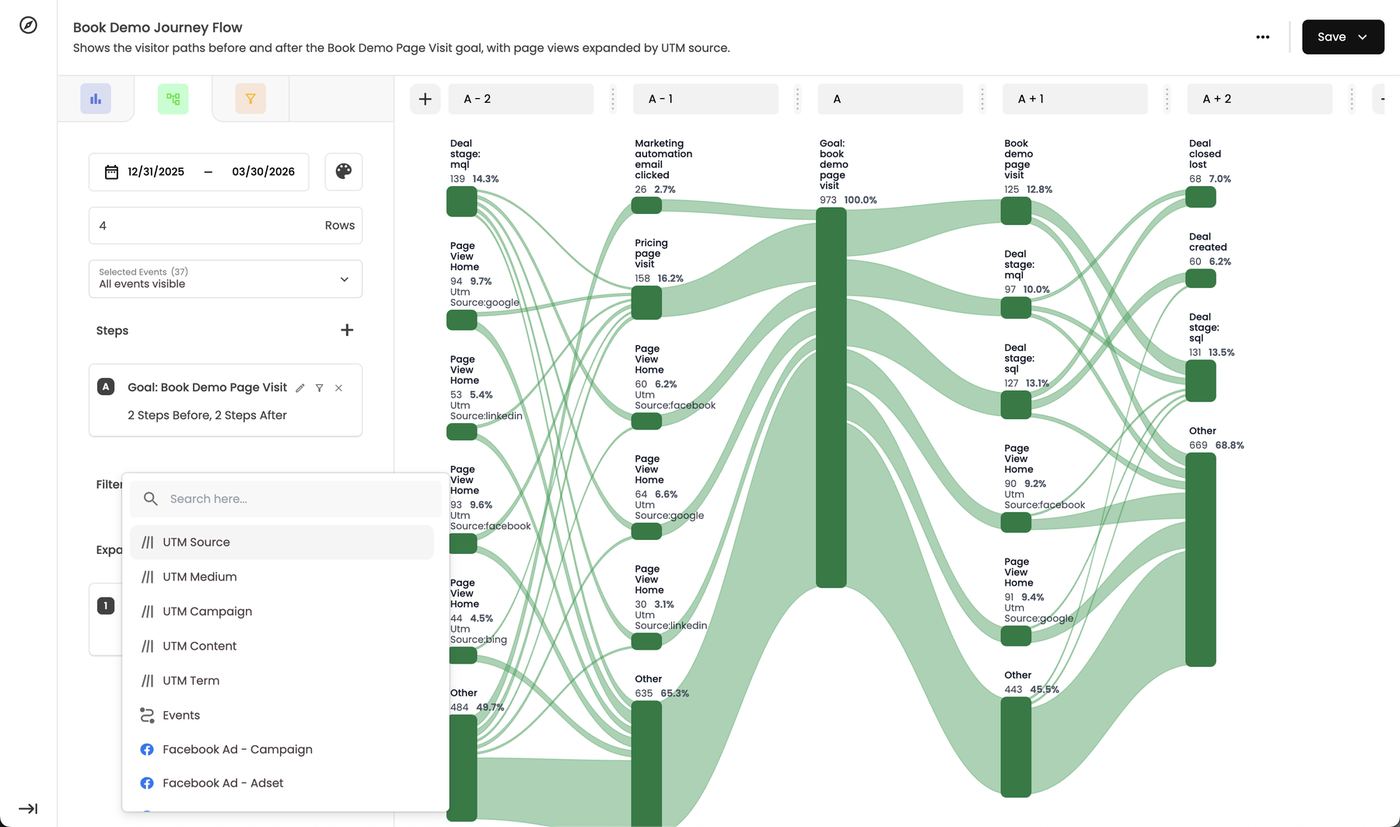
Reading the result
Each node shows an event, its count and its share of that column. The width of each link path shows how many people moved between two nodes. Click a node to isolate only the paths that pass through it; use + / − to zoom and the expand icon to go full screen. Example: before “Goal: book demo page visit” (973 people), 16.2% came straight from a pricing page visit, and LinkedIn- and Google-sourced home page views fed in two steps earlier. After booking, 12.8% revisited the book-demo page and 13.1% reached Deal Stage: SQL. Right click a step for additional options, filters, and to View Users (the profiles in that step — build an audience from them), Expand by Property or Expand by Pages. Hover a node to see how many people are in it, e.g. Goal: book demo page visit — Value 973. Click a node to make it the starting point. That node becomes 100%, other paths fade, and every node and path after it recalculates from that node.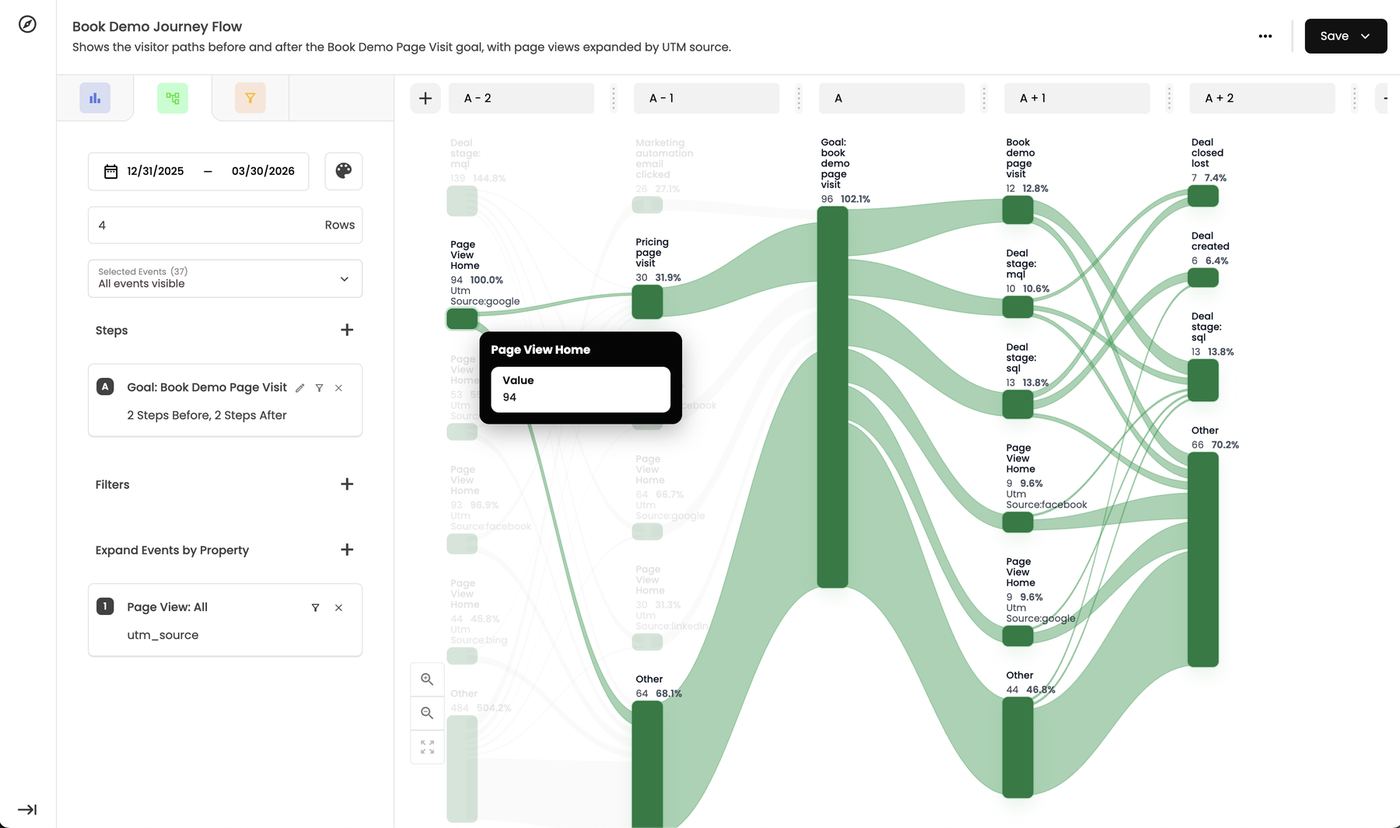
Of the 94 people who clicked a Google ad and landed on the home page, 30 went on to the pricing page; the other 64 took a different path (grouped in Other). All 30 of them booked a demo, typically within a few minutes of seeing pricing. Pricing is the column directly before the anchor, so everyone there reaches the anchor next. Read the same way for every node before and after the anchor.
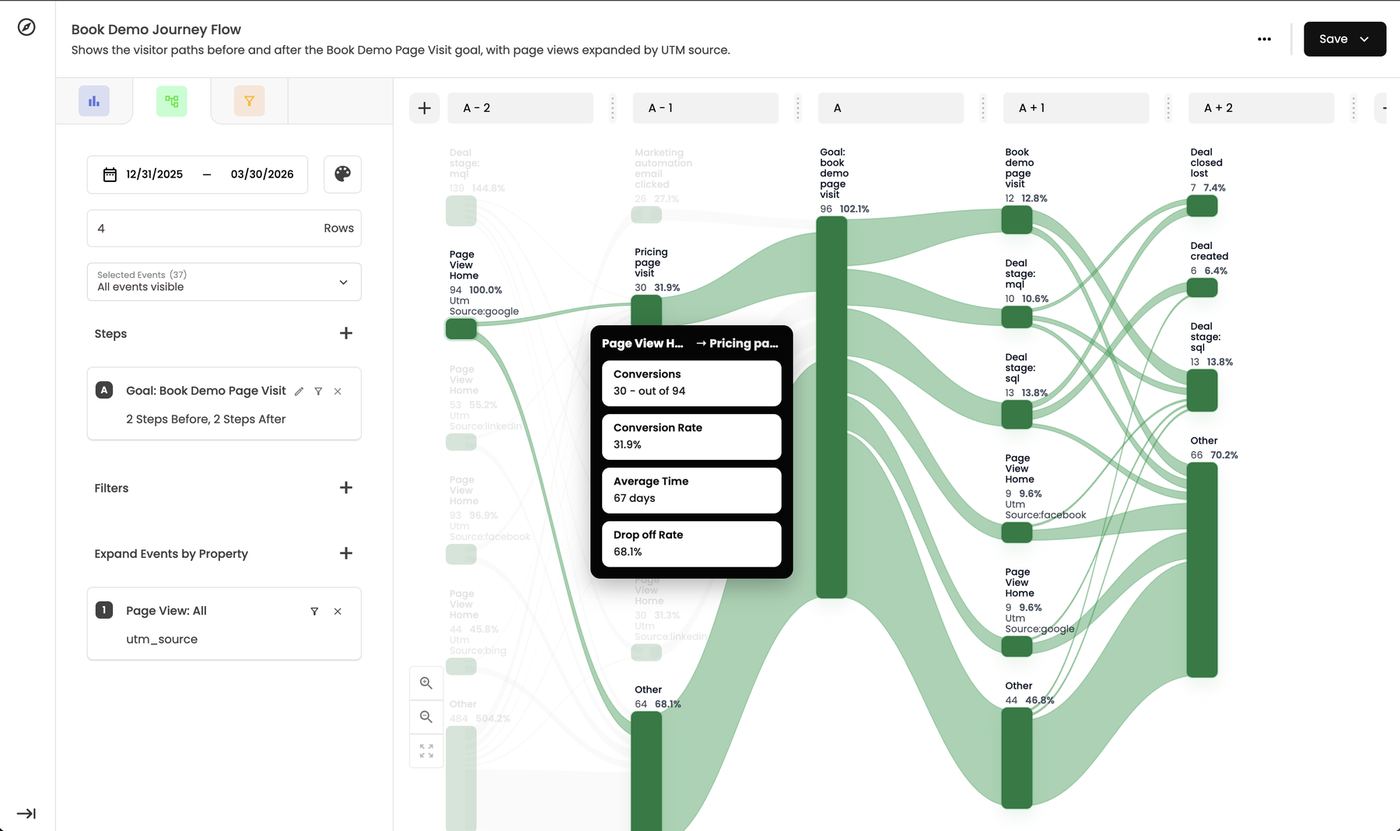
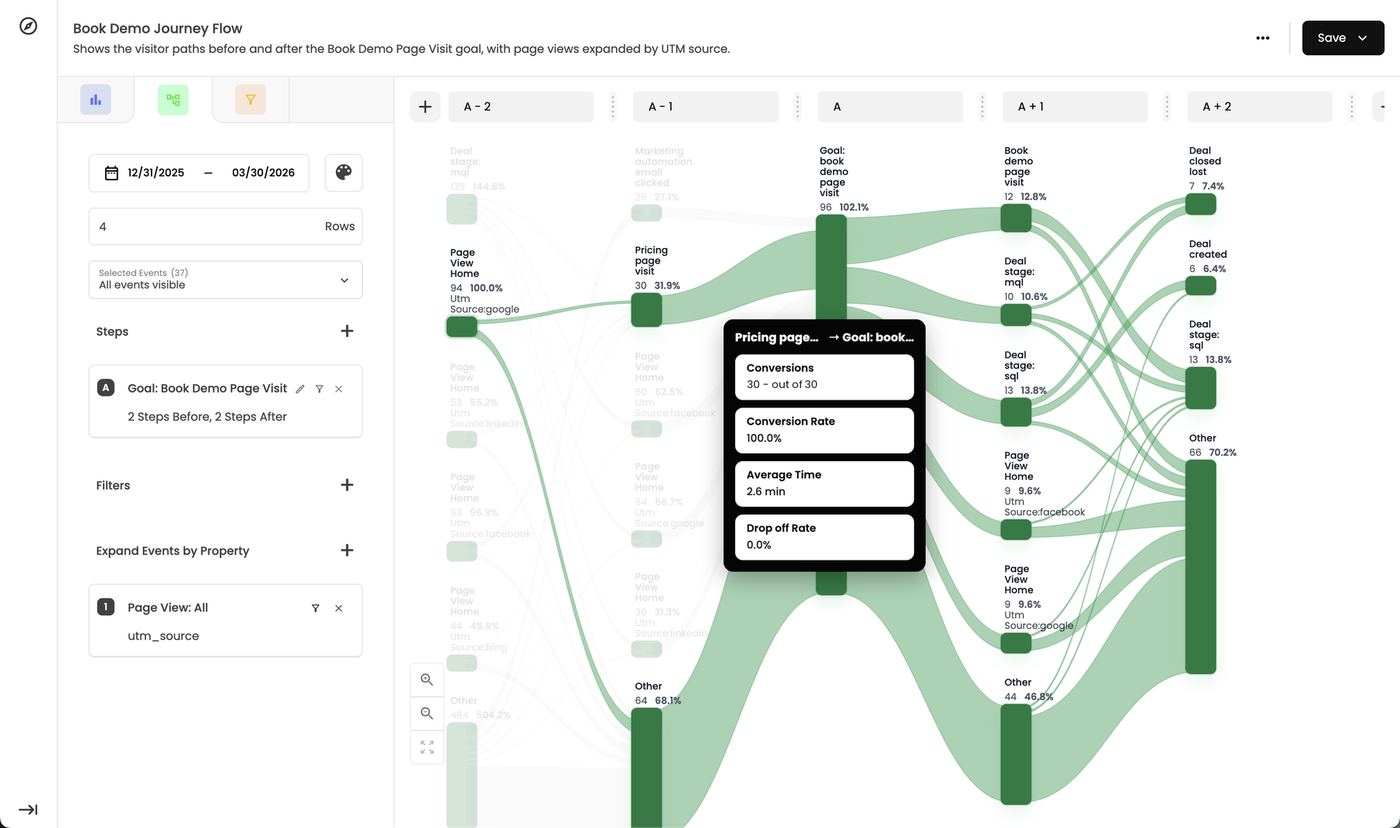
- View users: everyone in that node, searchable by name or email, with View to open each profile. Use it to build an audience of these people for retargeting.
- Remove a row of events / Add a row of events at that point.
- Expand by property: break just that node down by a property.
- Expand pages & events (on Other nodes): opens Paths & Events, listing every page or event grouped into Other with its profile count, e.g. / 83, /features 78, /solutions 56.
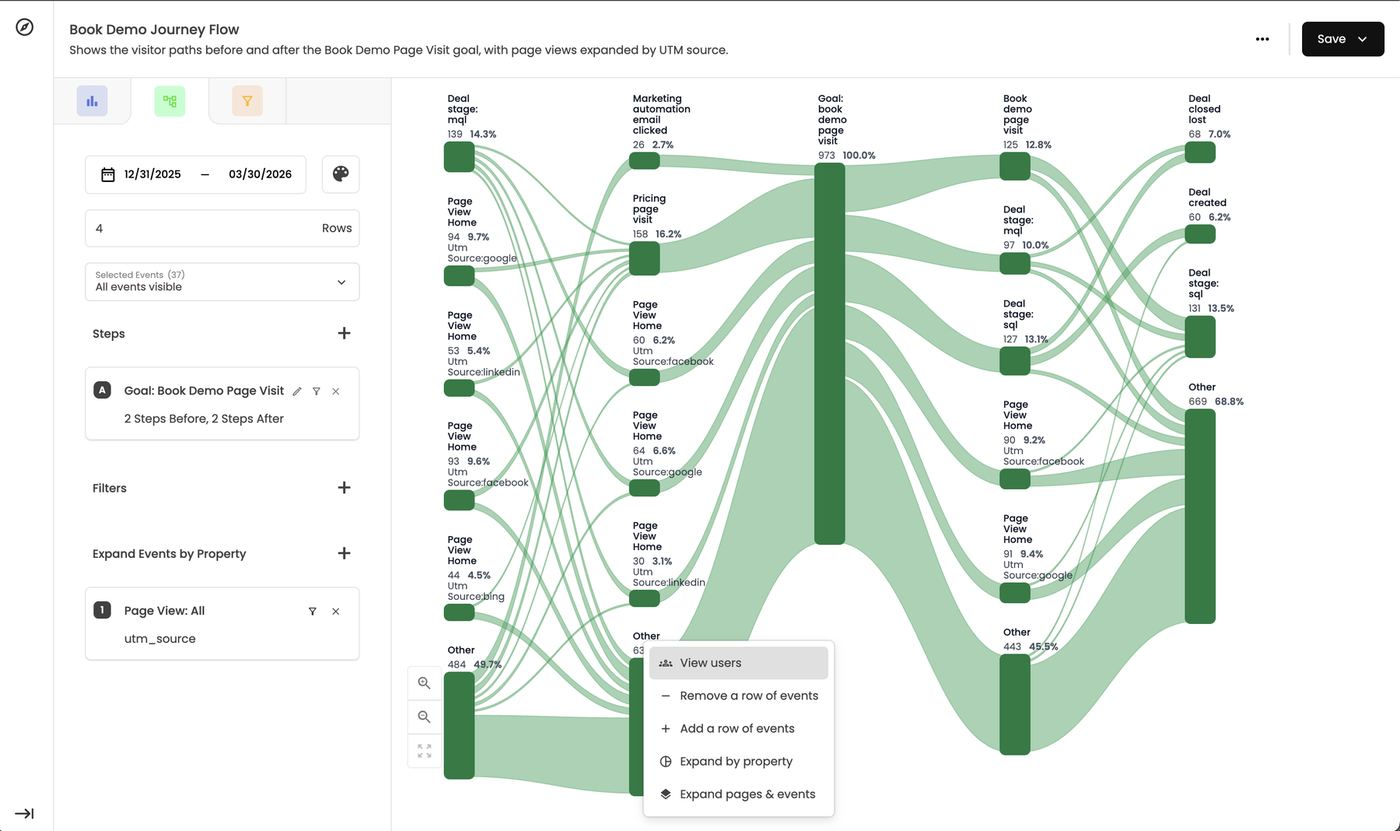
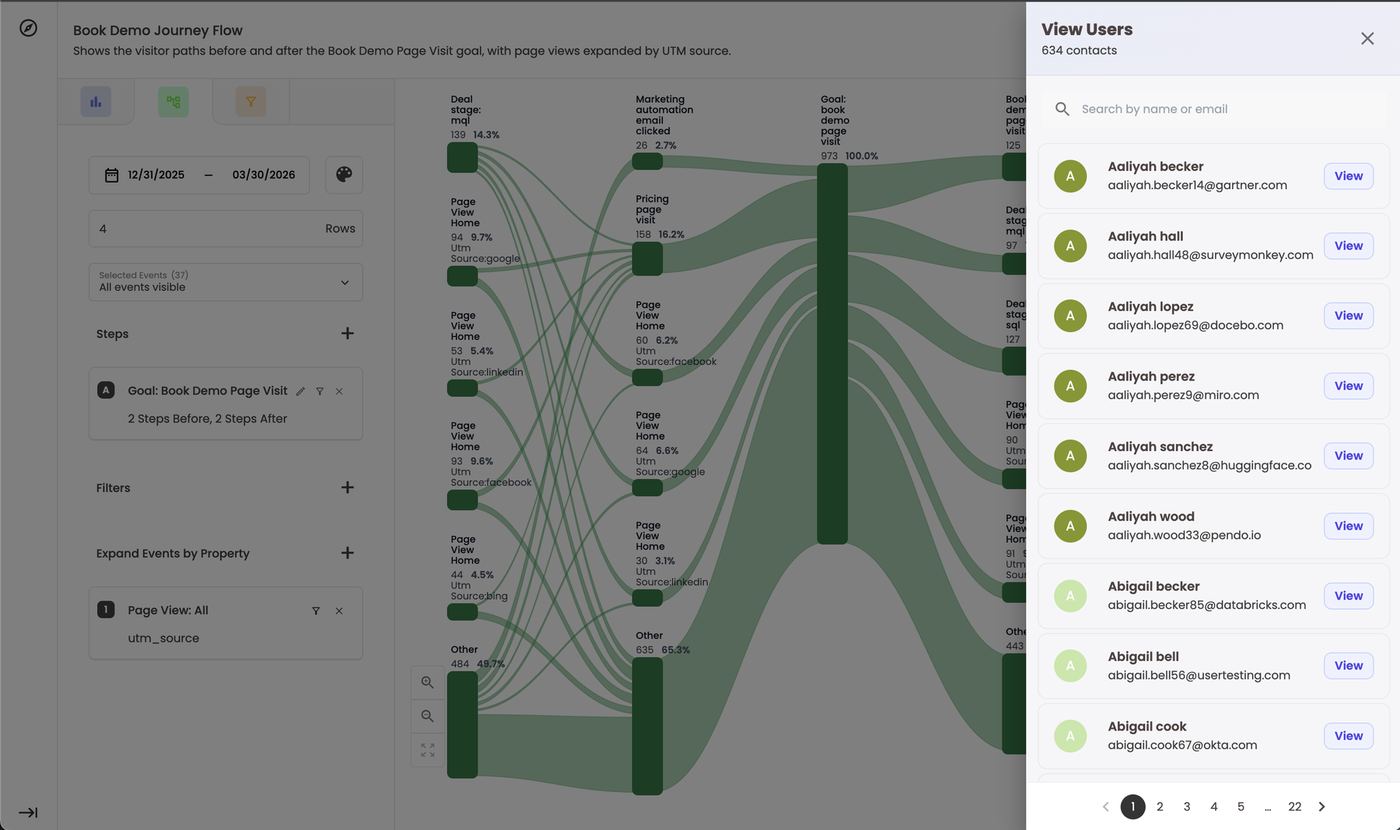
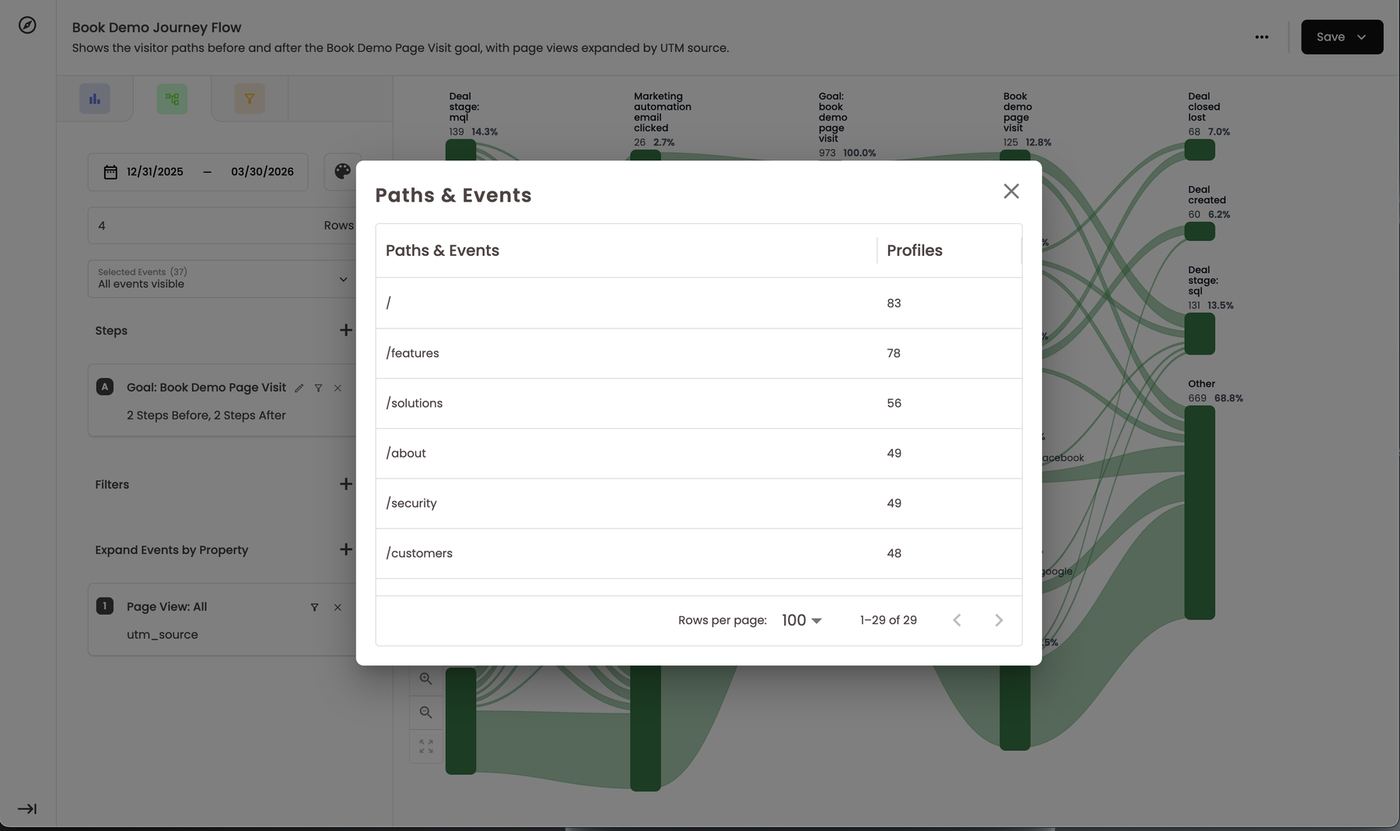
Ask Stiddle AI about the journey
The AI bar does more than build. Ask it to explain a flow, e.g. “Explain the most common path to booking a demo” or “Which source leads to the most SQLs after a demo?”, or to change it (“Add 2 more steps after the goal”, “Filter to the United States”). The same flow can be built or edited from the Stiddle CoPilot page or through MCP.Report options
Flows share the same report options as Insights (section 10):- … menu: Change Name (and description), Duplicate, Delete Report.
- Save → dashboard → section adds the flow to a dashboard as a widget.
- Switching the report type resets it, so start a new report for a different type.
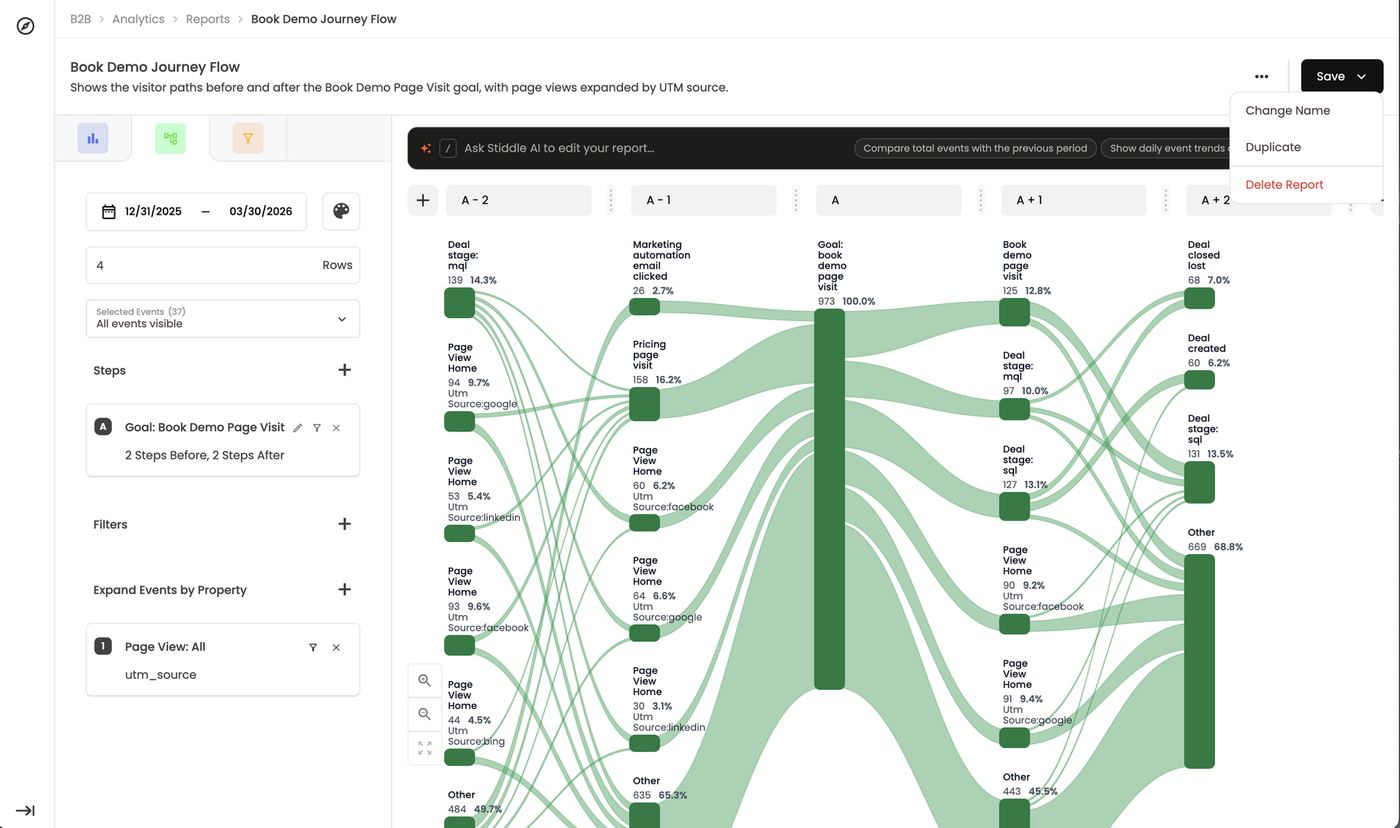
FAQs
Flow or funnel? Flow to discover paths you didn’t know about. Funnel to measure a path you’ve defined. Are counts people or events? People. Configuration can also be changes to see company or deals. Why don’t the nodes add up to the anchor? Small paths are grouped into Other; raise Rows to see more. Right click Other to view a list of all other paths. What can be a step? Any event or goal: page views, form submits, purchases, ad clicks, CRM stages. Why is my breakdown empty? The event you expanded doesn’t carry that property. Expand Page View: All by source rather than a CRM or order event. Why does a node show over 100%? After you click a node, others are measured against it, and some people appear in a column more than once. How do I retarget the people in a path? Right-click the node → View users, then add them to an audience.13. People Profiles
Every person who interacts with your company gets a profile — anonymous at first, known once they identify themselves — with their full activity timeline for up to 3 years. Profiles are where you check the individual journeys behind any number in Stiddle.From anonymous to known: how a profile is built
- First touch: an anonymous profile. The first time someone visits your website or touches your marketing (an ad click, an email, a referral from ChatGPT), Stiddle creates an Anonymous profile. There’s no name or email yet, just their IP address, location and activity.
- An IRIS ID, not a cookie. Stiddle gives the visitor a Stiddle IRIS ID. It’s built from device and browser signals, not a cookie or browser token, so Stiddle can recognise the same person for up to 3 years, even after cookies are cleared.
- Every return visit adds to the same timeline. When they come back from another ad, email or search, the new touches are appended to that profile’s activity.
- They identify themselves. When they fill out a form, become a lead, book a demo or make a purchase, Stiddle marks the profile as known (name, email, phone) and keeps every earlier anonymous touchpoint on it, so attribution sees the whole journey.
- Revenue outcomes are added. CRM stages (MQL, SQL, Closed Won) and ecommerce orders land on the same timeline. When a deal closes, the profile shows converted revenue, and every touch before it can get credit.
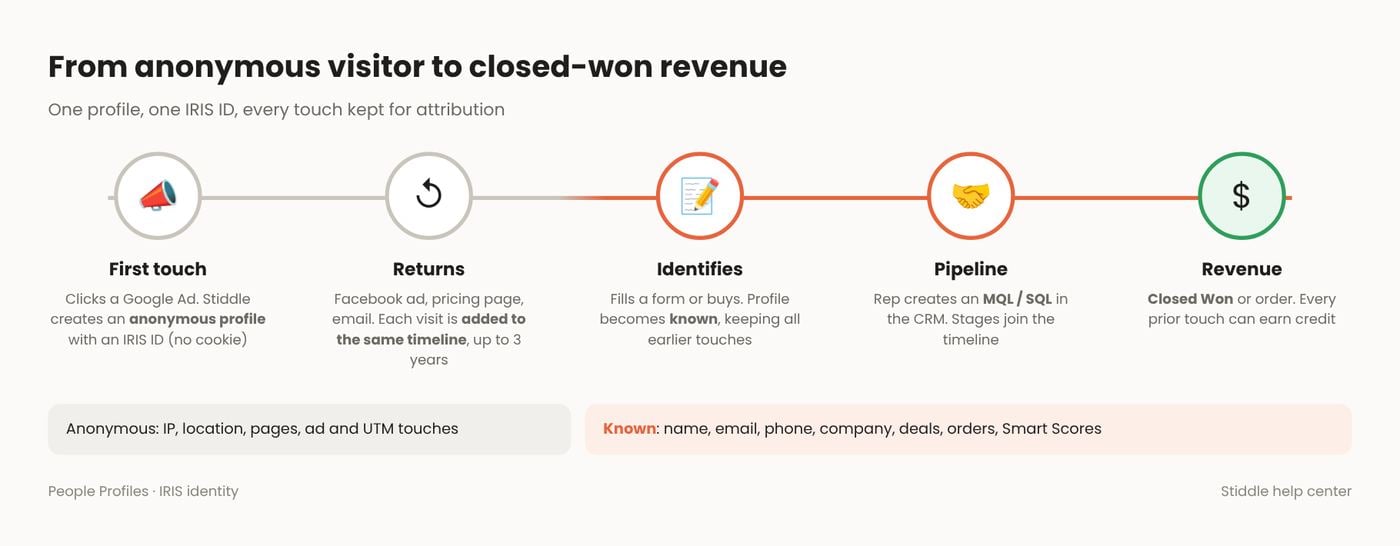
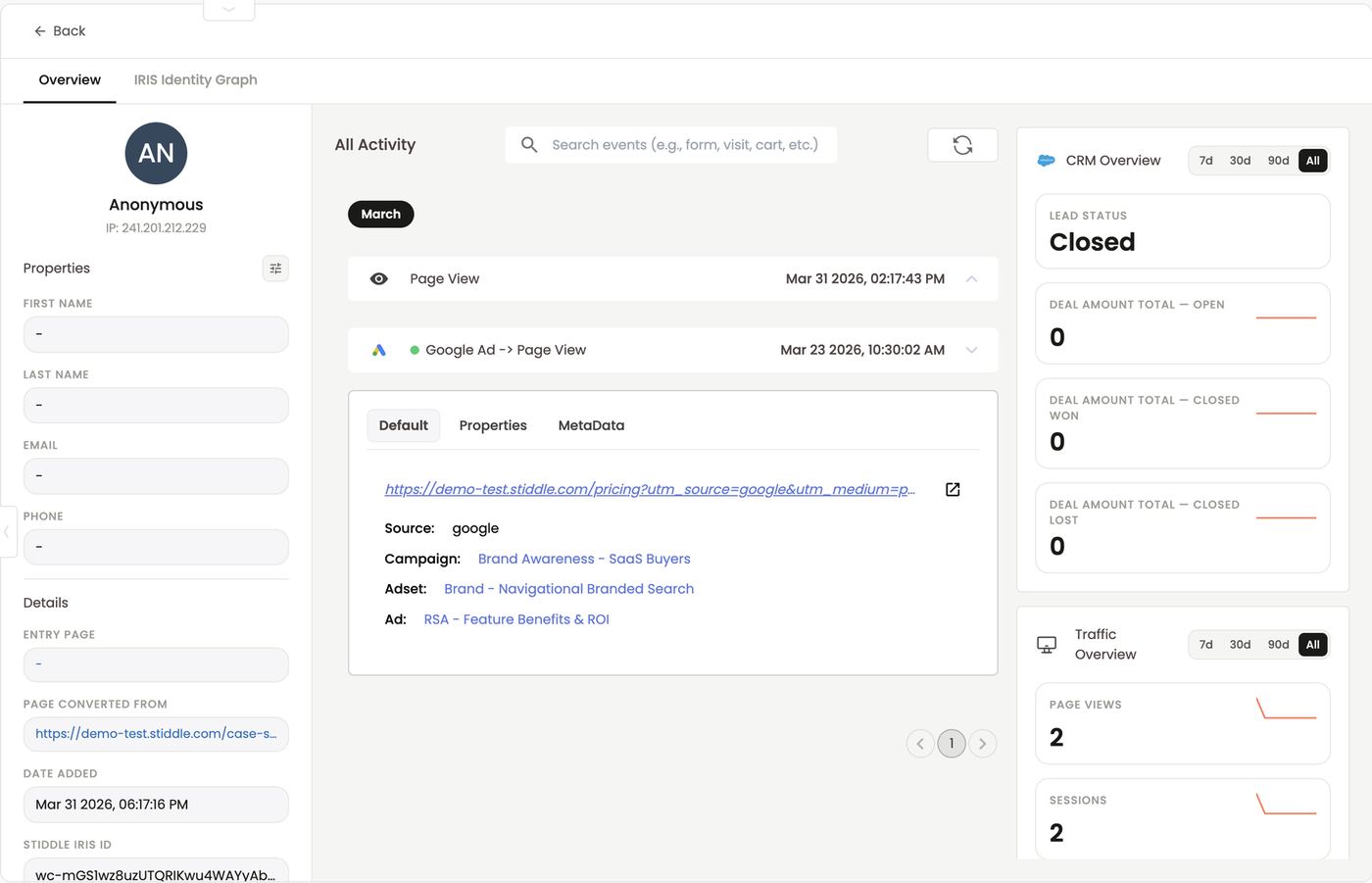
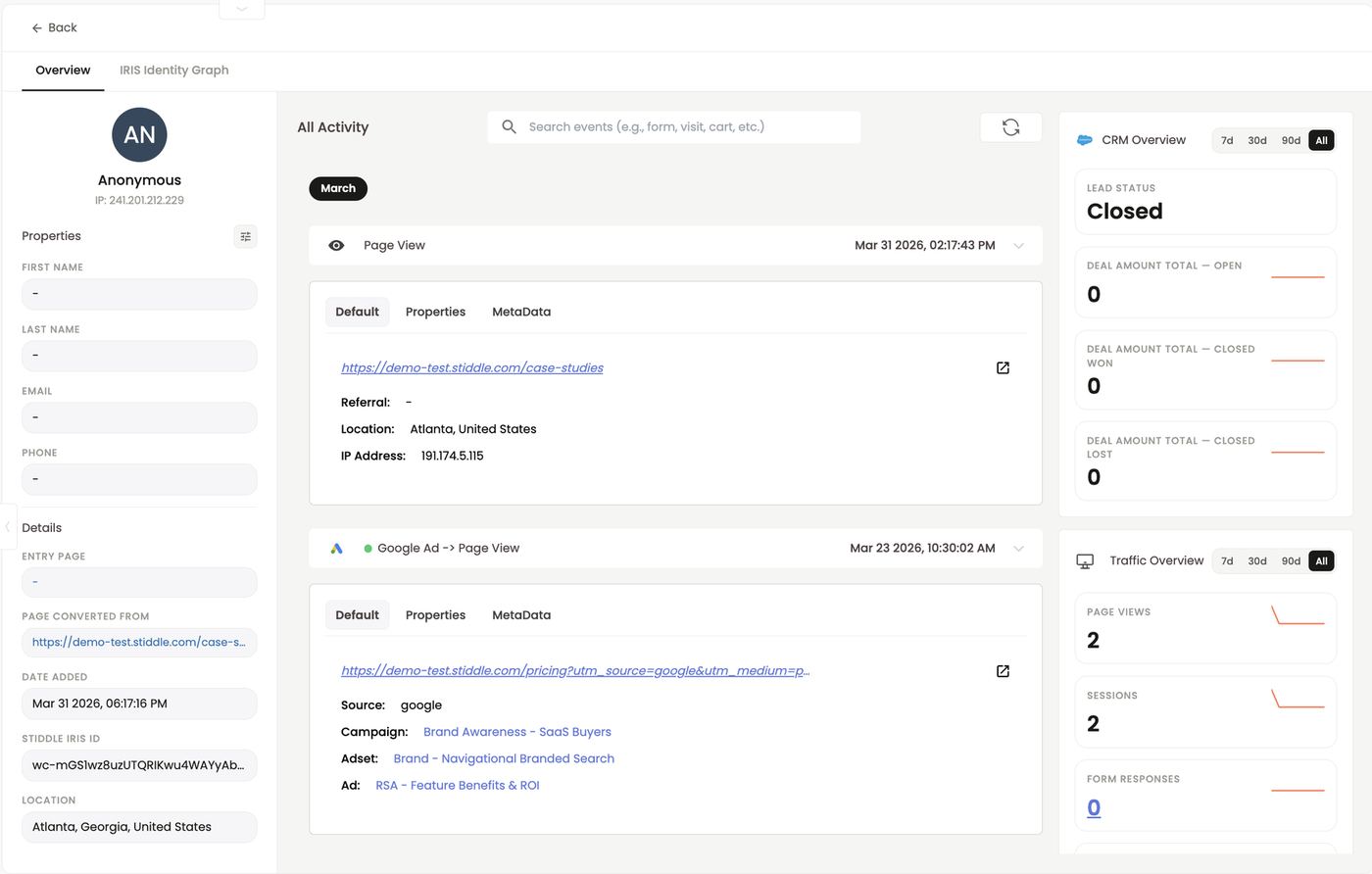
You can see where Carter came from, every touch in between, and how Facebook, Google and email worked together to create pipeline. When the deal is marked Closed Won, the profile shows it as converted revenue. The same works for D2C orders.
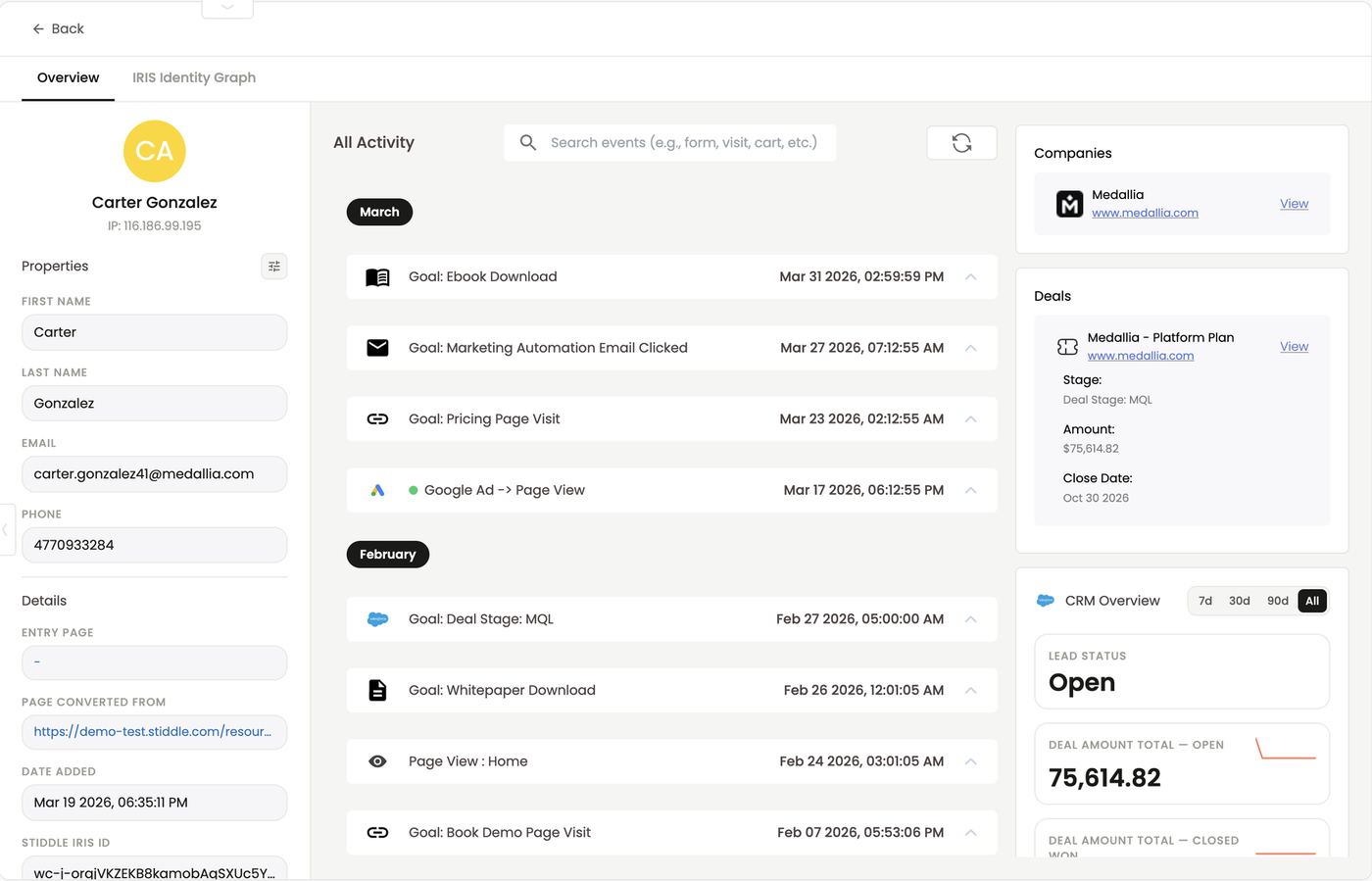
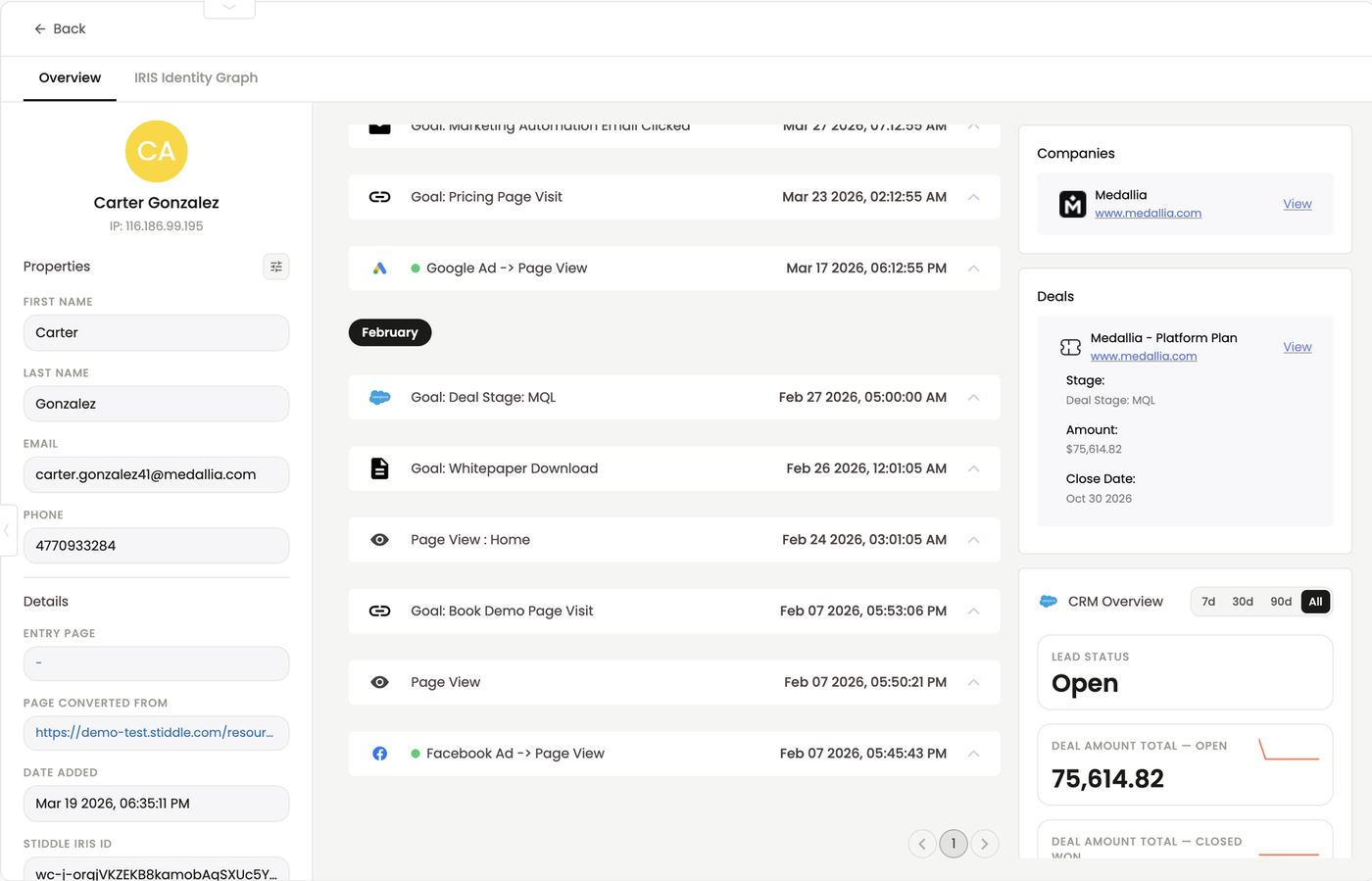
The profile page
Click any name in the table to open the profile. It has two tabs, Overview and IRIS Identity Graph. Left panel: who they are. Name, IP, and Properties: first and last name, email and phone. Under Details are entry page, page converted from, date added, Stiddle IRIS ID and location. Your Smart Scores also appear here (e.g. Brand Loyalist Score: Hot, Newsletter Subscriber Likelihood: ★★★). To choose which properties show, click the settings icon next to Properties, then search and tick them (e.g. 4/43 selected). Select All is there too, and you can add your own custom properties. Click Save.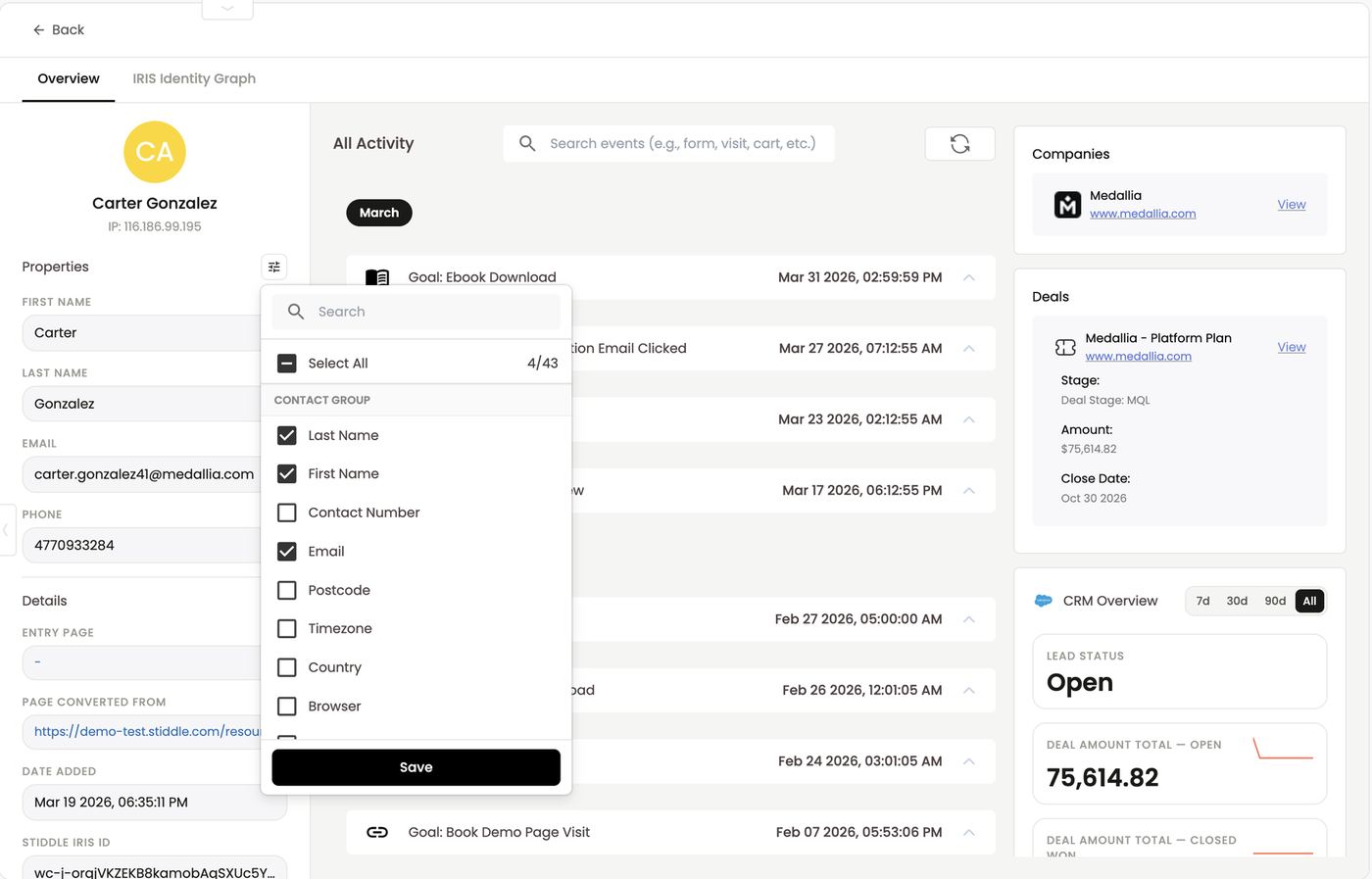
- Icons show the channel: Google Ads, Facebook, LinkedIn, Bing, Perplexity, Salesforce, email, page views and goals.
- A green dot marks a paid ad touch, e.g. Facebook Ad → Page View.
- Click a touchpoint to expand it. There are three tabs, Default, Properties and MetaData:
- Ad touchpoints show the landing URL with its UTMs, plus Source, Campaign, Ad set and Ad. Click any of them to open that asset in Paid Channels.
- CRM goals show the deal name, stage, deal amount and deal owner.
- Form goals show the conversion value (e.g. Newsletter Subscribed: $50), the page URL, form ID and selector ID.
- Page views show the URL, referral, location and IP address.
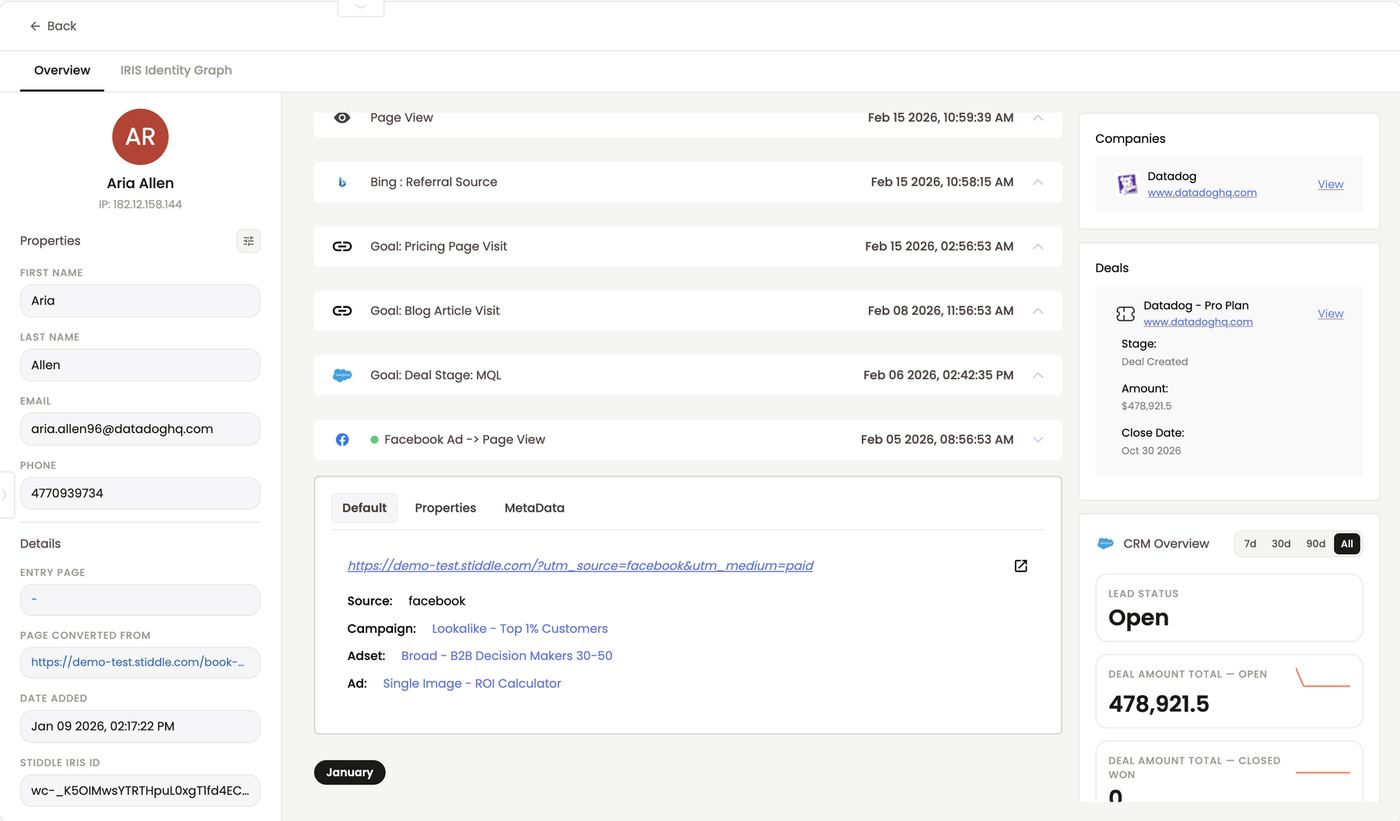
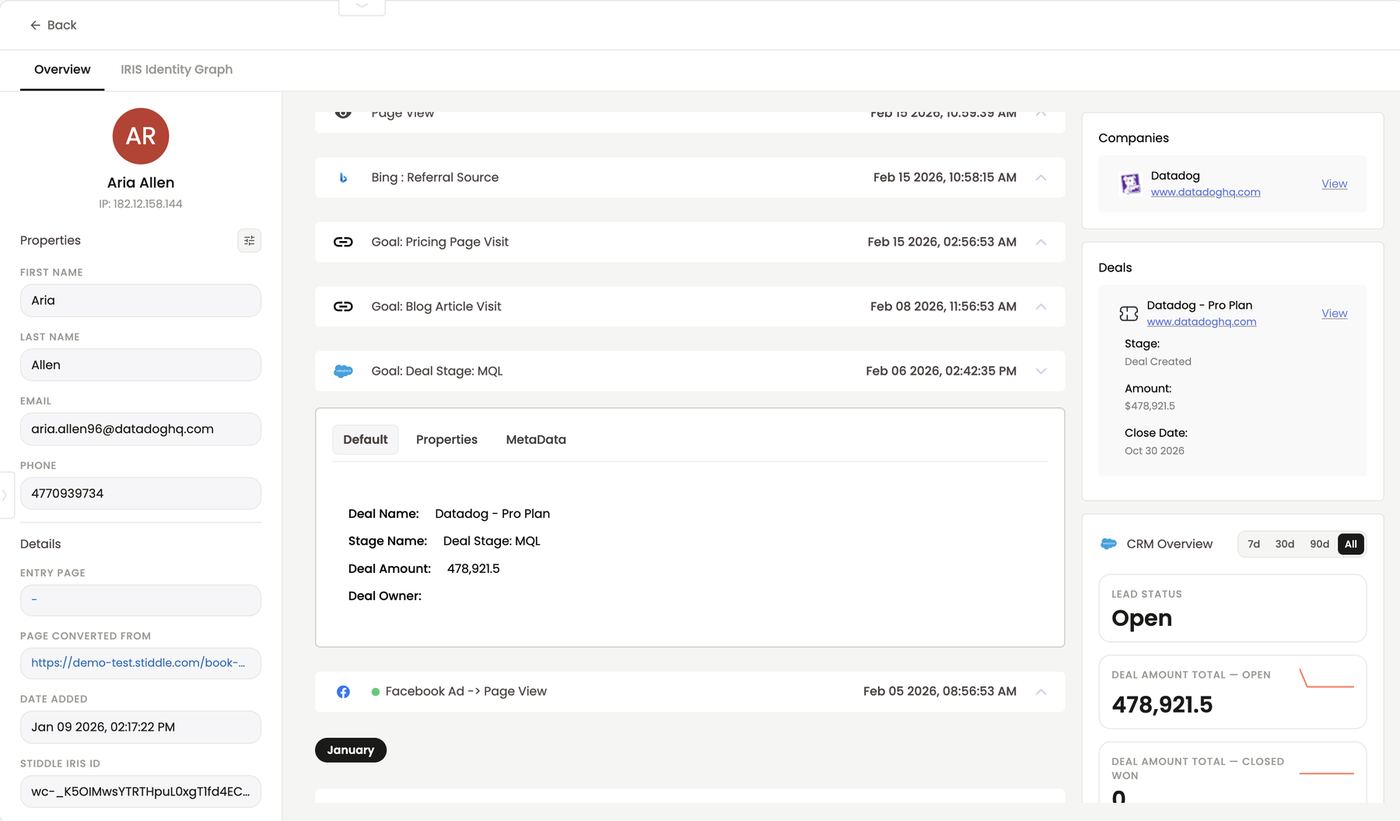
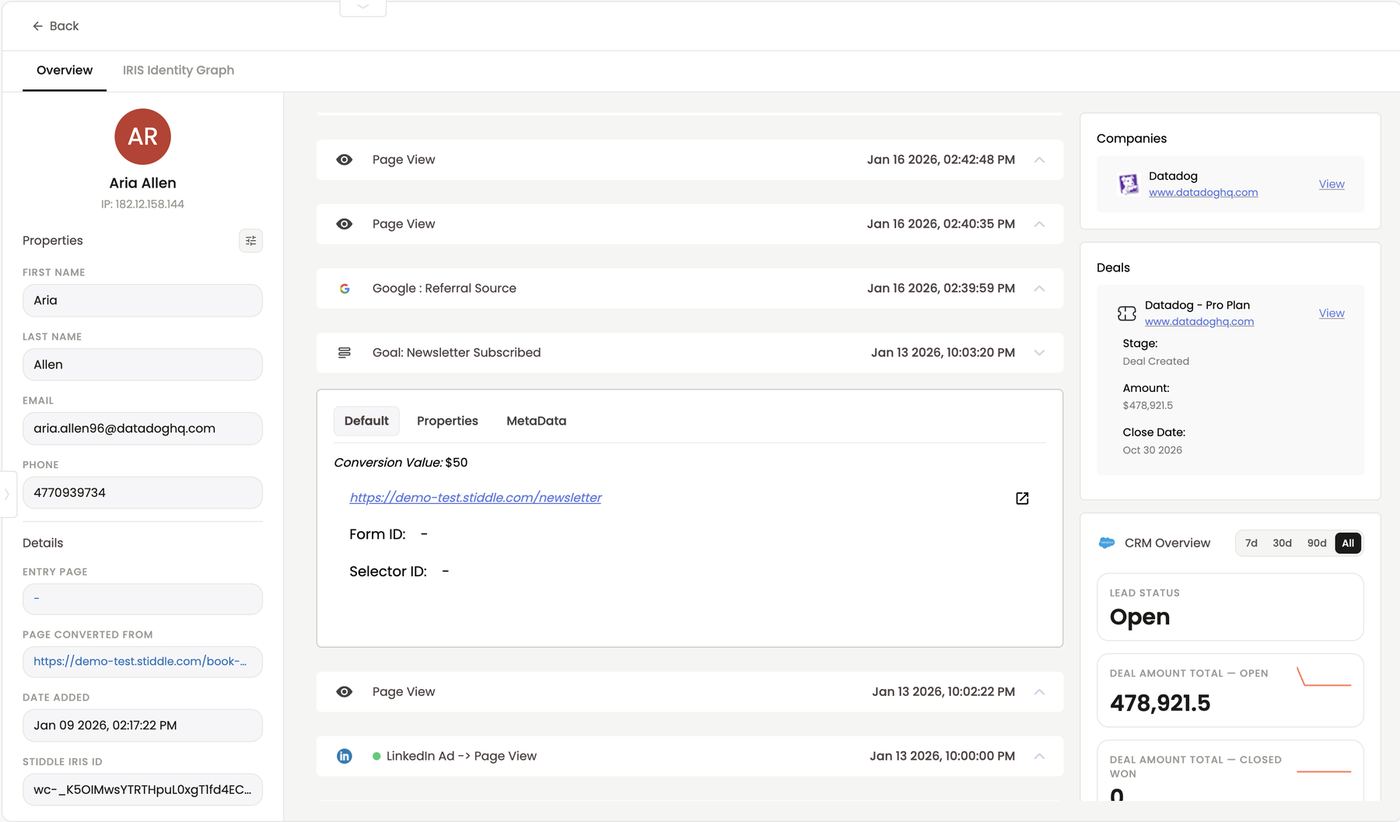
- Companies and Deals linked from your CRM, e.g. Medallia – Platform Plan, stage Deal Stage: MQL, $75,614.82, closing Oct 30 2026. Click View to open the company or deal profile.
- CRM Overview (7d / 30d / 90d / All): lead status and deal totals for open, closed won and closed lost.
- Traffic Overview: page views, sessions, form responses and Goals LTV (the summed conversion value of their goals, e.g. $370).
- Purchase Overview (with an ecommerce platform connected): purchases, add to carts, AOV and LTV.
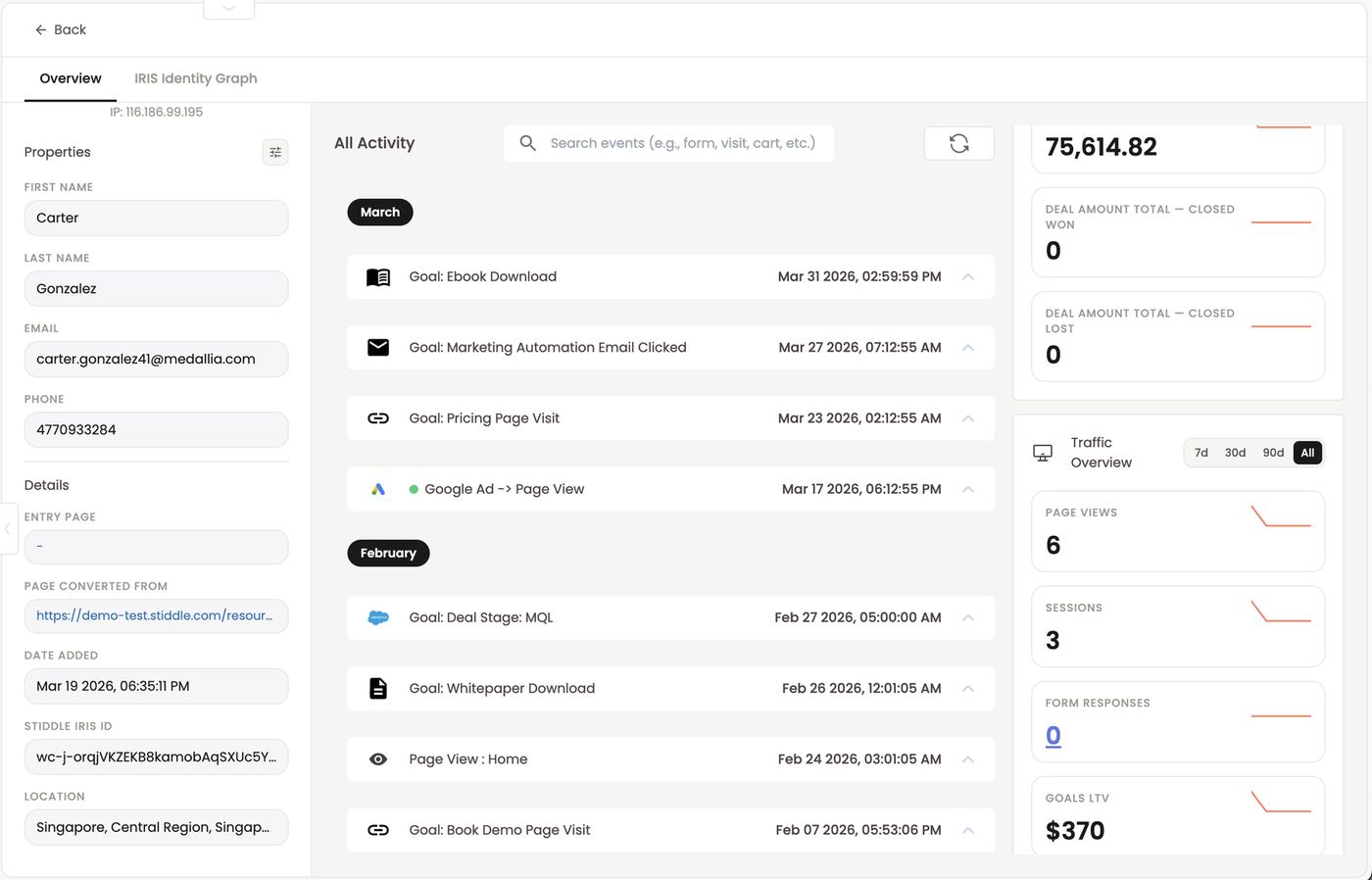
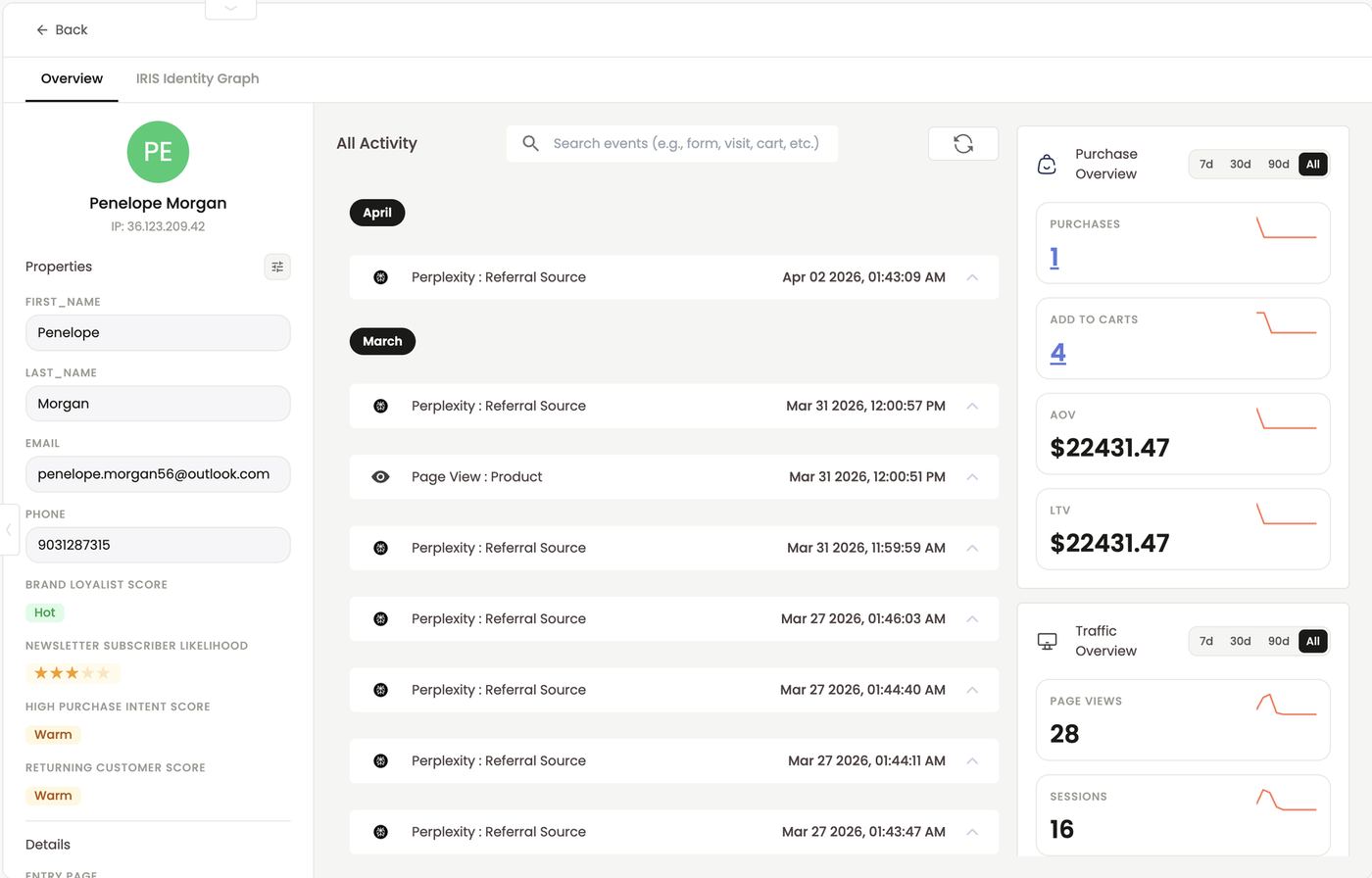
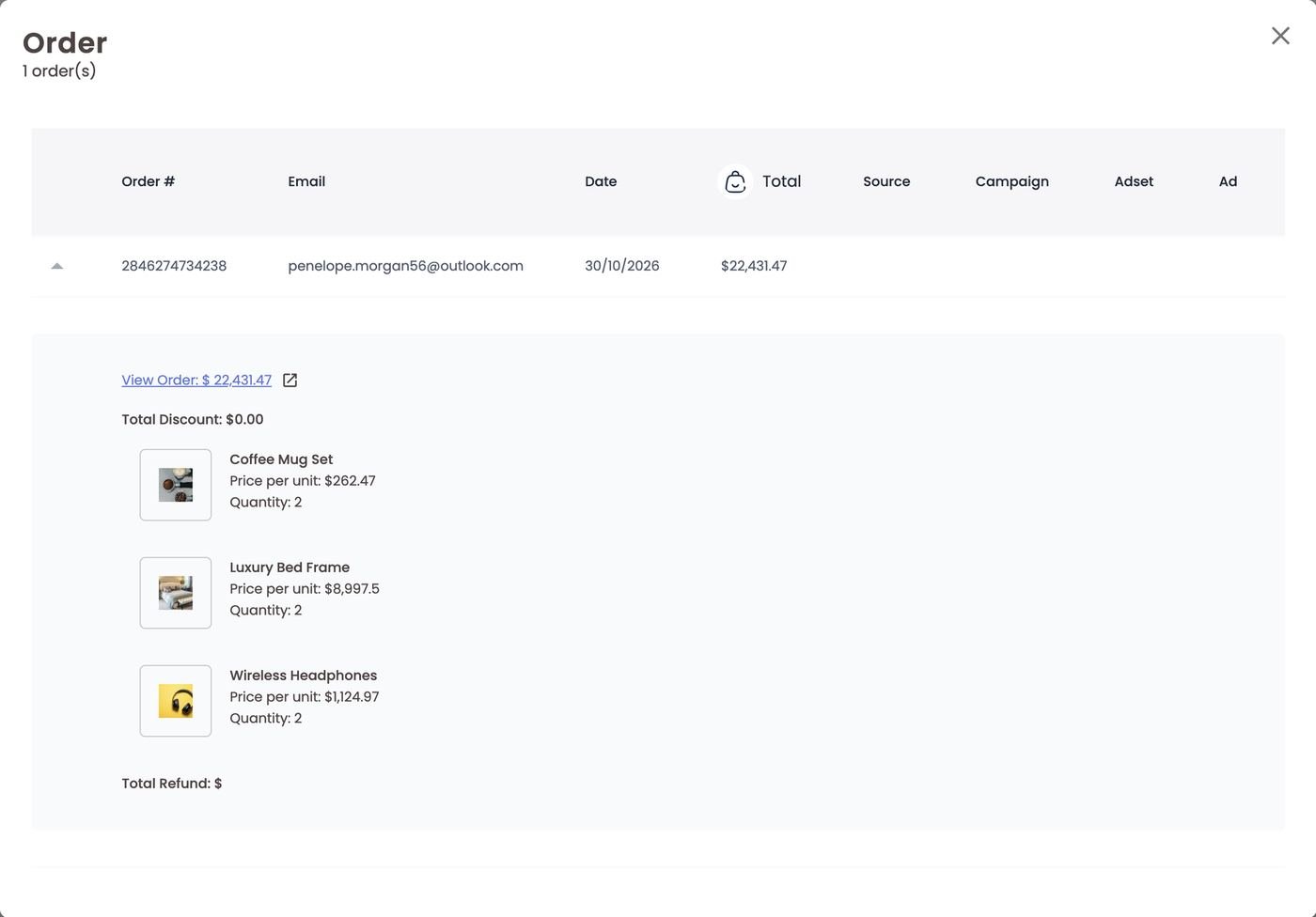
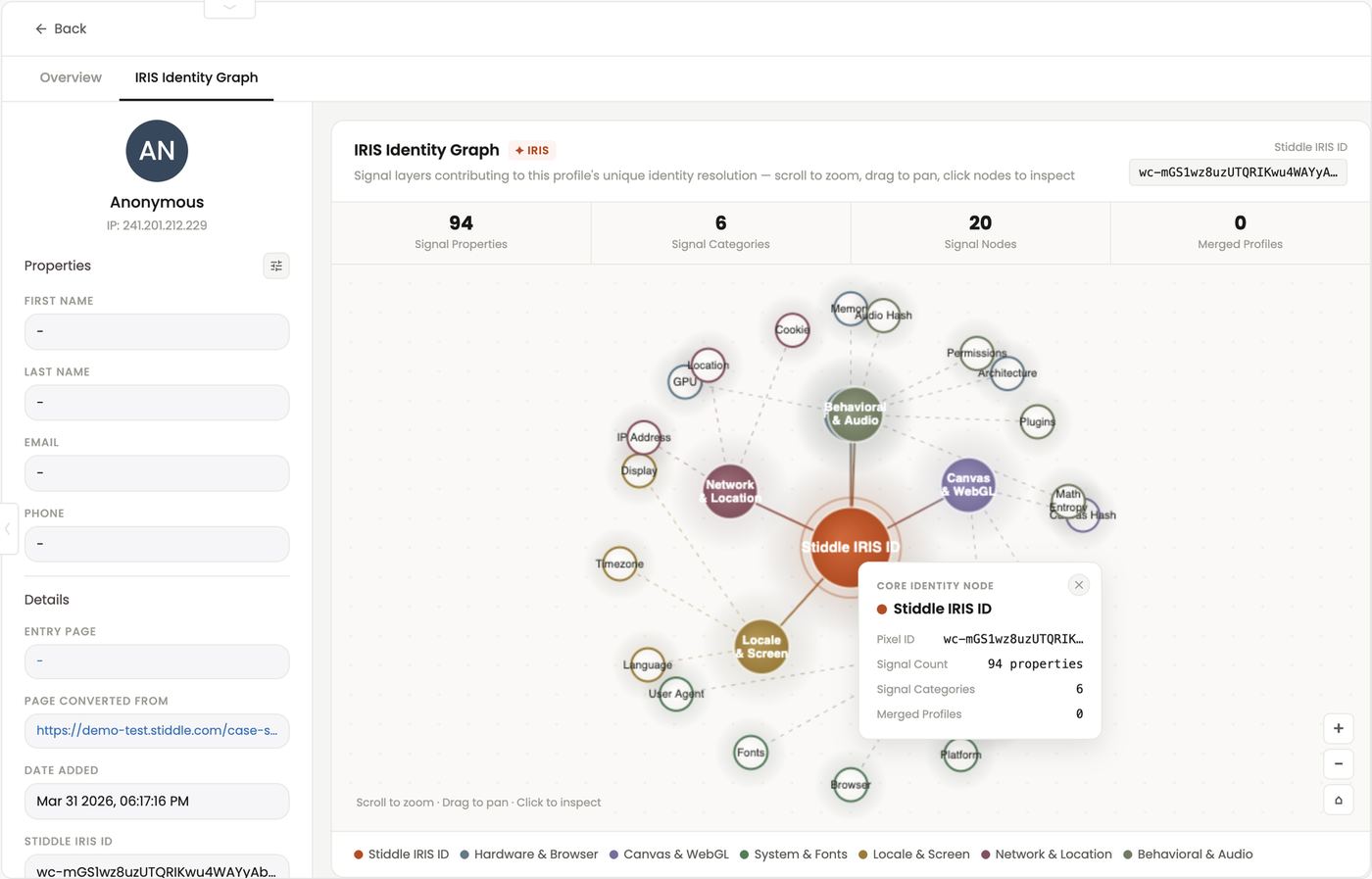
The People Profiles table
Open People → People Profiles to see everyone, known and anonymous.- Columns: contact, recent activity, created date, your Smart Scores (e.g. Deal Won Intent Score, High Purchase Intent Score), email, form responses, last activity, total, order number, tags and more.
- Blue links open the data behind them. Click a form response, order number or goal count to see it in a pop-up.
- Search by name, email, phone or Stiddle IRIS ID.
- Hide Anonymous Profiles shows only people with a name, email or phone.
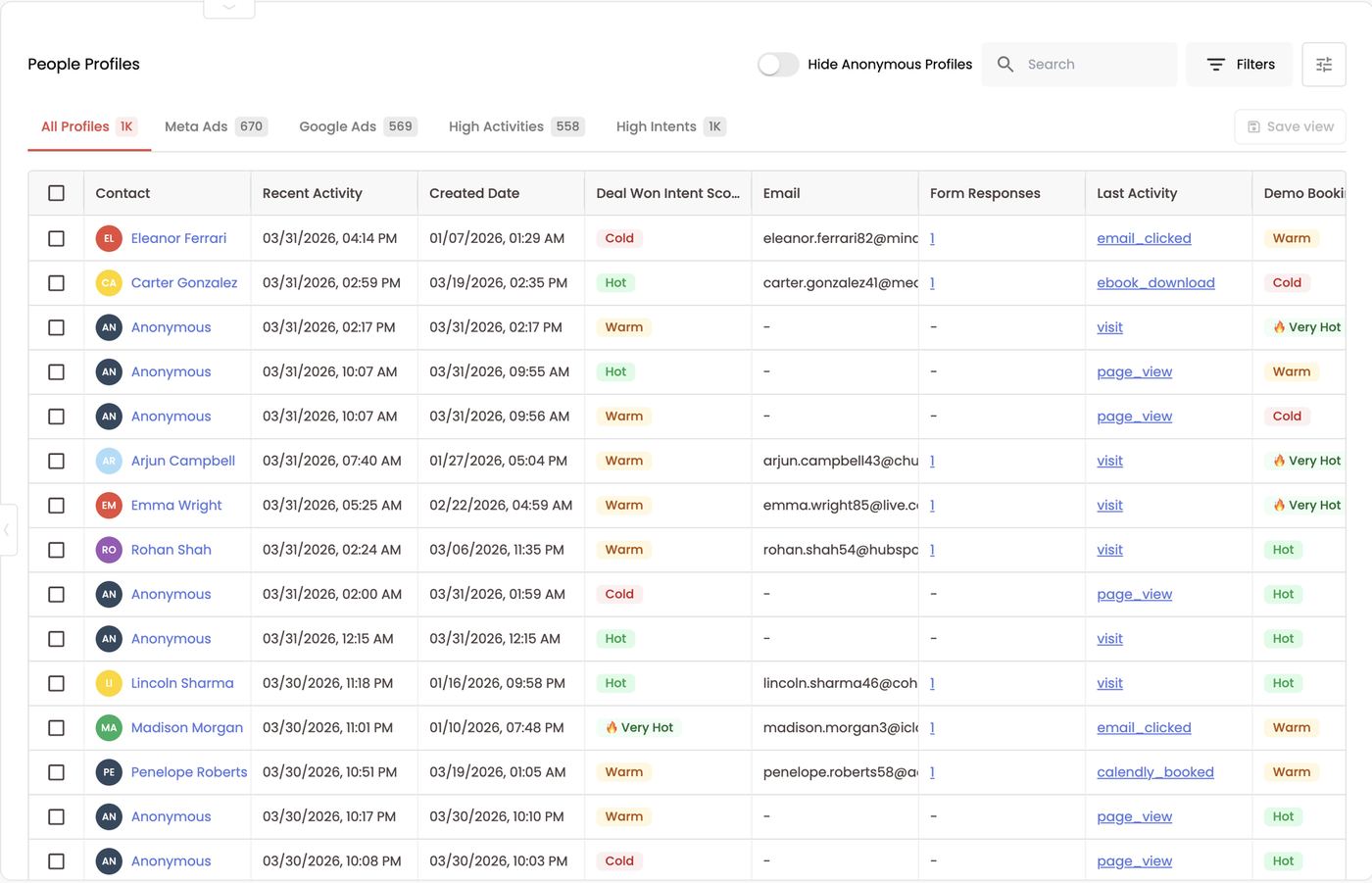
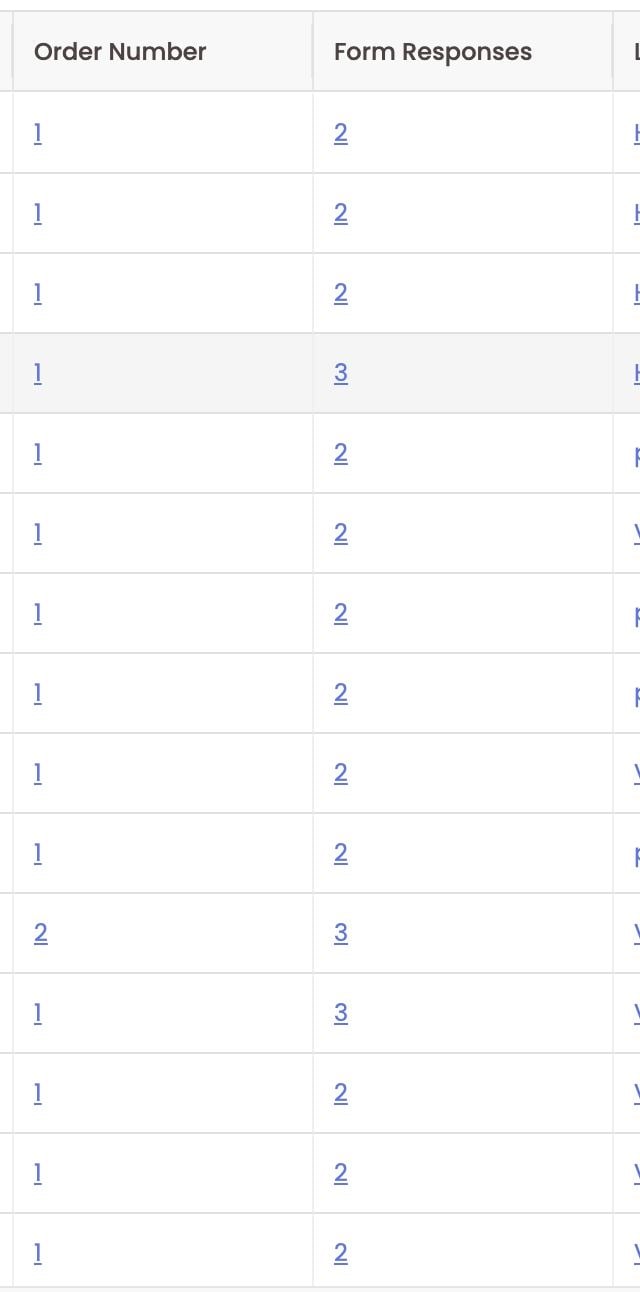
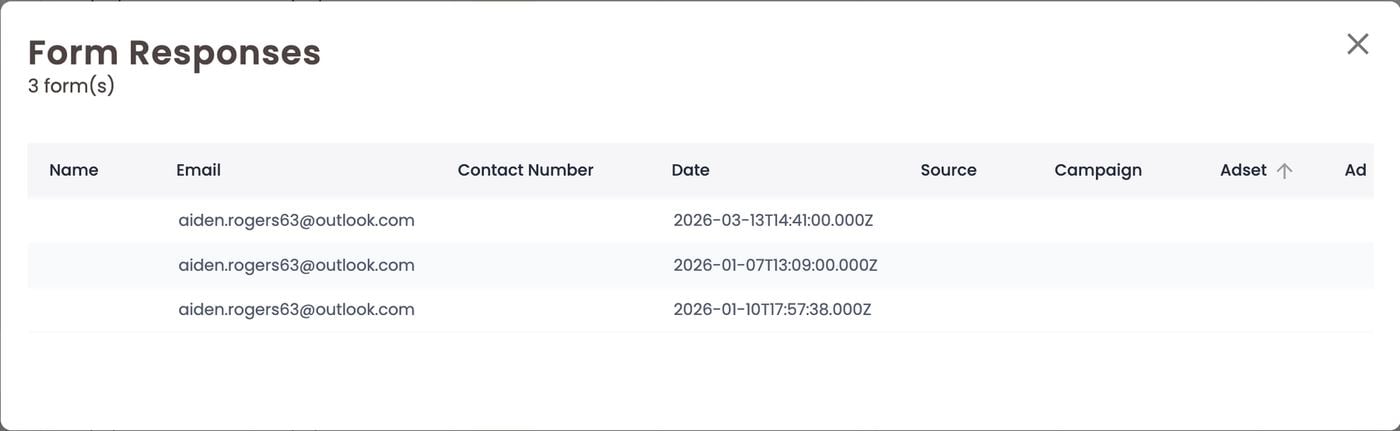
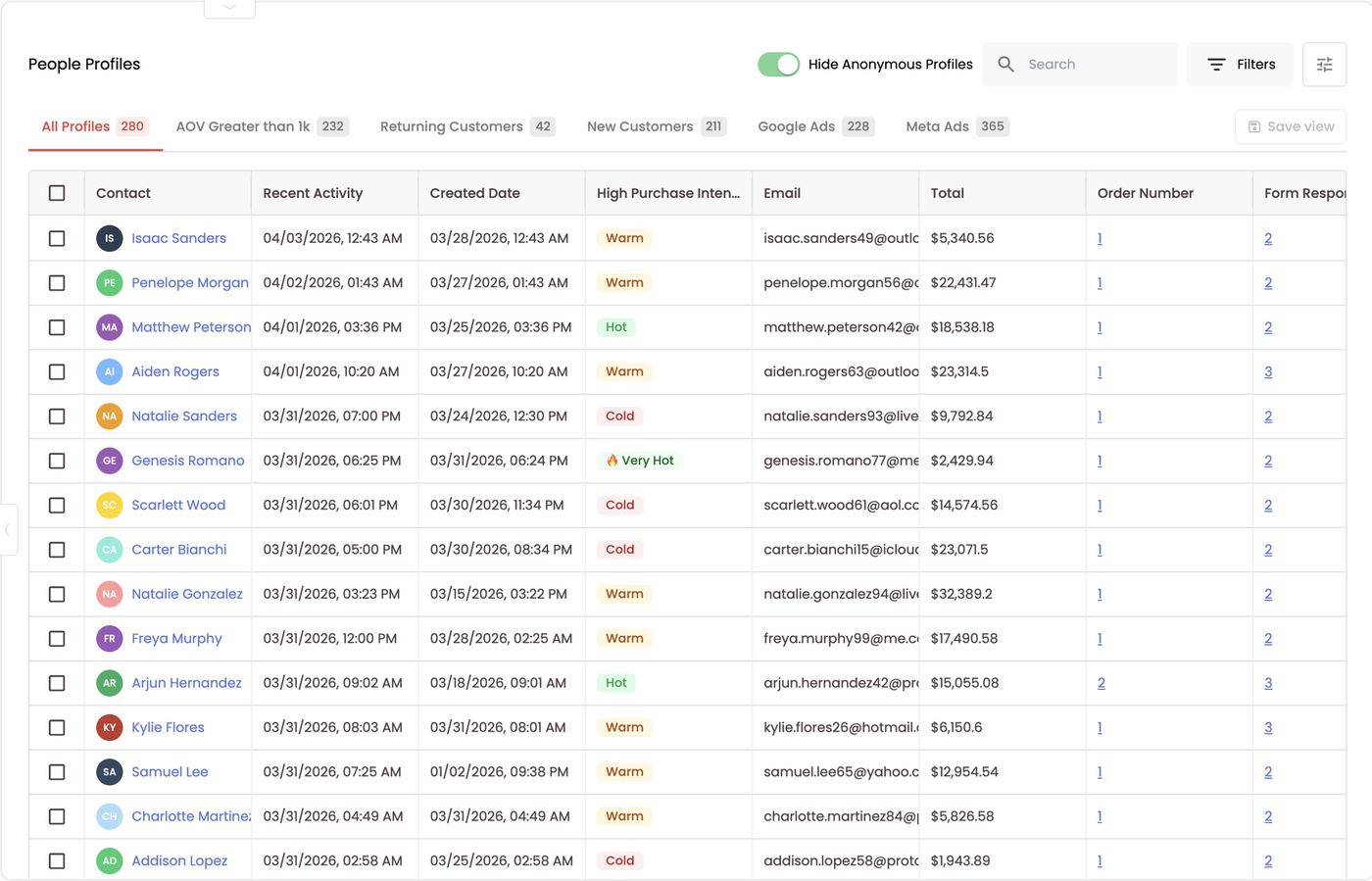
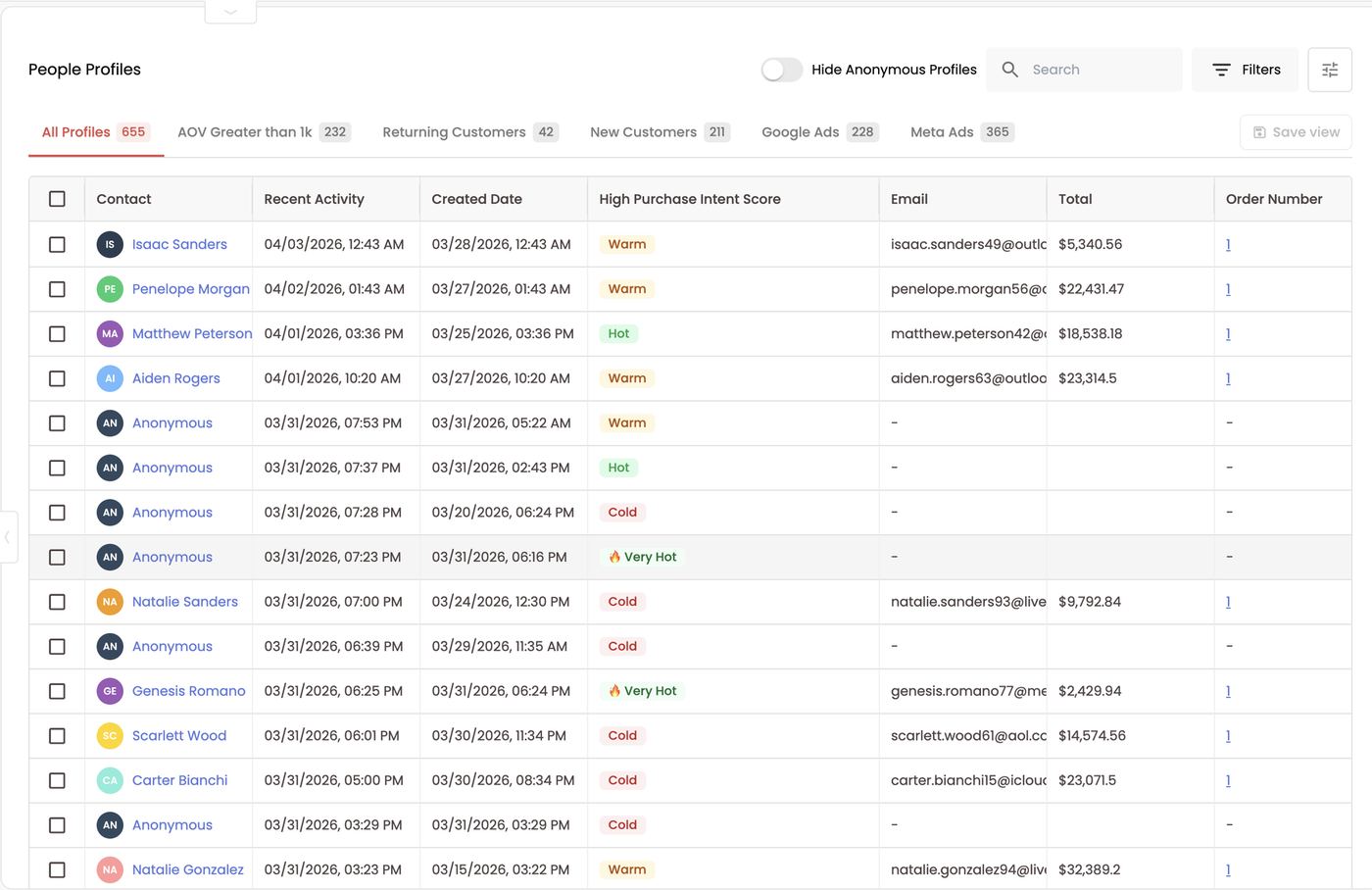
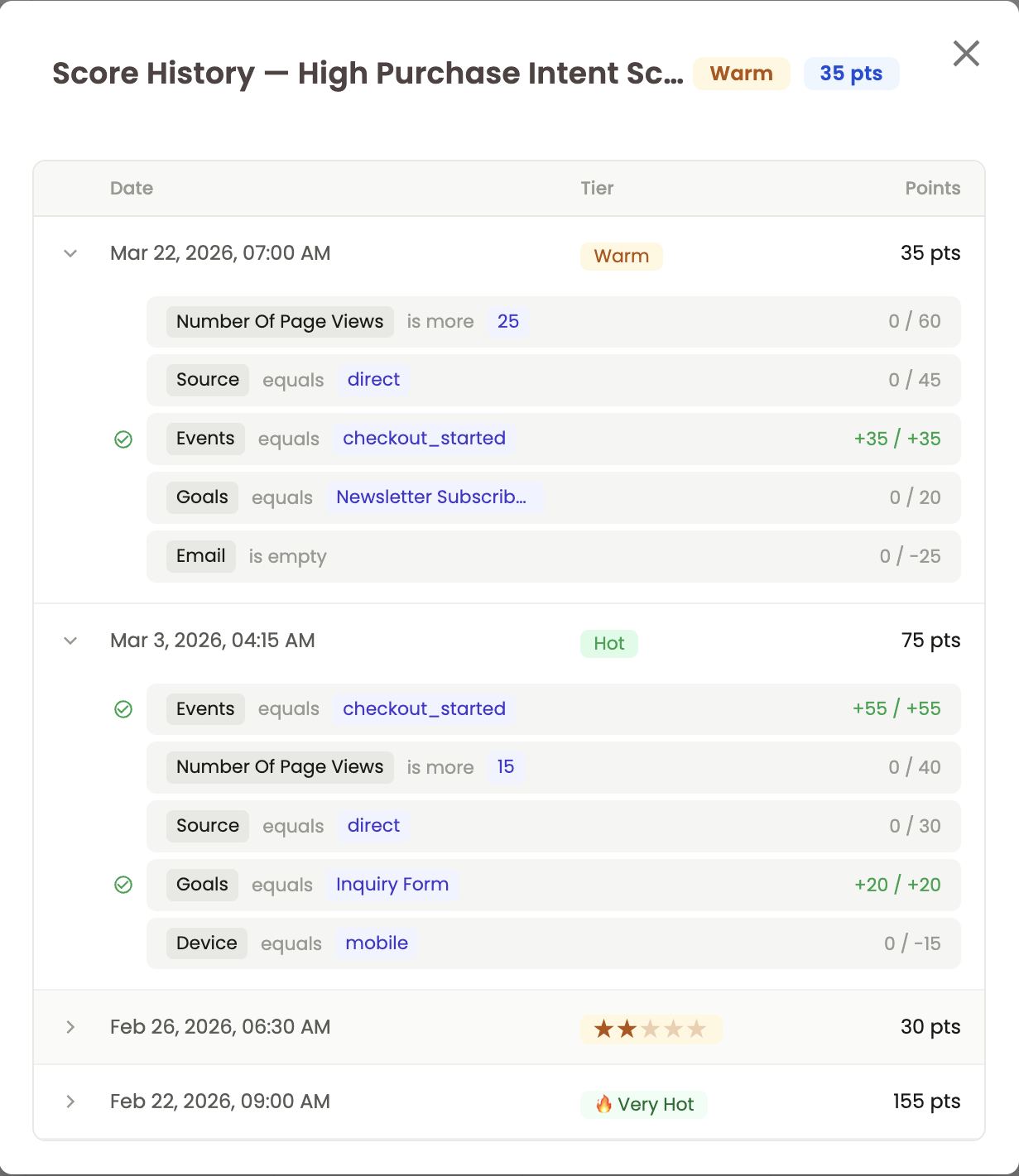
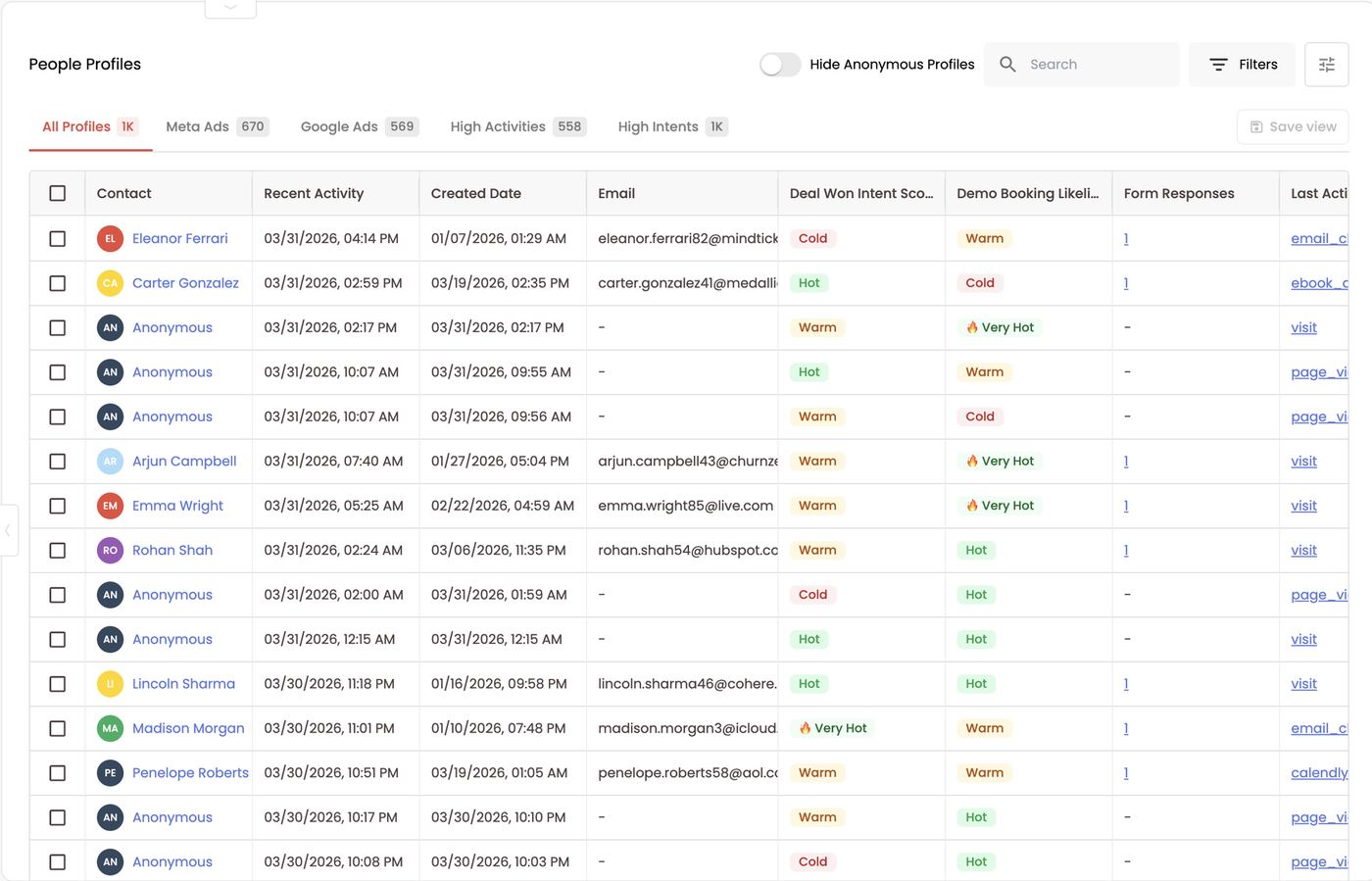
You can see exactly why they moved from Cold to Hot: they downloaded the ebook, then booked a demo and reached SQL.
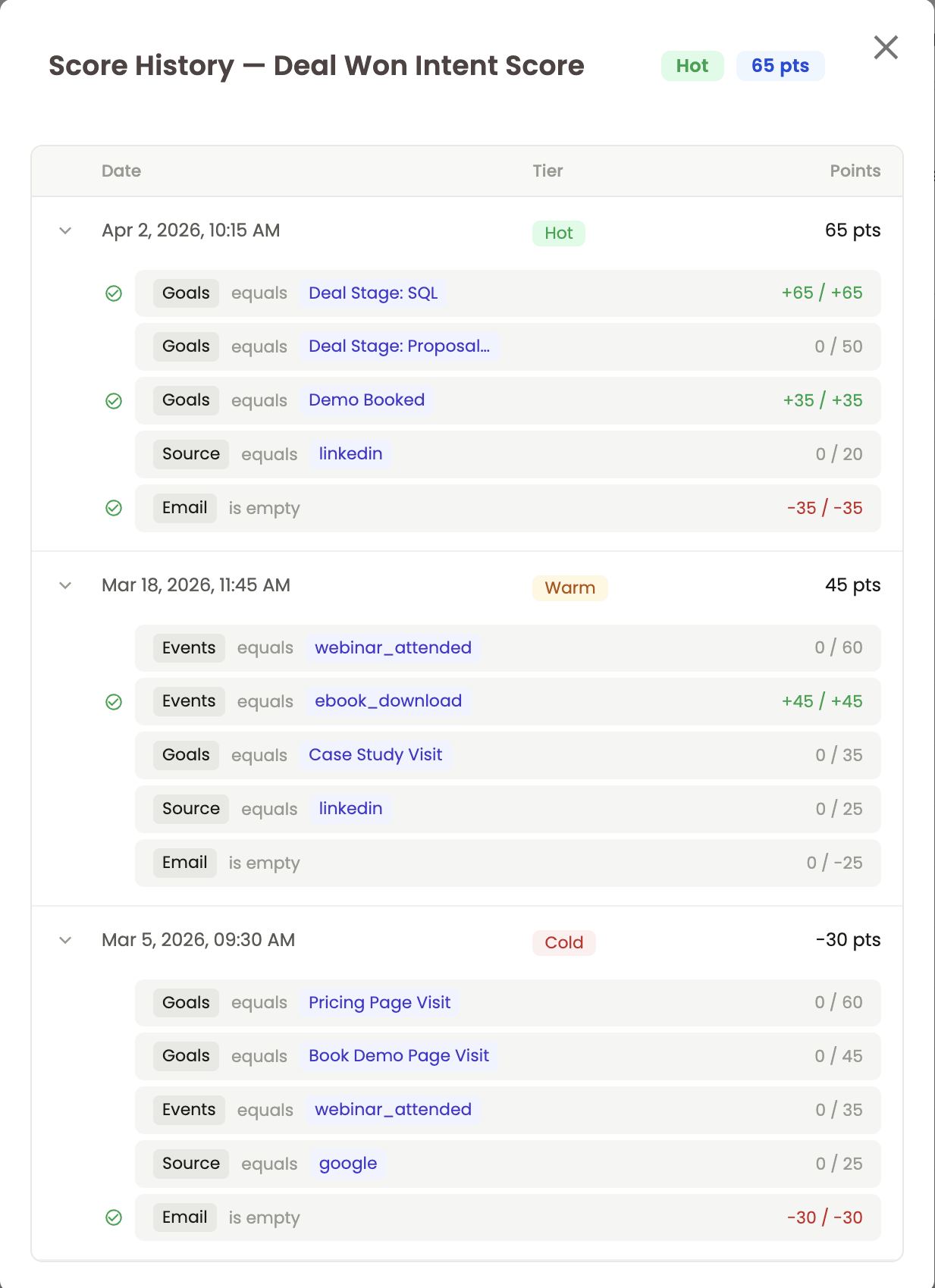
- Categories on the left: Default (Contact, Recent Activity, Created Date, Email, Total, Order Number, Form Responses, Website, Tags, Last Activity), Crm Contact (fields synced from your CRM) and Contact Smart Scores (each score you’ve created).
- Search columns to find one quickly. Hover a column to see its description.
- Columns Selected on the right (e.g. 12 Columns Selected): drag ≡ to reorder (top = leftmost), click ⊗ to remove, then Save.
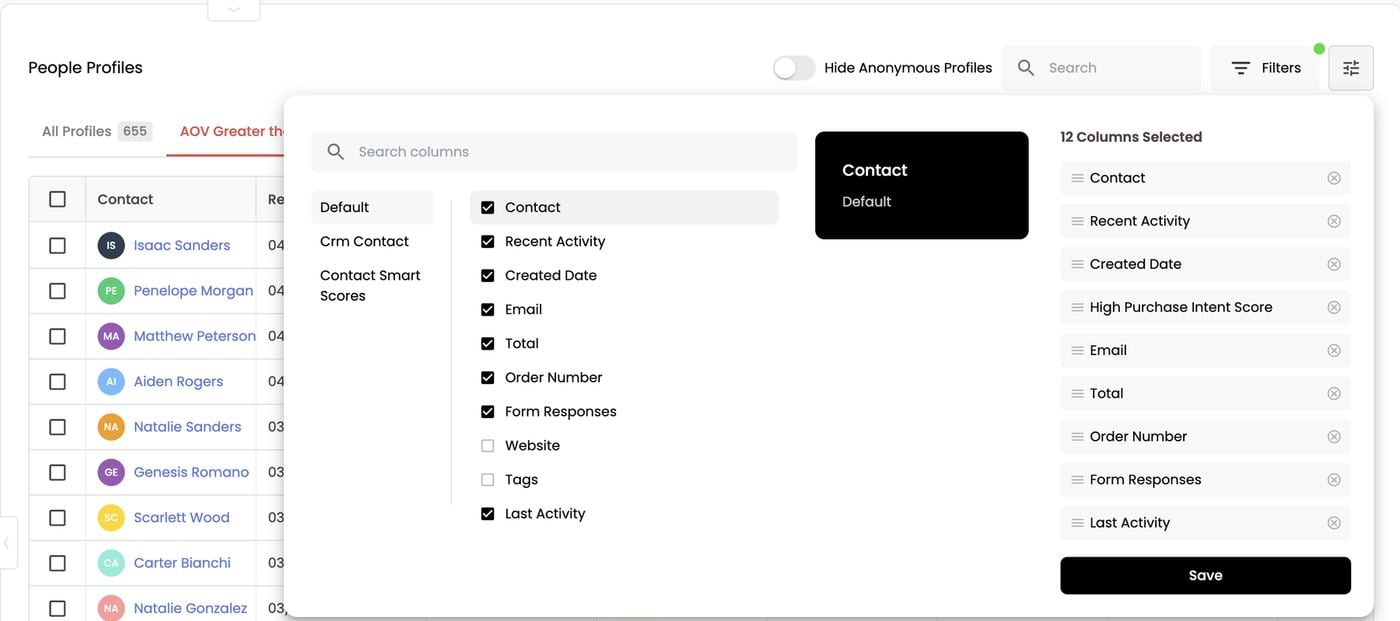
Filters
- Click Filters.
- Under Where, pick a field. You can use contact fields (first name, last name, email, phone, sessions), device data (browser, operating system, device, pixel ID), location (country, state, city), Page URL, UTM source / medium / campaign / content / term, events, goals and touchpoints.
- Choose an operator and a value. Click Add for more conditions, then Submit. Clear all filters resets.
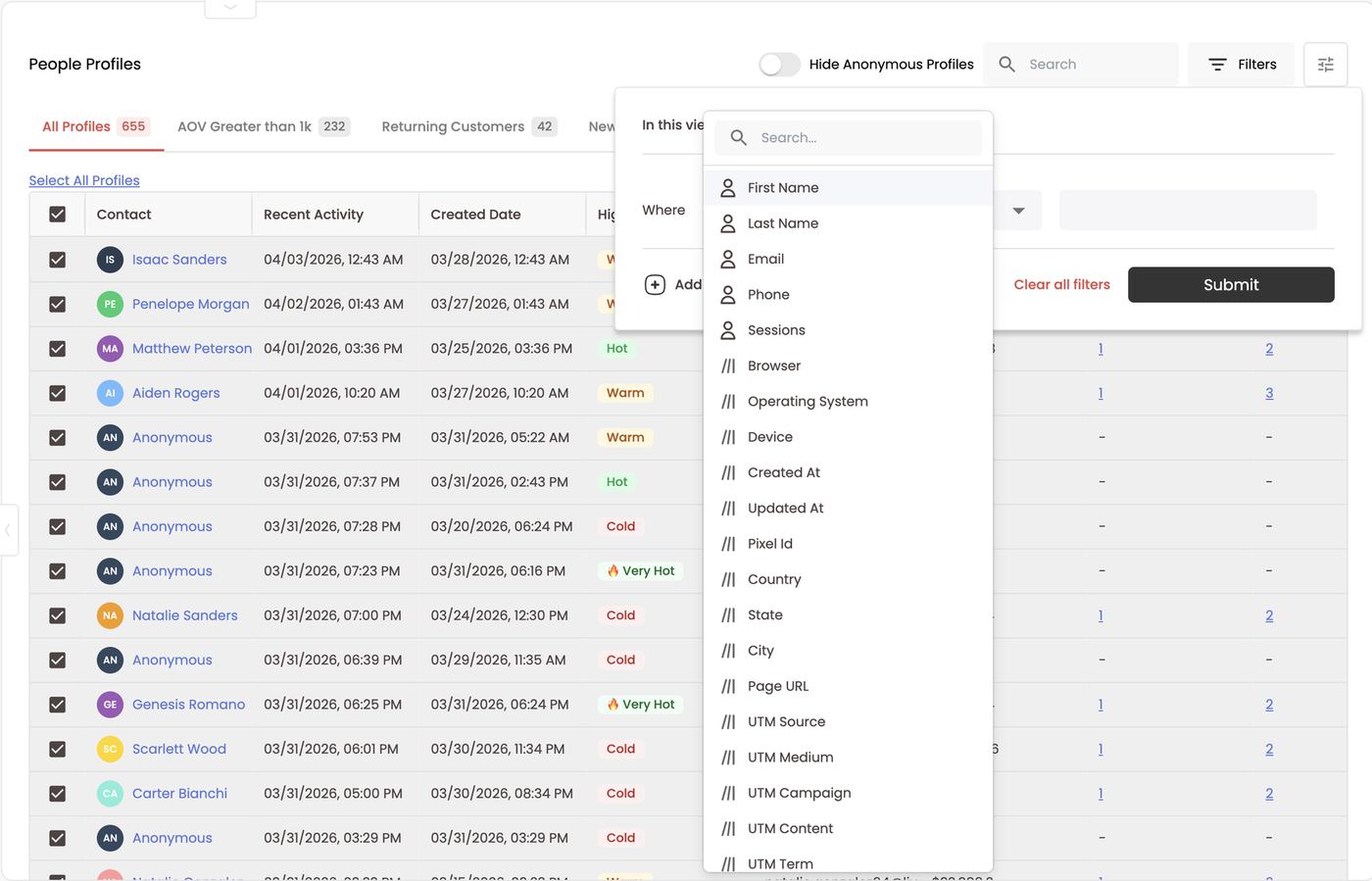

Saved views
Save any filter as a view so you don’t rebuild it. Views appear as tabs above the table with a count, e.g. AOV Greater than 1k (232), Returning Customers (42), New Customers (211), Google Ads (228), Meta Ads (365) for D2C, or Meta Ads, Google Ads, High Activities and High Intents for B2B.- Add your filters, e.g. AOV more than $50, or High Purchase Intent Score is Hot.
- Click Save view and name it. The view is added as a new tab.
- To rename or delete a view, hover over its tab and click the icon. Deleting a view never deletes profiles or data, only the saved view.

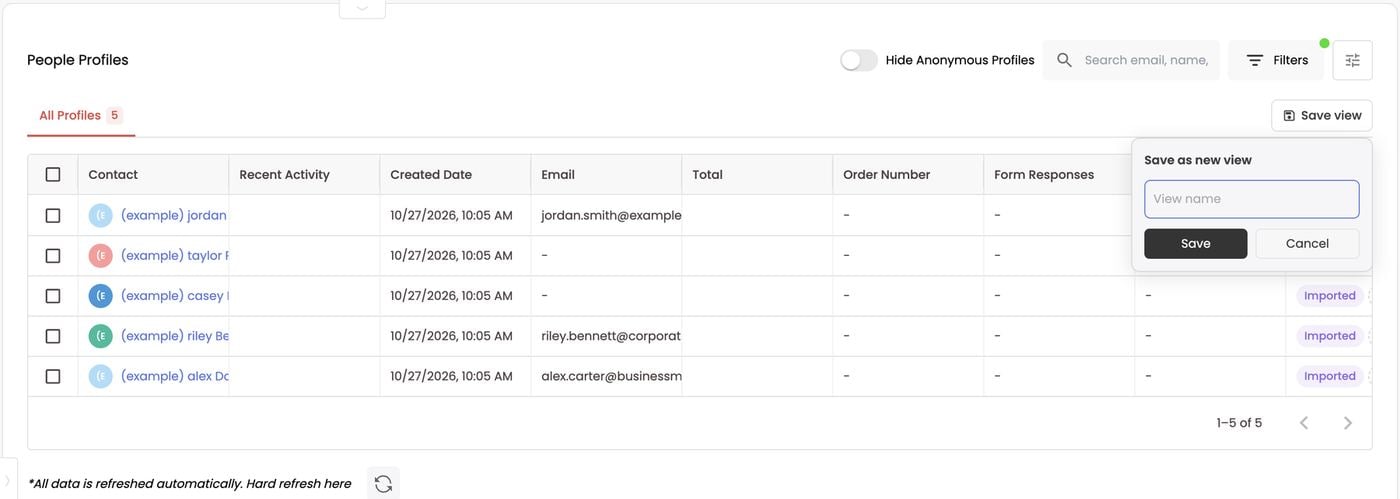
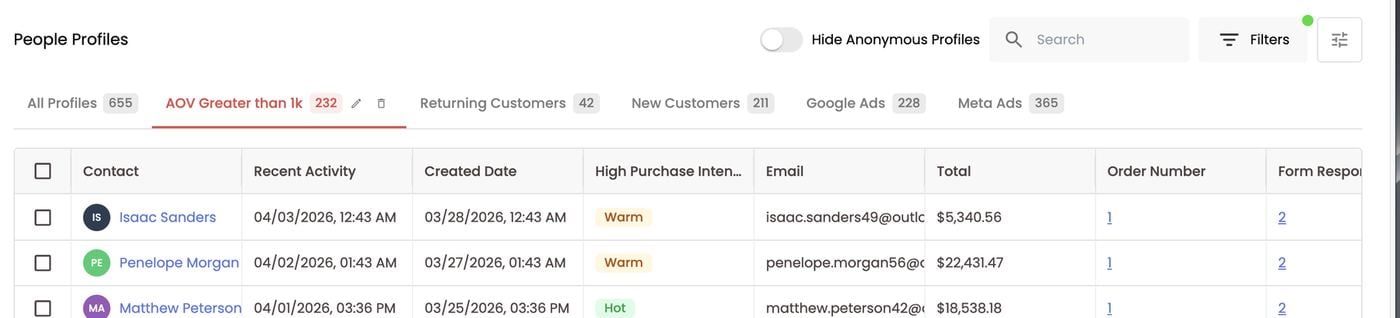
Select, export, add to audience and tag
- Tick the checkbox at the top of the table to select the first 30 rows.
- Click Select All Profiles to select every profile that matches the current view and filters, not just the rows on screen.
- Export a CSV. Under 1,000 rows it downloads straight away in your browser; over that, Stiddle emails you a download link when it’s ready.
- Add to audience: add them to an existing audience or create a new one.
- Add tags to all of them.
- Clear the selection.
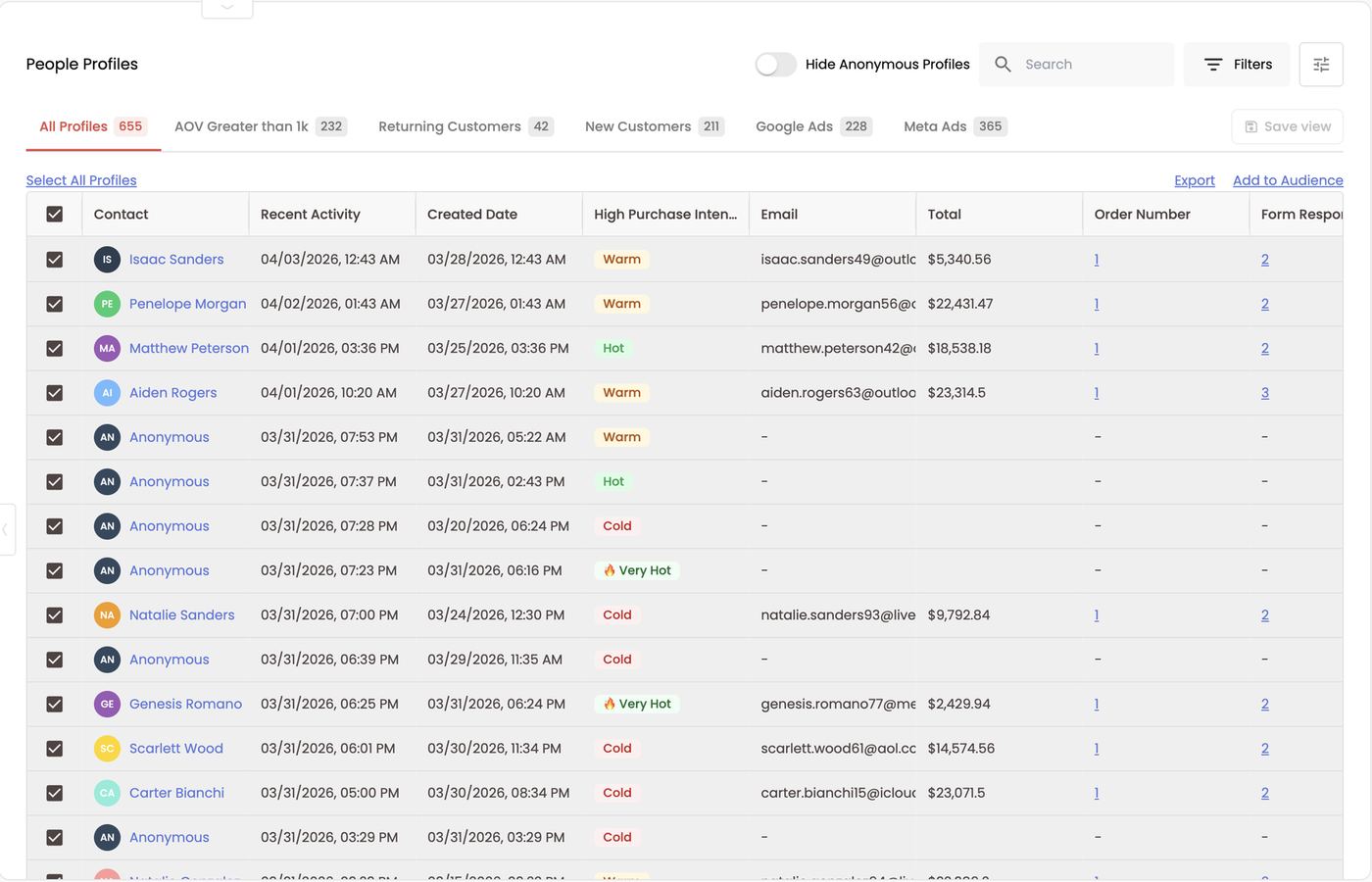
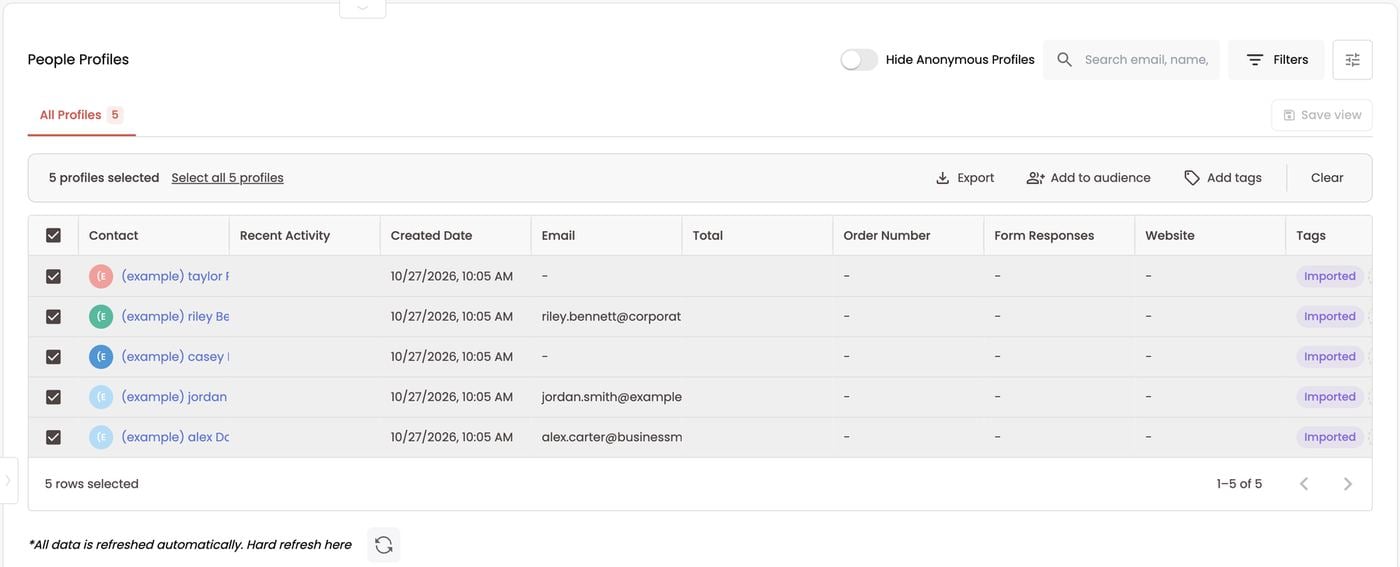
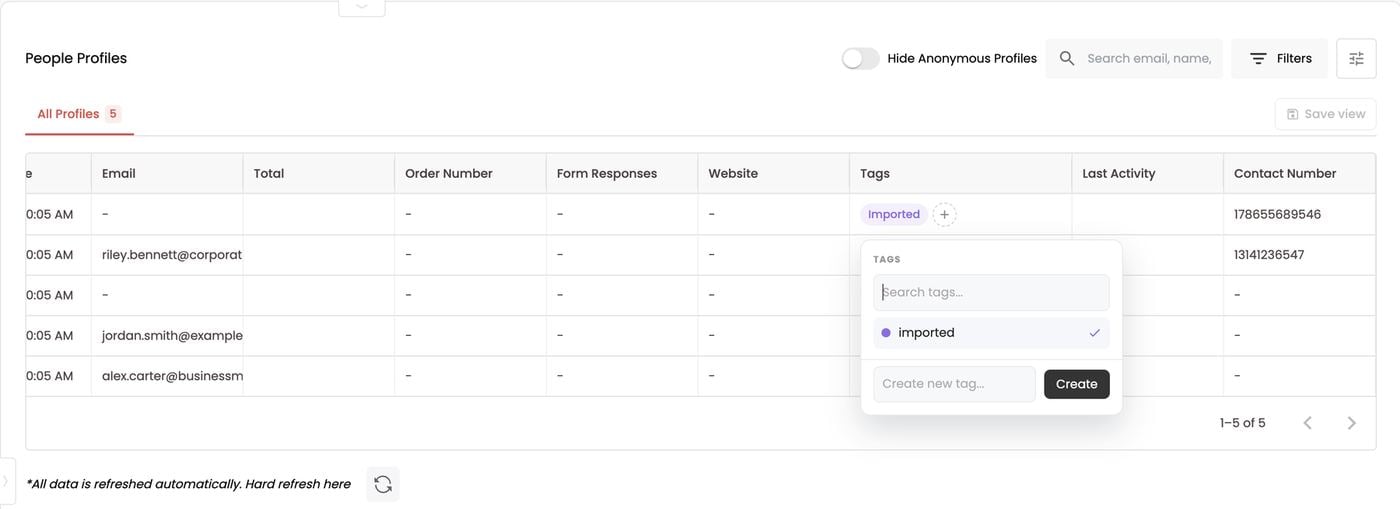
FAQs
How long does Stiddle recognise an anonymous visitor? Up to 3 years, using the IRIS ID rather than cookies. What happens to anonymous activity when someone fills out a form? It stays on the same profile, which becomes known, so all earlier touchpoints count toward attribution. Why is a profile still Anonymous? The person hasn’t identified themselves yet (no form fill, purchase or CRM match). Can two devices be the same person? Yes. When Stiddle links them, they merge into one profile and the IRIS Identity Graph shows the count under Merged Profiles. I don’t see any data in the table. Check whether a filter is on (green dot) or whether Hide Anonymous Profiles is switched on. Does deleting a view delete profiles? No. It only removes the saved tab. Why didn’t my export download? Exports over 1,000 rows are emailed to you when they’re ready. Can I search by IRIS ID? Yes. Search works on name, email, phone and Stiddle IRIS ID. Can I edit profile fields? No, this updates automatically.14. Audiences
Audiences are groups of people (and, for B2B, companies) built from your Stiddle data — CRM, order, ad and event data — that you can sync to ad platforms, CRMs and marketing tools, or export.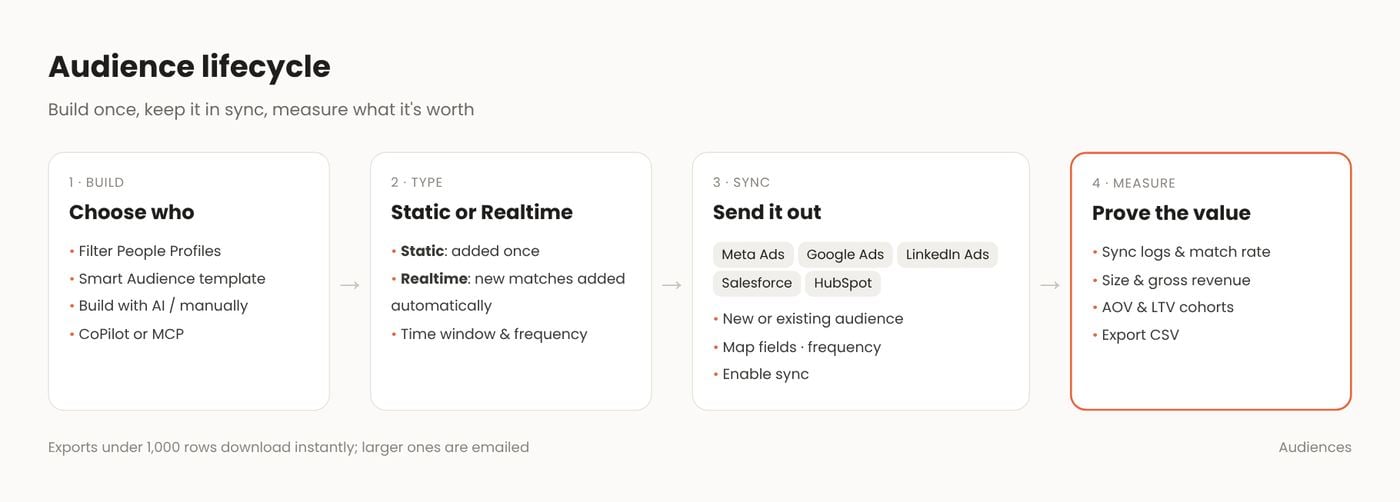
Static vs Realtime
Ways to create an audience
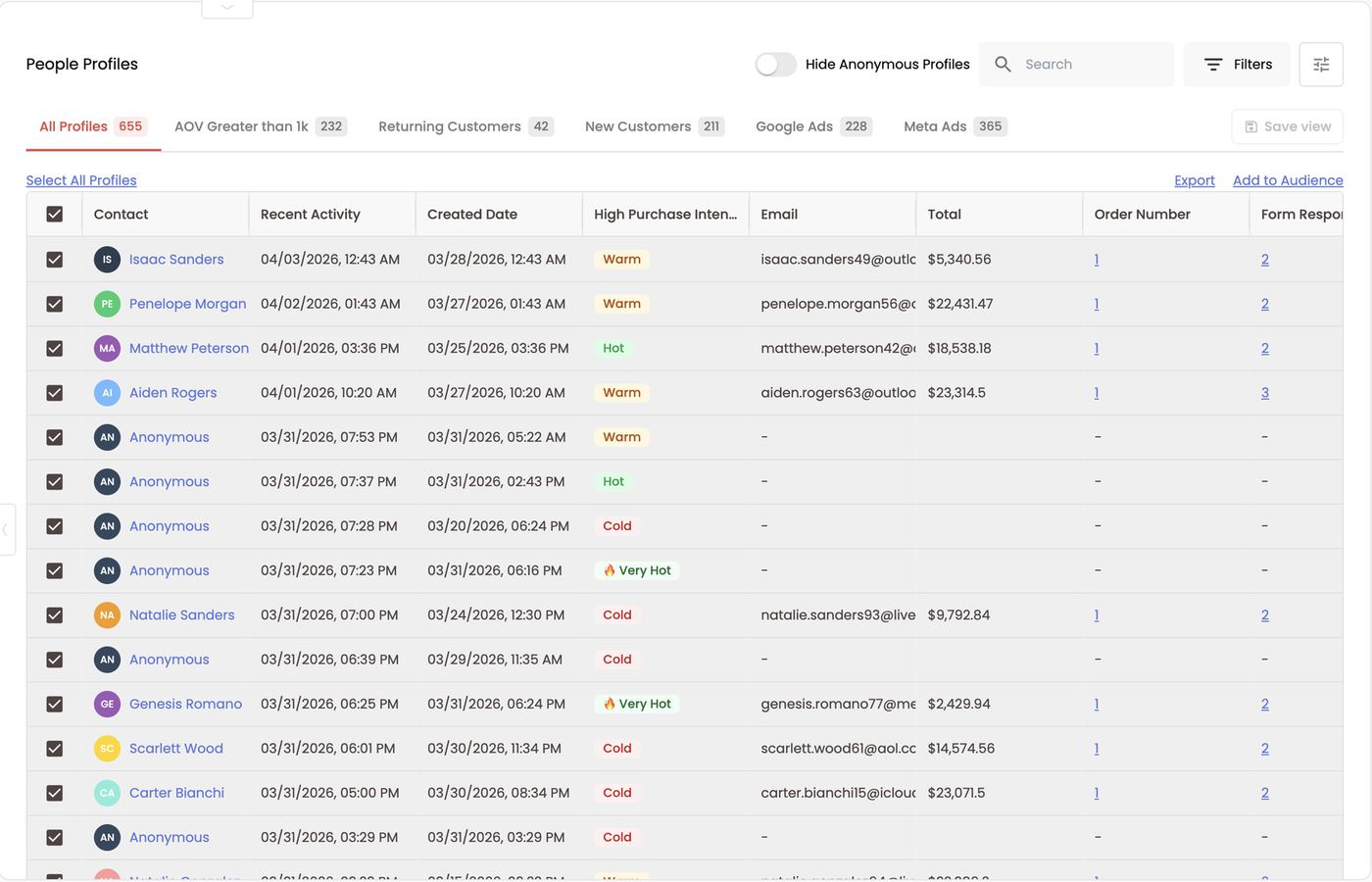
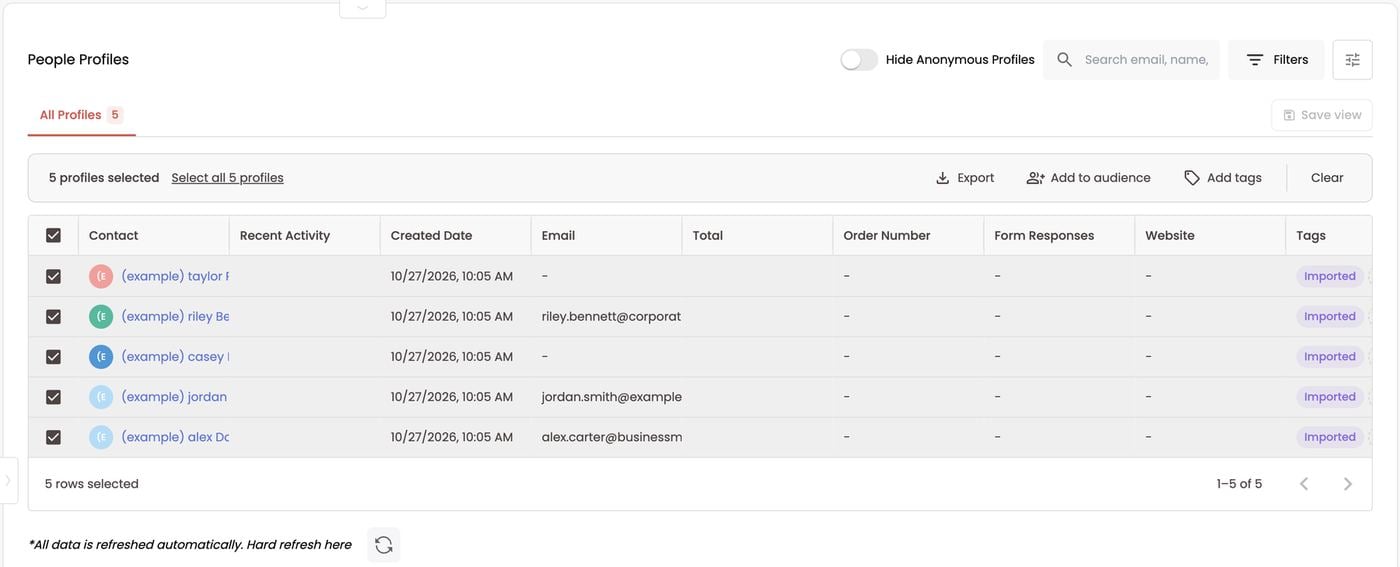
The Audiences page
Your audiences list shows Name, Date, Size, Syncs (icons for each platform it syncs to), Type (Realtime or Static) and Gross Revenue — revenue mapped back to the audience’s members. Columns adds more KPIs. Folders and Tags on the left keep audiences organized; click + New folder to add one, and assign a folder or tags when you create an audience.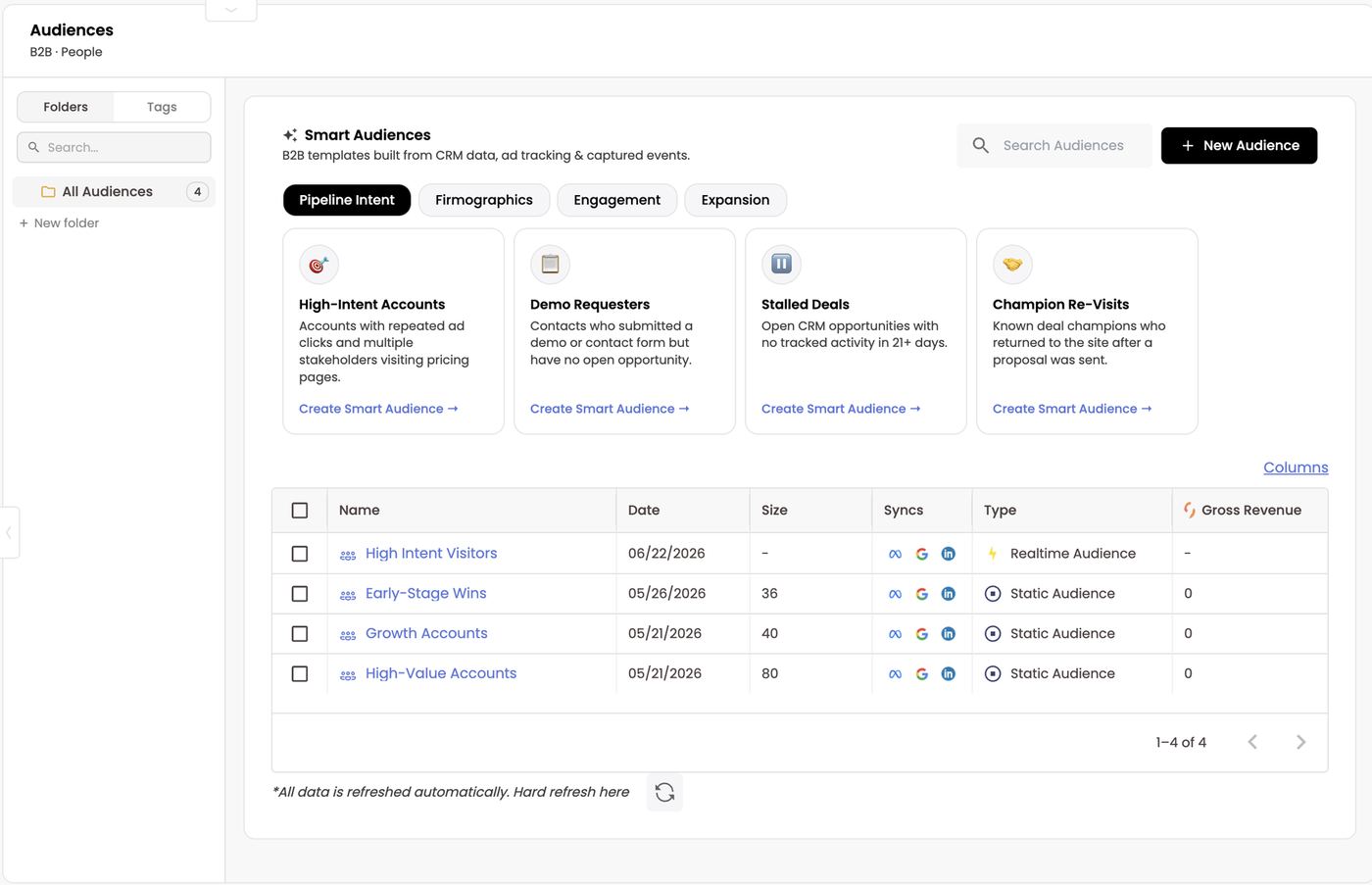
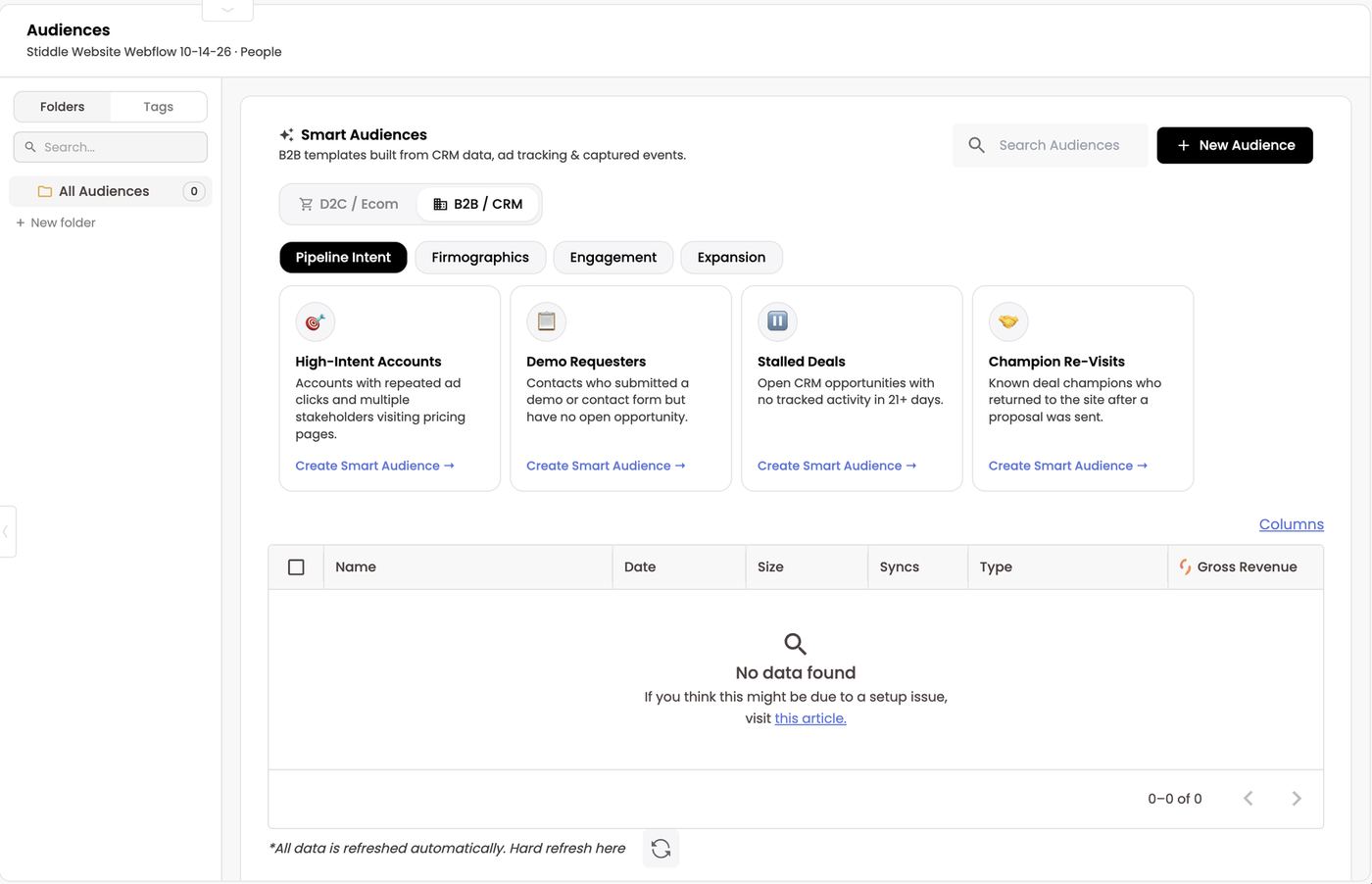
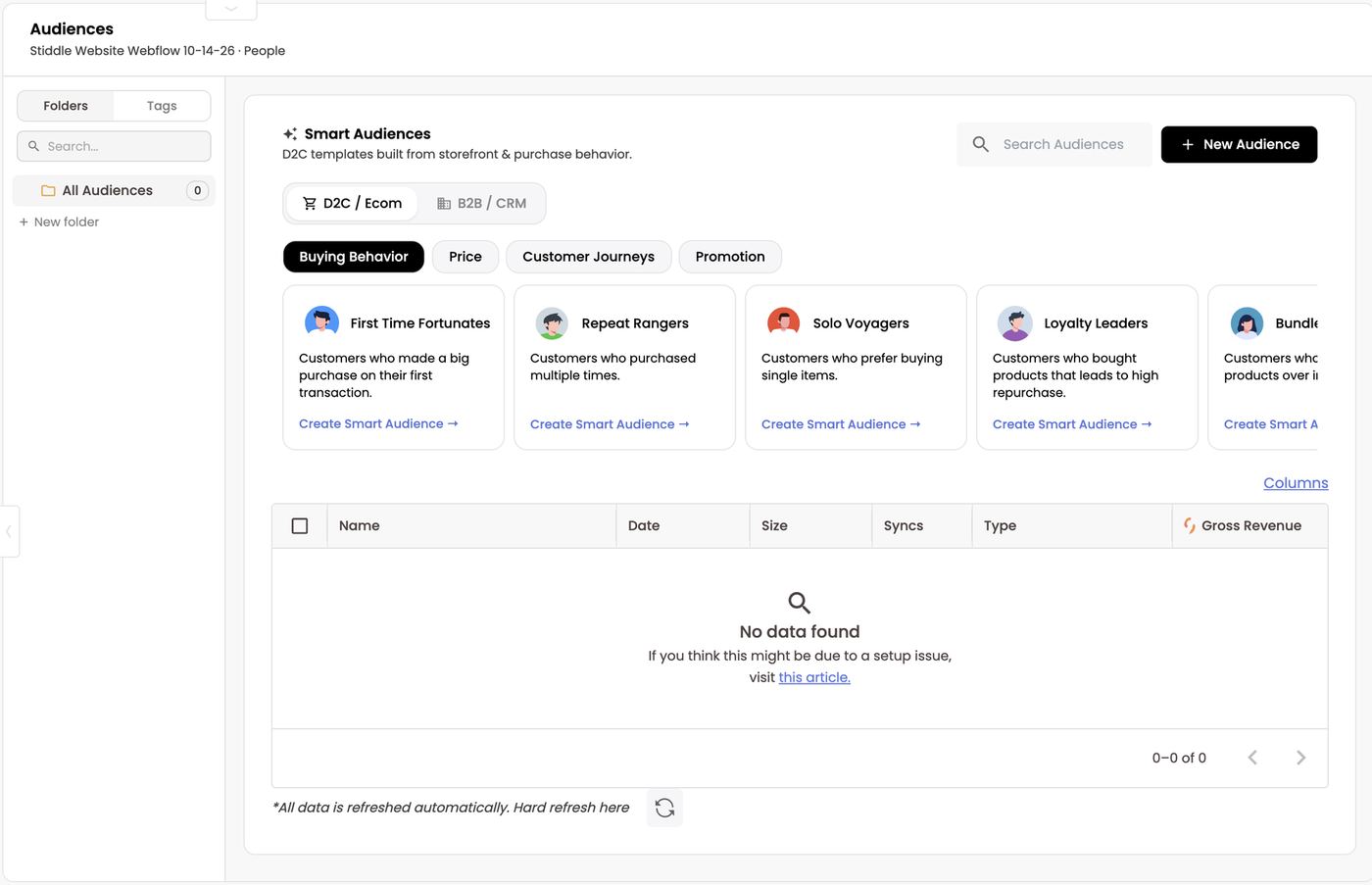
Build a custom audience
Click + New Audience and choose:- Build with AI (fastest setup) — describe it, e.g. “High-value B2B leads who visited our pricing page in the last 30 days and work at companies with 50+ employees”, then Generate audience. Type / for suggested prompts.
- Build manually — define the filters, model and rules yourself.
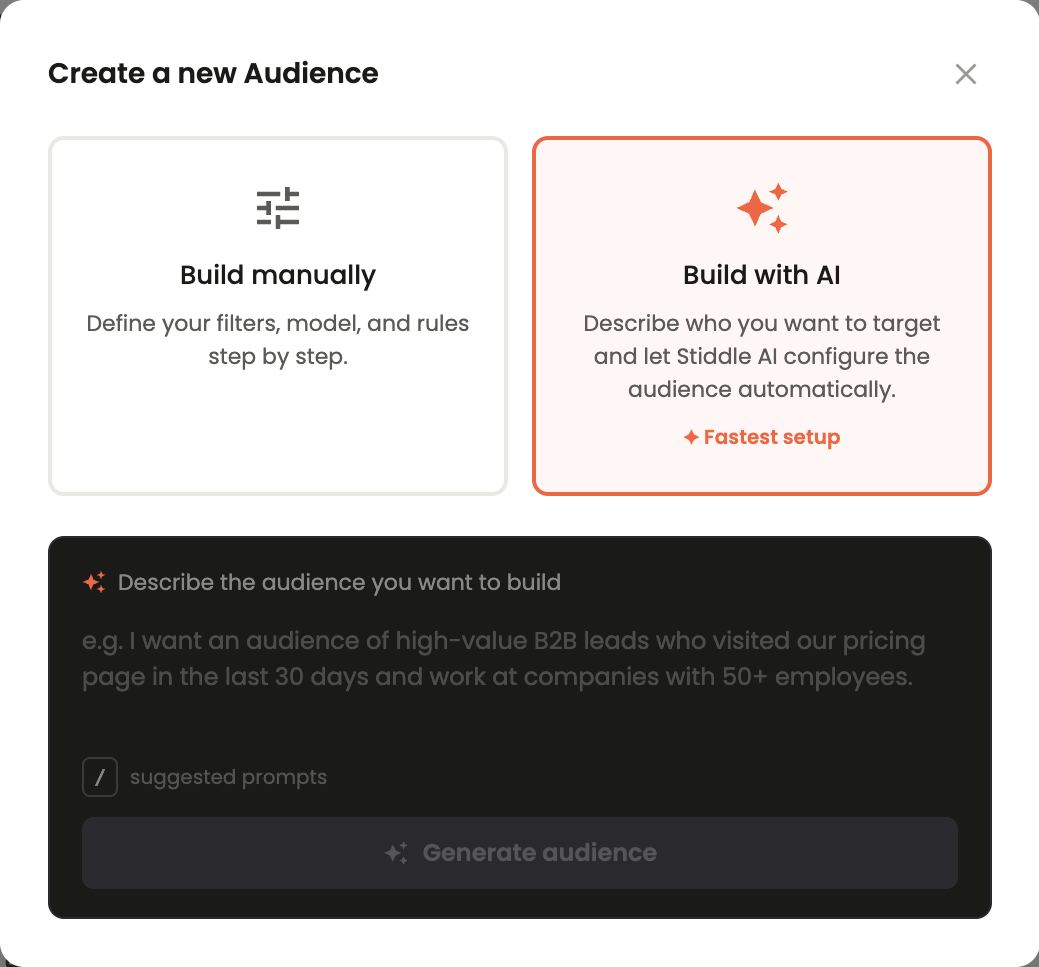
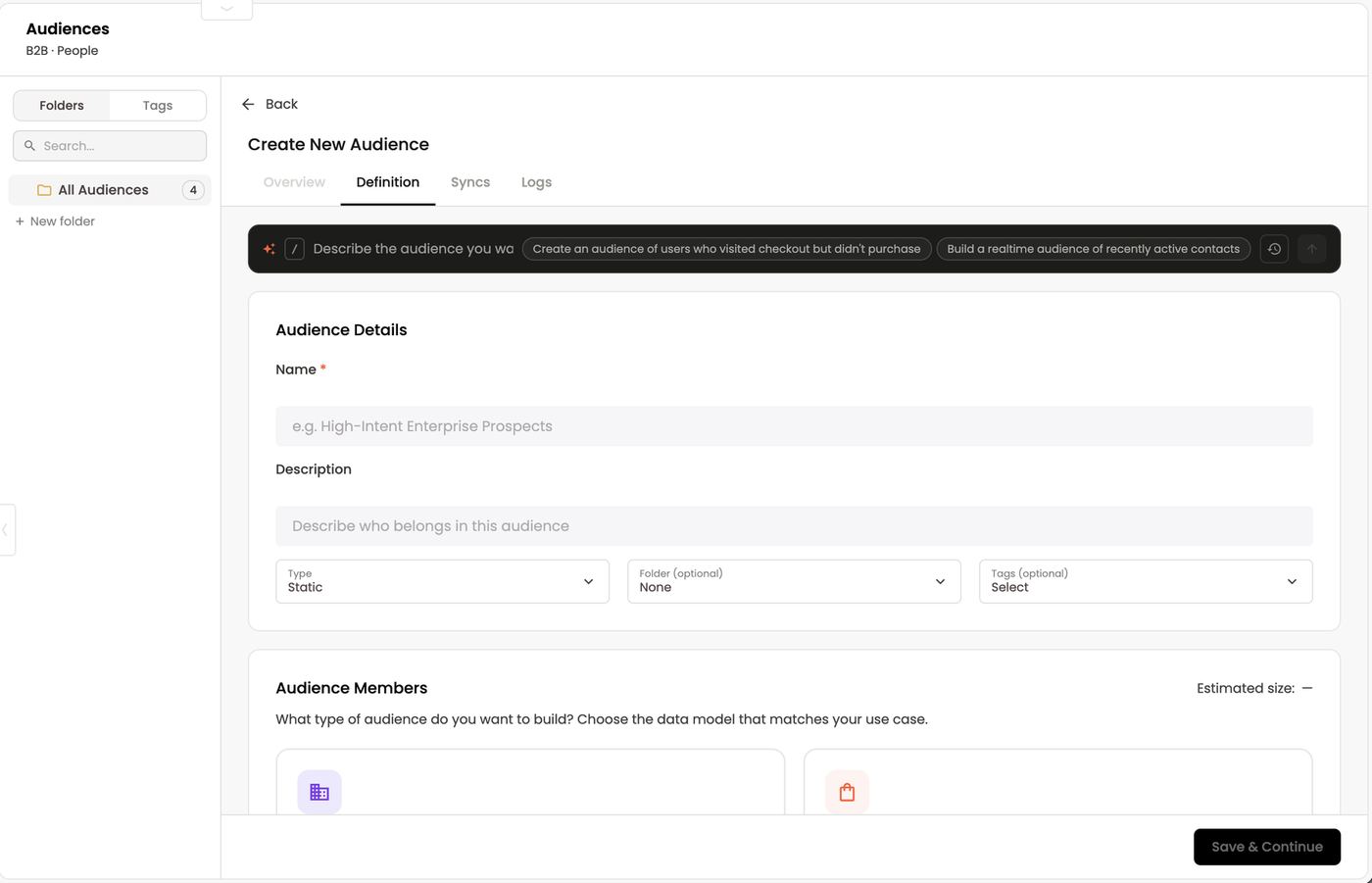
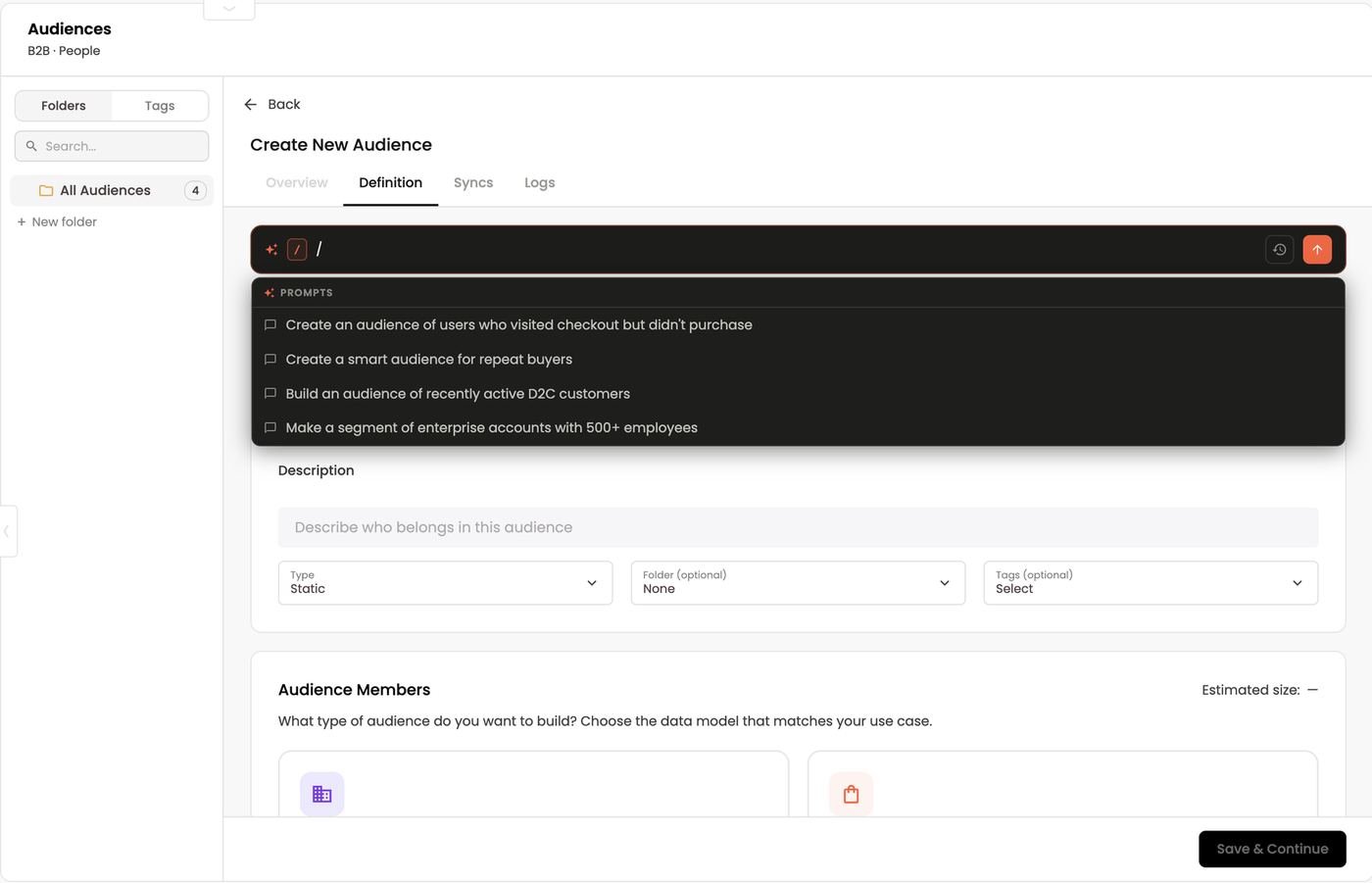
- B2B — Companies & Deals: firmographics, contact attributes, opportunity stages and B2B events (demo requests, trial usage, deal progression). Estimated size shows Companies and People.
- D2C / eCommerce — Customers & Orders: customer profiles, purchase history, order attributes, product interactions and behavior like cart adds and checkouts. Estimated size shows People.
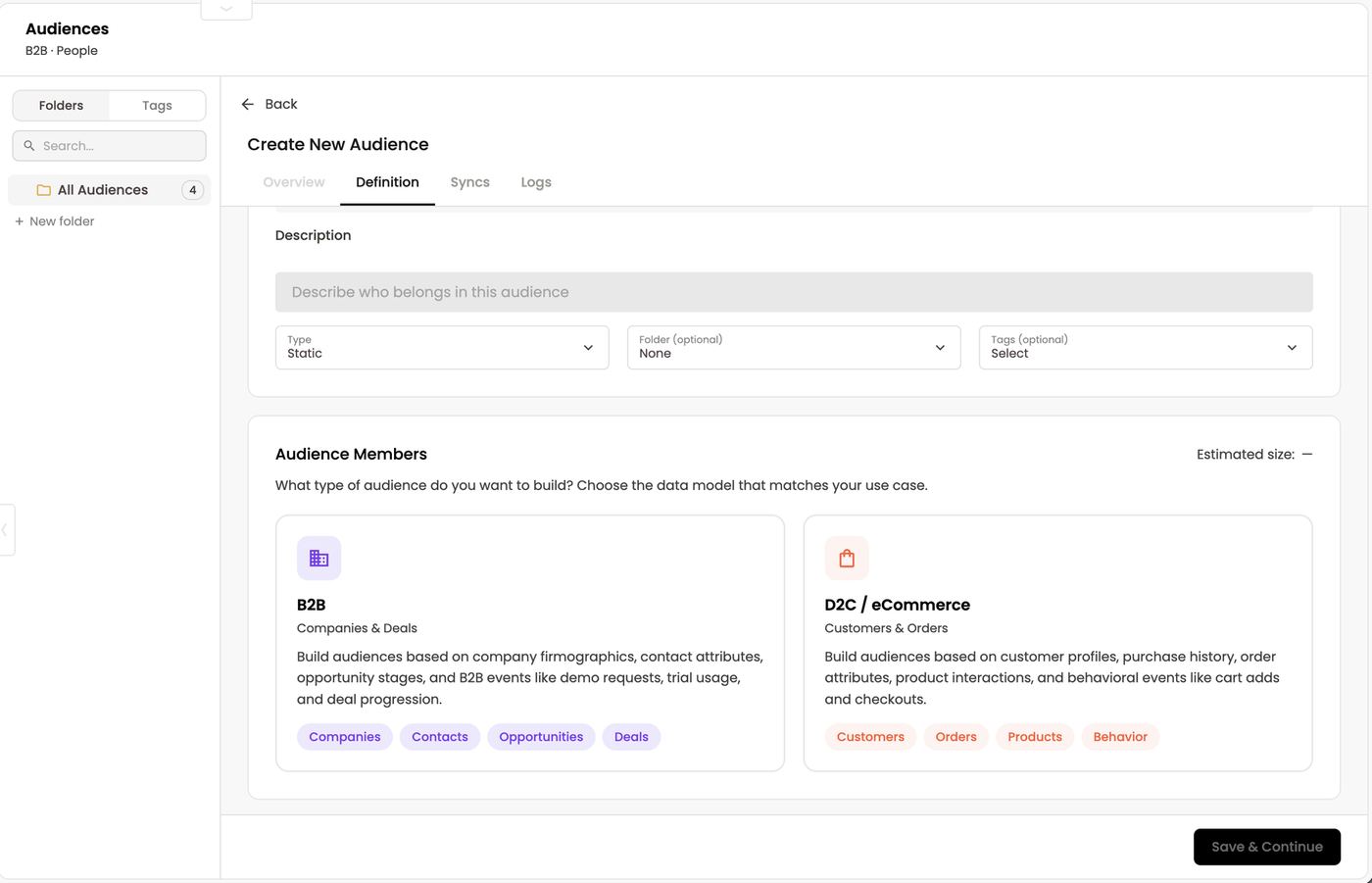
- Attribute — browse categories: Profile, General Info, Commerce, Activity (forms, goals, events, page viewed URL, referral UTMs…), Traffic, Facebook Ads, Google Ads, Companies, Deals and Smart Scores.
- Operator and value (e.g. Equals Demo Booked).
- Time window — only count actions within a period, e.g. the last 30 days.
- Frequency — only include people who did it a number of times, e.g. 3+ pricing page views.
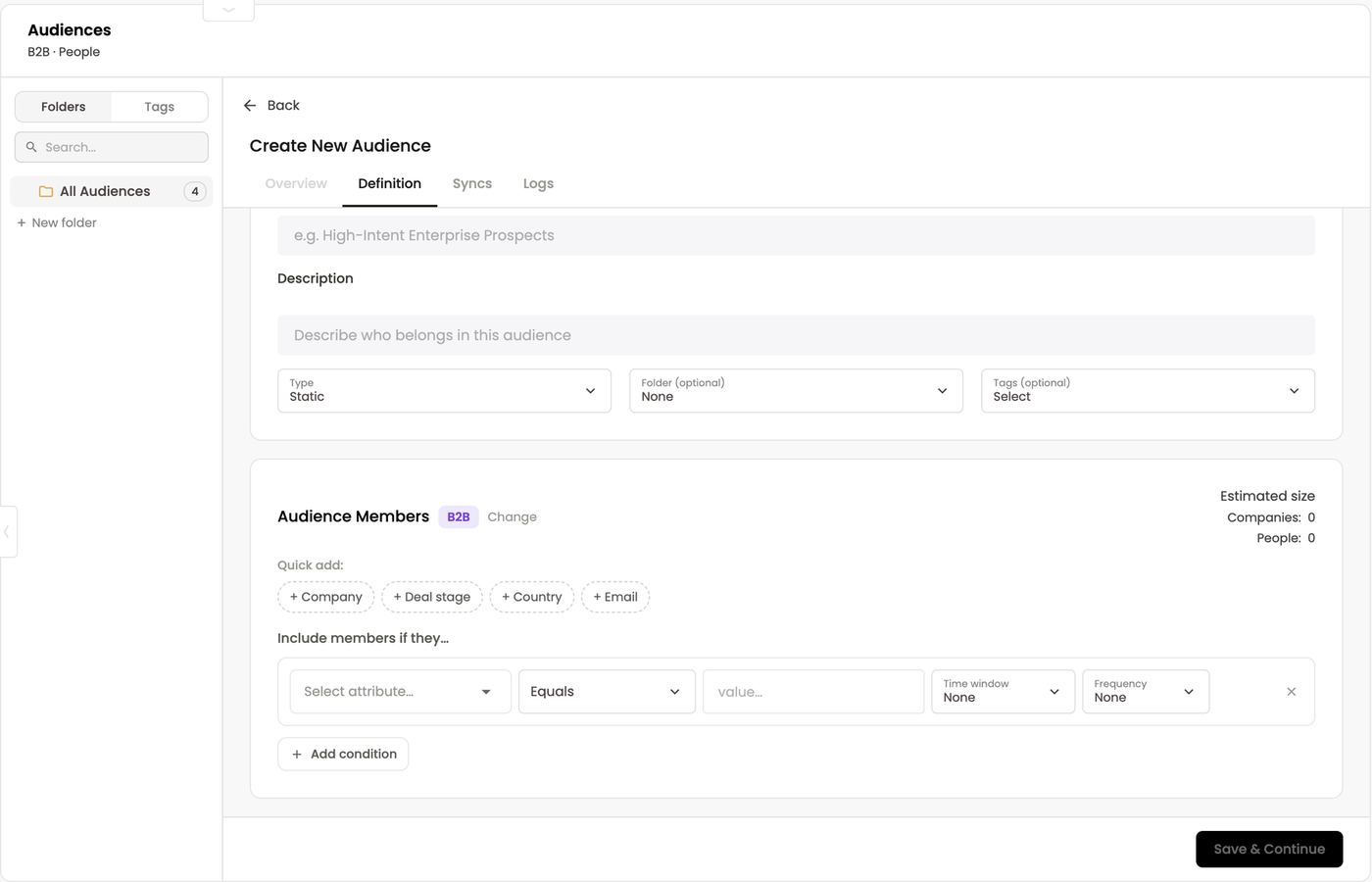
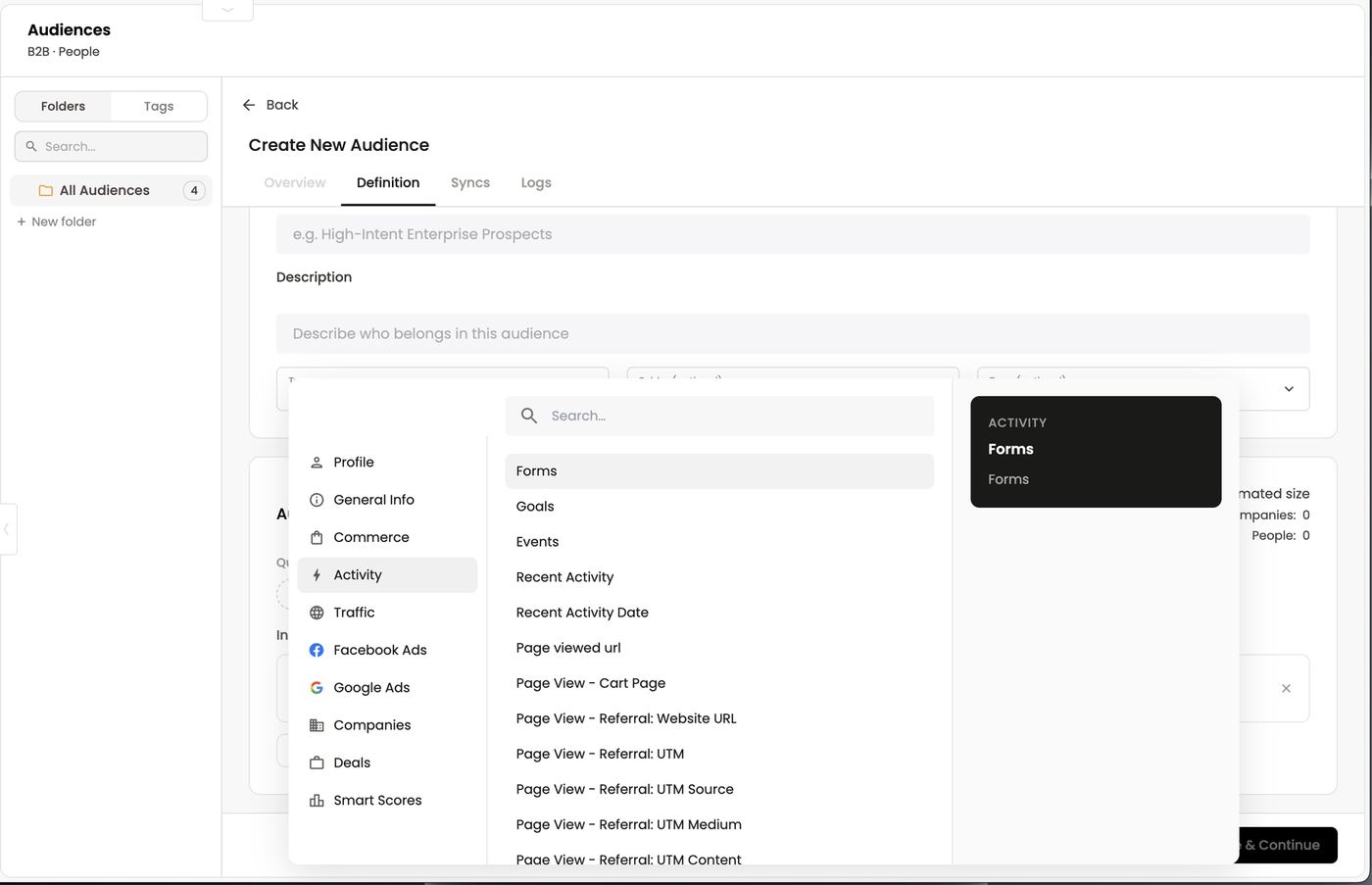
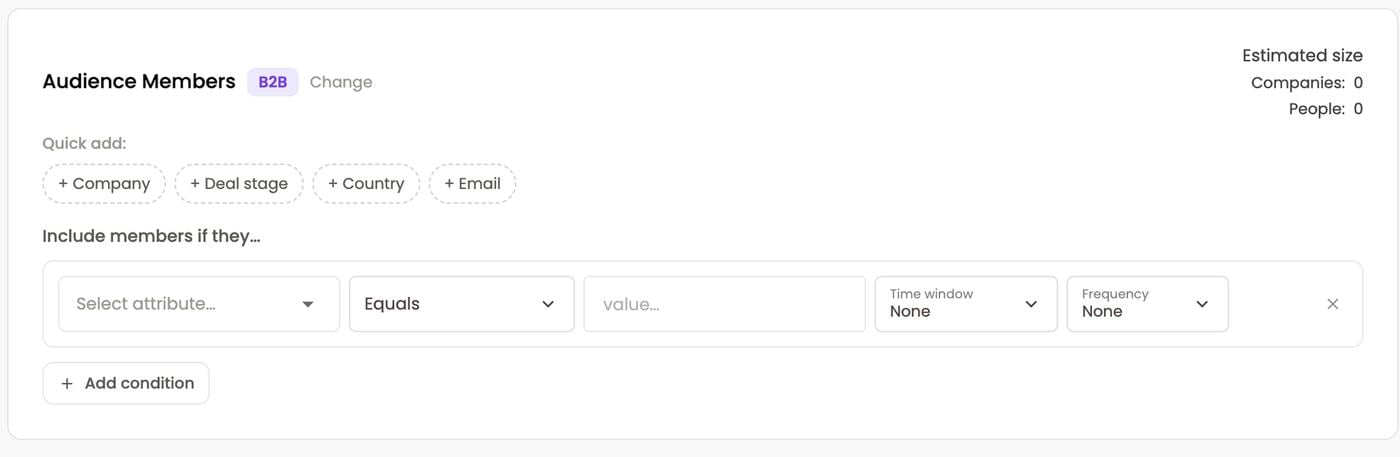
Sync to platforms
Open the Syncs tab. Every connected destination (Meta Ads, Google Ads, LinkedIn Ads, Salesforce, HubSpot and other marketing or CRM tools) appears with its status. Connect destinations first in Data → Connectors. For each platform:- Select an existing audience on that platform, or + Create new to make one there.
- Pick a sync frequency — Manual, Hourly, Daily or Weekly.
- Map fields (Stiddle → platform), e.g. Email → Email, First Name → First Name, Phone → Phone Number, City → City. More fields usually means a higher match rate.
- Tick Enable sync.
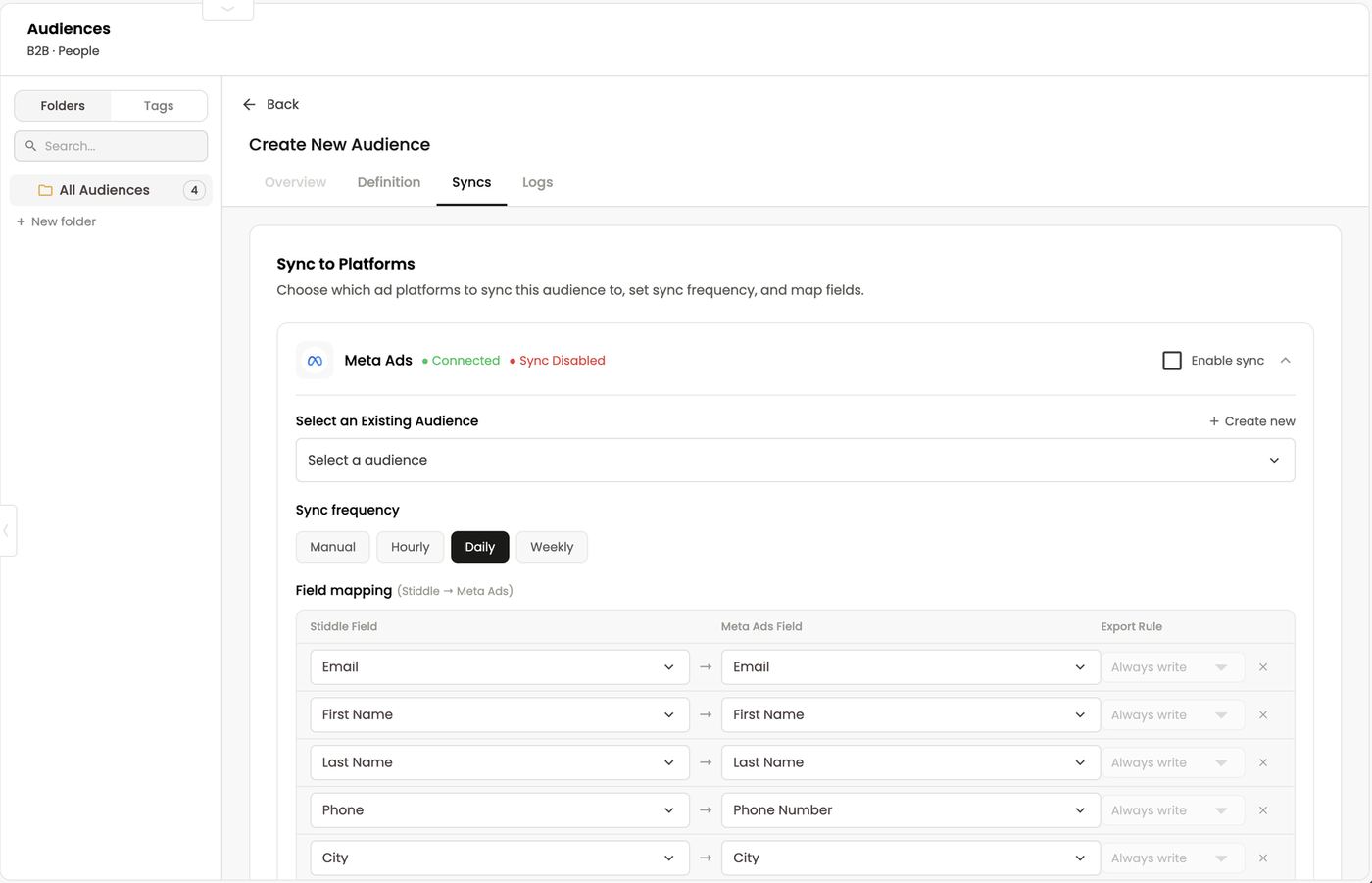
Logs, export and overview
- Logs — every sync: platform, platform audience, synced at, trigger (scheduled or manual), frequency, rows added, status (success, skipped, failed, running), next sync and match rate on the platform. A 30-day chart shows sync activity, and you can filter by platform. Use it to troubleshoot failed syncs.
- Resync runs a sync now.
- Export CSV — under 1,000 rows downloads straight away; larger audiences are prepared in the background and Stiddle emails you a download link.
- Overview — who’s in the audience (name, email) and KPIs: size, gross revenue, AOV and LTV cohorts (last 30, 60 and 90 days), so you can see what the audience is worth.
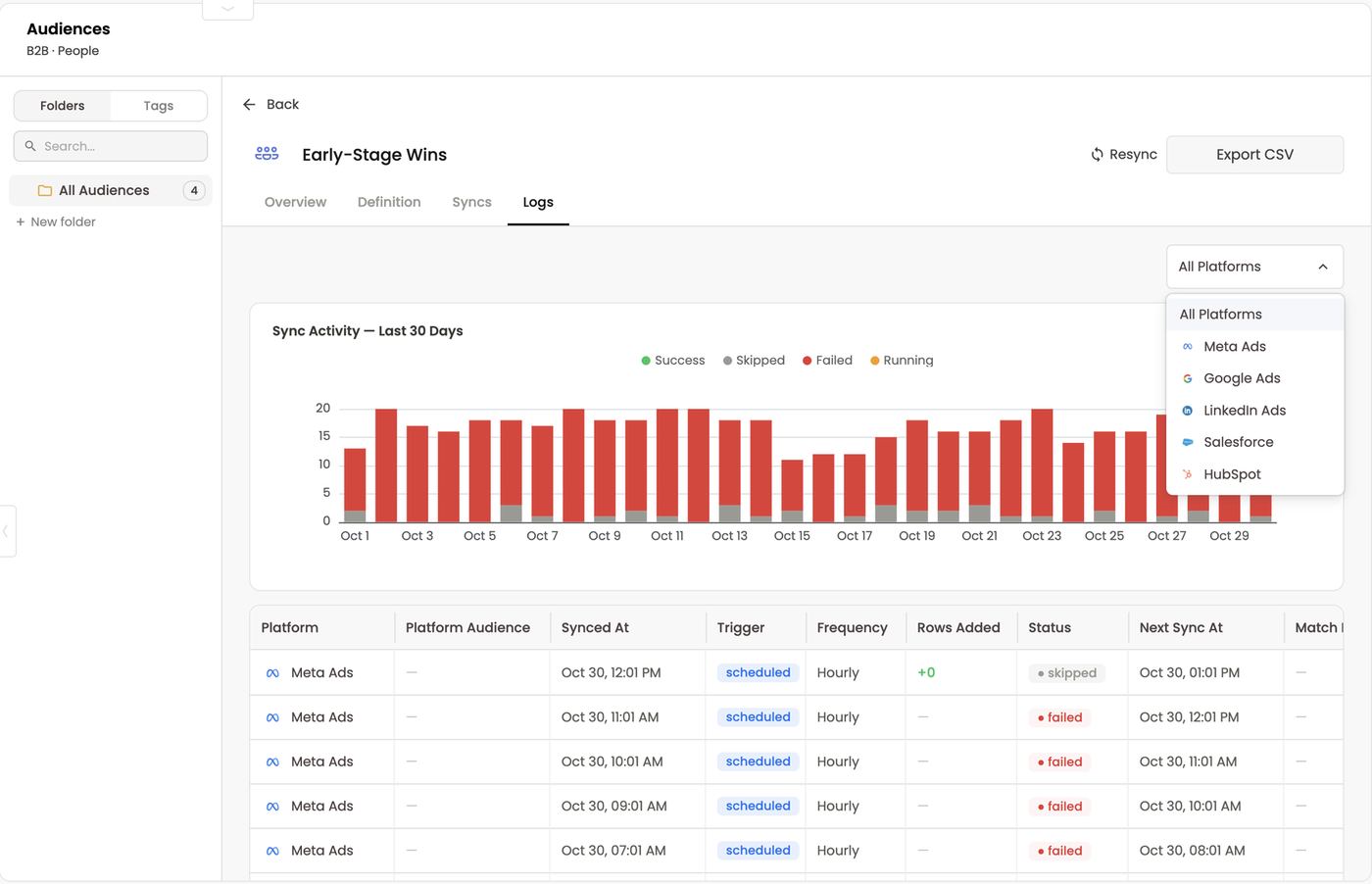
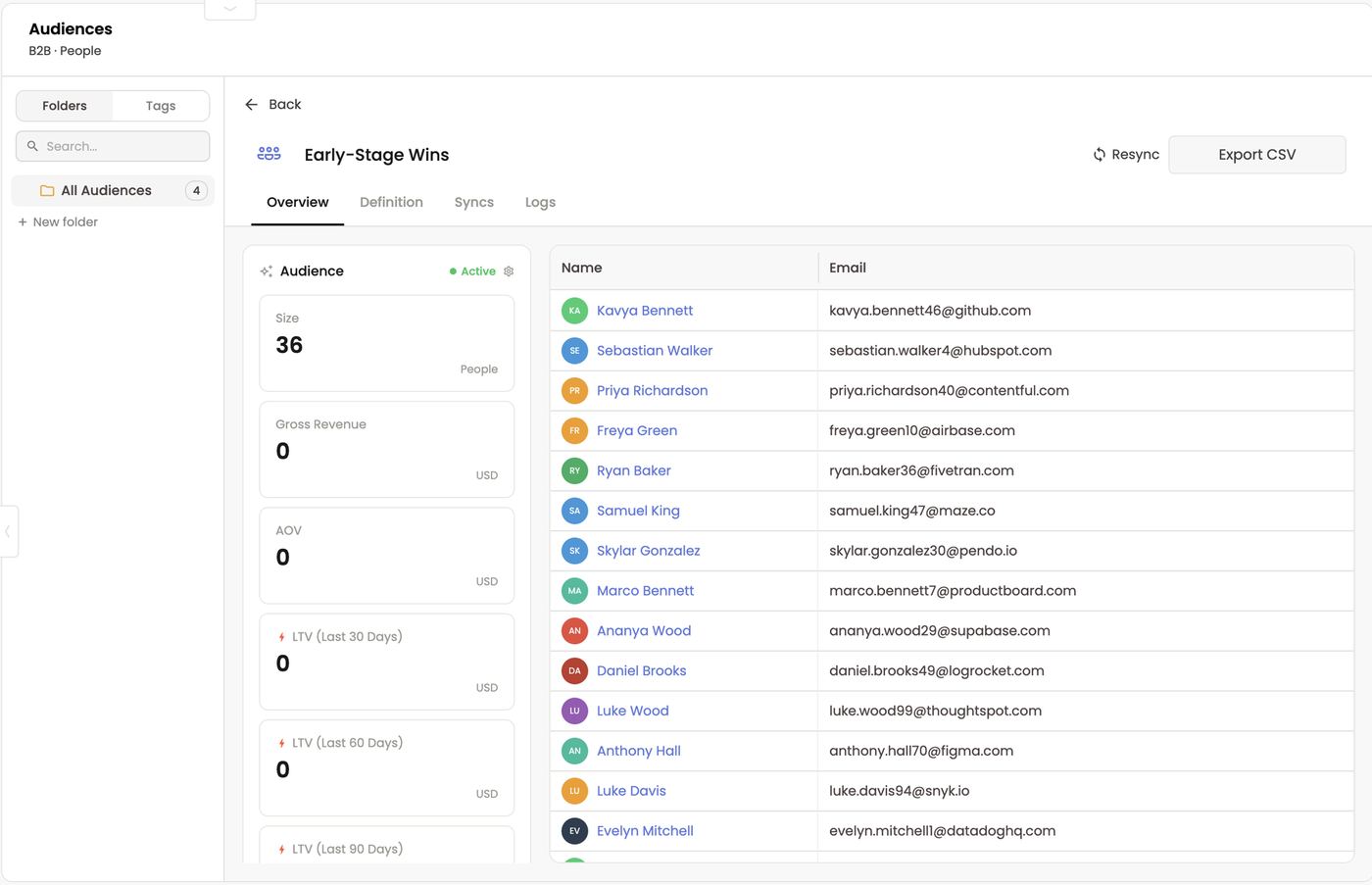
FAQs
Static or Realtime? Static for a fixed snapshot; Realtime for lists that should keep adding new people who match. Do I need an audience on the ad platform first? No — select an existing one or click + Create new in the Syncs tab. Why is my match rate low? The platform couldn’t match enough members. Map more fields (email, phone, name, city) and check that members have contact details. Why is a sync failing? Check Logs for the platform, then reconnect it in Data → Connectors if its login has expired (Facebook needs re-auth every 60 days). Why didn’t my export download? Exports over 1,000 rows are emailed to you when ready. Can I build an audience from a journey? Yes — select View Users on a flow step in a Flows report and add them to an audience.15. Company Profiles (B2B)
Company profiles work like people profiles, but for accounts. They’re created when you connect a CRM sync such as Salesforce or HubSpot, and they add company information (website, employees, industry, owner, billing address) plus every people profile mapped to that company. In B2B, several people at one account usually interact with your marketing before a deal closes. A company profile shows their combined journey and each person’s individual journey, alongside the account’s pipeline and revenue.The Companies list
- Saved views as tabs — e.g. All Companies (132), Employees More Than 500 (95), Open Amount More Than 500k value (83). Save view adds your own.
- Columns: Company Name and domain, Source (e.g. Salesforce icon), Account Engagement score (Cold / Warm / Hot / 🔥 Very Hot), Amount, Amount Open, Amount Won and more.
- Search, Filters and column settings.
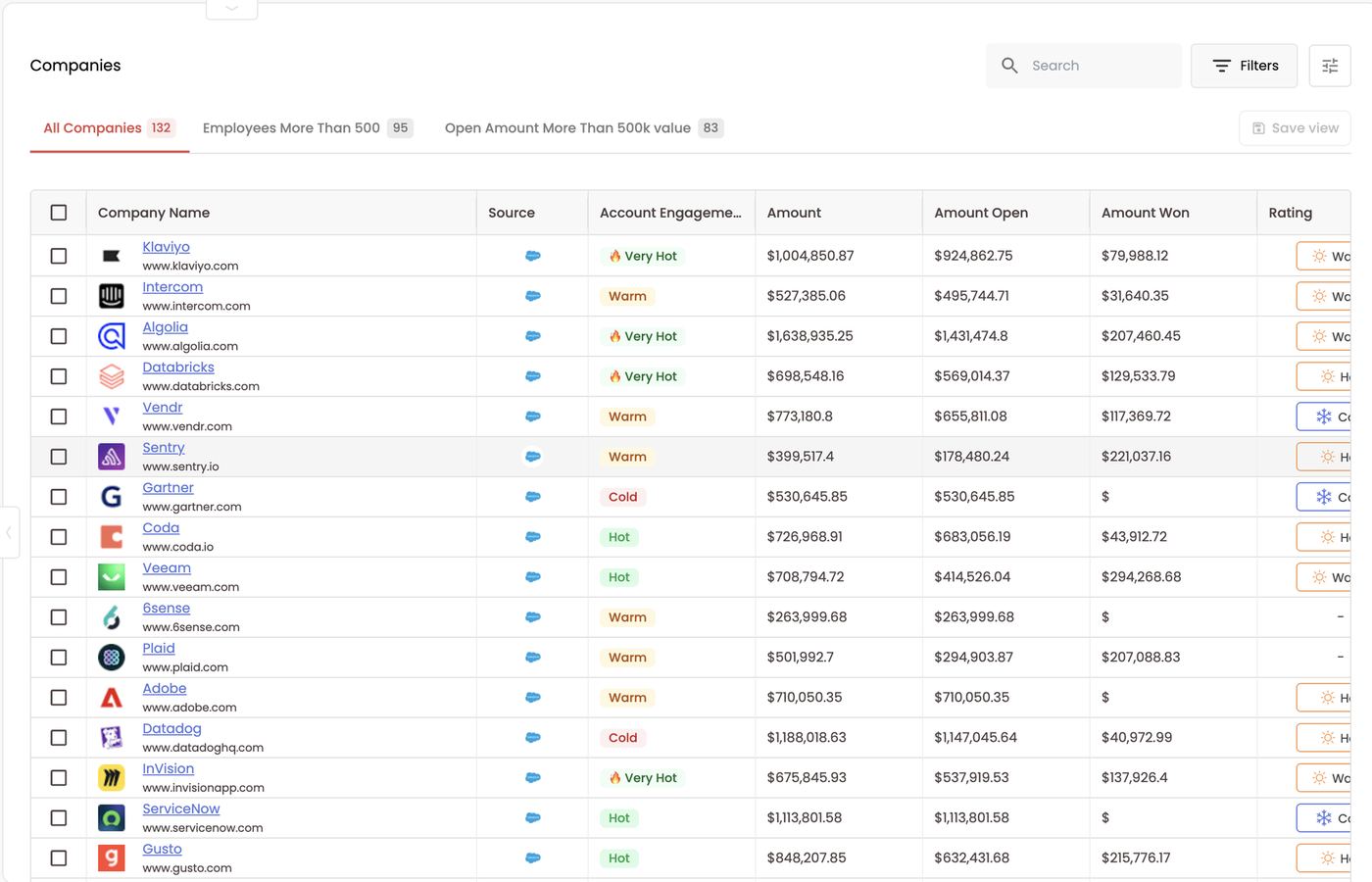
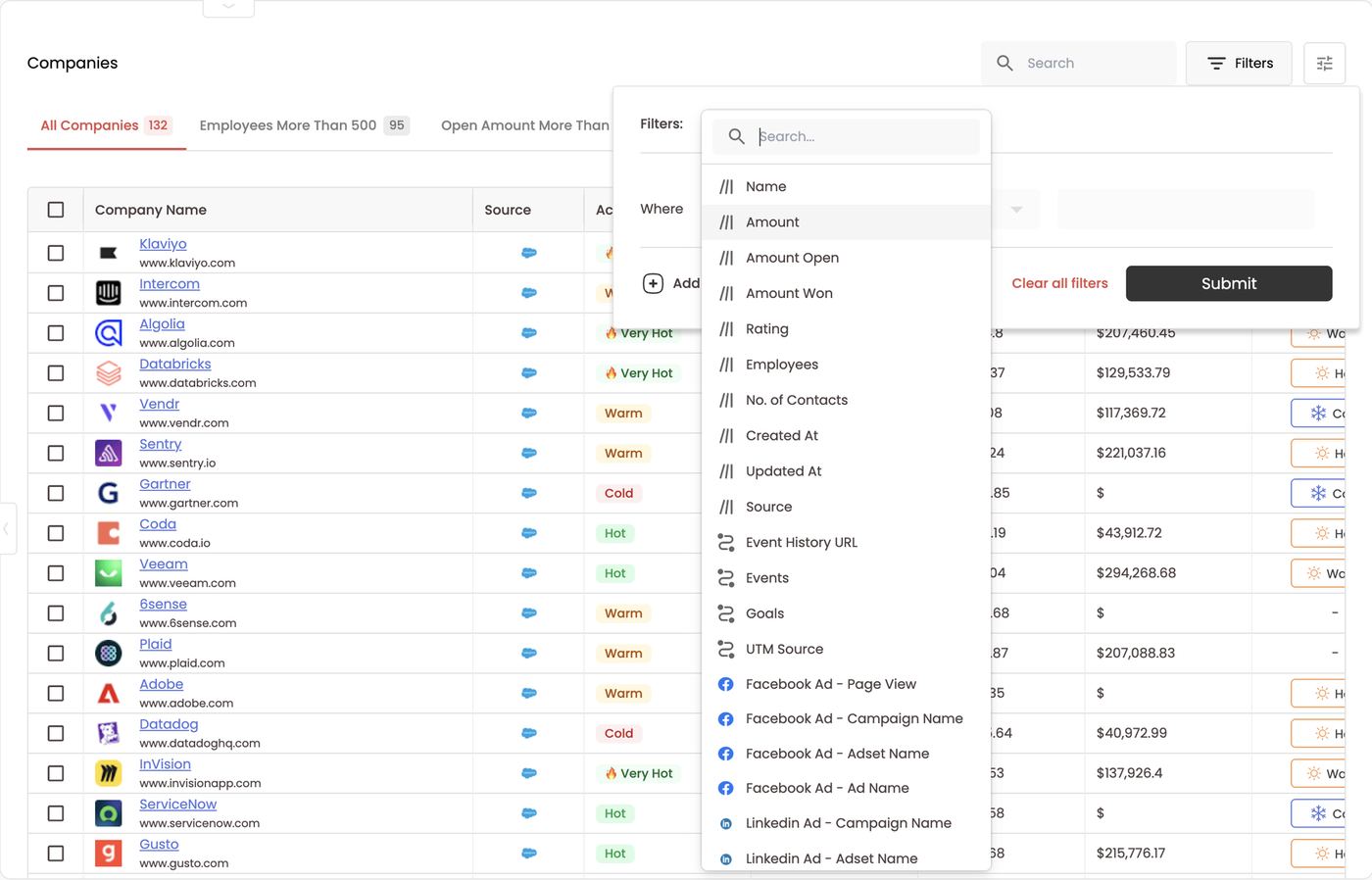
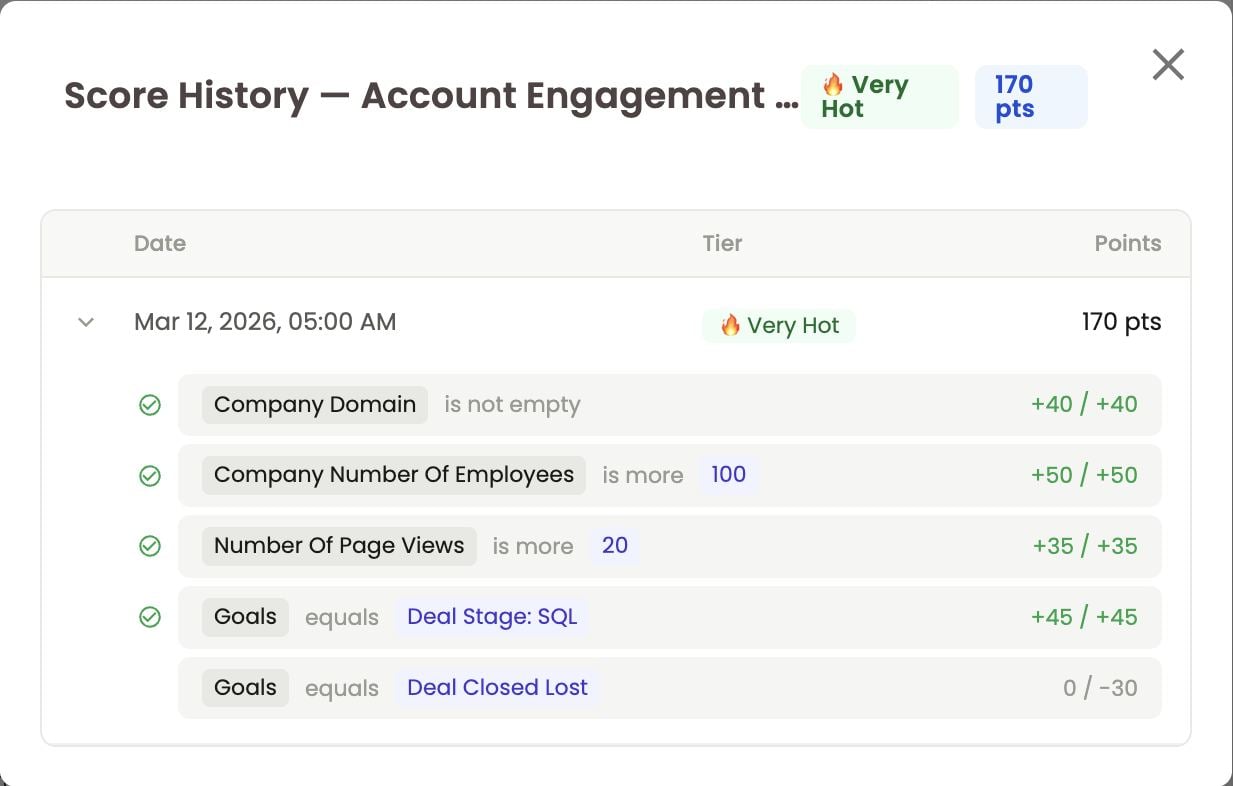
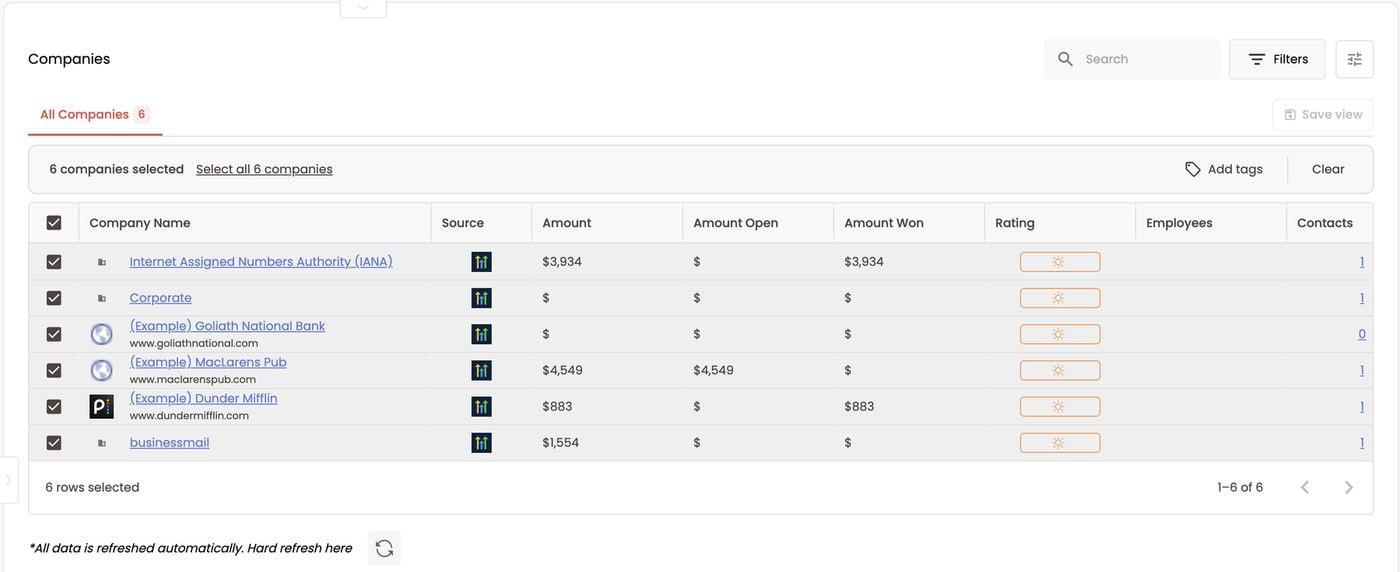
A company profile
- Left: logo, domain, last activity / last modified / date added, then a searchable property list — CRM Rating, Website, Employees, Industry, Company Type, Billing Address, Owner, Created Date.
- Overview: Closed Won, Closed Lost, Amount Open, Contacts and Total Deals — click Contacts or Deals to open the lists.
- Activity: one timeline for every person at the company, with a Touchpoints filter, date range, Group By (e.g. Month) and an expand icon for a full-screen view (see below).
- Refresh and View in CRM at the top right.
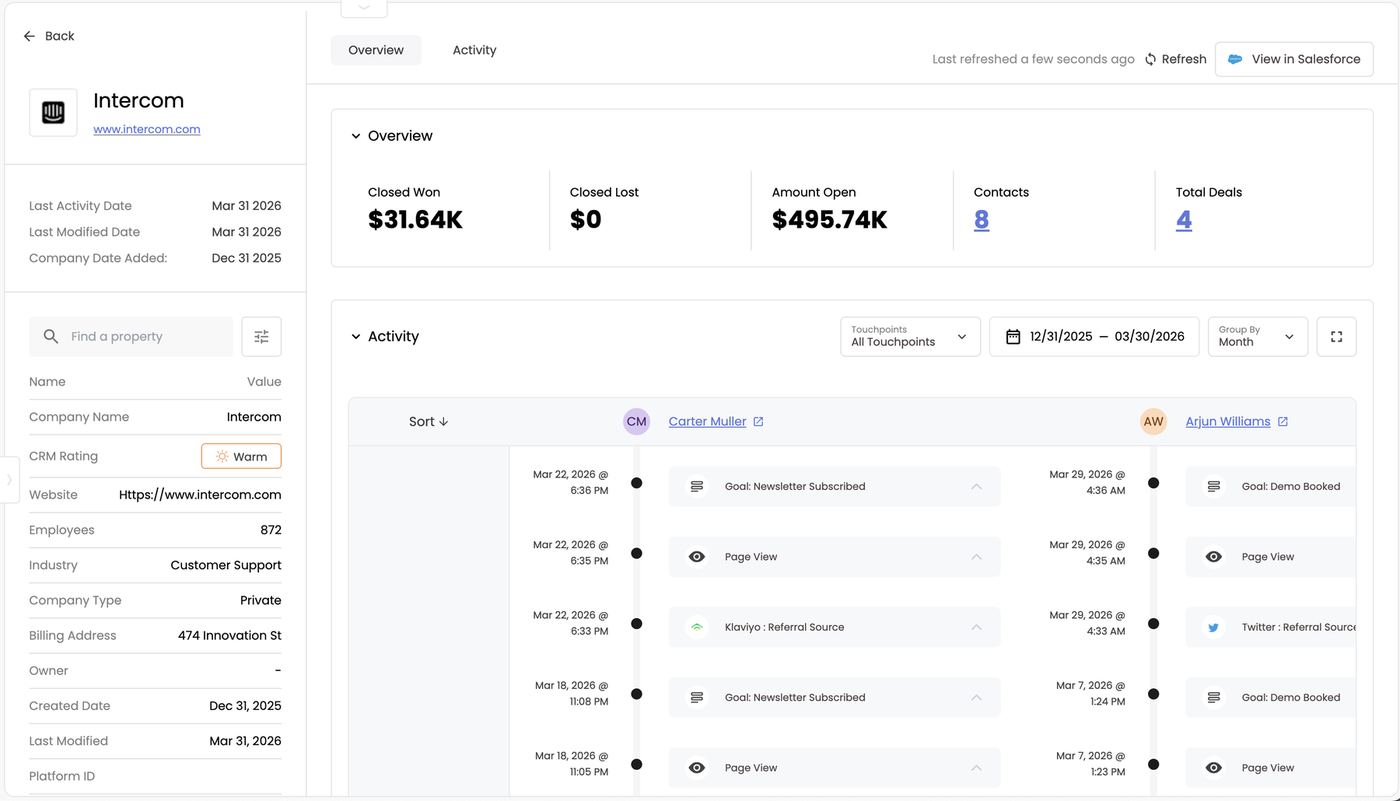
See everyone at the account: expanded activity
Click the expand icon on the Activity panel to open it full screen. You’ll see every person at the company who has interacted with your website or marketing, each with their own journey, side by side.- Filter by activity (Touchpoints) to show only the touches that matter, e.g. ad clicks, demo bookings and CRM stages, without every page view.
- Group By changes how touches are grouped by date (e.g. day, week or month).
- Date range narrows the window, e.g. the last 90 days before a deal opened.
- Click a person’s name to open their people profile.
Looked at one person at a time, each channel only gets partial credit. At the account level, Facebook, Google and TikTok together built awareness across the buying committee before the deal. This is the view to use when you’re deciding whether a channel is really helping you win accounts.

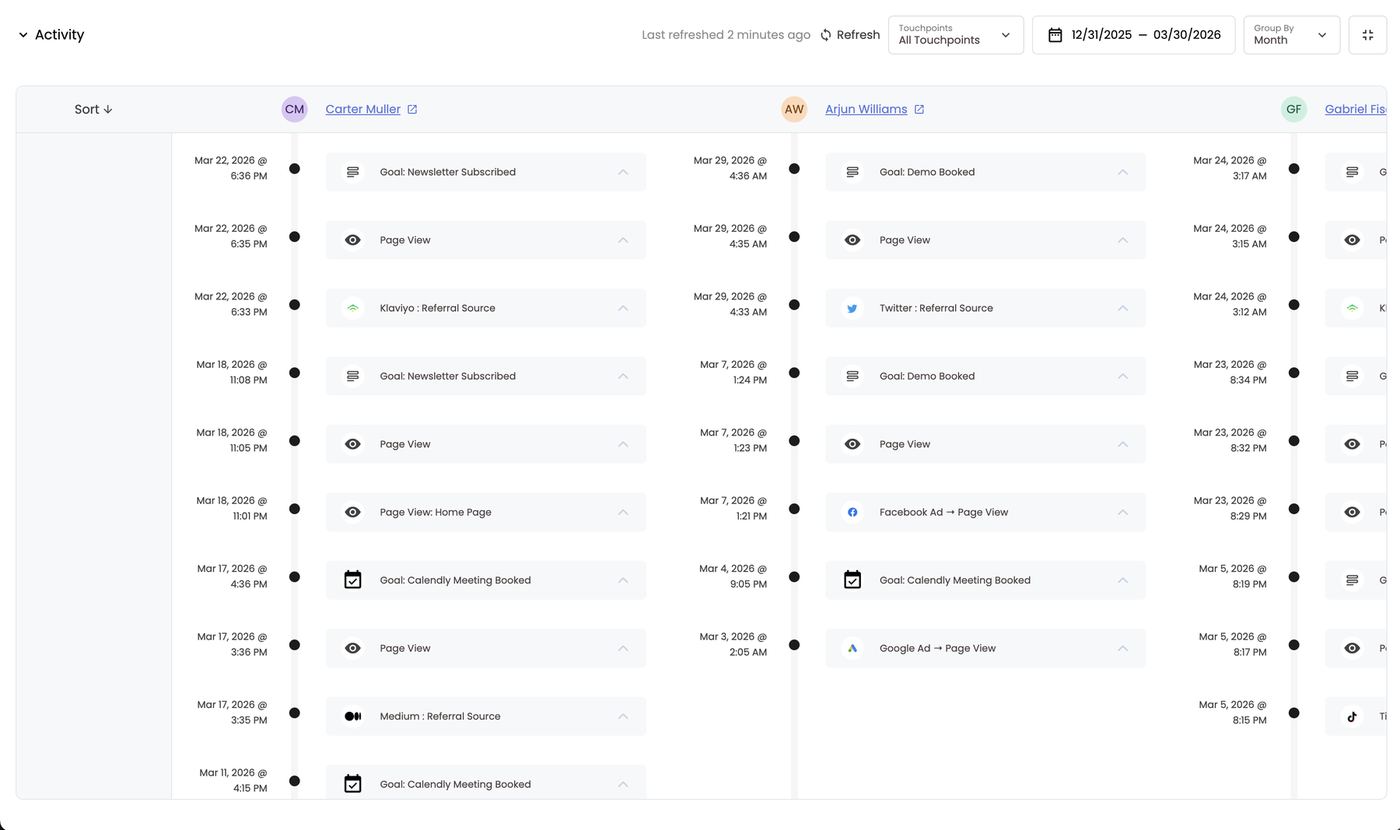
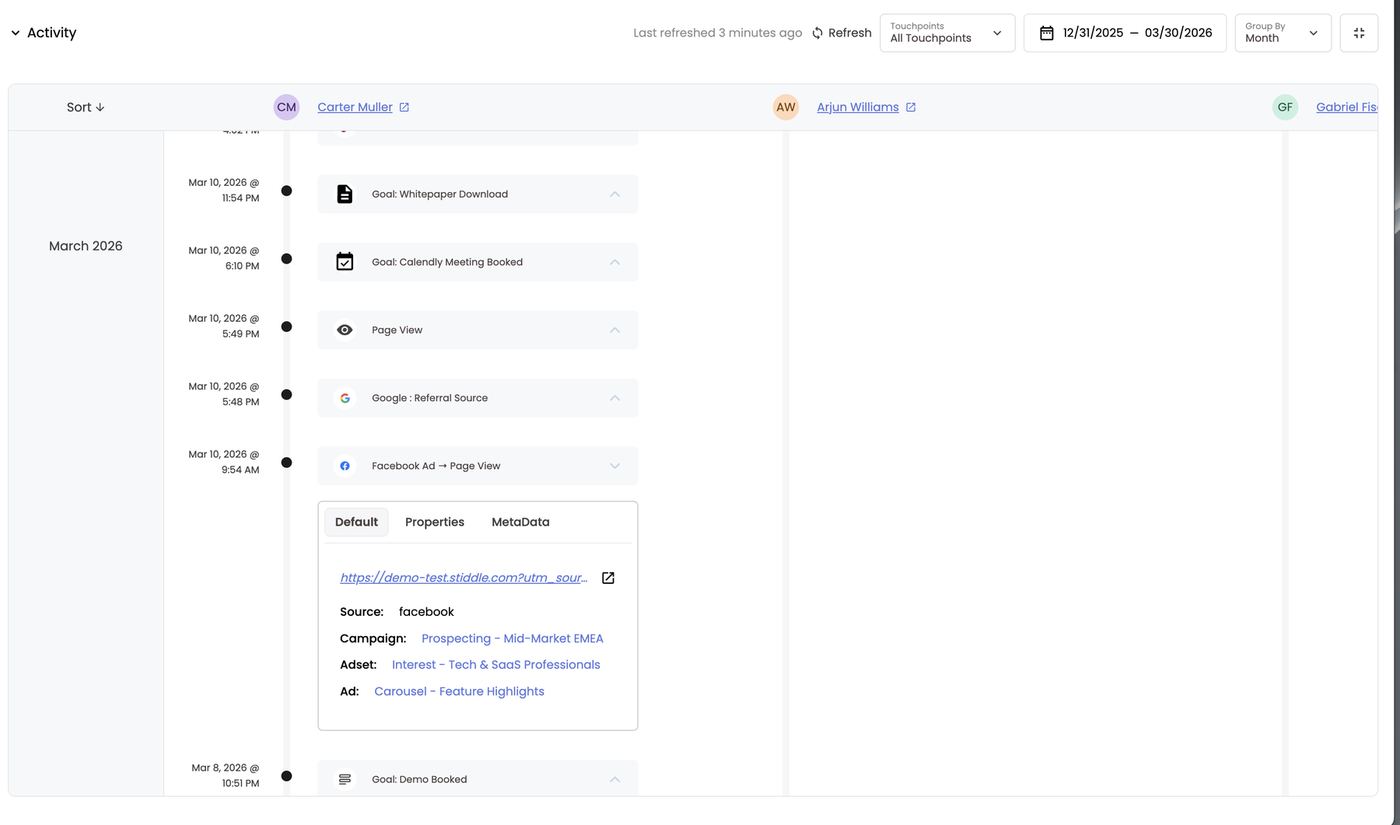
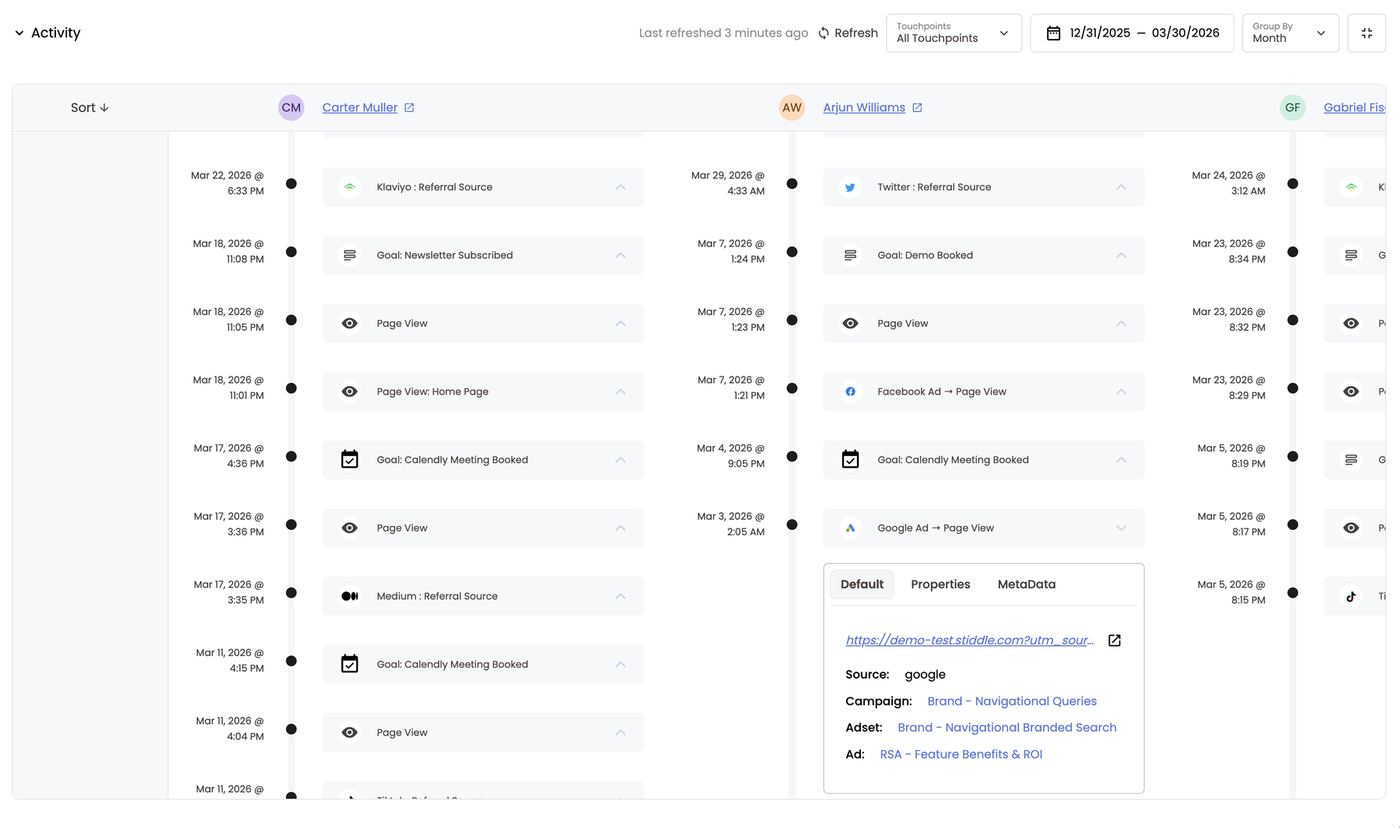
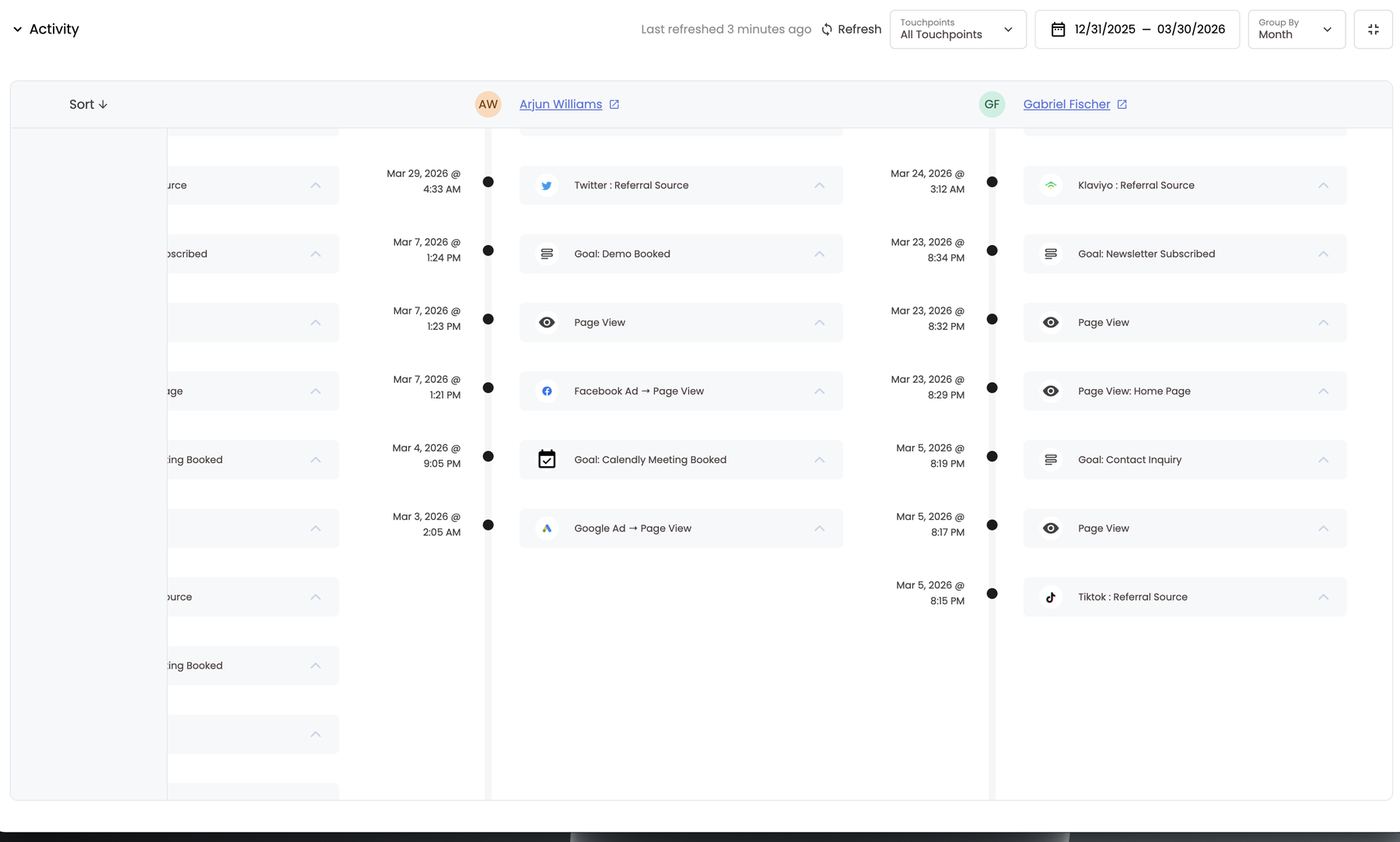
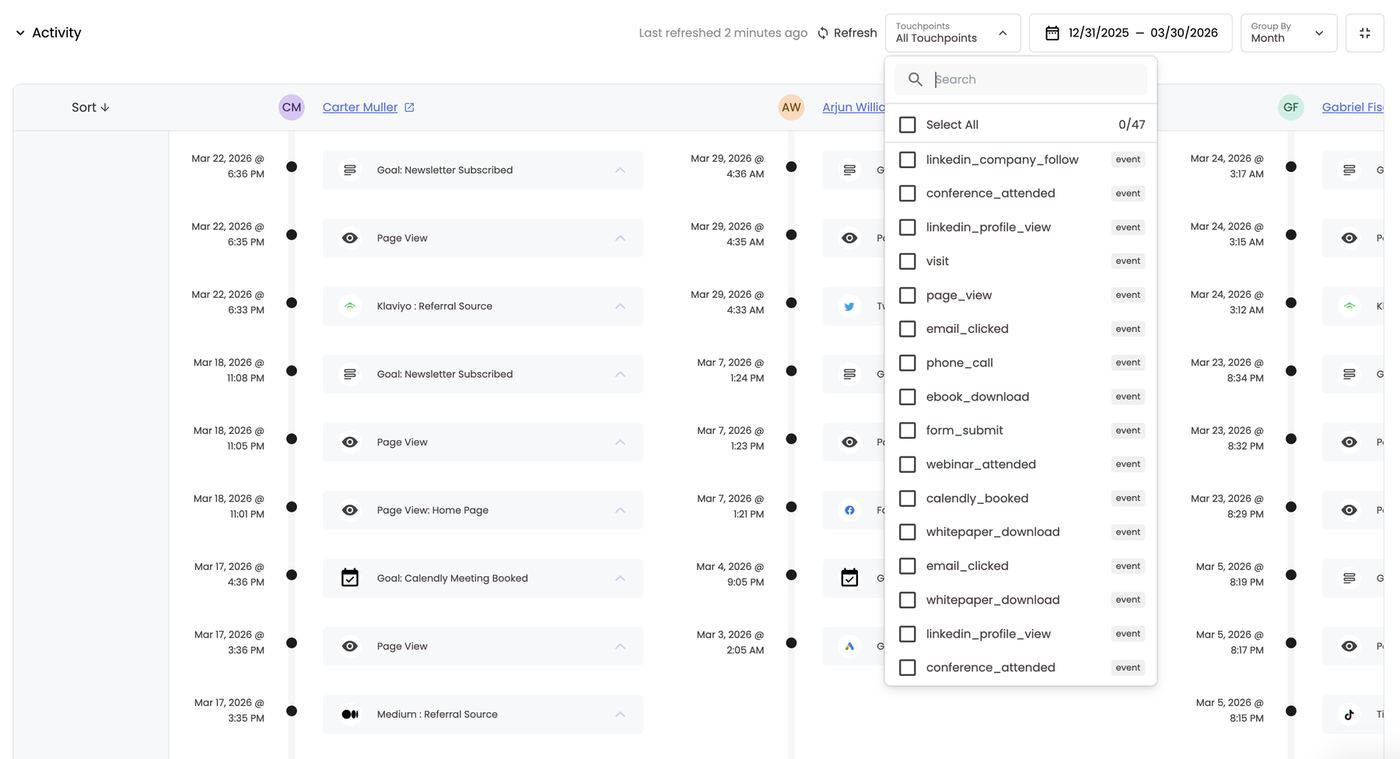
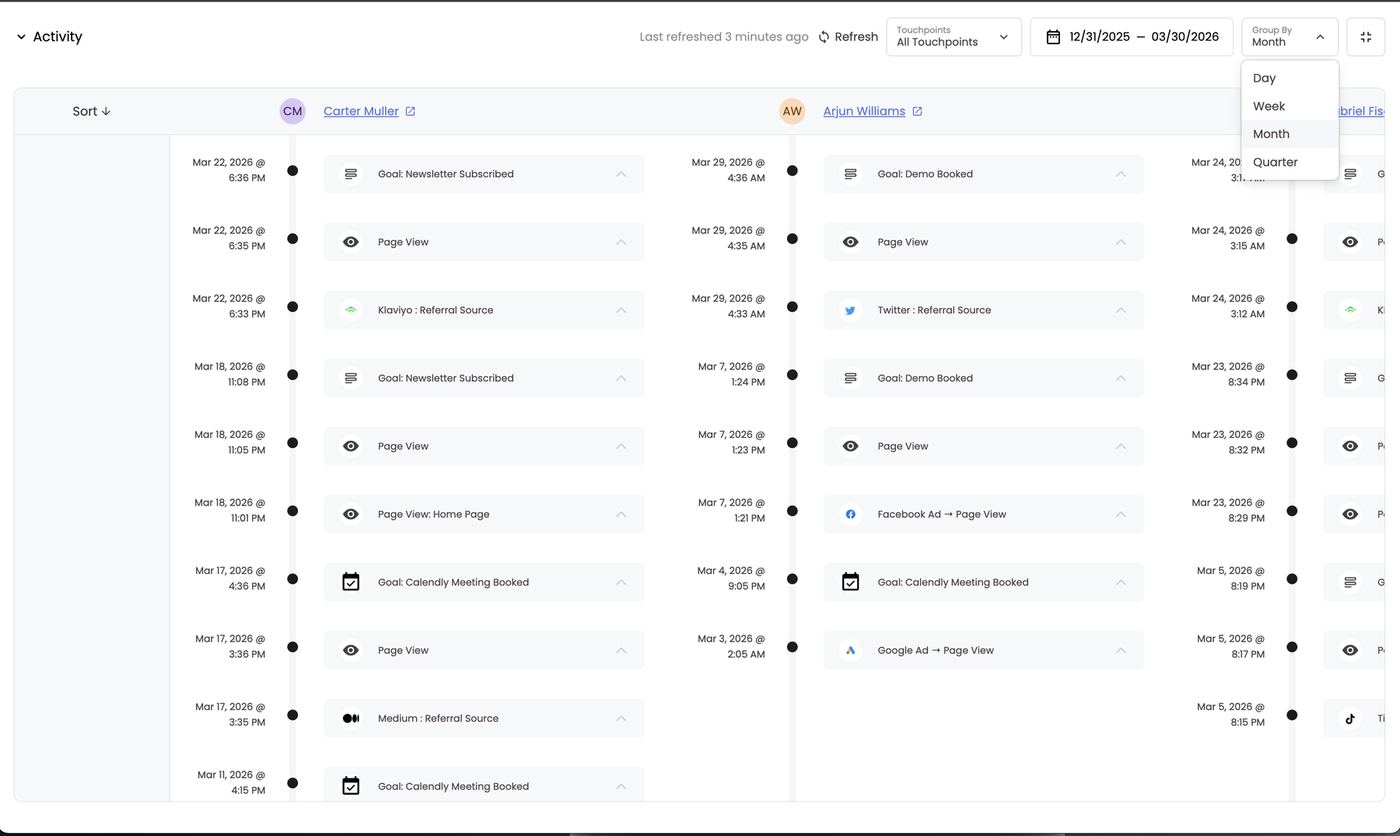
FAQs
How are people matched to a company? Through CRM associations and email domains. Can one company have several deals? Yes. They’re all listed on the company and roll up into its totals. Can B2C workspaces hide this? Yes — untick Companies in Configure Navigation. Where do companies come from? Your CRM sync (Salesforce, HubSpot). Webhooks can also create or update companies using Create or update company (section 5). How do I see only the touches that matter? Expand the Activity panel and filter by activity, e.g. ad touches and goals only. Do filters and views work the same as People Profiles? Yes. Filters, saved views, columns, export and Smart Score columns all work the same way.16. Deal Profiles (B2B & B2C)
Deals (opportunities) are pulled from your CRM, such as Salesforce or HubSpot. Each one shows its pipeline stage, value, owner and company, the people on it, and the full attribution journey behind it. In B2B, deals are where revenue is tracked, so this is where you see how marketing touchpoints create pipeline and help close it. The table options work the same as Companies and People Profiles: filters (green dot when one is on), saved views, tags, column settings and the checkbox selector.The Deals page
Pipeline graphic. The orange bars across the top show each stage’s deal count and total value, e.g. Deal Stage: MQL 92 ($21.9M), SQL 86 ($24.0M), Meeting 39, Proposal Stage 19, Deal Created 47, Deal Won 155 ($17.2M), Deal Closed Lost 228. Click a stage to filter the table to those deals.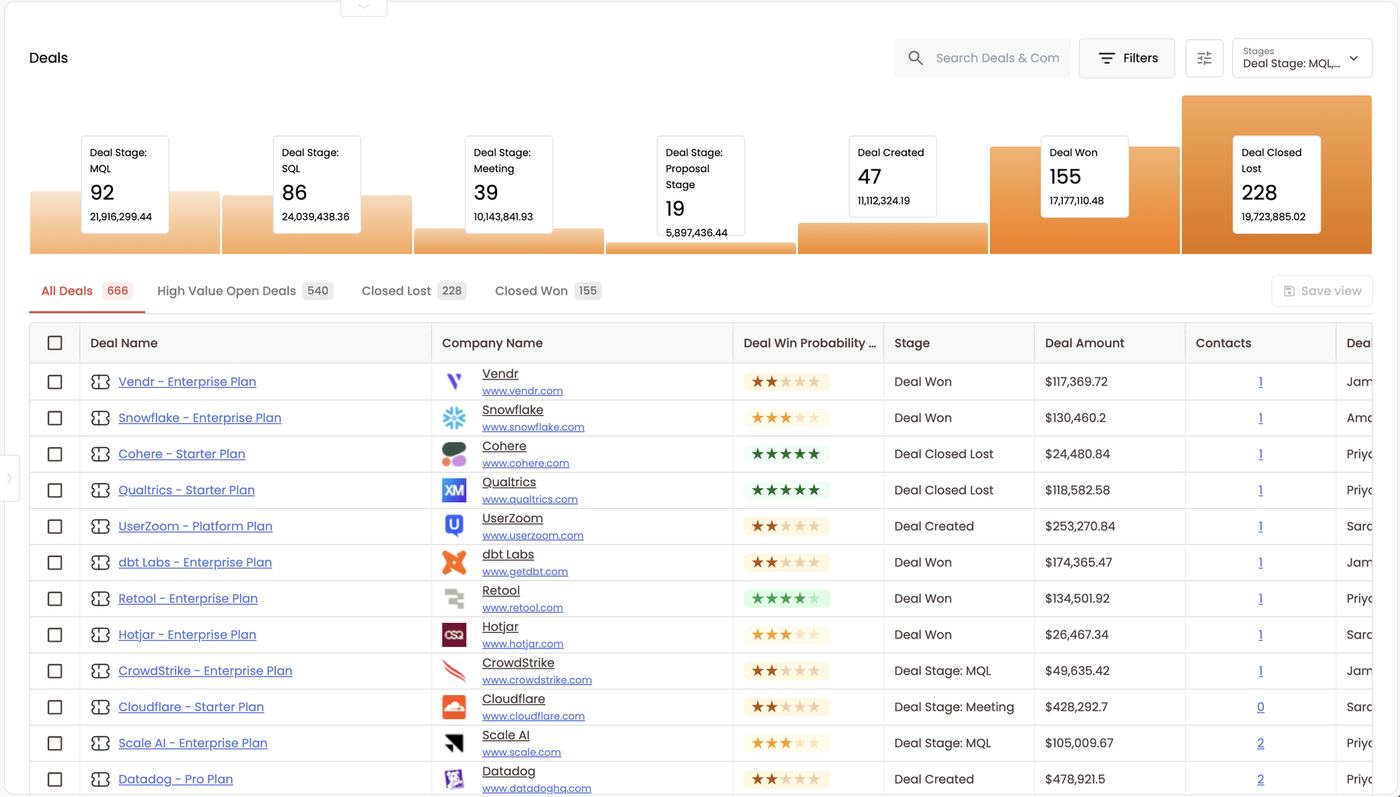
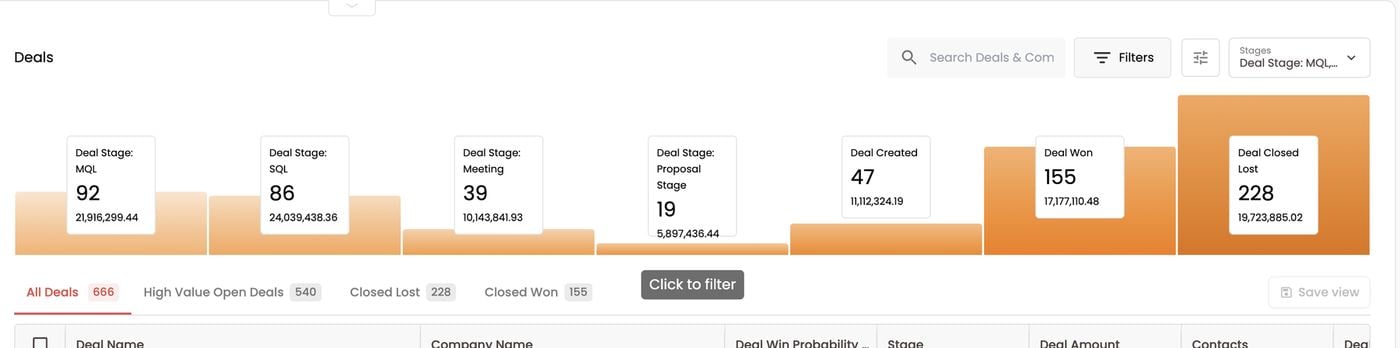
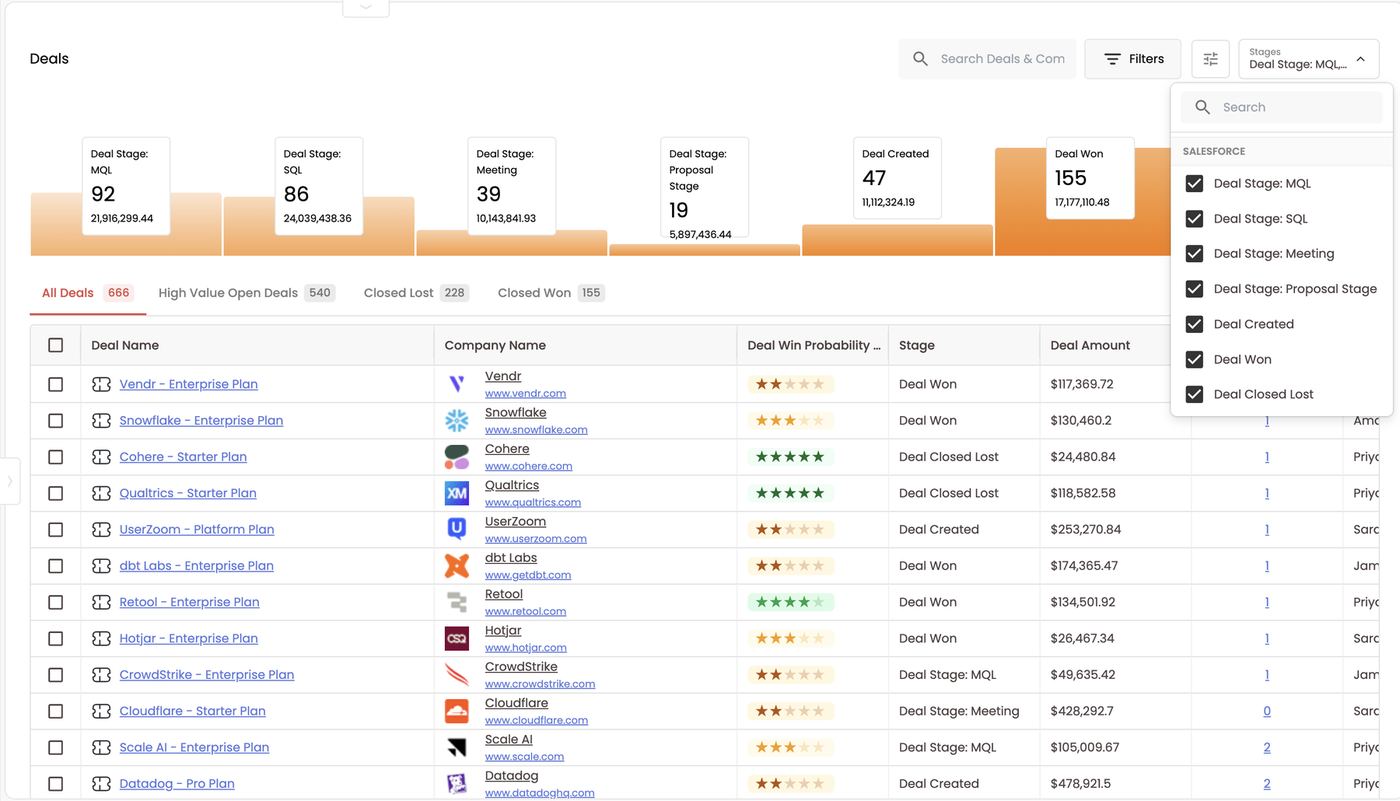
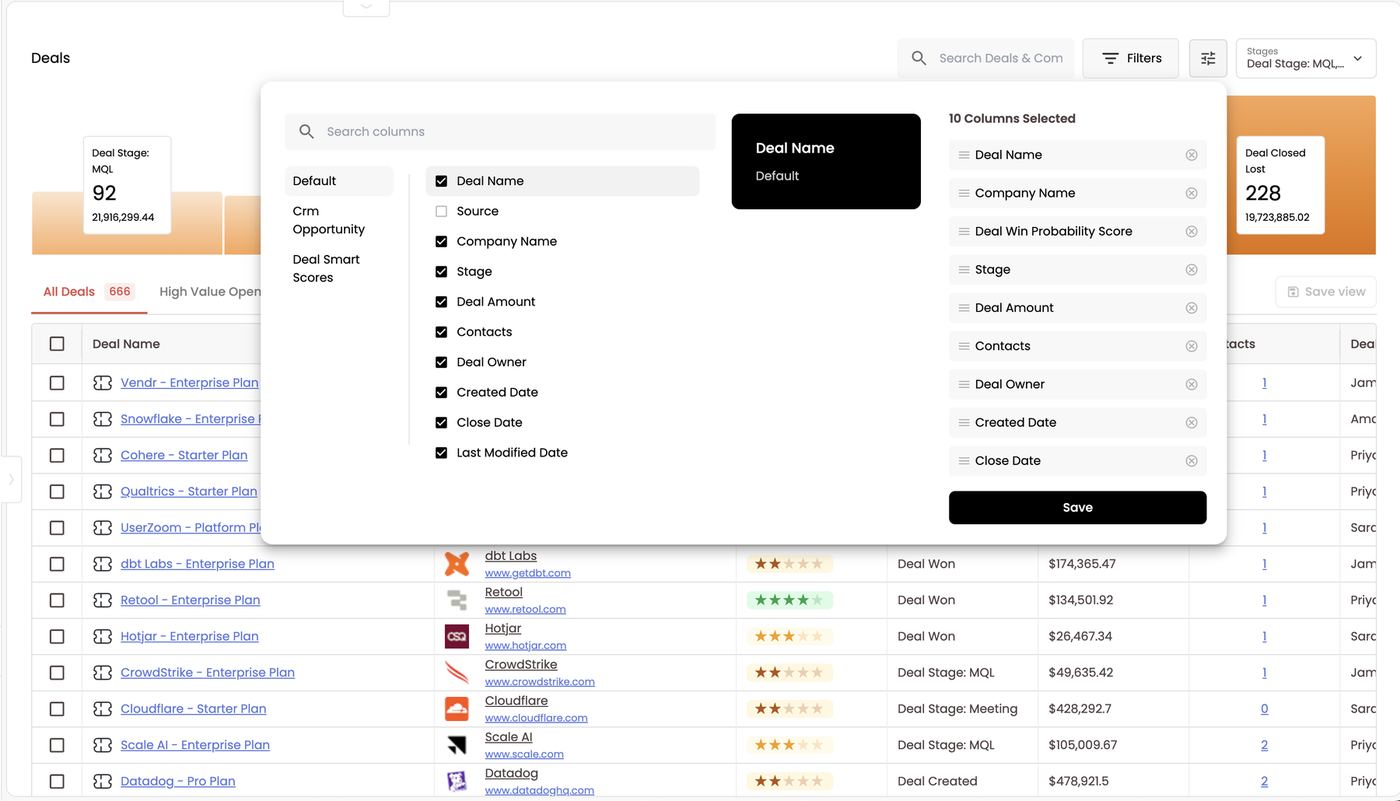
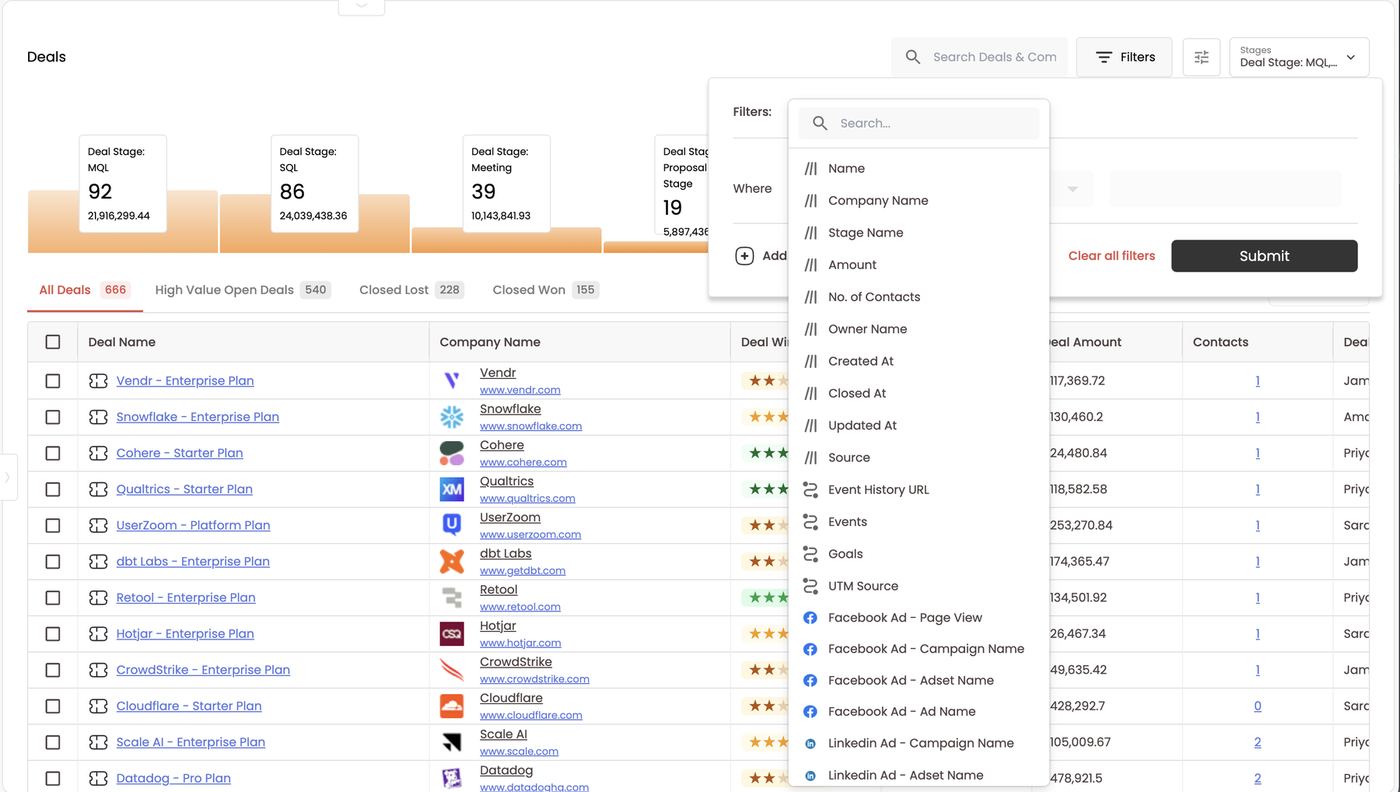
A deal profile
Click a deal name to open it.- Top: the deal name with the company underneath. Click the company name to open its company profile in a new tab. View in Salesforce (or your connected CRM) opens the opportunity in the CRM in a new tab, and Refresh pulls the latest.
- Overview: Current Stage, Deal Value, Close Date and Contacts. Click the contacts count to see the people on the deal and open any of their people profiles.
- Left panel: status, stage, last activity, created and close dates and Deal Owner, then the deal’s CRM properties. Click the settings icon to choose which properties show (e.g. 12/71 selected), then Save.
- Tabs: Overview, Touchpoints and People Profiles.
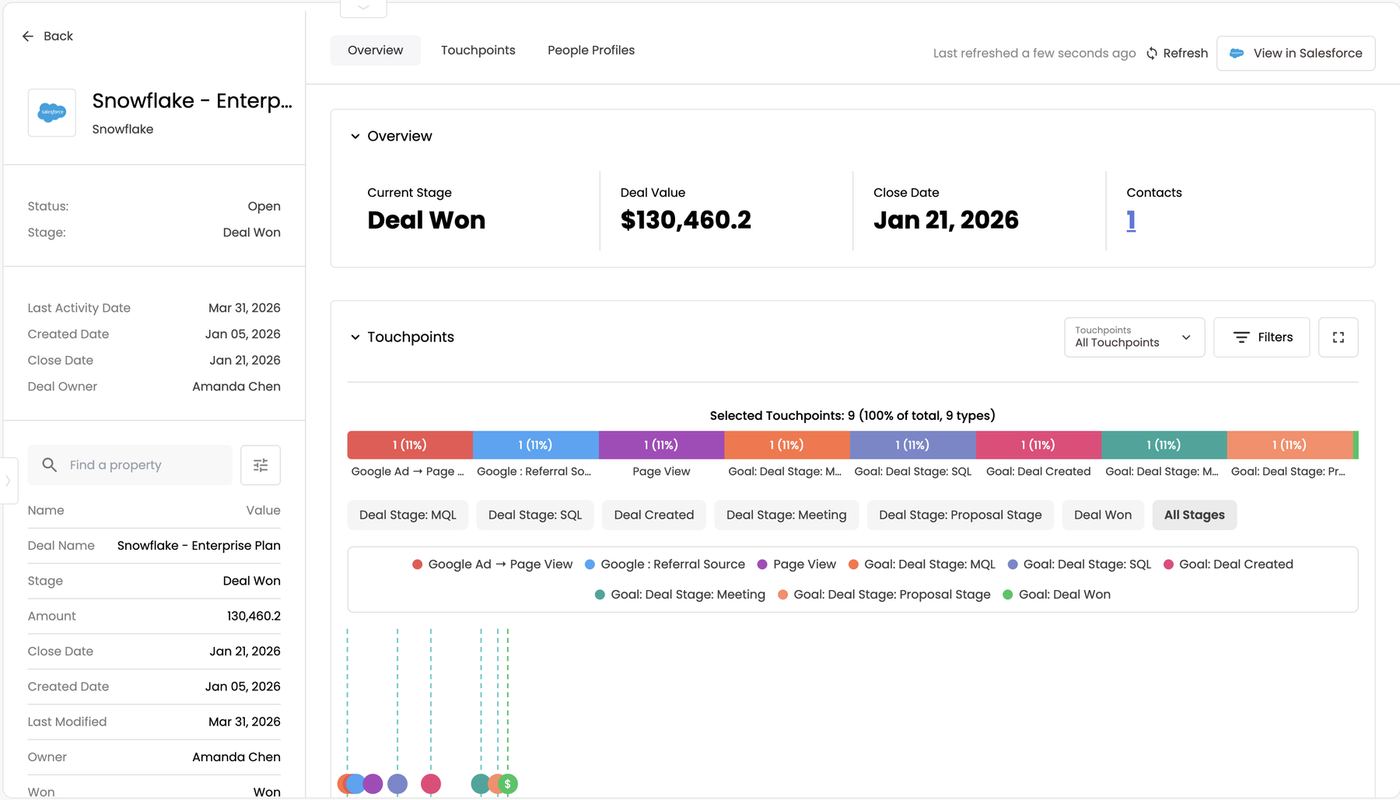
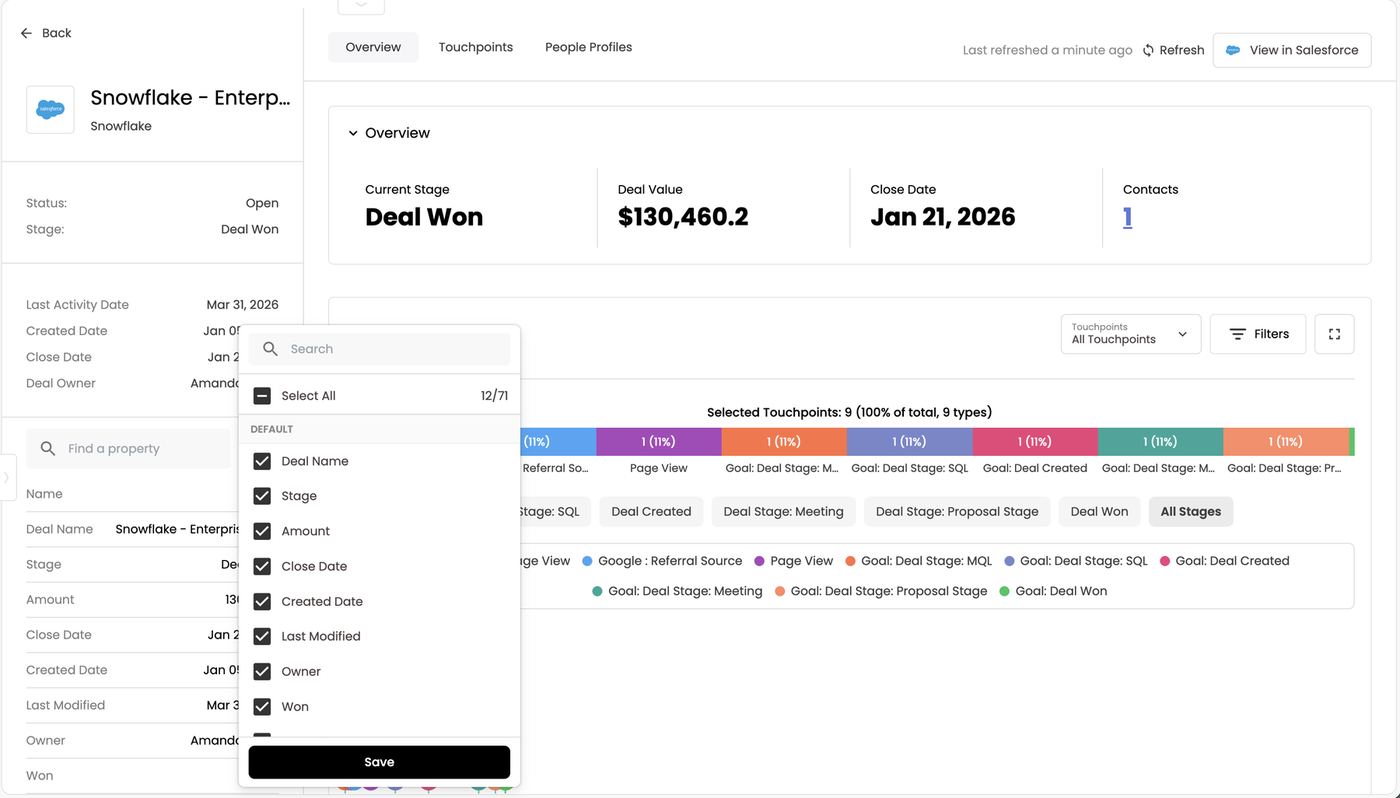
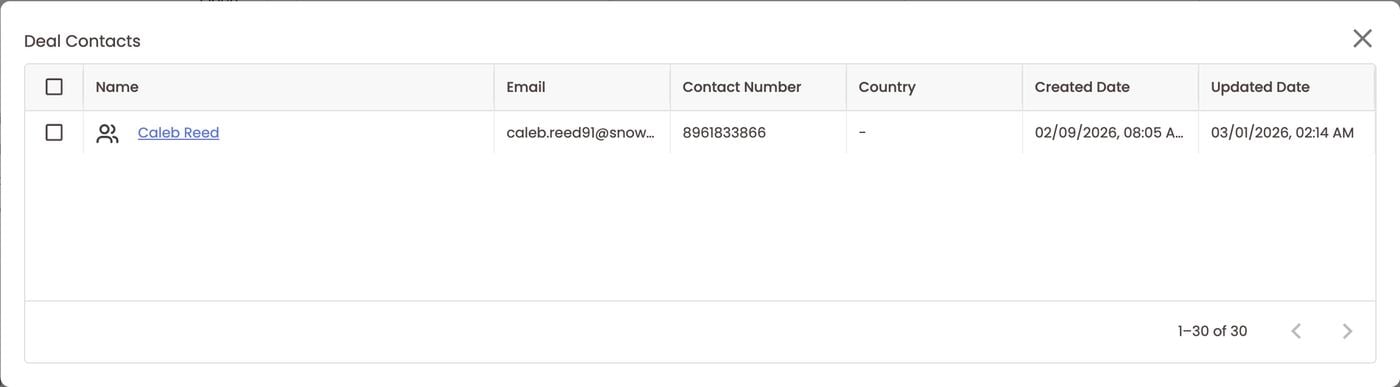
The deal journey (Touchpoints)
Expand the Touchpoints panel (expand icon) to see the deal’s whole journey as a timeline.- Selected Touchpoints, e.g. 9 (100% of total, 9 types): how many touchpoints are in the journey and across how many unique channels or sources. Here there are 9 touchpoints across 9 different types.
- The coloured bar breaks the touchpoints down by channel or source and shows each one’s share of the journey.
- Stage chips (Deal Stage: MQL, SQL, Deal Created, Meeting, Proposal Stage, Deal Won) are your CRM stages. Click one to focus the view on that stage; All Stages is the default.
- The timeline:
- Each dot is a touchpoint, coloured to match the legend. Hover a dot for details: the landing URL, source, campaign, ad set and ad for an ad touch, or the deal stage, conversion value and deal name for a CRM stage, plus the person’s name, email and phone.
- Each dashed vertical line marks a CRM stage. Under it is the time between stages (e.g. 15 days).
- The green $ dot is closed-won revenue.
- Zoom with the strip under the timeline: drag its left or right handle to zoom in or out.
- Touchpoints and Filters at the top narrow which events show.
- Touchpoint Breakdown at the bottom lists each event type with its count and % of total. Untick a row to hide it.
In about seven weeks, one Google ad click became $130K of closed-won revenue. You can see exactly where the deal spent the most time (SQL → Deal Created, and Deal Created → Meeting) and which touches came before each stage.
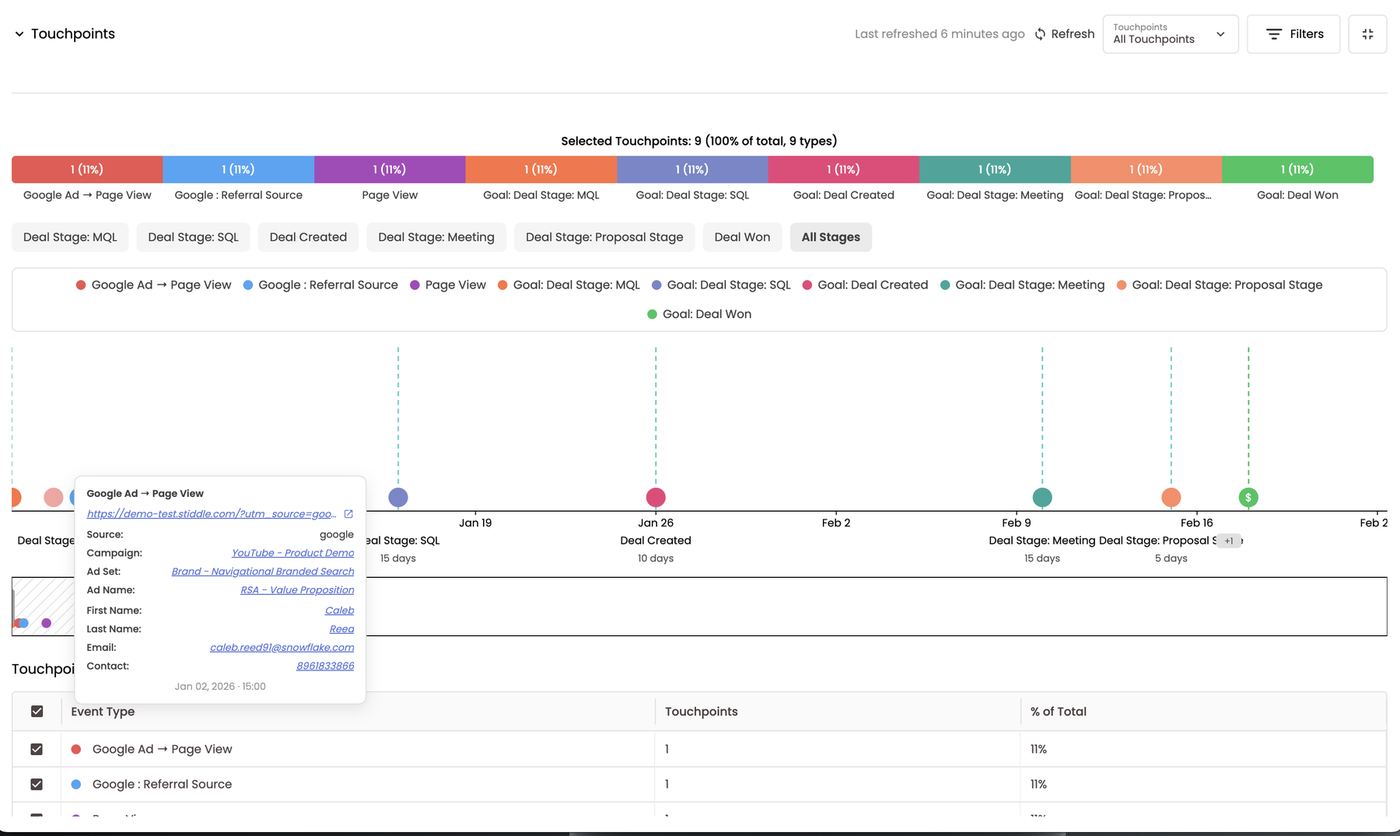
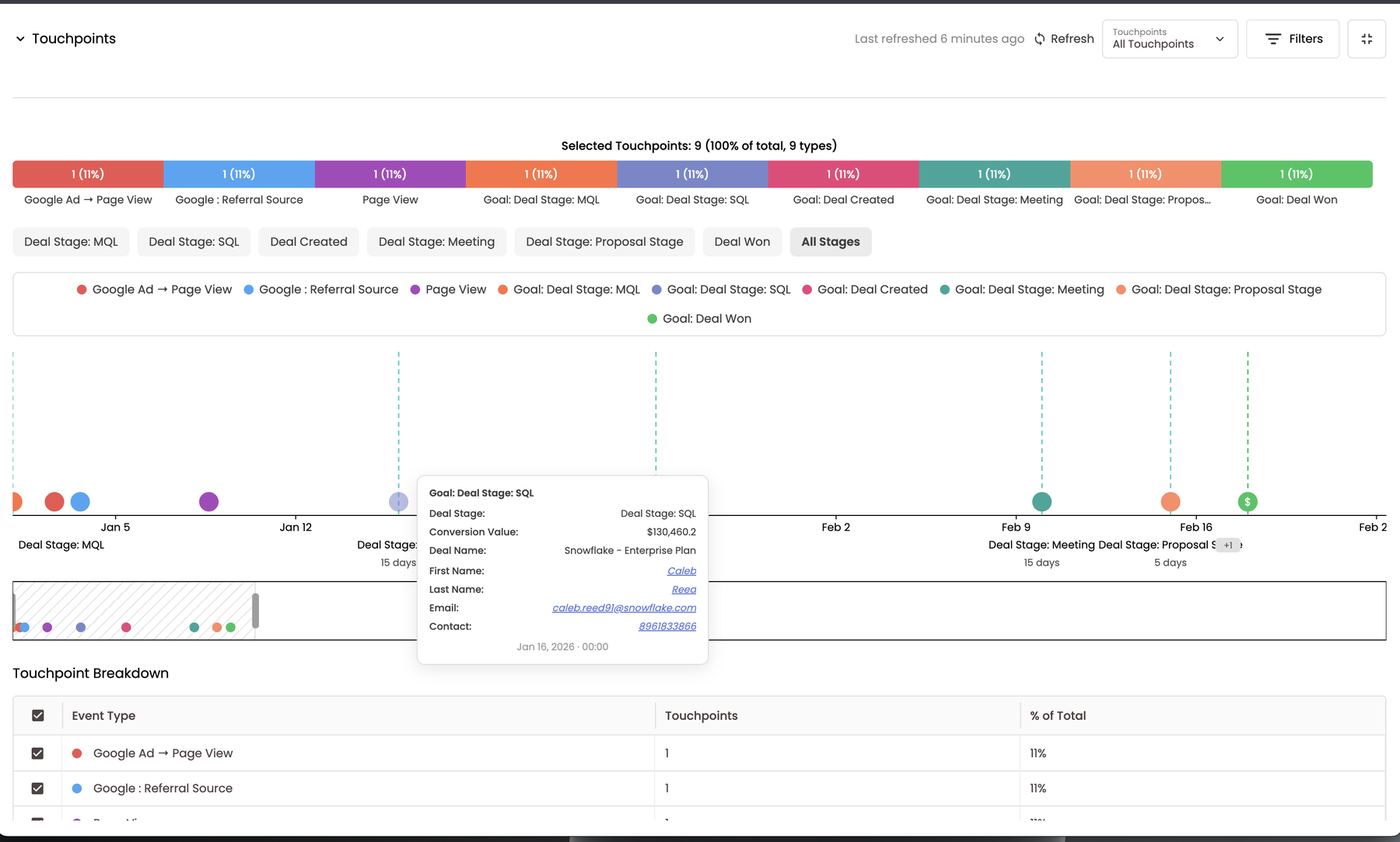
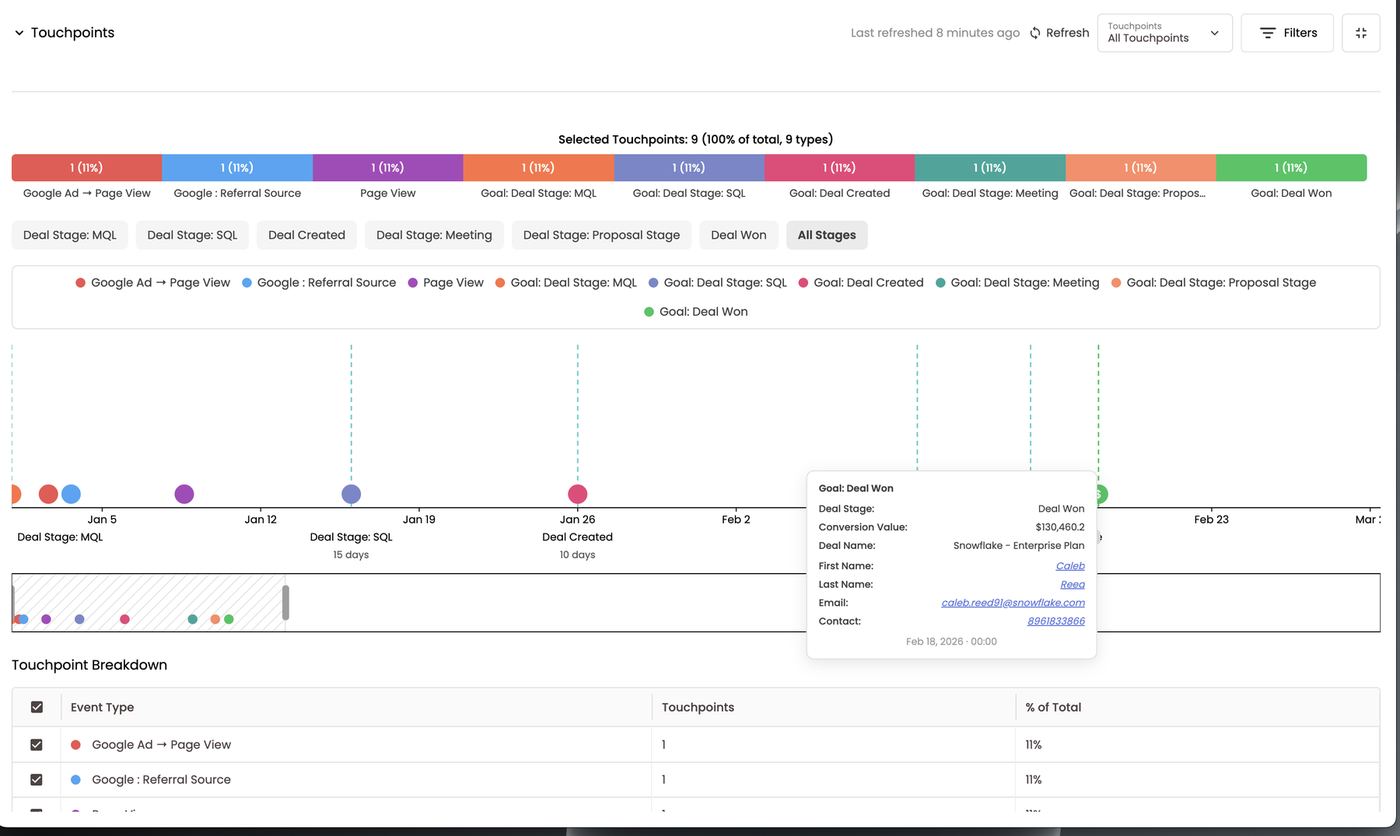
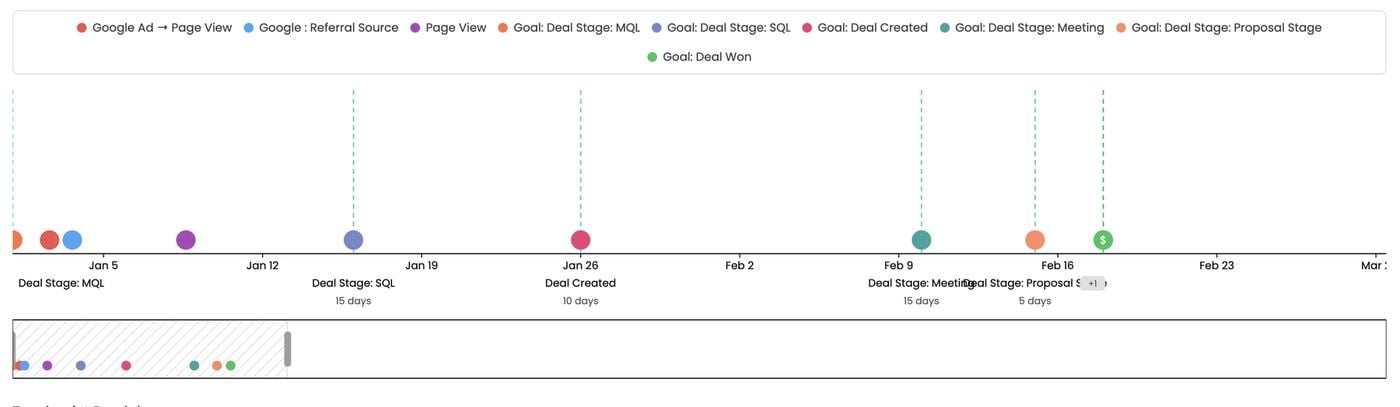
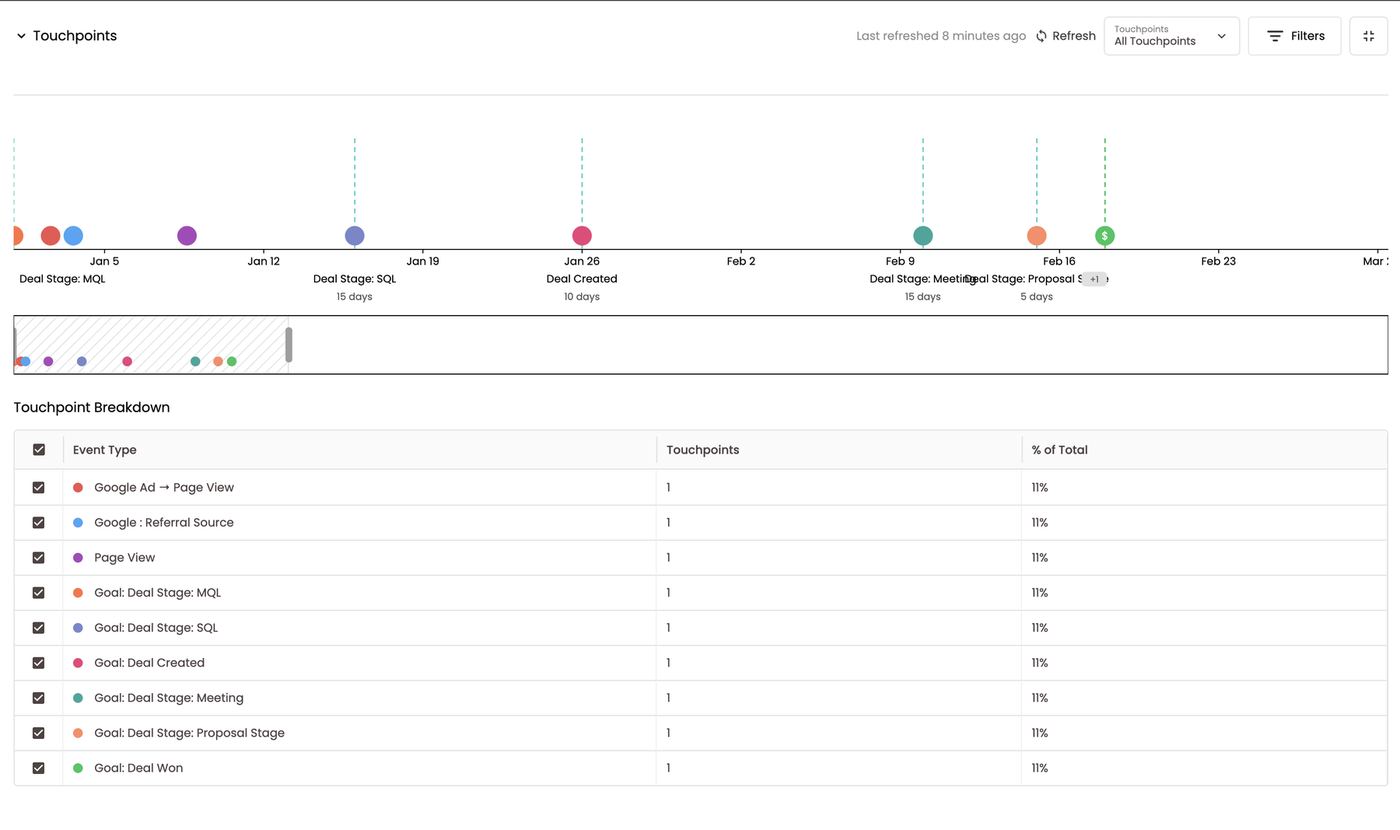
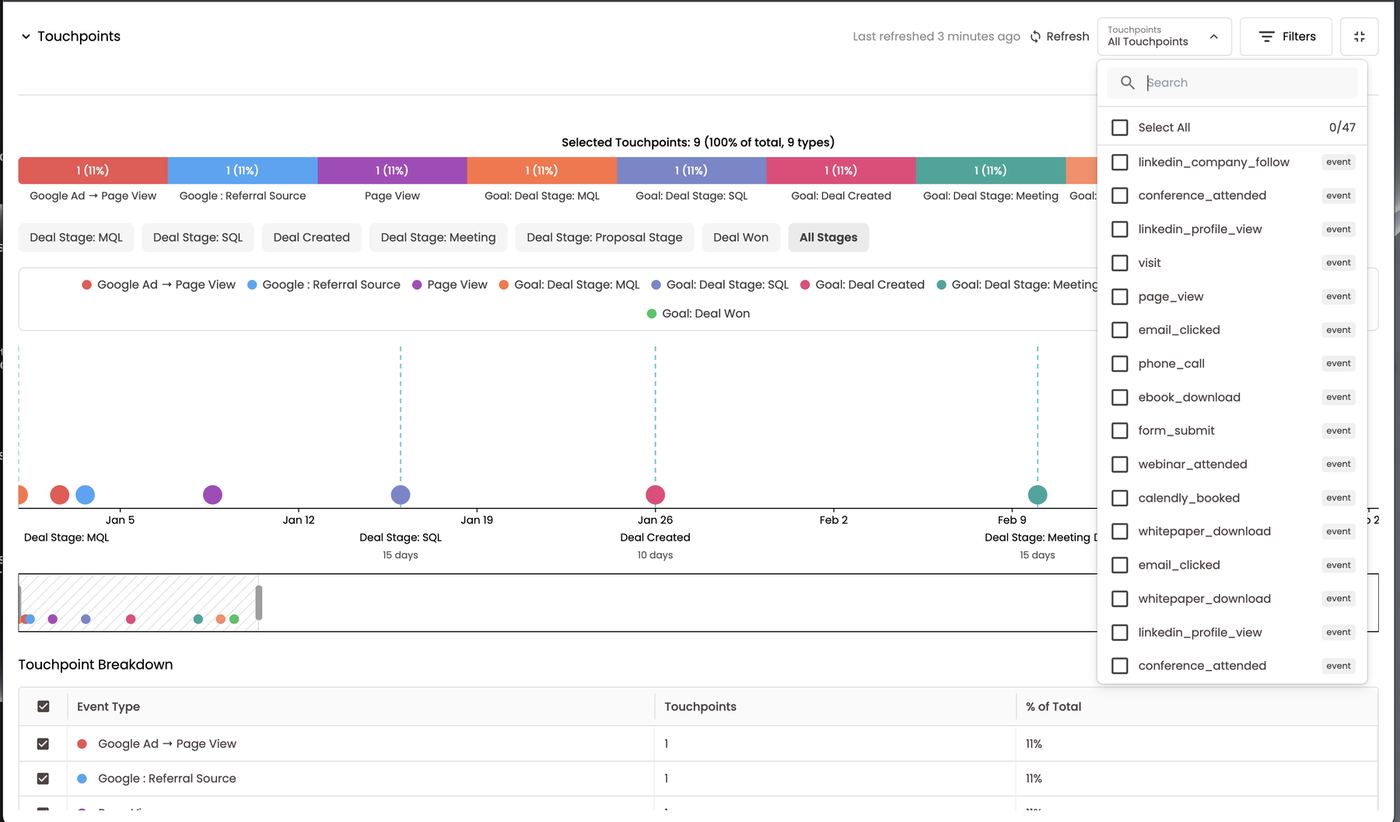
Why deals matter
- Marketing and growth teams see which touchpoints actually generate pipeline and help close deals, not just leads.
- ABM teams can measure how well account-based campaigns work and find ways to influence a journey so pipeline moves faster.
- Sales reps can see what a deal has engaged with and where it’s stalling, so they can speed up open pipeline and shorten time to Closed Won.
- Sales and marketing together can work backwards from high-ACV closed-won deals to see the touches and timing that produced them, and replicate that pattern on new target accounts.
Deals in attribution
In attribution tables, deal goals show which channels created and closed revenue: Open Opportunities (pipeline still open), Deal Won and Deal Won CV (closed revenue), Deal Closed Lost. Click any count to see the deals, their companies, the people on them and the rep who closed them.FAQs
Are deals and opportunities the same? Yes. Stiddle uses “Deals” for both HubSpot deals and Salesforce opportunities. What happens when a stage or amount changes in the CRM? It syncs to Stiddle and updates the goals and attributed revenue. Why does a deal’s attribution differ from one contact’s? The deal combines touchpoints from every contact on it. How do I see only deals in one stage? Click that stage’s bar in the pipeline graphic, or filter by stage name. How do I change which stages appear? Use the Stages selector at the top right of the Deals page. What do the dashed lines and day counts mean? Each dashed line is a CRM stage, and the day count underneath is how long the deal took to get there from the previous stage. What is the green $ dot? Closed-won revenue, i.e. the Deal Won stage with its value. How do I see the people on a deal? Click the Contacts count in the table or Overview, or open the People Profiles tab.17. Smart Scores
Smart Scores are AI-powered predictive scores that rank people, companies or deals by how likely they are to take a specific action — book a demo, become a customer, reach an opportunity stage. Scores appear as columns on profile lists and as conditions in audiences, so sales and marketing can act on the hottest records first.The Smart Scores page
Open Settings → Other → Smart Scores. Four tiles sit at the top:
All Scores lists each score with its status (Active, AI-trained), record type, goal, record count, when it last updated, model accuracy and a score distribution bar (e.g. Cold 17% · Warm 31% · Hot 32% · Very Hot 20%). Each score has a 🔥 button to see its high-intent records, Edit, and delete.
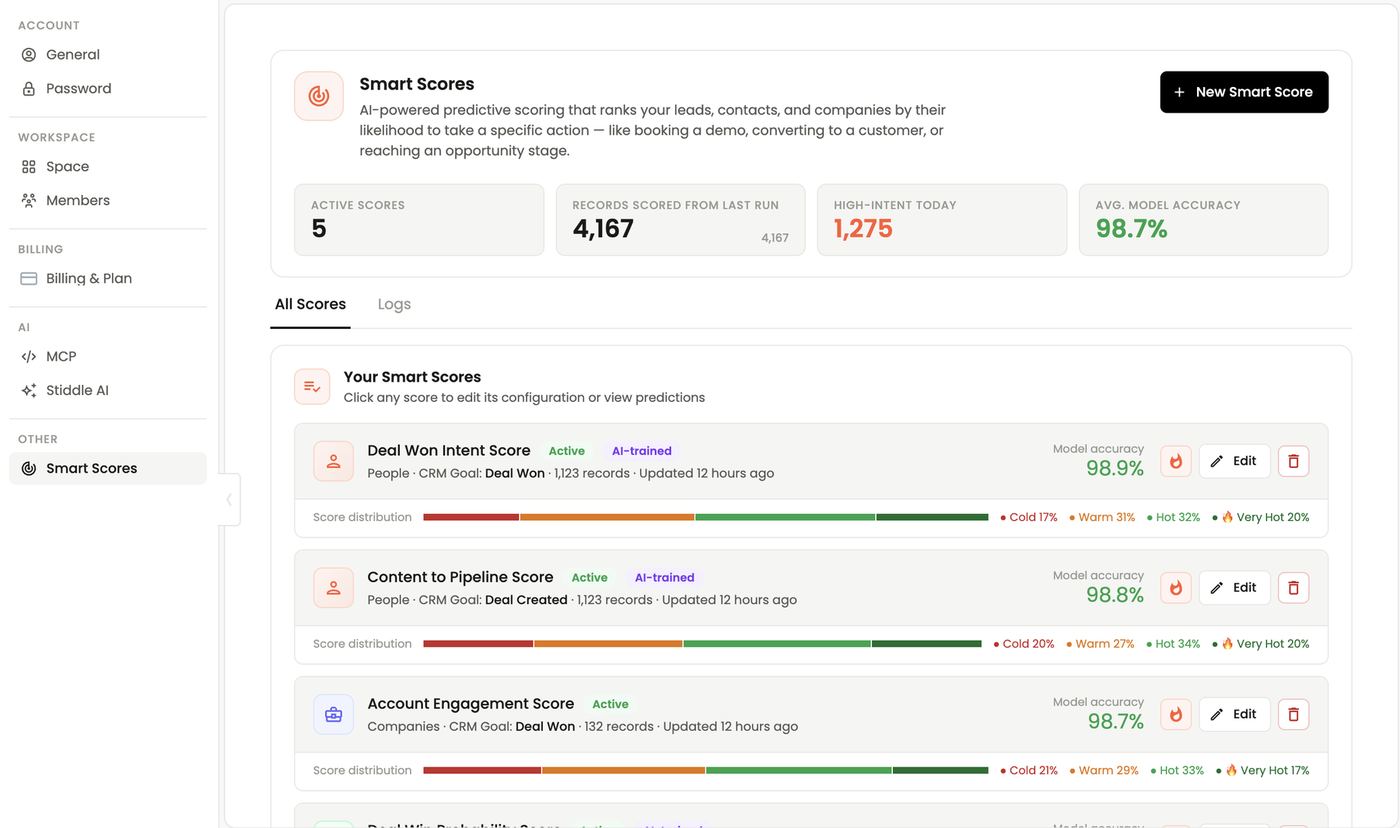
High-Intent Today. Click the tile, or a score’s 🔥 button, to see the records in your top tiers right now. There are three tabs:
- Contacts: name, email, phone and tier (Hot / 🔥 Very Hot).
- Deals: deal name, star tier and points.
- Companies: company, tier and points.
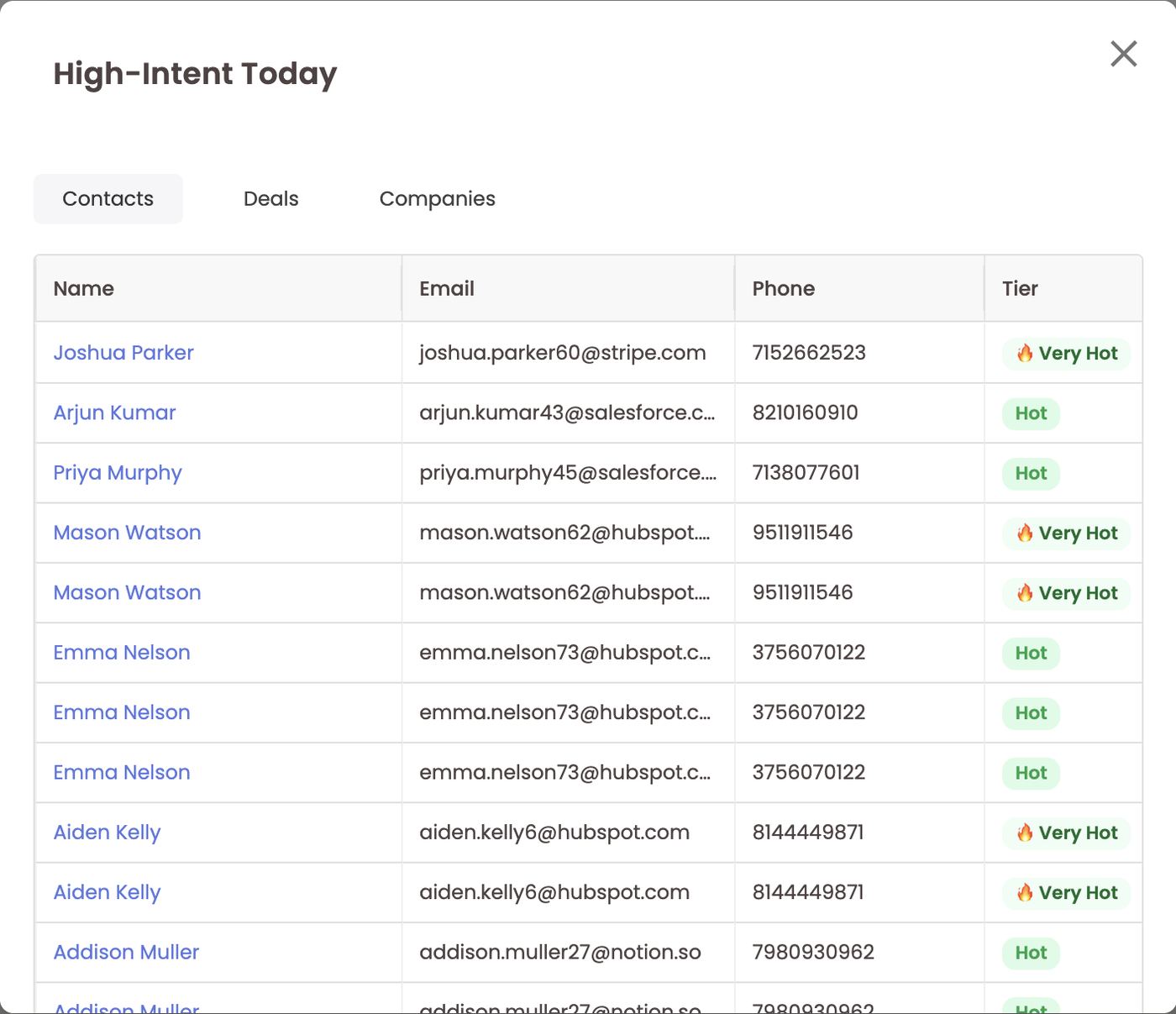
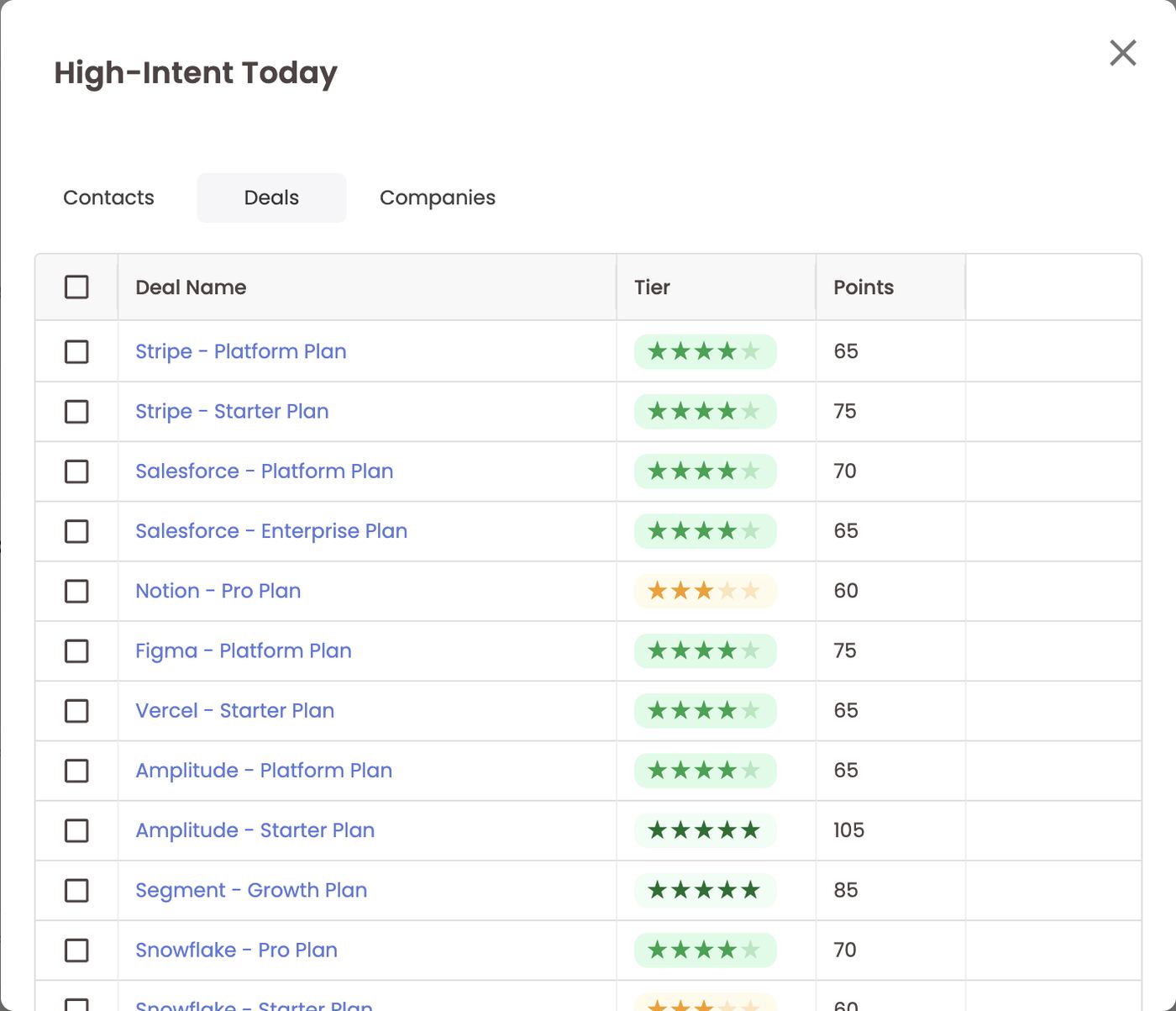
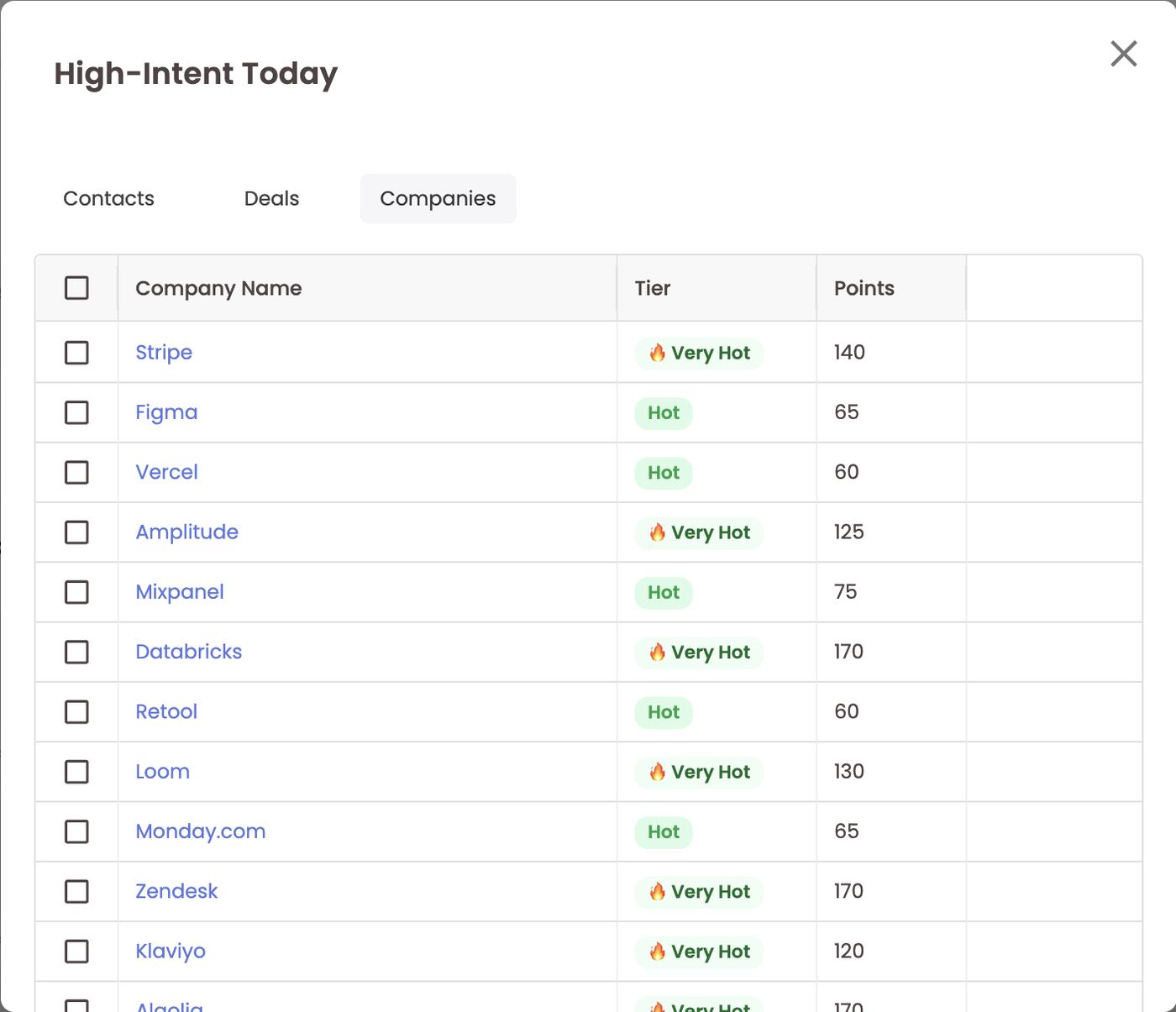
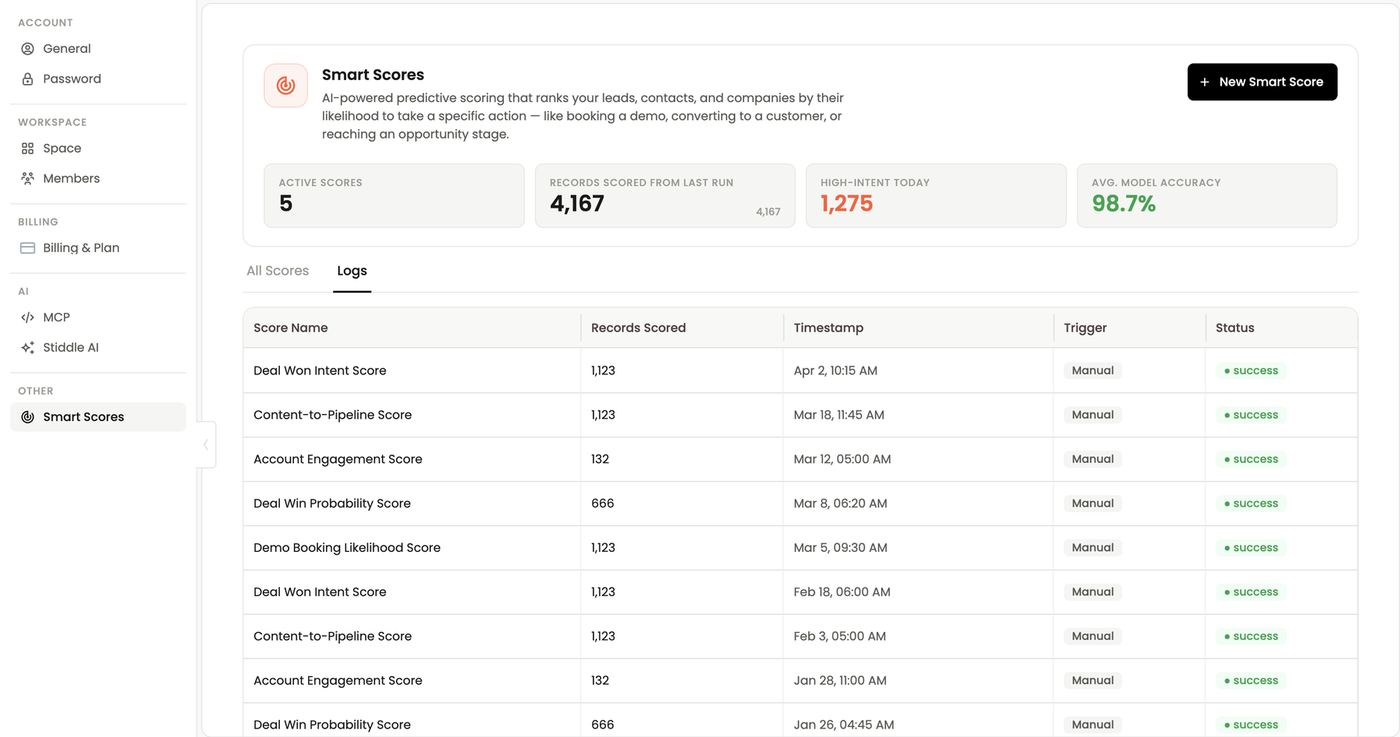
Create or edit a score
Click + New Smart Score and choose how to start:- Build manually: choose your goal, then define scoring signals and rules step by step.
- Generate with Stiddle AI (fastest setup): describe what you want to predict in plain English, then click Generate score configuration. For example: “I want to score contacts by how likely they are to book a demo in the next 14 days. We sell B2B SaaS and our best leads tend to visit the pricing page and have a company size over 50.” Type / for suggested prompts. Stiddle AI fills in every step below, and you review and adjust.
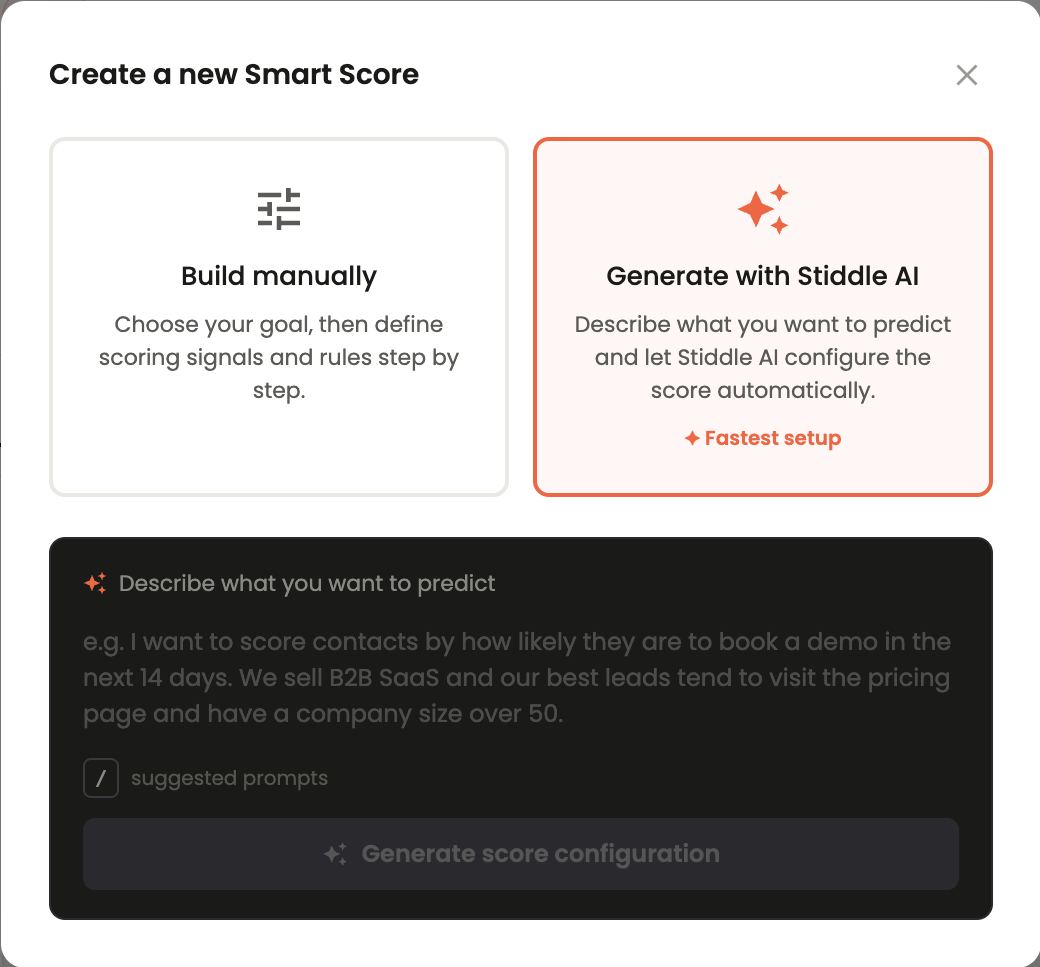
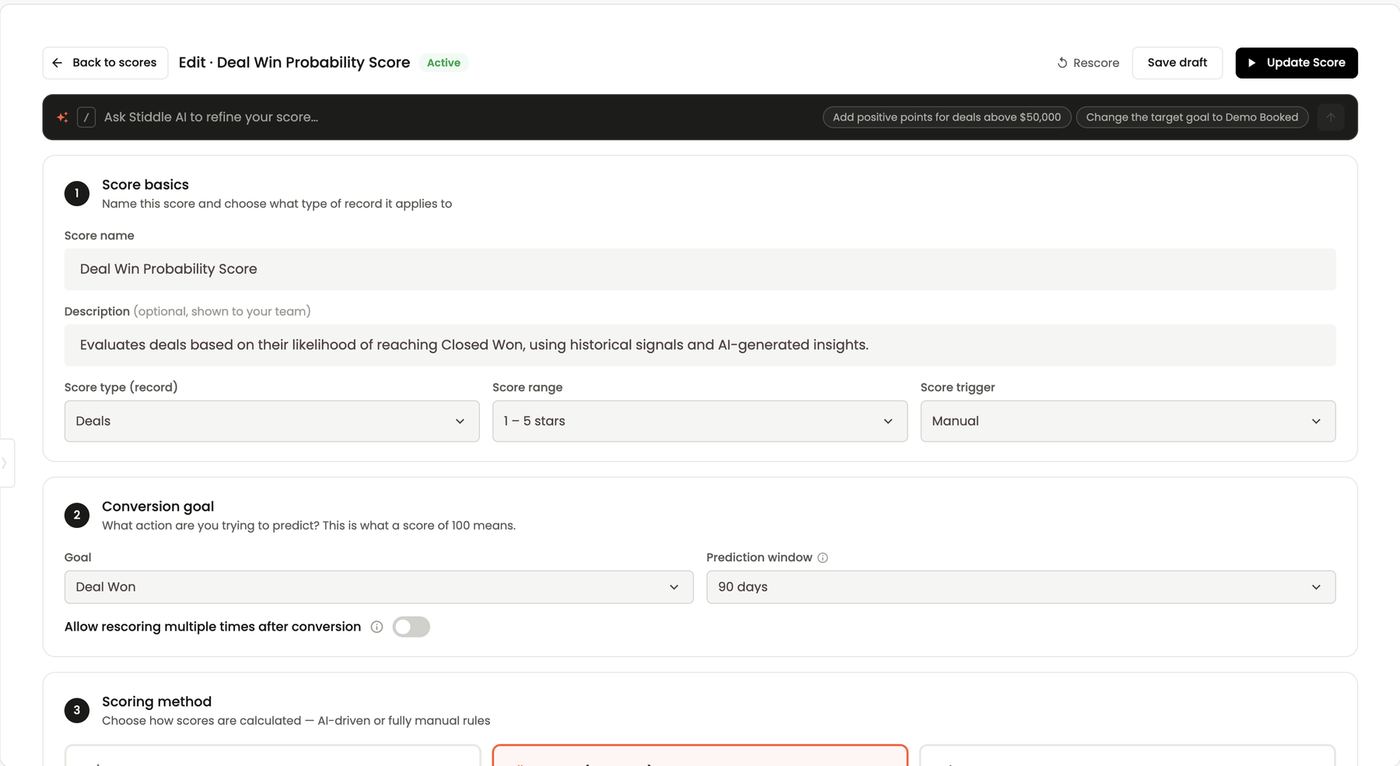
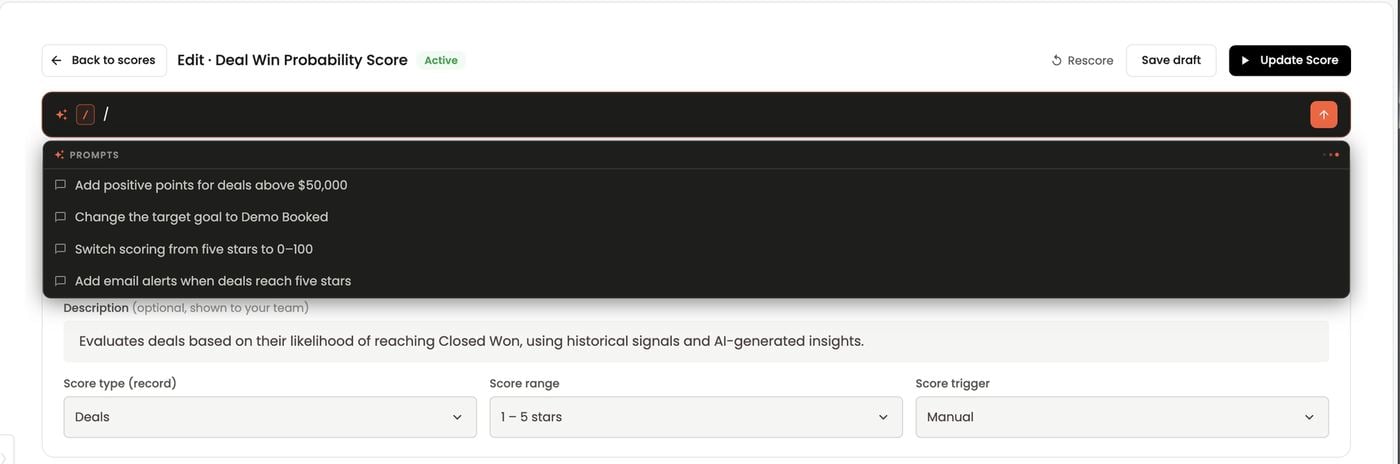
- Score name and Description (optional, shown to your team), e.g. Deal Win Probability Score: “Evaluates deals based on their likelihood of reaching Closed Won, using historical signals and AI-generated insights.”
- Score type (record): what gets scored: People / Contacts, Companies or Deals.
- Score range: how the score is shown: 0–100, 1–5 stars, A / B / C / D grade or Hot / Warm / Cold.
- Score trigger: Manual (runs when you click Rescore) or Every 48 hours.
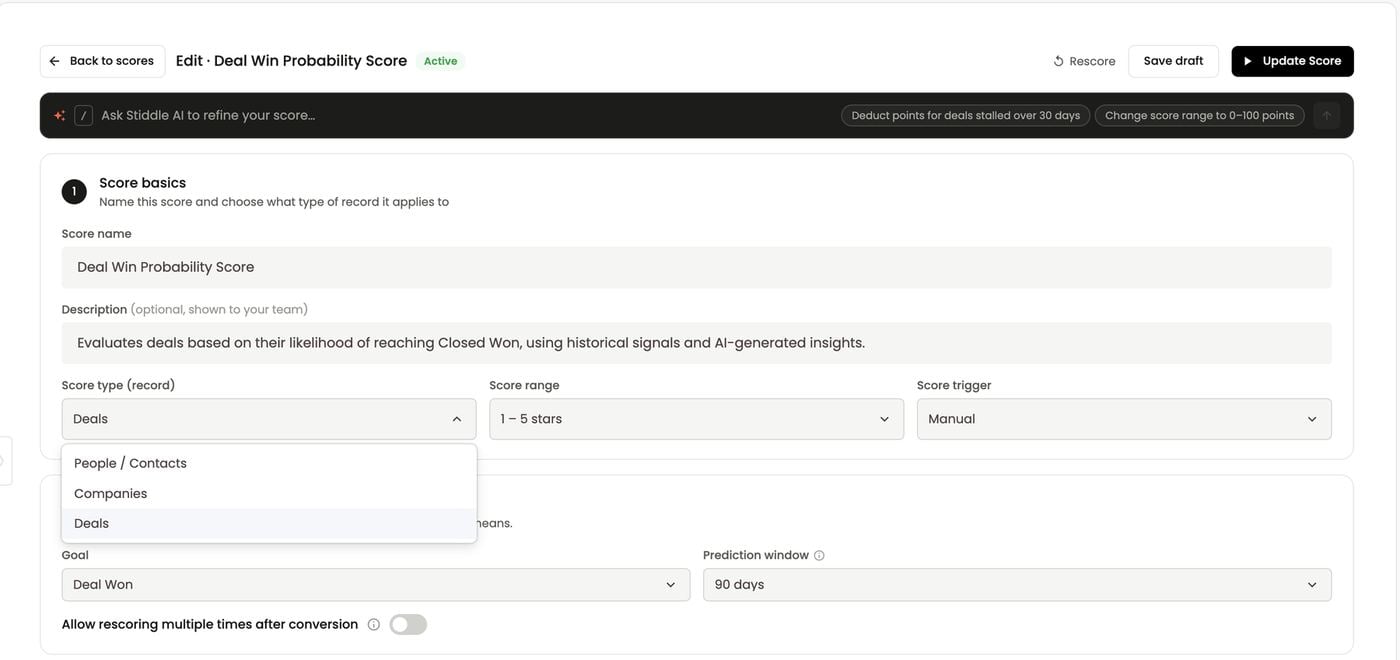
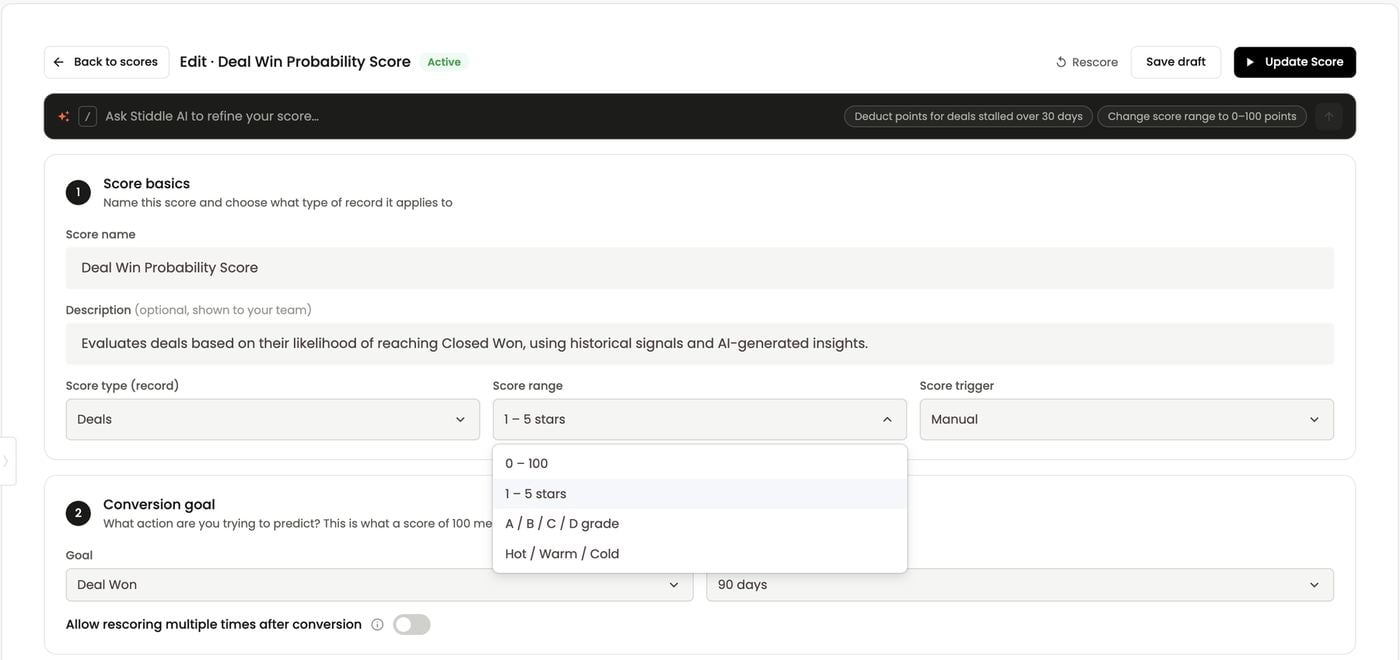
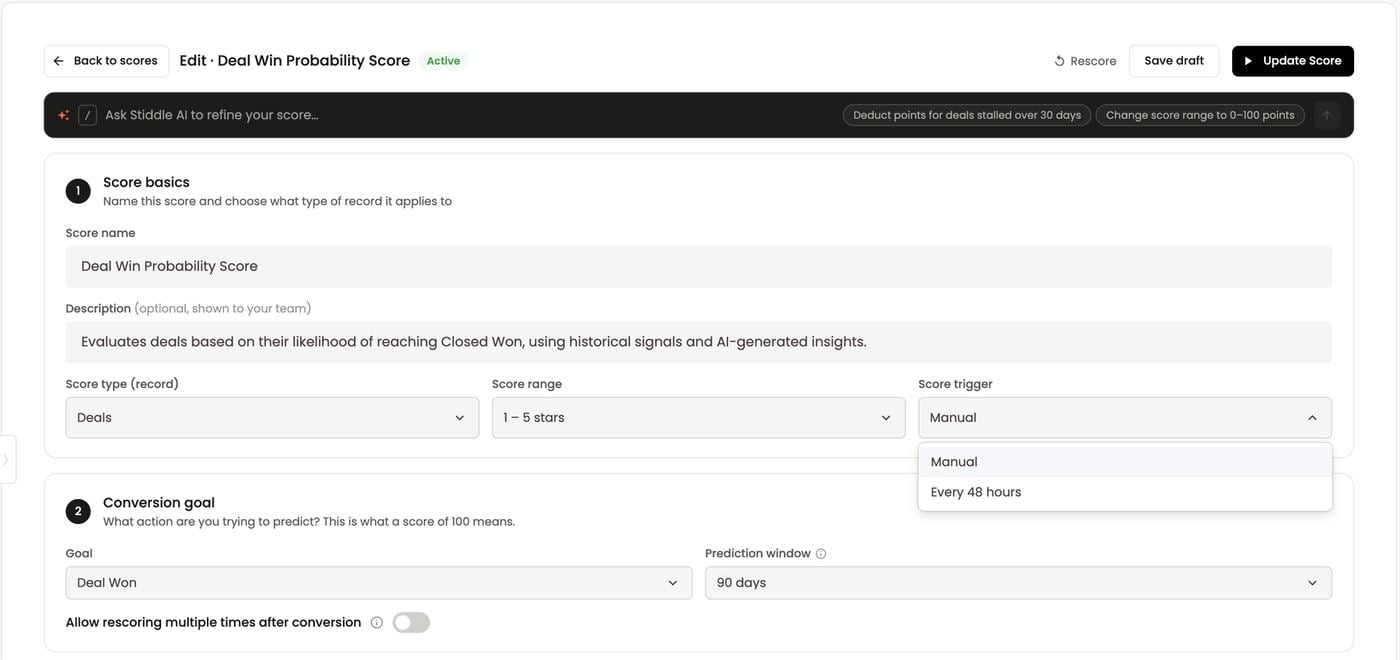
- Goal: pick any goal from Data → Goals, e.g. Calendly Meeting Booked, Demo Booked, Contact Inquiry, Deal Stage: MQL, Deal Created or Deal Won. There’s a search box.
- Prediction window: how many days into the future the model predicts. 30 days means “will this record convert in the next 30 days?”. Use short windows (14–30 days) for demo bookings and longer ones (90 days) for closed-won deals.
- Allow rescoring multiple times after conversion: off by default. Turn it on when a record can convert again, e.g. repeat purchases or expansion deals.
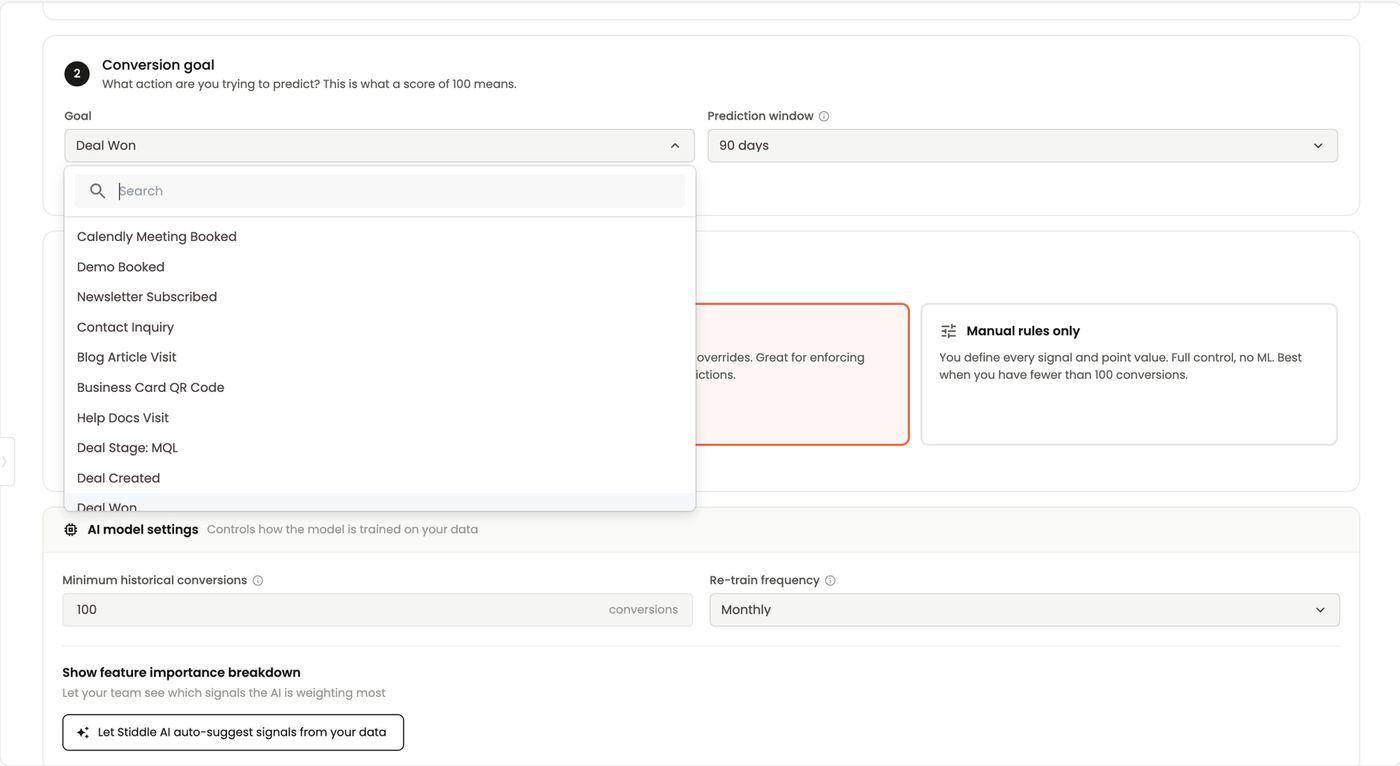
Under the cards Stiddle tells you whether AI is available, e.g. “156 conversions found — AI methods available.”
AI model settings (for AI-trained and Hybrid):
- Minimum historical conversions: the model won’t train below this number (default 100).
- Re-train frequency, e.g. Monthly, so the model keeps learning from new conversions.
- Show feature importance breakdown lets your team see which signals the AI weights most.
- Let Stiddle AI auto-suggest signals from your data fills in step 4 for you.
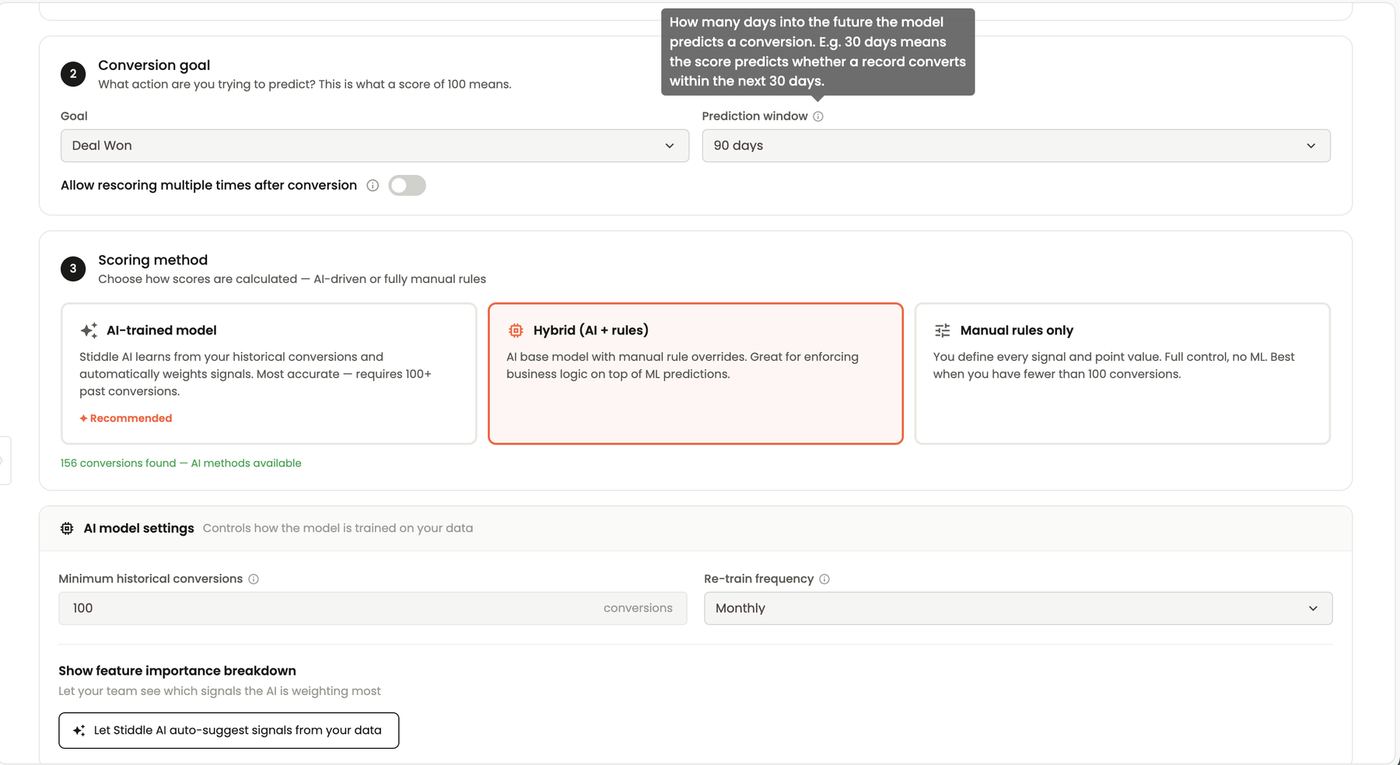
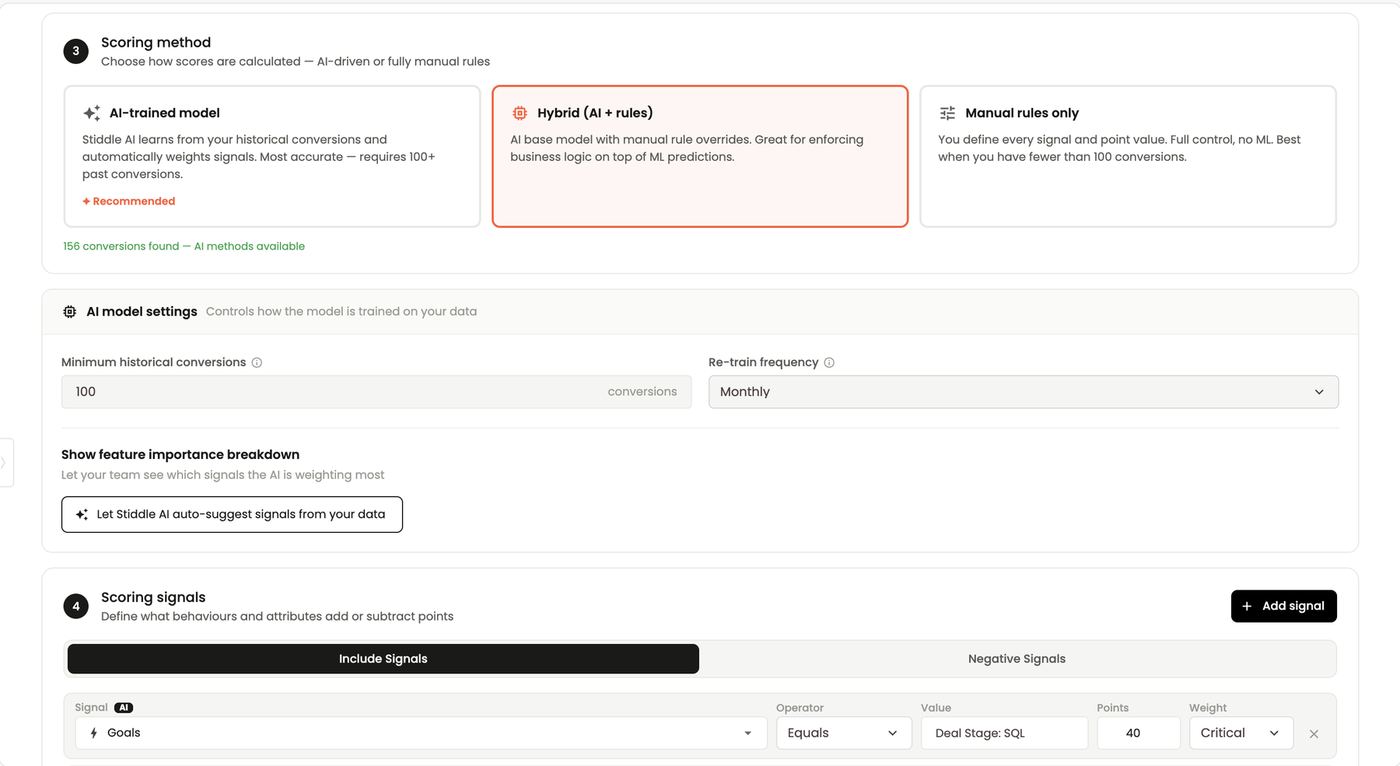
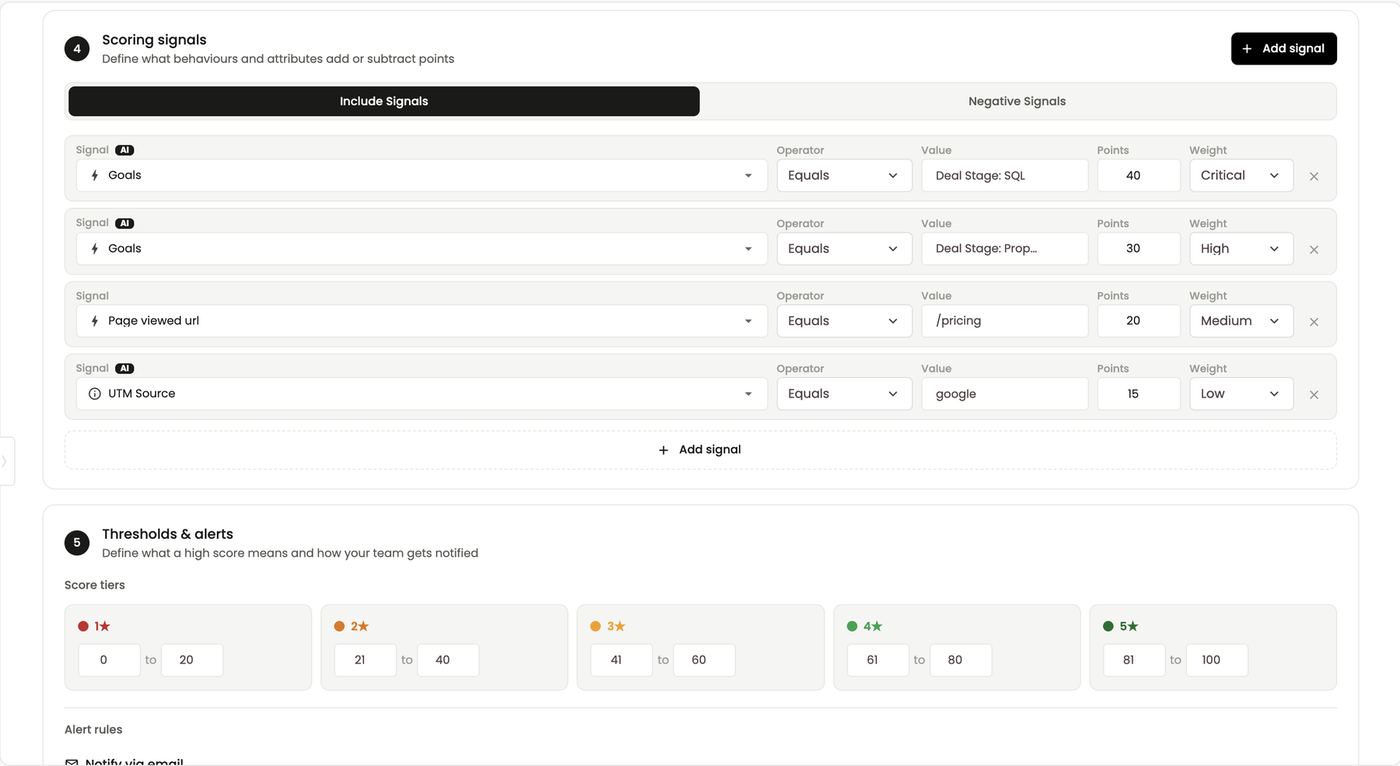
- Score tiers: set the point range for each tier. For a 1–5 star score: 1★ 0–20, 2★ 21–40, 3★ 41–60, 4★ 61–80, 5★ 81–100.
- Alert rules:
- Notify via email: sends an alert to the space members you select when a record reaches the Trigger for tier (e.g. 5★).
- Auto-create CRM task in Salesforce: creates a follow-up task for the account owner when a record reaches the selected tier.
- Notify via Slack: posts to a Slack channel when a record enters the top tier. [confirm: needs the Slack connector]
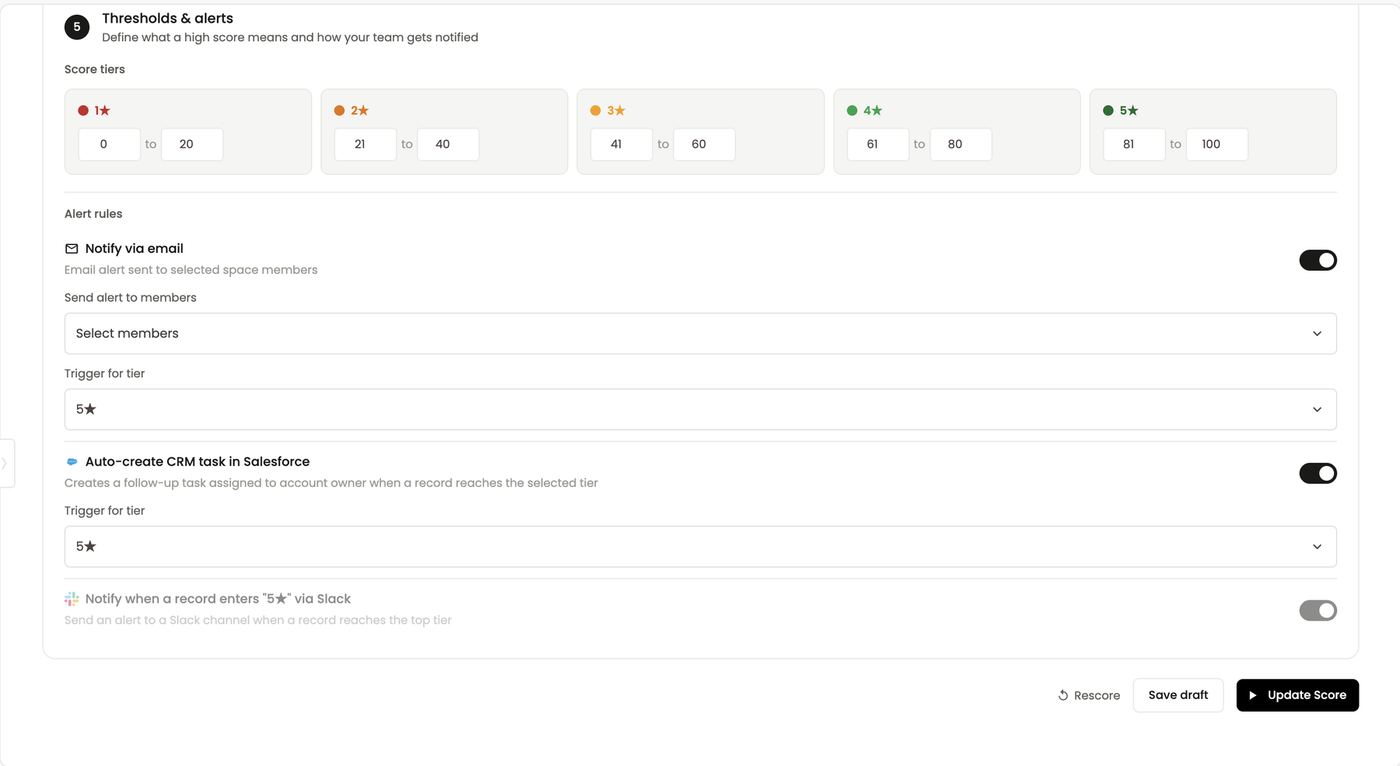
Using scores
- Lists: People, Companies and Deals show score columns (e.g. Deal Won Intent on People, Account Engagement on Companies, Deal Win Probability stars on Deals). Sort and filter by them.
- Audiences: pick Smart Scores as the attribute category, e.g. Deal Won Intent = Very Hot, and sync to ads or Salesforce.
- Alerts: have Very Hot leads land in Slack or as Salesforce tasks automatically.
FAQs
Is the score a probability or a rank? It’s the model’s predicted likelihood of the goal within the prediction window, shown on the range you chose. Why did a score change? New activity, a CRM stage change, or the model re-training. How often do scores update? On the trigger you set — manually or every 48 hours. I have fewer than 100 conversions — can I still score? Yes, with Manual rules only. What’s the fastest way to build a score? Generate with Stiddle AI: describe the outcome and your ideal customer, then refine with the Ask Stiddle AI bar. What does the prediction window do? It sets how far ahead the score looks. A 30-day Demo Booked score asks “will they book in the next 30 days?” AI-trained or Hybrid? Start with AI-trained. Switch to Hybrid when you need rules the data can’t learn, such as boosting target accounts. What does the AI badge on a signal mean? Stiddle AI suggested that signal from your historical data. How do I know a scoring run worked? Check Logs: each run shows records scored and a success status.18. Stiddle AI CoPilot
CoPilot answers questions about your customer data in plain language — and acts on them. Anything you can do in Stiddle you can ask CoPilot to do: analyze attribution, compare channels, look up people, companies and deals, and build reports, dashboards, audiences and Smart Scores. It works on the active workspace’s live data.Opening CoPilot
Click Stiddle CoPilot at the top of the nav for the full CoPilot page. You’ll see a greeting, the prompt box and a few suggested questions (Shuffle suggestions for more).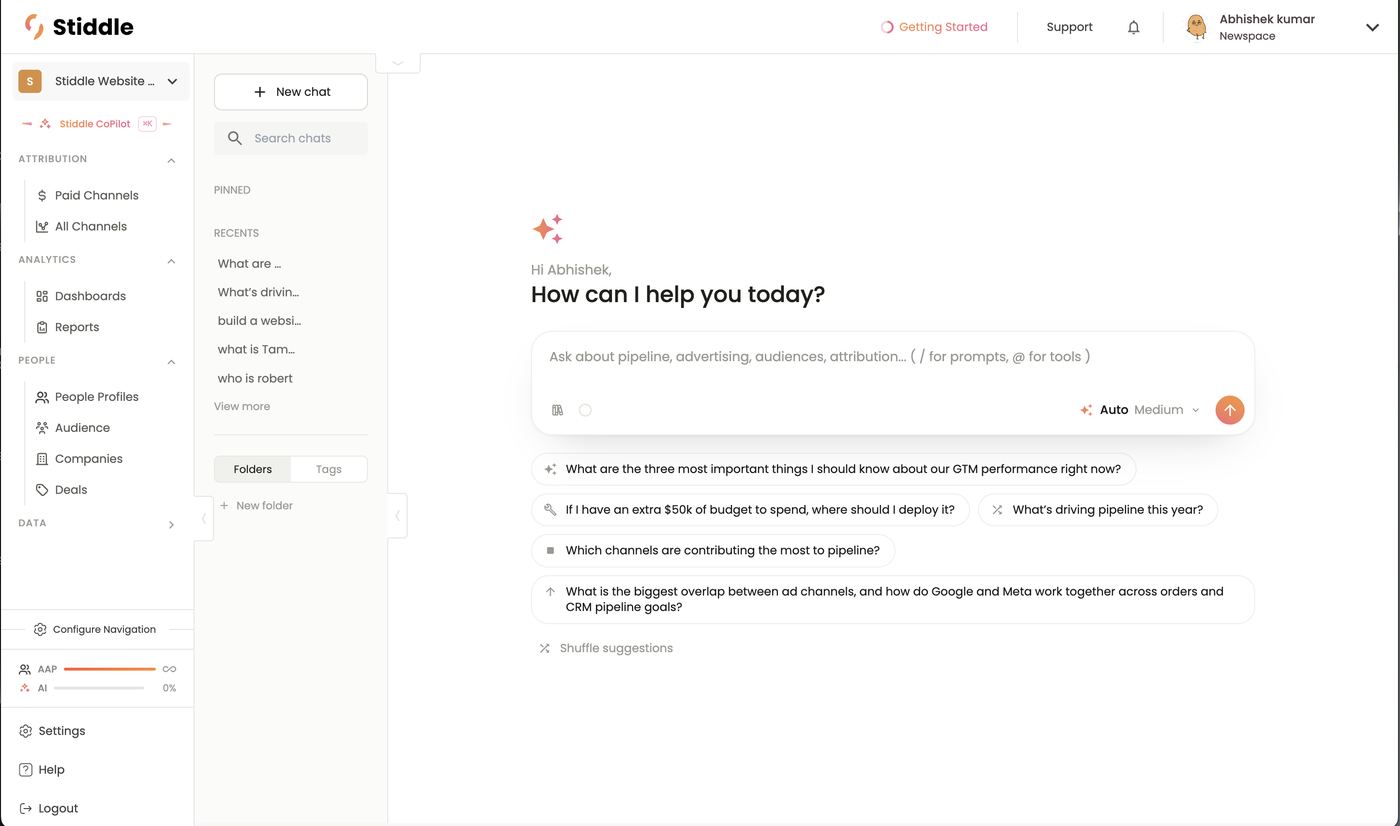
Two ways to use CoPilot
CoPilot Anywhere (⌘K)
Press ⌘K (Ctrl+K on Windows) on any page in Stiddle and CoPilot opens right there, without leaving what you’re working on. It auto-selects the tool for that feature, so your question is answered with the right data from the start. Example: on People Profiles, press ⌘K. CoPilot opens with the Contact tool already selected and suggests contact questions — “How many known vs unknown contacts do I have?”, “Show me contacts who visited the pricing page…”, “Which contacts came from paid ads in the last…”, “Show me my highest-value customers by total…”. Ask “Which Very Hot contacts haven’t booked a demo yet?” and CoPilot looks only at contacts, no extra explaining needed. Do the same on Deals and it starts on the deals tool; on Paid Channels, the attribution tools. The bar has the same controls as the CoPilot page:- Tool chip (e.g. Contact) — the auto-selected tool. Click ✕ to remove it and ask about anything, or type @ to pick another.
- / for skills and the book icon for the prompt library.
- Auto / Medium — model and effort.
- esc — close it.
- Expand (↗) — open the conversation as a full CoPilot page to keep going, save or share it.
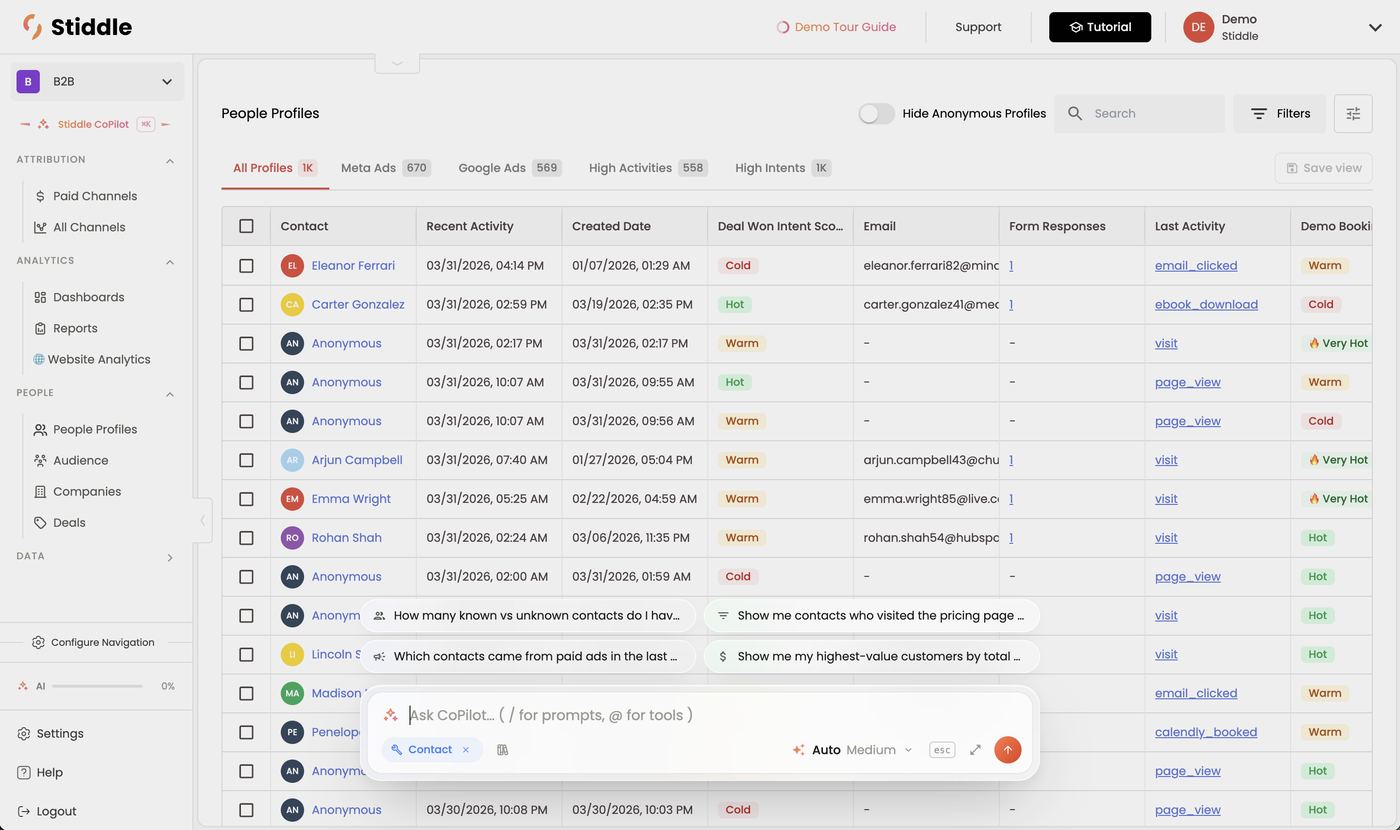
The prompt box
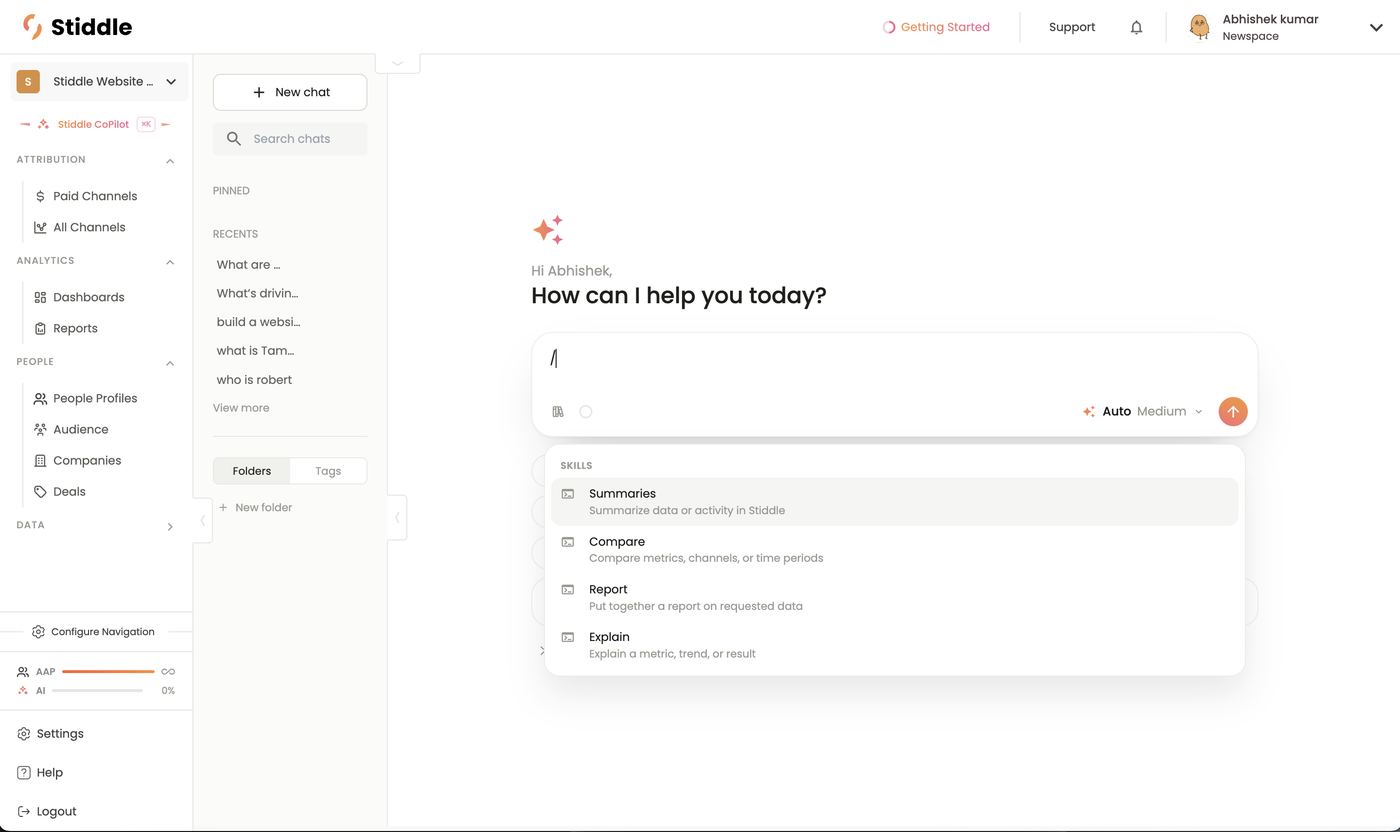
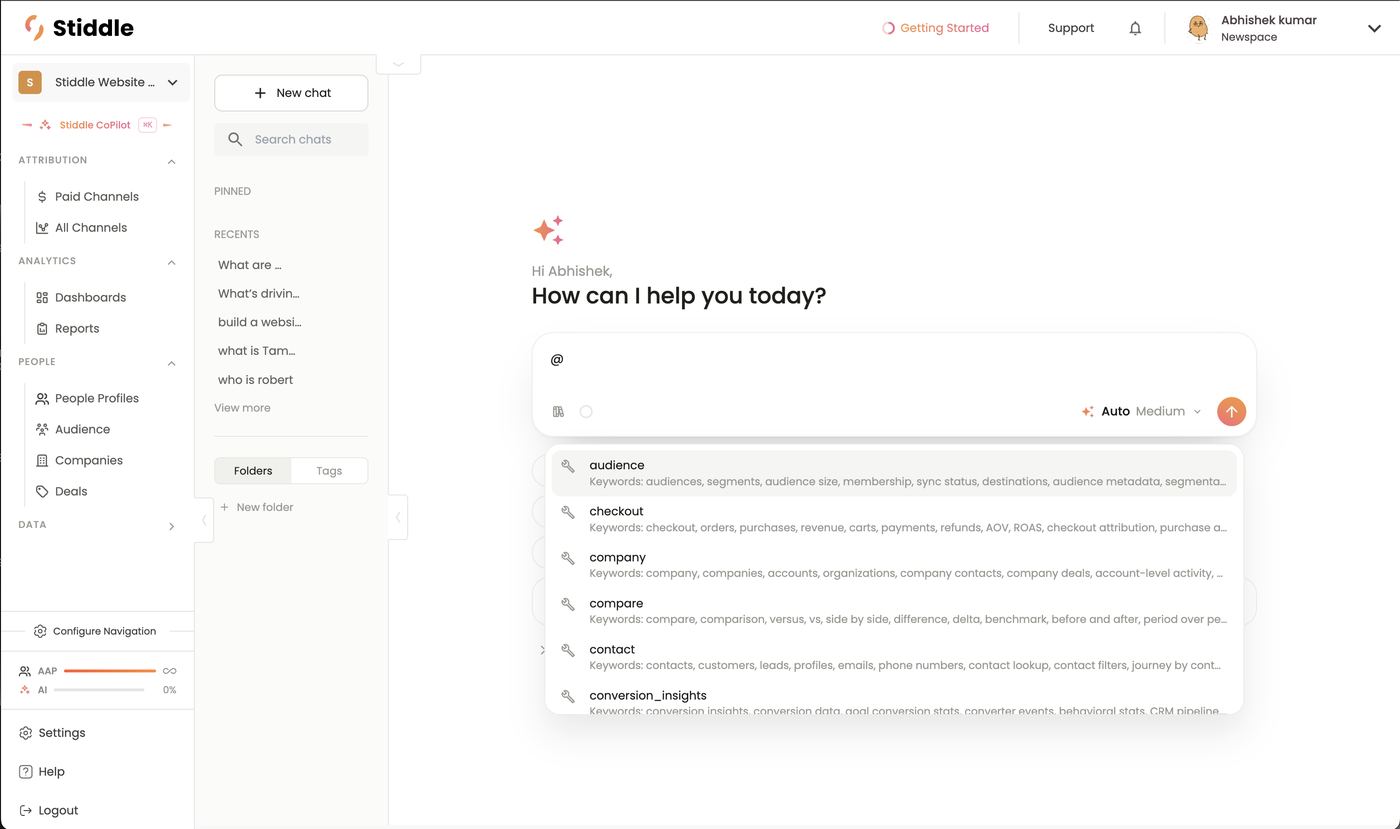
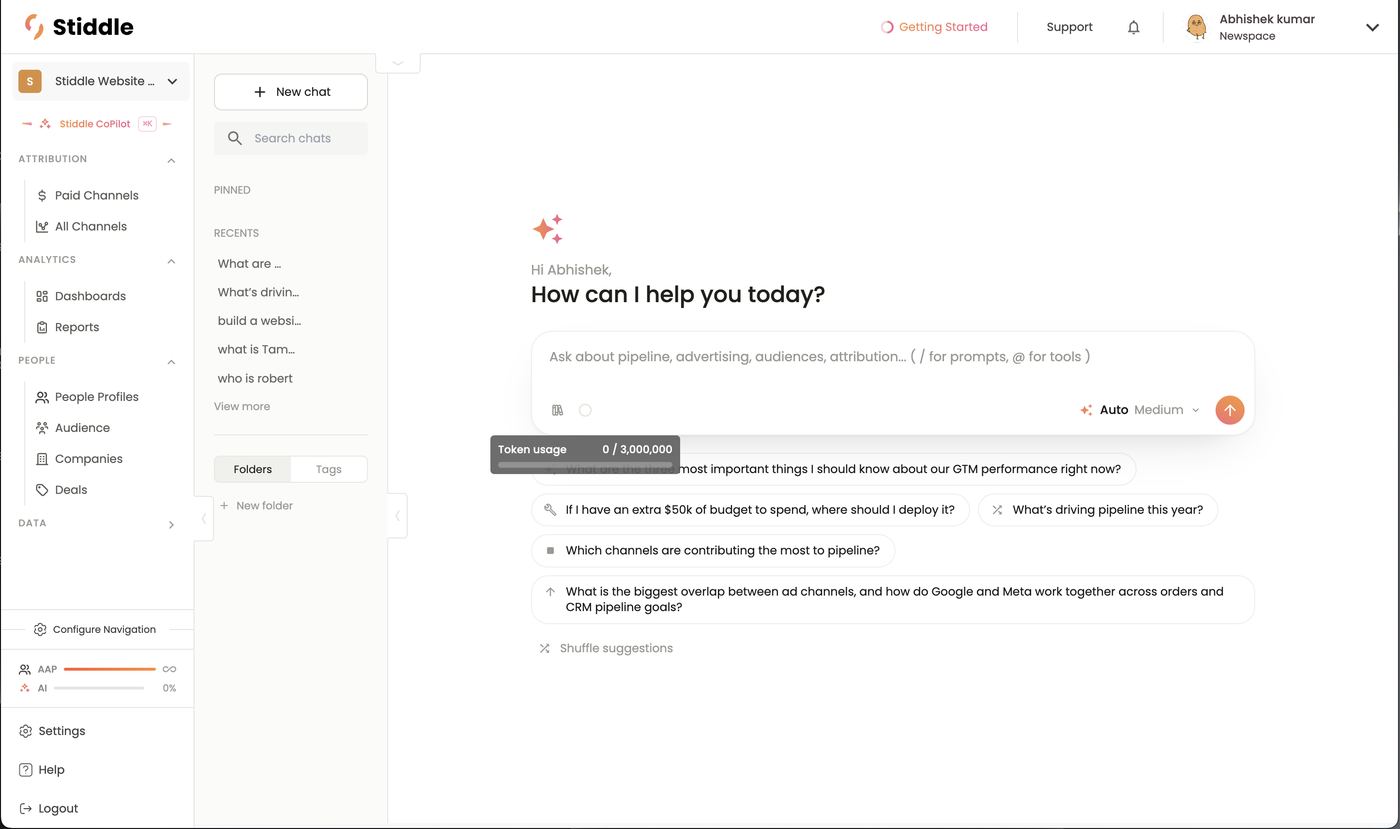
Choosing a model
Click Auto Medium to open the model picker.- Auto (recommended) picks the best model for each question. A complex, multi-step analysis may go to the most capable model (e.g. Claude Opus); a quick lookup goes to a faster one. The model used is shown on every answer.
- Or pick one yourself: Claude Opus 4.7 (most capable), Claude Sonnet 4.6 (balanced), GPT-5.6 Sol (latest GPT). Use the tabs to filter by provider and ★ to favorite a model.
- Effort slider: higher effort thinks longer for deeper answers and uses more tokens; lower is faster. Medium is the default.
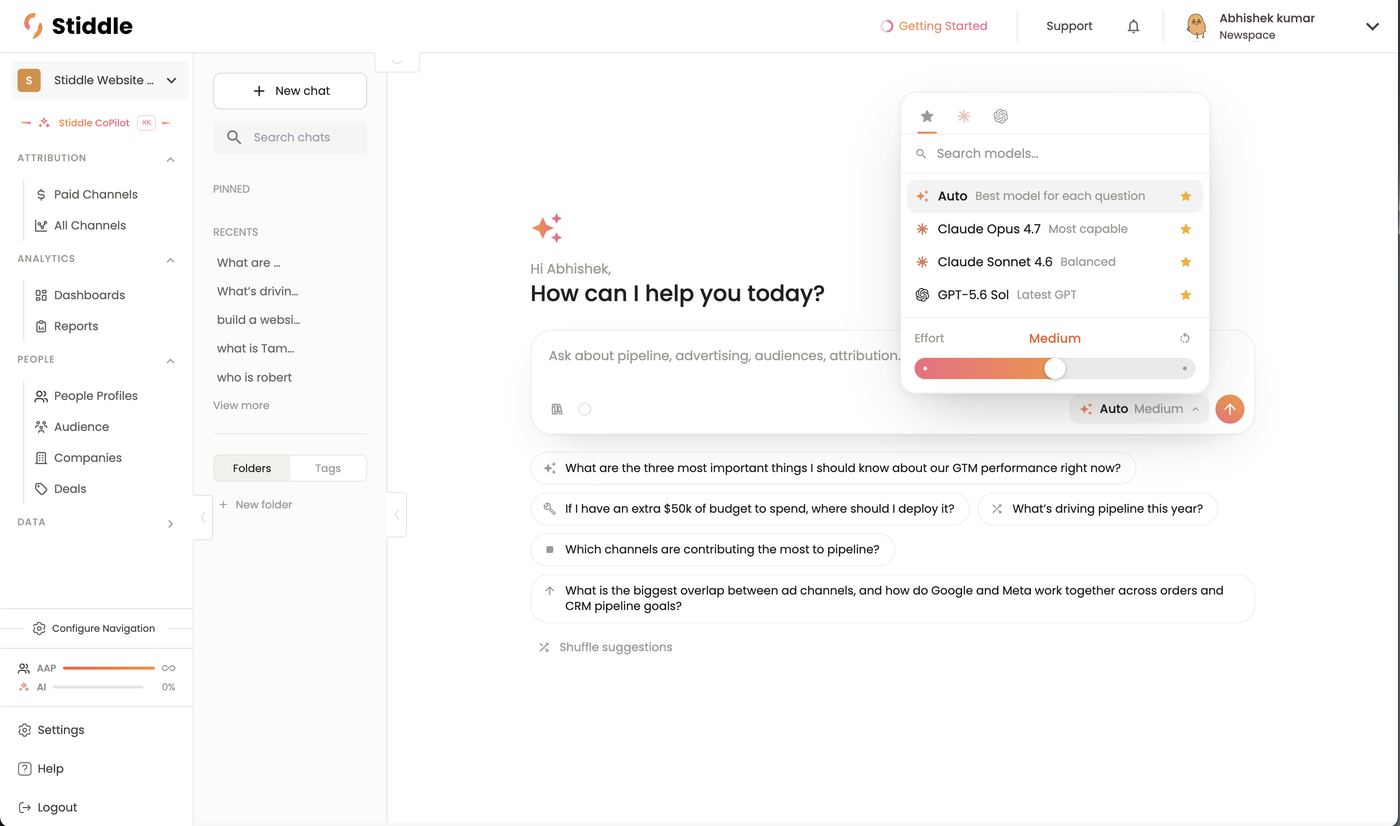
Prompt library
Click the book icon (Browse prompts) for hundreds of ready-made prompts, grouped by what you’re trying to do: AI suggested prompts, Ask (255), Analyze (54), Compare (31), Explain, Optimize (29), Predict (16), Build (37), Act, Smart Scores (10), Audience (10), and your Custom saved prompts. Each prompt is tagged by audience (Executive, Misc…), and Search all prompts finds one fast. Click a prompt to run it. Save your own with the bookmark icon under any message you’ve sent.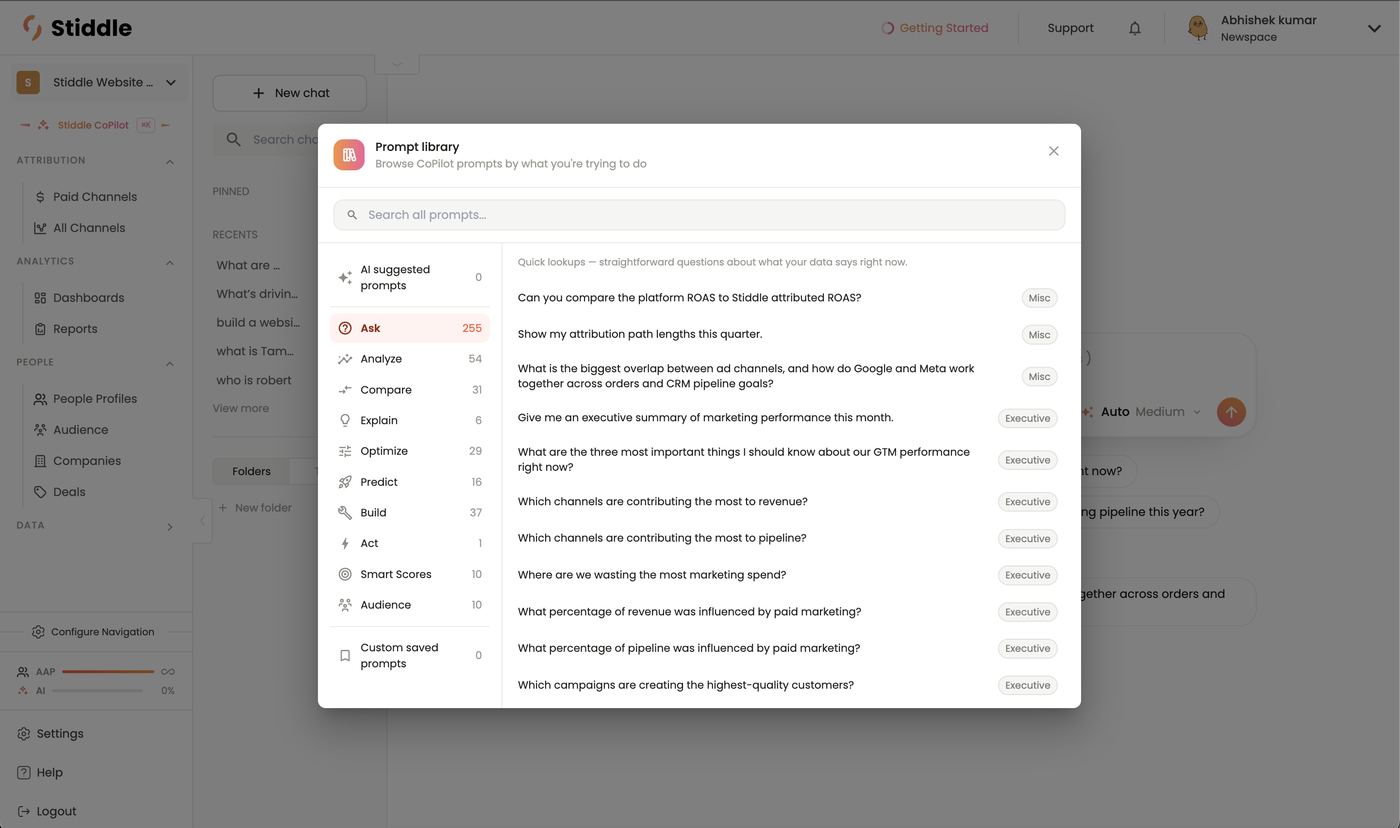
Reading an answer
The line above each answer shows how long CoPilot thought, the model used and the Stiddle tools it called (e.g. Thought for 120s · Claude Sonnet 4.6 · source_data · referral_sources · deals). Click it to expand the steps — each tool call and its raw result — so you can see exactly where the numbers came from. Answers state the date range and attribution model they used. Under your message: retry, edit, save as prompt (bookmark), copy.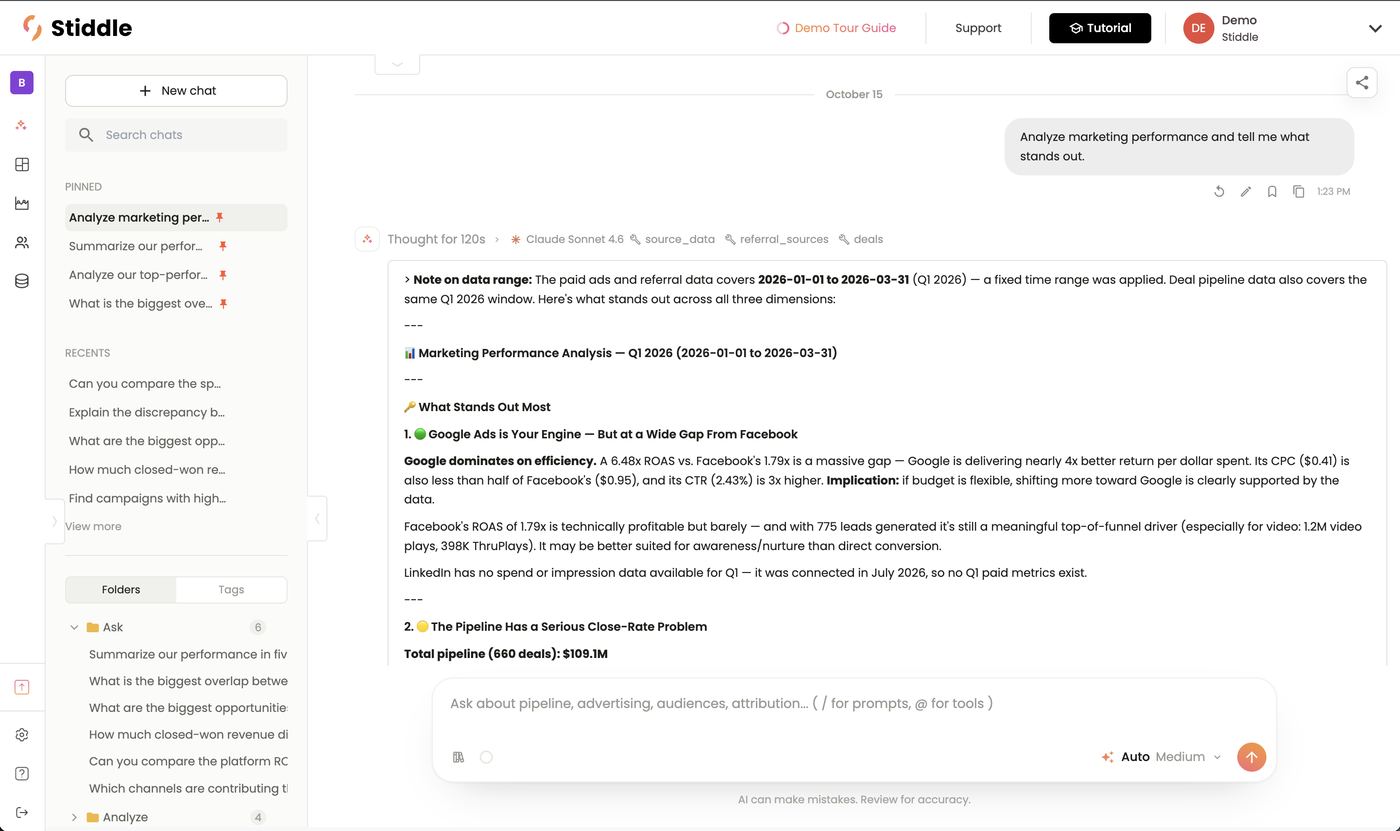
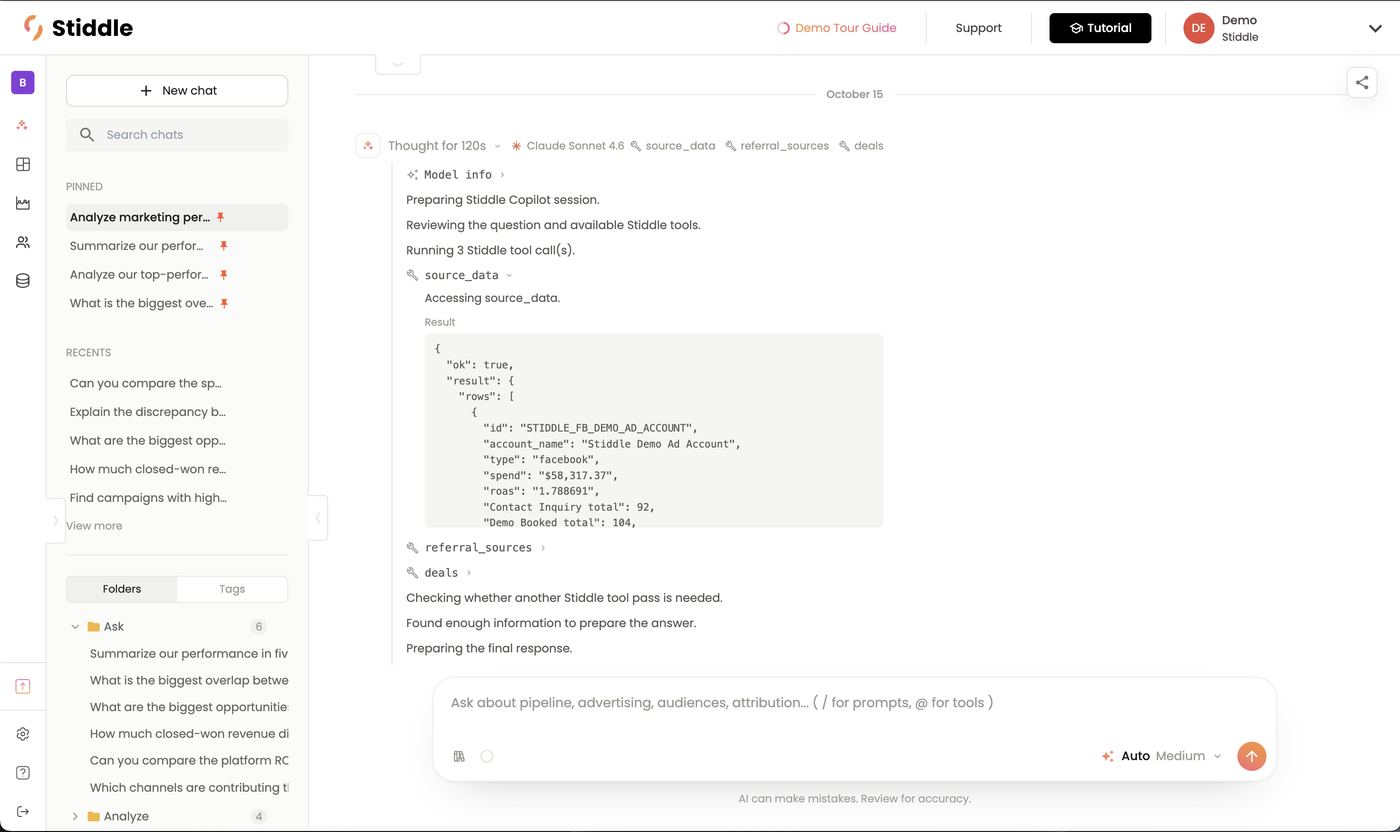
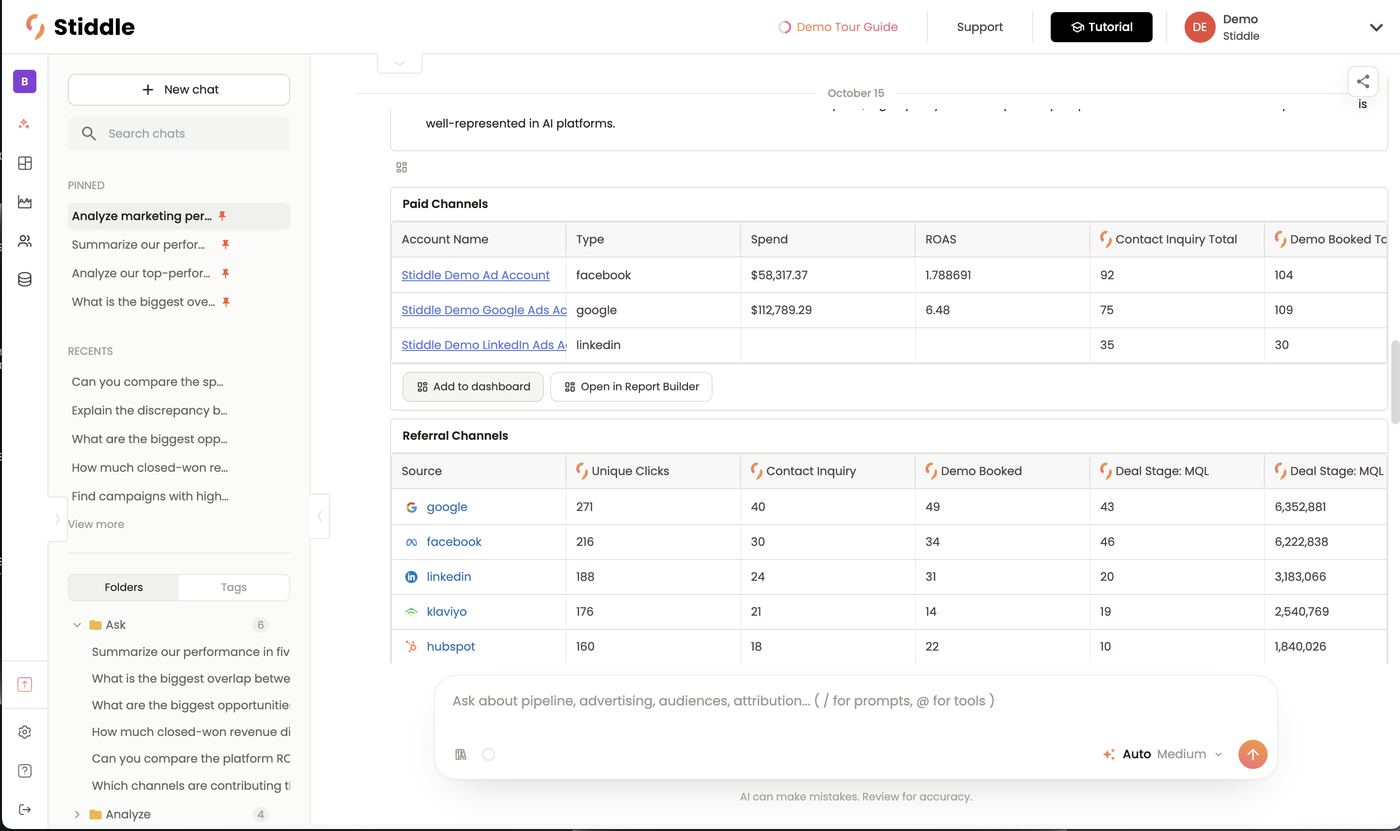
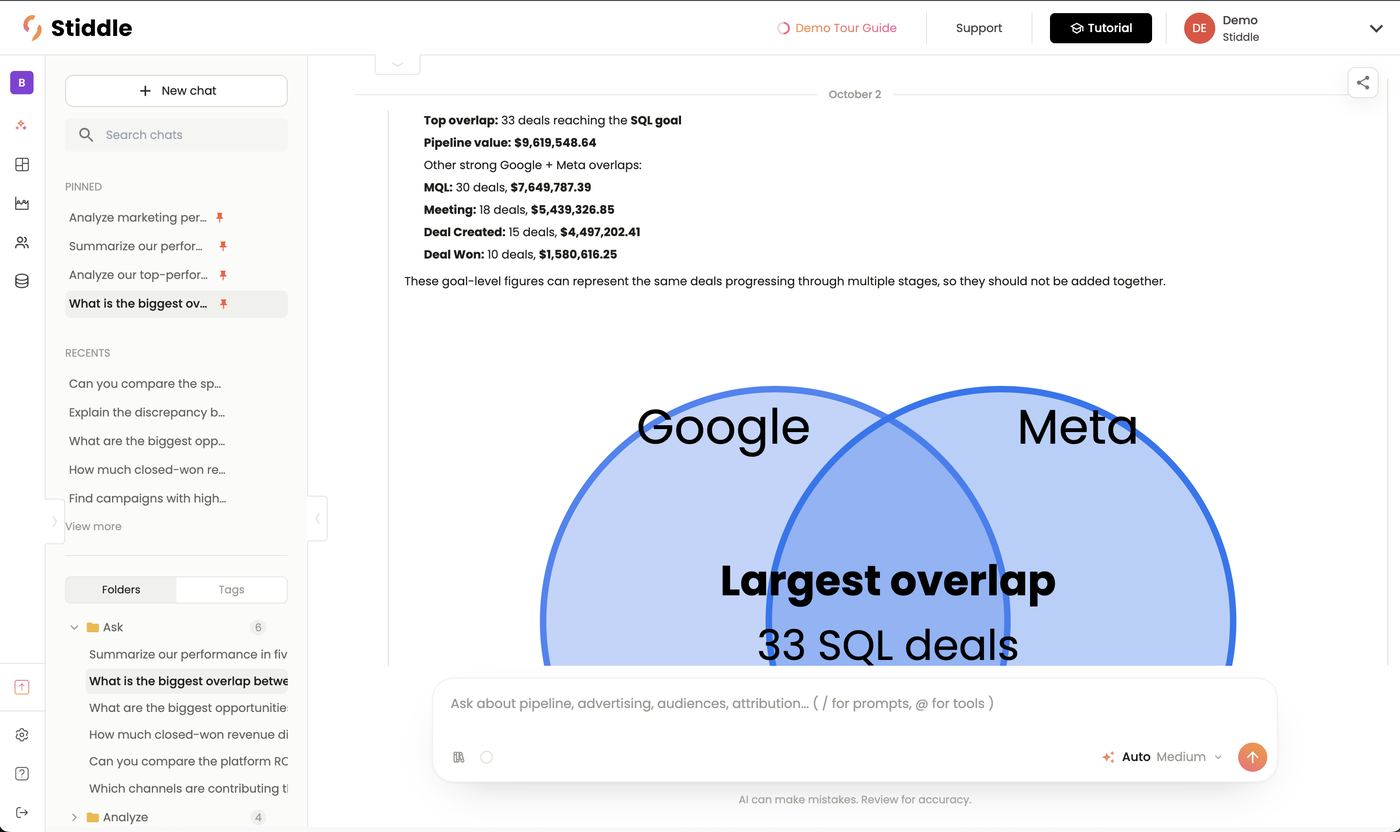
Turning answers into reports and dashboards
Under every table:- Add to dashboard — search or pick a dashboard, then the section to add it to (e.g. Website Analytics → Conversions & Goals). The widget stays live.
- Open in Report Builder — open the table as an editable report (section 9) to check or change the metric, model, filters and date range.
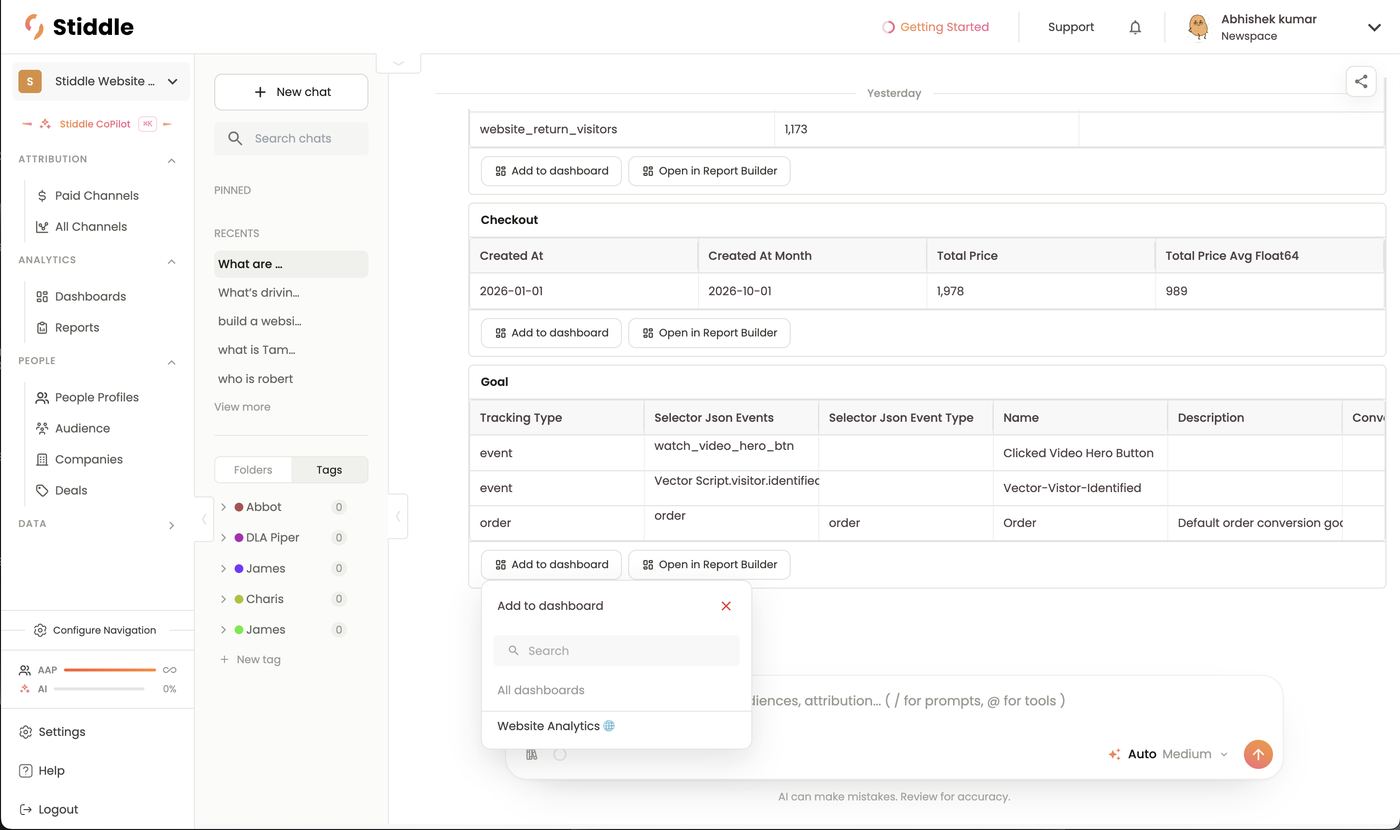
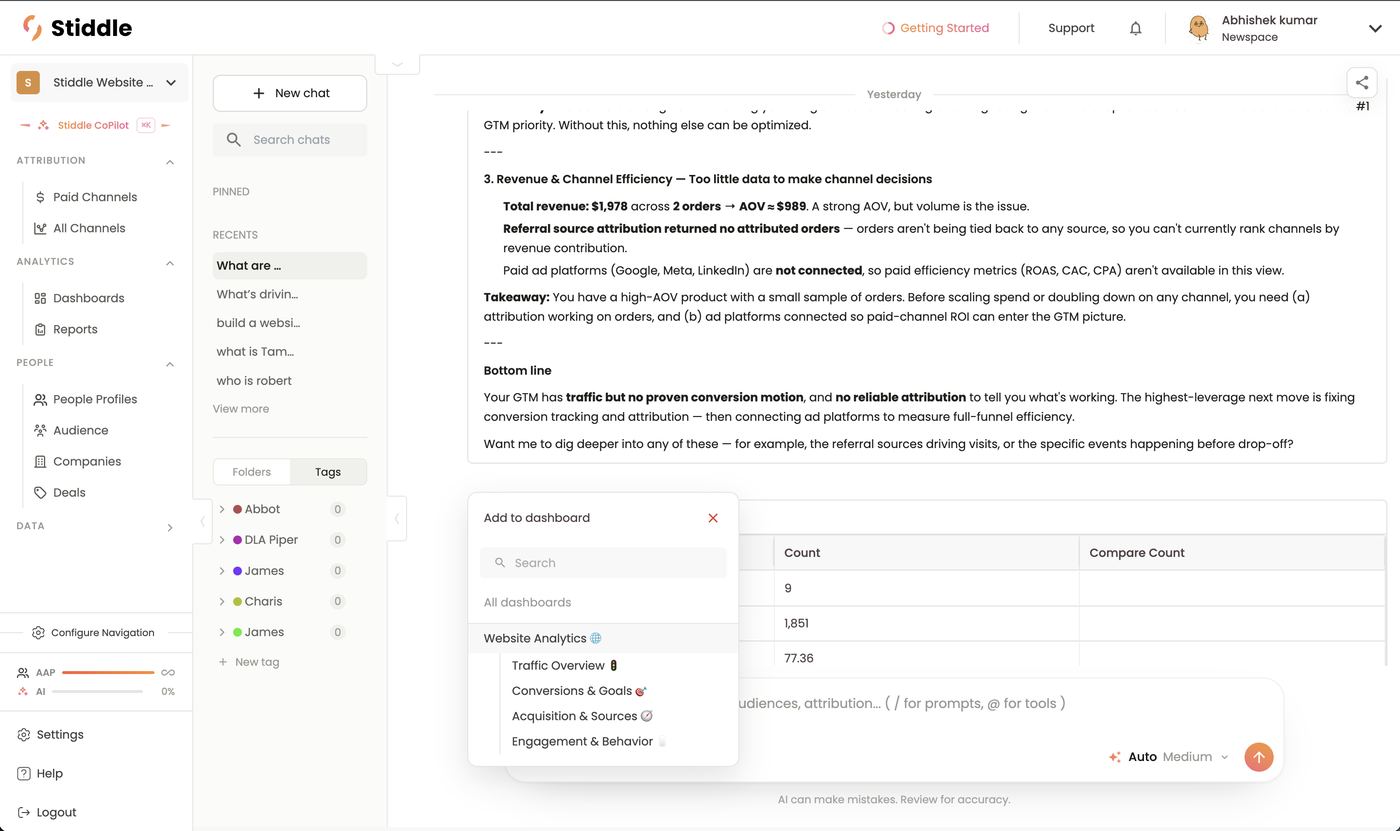
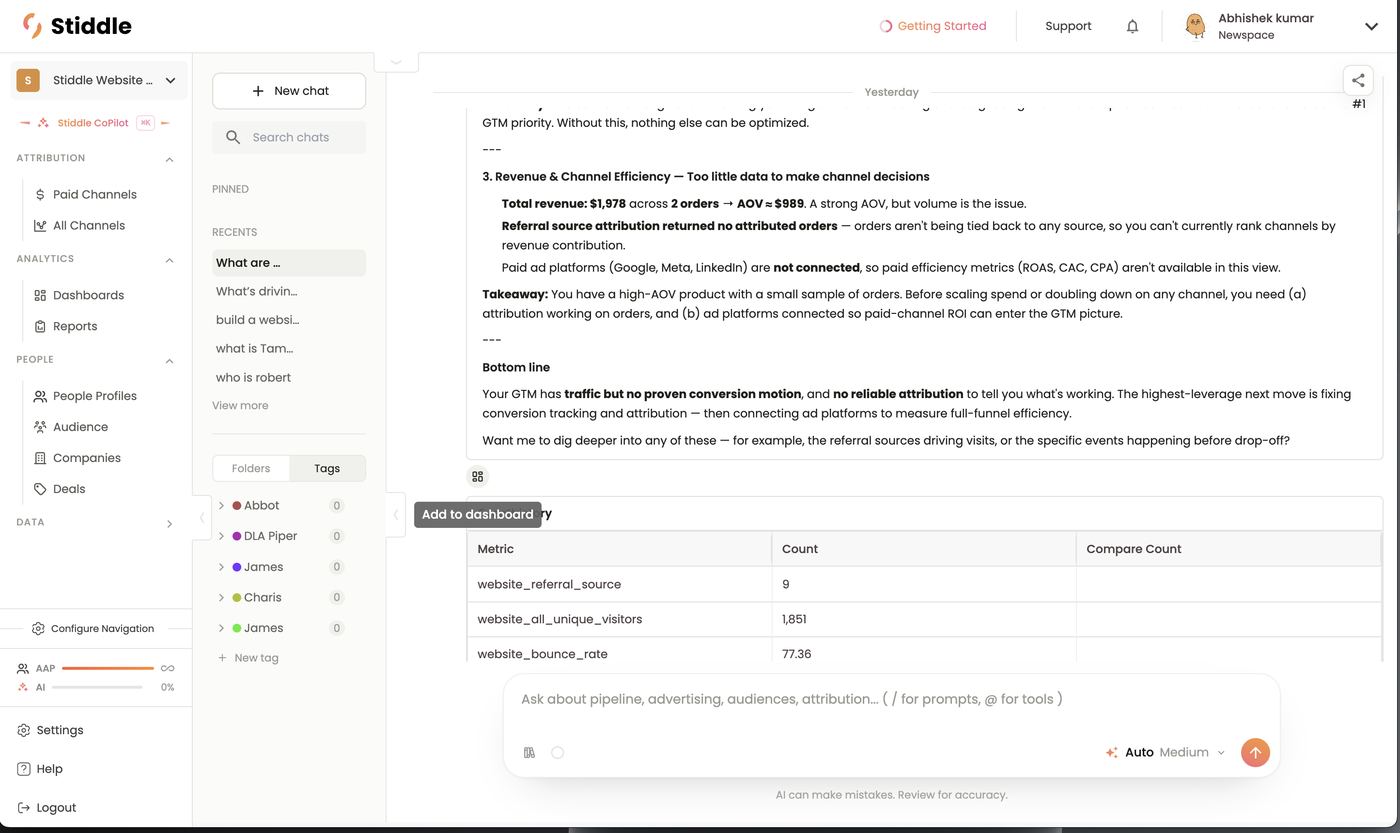
Long answers and notifications
If an answer takes longer than about 30 seconds, CoPilot shows “We’ll notify you when CoPilot finishes this response.” You can leave CoPilot and keep working — when it’s done, the bell at the top of Stiddle shows CoPilot finished with a preview and Open chat →. The chat also shows a spinner in Recents while it runs. Use the stop button to cancel.
Organizing and sharing chats
- Pinned and Recents chats on the left, plus Search chats.
- Hover a chat and open its menu to Pin chat, Add to folder, Add tag or Delete chat. Create Folders (e.g. Ask, Analyze) and colored Tags (e.g. by client or teammate) with + New folder / + New tag.
- Share (top right): turn on Public access to share the chat in a live hosted link that anyone with the Public URL can view. Turn it off to stop sharing.
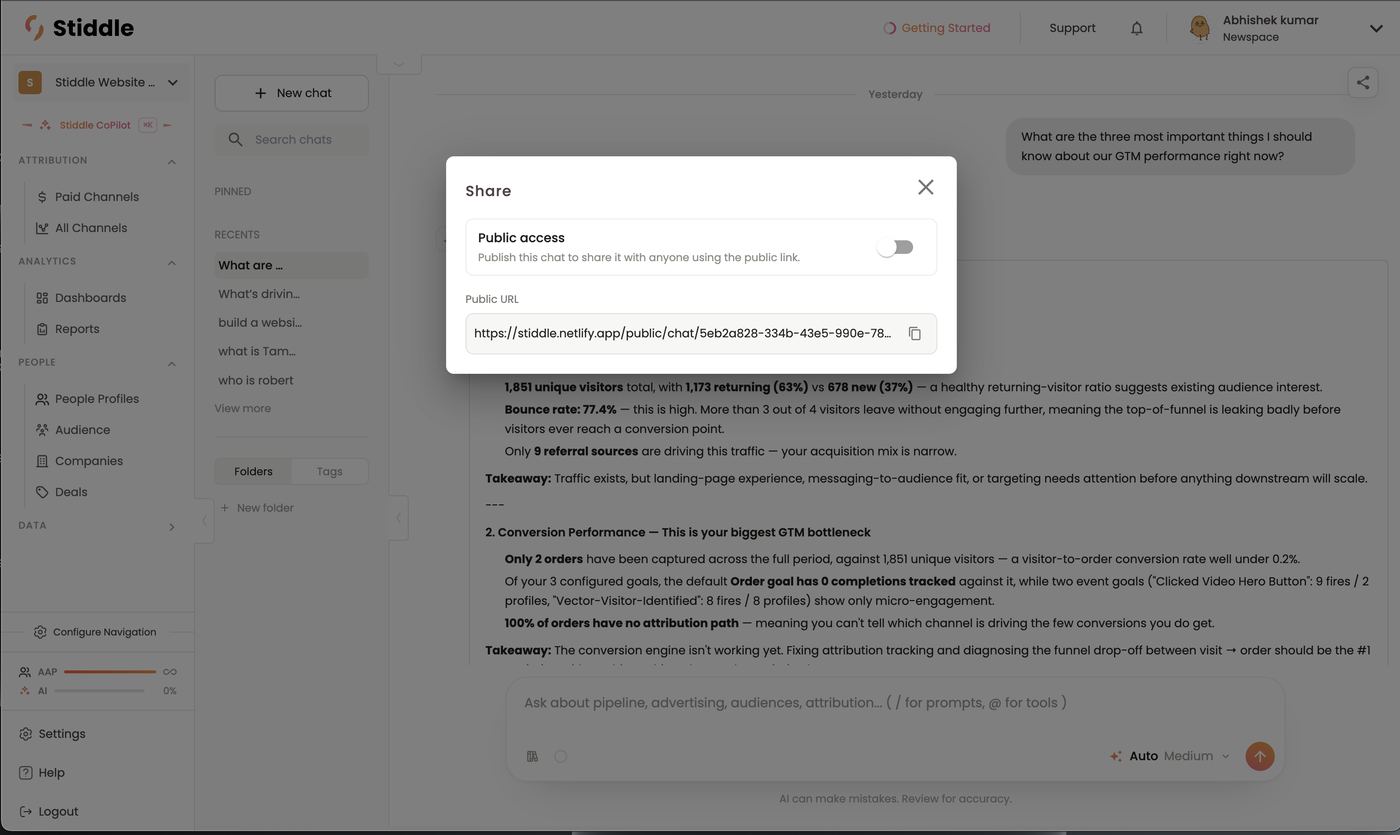
Memory
CoPilot remembers context from earlier conversations when Enable Memory is on in Settings → Stiddle AI → Context & Memory. You can also add Pinned Context Snippets by hand — facts every conversation should know, like “Our fiscal year starts in February” or “Exclude internal traffic from acme.com”. Your business context (KPIs, conversion events, default attribution model) is used too. See Stiddle AI settings below.Example prompts by role
- CMO: “Which channels generated our highest-LTV customers last quarter?”
- CRO: “Which campaigns influenced the most closed-won pipeline?”
- Sales: “Which accounts should my team prioritize today?”
- RevOps: “Which opportunities have marketing engagement but no recent sales activity?”
- Analytics: “Build a funnel from first visit → demo → opportunity → closed won.”
- Exec: “What are the three most important things I should know about our GTM performance right now?”
Stiddle AI settings (Settings → Stiddle AI)
Stiddle AI settings tell CoPilot, MCP and every AI feature about your business, so answers use your KPIs, conversions and preferred attribution model. The top of the page shows CoPilot Sessions, Tokens Used and the AI Model in use (e.g. Auto, Medium effort). There are three tabs. Context & Memory- Under Business Context, fill in Company name, Industry, Primary business model, Average sales cycle, a Business description (used as Stiddle AI’s system context — what you sell, your KPIs, channels and how you close), Key metrics & KPIs (comma-separated; AI prioritizes these, e.g. MRR, CAC, LTV, ROAS, Pipeline Value) and Primary conversion events (e.g. Demo Request, Purchase, Phone Call).
- Click Save business context.
- Under Pinned Context Snippets, turn on Enable Memory and click + Add snippet for facts every AI conversation should know — e.g. “Fiscal year starts in February” or “Exclude internal traffic from acme.com”. The table lists each snippet with created and updated dates and actions to edit or remove it.
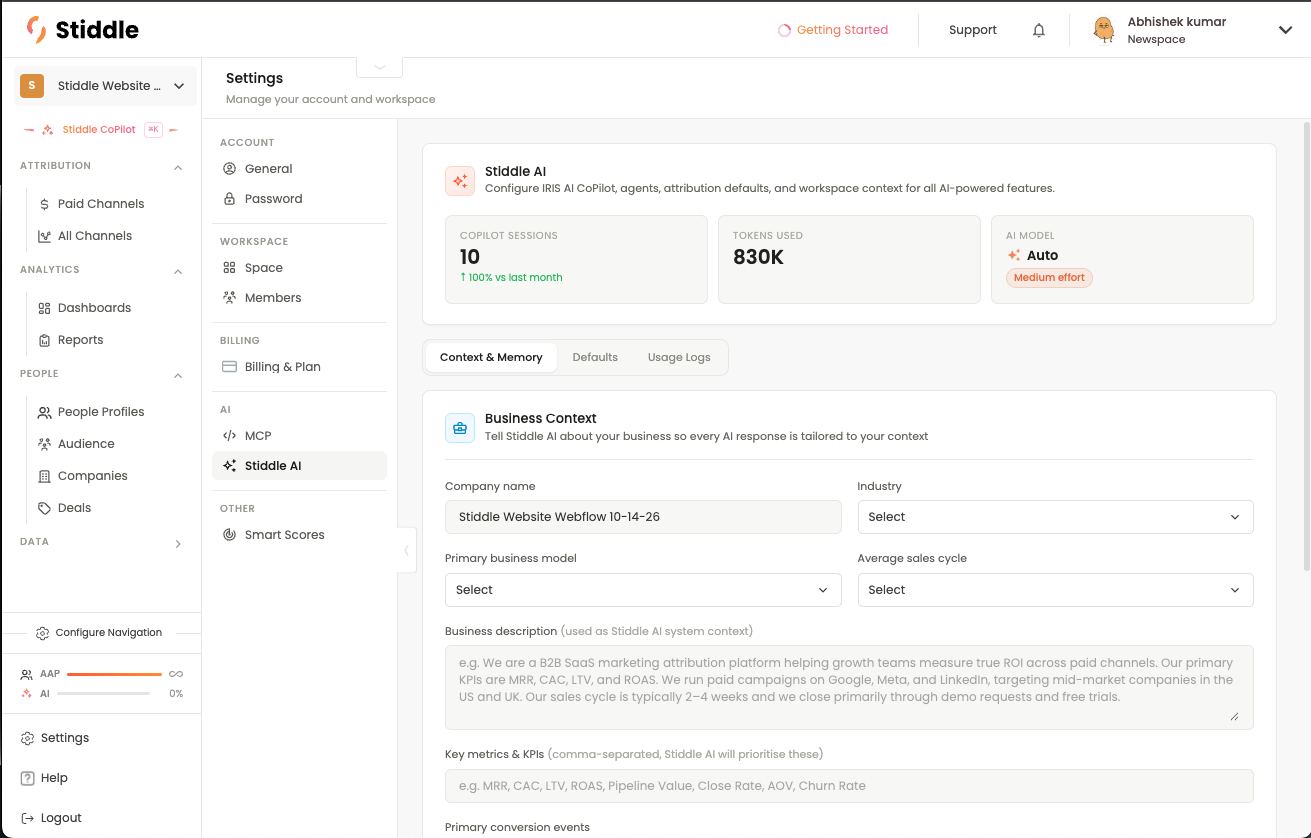
Save each block with Save attribution defaults or Save report defaults.
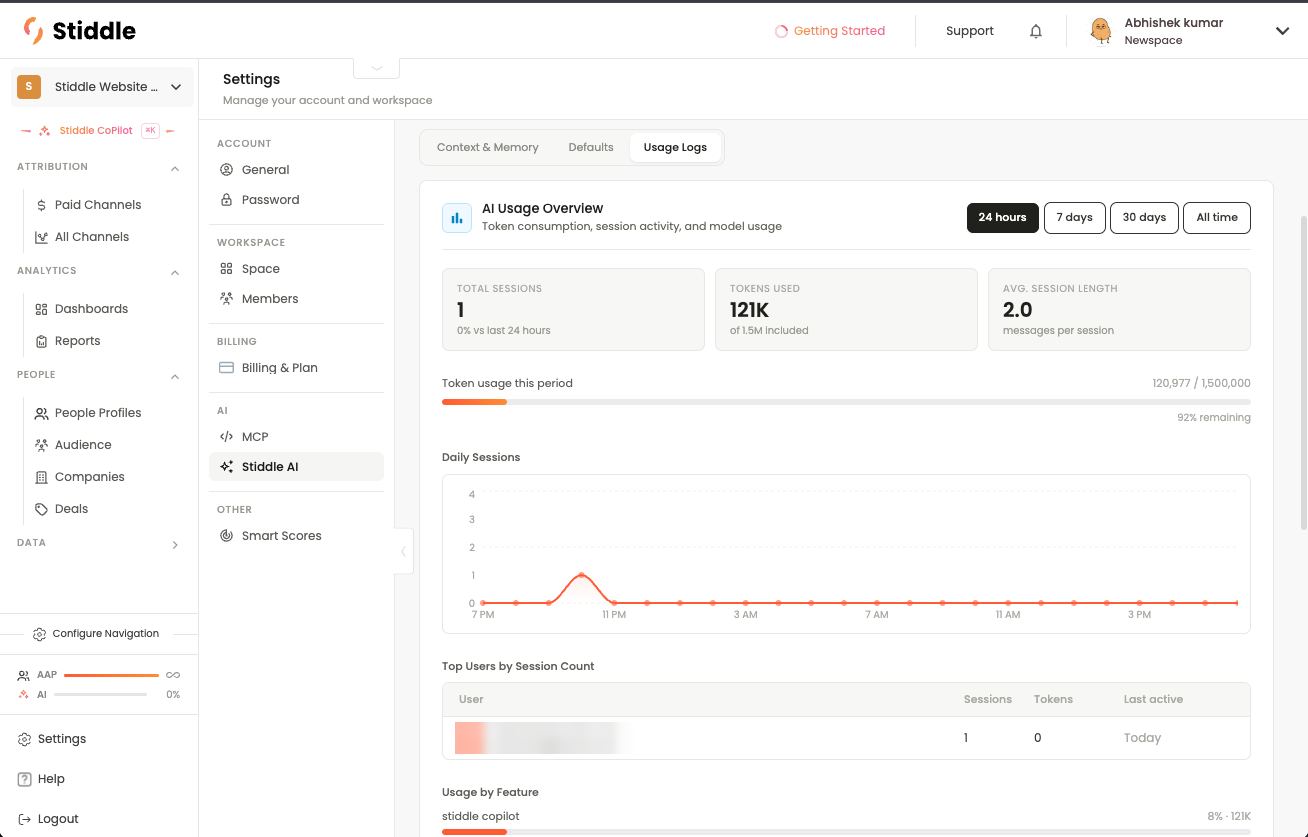
FAQs
Which data does CoPilot use? Only the active workspace’s. How do I check an answer? Open the table in Report Builder to see the exact metric, model, filters and date range behind it. Does each question use AI tokens? Yes — hover the circle in the prompt box or the AI meter in the nav. Higher effort and larger models use more.19. Stiddle MCP
Stiddle MCP connects outside AI tools — Claude, ChatGPT, Gemini or any MCP client — to your Stiddle workspace, so they can query live customer data and build reports, dashboards, audiences and scores. CoPilot is the assistant inside Stiddle; MCP brings Stiddle into your own assistant to power agents. CoPilot itself runs on the same tools, which is why it shows up as a client in the MCP logs.Connection details (Settings → AI → MCP)
The page shows an Active badge when MCP is on, plus:
Treat the endpoint and both keys like passwords — anyone with them can reach your workspace data. Setup steps for each AI tool are in the MCP setup guide.
Connect Stiddle MCP to Claude (custom connector)
Add Stiddle to Claude on the web, desktop or mobile app as a custom connector. Your whole team can then ask Claude about live Stiddle data in any chat. Free, Pro and Max plans- In Claude, go to Customize → Connectors and click Add custom connector.
- Name: Stiddle.
- MCP server URL: paste your MCP Server Endpoint from Settings → AI → MCP.
- Authentication: choose No sign-in. If you see a Request headers section, add x-api-key and x-auth-token with the values from Stiddle. Both names are already in Claude’s header list.
- Click Add.
- An owner goes to Organization settings → Connectors → Add → Custom (choose Web if asked), enters the details above and clicks Add.
- Members then go to Customize → Connectors, find Stiddle (labelled Custom) and click Connect.
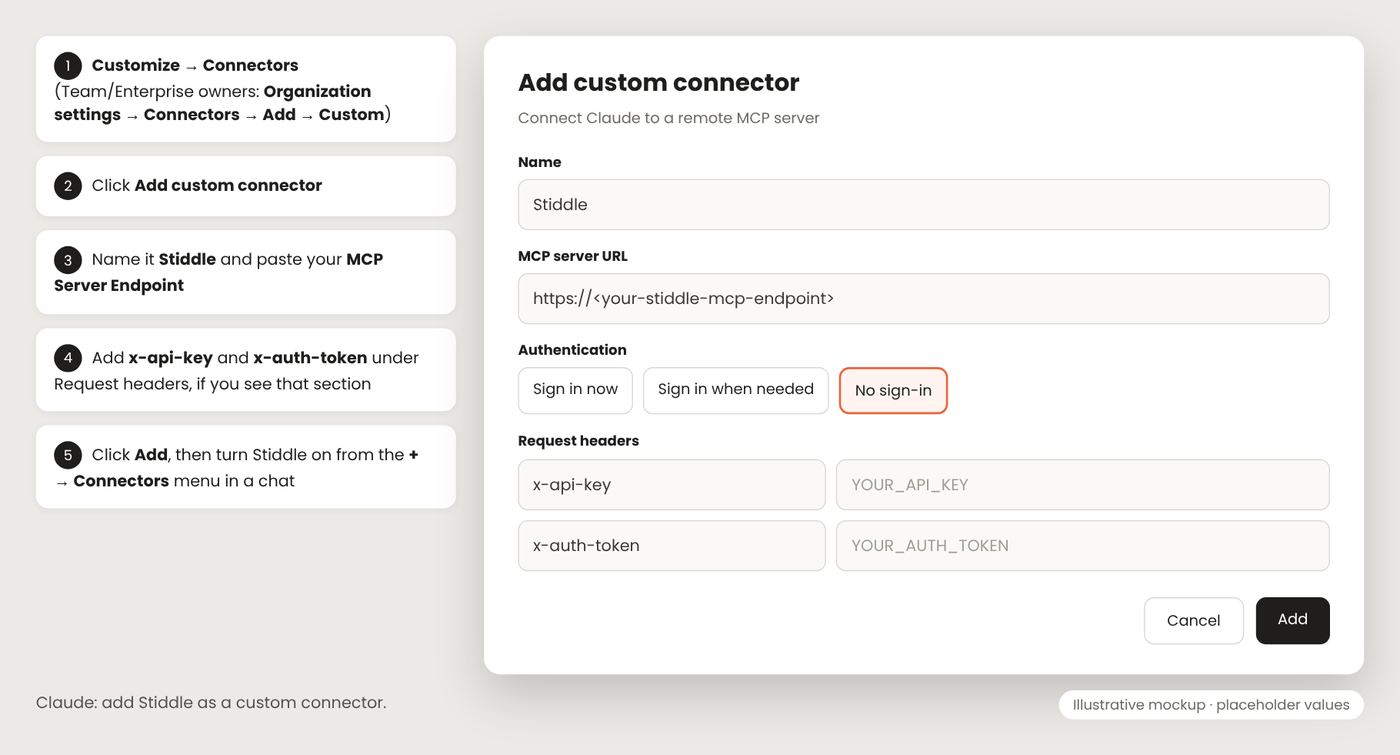
Connect Stiddle MCP to ChatGPT (custom connector)
ChatGPT supports custom MCP connectors in Developer mode on Plus, Pro, Business, Enterprise and Edu plans, on the web.- Turn on Developer mode: Settings → Apps & Connectors → Advanced settings → Developer mode. In Business, Enterprise and Edu workspaces, an admin may need to allow it first in workspace settings.
- Create the connector: in Settings → Apps & Connectors, click Create (some workspaces use Workspace settings → Apps → Create).
- Fill in:
- Name: Stiddle
- Description: Live attribution, customer and pipeline data from Stiddle. ChatGPT uses this to decide when to call Stiddle.
- MCP Server URL: your MCP Server Endpoint
- Authentication: No authentication. ChatGPT doesn’t take custom headers, so it relies on the workspace key in the endpoint URL.
- Tick the box confirming you trust the connector, then click Create. ChatGPT scans and lists Stiddle’s tools. Turn on the ones you want, and keep write tools (e.g. edit_audience, edit_dashboard) off until you’ve tested the read tools.
- Use it: start a new chat, click + → More (or Developer mode) and select Stiddle. You have to pick it in each new chat. Ask, e.g. “Pull my Very Hot contacts from Stiddle who haven’t booked a demo.”
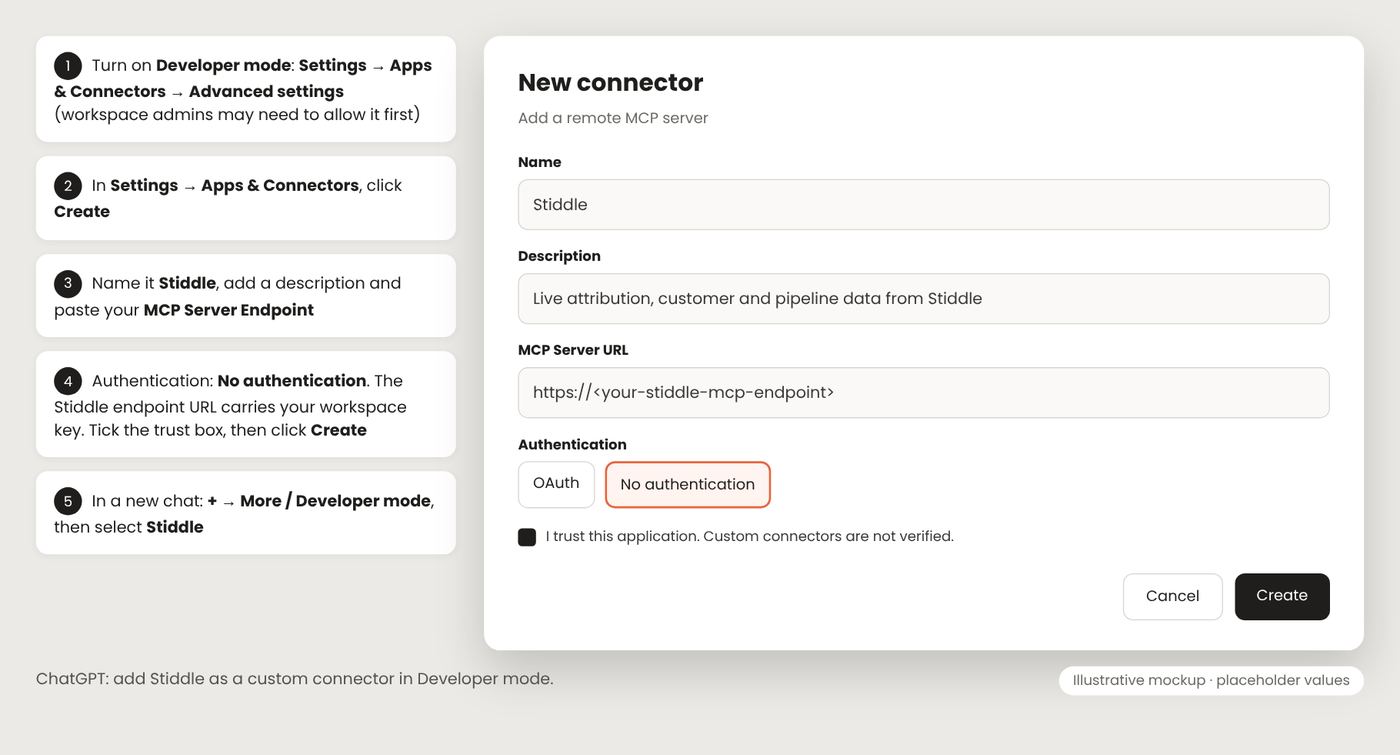
Sources: Claude — custom connectors with remote MCP · Connecting MCP servers to ChatGPT · ChatGPT connector setup (Zuplo)
Connect Stiddle MCP to Claude Code
Claude Code is Anthropic’s coding agent for the terminal. Connected to Stiddle MCP, it can pull live customer data into scripts, build reports and dashboards, or power agents you’re developing.- Copy your connection details from Settings → AI → MCP: the MCP Server Endpoint, plus the x-api-key and x-auth-token header values.
- Open Terminal (Mac: press ⌘ Space, type Terminal, press Enter). If Claude Code isn’t installed yet, follow Anthropic’s install guide at docs.claude.com.
- Add Stiddle by pasting this command with your own values, then pressing Enter:
--scope user makes Stiddle available in every project. Leave it out to add Stiddle to the current folder only.
- Check the connection. Run
claude mcp list. Stiddle should show ✓ Connected. - Use it. Start Claude Code with
claude, then type/mcpto see Stiddle and its tools. Ask in plain English, e.g. “Use Stiddle to compare LinkedIn vs Google on cost per SQL last quarter and build a dashboard.” Claude Code asks permission the first time it uses each Stiddle tool.
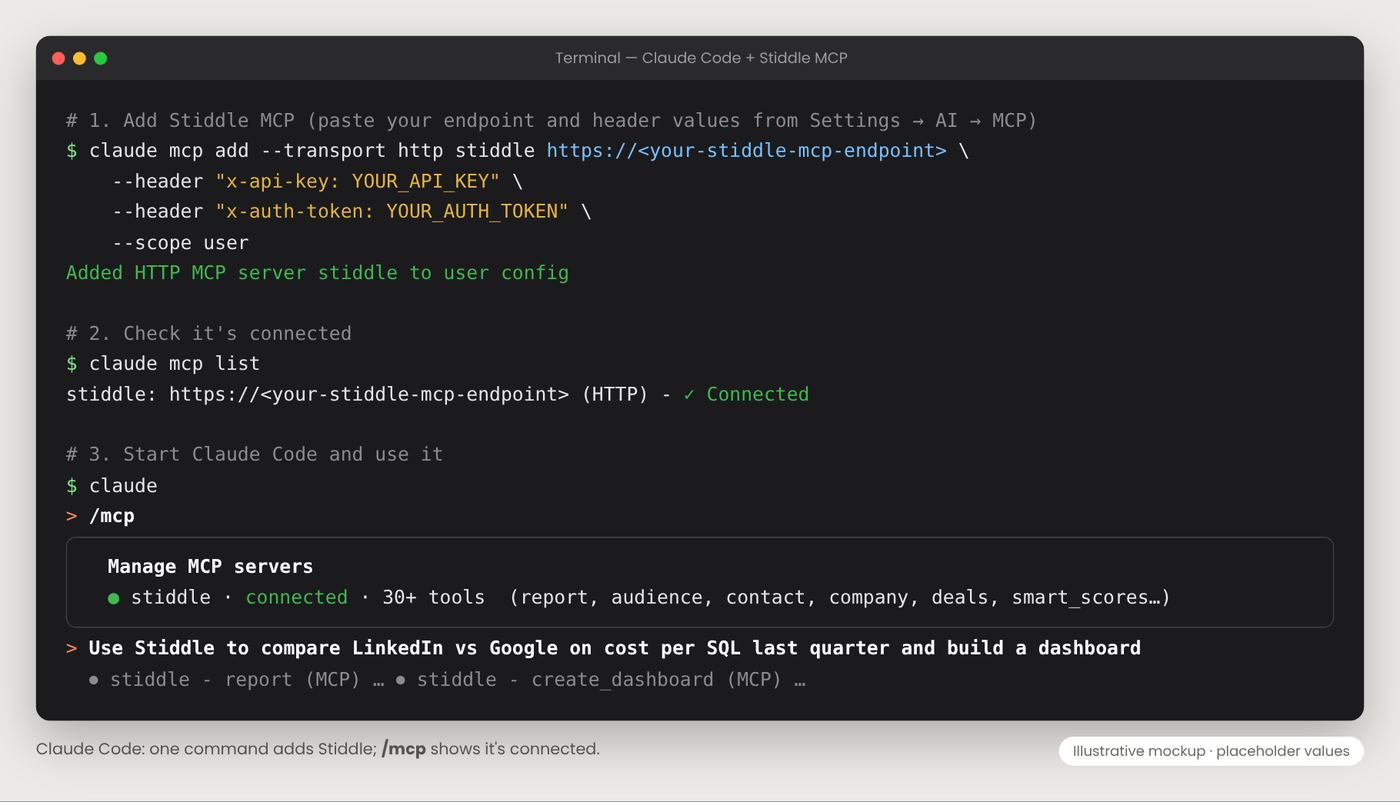
claude mcp remove stiddle.
Connect Stiddle MCP to Codex
Codex is OpenAI’s coding agent for the terminal. It reads MCP servers from a config file,~/.codex/config.toml.
- Copy your connection details from Settings → AI → MCP as above.
- Save your keys as environment variables so they never sit in the config file. In Terminal:
~/.zshrc (Mac) so they’re set every time you open Terminal.
- Add Stiddle to Codex. Open
~/.codex/config.toml(create it if it doesn’t exist) and add:
- Check the connection. Run
codex mcp list. Stiddle should be listed as enabled. - Use it. Start Codex with
codex, type/mcpto see Stiddle’s tools, then ask, e.g. “Pull my Very Hot contacts from Stiddle and write a CSV for the SDR team.”
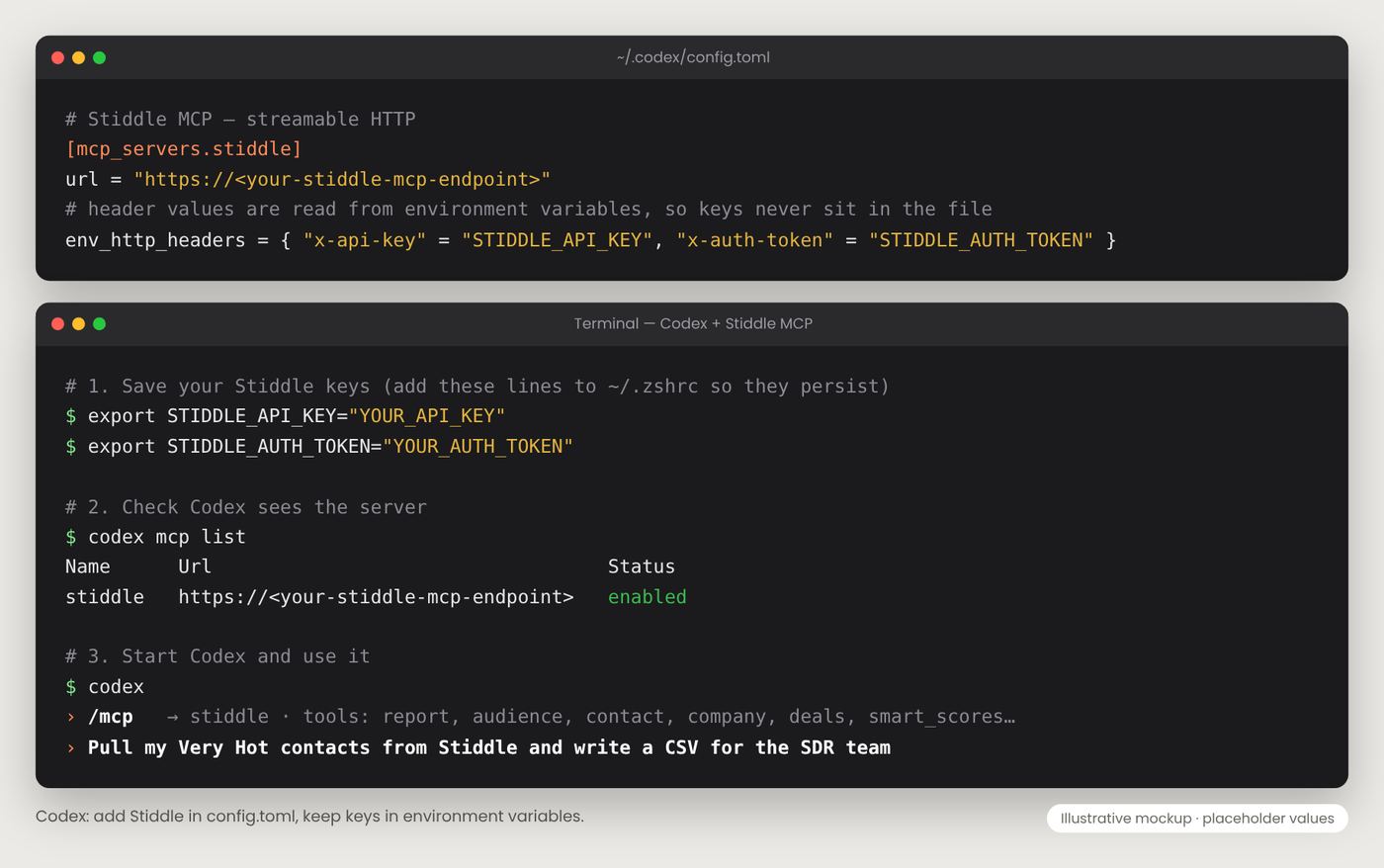
Keep keys out of code. Never commit your endpoint or keys to a Git repository. In Claude Code they live in your user config; in Codex, in environment variables. If a key leaks, regenerate it in Settings → AI → MCP.Sources: Claude Code MCP docs · Codex MCP docs
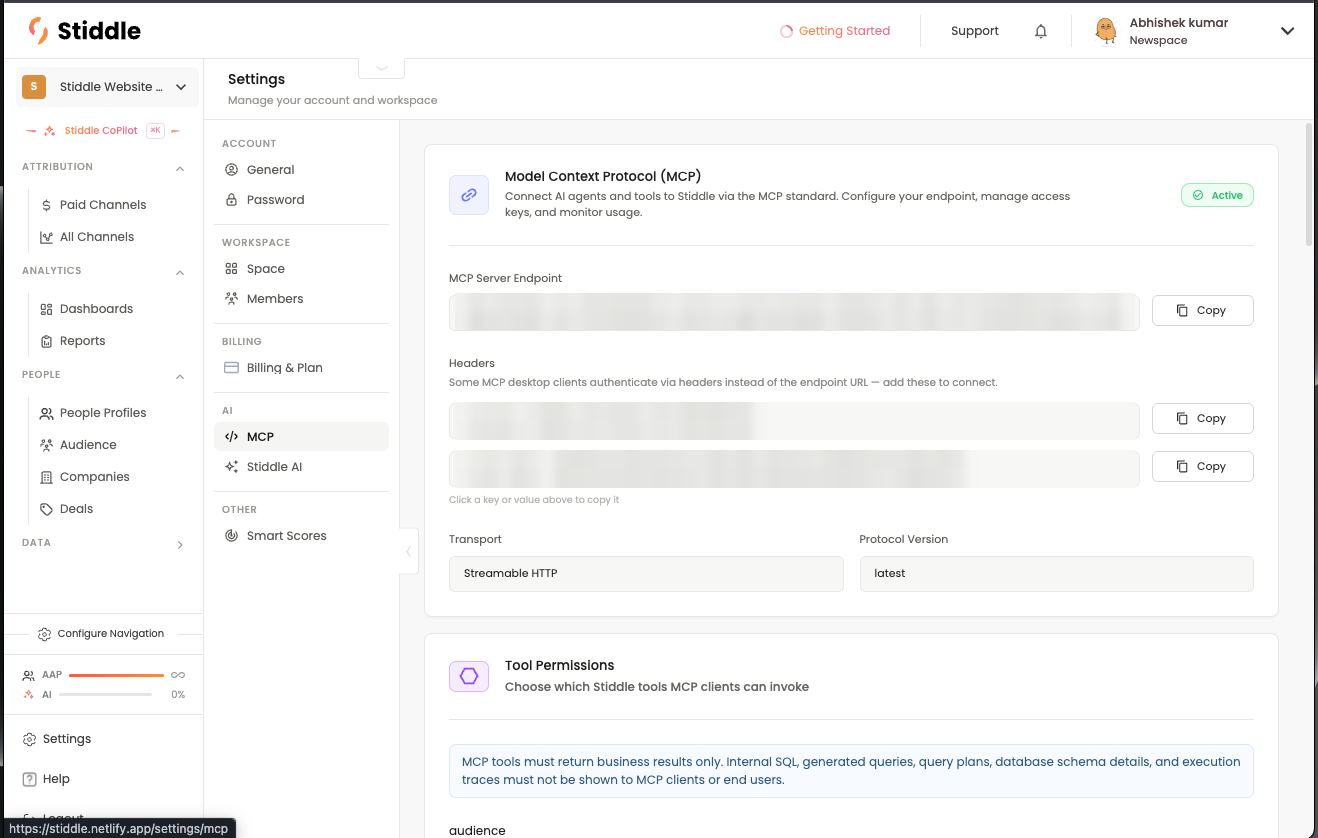
Tool permissions
Tool Permissions lists every Stiddle tool an MCP client can call, with the keywords it answers to. Toggle a tool off to block it — for example, turn off the create and edit tools to make MCP read-only. MCP tools return business results only; internal queries and database details are never shown to the client.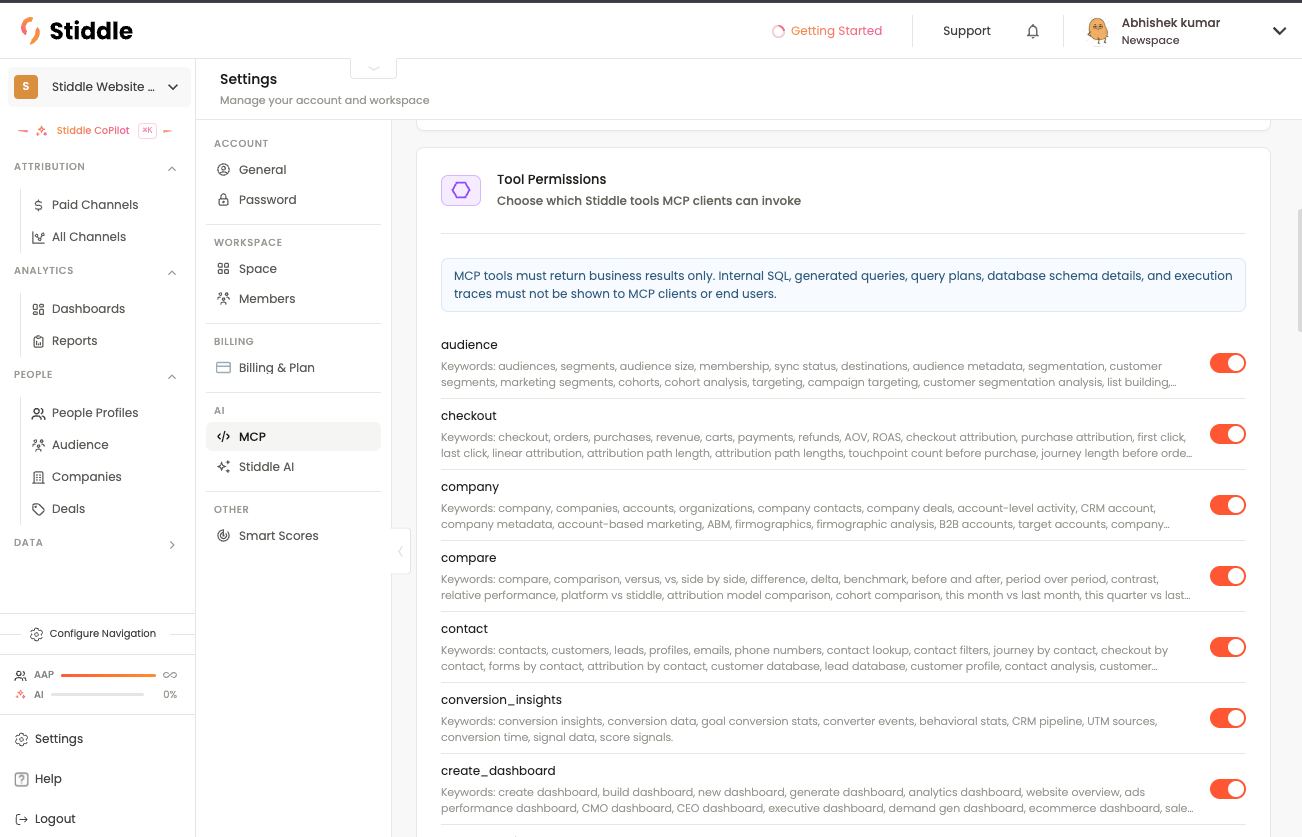
MCP usage logs
Scroll down for MCP Usage Logs over 7 days, 30 days or Today:- Top Client, Total Calls and Top Tool at a glance.
- Requests by Date chart.
- Top Clients (e.g. dashboard builder, Stiddle CoPilot) and Top Tools with their share of calls.
- Recent Tool Calls — time, client, tool and prompt for each call, so you can audit what outside tools did.
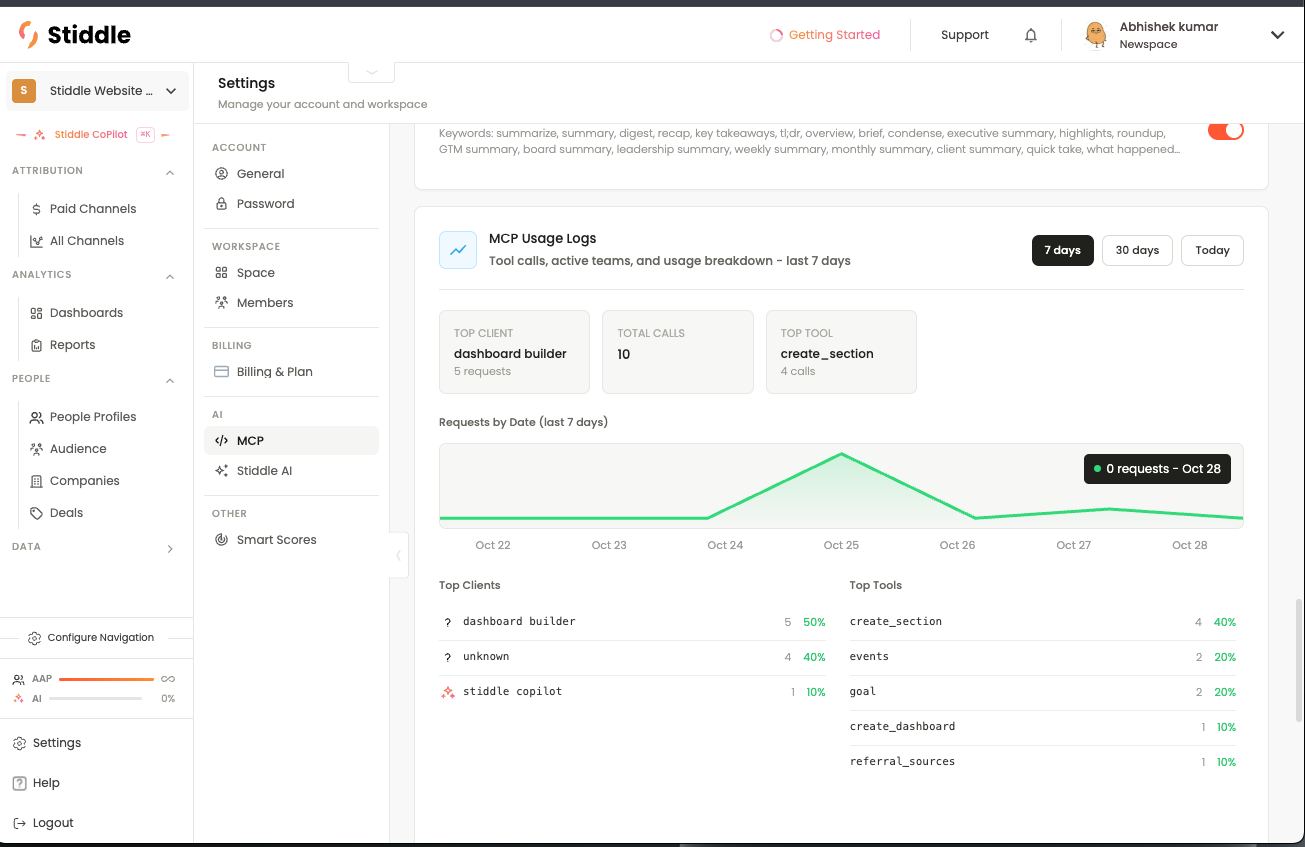
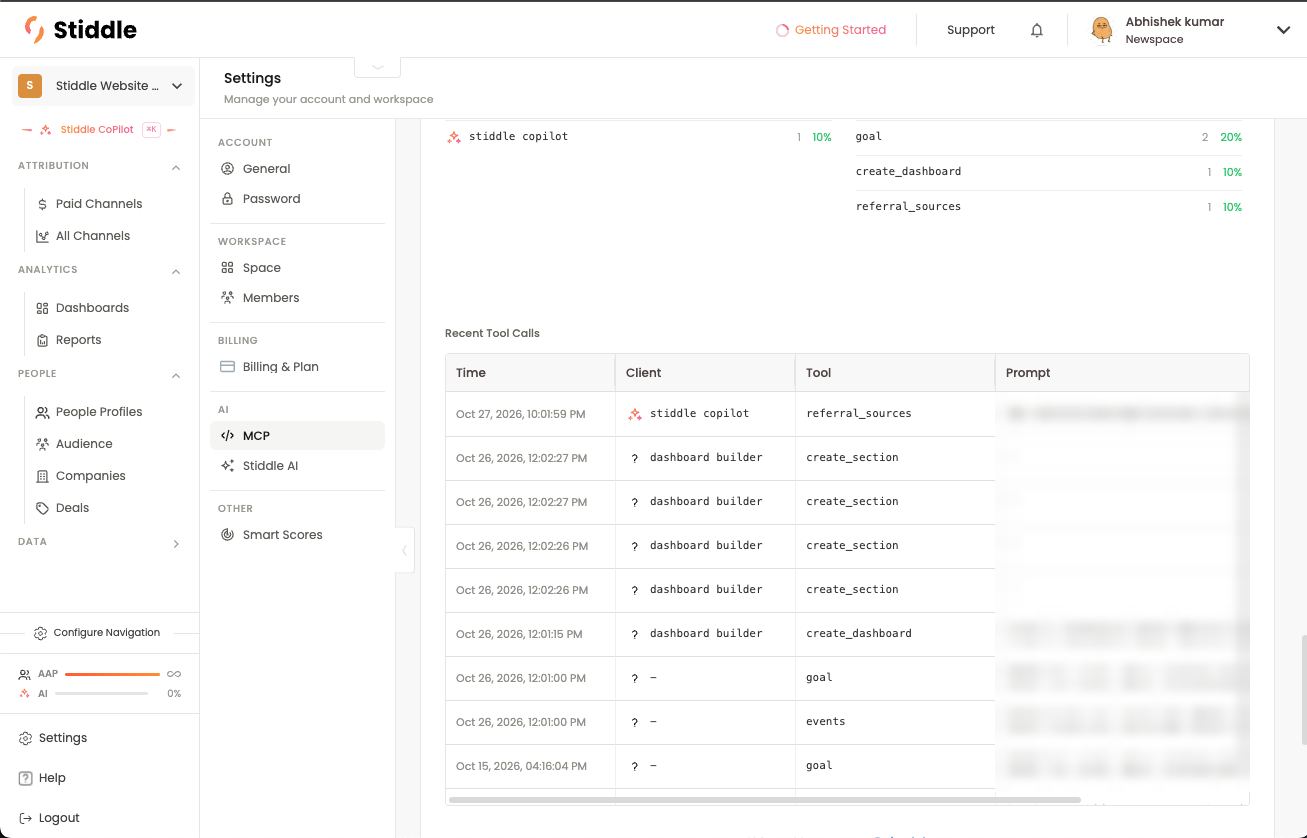
Example
In Claude, ask: “Using Stiddle, summarize closed-won revenue by source for last quarter with the Seeker model, then build a dashboard for it.” Claude calls conversion and report tools, then create_dashboard and create_section. Open the new board in Stiddle to check it, and see the calls in Recent Tool Calls.Advanced analysis, reports and recommendations
Because an MCP client can call many Stiddle tools in one conversation, it can chain lookups, comparisons and builds that would take several screens in the app. Ask in plain language and say the model, date range and goal you care about — or let it use your Stiddle AI defaults. The mockups below use sample data to show what a connected Claude conversation looks like. The tool chips show which Stiddle tools were called. 1. Compare attribution models to find under-credited channels Prompt: “Compare closed-won revenue by channel for last quarter under the Seeker model vs Last Click. Which channels are under-credited, and why?” Claude calls compare and conversion_insights to get both models side by side, referral_sources for AI-search traffic, and explain for the reasoning. You get a table of the shift per channel plus why it happens — here, LinkedIn and AI search start deals that Google brand search and email close.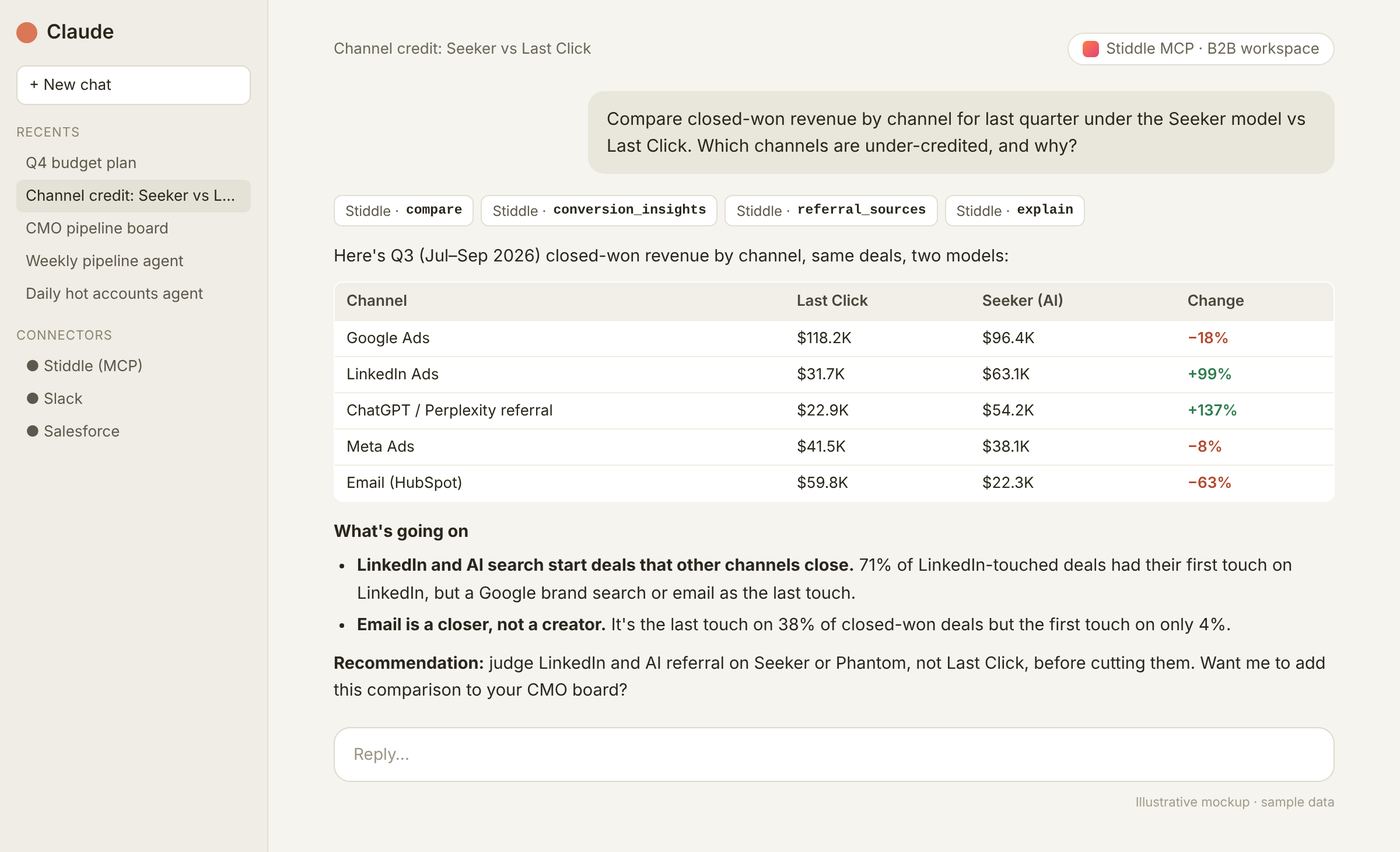
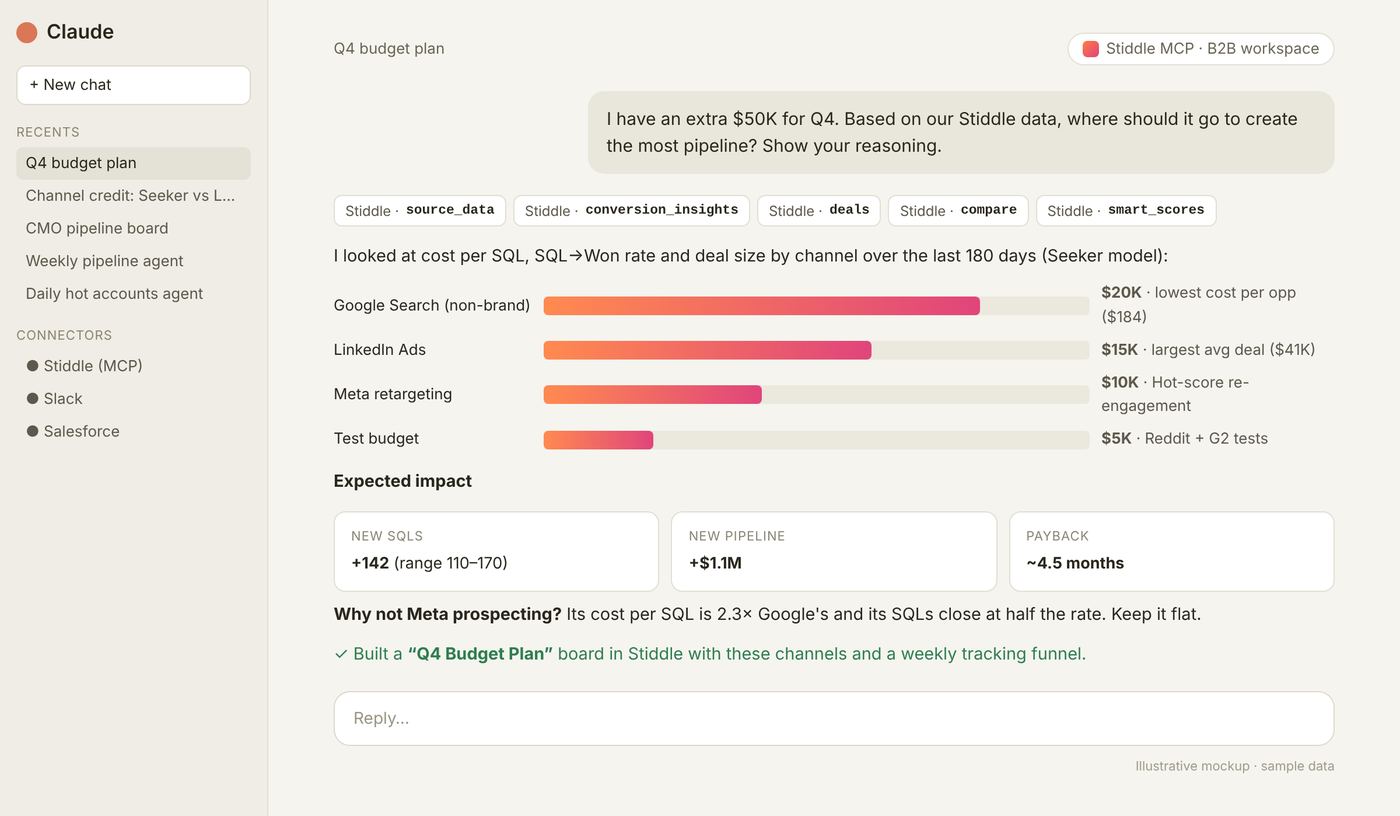
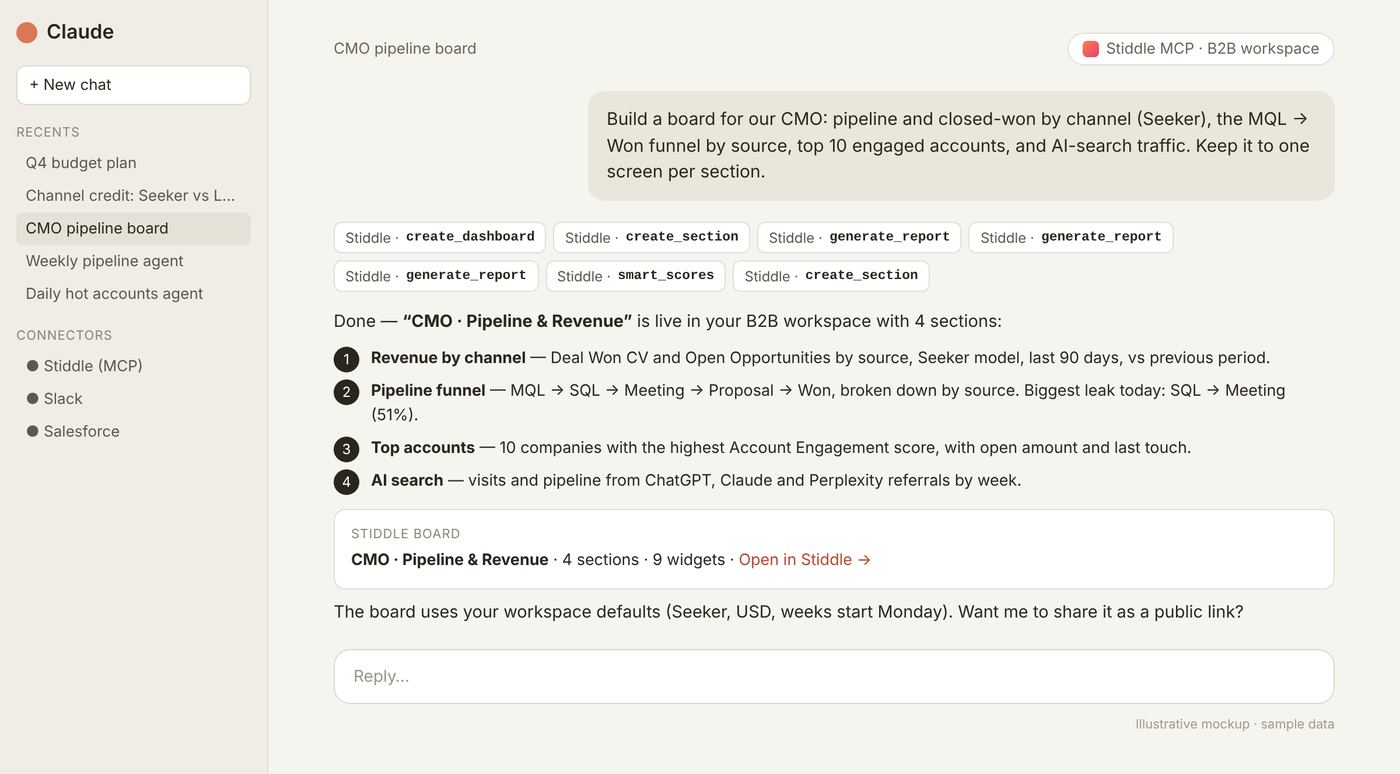
Building agents on Stiddle customer context
An agent is an AI workflow that runs on its own — on a schedule or a trigger — and takes actions. Connect Stiddle MCP to an agent along with your other tools (Slack, Salesforce, email) and it can read live customer context from Stiddle, decide what matters, and act on it. The pattern for any agent:- Connect Stiddle MCP and the tools the agent acts in.
- Write instructions — what to look at in Stiddle, what counts as important, and what to do about it.
- Set a schedule or trigger — e.g. every Monday, every weekday morning, or when a score changes.
- Limit permissions — under Settings → MCP, turn off any Stiddle tools the agent shouldn’t use (e.g. keep it read-only).
- Review its runs in MCP Usage Logs → Recent Tool Calls.
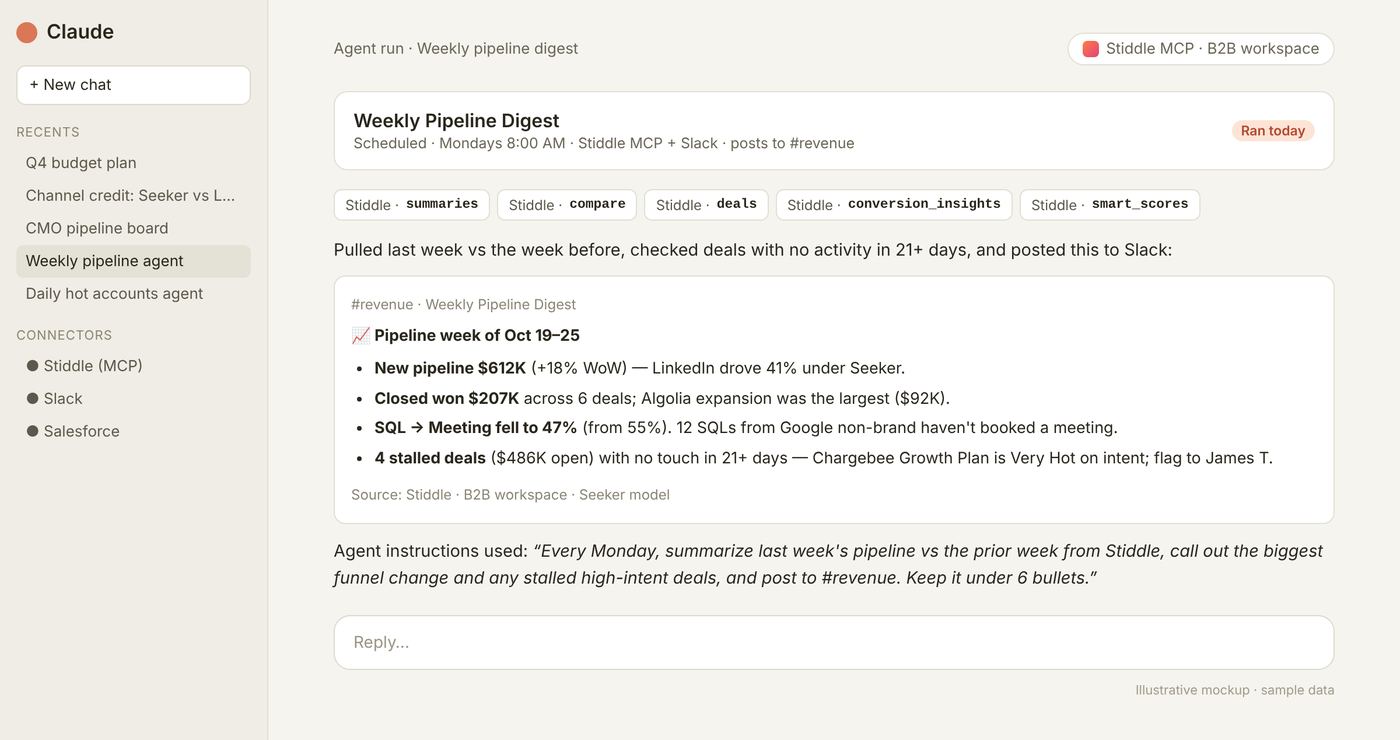
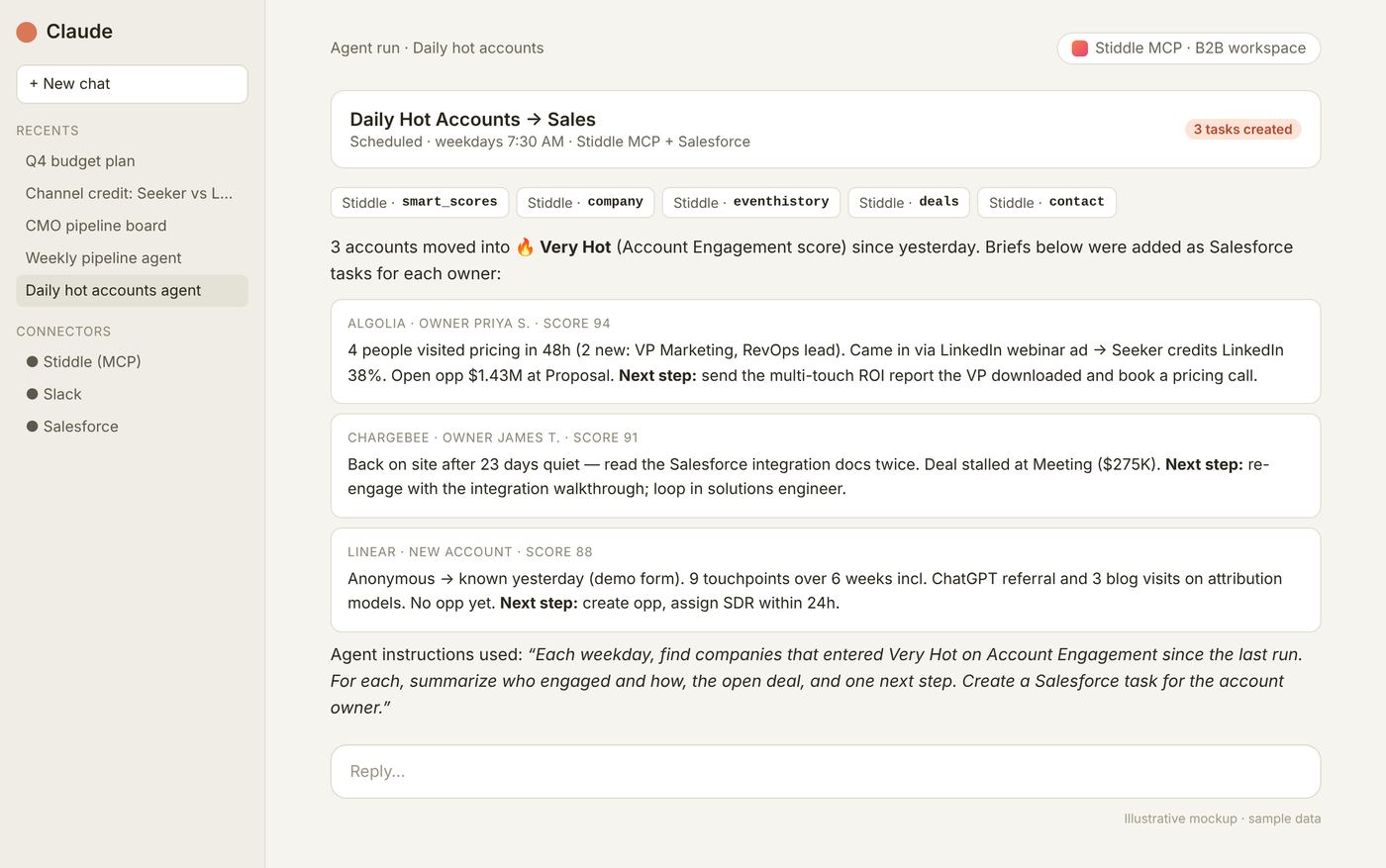
Agents are only as good as their context — fill in Settings → Stiddle AI → Context & Memory (business description, KPIs, conversion events) so every agent uses your definitions. e.g. Claude, ChatGPT, n8n, custom agents.
FAQs
How is MCP different from CoPilot? Same data and tools. CoPilot runs inside Stiddle; MCP runs inside your own AI tool. Can I make it read-only? Yes — turn off the create, edit and generate tools under Tool Permissions. Which workspace does it reach? The workspace whose endpoint and keys you used. Each workspace has its own. Whose AI tokens does it use? MCP calls appear under Usage by Feature in Stiddle AI → Usage Logs.20. Putting it together
The features are built to hand off to each other: a number in attribution opens the people behind it, a report becomes a widget, a segment becomes an audience, and a score triggers sales follow-up. B2B — find and fix a pipeline leak- All Channels (Seeker model): which sources create SQLs and Deal Won revenue?
- Paid Channels: compare LinkedIn vs Google on SQL CV per dollar; drill into campaigns.
- Funnel MQL → SQL → Meeting → Proposal → Won, broken down by source: where’s the leak?
- Deals / Companies: open a few stalled deals and read their touchpoints.
- Smart Score Deal Won Intent → Audience of Hot/Very Hot contacts on open deals → sync to Salesforce and LinkedIn.
- Put the funnel and attribution table on a dashboard and review weekly.
- All Channels: compare Klaviyo, Meta, TikTok and organic on orders and conversion value.
- Funnel home → product → cart → checkout → purchase by source.
- Flow before checkout to find the paths that convert.
- People Profiles: read a few journeys of high-LTV customers.
- Realtime audience of cart abandoners → daily sync to Meta.
- Track ROAS and orders on a dashboard.
21. Glossary and troubleshooting
Something looks wrong? Check in this order
- Workspace — is the right one active?
- Access — do you have permission for this feature or data?
- Date range — does it include the activity you expect?
- Goal — are you looking at the right conversion?
- Filters and breakdowns — on the widget, the report and the board?
- Attribution model — same model as the number you’re comparing to?
- Freshness — check Last refreshed and click Refresh.