

Before you begin
Most deployments follow the standard path below:- Plan the scope: the HighLevel sub-account, pipelines, conversion rules and owners.
- Connect HighLevel with OAuth or a Private Integration token.
- Map contact, company and opportunity fields into Stiddle properties.
- Define CRM events and the goals that count them.
- Measure attribution, pipeline value and acquisition costs.
- Validate the connection end to end before relying on reports.
In this guide
- Connection methods and data flow
- Requirements and HighLevel permissions
- Connect with OAuth
- Connect with a Private Integration token
- Configure the sync and record relationships
- Data schema and field mapping
- CRM events
- Pipeline and revenue goals
- Attribution and acquisition costs
- Alternative ingestion routes and sync back to HighLevel
- Validation and troubleshooting
Connection methods and data flow
The connection brings all authorized contacts, customer companies and opportunities within the selected HighLevel sub-account into Stiddle. Pipelines and stages provide the context needed to interpret opportunity changes. The selected sub-account, credentials and any filters you apply define the records in scope.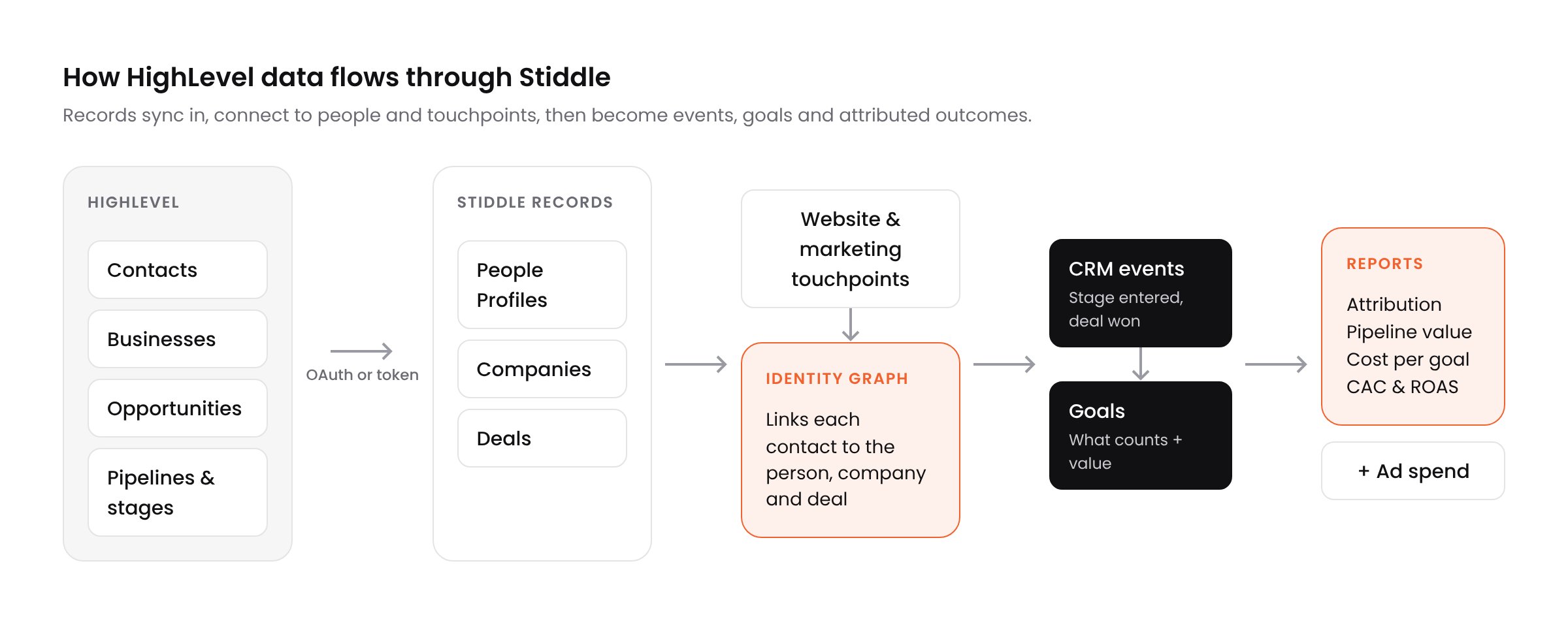
How HighLevel data flows from sync to attributed outcomes
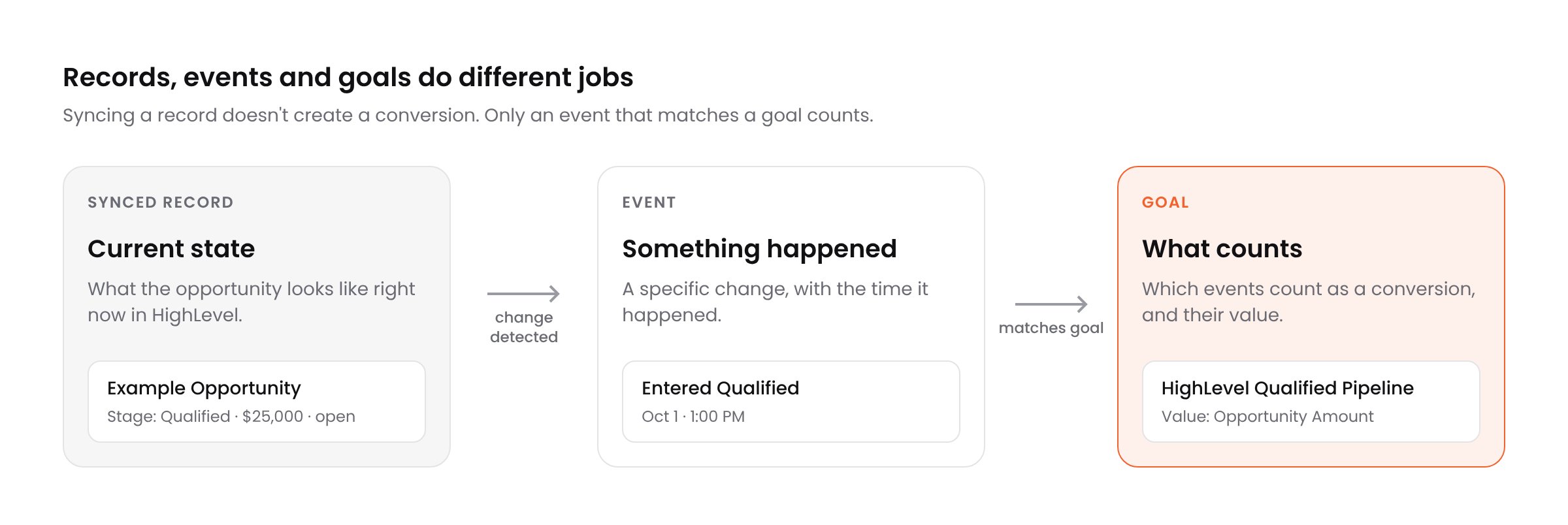
Records, events and goals each play a different role
Choose an authentication method
Requirements and HighLevel permissions
A Stiddle workspace administrator configures the connection, properties, events and goals. A HighLevel administrator grants access to the intended sub-account. Your marketing or RevOps owner should agree pipeline definitions, conversion rules, value definitions and reporting currency before you enable goals.Required information
- The Stiddle workspace that should receive the data.
- The HighLevel sub-account name and location ID, plus the responsible administrator.
- OAuth installation access, or a Private Integration token scoped to that sub-account.
- The pipelines, stage IDs and stage names used for qualification, sales progression and customer acquisition.
- A list of the fields you need for identity, company relationships, opportunity value and custom fields.
- The historical period, time zone and reporting currency, plus the person who will monitor the sync.
Permission matrix
Connect at the sub-account level. An agency authorization doesn’t mean every agency sub-account should be imported into one Stiddle workspace.Companies and sub-accounts
HighLevel uses several organization concepts: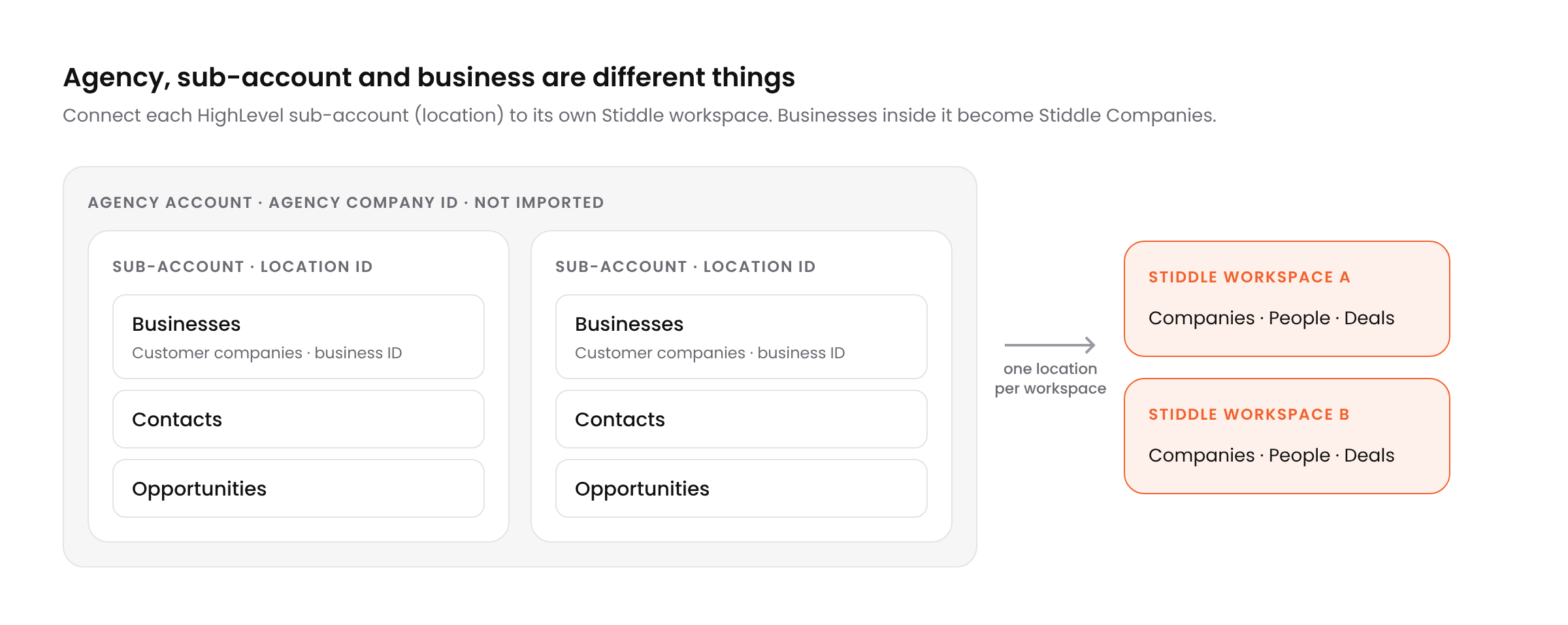
Connect each sub-account to its own Stiddle workspace
Connect with OAuth
OAuth is the recommended method. You authorize Stiddle in HighLevel without sharing a password or client secret.- Open the correct Stiddle workspace and go to Data → Connectors.
- Select Sales Channels, find HighLevel, and choose Connect To Stiddle. For an existing connection, choose Configure.
- Choose Connect with OAuth.
- Sign in to HighLevel if prompted and select the intended sub-account. If you are installing from an agency account, select only the locations that should connect to this workspace.
- Review the Stiddle app and requested permissions, then approve the connection.
- Return to Stiddle and confirm the connected location name and ID.
- Review the datasets and mappings, then start the initial sync.
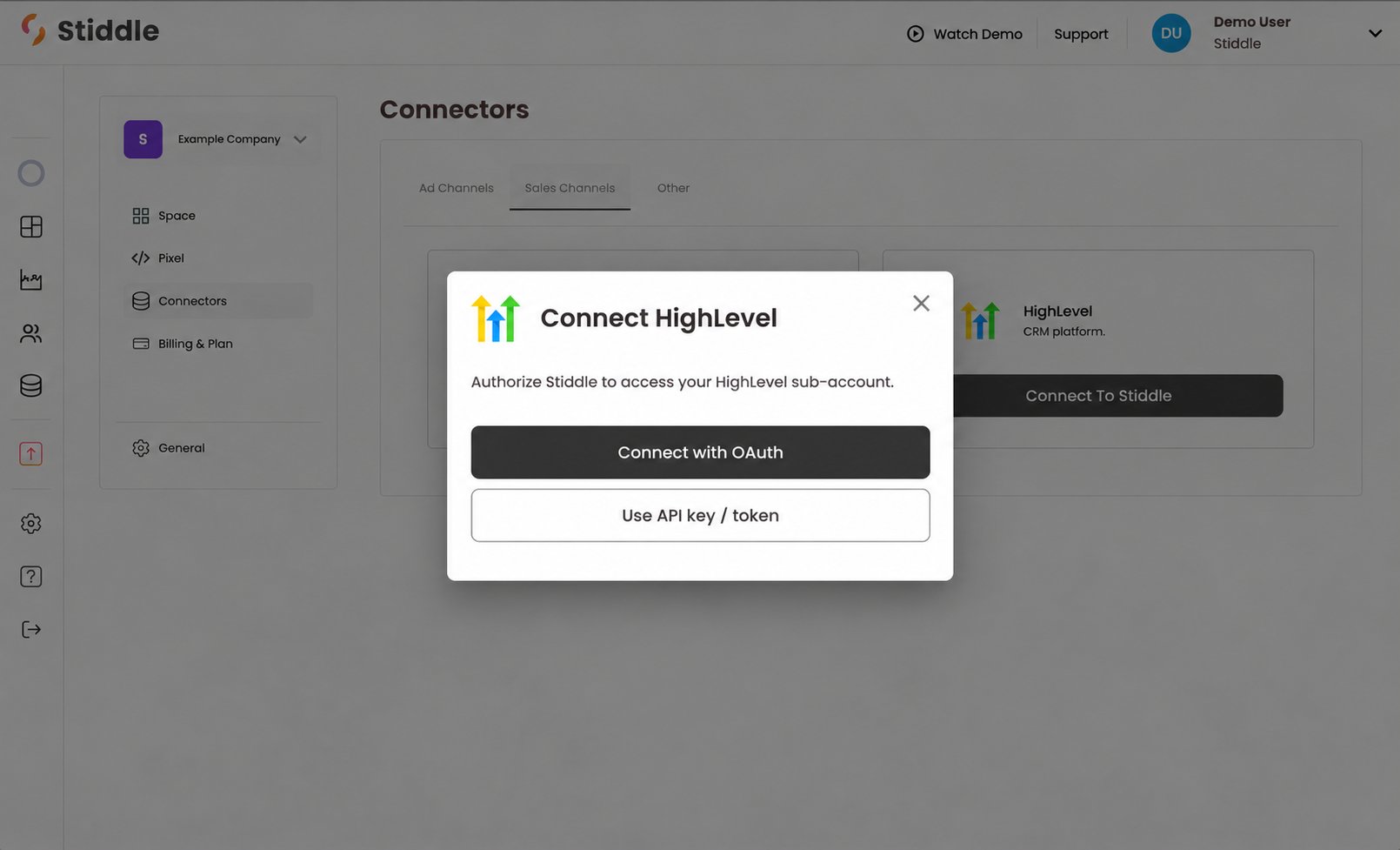
Start the HighLevel OAuth connection from Stiddle
What Stiddle manages
For OAuth connections, Stiddle handles authorization, access tokens and token refresh. If authorization is removed or permissions change, reconnect using a HighLevel administrator who can approve the required scopes. To connect another location, route it to its own workspace. Each imported record keeps its location ID, and agency clients aren’t combined just because their contacts share an email domain. See HighLevel’s OAuth reference.Connect with a Private Integration token
The Use API key / token option takes a HighLevel Private Integration token. HighLevel’s legacy API keys belong to its older API and don’t work with this connection.Create and connect a token
- In HighLevel, open the settings for the sub-account and go to Private Integrations. An administrator may need to enable this feature.
- Create a new integration named Stiddle CRM Sync.
- Select only the read scopes listed in the permission matrix.
- Copy the generated token and store it securely.
- In Stiddle, open Data → Connectors → HighLevel and choose Use API key / token.
- Enter the Location ID and paste the Private Integration token.
- Connect, then confirm the location name and the first sync result.
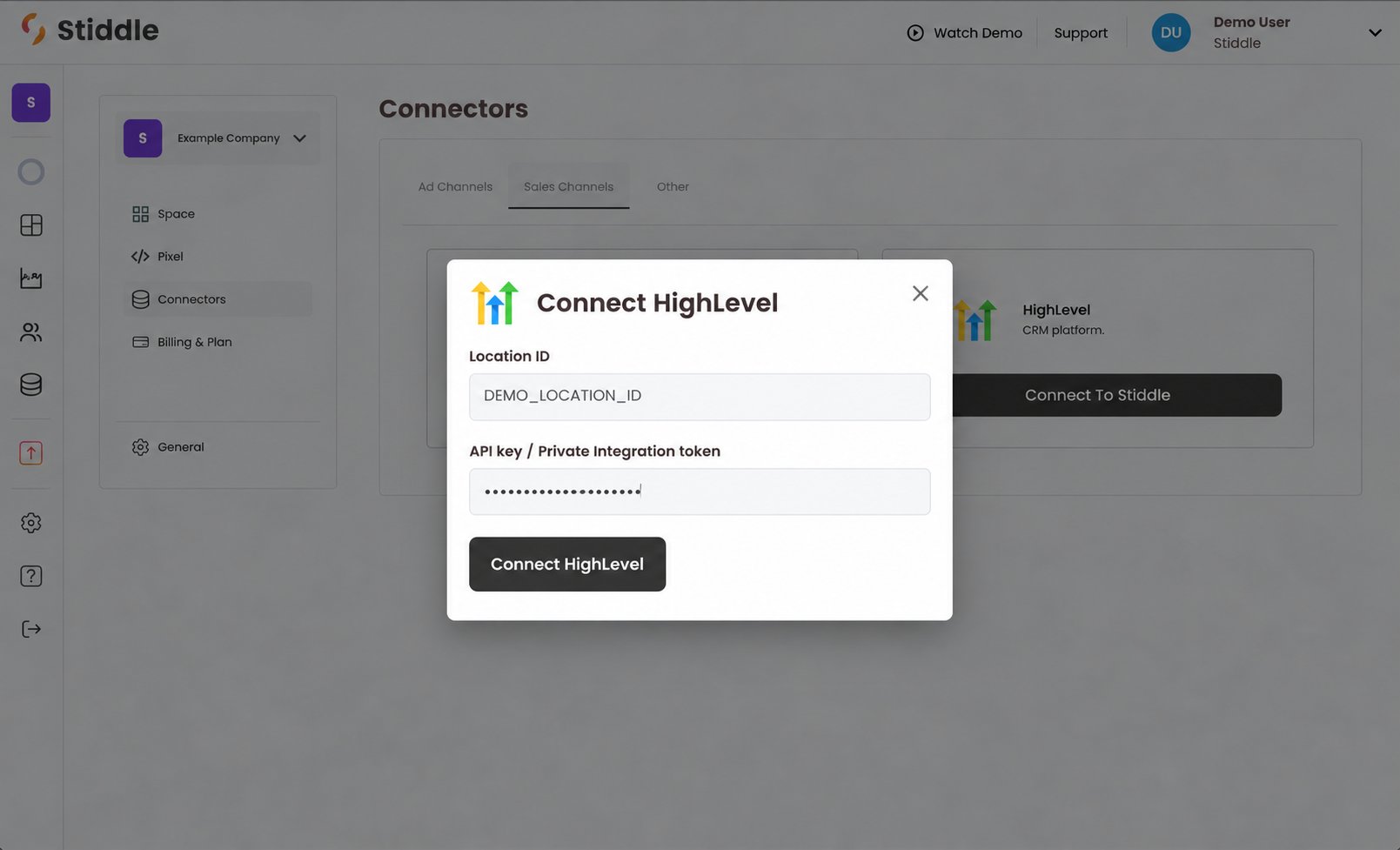
Connect a location using a Private Integration token
Maintain the token
Treat the token as a secret. Keep it out of CSV files, screenshots, event properties and reports. When you rotate it in HighLevel, update it in Stiddle, test the connection and confirm syncing resumes in Sync Logs before retiring the old token. See HighLevel’s Private Integration reference.Configure the sync and record relationships
After authorization, Stiddle syncs contacts, customer companies, opportunities, and pipeline and stage definitions for the selected location. Opportunities in every status are included: open, won, lost and abandoned.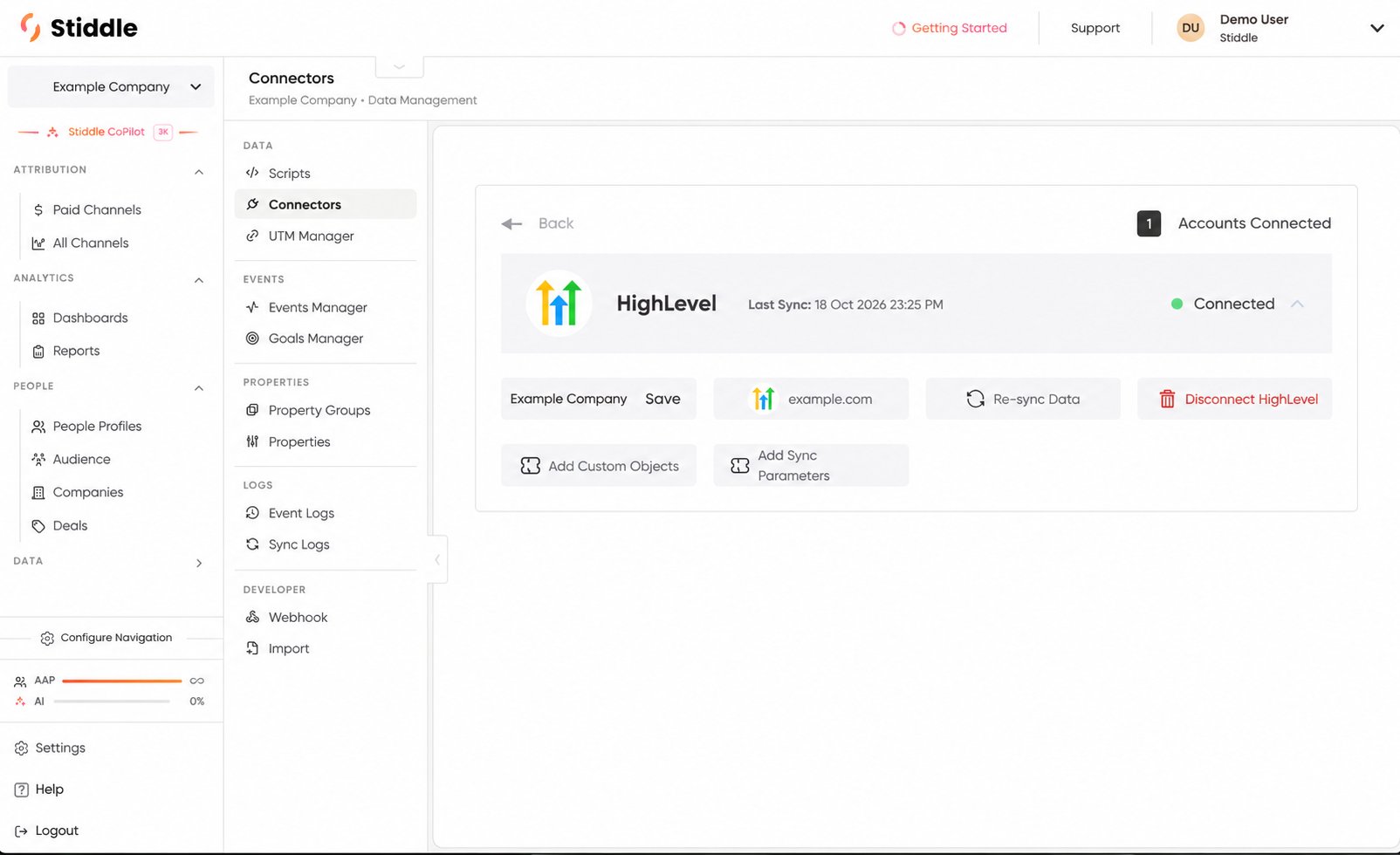
Review the connected HighLevel account and configuration controls
Initial sync
During the initial sync, Stiddle:- Loads pipeline and stage definitions, plus selected custom-field definitions.
- Imports customer businesses and contacts, and links contacts to their businesses.
- Imports opportunities with their contact, pipeline and stage identifiers.
- Links each opportunity to its contact, and to the relevant company where that relationship exists.
How records are linked
Stiddle identifies each HighLevel record by source + location ID + record type + record ID. These IDs are kept even when several CRM records resolve to one Stiddle individual.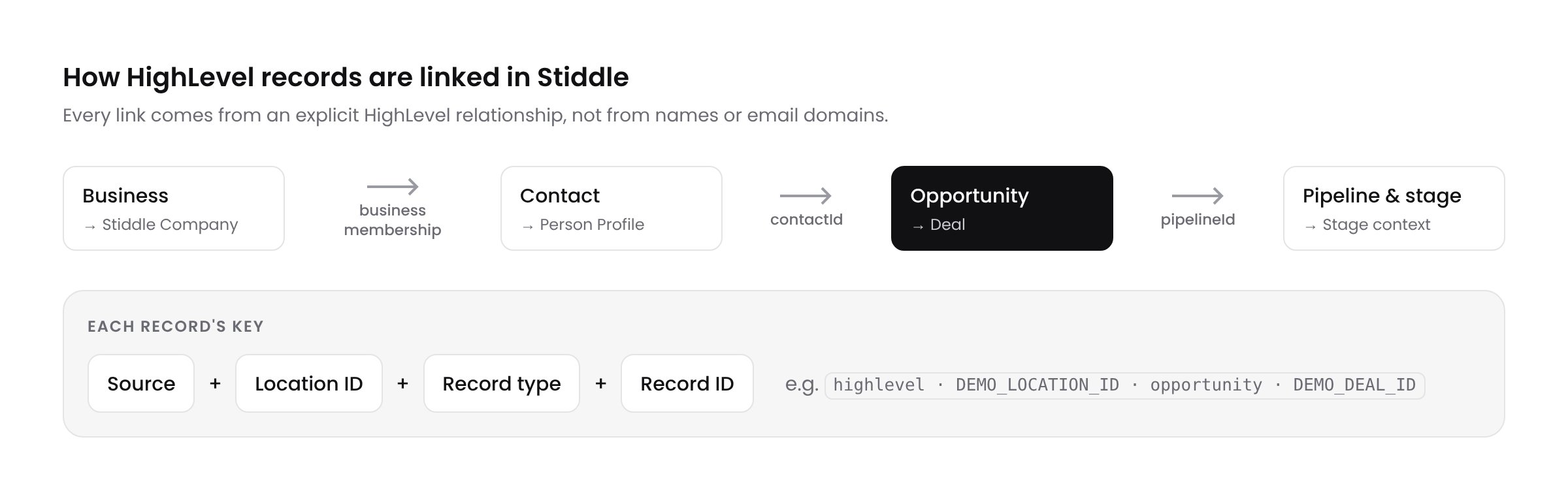
How businesses, contacts, opportunities and stages are linked
Ongoing changes
After the initial sync, Stiddle keeps the same records up to date. OAuth connections receive HighLevel change notifications; token connections refresh on a schedule. Check Sync Logs to see the latest activity. The initial sync imports each record’s current state. It can’t recreate stage history that HighLevel didn’t keep, so opportunities already in a stage aren’t counted as entering that stage on the day you connect. Stage-based goals count transitions that happen after the connection is live.Apply changes and re-sync
Use a re-sync to refresh existing records after you change mappings or need to recover a missed period.- Open Data → Connectors → HighLevel → Configure.
- Choose Re-sync Data.
- In Configure Sync, review the HighLevel Properties → Stiddle Properties mappings.
- Add or adjust property rows as needed, or choose Skip to keep the current mappings.
- Choose Next and review Confirm Sync.
- Choose Finish to save and start the refresh.
- Check Sync Logs and review a few contact, company and opportunity records.
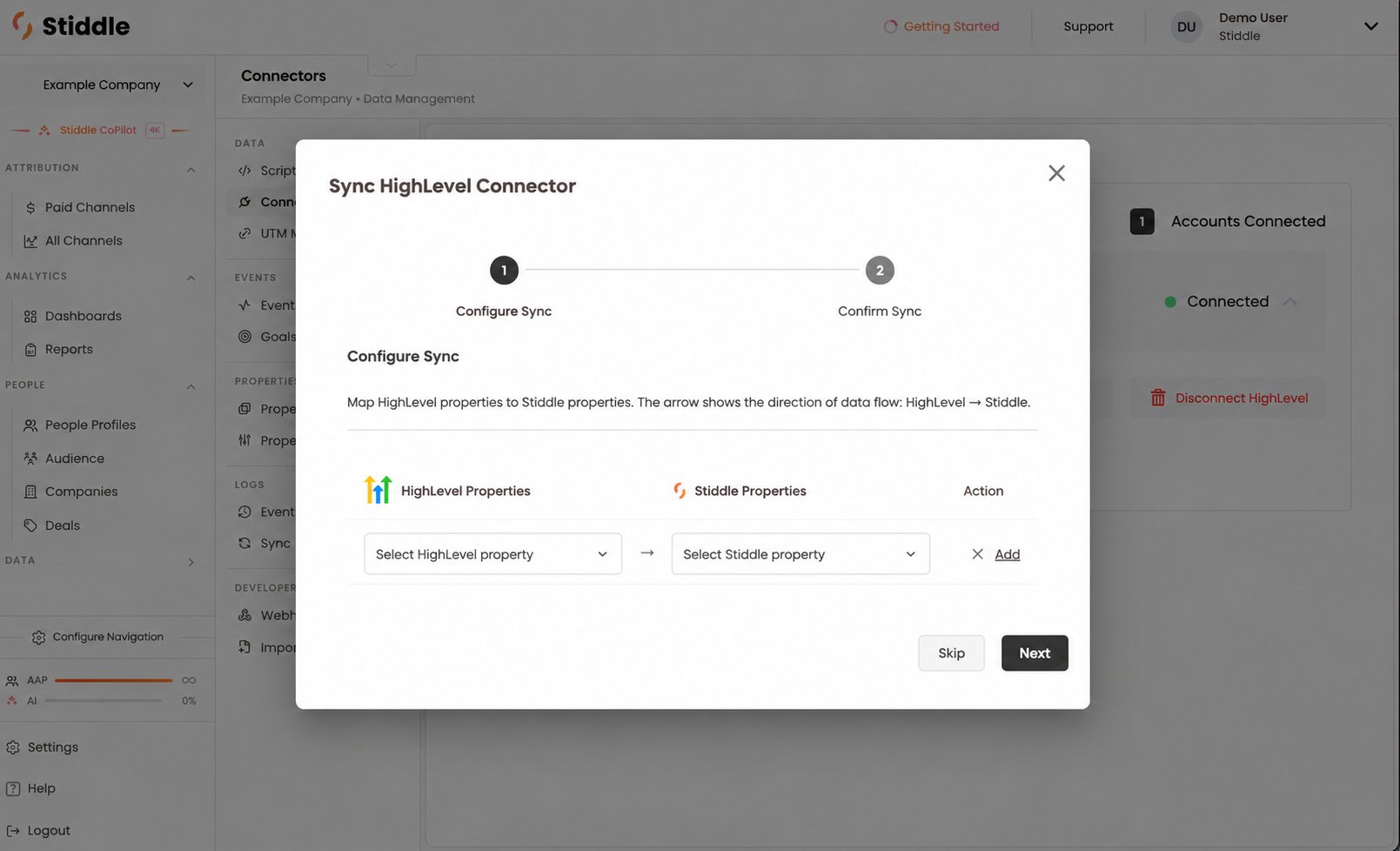
Review inbound property mappings in the Configure Sync step
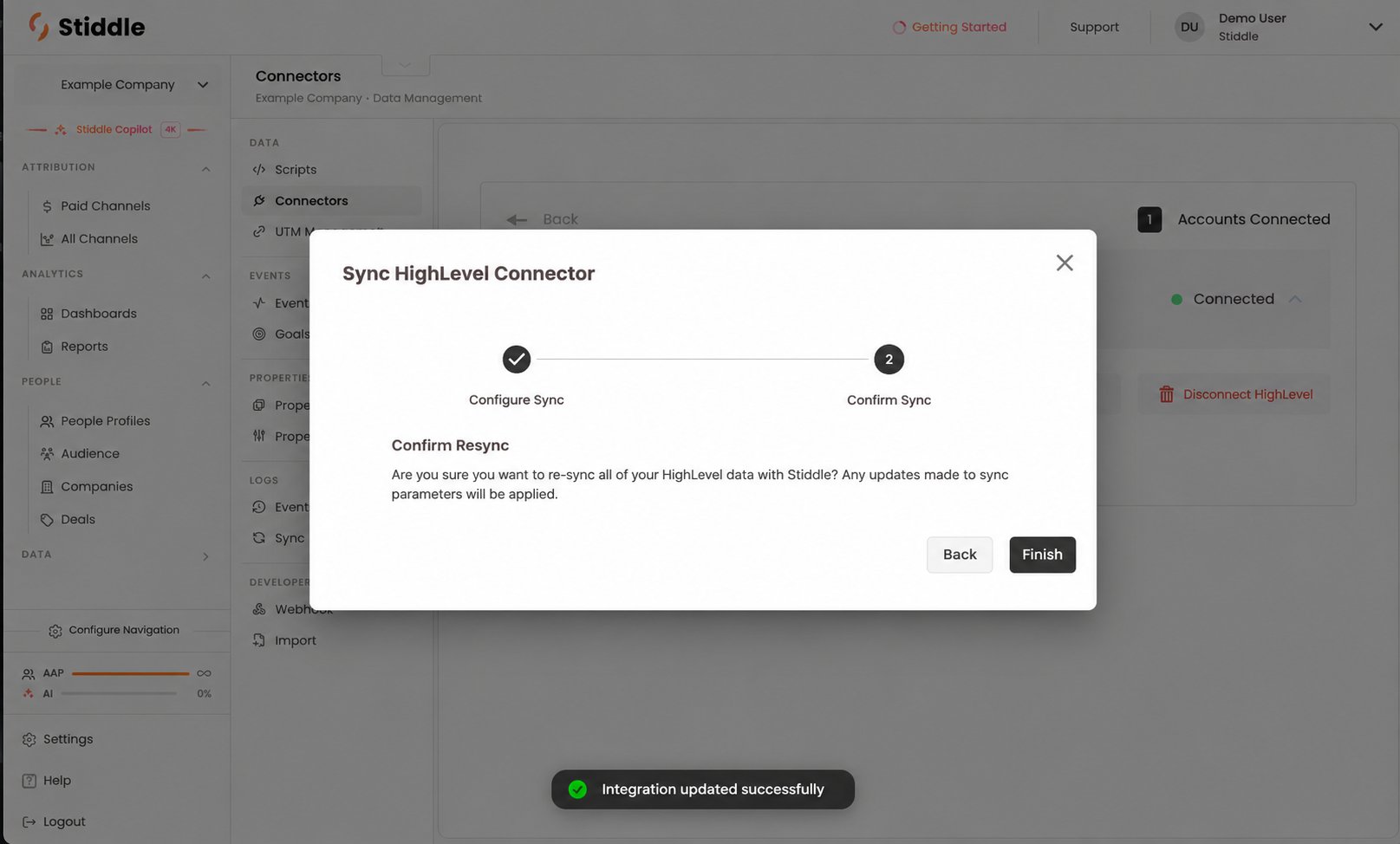
Confirm the HighLevel re-sync and apply updated sync parameters
Data schema and field mapping
Stiddle property groups organize data by connection and record type. Use the existing CRM groups or create your own. A group can hold many properties, and a property can belong to more than one group.Common HighLevel property groups
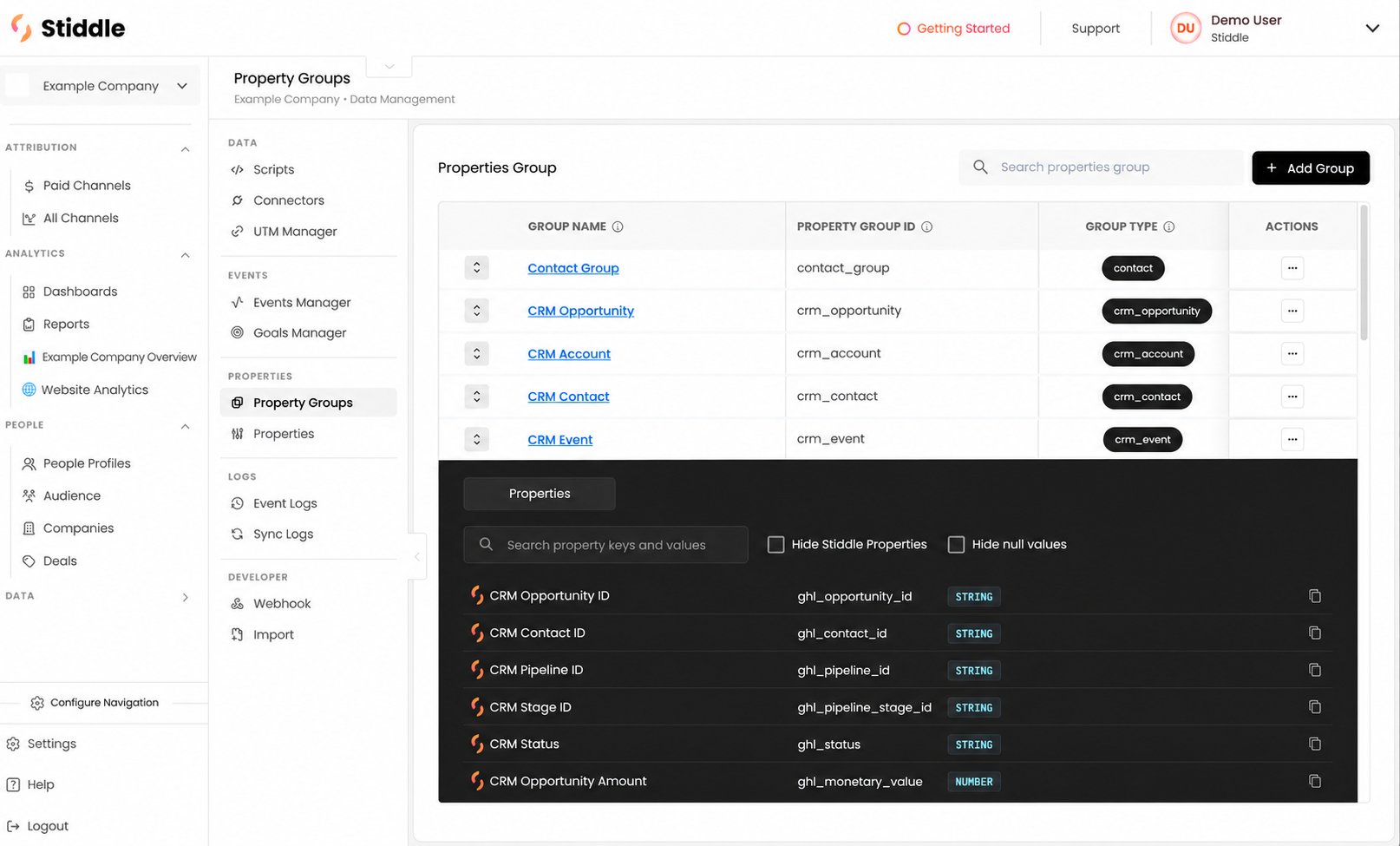
Organize HighLevel fields using Stiddle CRM property groups
Mapping rules
Use the tables below as a starting point. The fields available depend on your HighLevel account, and theghl_ keys are suggested names you can change.
- Store IDs as strings.
- Store money as numbers, with currency kept in a separate property.
- Store timestamps as
DATETIMEin a consistent time zone. - Map multi-value fields such as tags to a list property rather than a single text string.
Contact properties
Company properties
HighLevel business records map to Stiddle Companies. Agency-level metadata is kept separate.Opportunity properties
monetaryValue as the source for Opportunity Amount, and store the reporting currency separately. Opportunity amount is pipeline value, not collected revenue.
See HighLevel’s opportunities reference.
Configure inbound property mappings
- Open the HighLevel connection and choose Add Sync Parameters.
- Under HighLevel Properties, select the source field. For opportunity value, select
monetaryValue. - Under Stiddle Properties, select the destination, such as Opportunity Amount.
- Choose Add for each additional mapping, review the rows, then choose Save.
- Refresh a test record and confirm the stored value in Stiddle.
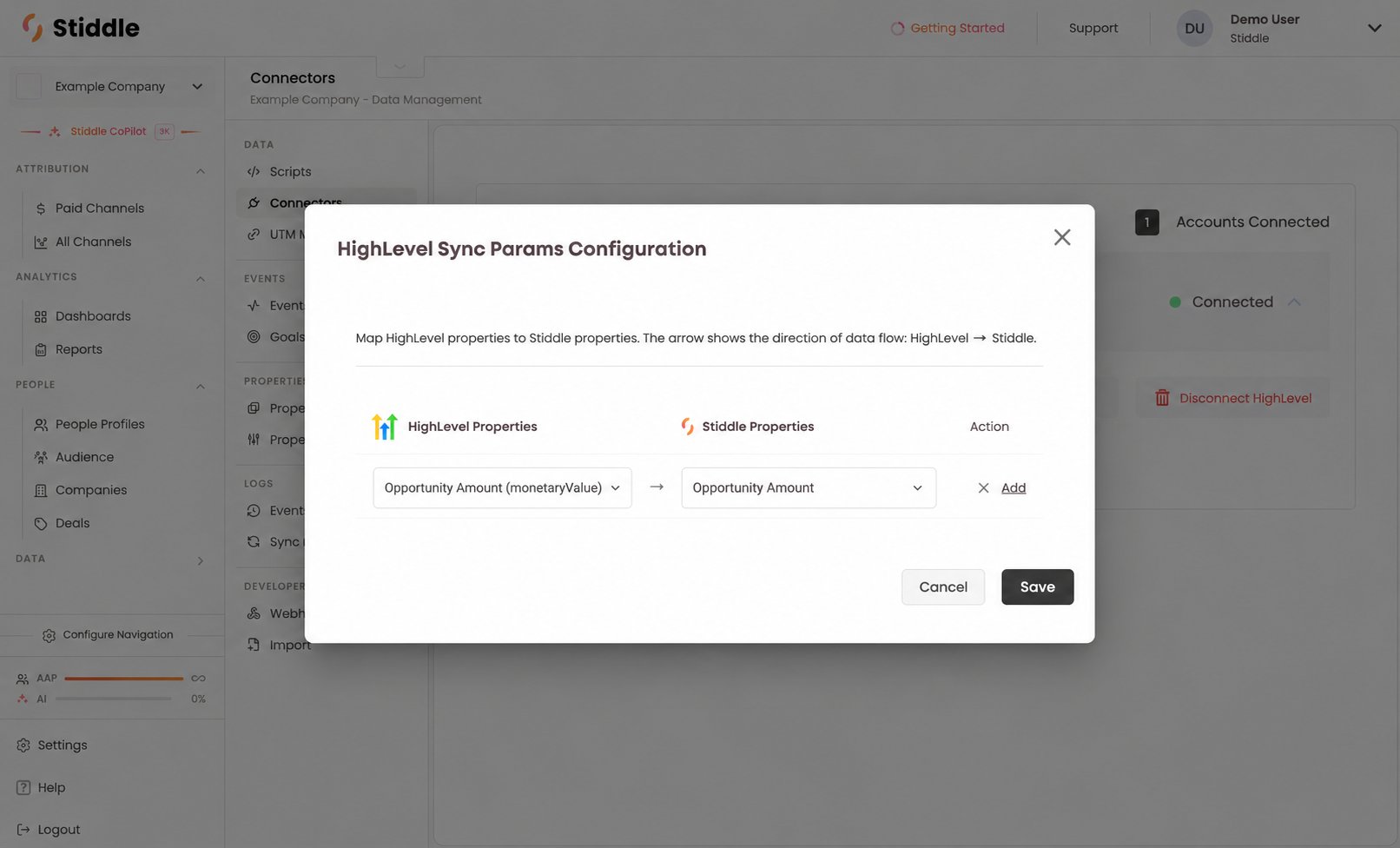
Map HighLevel Opportunity Amount into the Stiddle destination property
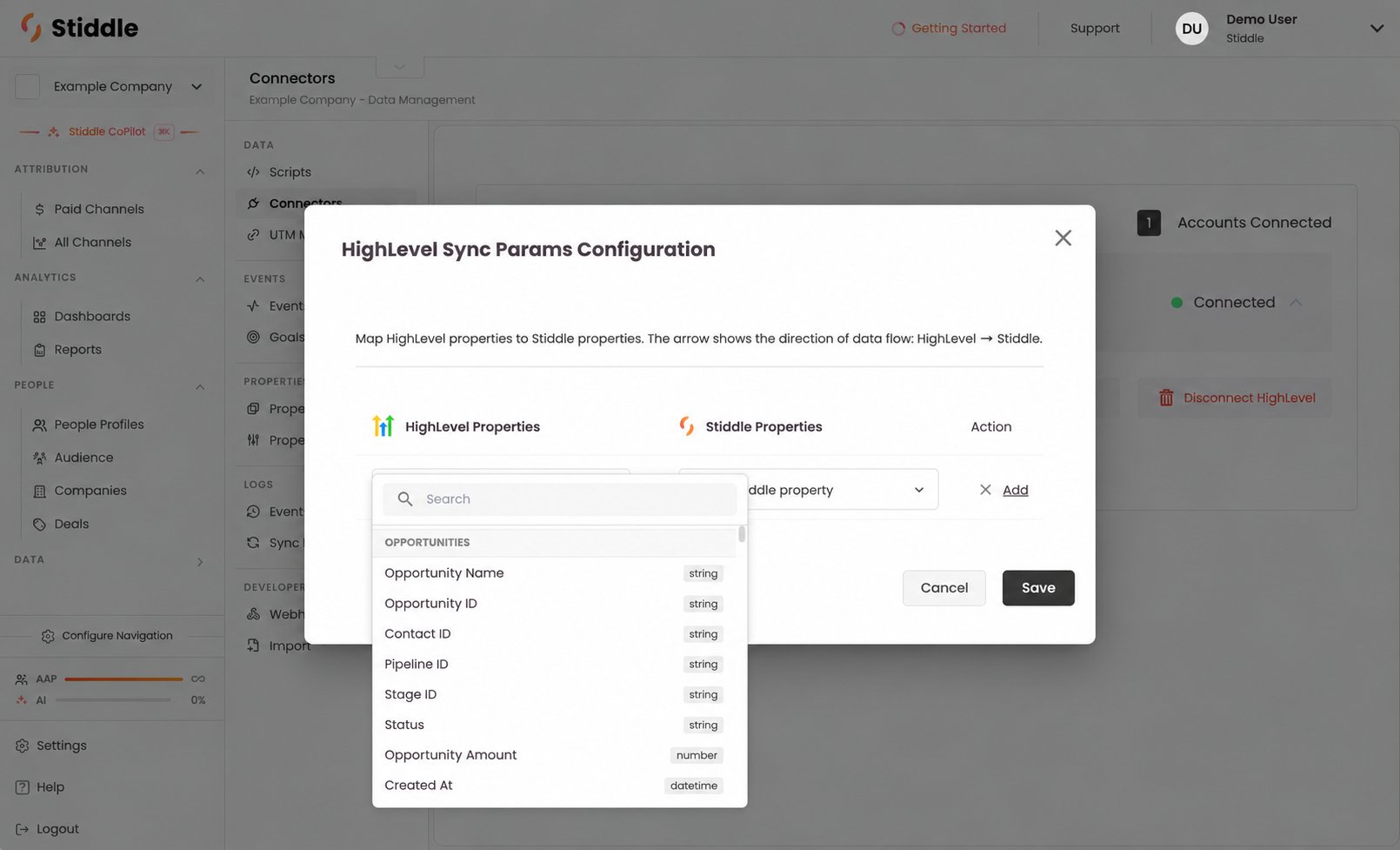
Search HighLevel source properties by record type
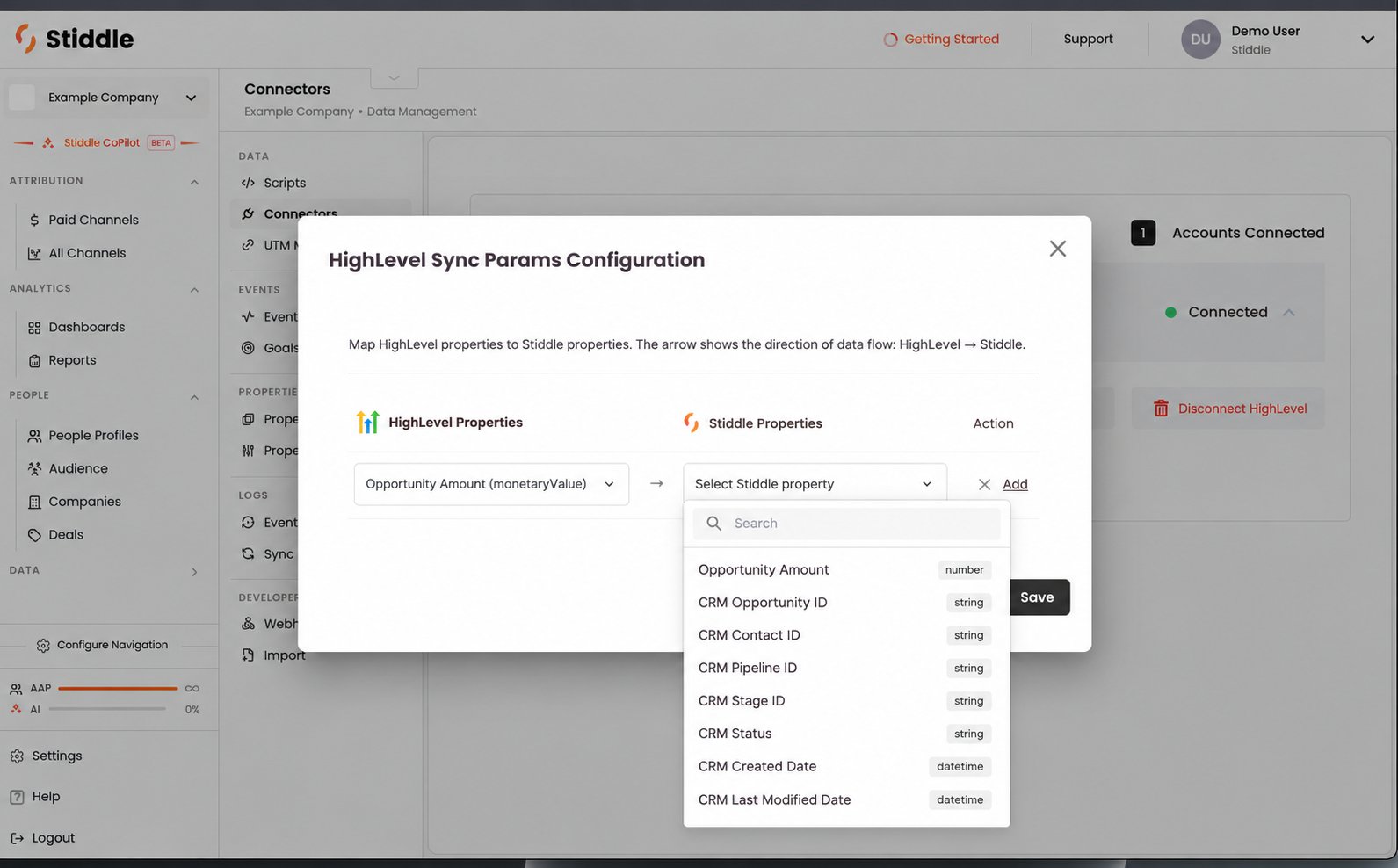
Choose the destination Stiddle property and verify its type
Create custom properties
- Review the location’s custom fields and choose the ones you need for reporting.
- Match fields by their ID or key and record type, not only their display name.
- Create a Stiddle property with the correct type if no suitable one exists.
- Add the property to the relevant groups, including CRM Event if you need it as event context.
- Map sample values and check empty, number, date, dropdown and multi-value fields.
- Update the field in HighLevel and confirm the change reaches Stiddle.
name.
CRM events
An event in Stiddle starts with a source, such as a CRM connection, webhook, API or import. You then choose the action or transition that represents the touchpoint. Useful HighLevel events include contact created, company created, opportunity created, entry into a pipeline stage, and opportunity status changes. The connector syncs the records; Events Manager defines the business events you want to analyze. If your workspace includes default HighLevel events, review their rules before using them in goals.Set conversion rules and values
Add Custom Objects lets you build property-based conversion rules with a HighLevel Properties selector, an Operator and an optional Conversion Value.- Open Add Custom Objects from the HighLevel connection.
- Select the HighLevel property from the correct object group.
- Choose an operator and enter the value to match.
- To attach a value, select a numeric property under Conversion Value, such as Opportunity Amount.
- Choose Add, review the rule and choose Save.
- Test it with a sample record change before using it in a goal.
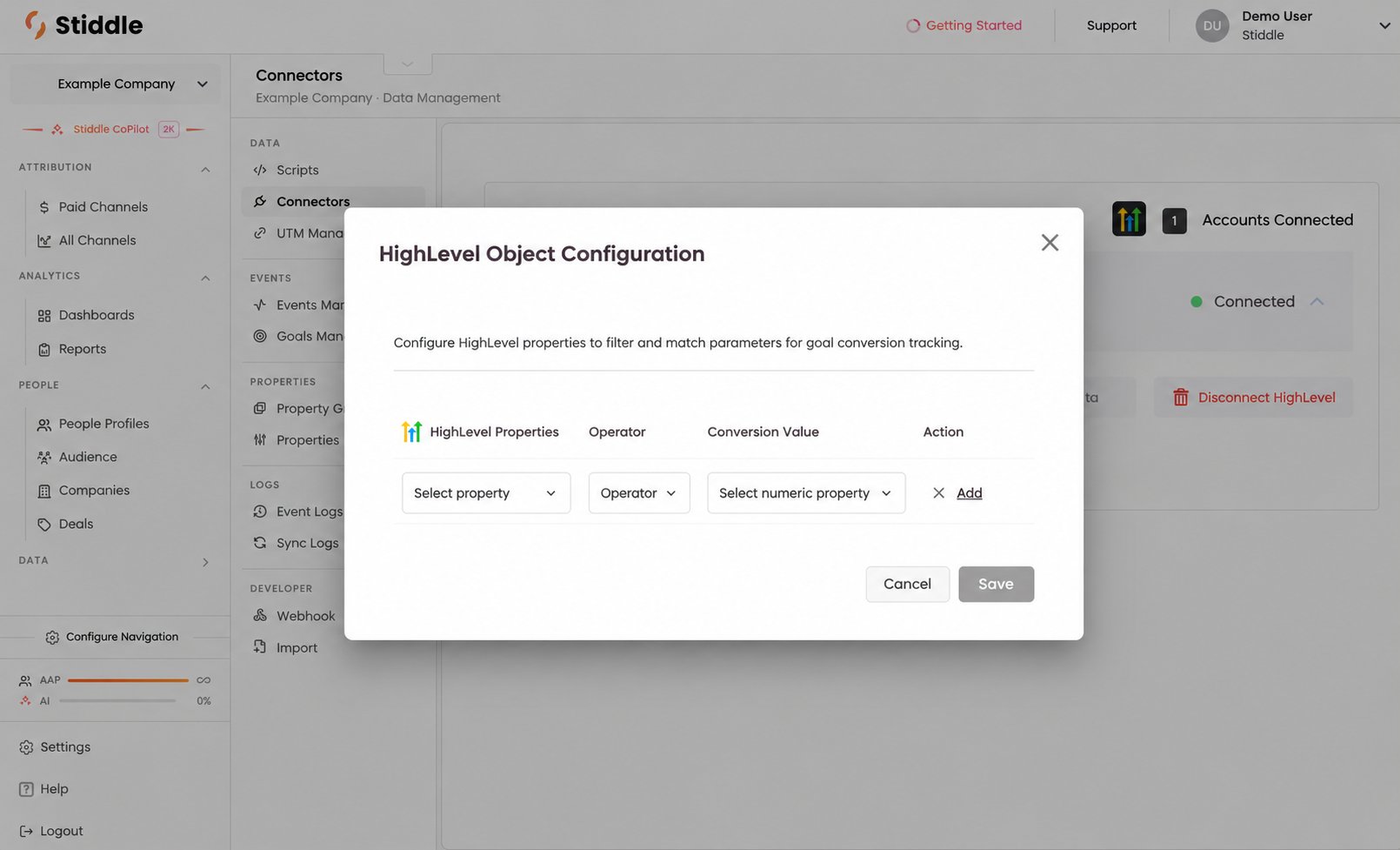
Set a property-based rule and optional conversion value
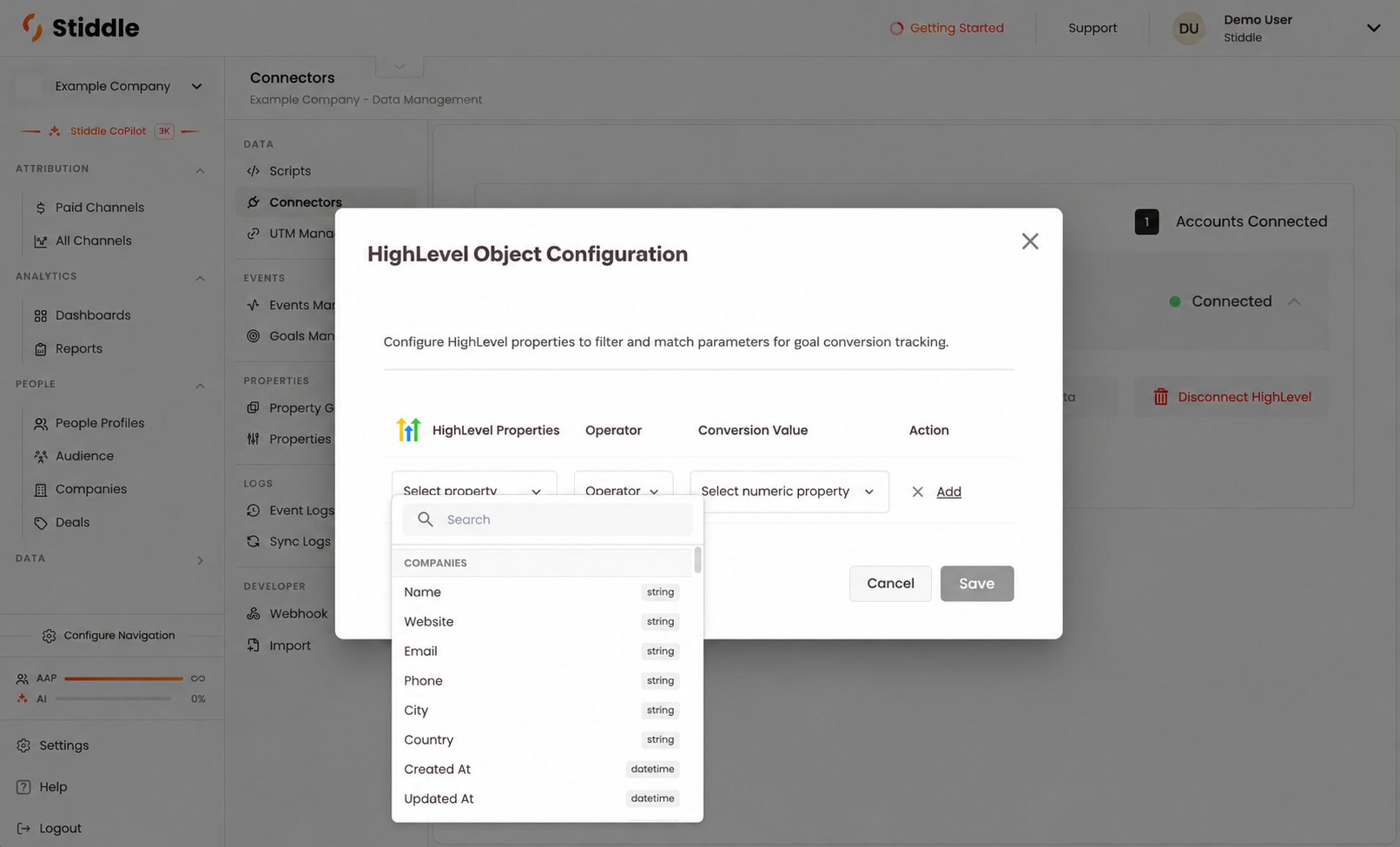
Choose a source property from the customer company fields
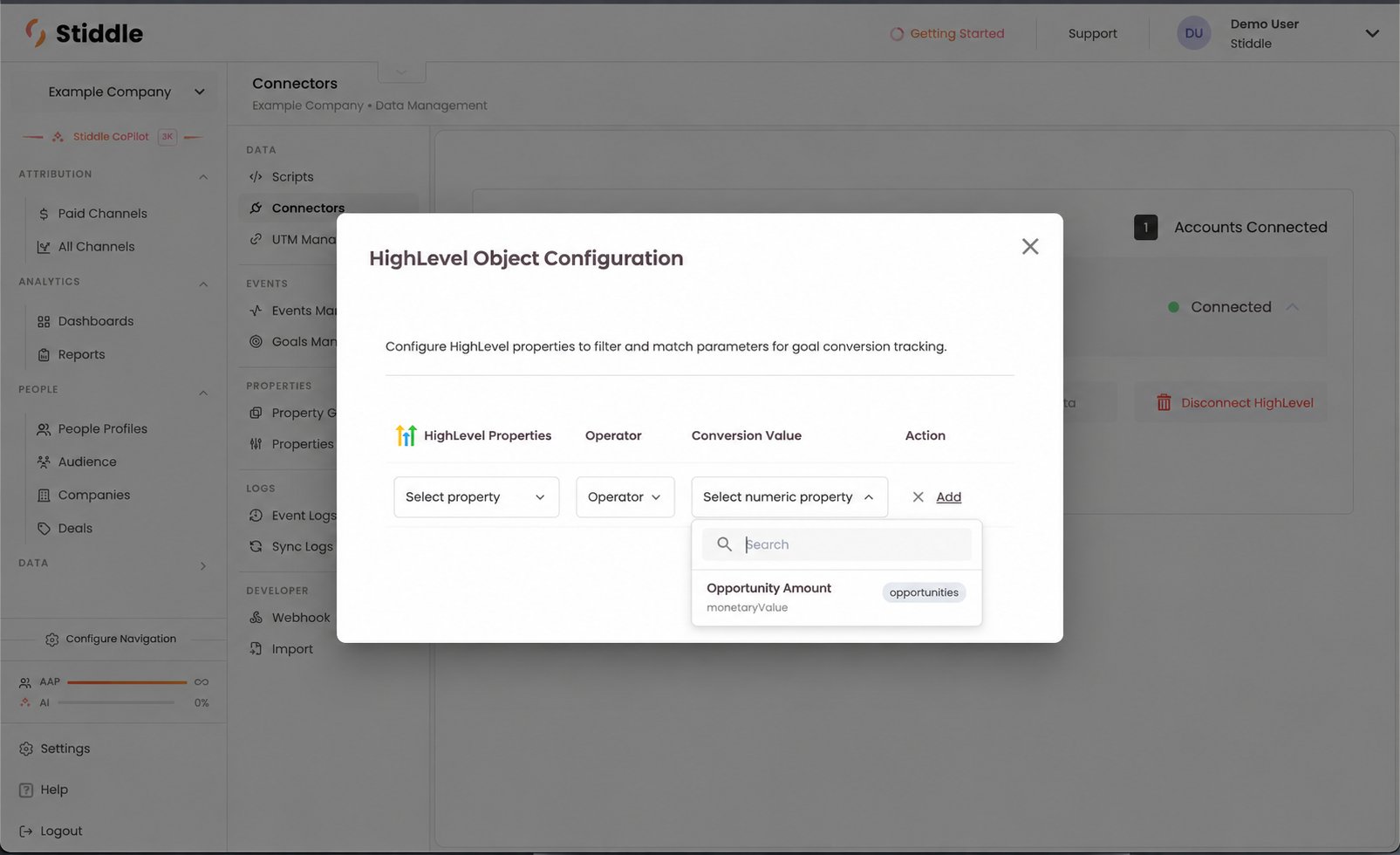
Choose an opportunity amount as the numeric conversion value
Create a contact or company event
- Open Data → Events Manager and choose Create Event.
- Enter a clear name, such as HighLevel Contact Created, and an event ID, such as
ghl_contact_created. - Select CRM Event as the event type and HighLevel as the source.
- Choose CRM Event or the relevant property group.
- Select the record action, such as Contact Created. For a company event, select the company action.
- Save, create a test record in HighLevel, and confirm the event in Event Logs with the correct person and company.
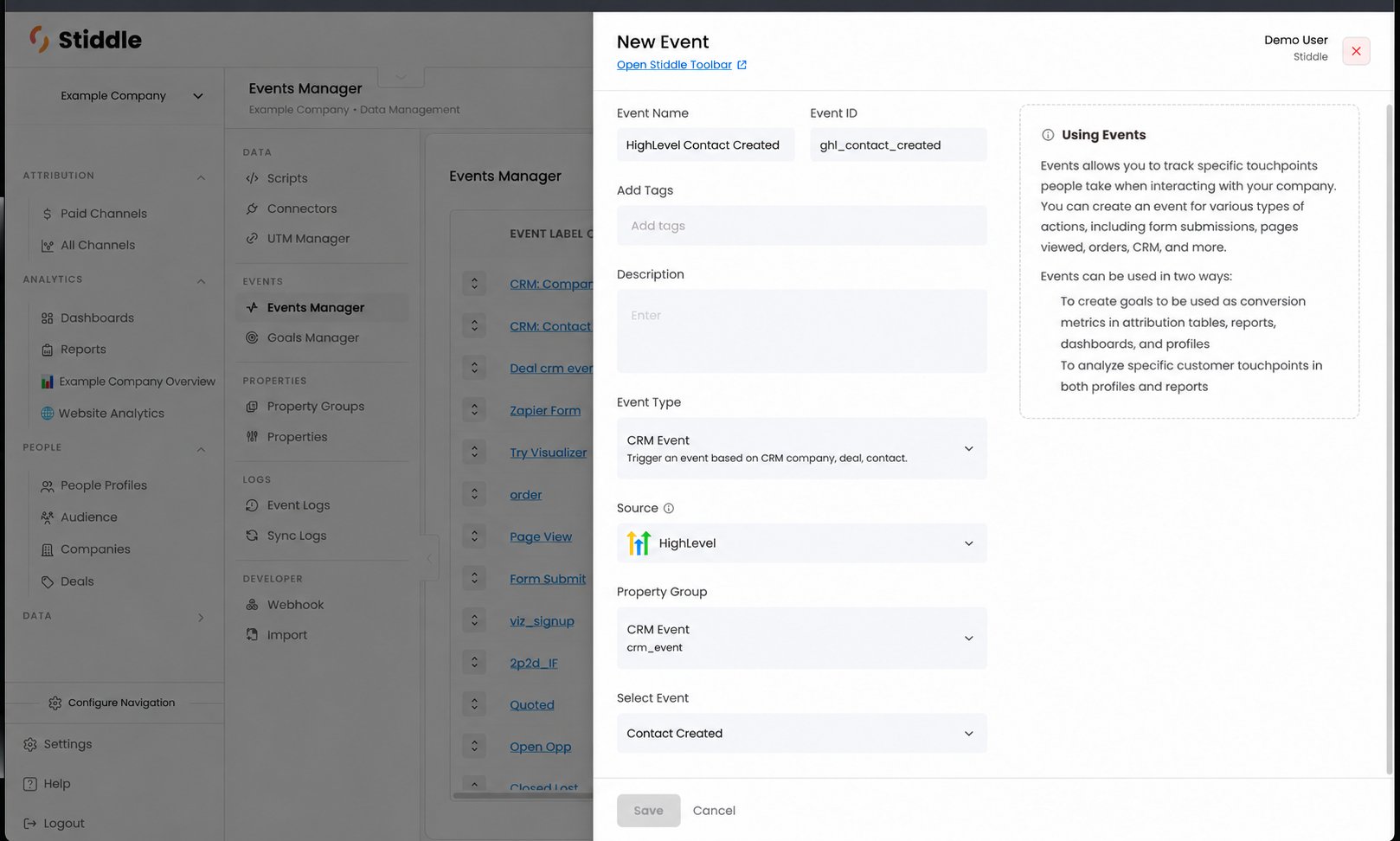
Define a CRM event sourced from HighLevel
Create an opportunity stage event
- Choose Create Event and select CRM Opportunity.
- Select HighLevel as the source and CRM Opportunity as the property group.
- Choose the pipeline, for example New Business, then the stage, for example Qualified.
- Name the event HighLevel Qualified Opportunity with the event ID
ghl_qualified_opportunity. - Save, move a test opportunity into Qualified, and check the event in Event Logs.
- Confirm the event links to the opportunity, its contact and its company.
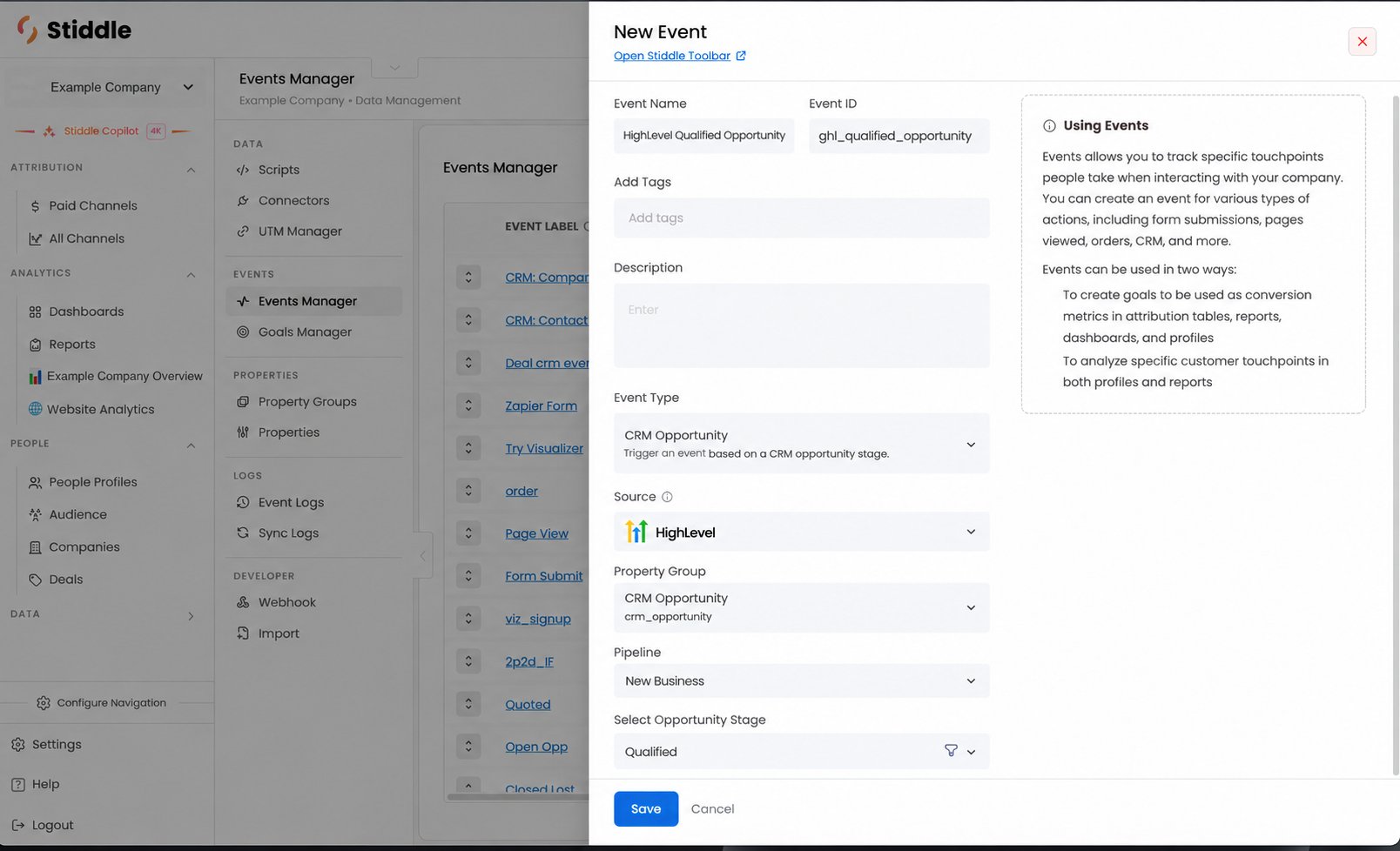
Select the HighLevel pipeline and qualification stage
Stage vs. status
A pipeline stage shows where an opportunity sits in your sales process. Opportunity status shows whether it is open, won, lost or abandoned. A stage named Closed Won doesn’t by itself mean the status changed to won.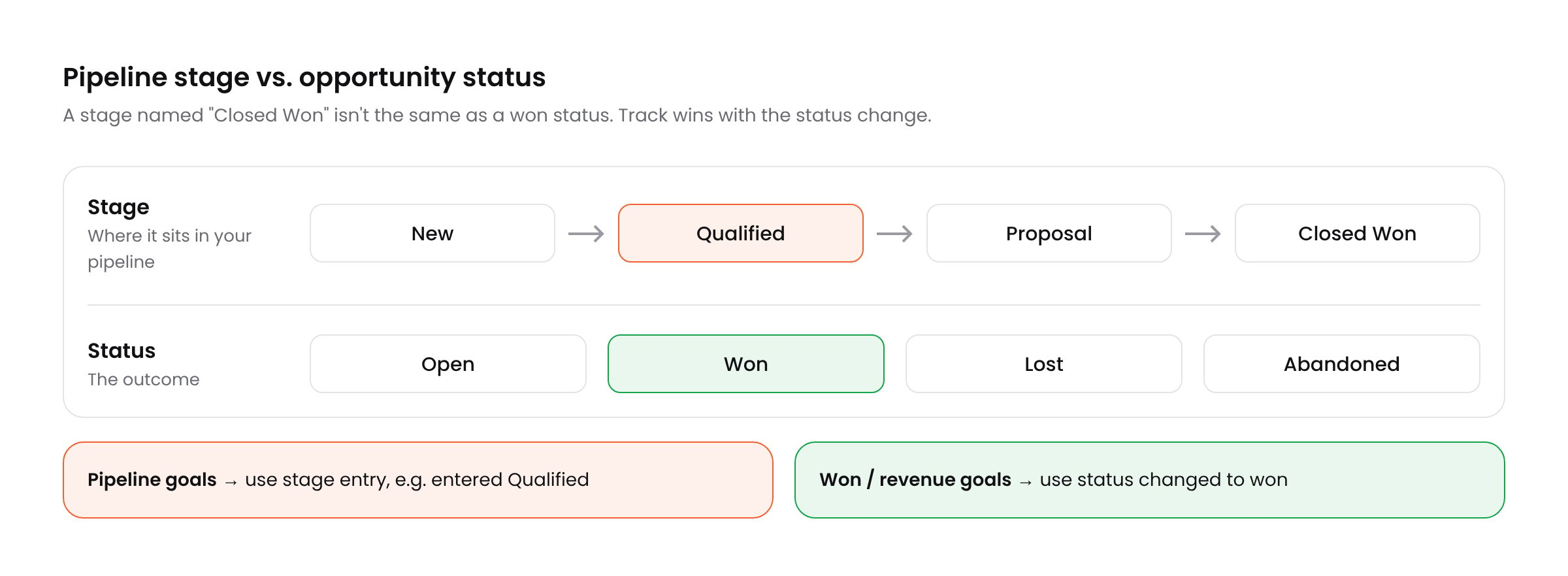
Use stage entry for pipeline goals and status for won goals
Suggested event plan
Pipeline and revenue goals
A goal tracks an outcome, such as a lead becoming qualified, an opportunity being opened, or a deal being won. It uses one or more events and can carry a value, such as pipeline value or revenue. When a HighLevel opportunity enters a tracked stage, Stiddle links the event to the opportunity, its contact and its company. If the event matches a goal, it counts as a conversion and is attributed across the person’s marketing touchpoints and spend.Suggested goal plan
Configure a goal
- Open Data → Goals Manager and choose Create Goal.
- Enter a Goal Name, for example HighLevel Qualified Pipeline.
- Under Events, select HighLevel Qualified Opportunity.
- Set Goal Conversion Value to Opportunity Amount, a fixed value, or no value.
- Review View through Configuration if it applies to your attribution setup.
- Under Advanced, choose whether to include matching events that already exist in Stiddle. This doesn’t recreate stage history from before the connection.
- Save, then test with a sample opportunity.
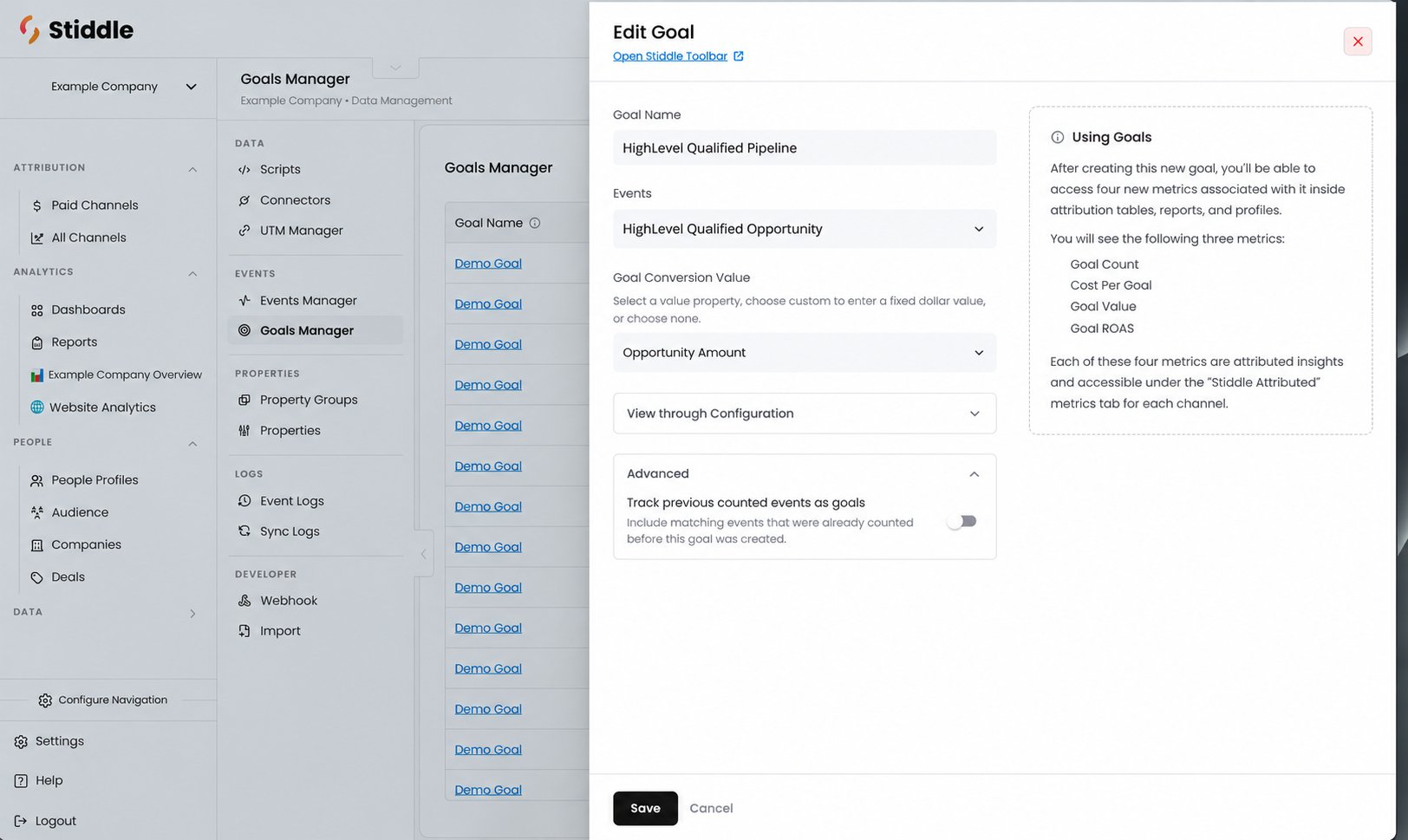
Use a pipeline event as a goal and select Opportunity Amount
Counting and value
Decide what each goal counts before reporting: events, unique opportunities, individuals or customer companies. One person can have several opportunities, and an existing customer can win another deal, so only label a won-opportunity count as “new customers” if it excludes repeat wins. Also decide whether goals count only the first time an opportunity enters a stage or every time, how reopened deals behave, and whether later amount changes should update past goal value. Don’t add Qualified, Proposal and Won values together and call the total revenue. They can be the same opportunity at different steps. Use stage goals for pipeline analysis and a separate won goal for revenue.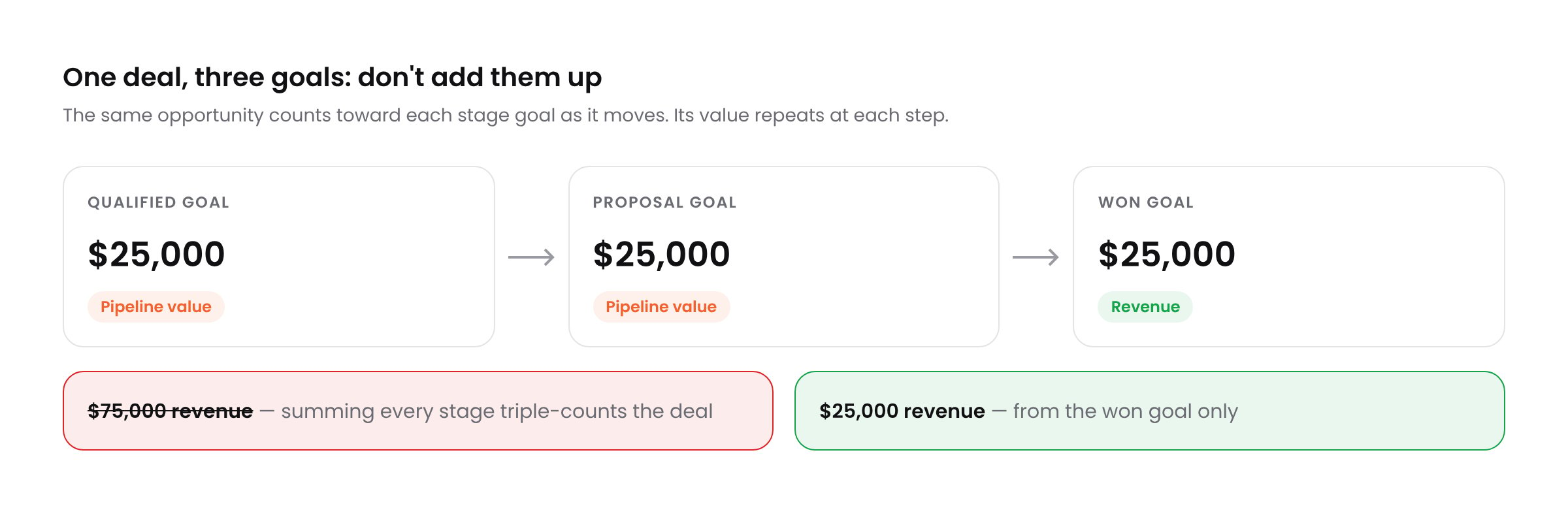
The same deal's value repeats across stage goals
Attribution and acquisition costs
Once events and goals are set up, Stiddle connects outcomes to each person’s marketing journey and their account and opportunity. With spend data connected, you get cost-per-outcome reporting. Your attribution model decides how credit and value are shared across touchpoints.Example
One reporting cohort has $12,000 in marketing spend, 40 opened opportunities, 20 opportunities entering Qualified, and 8 newly acquired customer companies. The qualified opportunities carry $100,000 of pipeline value, and the customer wins carry $40,000 of revenue.Alternative ingestion routes and sync back to HighLevel
The managed connector is the standard setup. API, webhook, CSV and warehouse routes are available for custom deployments. Use one route per dataset and one consistent record key so overlapping feeds don’t create duplicate events.API and webhook integration
For a custom integration, send data through the Stiddle ingestion API and authenticate to HighLevel separately. Fetch every page of records across all opportunity statuses, keep location and record IDs, and set the HighLevelVersion header for each endpoint.
X-GHL-Signature header on every delivery, route by location ID, and deduplicate retries using the delivery ID. In stage and status notifications, dateAdded is when the record was created, not when the stage changed, so use the transition or received time as the event time.
See HighLevel’s webhook integration guide.
CSV import
For a one-time backfill, export contacts, customer businesses and opportunities as separate files. Include location IDs, record IDs, relationship keys, timestamps, and stage and value fields. Import each file through Data → Import with the matching record type, choose how duplicates are handled, preview the mappings and check dates before importing.Warehouse connection
If your HighLevel data is already in a warehouse, use curated tables with the same keys and relationships described above. Include modification times, deletion markers where available, and pipeline definitions. A current snapshot doesn’t include stage history unless you also keep a change-history table.Sync back to HighLevel
Sending Stiddle data back to HighLevel is set up separately from the inbound sync. Common uses:- Write a Stiddle profile link or engagement summary to a contact custom field.
- Update an account score in a custom field.
- Apply or remove a tag based on Stiddle audience membership.
- Add a contact note with selected activity history.
contacts.write, opportunities.write or businesses.write) for the operations you enable. Stiddle matches existing records by location and record ID and doesn’t change CRM-owned fields such as stage and amount. Audience tags are added and removed as membership changes, and other tags are left alone. Test on a small set of records first. Contact your Stiddle team to enable sync back.
Validation and troubleshooting
Use Data → Sync Logs to confirm records arrived, Event Logs to confirm events fired, and Goals Manager or reports to confirm conversions. A record update on its own doesn’t mean a goal should have counted.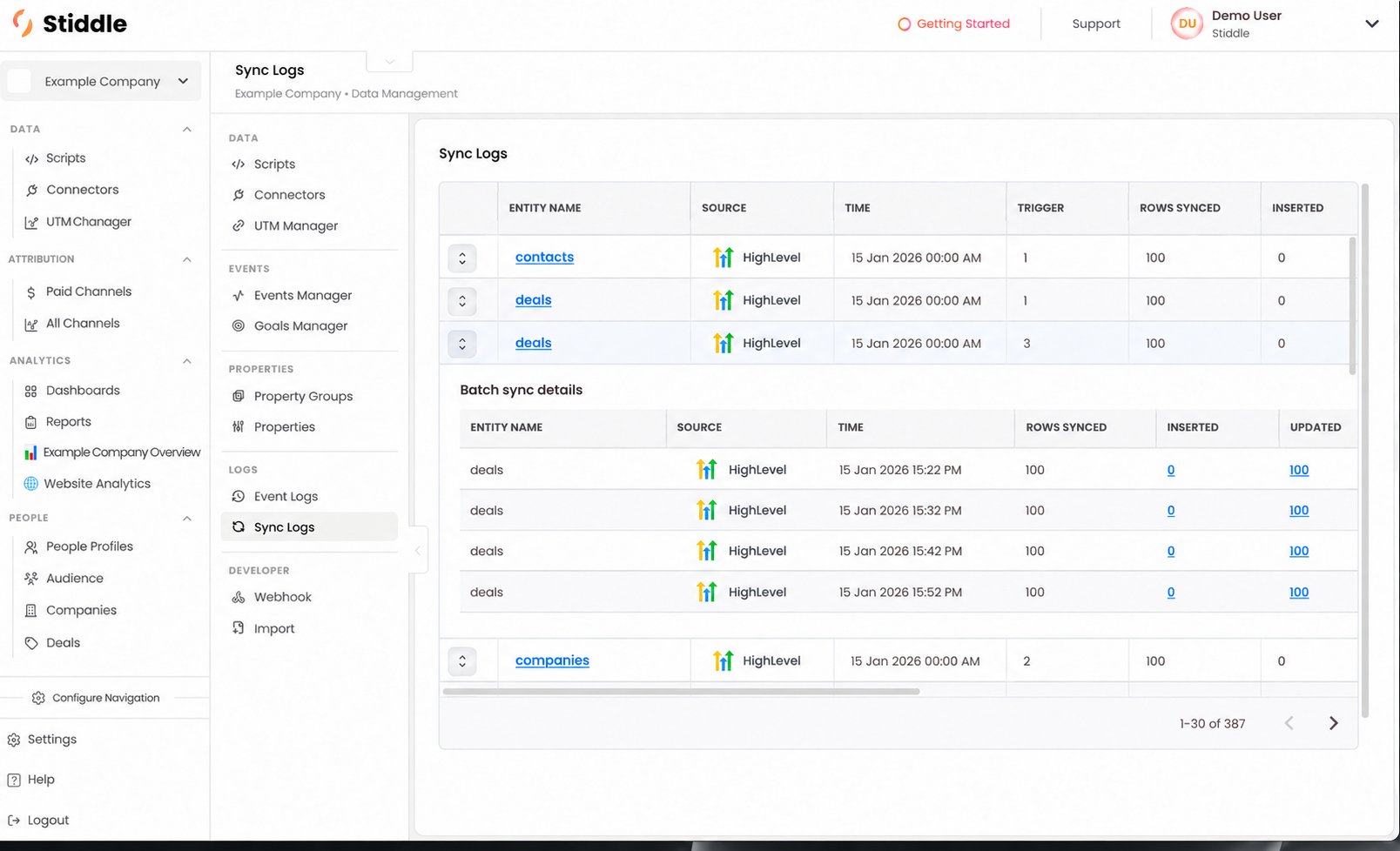
Review HighLevel sync activity and batch results
Read a sync result
Each sync log shows the connection, location, record type, sync time and batch result. Rows synced, inserted and updated count record operations, not new leads, stage changes or customers. Open a batch to compare previous and current property values for a record. In the example below, an opportunity stays open at $25,000 while its stage changes from New to Qualified. That stage change matches a Qualified event; an update that only changes a timestamp doesn’t.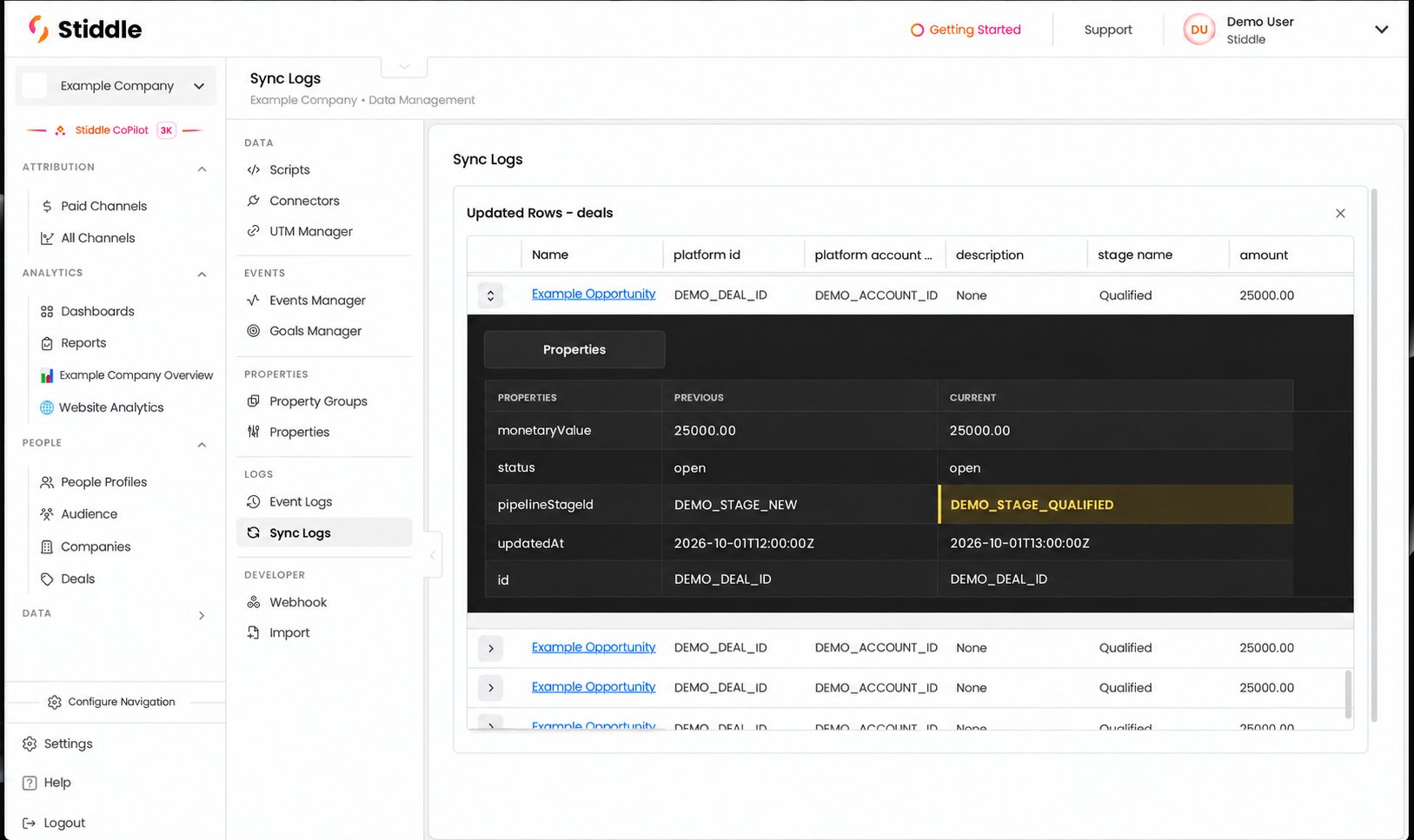
Inspect an opportunity moving into the Qualified stage